MongoDB SSH
MongoDB is a NoSQL database that stores JSON-like documents.
Connection Properties
The config section in a YAML file includes the following properties:
connectorname: MongoDBSSH
    config:
      connection_url: mongodb://dbuser:passwd@host:port
      database: databasename
      ssh_host: ssh_hostname
      ssh_port: ssh_port
      ssh_user: ssh_username
      ssh_private_key_path: privatekey
    select:
      - tablename
Example Configuration
version: 1.0.1
encrypt_credentials: false
plugins:
  extractors:
    - name: MongoDBSSH
      connectorname: MongoDBSSH
      config:
        connection_url: mongodb://dbuser:passwd@host:port
        database: databasename
        ssh_host: ssh_hostname
        ssh_port: ssh_port
        ssh_user: ssh_username
        ssh_private_key_path: privatekey
      select:
        - tablename
Here are the typical ways to configure MongoDB and their connection URLs:
Typical Ways to Configure MongoDB and Their Connection URLs
| Name | Description | Connection URL Example | SSH Considerations |
|---|---|---|---|
| Local Installation | Install on Windows, macOS, Linux using official packages. |
mongodb://dbuser:[email protected]:27017 |
Not needed if local |
| Docker | Deploy using the MongoDB Docker image. | mongodb://dbuser:[email protected]:27017 |
Use SSH to access a remote Docker host |
| MongoDB Atlas | MongoDB’s managed service on AWS, Azure, and Google Cloud. | mongodb+srv://dbuser:[email protected] |
SSH is not required (TLS used) |
| Managed Cloud | AWS DocumentDB, Azure Cosmos DB, and others offer MongoDB as a managed database. |
mongodb://dbuser:[email protected]:27017 |
Typically accessed via VPC; SSH if required |
| Configuration Tools | Use Ansible, Chef, or Puppet for automated setup and configuration. |
mongodb://dbuser:[email protected]:27017 |
SSH may be required for remote execution |
| Replica Set | Set up for high availability with data replication across multiple MongoDB instances. | mongodb://dbuser:[email protected]:27017 |
SSH needed for secure remote access |
| Sharded Cluster | Scalable distribution of datasets across multiple MongoDB instances. | mongodb://dbuser:[email protected]:27017 |
SSH needed for secure remote access |
| Kubernetes | Deploy on Kubernetes using Helm charts or operators. | mongodb://dbuser:[email protected]:27017 |
Use kubectl port-forward or SSH to cluster nodes |
| Manual Tarball | Install directly from the official MongoDB tarball, typically on Linux. | mongodb://dbuser:[email protected]:27017 |
SSH typically required for remote servers |
Configure the Bold Data Hub to connect MongoDB via SSH
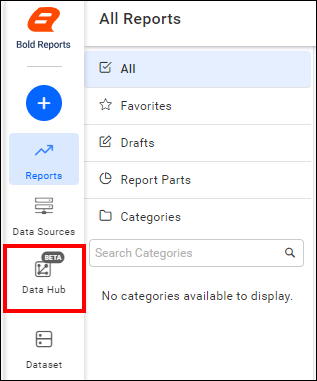
- Click the
Data Hubicon on the Navigation Pane.
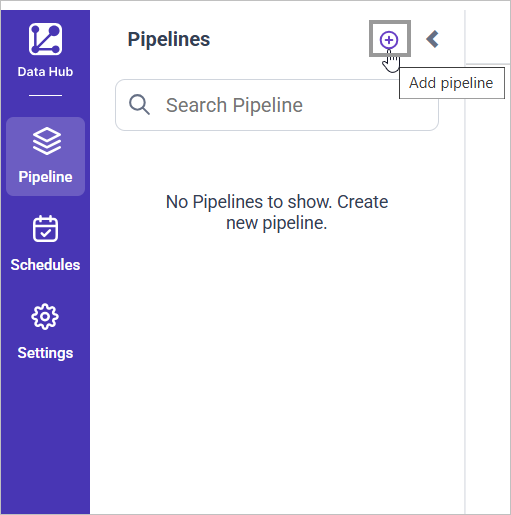
- Click
Add Projectand provide the new project’s name.
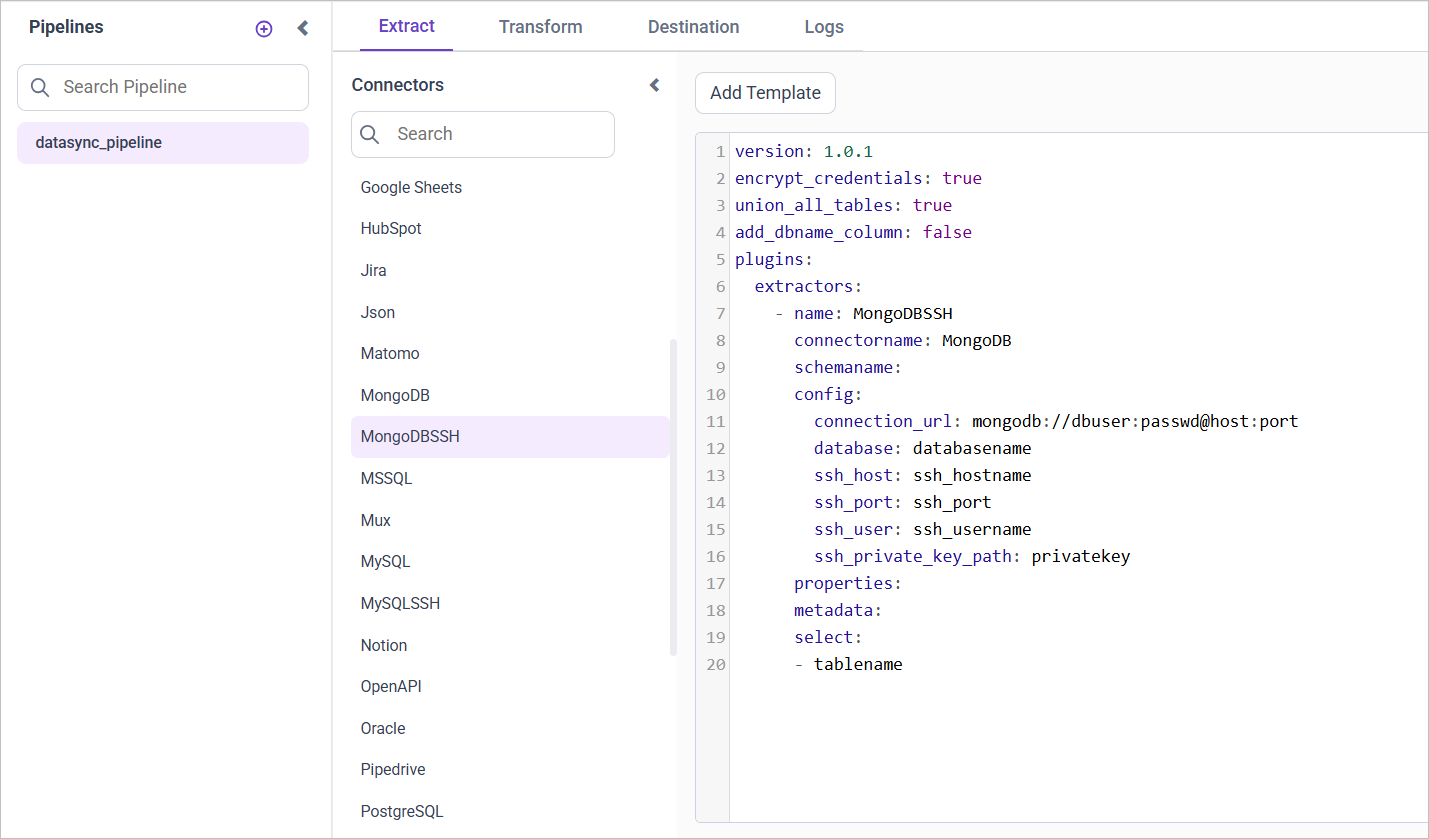
- Select the newly created project and add the
MongoDBSSHtemplate.
Configuration Parameters
| Parameters | Description |
|---|---|
| Name: | MongoDBSSH |
| Connector Name: | MongoDBSSH |
| Connection URL: | Specify the connection URL for the MongoDB server in the format mongodb://dbuser:passwd@host:port. |
| Database: | Specify the name of the MongoDB database from which data will be extracted. |
| Select: | Tablename(s): Specify the table name list to load tables from the MongoDB server. |
| SSH Host: | Specify the SSH hostname for connecting to the MongoDB server. |
| SSH Port: | Specify the SSH port number. |
| SSH User: | Specify the SSH username. |
| SSH Private Key: | Specify the path to the SSH private key file for authentication. |
Note: MongoDBSSH doesn’t support Incremental or Full Table Refresh
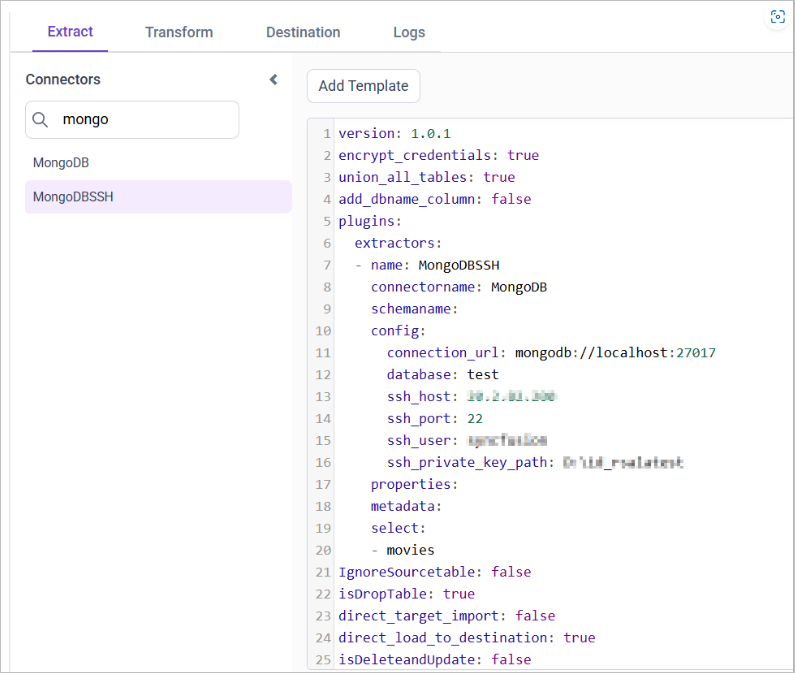
- Update the details required in the template and Click Save, choose the desired destination to save the pipeline.
- Creating a Pipeline in Bold Data Hub automatically creates a Data Source in Bold Reports®. The Bold Reports® Data Source is a live data source to the destination database used in Bold Data Hub.
Schedule Bold Data Hub Job
- To configure interval-based scheduling, click on the schedules tab and select the created pipeline and click on the schedule icon and configure it.


- For on-demand refresh, click
Run Nowbutton.
 .
.
- The Schedule history can be checked using the history option as well as logs.
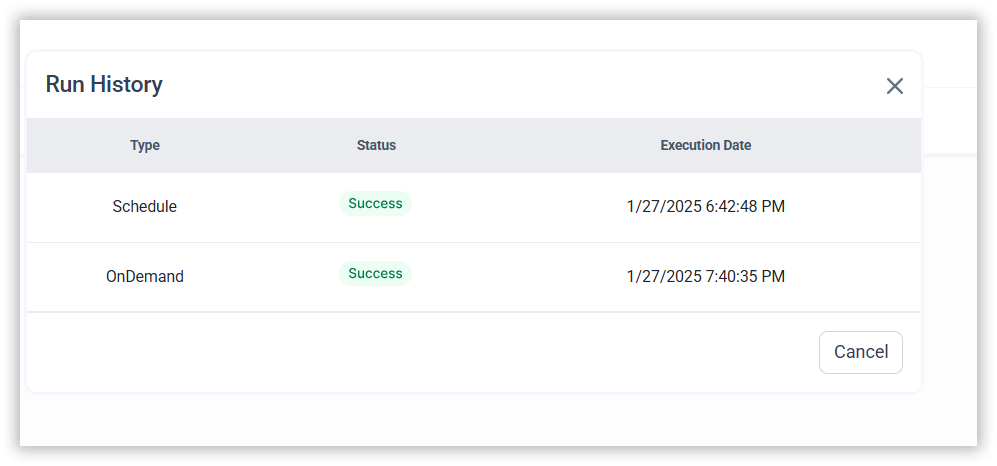
- Click on Logs to see if the run is completed and data source is created in Bold Reports®.

- Click
Edit DataSourceOption to view the created tables.
Note: isdatapersist and previous_intervalmin are not applicable in mongodb.