Connect Google Sheets with Bold Data Hub
The Bold Data Hub Google Sheets connector loads spreadsheet data from Google Sheets into Bold Reports®. Google Sheets is a cloud-based spreadsheet application in the Google Workspace suite. You can authenticate with OAuth or with a service account.
Service Account Credential
Service account credentials for the Bold Data Hub Google Sheets connector are better suited for server-to-server interactions. Therefore, we recommend using service account credentials.
Google Service Account Credentials
You get Google service account credentials for Bold Data Hub from the Google Cloud console of your GCP account.
-
Sign in to https://console.cloud.google.com.

-
Create a service account if needed.
-
Enable the Google Sheets API (refer to Google documentation for comprehensive instructions).
-
Generate credentials:
- Go to IAM & Admin in the console’s left panel, then choose Service Accounts.
- Locate the service account you plan to use, and click the three-dot menu under the Actions column next to it.
- Create a new JSON key by selecting Manage Keys > ADD KEY > CREATE.
- Download the “.json” file containing the necessary credentials for future use.
Connection Properties
The Google Sheets connector in Bold Data Hub reads the following properties from the config section of a YAML file:
Connectorname: GoogleSheets
project_id: Project ID
client_email: Client Email
private_key: Private Key
spreadsheet_url_or_id: Spreadsheet URL or ID
Range_names: Ranges of the names
spreadsheet_identifier: `spreadsheet_identifier = "https://docs.google.com/spreadsheets/d/1VTtCiYgxjAwcIw7UM1_BSaxC3rzIpr0HwXZwd2OlPD4/edit?usp=sharing"`
Example Configuration
The following Bold Data Hub YAML template shows a complete Google Sheets extractor configuration:
version: 1.0.1
encrypt_credentials: false
plugins:
  extractors:
    - name: Google Sheets
      connectorname: Google Sheets
      config:
        project_id:
        client_email:
        private_key:
      properties:
        spreadsheet_url_or_id:
        # range_names value should be range_names: "range_name1", "range_name2"
        range_names:
How do I connect Google Sheets in Bold Data Hub?
You connect Google Sheets in Bold Data Hub with either OAuth authentication or service authentication.
OAuth Authentication with Google Sheets
OAuth authentication with Google Sheets in Bold Data Hub uses your client ID and client secret.
-
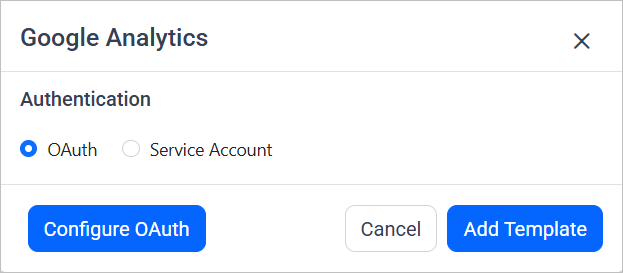
Double-click the connector. An Authentication Setup window opens.
-
Enter the Client ID and Client Secret and click Ok.
-
Click Allow in the authorization window to accept the scopes requested by Bold DataHub.
-
Update the project ID, client ID, and client secret in the template, and update the resources in the
propertiesproperty. -
Click Save and choose the destination to save the pipeline.

Creating a pipeline in Bold Data Hub automatically creates a data source in Bold Reports®. The Bold Reports® data source is a live data source to the destination database used in Bold Data Hub.

Service Authentication with Google Sheets
Service authentication with Google Sheets in Bold Data Hub uses the client email and private key from your service account.
-
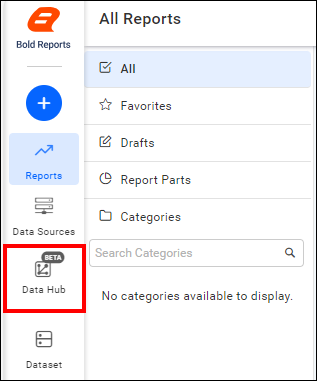
Click the
Bold Data Hubicon on the Navigation Pane. -
Click
Add Projectand enter a name for the new project.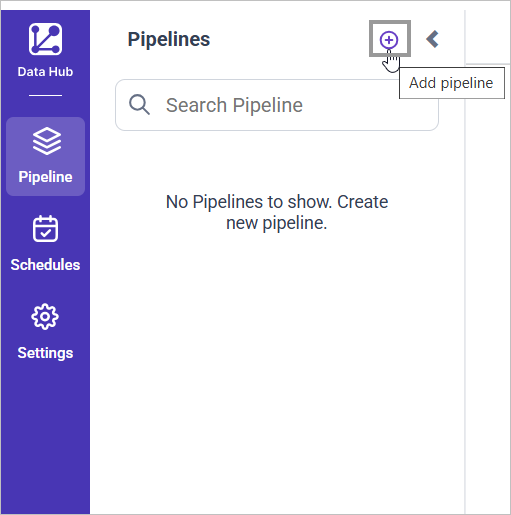
-
Select the newly created project and add the
Google Sheetstemplate.
-
Update the project ID, client email, and private key in the template. Also, update the resources in the
propertiesproperty and save it to the Data Store.
Warning:
1. The `Encrypt_Credentials` property should be set to false when updating the new access token on the template. If you have modified other properties, such as 'select' or 'account id', the `Encrypt_Credentials` property must be set to true.
2. The default lifetime of the access token is 1 hour. Therefore, you need to convert it to a long-lived access token to use the same token for 60 days. Existing tables should be maintained even if the token has expired or is being used as an invalid token.
How do I schedule the Google Sheets pipeline?
You schedule the Google Sheets pipeline in Bold Data Hub from the schedules tab, or you run it on demand.
-
To configure interval-based scheduling, click the schedules tab, select the created pipeline, click the schedule icon, and configure the schedule.


-
For an on-demand refresh, click the
Run Nowbutton.
-
Check the schedule history with the history option and the logs.
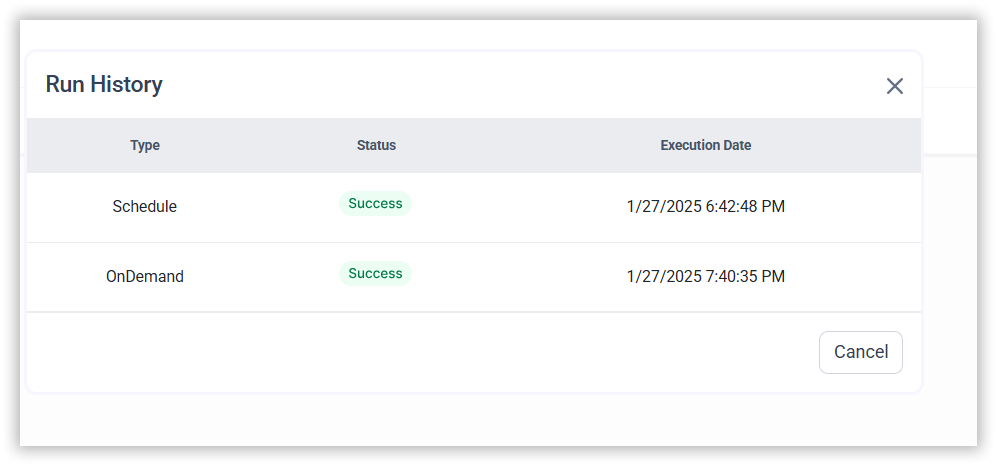
-
Click Logs to see whether the run is completed and the data source is created in Bold Reports®.
-
Click the
Edit DataSourceoption to view the created tables.
Frequently asked questions
Which authentication method is recommended for Google Sheets?
For the Bold Data Hub Google Sheets connector, service account credentials are recommended because they are better suited for server-to-server interactions.
How do I specify multiple ranges in the Google Sheets template?
Set the range_names value as a list, for example range_names: "range_name1", "range_name2".