Upgrade to the latest Bold Reports® Enterprise Edition version.
To upgrade the Bold Reports® Server VM to the latest source from older versions, follow these steps:
-
Open the downloaded .rdp file and click on
Connectwhen prompted with the unknown publisher warning.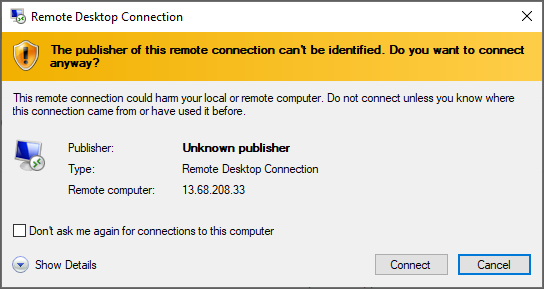
-
Enter the credentials provided when deploying the VM and click
OK.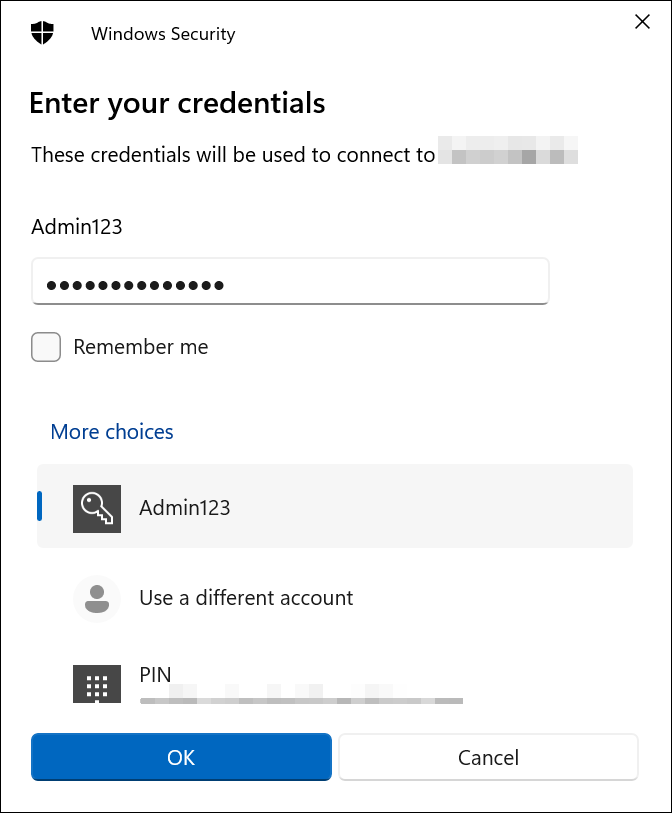
-
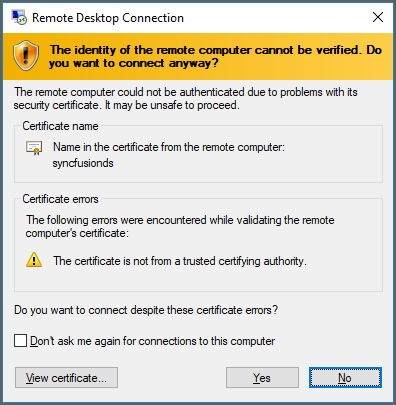
Upon a successful connection, an identity verification window will appear. Click Yes to accept the certificate problems and connect to the virtual machine.
-
Once connected to the virtual machine, follow the provided steps to upgrade the Bold Reports® Server to the latest version.
Upgrade Failure Notification
During an application upgrade, if a database script execution fails, the upgrade process continues without interrupting access to existing reports. In such cases, a notification banner is displayed indicating that the upgrade is still in progress and that some administrative actions may be temporarily unavailable until the issue is resolved.
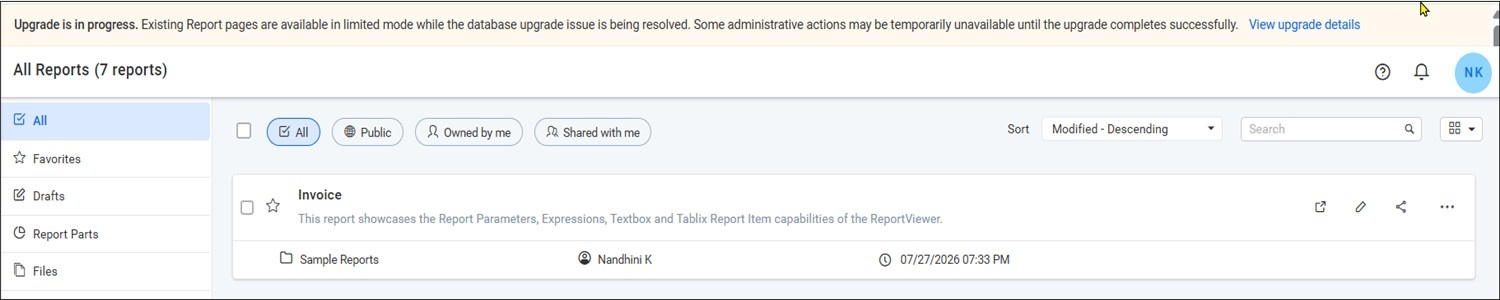
Click View upgrade details to view information about the upgrade failure, including the upgrade status, database provider, version details, failed script information, and error message.
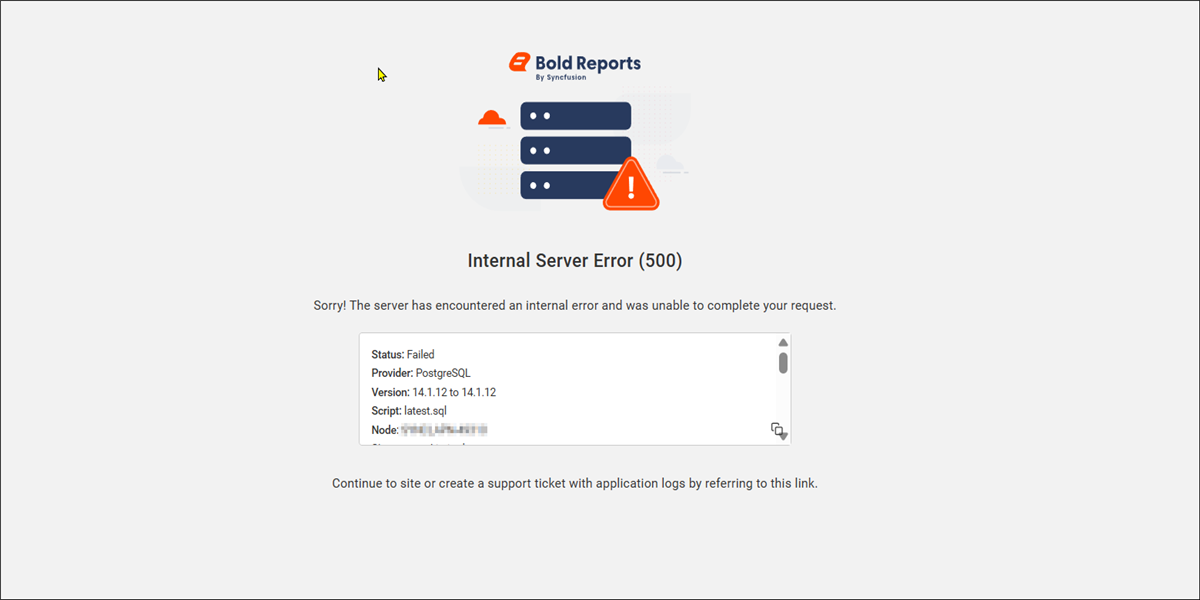
Note: If this notification banner is displayed, it indicates that the upgrade process encountered an issue. To resolve the issue, please contact us and share the upgrade-related logs with the support team for further investigation.
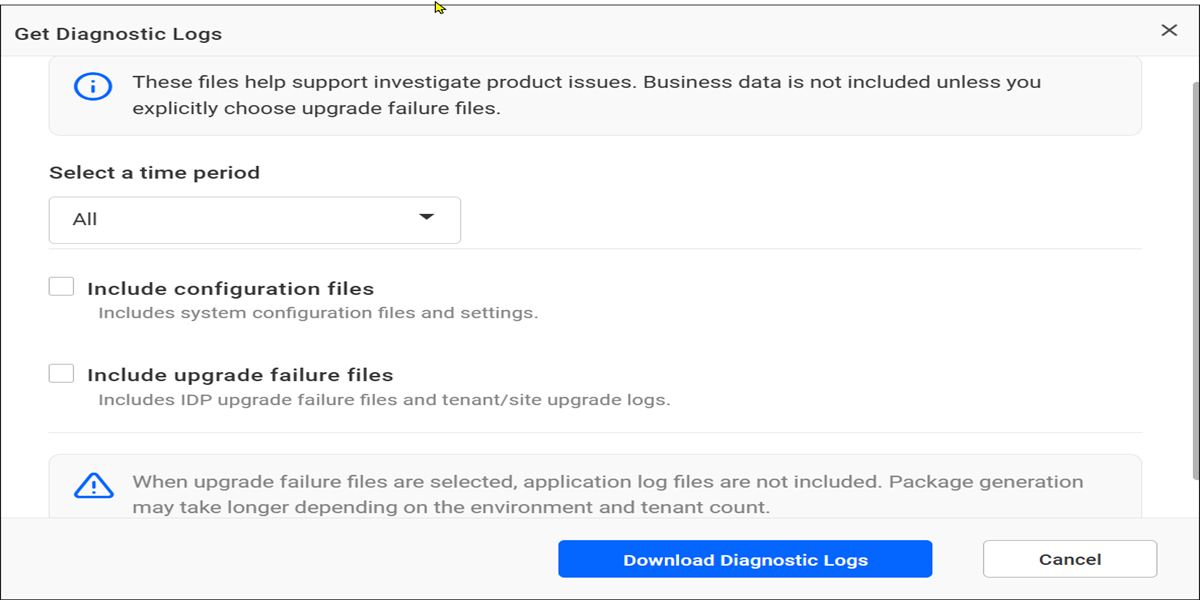
- Navigate to UMS > Sites, click the Help icon in the upper-right corner, and select Get Diagnostic Logs. Select Include upgrade failure files and click Download Diagnostic Logs to download the upgrade-related logs.