Upgrade Bold Reports® Enterprise Reporting version from 2.4.19 to latest
Follow these below steps to upgrade the Bold Reports® Azure App service version from 2.4.19 to latest.
-
Login to Azure Portal and select the Bold Reports® Azure App Service in Microsoft Azure Services.
-
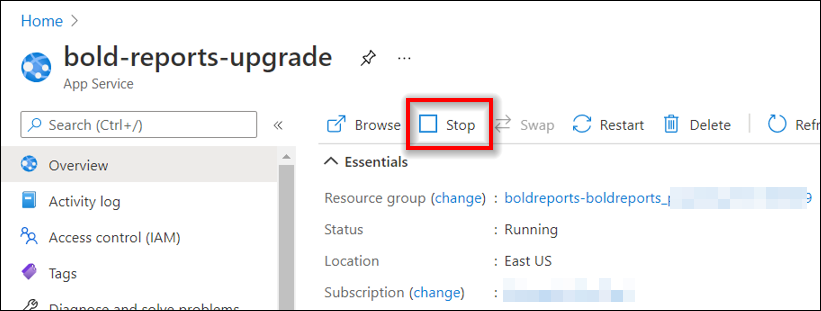
In the Overview section, click Stop.
-
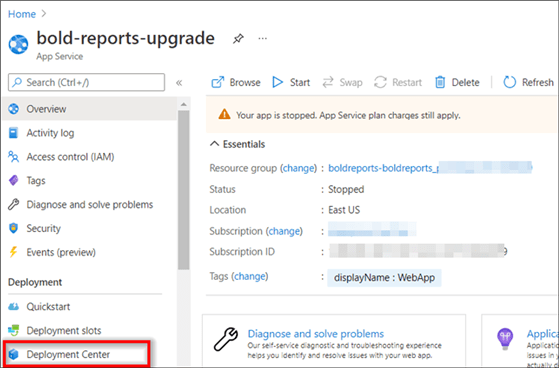
Choose Deployment Center in the left panel of the Bold Reports® Azure App service.
-
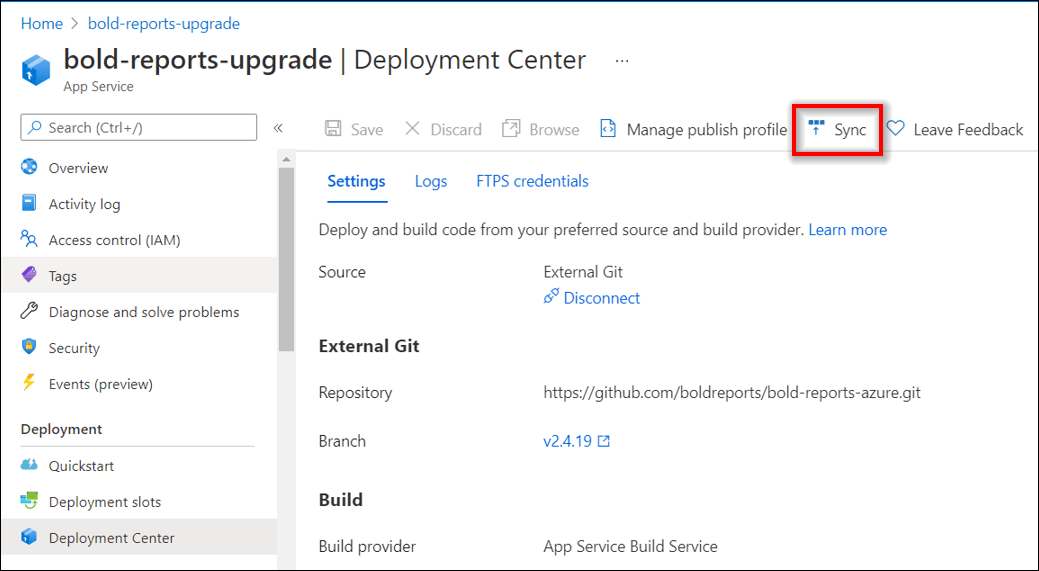
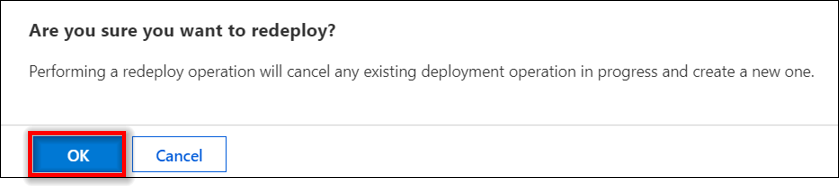
To upgrade v3.1.42, you need to migrate the v2.4.19 or v2.4.10 UMS blob resources to a new blob structure. For that, click Sync in the deployment center blade.
-
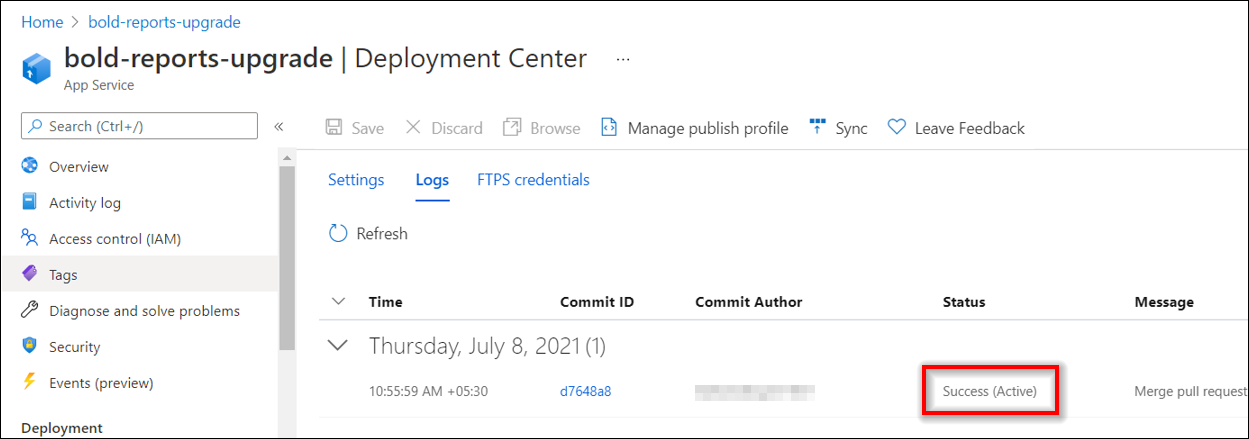
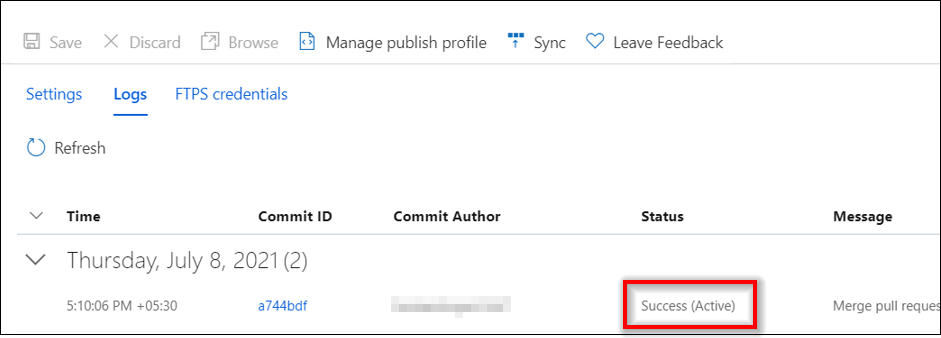
Check the deployment status in logs. Once, the deployment is completed successfully, the logs will show a success status.
-
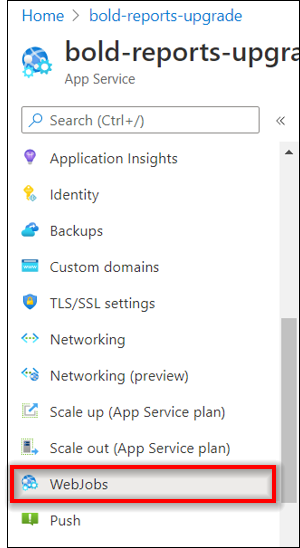
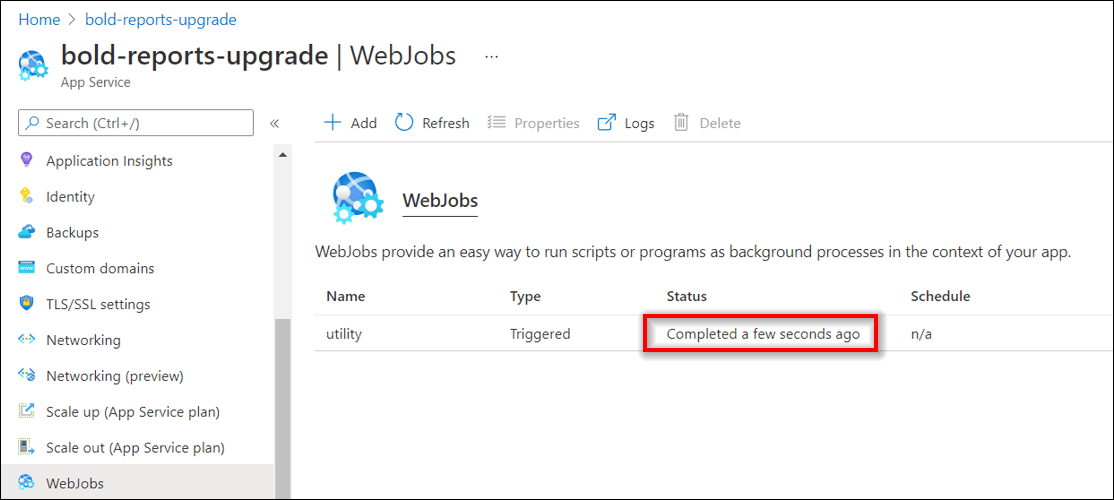
After successful deployment, navigate to WebJobs in the left panel of the Bold Reports® Azure App service.
-
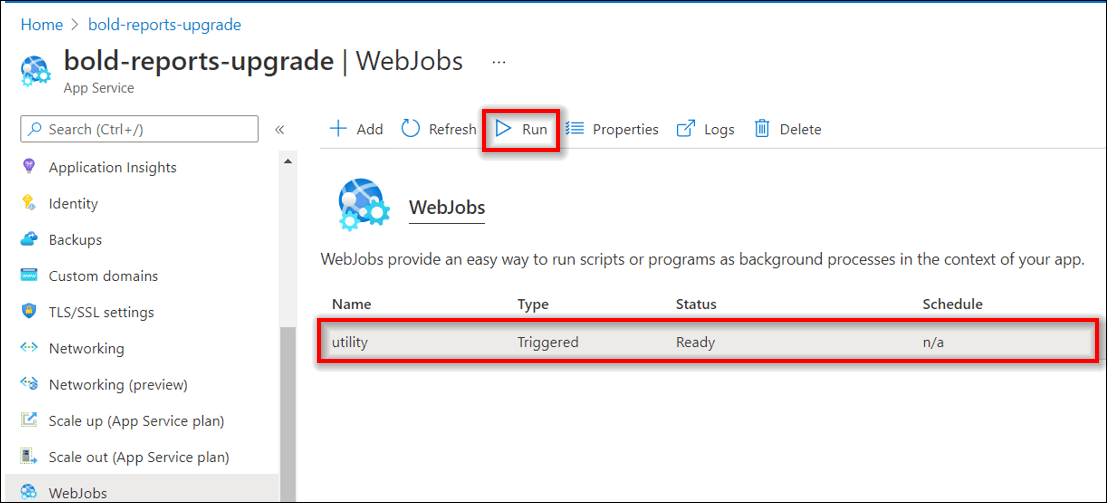
In the WebJobs, the migration utility will be available. Click ‘Run’ and wait to complete the migration.
-
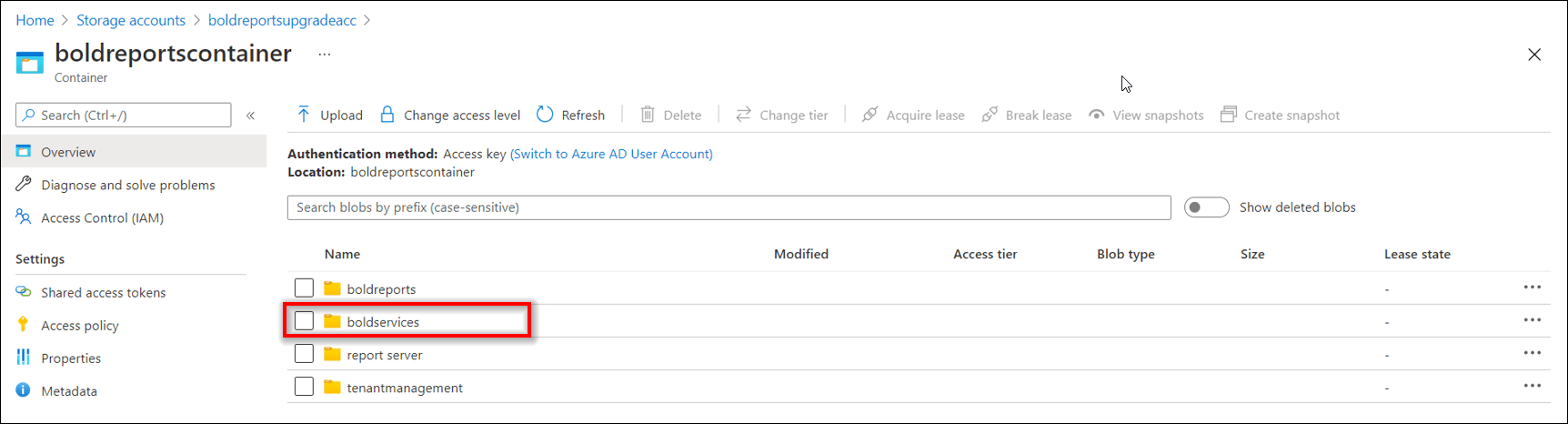
To ensure migration success, go to the blob container is used in the Bold Reports® Azure App service and check whether the following boldservices Blob is created or not.
-
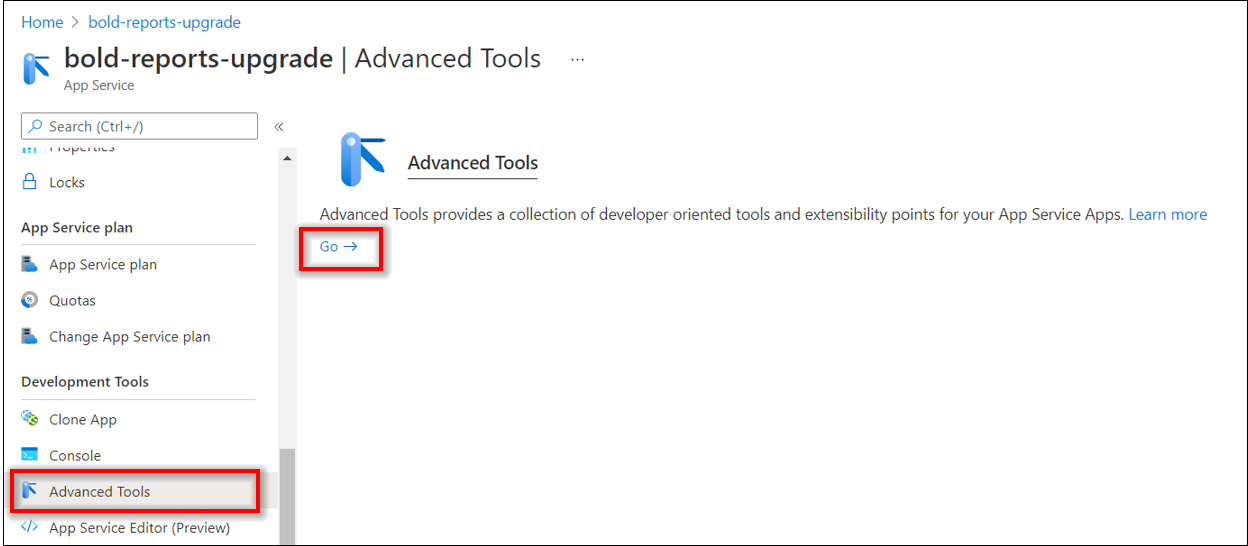
After the migration is completed, choose Advanced Tools in the left panel of the Bold Reports® Azure App service and click Go. It will open KUDU console.
-
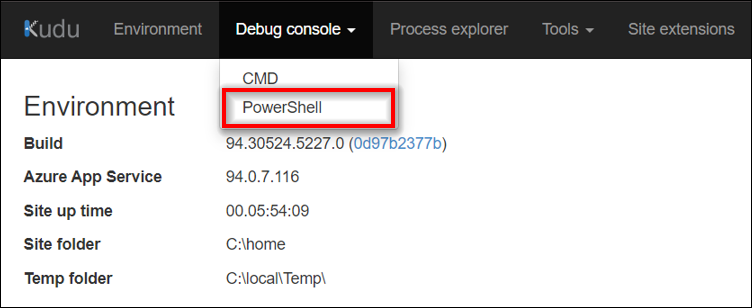
In KUDU console, click Debug Console and choose PowerShell.
-
In PowerShell, navigate to the path
C:\home\site\repository\.git.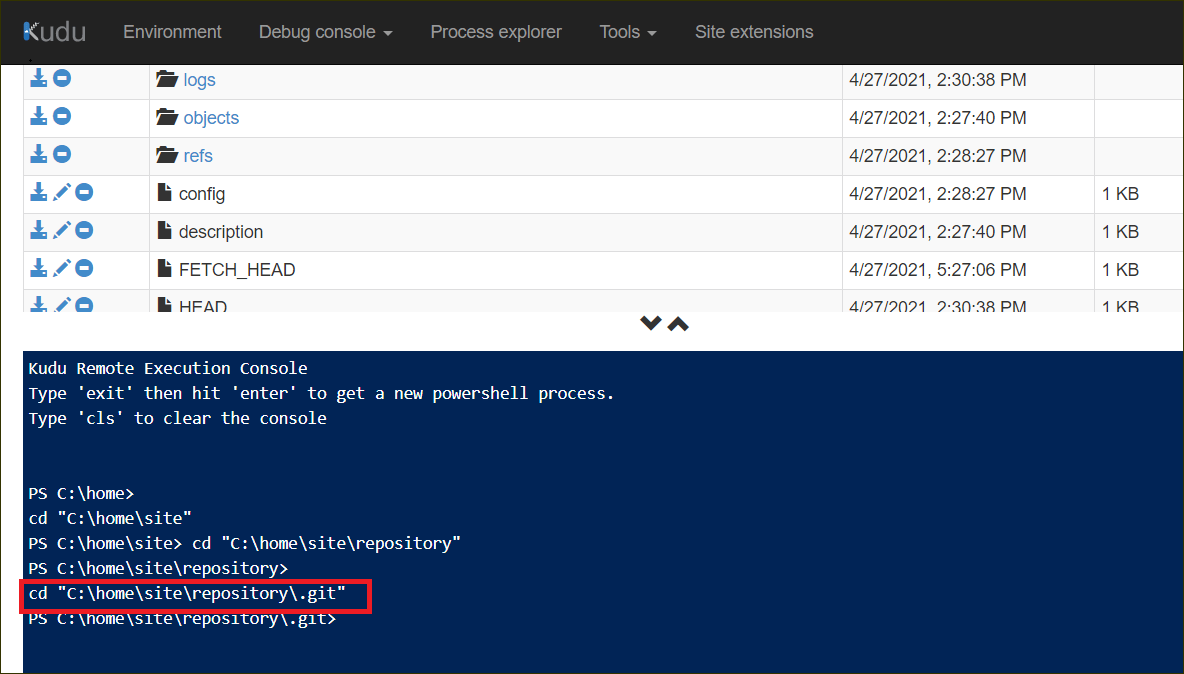
-
Run the git command
git remote rm origin.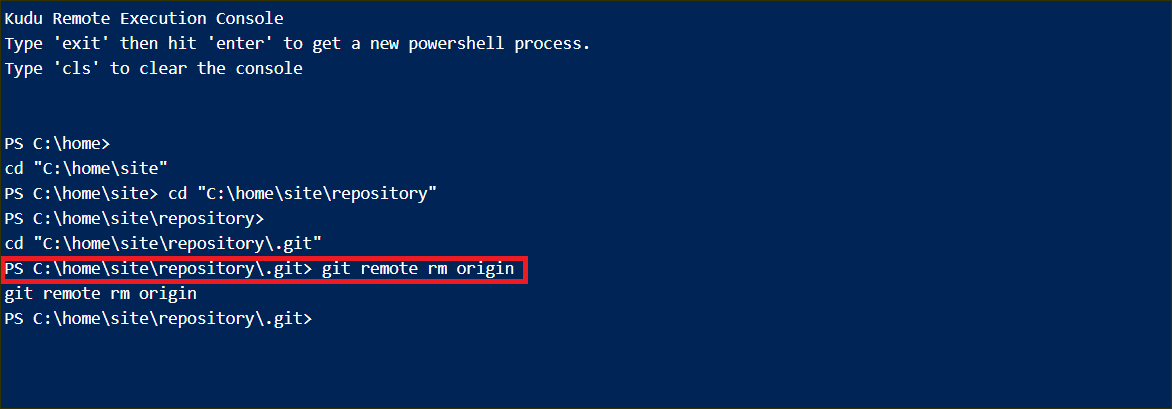
-
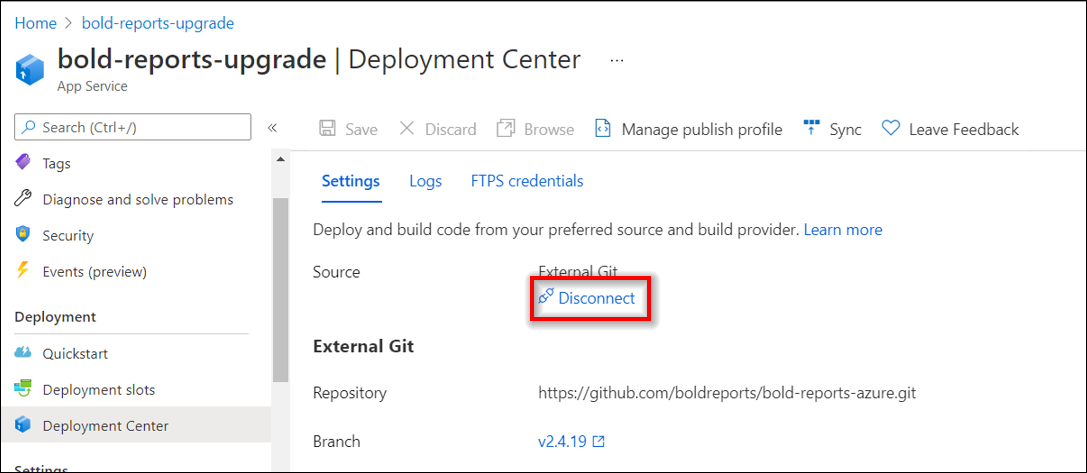
After running the command, go to the deployment center, click Disconnect. Now, the deployment option will open.
-
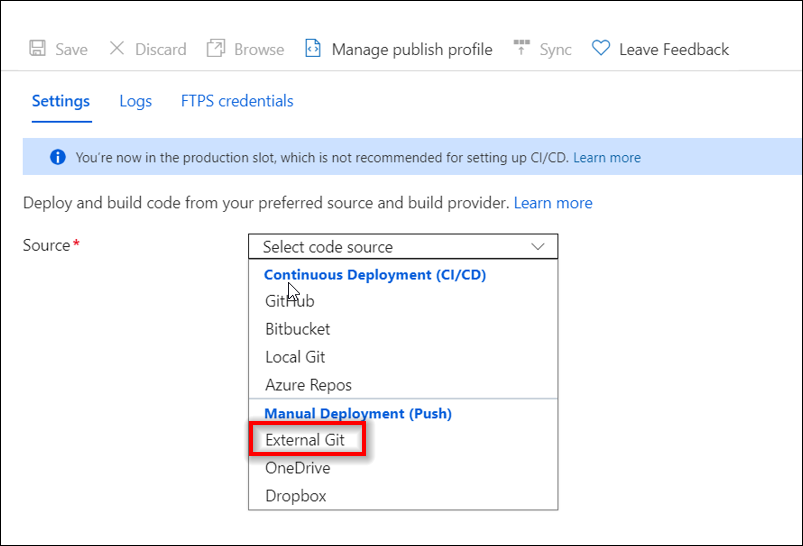
Select the External Git in the source option.
-
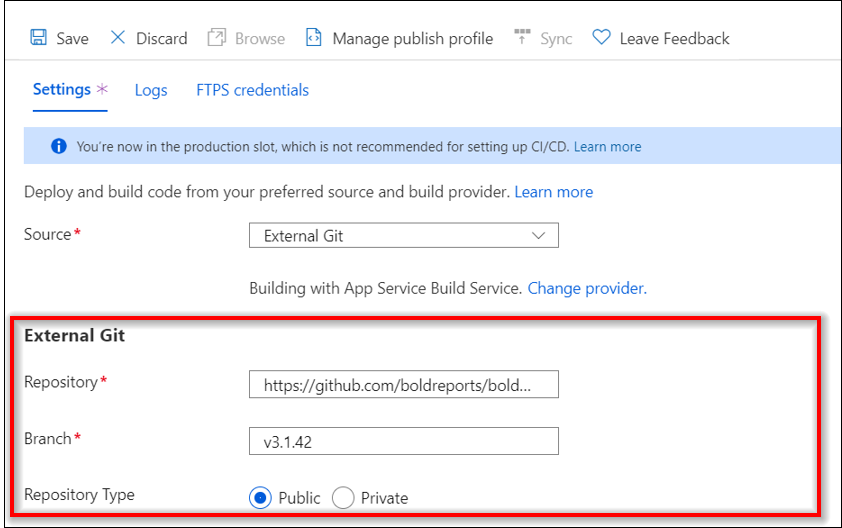
Now, in the External Git, fill out the following information.
Repository - URL
Branch - v3.1.42
Repository Type - Public
-
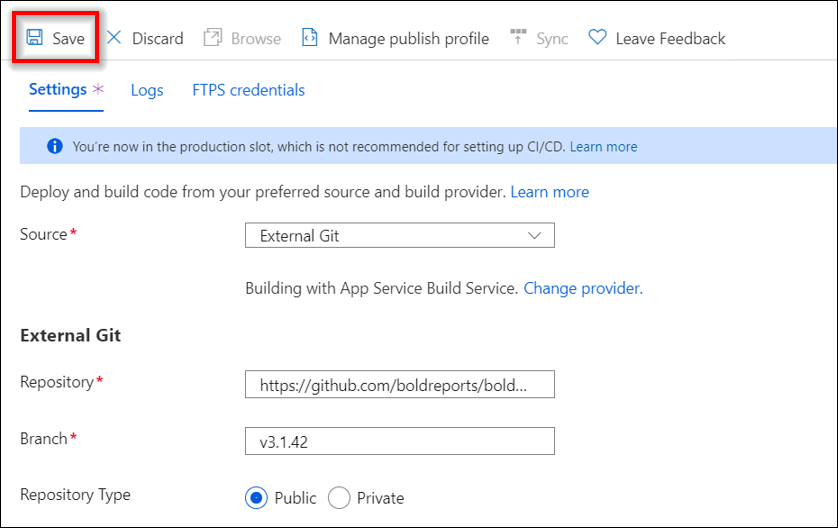
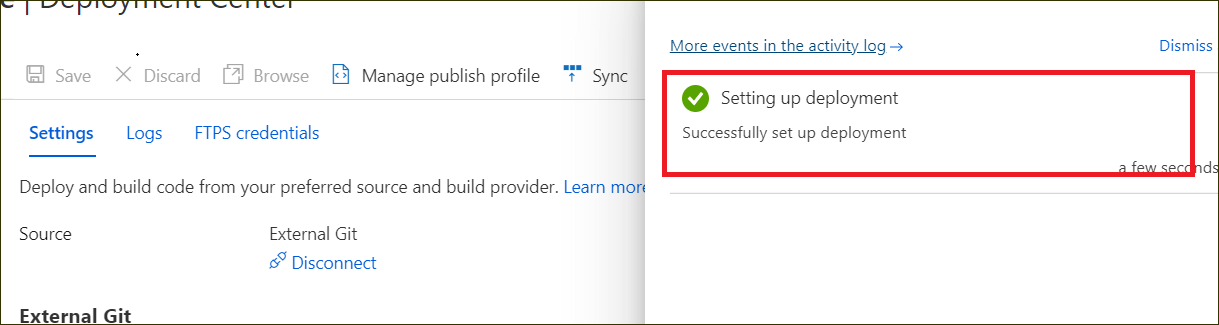
Next, click the Save option. The Successfully set up deployment notification will be shown in the notification blade.
-
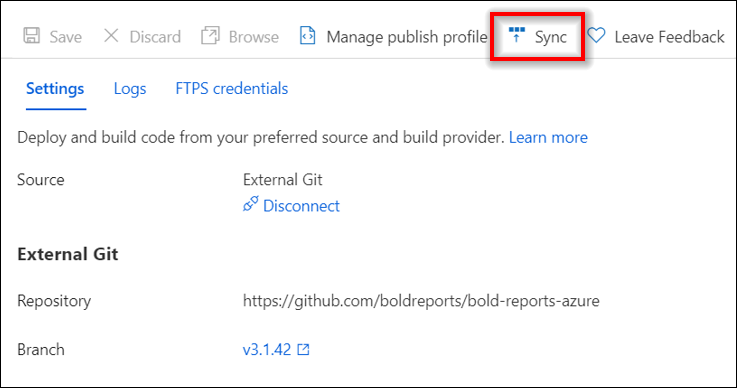
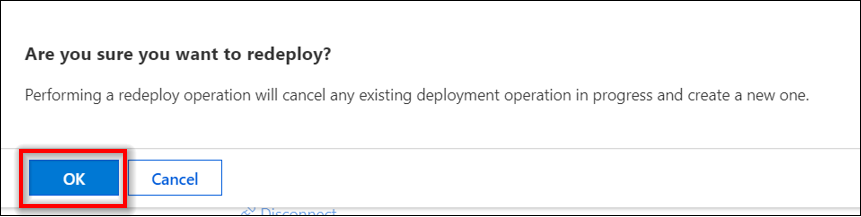
After completing the deployment setup, click Sync in the deployment center blade.
-
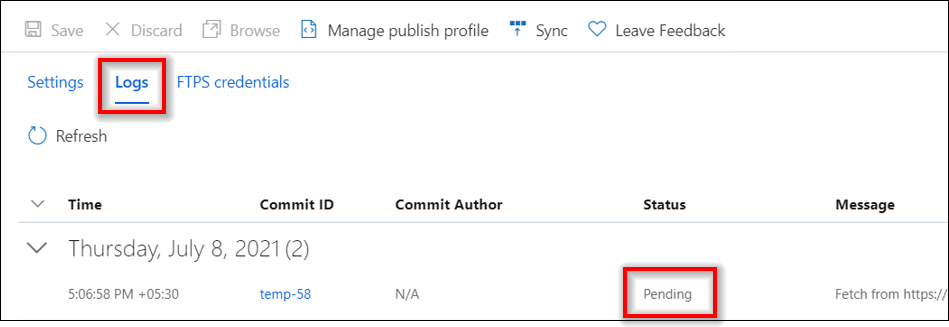
Synchronization progress is shown in the deployment options blade.
-
Please wait until synchronization is completed.
-
Once the synchronization is completed, Save the below configuration settings.
-
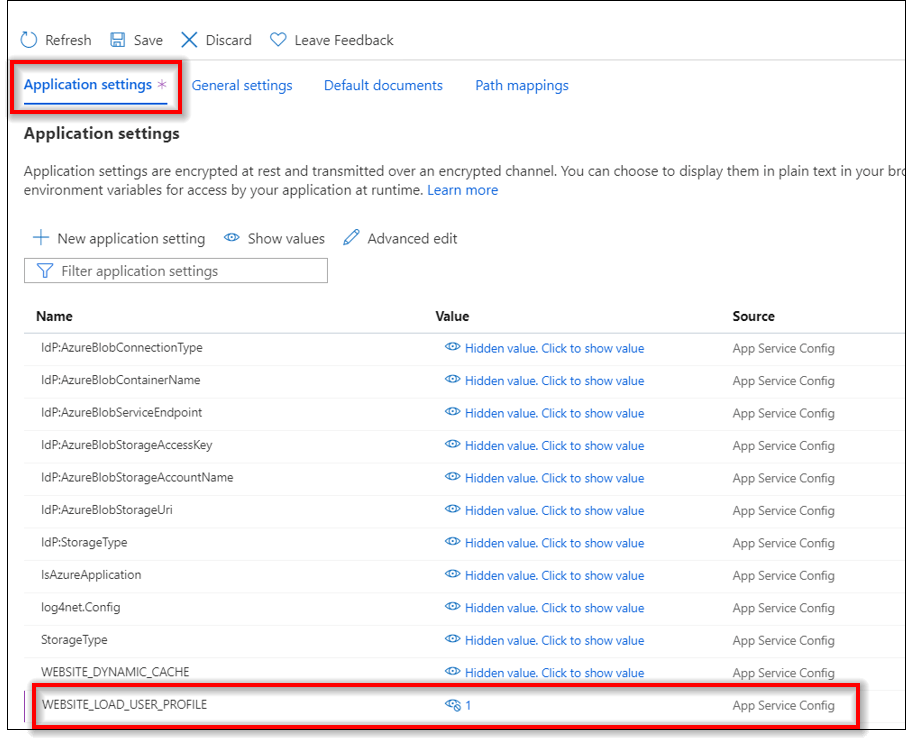
Add the following application settings key.
Key Value WEBSITE_LOAD_USER_PROFILE 1
-
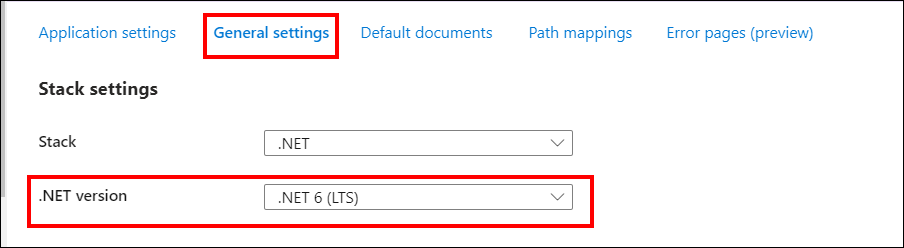
Change the below value in General Settings.
Settings Value .NET version .NET 6
-
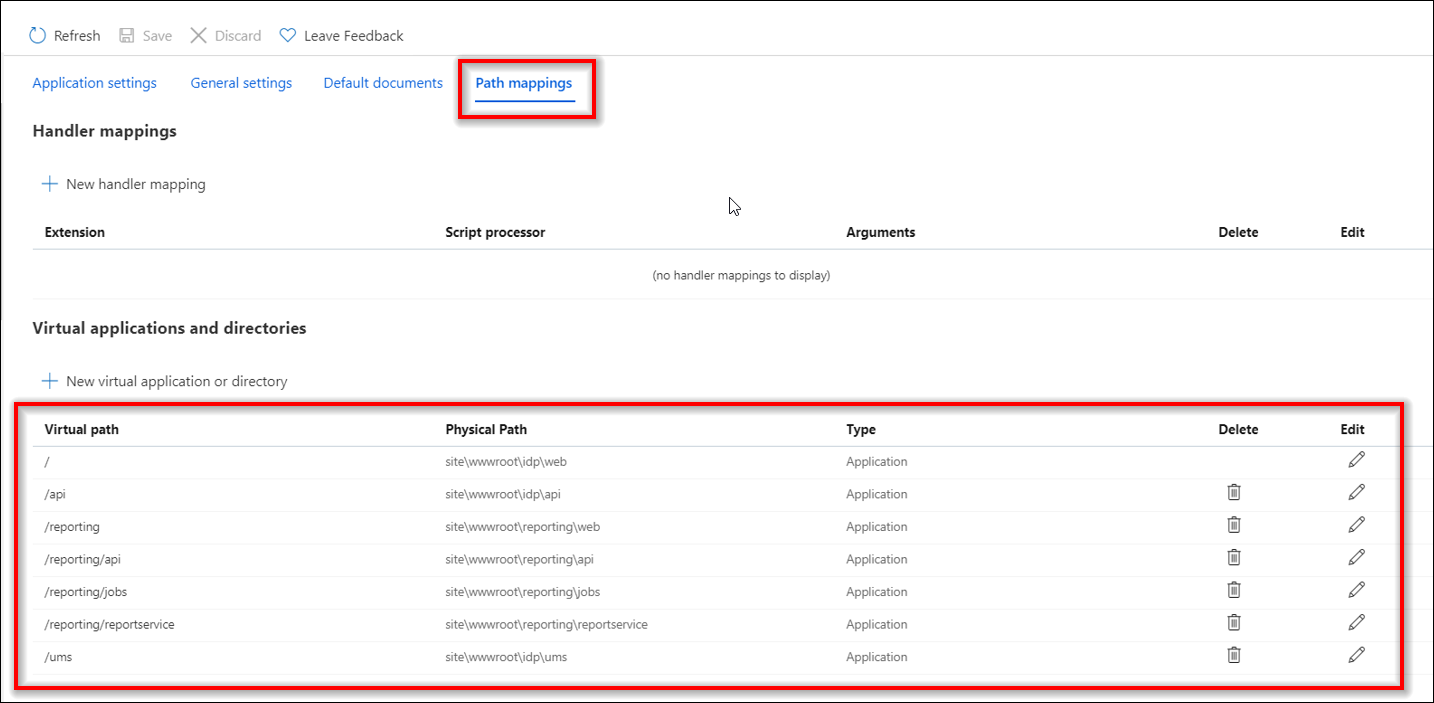
Change Physical Path in Path Mappings
Virtual Path Physical Path (v2.4.19, v2.4.10) Physical Path (v3.1.42) / site\wwwroot\IDP site\wwwroot\idp\web /api site\wwwroot\IDP\api site\wwwroot\idp\api /reporting site\wwwroot\Report Server site\wwwroot\reporting\web /reporting/api site\wwwroot\Report Server\api site\wwwroot\reporting\api /reporting/jobs site\wwwroot\Report Server\jobs site\wwwroot\reporting\jobs /reporting/reportservice site\wwwroot\Report Server\reportservice site\wwwroot\reporting\reportservice /ums Site\wwwroot\IDP\ums site\wwwroot\idp\ums
-
-
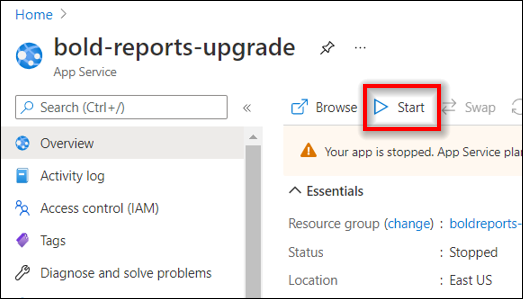
Then, click Start in the Overview section to start the Bold Reports® Azure App service.