Manage license in Bold Reports®
-
This topic explains how to update the license manually in
Bold Reports Enterprise. -
Open your Bold ID UMS application URL and login with the Site Administrator account.
-
Navigate to
Settings->Manage License.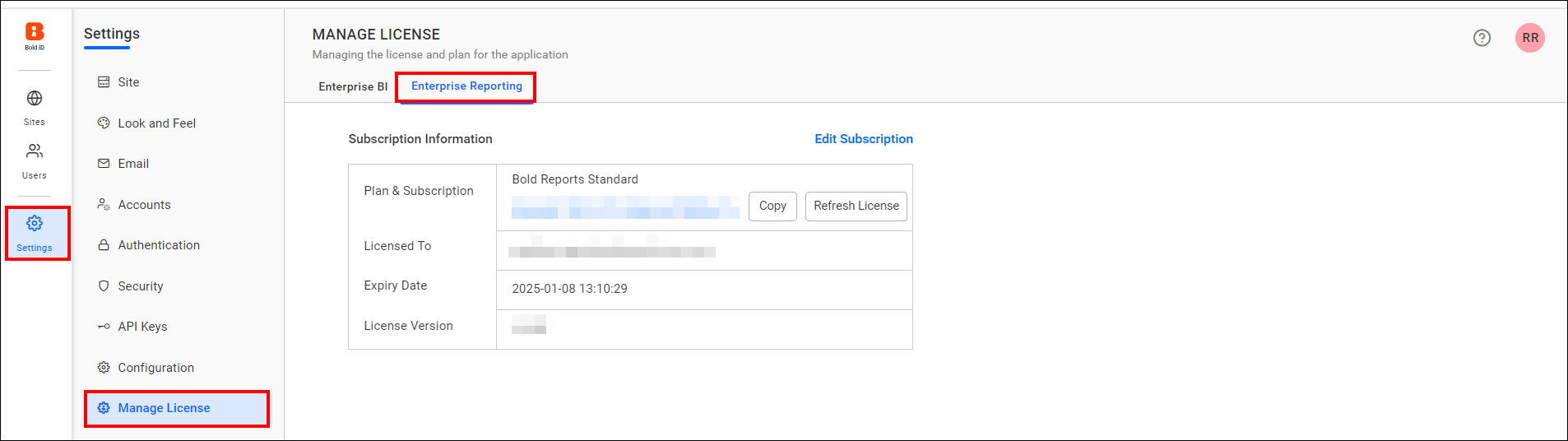
-
Please choose your preferred mode to update the license.
Update license from Online
-
In the Manage License page, click
Edit Subscription.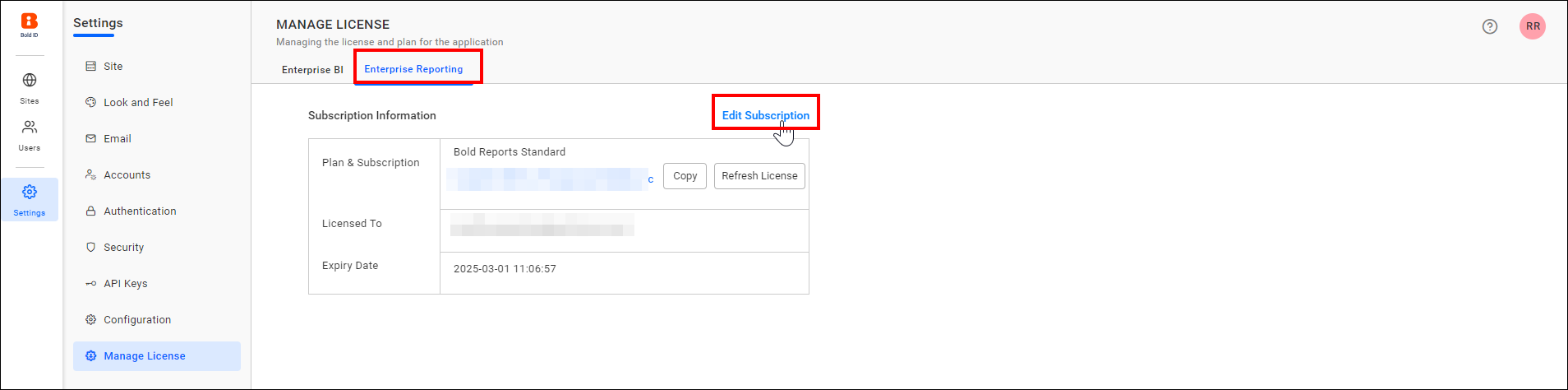
-
Click
Sign into change the subscription.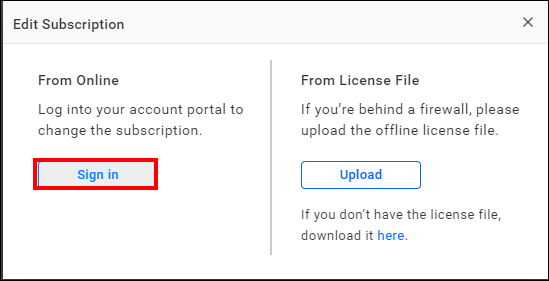
-
From the login pop-up, please login with your Bold ID account linked with your Bold Reports® subscription.
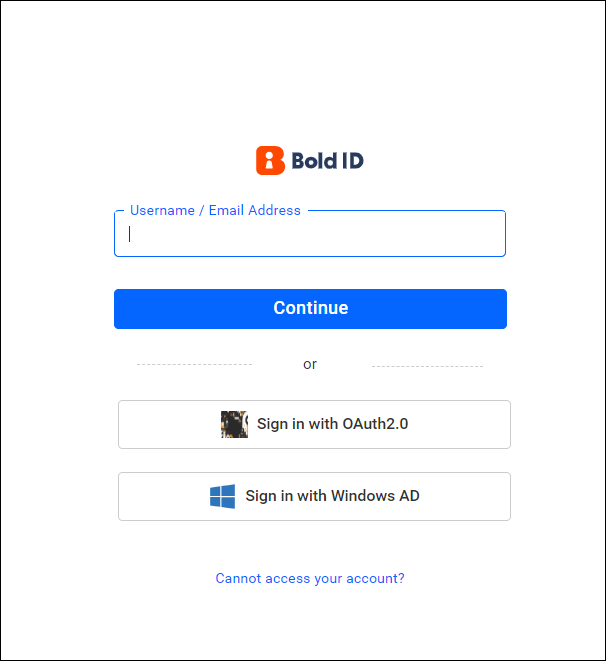
Once, you log in successfully, the license will be updated in the application.
Update license from License file
-
If you need to update the license in firewall-restricted environments, you can use the offline unlock key to activate the account. Please download your offline unlock key from here.
Please refer to this KB for how to get your offline license key from our Bold Reports® accounts page.
-
Click on the
Uploadoption to upload your license file.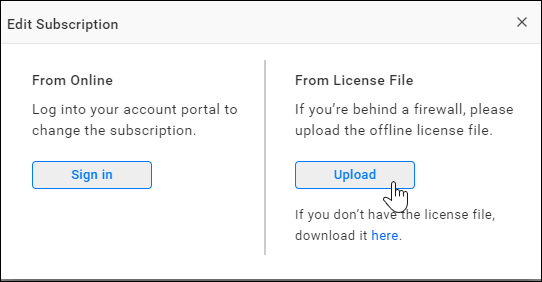
-
Select your license file using the option below.
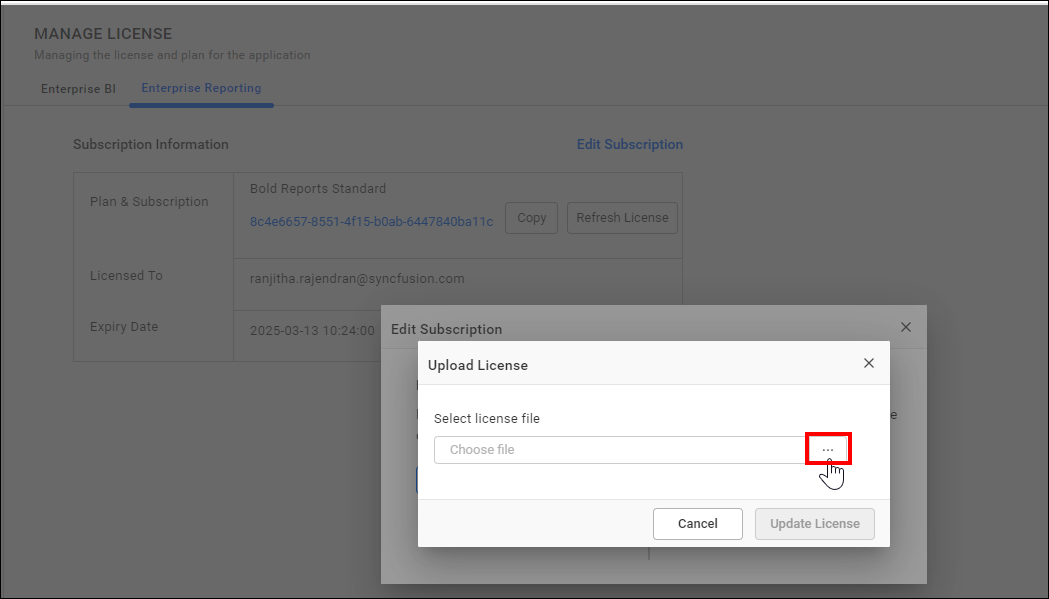
-
After uploading the unlock key, click the Update License button to update the license.
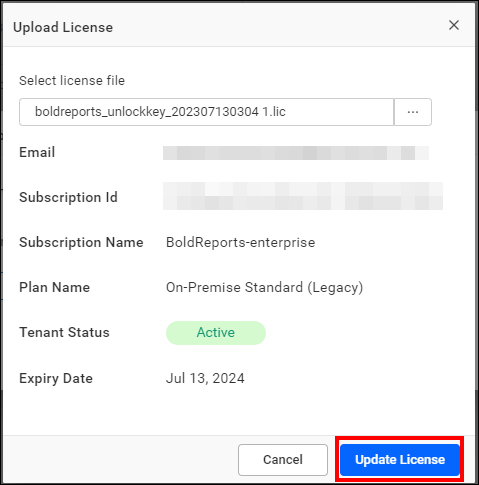
Possible errors cases and their solution:
| Cases | Solution |
| Invalid File Type | Please ensure that you upload the valid unlock key file (.lic) that was downloaded from here. |
| Unlock Key Expired | Your unlock key has expired. Please download the new unlock key file from here. |
If you are facing any issues, please contact us for assistance.
Note: Please refer here for instructions on activating your account during application startup.