Reset Application Database
Please refer to your operating system’s documentation for instructions on how to reset the database in the Bold Reports® application.
Windows
-
Open the command prompt and change the directory to the admin utility location.
cd C:\BoldServices\utilities\adminutils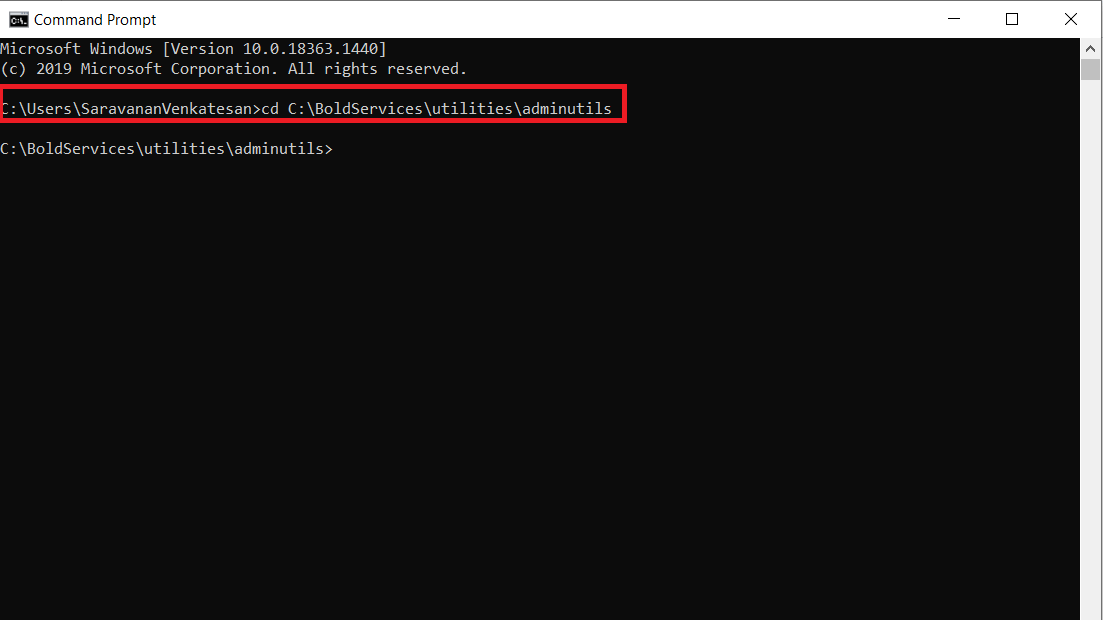
-
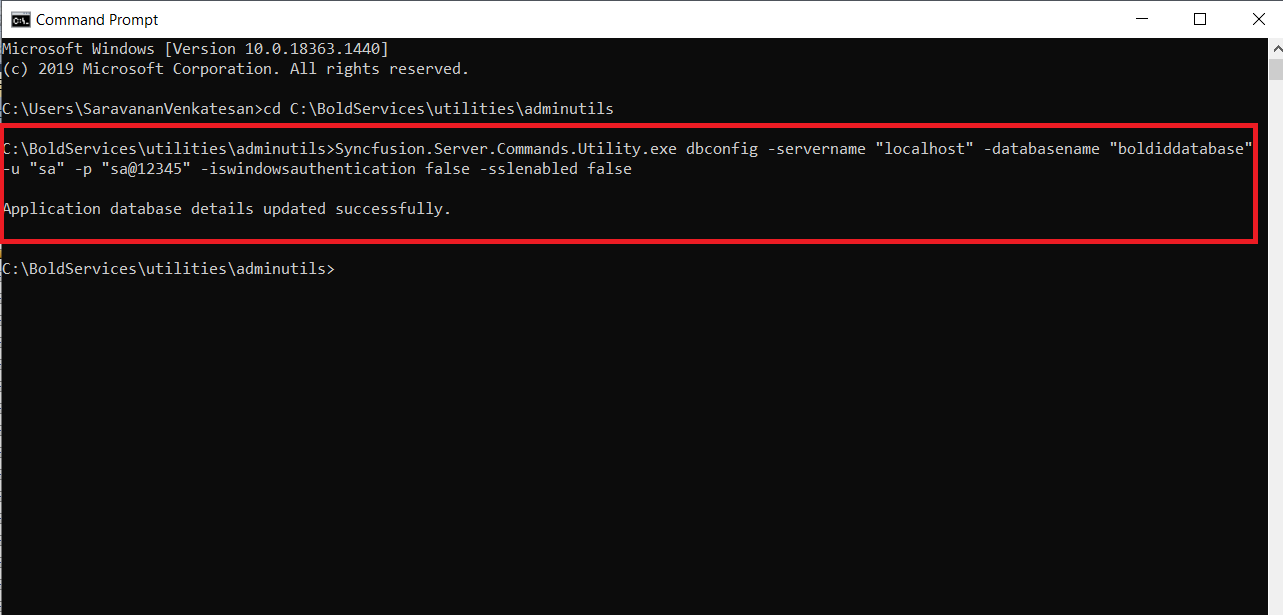
After changing the directory, run the following command to the reset database.
Syncfusion.Server.Commands.Utility.exe dbconfig -servername "localhost" -databasename "BoldReportsMasterDatabase" -u "Admin" -p "Admin@12345" -iswindowsauthentication false -sslenabled falseIMPORTANT: command details:
servername - SQL server hostname/IP
databasename – SQL database name
u – SQL server username
p – SQL server password
port - port number of SQL Server(Required PostgreSQL only)
iswindowsauthentication – Is windows authentication required (this is optional)
sslenabled – Is encrypted connection required (this is optional)
-
Once the database has been updated successfully, restart the application in IIS.
Linux
-
Open the command prompt and change the directory to the admin utility location.
cd /var/www/bold-services/application/utilities/adminutils/
-
After changing the directory, run the following command to reset the database:
../../../dotnet/dotnet Syncfusion.Server.Commands.Utility.dll dbconfig -servername "localhost" -databasename "BoldReportsMasterDatabase" -u "Admin" -p "Admin@12345" -iswindowsauthentication false -sslenabled false -port "5432"IMPORTANT: command details:
servername – SQL server hostname/IP
databasename – SQL database name
u – SQL server username
p – SQL server password
port - Port number required for PostgreSQL and MySQL
iswindowsauthentication – Is windows authentication required (Required for MSSQL only)
sslenabled – Is encrypted connection required (this is optional)

-
Once the database has been updated successfully, restart the application by following this link
Docker
Single container image
-
Open the command prompt and bash the container, then change the directory to the admin utility location.
docker exec -it <Container ID or Container name>cd /application/utilities/adminutils/
-
After changing the directory, run the following command to reset the database:
dotnet Syncfusion.Server.Commands.Utility.dll dbconfig -servername "localhost" -databasename "BoldReportsMasterDatabase" -u "Admin" -p "Admin@12345" -iswindowsauthentication false -sslenabled false -port "5432" -additionalparameters "Pooling=True"
-
Once the database has been updated successfully, restart the application by using the below command.
docker restart <container ID or container name>
Multi container image
-
Open the command prompt and bash the
id_web_containercontainer, then change the directory to the admin utility location.docker exec -it <Container ID or Container name>cd /application/utilities/adminutils/ -
After changing the directory, run the following command to reset the database:
dotnet Syncfusion.Server.Commands.Utility.dll dbconfig -servername "localhost" -databasename "BoldReportsMasterDatabase" -u "Admin" -p "Admin@12345" -iswindowsauthentication false -sslenabled false -port "5432" -additionalparameters "Pooling=True"IMPORTANT: command details:
servername – SQL server hostname/IP
databasename – SQL database name
u – SQL server username
p – SQL server password
port - Port number required for PostgreSQL and MySQL
iswindowsauthentication – Is windows authentication required (Required for MSSQL only)
sslenabled – Is encrypted connection required (this is optional)
additionalparameters - Additional parameters required for database connection (this is optional)
-
Once the database has been updated successfully, restart all containers by using the below command.
docker psdocker restart <container ID or container name>Note: Restart all seven containers using the above command, one by one, from the container name or ID.
Kubernetes
-
Open the command prompt and bash the
id_web_deploymentpod, then change the directory to the admin utility location.kubectl exec -it <id-web-deployment-pod> -n namespace -- bashcd /application/utilities/adminutils/ -
After changing the directory, run the following command to reset the database:
dotnet Syncfusion.Server.Commands.Utility.dll dbconfig -servername "localhost" -databasename "BoldReportsMasterDatabase" -u "Admin" -p "Admin@12345" -iswindowsauthentication false -sslenabled false -port "5432" -additionalparameters "Pooling=True"IMPORTANT: command details:
servername – SQL server hostname/IP
databasename – SQL database name
u – SQL server username
p – SQL server password
port - Port number required for PostgreSQL and MySQL
iswindowsauthentication – Is windows authentication required (Required for MSSQL only)
sslenabled – Is encrypted connection required (this is optional)
additionalparameters - Additional parameters required for database connection (this is optional)
-
Once the database has been updated successfully, restart the application using the below command.
kubectl rollout restart deploy -n <namespace>