NuGet Packages for WPF
To add Bold Reports® to a WPF application, configure the online NuGet feed in Visual Studio, then install the BoldReports.Wpf package.
How do I configure the NuGet feed URL?
To configure the NuGet feed URL for the Bold Reports® WPF packages, add the online feed as a package source in Visual Studio.
How do I configure the online NuGet feed?
To configure the online feed, add NuGet.org as a package source in Visual Studio. The Bold Reporting NuGet packages are published in Nuget.org. Use the following steps:
-
Open Visual Studio application.
-
On the Tools menu, select Options.
-
Expand the NuGet Package Manager and select Package Sources.
-
Click the Add button, enter the following
Package NameandPackage Source URL, and then click Update.Name:
NuGet.orgSource:
https://api.nuget.org/v3/index.json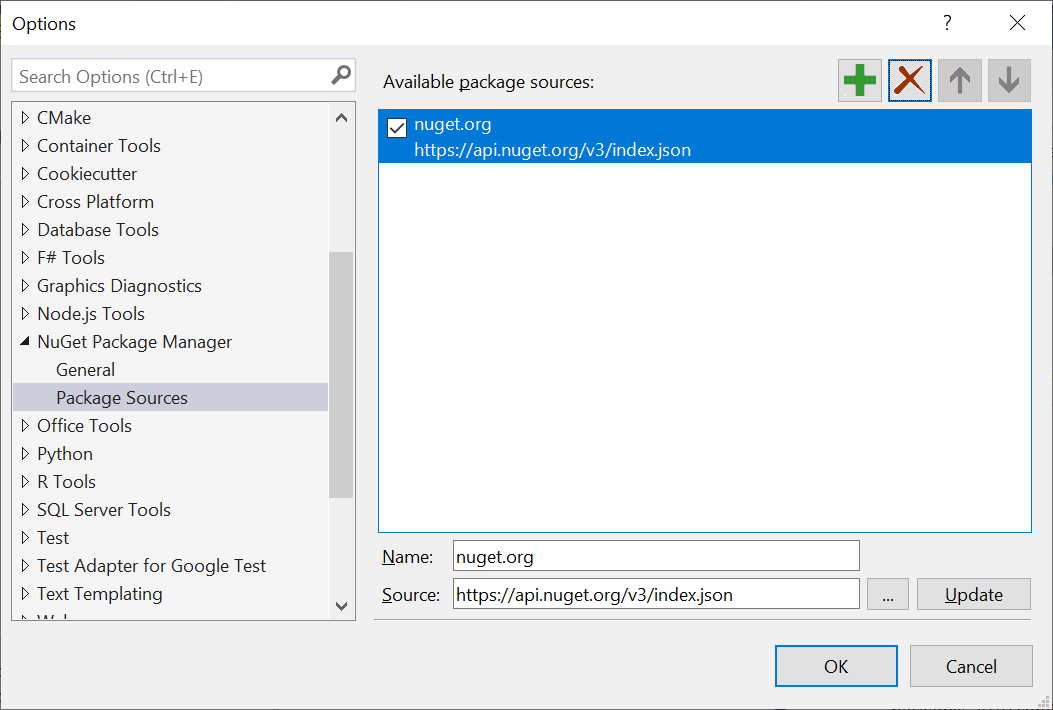
How do I install the Bold Reports® NuGet packages?
You can install the Bold Reports® WPF NuGet packages with the NuGet Package Manager or the Package Manager Console in Visual Studio.
How do I install the packages with NuGet Package Manager?
To install the Bold Reports® NuGet packages with the NuGet Package Manager, search for and install them in your Visual Studio solution or project:
- On the Tools menu, click NuGet
Package Manager | Manage NuGet Packages for Solution. Alternatively, right-click the project/solution in Solution Explorer tab, and choose Manage NuGet Packages. - By default, the
NuGet.orgpackage is selected in the Package source drop-down. Select package source, search for theBoldReports.WPFpackage, and then click Install button.
How do I install the packages with the Package Manager Console?
To install the Bold Reports® NuGet packages with the Package Manager Console, follow these steps:
-
On the Tools menu, select NuGet Package Manager, and then click Package Manager Console.
-
Run the following NuGet installation commands:
#install specified package in default project
Install-Package <Package Name>

#install specified package in default project with specified package source
Install-Package <Package Name> -Source <Source Location>

#install specified package in specified project
Install-Package <Package Name> - ProjectName <Project Name>
For example:
# install specified package in default project
Install-Package BoldReports.Wpf

#install specified package in default project with specified Package Source
Install-Package BoldReports.Wpf –Source “https://api.nuget.org/v3/index.json”

#install specified package in specified project
Install-Package BoldReports.Wpf -ProjectName BoldReportsApplication
How do I upgrade the Bold Reports® NuGet packages?
You can upgrade the Bold Reports® NuGet packages with the NuGet Package Manager, the Package Manager Console, or the NuGet CLI.
How do I upgrade the packages with NuGet Package Manager?
To upgrade the Bold Reports® NuGet packages with the NuGet Package Manager, update them to a specific version or the latest available version in your Visual Studio solution or project:
- On the Tools menu, click NuGet Package Manager | Manage NuGet Packages for Solution…. Alternatively, right-click the project/solution in the Solution Explorer tab, and then choose Manage NuGet Packages.
- Select the Updates tab to see the packages available for update from the desired package sources, select the required packages and specific version from the drop-down, and then click the Update button.
How do I upgrade the packages with the Package Manager Console?
To upgrade the installed Bold Reports® NuGet packages with the Package Manager Console, follow these steps:
-
On the Tools menu, select NuGet Package Manager, and then select Package Manager Console.
-
Run the following NuGet installation commands:
#Update specific NuGet package in default project
Update-Package <Package Name>

#Update all the packages in default project
Update-Package

#Update specified package in default project with specified package source
Update-Package <Package Name> -Source <Source Location>

#Update specified package in specified project
Update-Package <Package Name> - ProjectName <Project Name>
For example:
#Update specified Bold Reporting NuGet package
Update-Package BoldReports.Wpf

#Update specified package in default project with specified Package Source
Update-Package BoldReports.Wpf –Source “https://api.nuget.org/v3/index.json”

#Update specified package in specified project
Update-Package BoldReports.Wpf -ProjectName BoldReportsApplication
How do I upgrade the packages with the NuGet CLI?
To upgrade all the NuGet packages in the project, including the Bold Reports® packages, to the latest available version, use the NuGet CLI:
-
Download the latest NuGet CLI.
To update the existing
nuget.exeto latest version use the following command:nuget update -self -
Open the downloaded executable location in the command window. Run the following “update commands” to update the Bold Reporting NuGet packages.
#update all NuGet packages from config file nuget update <configPath> [options] #update all NuGet packages from specified Packages Source nuget update -Source <Source Location> [optional]configPathis optional. It identifies thepackage.configor solutions file lists the packages utilized in the project.For example:
#Update all NuGet packages from config file
nuget update “C:\Users\BoldReportsApplication\package.config”

#Update all NuGet packages from specified Packages Source
nuget update -Source “https://api.nuget.org/v3/index.json”
The Update command is not working as expected in Mono (Mac and Linux) and projects using PackageReference format.