Export custom properties
This topic explains the list of custom properties that are supported at the report level to control the export behaviour in UWP Report Viewer.
Improve excel export performance
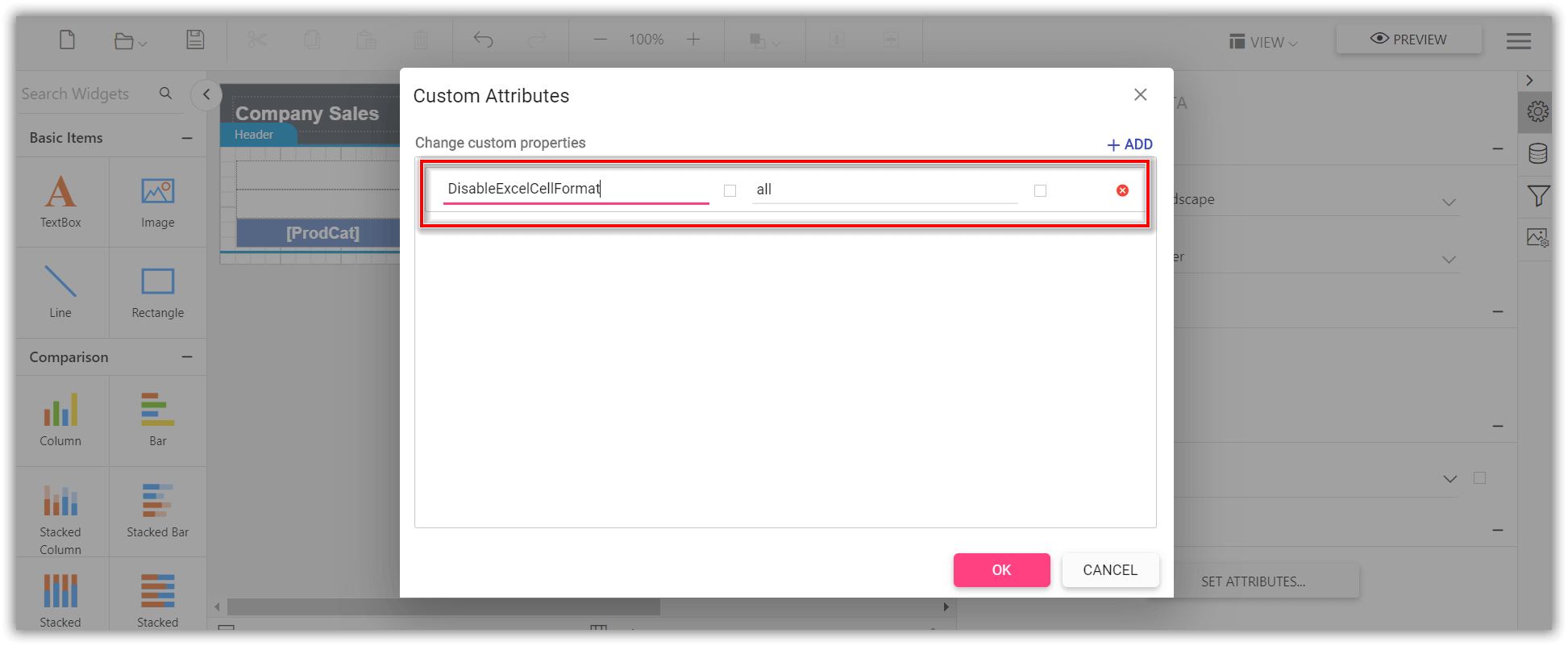
The custom property DisableExcelCellFormat helps to improve the excel export performance by ignoring the rendering of report item styles. It allows property value from anyone of the following values.
Style- Disables rendering of the cell styles like padding, background, color, and text styleBorder- Disables rendering of the cell borderAll- Disables rendering of the cell border, padding, background, color, and text style
Set the property value as
Allto improve maximum excel export performance.
You can set the DisableExcelCellFormat custom property as shown below,
The
DisableExcelCellFormatproperty must be added to report properties.
Improve excel export readability
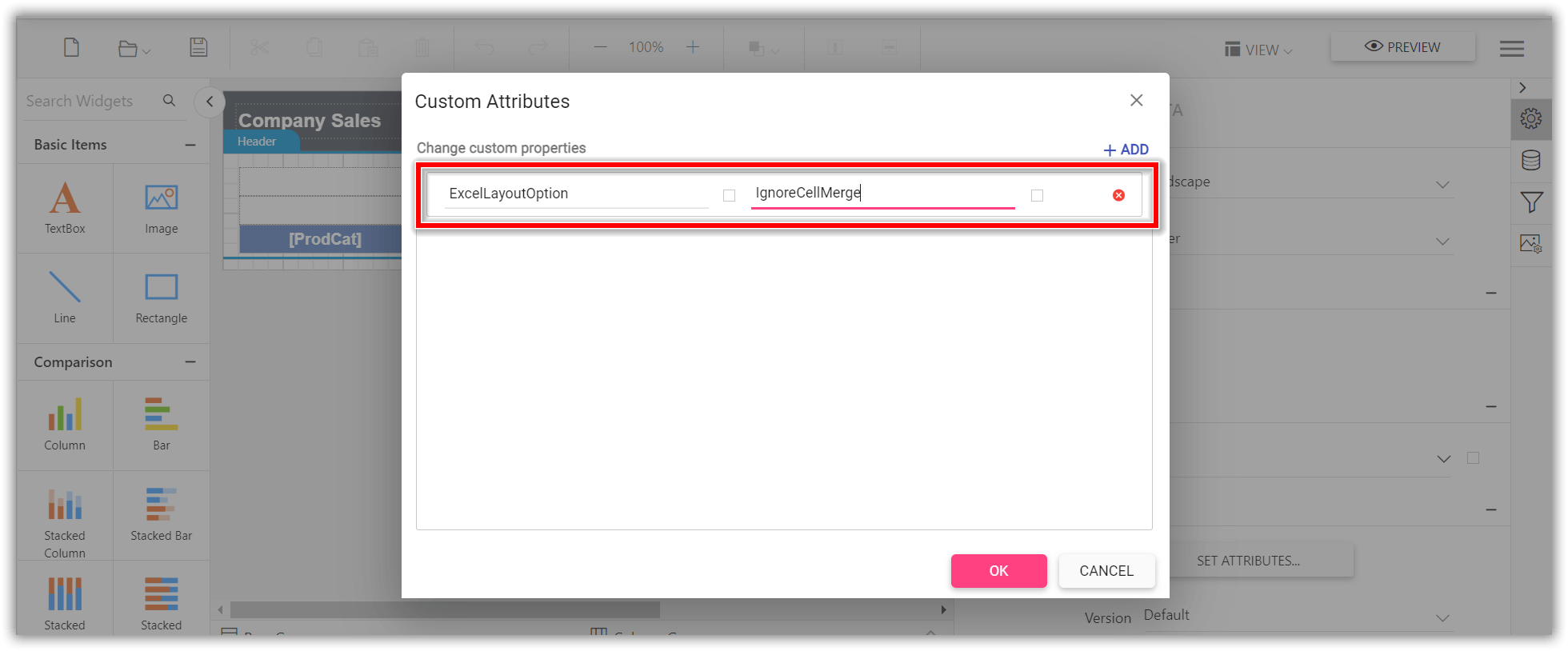
Set ExcelLayoutOption custom property value as IgnoreCellMerge to improve the readability of the excel document by eliminating the tiny columns, rows, and merged cells. You can set the property value, as shown below,
The
ExcelLayoutOptionproperty must be added to report properties.
Set pdf conformance level
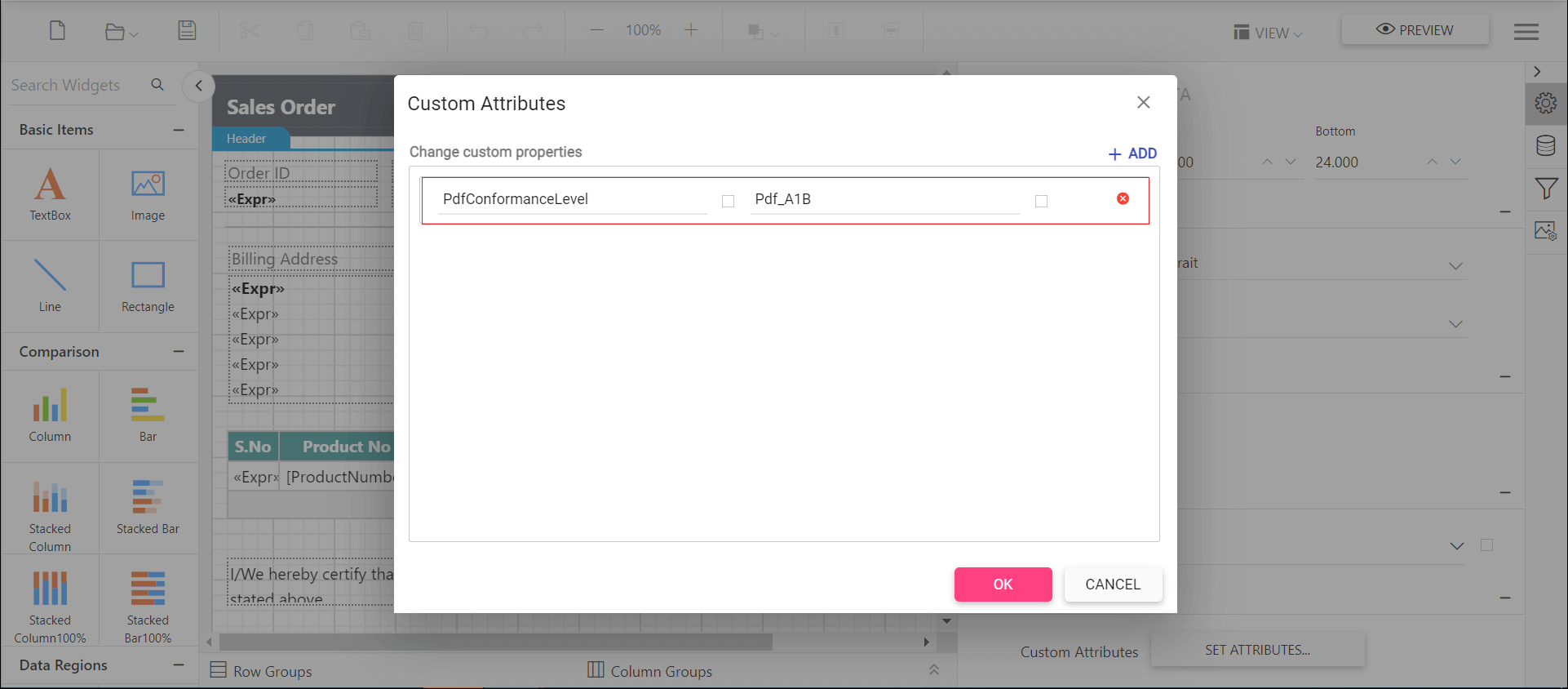
The PdfConformanceLevel allows you set PDF document versions.
You can set anyone of the following PDF conformance option.
Pdf_A1B- You can create aPdf_A1Bdocument by specifying the conformance level asPdf_A1BthroughPdfConformanceLevelEnum when creating the new PDF document.Pdf_A2B- You can create aPdf_A2Bdocument by specifying the conformance level asPdf_A2BthroughPdfConformanceLevelEnum when creating the new PDF documentPdf_A3B- ThePDF_A3Bconformance supports the external files as attachment to the PDF document, so you can attach any document format such as Excel, Word, HTML, CAD, or XML files.Pdf_A1A- This conformance includes allPdf_A1Brequirements in addition to the features intended to improve a document’s accessibility.PDF/A-1aconformance additionally have crucial properties of Tagged PDF.Pdf_A2A- This conformance includes allPDF_A2Brequirements in addition to the features intended to improve a document’s accessibility.PDF/A-2aconformance additionally have crucial properties of Tagged PDF.Pdf_A2U- This conformance includes allPdf_A2Urequirements, and additionally Unicode mapping for all text in the document.Pdf_X1A2001- You can create aPDF/X-1adocument by specifying the conformance level asPdf_X1A2001throughPdfConformanceLevelEnum when creating the new PDF document.
You can set the PdfConformanceLevel custom property as shown below,
Export pdf document with complex script
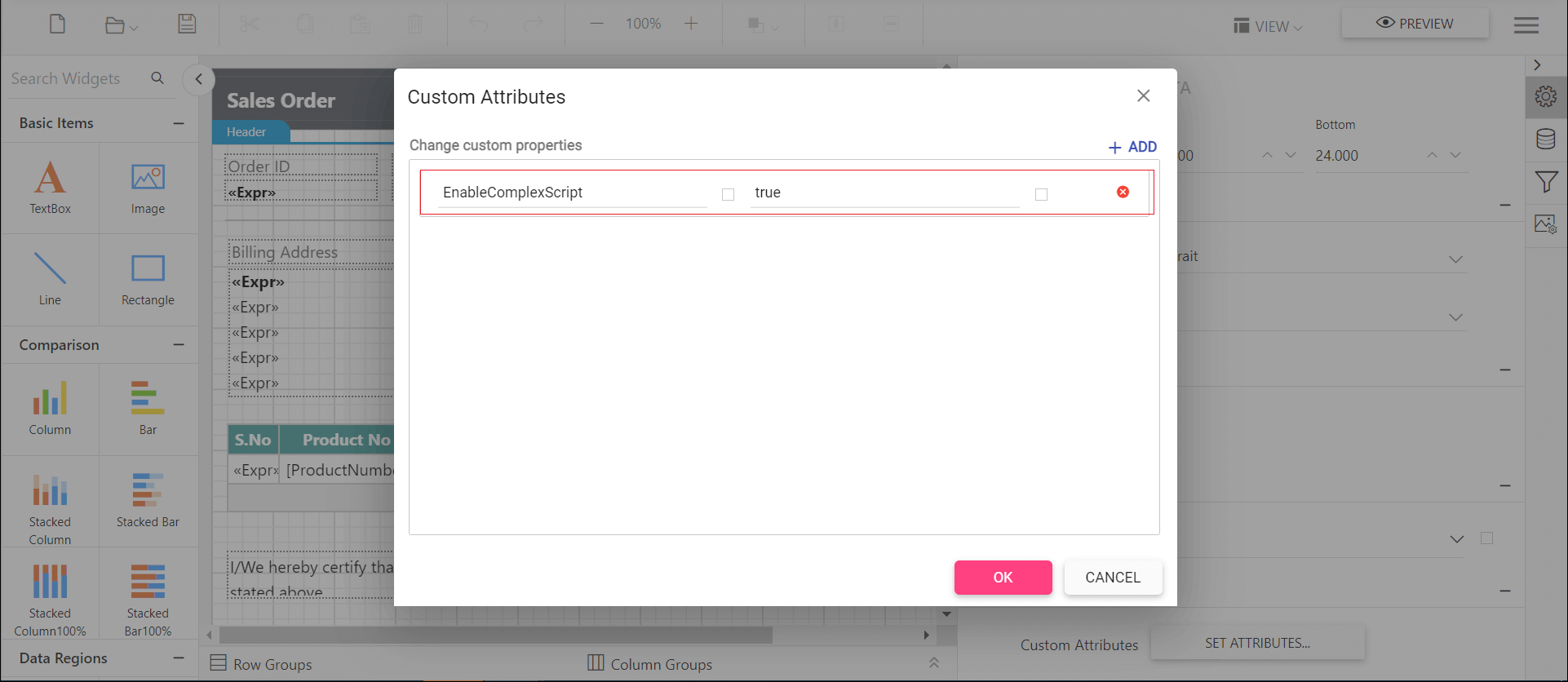
The EnableComplexScript custom property allows you to export pdf documents with complex script language texts.
You can set the property value, as shown below,
Encrypt and secure export documents
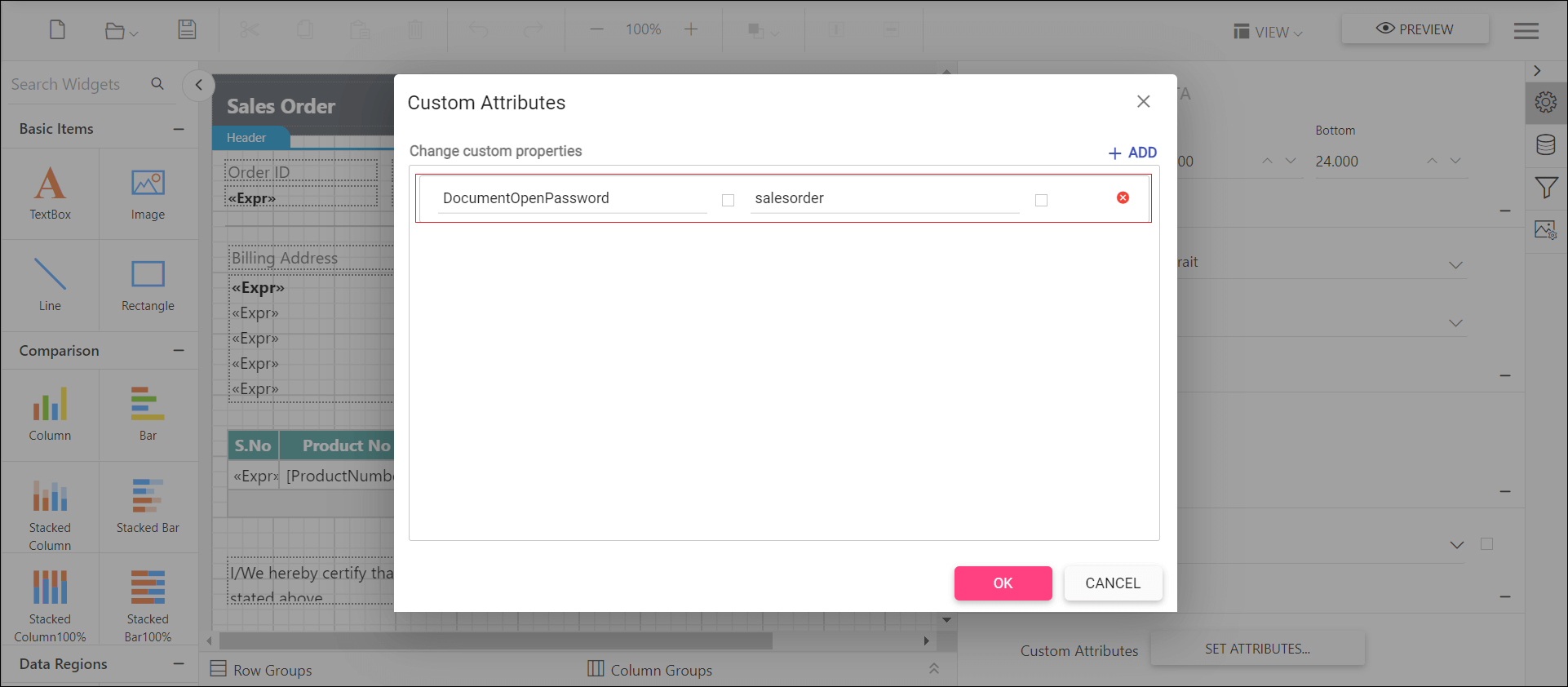
The custom property DocumentOpenPassword allows you to protect the exported document such as PDF, Word, and Excel from unauthorized users by encrypting the document using the encryption password.
You can set the property value, as shown below,
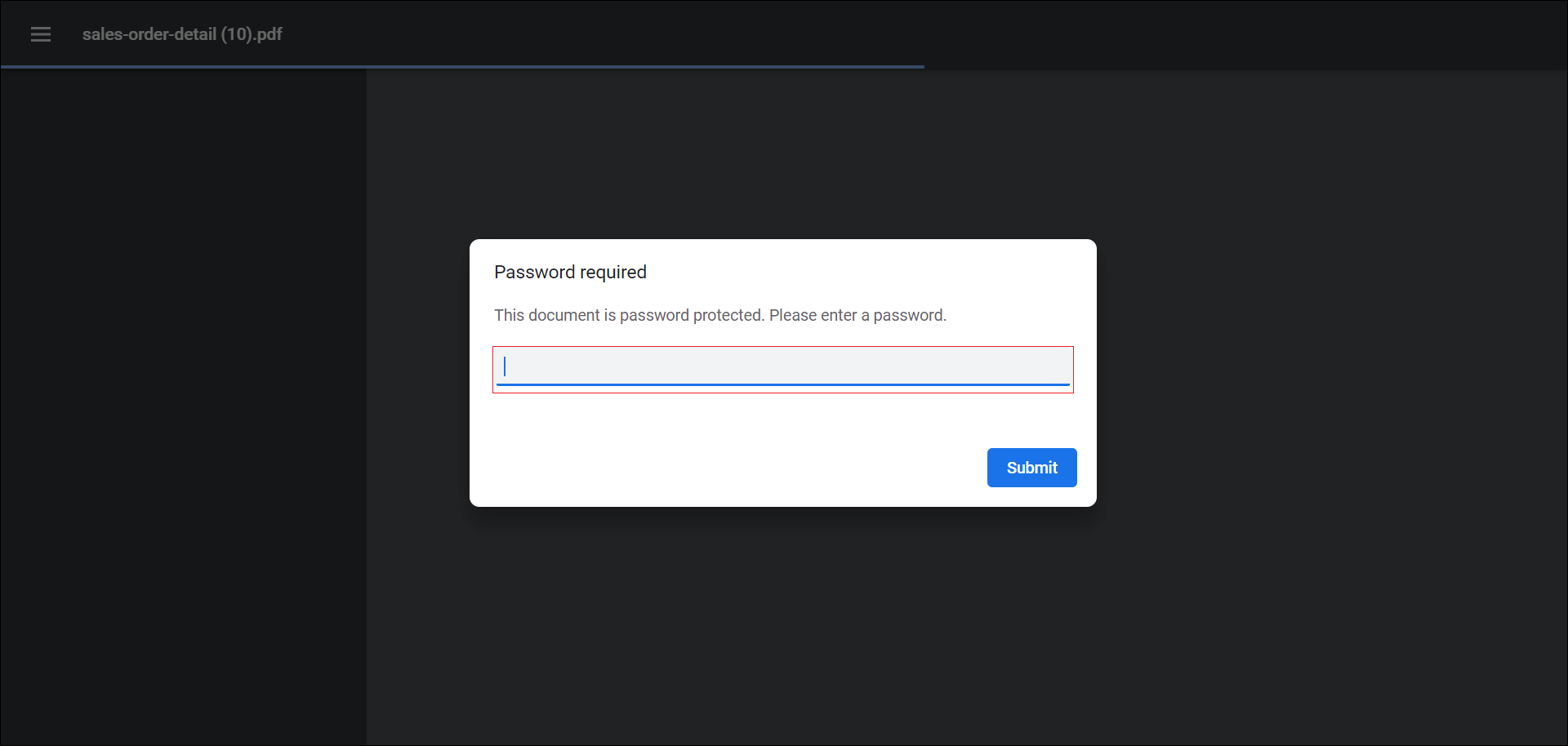
open the pdf document and see the below output.
Protecting Word document from editing
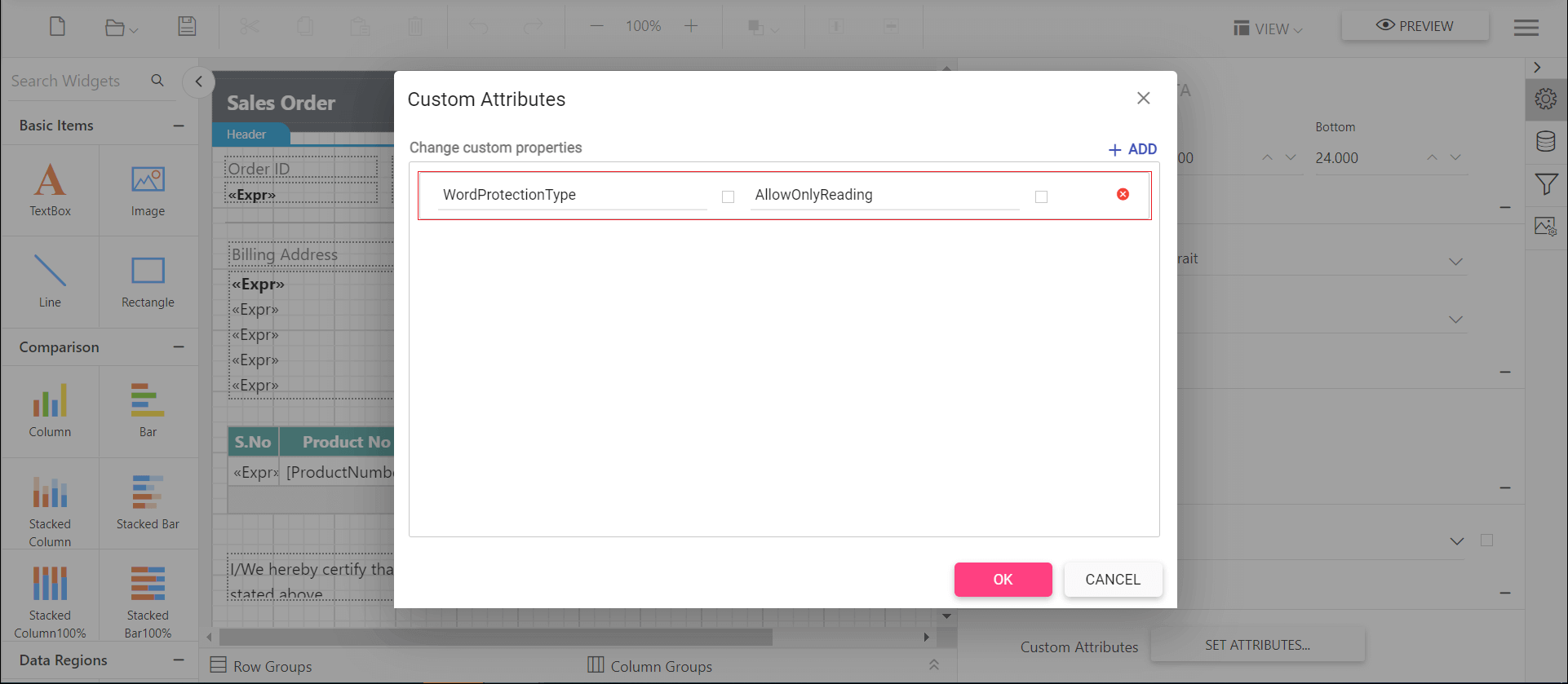
The custom property WordProtectionType allows you to restrict a Word document from editing either by providing a password or without a password by using following types of protection.
AllowOnlyComments- You can add or modify only the comments in the Word document.AllowOnlyFormFields- You can modify the form field values in the Word document.AllowOnlyRevisions- You can accept or reject the revisions in the Word document.AllowOnlyReading- You can only view the content in the Word document.NoProtection- You can access or edit the Word document contents as normally.
You can set the WordProtectionType custom property as shown below,
Set excel document edit password
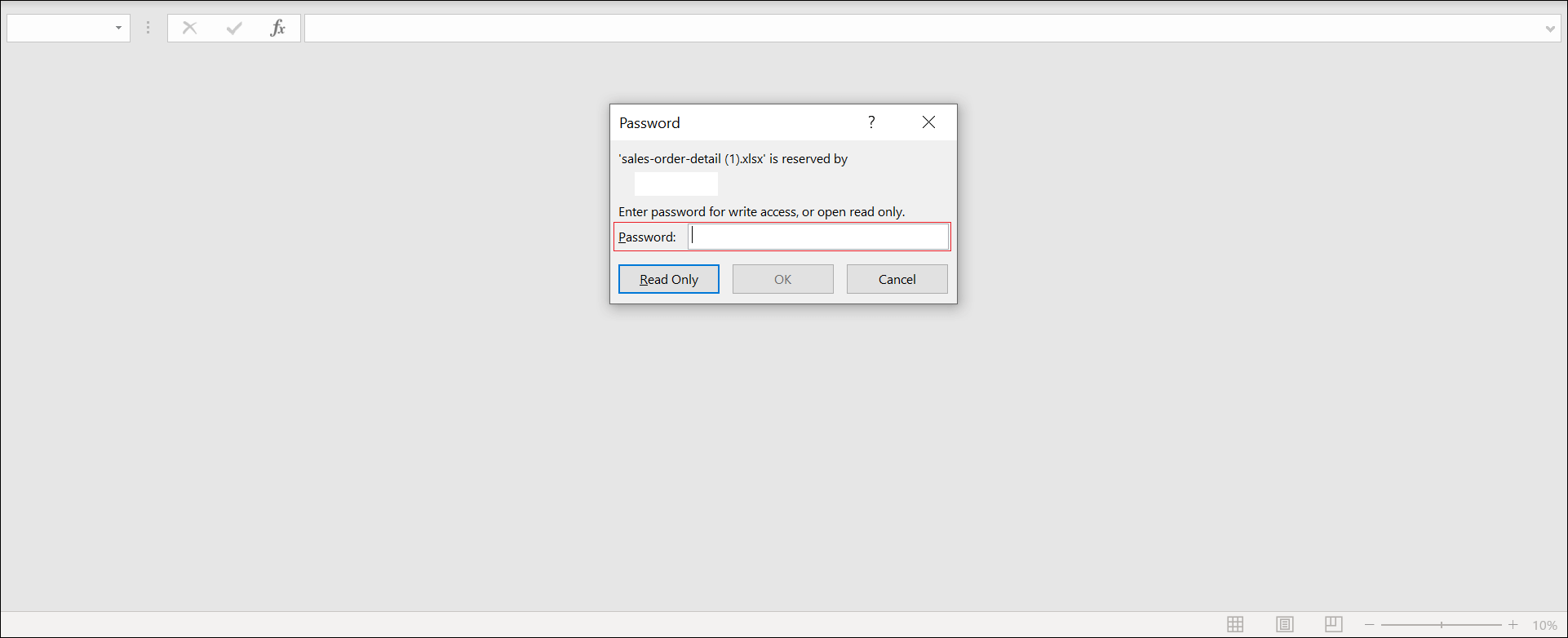
The custom property DocumentEditPassword helps to allow specific users permission to modify the workbook data and save changes to the file in the excel document.
You can set the property value, as shown below,
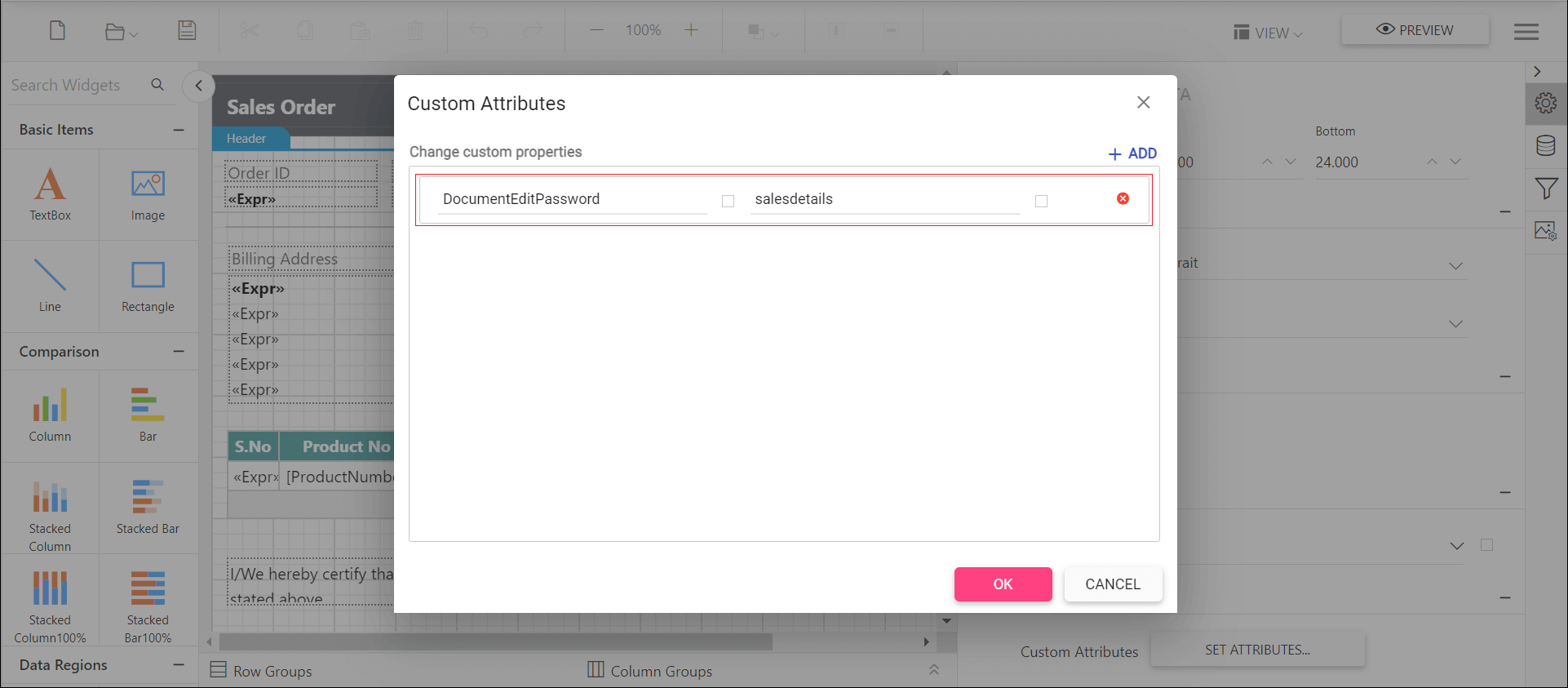
open the excel document and see the below output.
Set excel document protection
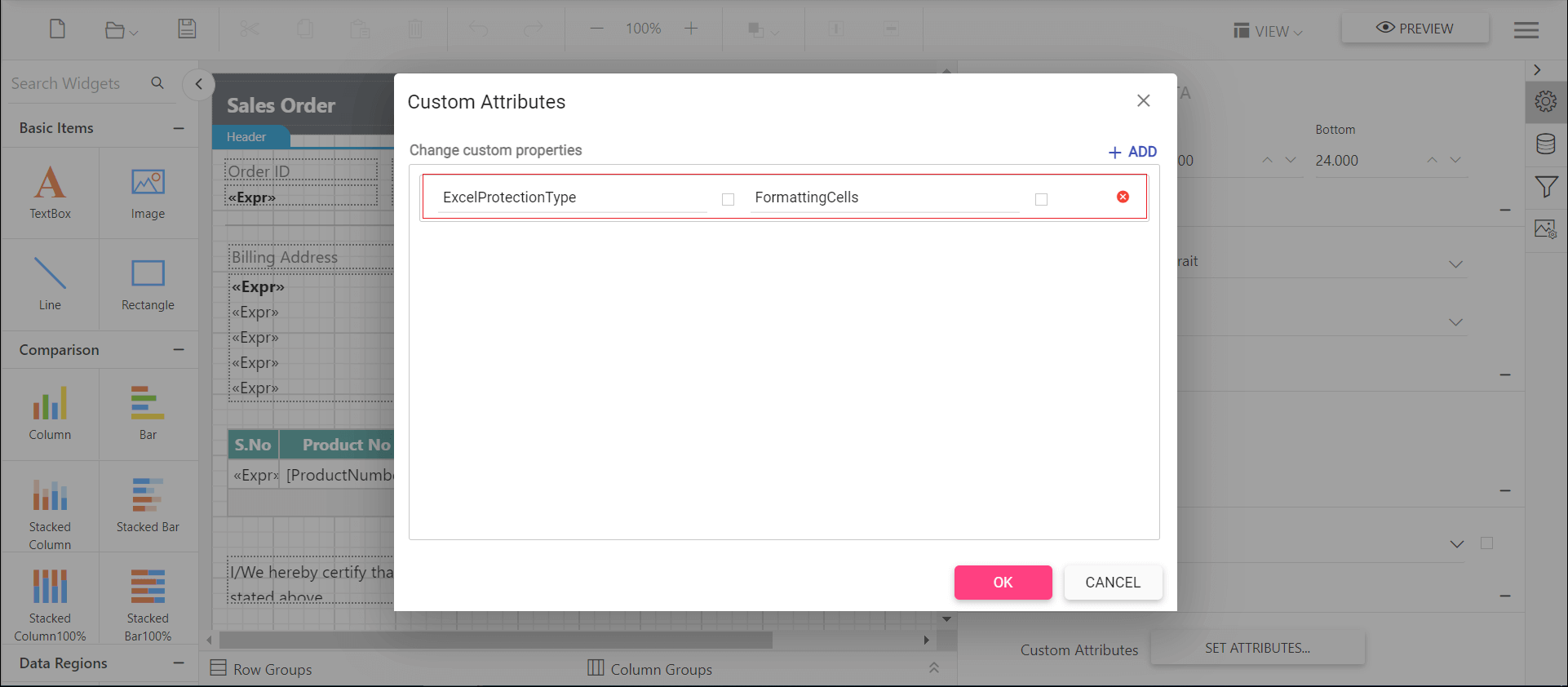
The custom property ExcelProtectionType allows you to protect the worksheet of excel document either by providing a password or without a password by using following types of protection.
None- Represents no protection in excel sheetObjects- allows to protect shapes in excel sheetScenarios- allows to protect scenarios.FormattingCells- allows the user to format any cell on a protected worksheet.FormattingColumns- allows the user to format any column on a protected worksheet.FormattingRows- allows the user to format any rows on a protected worksheet.InsertingColumns- allows the user to insert columns on the protected worksheet.InsertingRows- allows the user to insert rows on the protected worksheet.InsertingHyperlinks- allows the user to insert hyperlinks on the worksheet.DeletingColumns- allows the user to delete columns on the protected worksheet, where every cell in the column to be deleted is unlocked.DeletingRows- allows the user to delete rows on the protected worksheet, where every cell in the row to be deleted is unlocked.LockedCells- allows to protect locked cells.Sorting- allows the user to sort on the protected worksheetFiltering- allows the user to set filters on the protected worksheet. Users can change filter criteria but can not enable or disable an auto filter.UsingPivotTables- allows the user to use pivot table reports on the protected worksheet.UnLockedCells- allows to protect the user interface, but not macros.Content- allows to protect the contents in the excel sheet.All- allows to protect all type of protection.
You can set the ExcelProtectionType custom property as shown below,