Image Manager
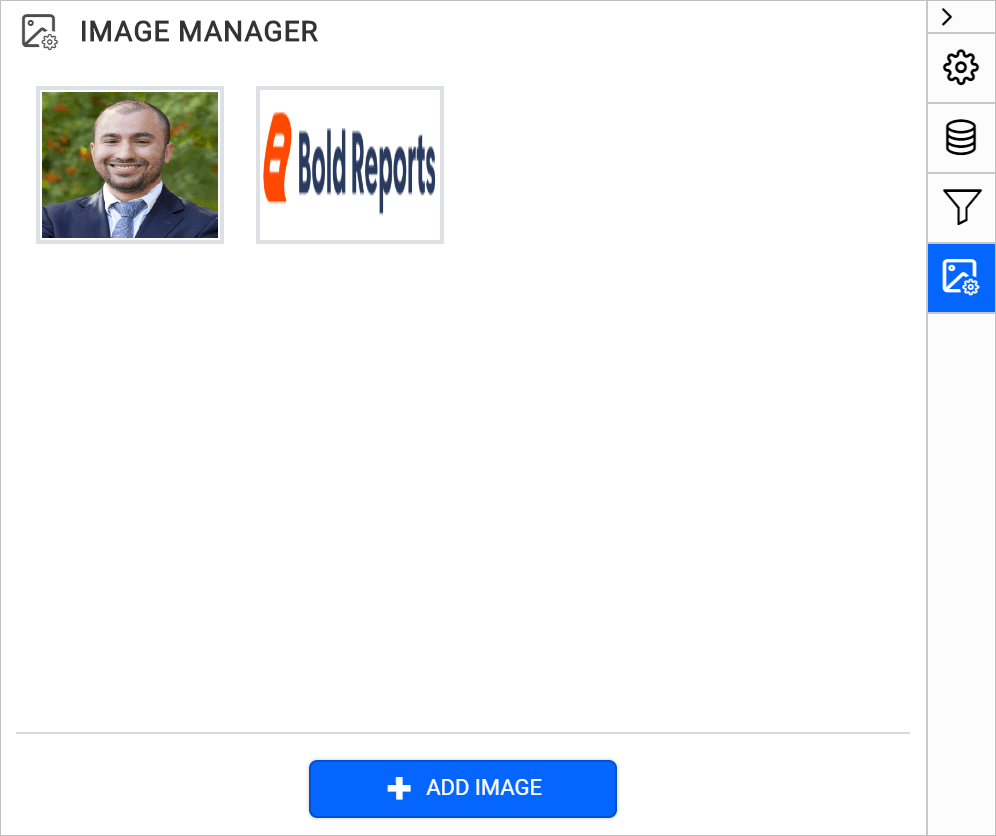
Image manager allows to add an embedded image to the report, the embedded image will always be available to that report. The embedded images in a report are listed in the Image Manager panel.
Add an embedded image
-
Click on the Image Manager icon in the configuration panel.
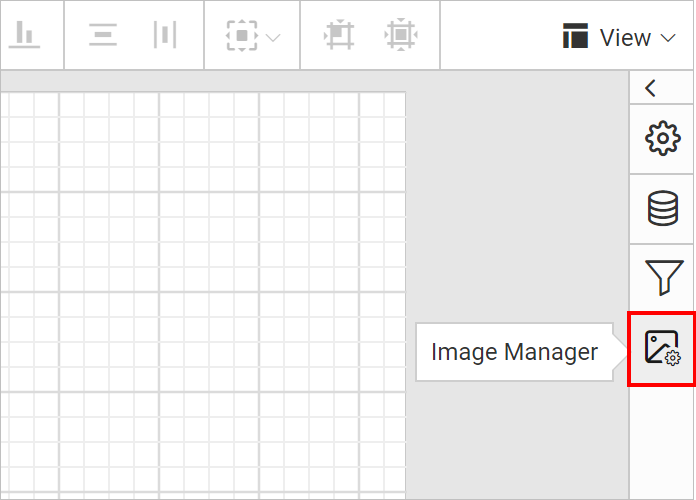
-
Click on Add Image button in the
IMAGE MANAGERpanel.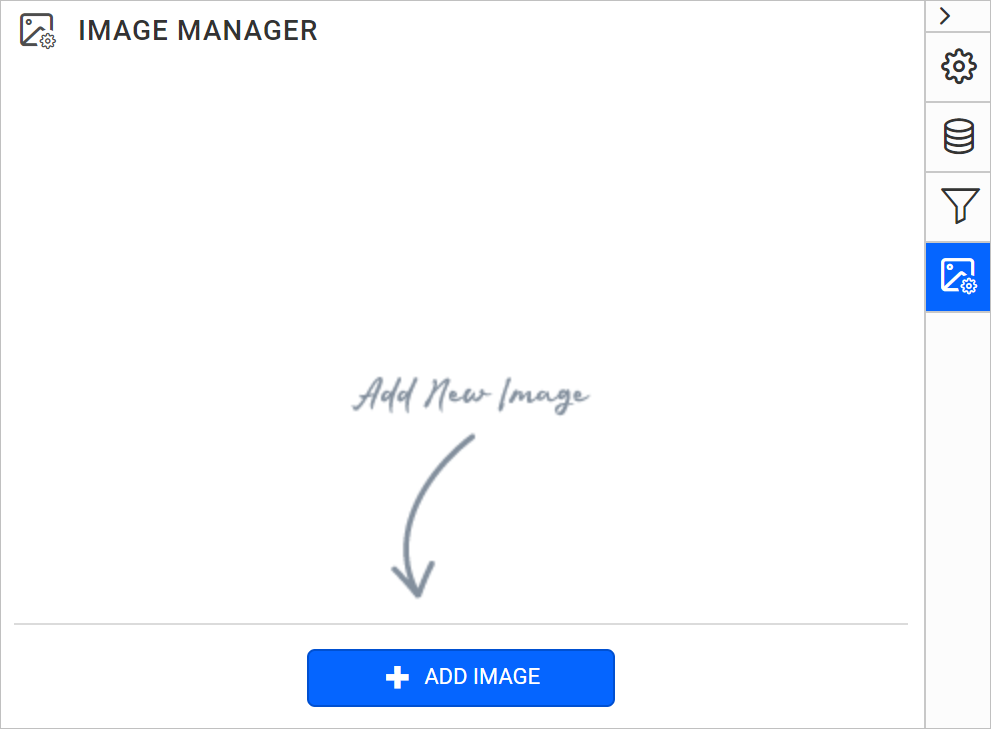
-
Select an image and click on
Openbutton.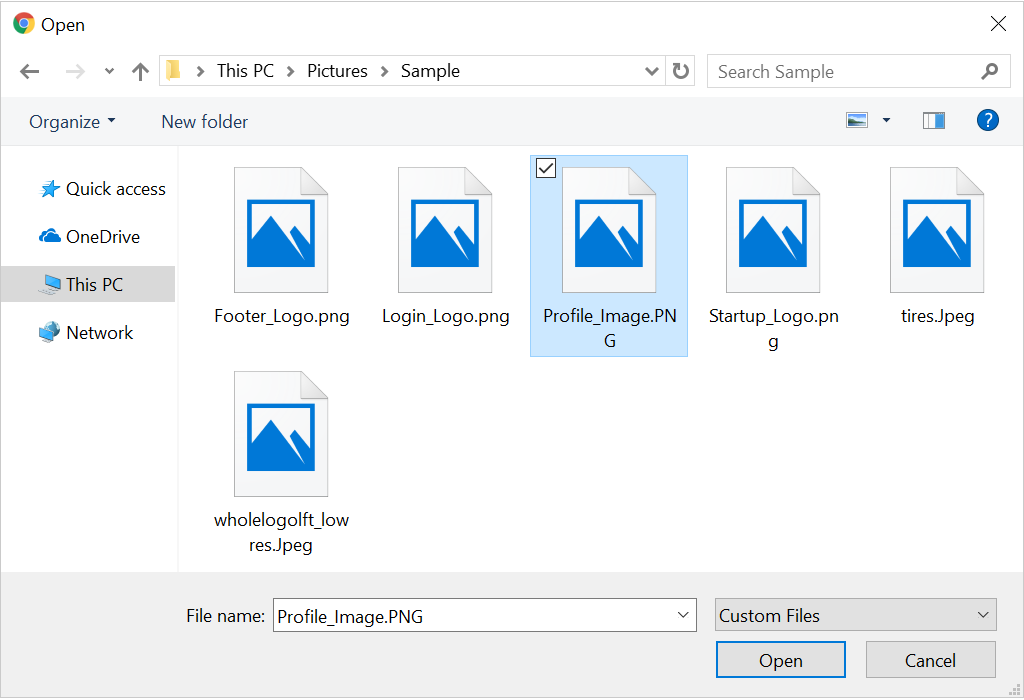
Note: Images can be of the BMP, GIF, JPG, PNG, X-PNG or SVG type.
-
Now, the image will be embedded to the report and listed under the IMAGE MANAGER panel.
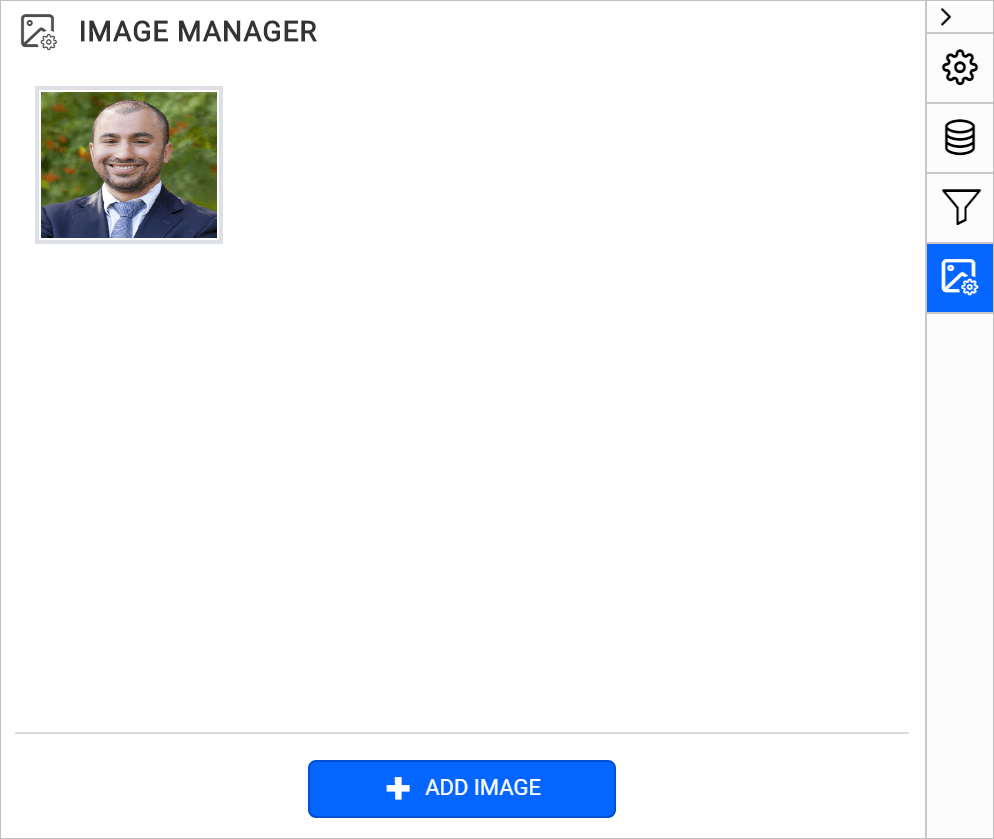
Note: Only one image can be imported at a time. To add more images repeat steps 2 to 4.
Design a report using an embedded image
- To design a report using an embedded image, mouse hover on the image in the IMAGE MANAGER panel.
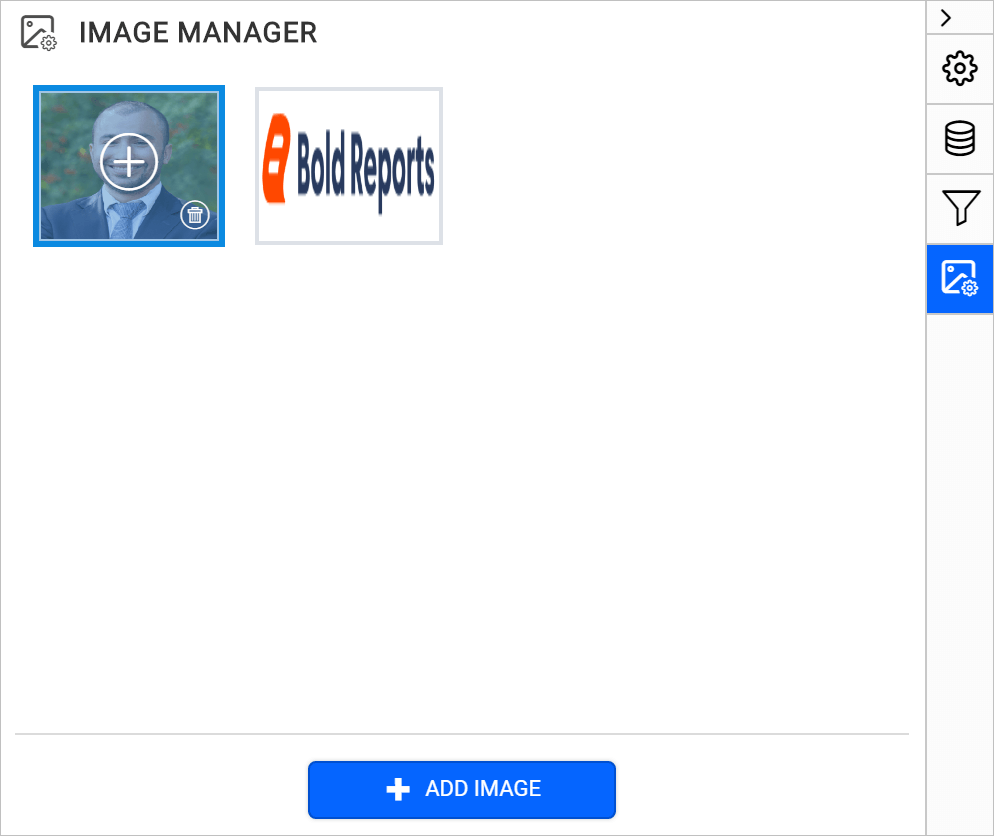
- Click on the
plusicon, now the image item will be added to the design area.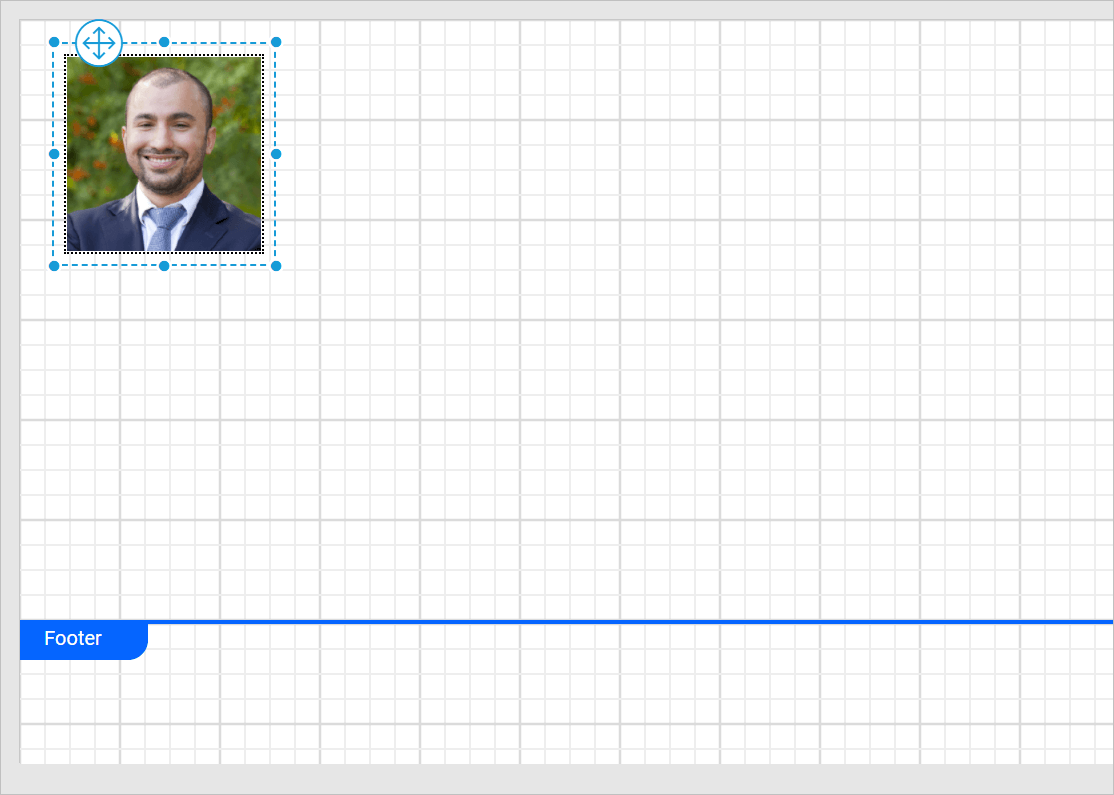
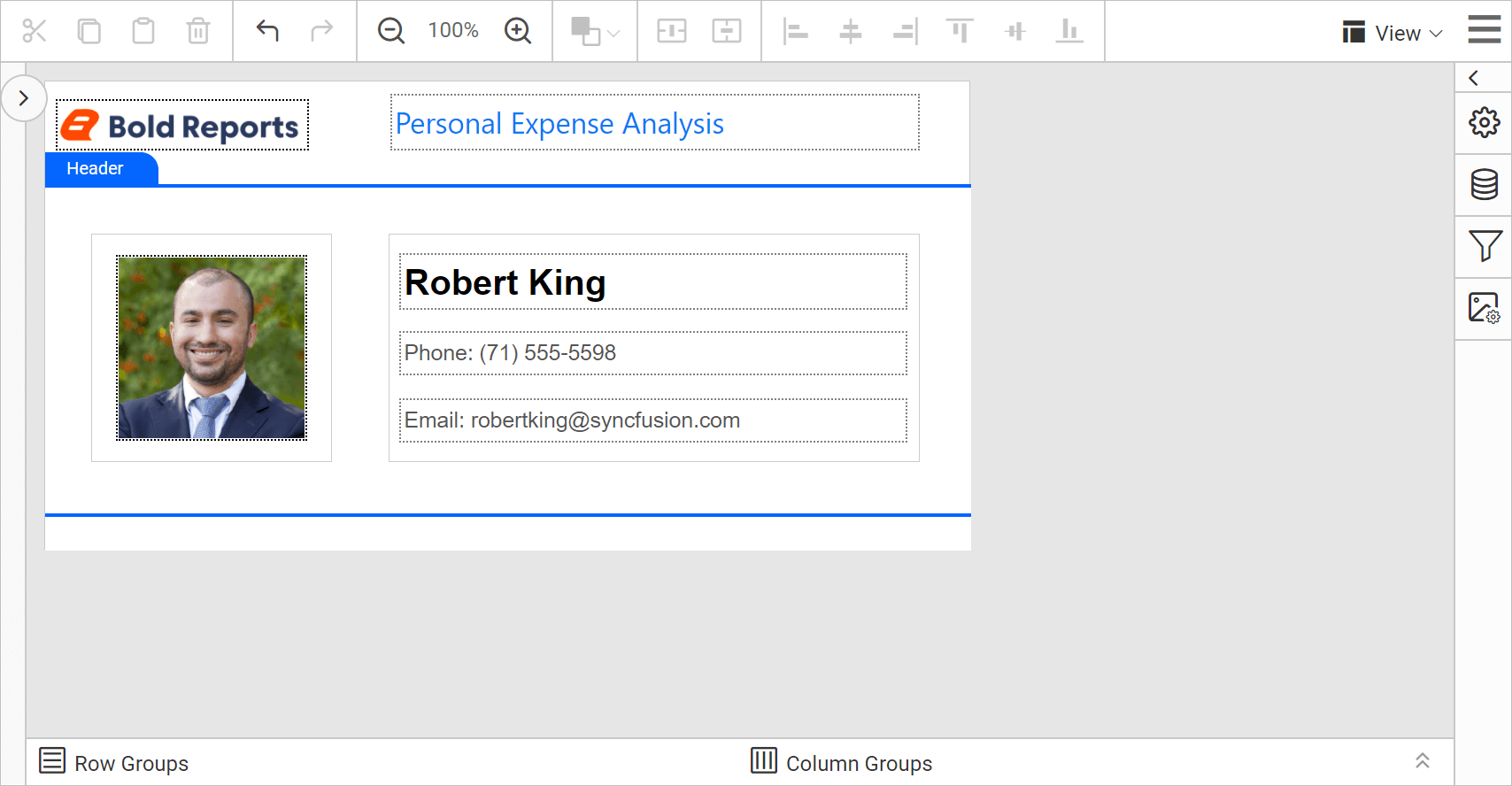
- The below image shows the simple report designed using an embedded image.
Download the above report design from link.