Context menu
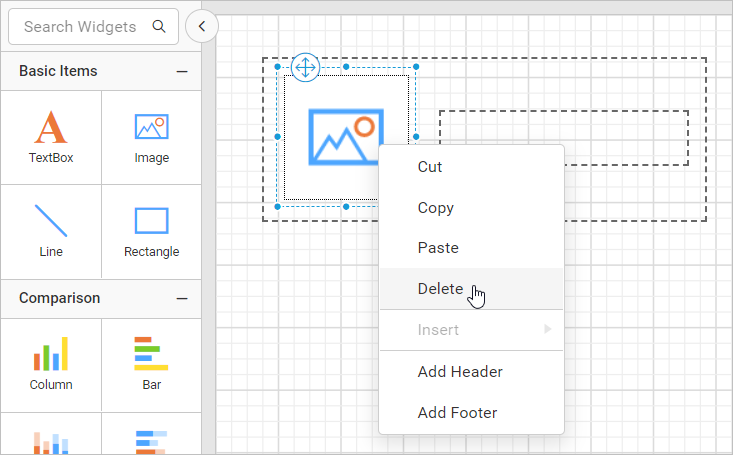
A context menu is a pop-up menu that shows the basic options used in design surface. When you perform the right click action in design surface, the context menu will display options depending on the target design surface or report item.
Header and footer
To add or remove header and footer using context menu, right click on the design surface. Based on, the header and footer visibility context menu will display the following options:
- Add Header
- Add Footer
- Remove Header
- Remove Footer
Add Header
Right click on the design surface and click on Add Header option in the context menu.
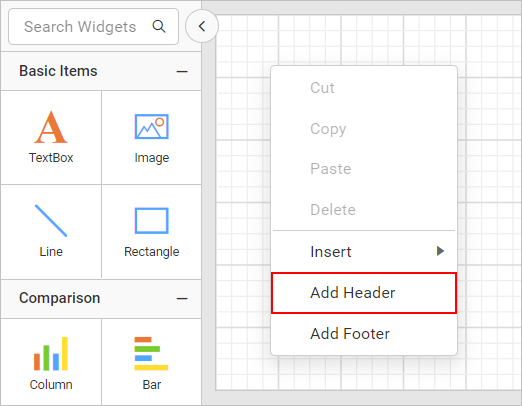
Now, header will be enabled in the report design.
Add Footer
Right click on the design surface and click on Add Footer option in the context menu.
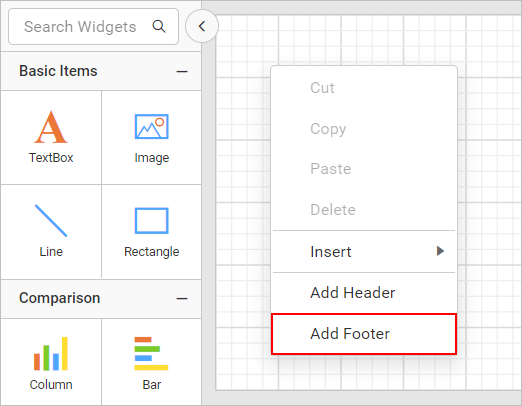
Now, footer will be enabled in the report design.
Remove Header
Right click on the design surface and click on Remove Header option in the context menu.
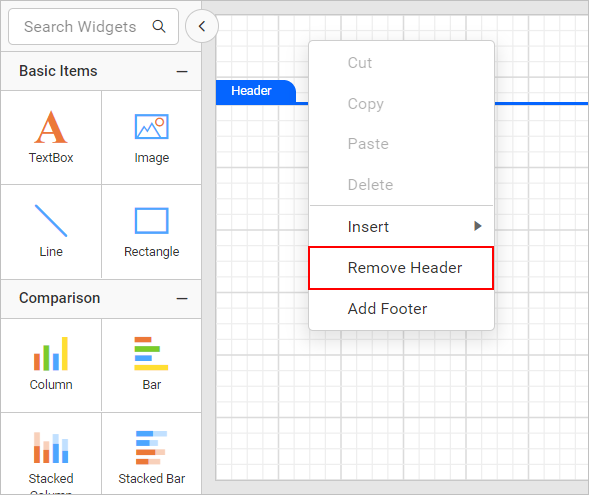
Now, header will be removed from the report design.
Remove Footer
Right click on the design surface and click on Remove Footer option in the context menu.
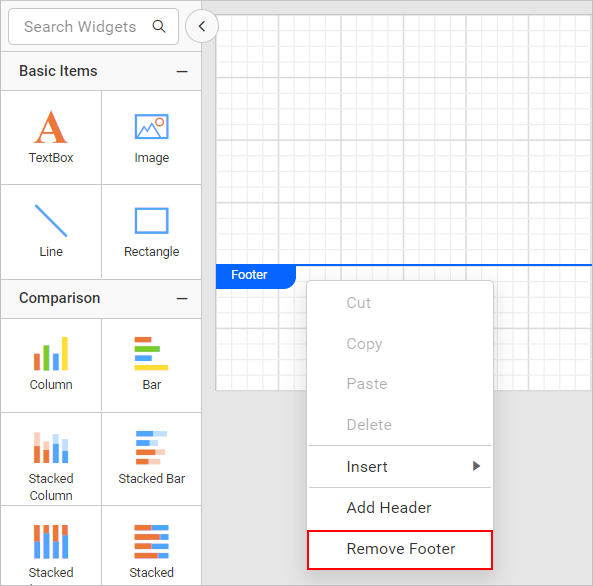
Now, footer will be removed from the report design.
Insert
Insert item at design surface
Right click on the design surface. Based on the target surface (body, footer, or header), the context menu will show the report items list in the Insert option.
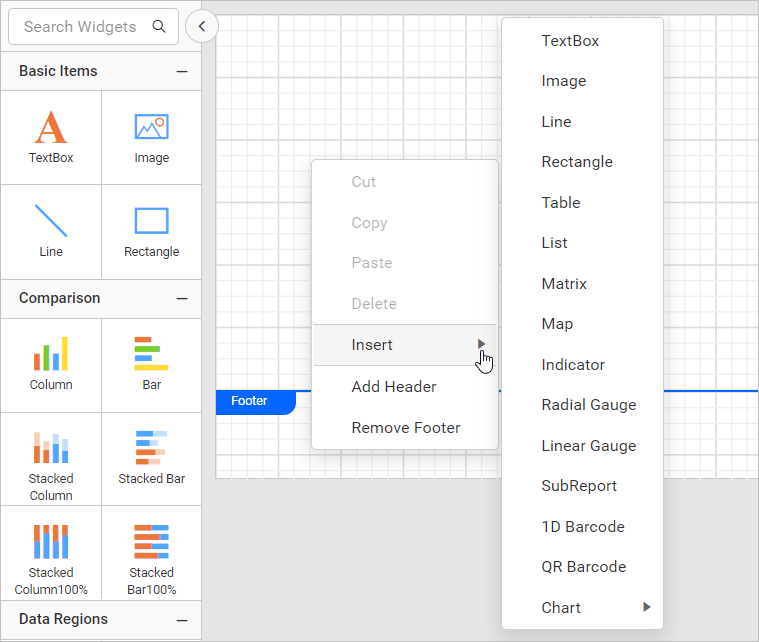
Click on the required report item in the insert menu, will add the report item into the report design.
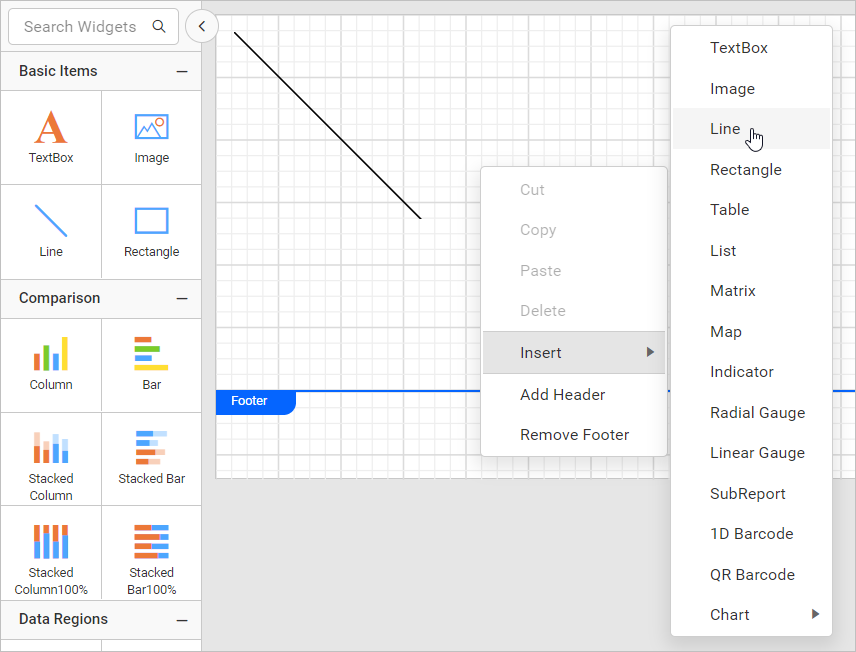
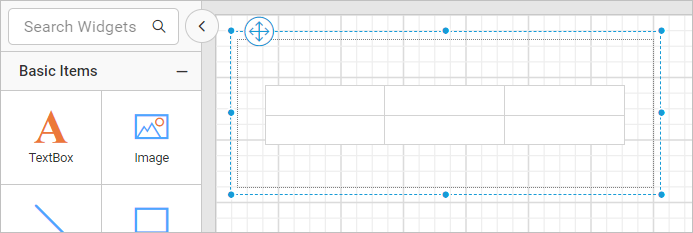
Insert item at rectangle container
Select the rectangle report item and right click on it.
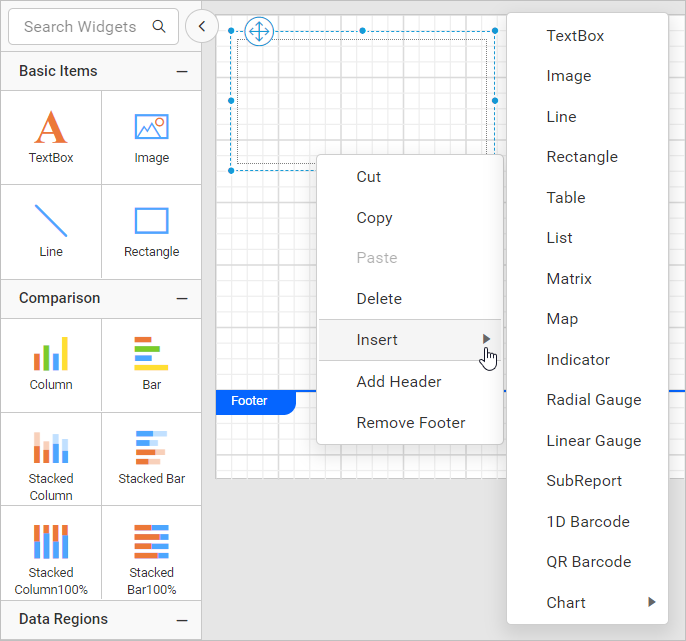
Then, click on the required report item type in the insert menu. Now, the the report item will be added into the rectangle.
Insert item at tablix cell
Select the cell in tablix report item and right click on it.
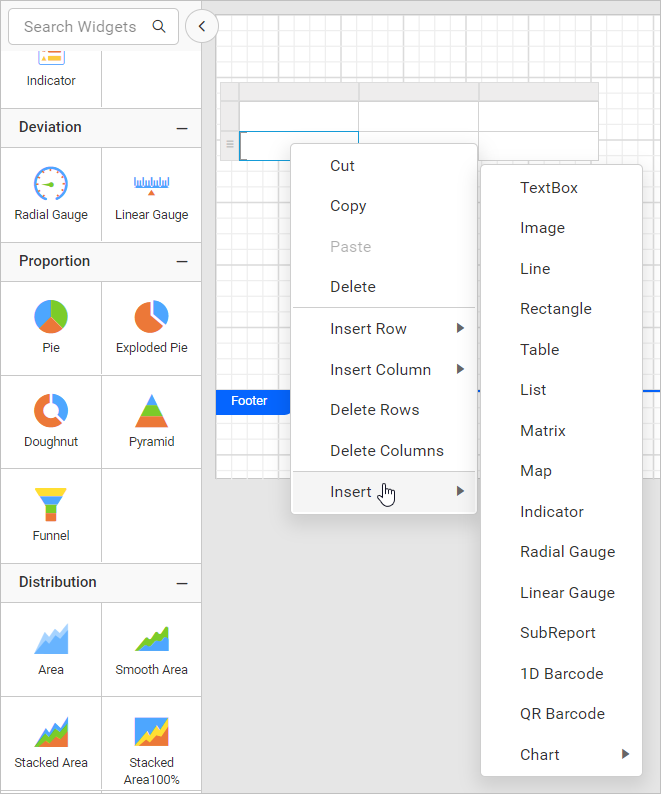
Then, click on the required report item type in the insert menu. Now, the the report item will be added into the target cell.
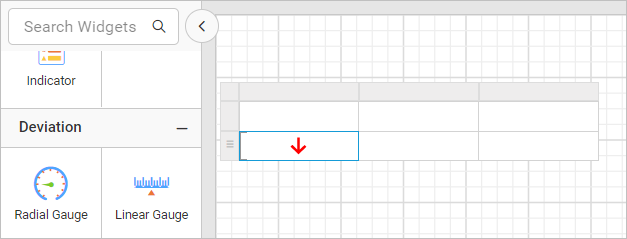
If a table cell contains rectangle, then insert action will add the new report item as child of rectangle.
Cut
Cut item from design surface
Select the required report items in design surface and right click.
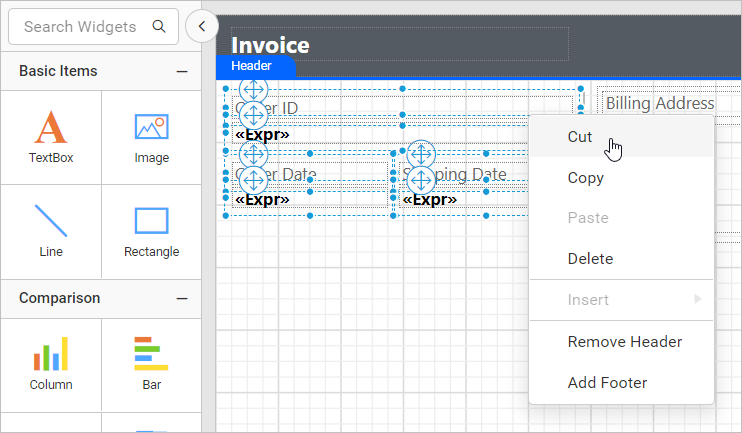
Then, click on Cut option in the context menu. Now, the selected report items will be removed from report design.
Cut item from rectangle container
Select the required report items in target rectangle report item and right click.
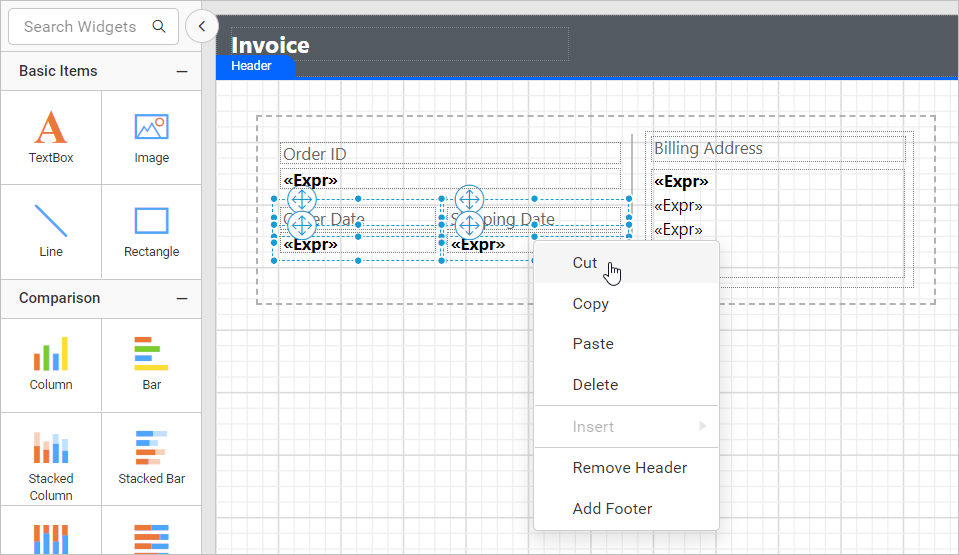
Then, click on Cut option in the context menu. Now, the selected report items will be removed from target rectangle.
Cut item from tablix cell
Select the cell in tablix report item and right click on it.
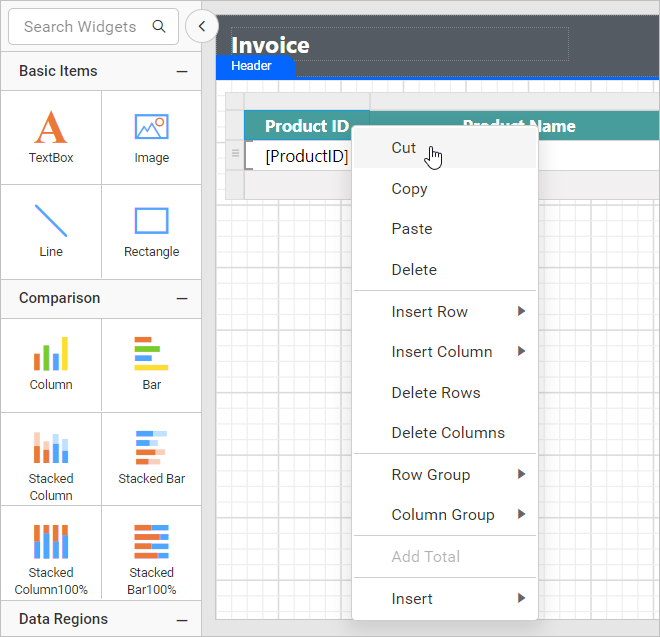
Then, click on Cut option in the context menu. Now, the report item will be removed from the target cell.
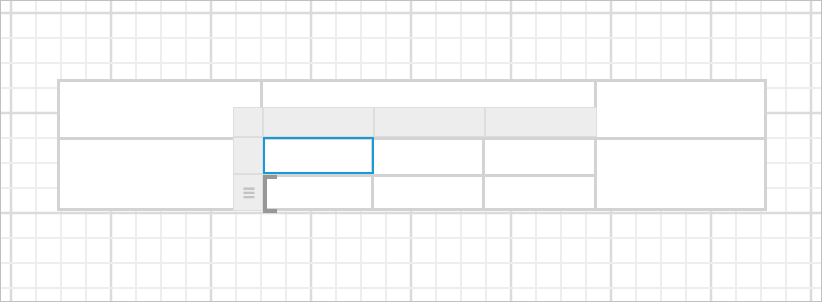
Select the cell in nested tablix, now the gripper for respective tablix will be enabled like below,
Right click on the common gripper area,
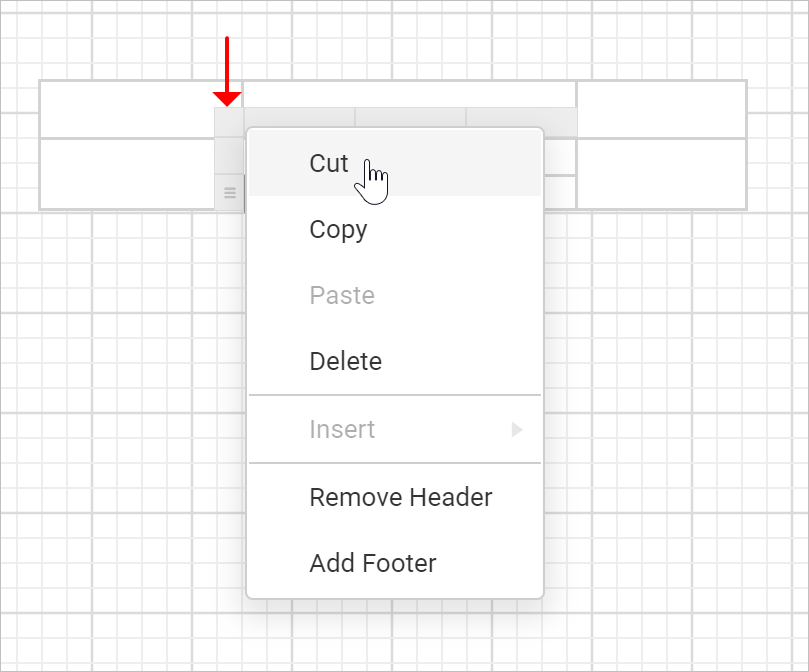
Then, click on Cut option in the context menu. Now, the respective nested tablix will be removed from the parent tablix cell.
Copy
Copy item from design surface
Select the required report items in design surface and right click.
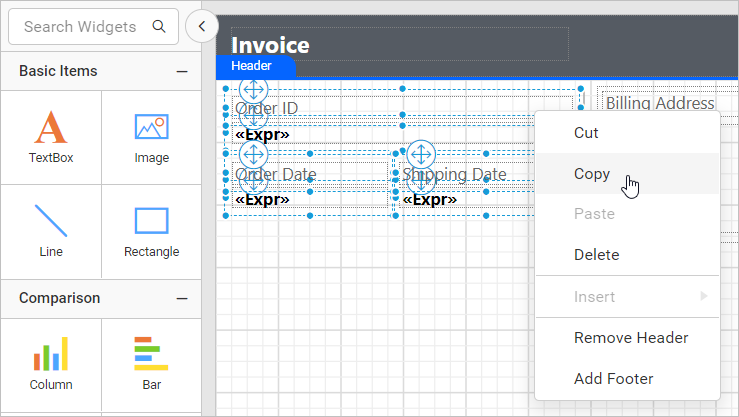
Then, click on Copy option in the context menu. Now, the selected report items will be copied in the internal clipboard.
Copy item from rectangle container
Select the required report items in target rectangle report item and right click.
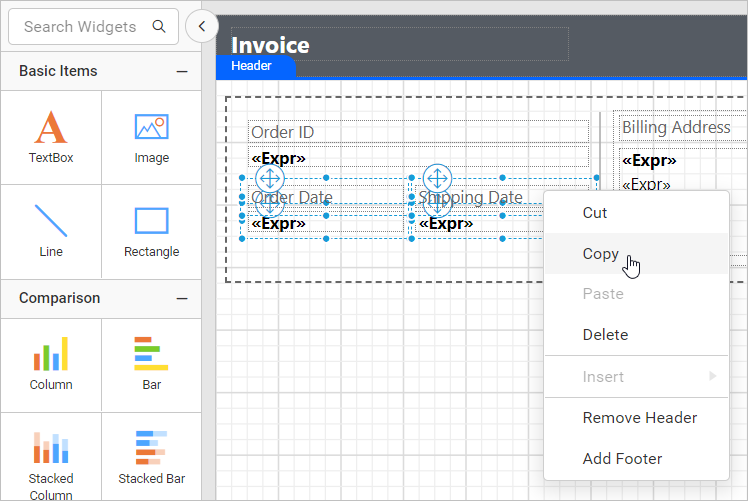
Then, click on Copy option in the context menu. Now, the selected report items will be copied in the internal clipboard.
Copy item from tablix cell
Select the cell in tablix report item and right click on it.
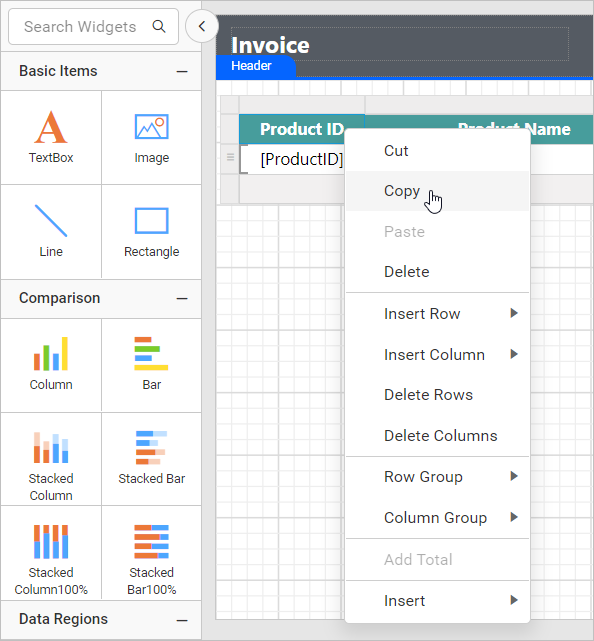
Then, click on Copy option in the context menu. Now, the selected report item will be copied in the internal clipboard.
Select the cell in nested tablix, now the gripper for respective tablix will be enabled like below,
Right click on the common gripper area,
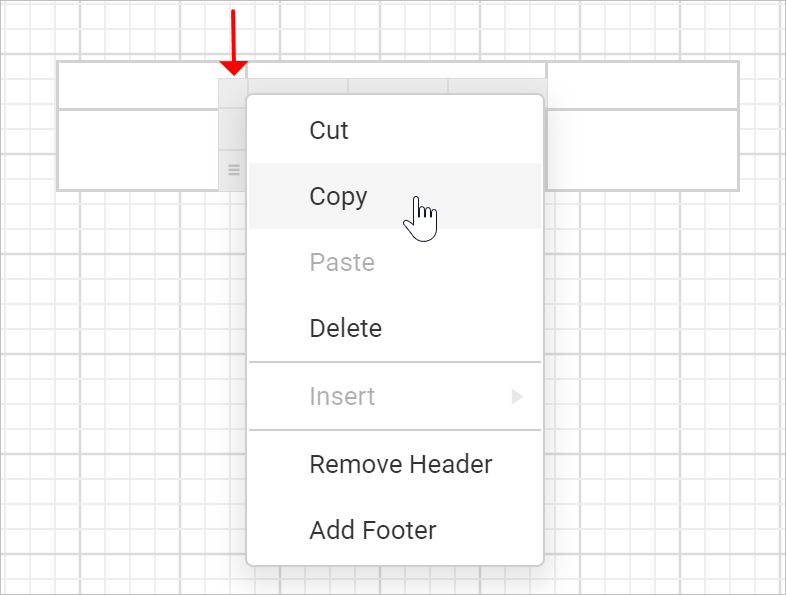
Then, click on Copy option in the context menu. Now, the respective nested tablix will be copied in the internal clipboard.
Paste
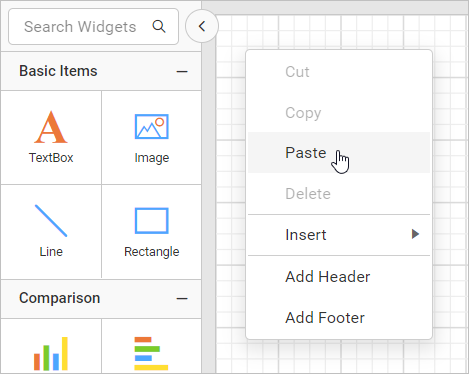
Paste item at design area
Right click on the design surface and click on Paste option in the context menu. Last copied item will pasted in the target mouse position.
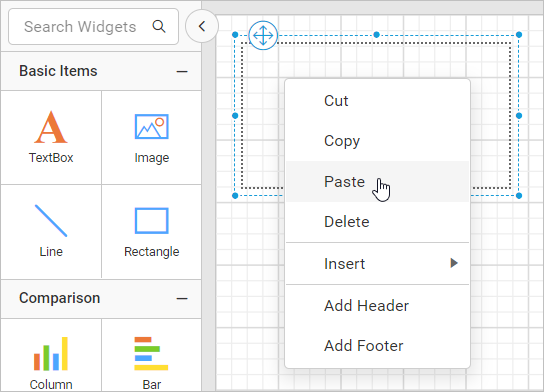
Paste item at rectangle
Right click on the rectangle report item and click on Paste option in the context menu. Last copied item will pasted in the rectangle based on mouse position.
Paste item at tablix cell
Right click on the required tablix cell and click on Paste option in the context menu. Last copied item will pasted in the tablix cell.
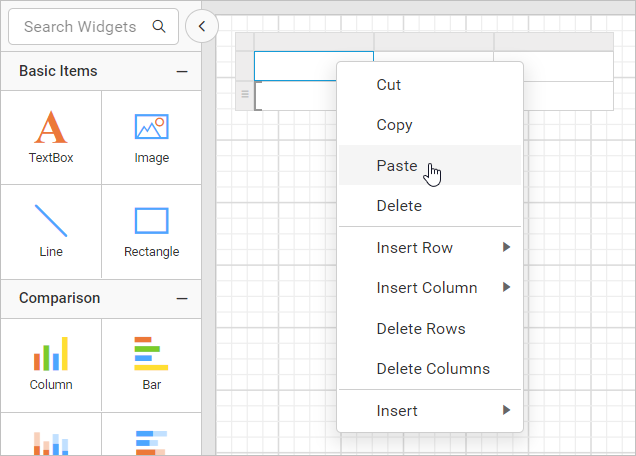
If tablix cell contains rectangle, then copied item will be pasted inside the rectangle.
Delete
Select a report item from design surface or rectangle or tablix, then right click on the report item. Now, click on Delete option in the context menu. Selected report item will be removed from the report design.