Design rdl report using subreport
This section describes the steps to create SSRS RDL report to compare two different employees details side by side using subreport.
Create a main report
- Below is the dataset query used for the main report. Refer Create Data section and create dataset using the below query.
SELECT
Employees.EmployeeID,
Employees.FirstName
FROM
Employees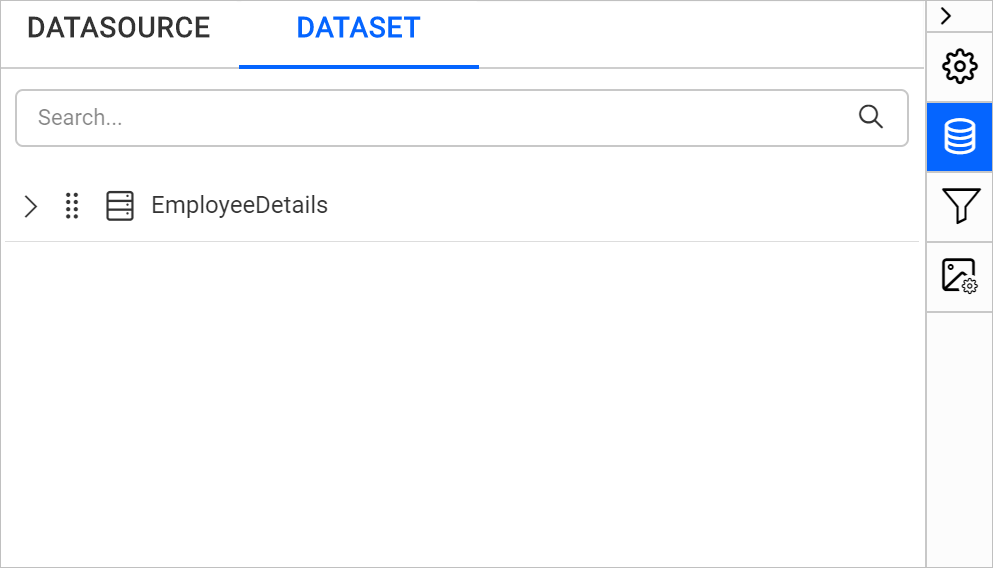
- To compare the employee details, create two parameters named
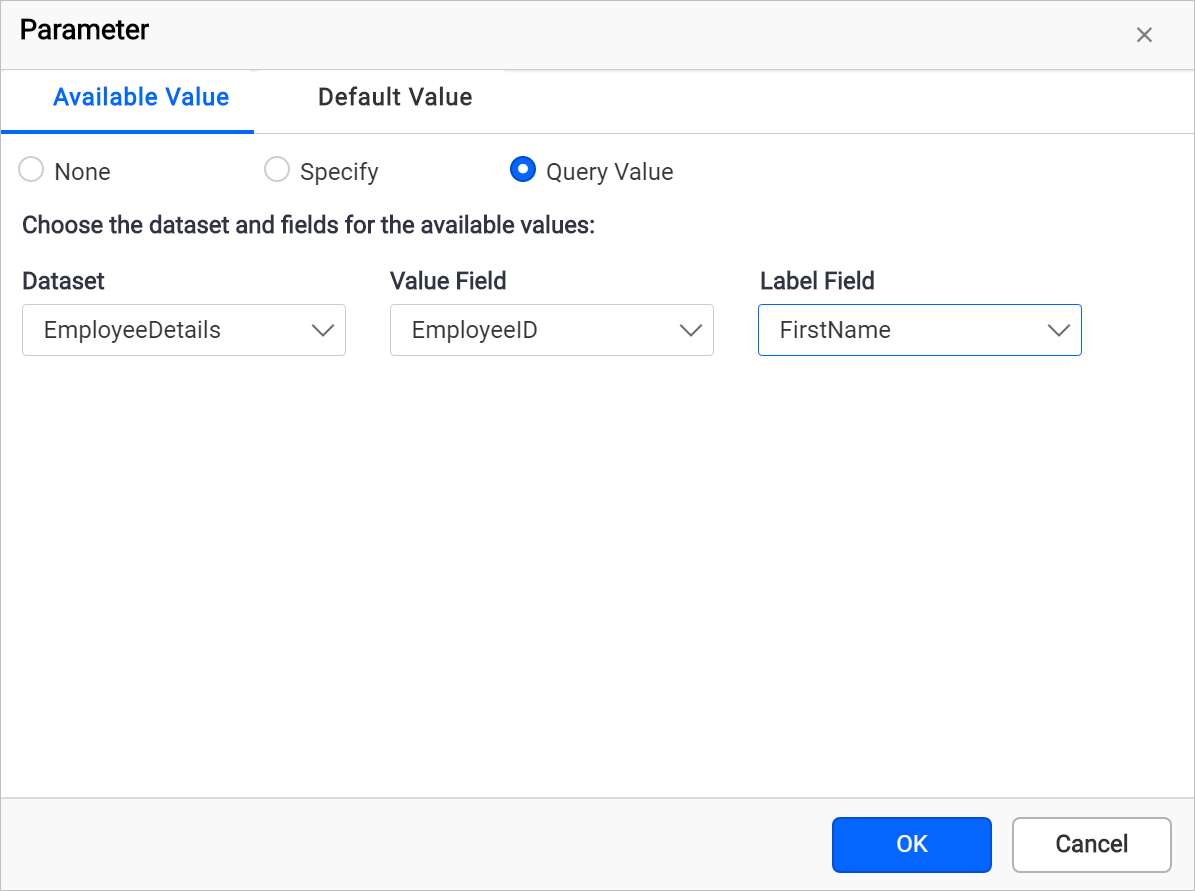
Employee-AandEmployee-Bin the main report and assign the required dataset field value to the parameters as shown in the following snaps. Refer Parameter and Assign Value section to create and assign value to the parameters.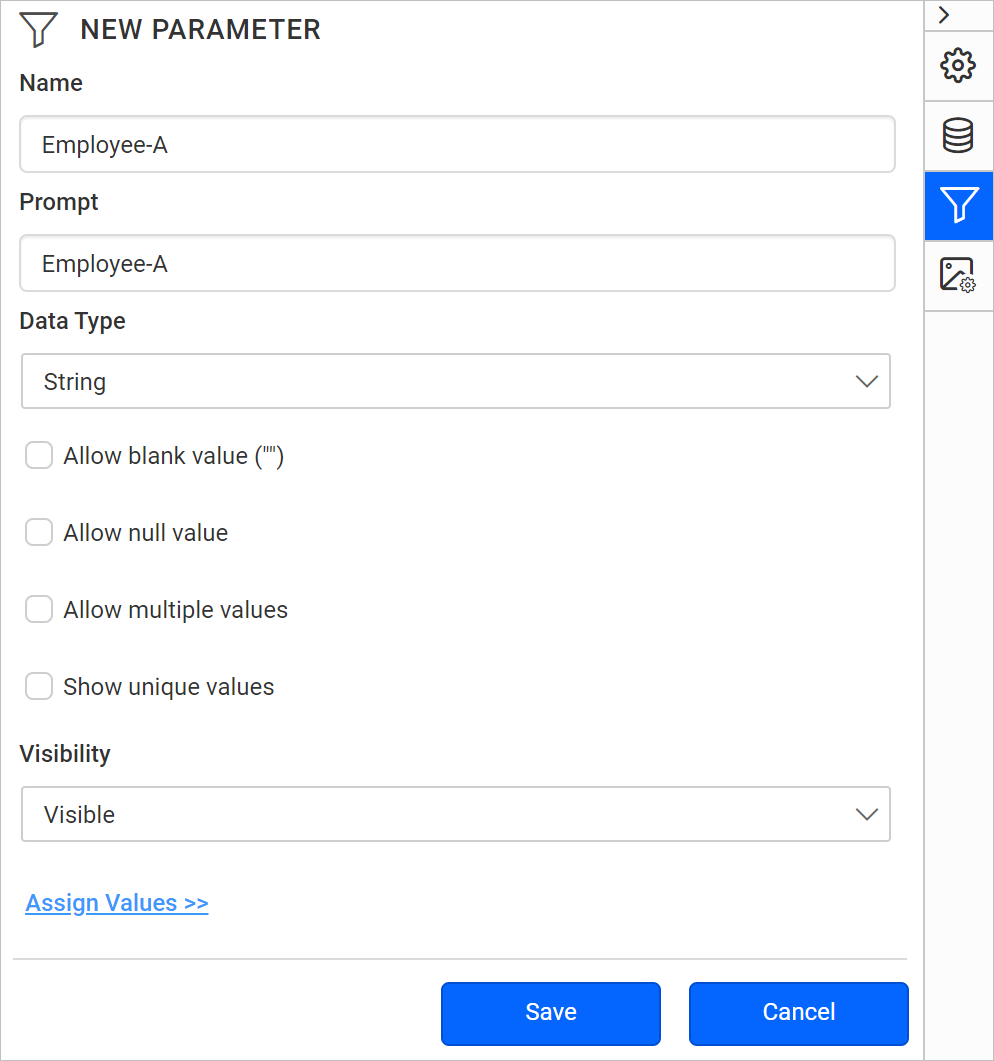
- Using textbox and line report items, design a simple report as shown below.
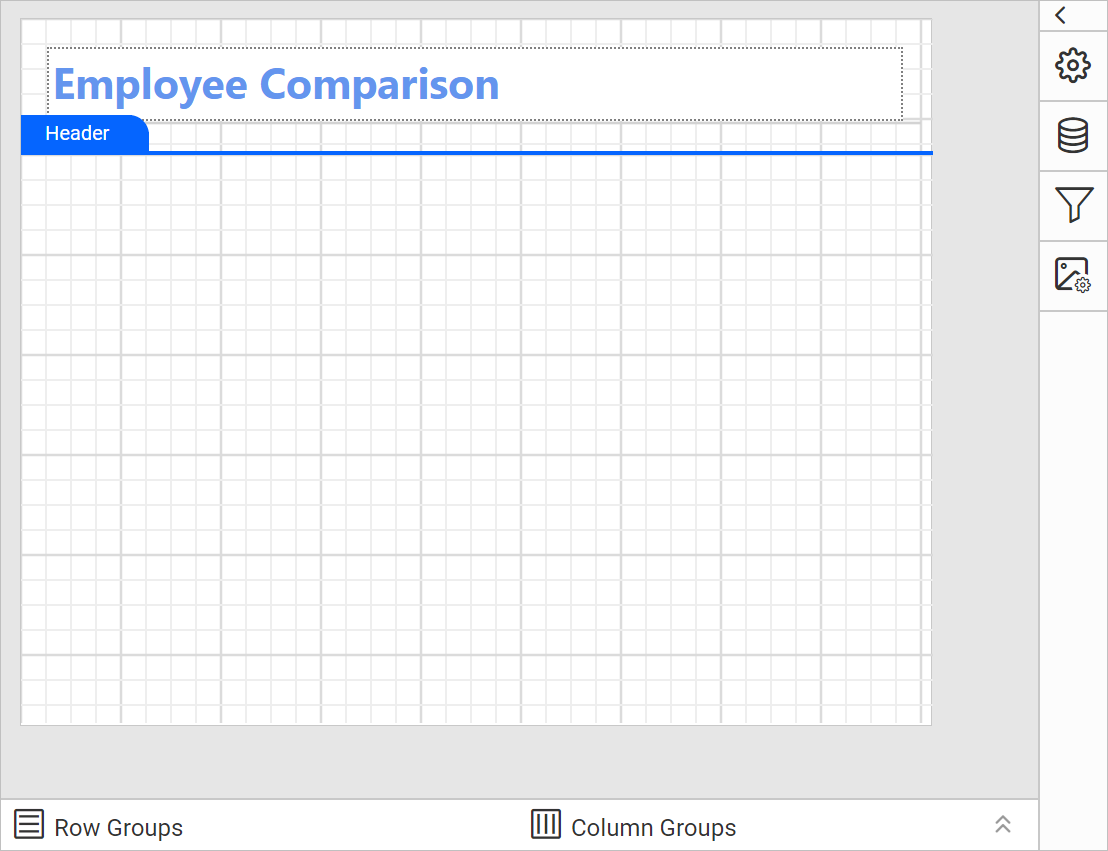
Note: Refer Textbox, Line section to design the above report design.
Add subreport
- Drag and drop subreport item listed in the item panel under the
Sub Reportscategory.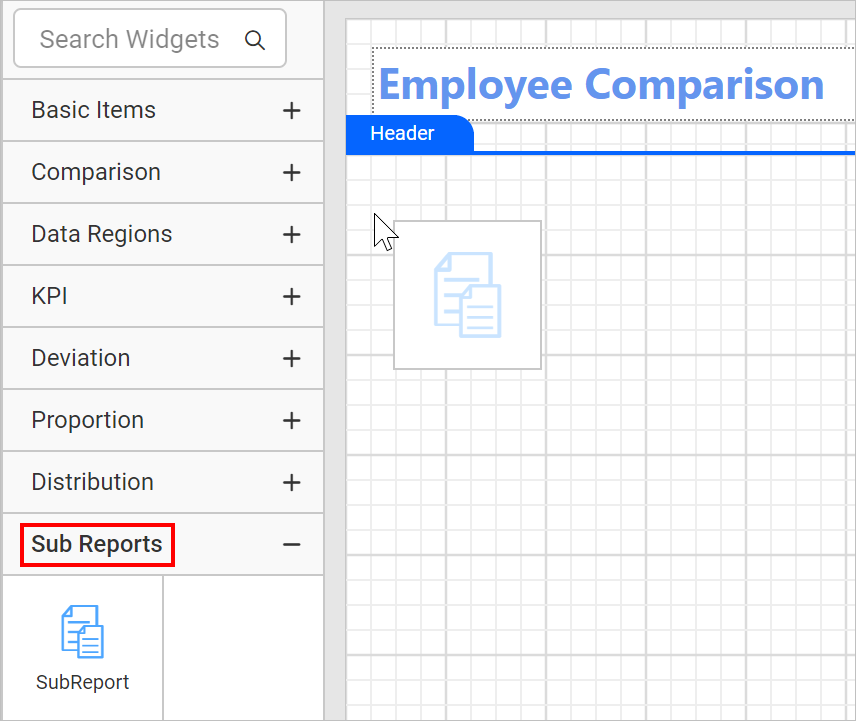
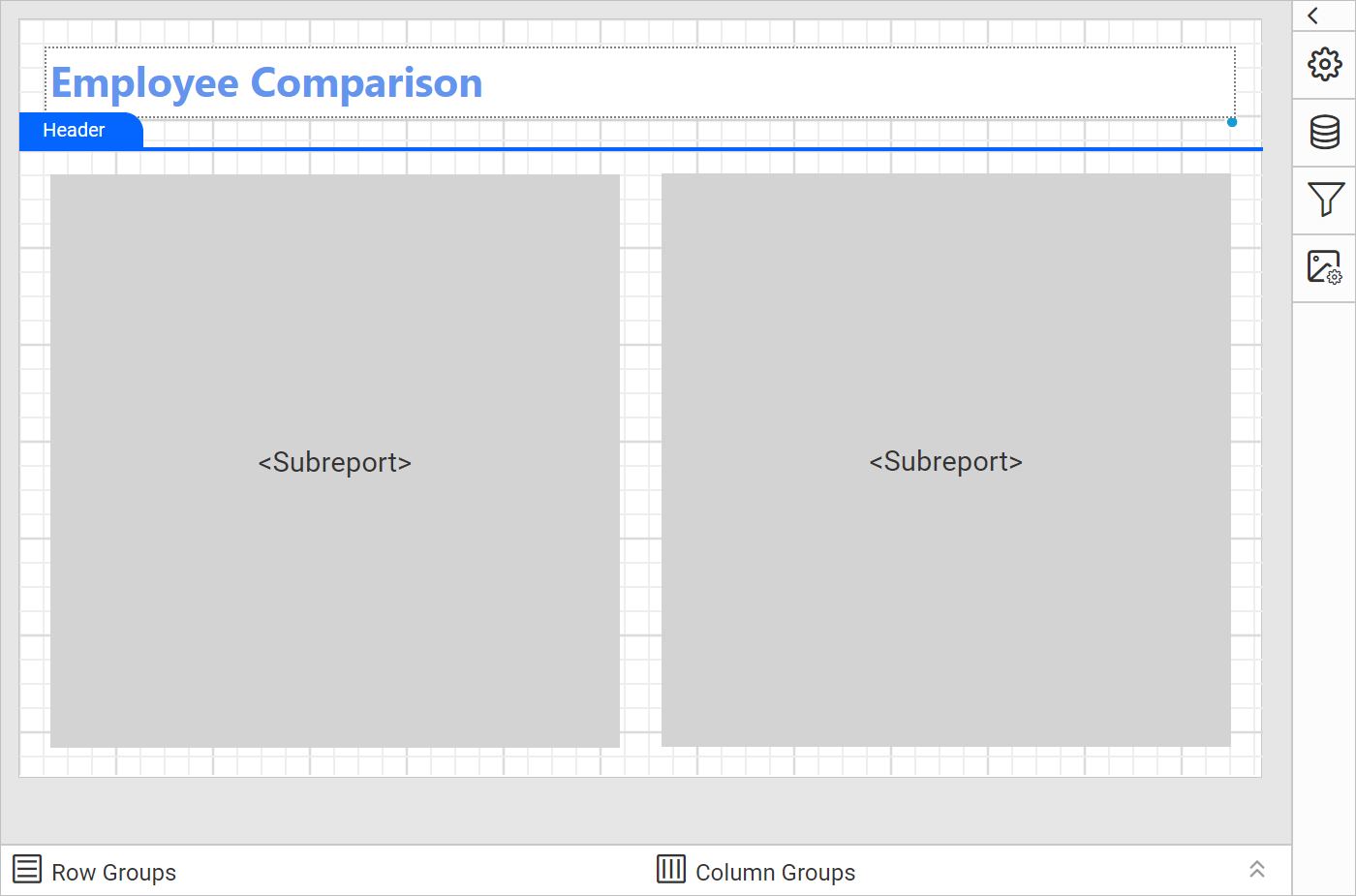
- To compare the employee details, drag and drop two subreport items side by side in the design area.
Create a subreport
Design a subreport to display the employee details.
Create dataset
-
Below is the dataset query used in this report to fetch the employee personal details that is bound to the
Employeestable ofNorthwinddatabase. Refer Create Data section and create dataset using the below query.SELECT Employees.EmployeeID,Employees.LastName,Employees.FirstName,Employees.Title,Employees.TitleOfCourtesy ,(DATENAME(WEEKDAY,Employees.BirthDate)+', '+ DATENAME (DAY,Employees.BirthDate)+'+DATENAME(MONTH,Employees.BirthDate)+'+DATENAME(YEAR,Employees.BirthDate)) as BirthDate ,(DATENAME(WEEKDAY,Employees.HireDate)+', '+DATENAME(DAY,Employees.HireDate)+'+DATENAME(MONTH,Employees.HireDate)+'+DATENAME(YEAR,Employees.HireDate))as HireDate ,Employees.HomePhone ,Employees.City,Employees.Region,Employees.PostalCode,Employees.Country ,SUM(o.Quantity * o.UnitPrice) As TotalGain FROM Employees,[Order Details] as O,[Orders] as Ord WHERE o.OrderID = ord.OrderID and Employees.EmployeeID = ord.EmployeeID and Employees.EmployeeID = @SalesPersonID group by Employees.EmployeeID ,Employees.LastName,Employees.FirstName,Employees.Title,Employees.TitleOfCourtesy,BirthDate,HireDate,Employees.City,Employees.HomePhone,Employees.Region ,Employees.PostalCode,Employees.Country -
To present respective employee sales order details information in the tabular format, create a dataset using below query and bind data to the table report item.
SELECT Top(10) o.OrderID,Cus.CompanyName,SUM(OD.UnitPrice * od.Quantity ) As ExPrice FROM [Orders] as O, [Customers] as Cus,[Order Details] as OD where (O.EmployeeID = @SalesPersonID) and (cus.CustomerID=o.CustomerID) and od.OrderID = o.OrderID group by o.OrderID,o.CustomerID,cus.CompanyName -
Use the below query and create a dataset, to retrieve the employee image details from
Employeestable ofNorthwinddatabase.SELECT Employees.Photo FROM Employees WHERE (Employees.EmployeeID = @SalesPersonID)Now, the dataset created in the report will be listed in the
Data panelas shown below.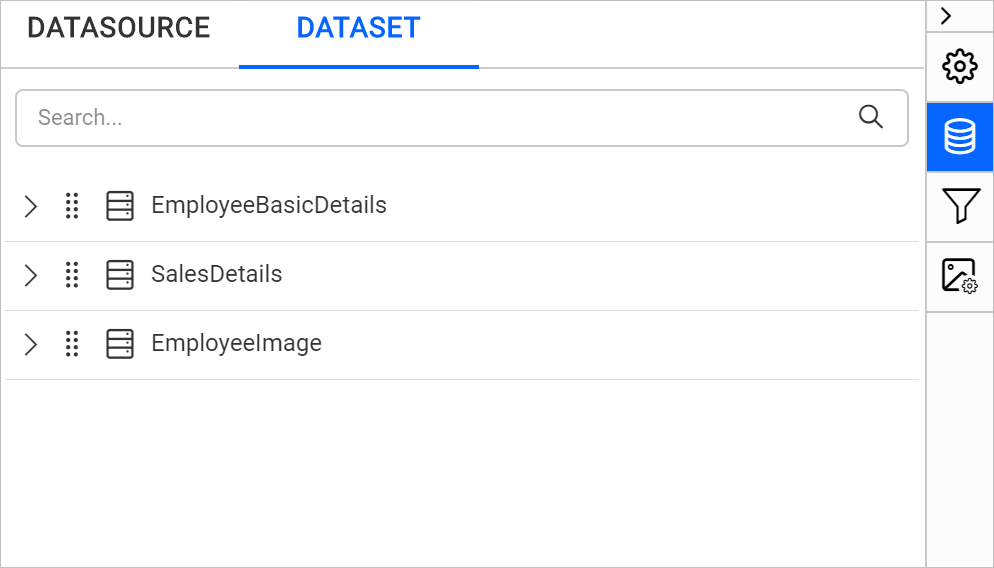
-
Based on the
@SalesPersonIDquery parameter created in dataset query, equivalent report parameter will be created automatically in the report as shown below.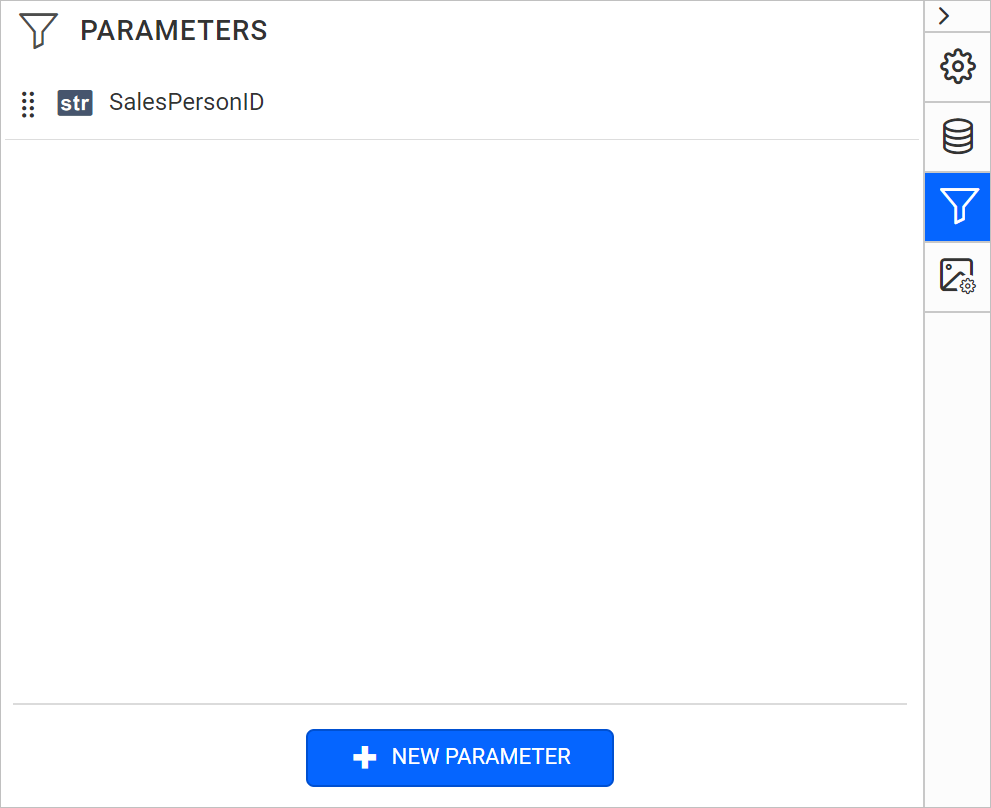
Design report
Here we have designed a simple subreport using image, textbox and table reportitem as shown below.
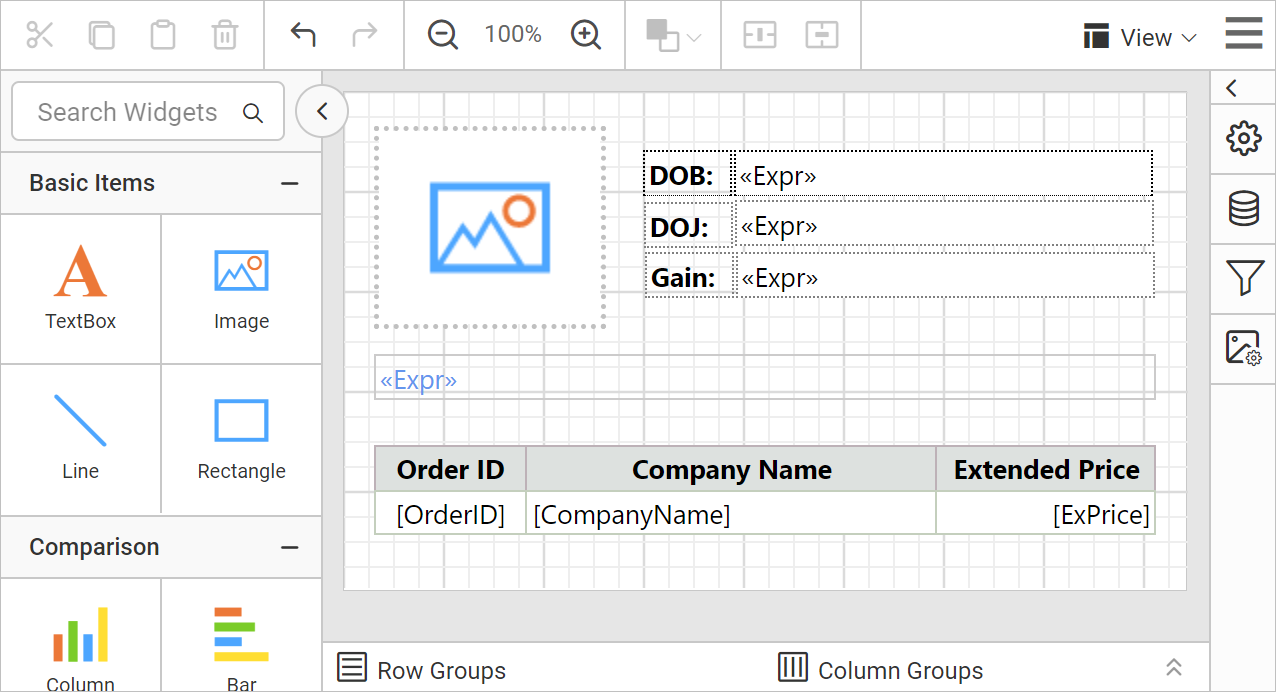
Note: Refer Image, Line, Table section to design the above subreport.
Assign fields
- To display employee
DOB, we have used this=First(Fields!BirthDate.Value,"EmployeePersonalDetails")expression in the textbox reportitem. - To display employee
DOJ, we have used this=First(Fields!HireDate.Value,"EmployeePersonalDetails")expression in the textbox reportitem. - To display employee
GAINwe have used this=Sum(Fields!TotalGain.Value,"EmployeePersonalDetails")expression in the textbox reportitem. - To display employee
First NameandLast Name, we have used this=First(Fields!FirstName.Value, "EmployeePersonalDetails")+" "+" "+First(Fields!LastName.Value, "EmployeePersonalDetails")expression in the textbox reportitem. - To present the sales details of a respective employee,
EmployeeSalesDetailsdataset is assigned to the table report item. - To display employee image in the report, assigned the
=First(Fields!Photo.Value, "EmployeeImages")expression to the image report item value property.
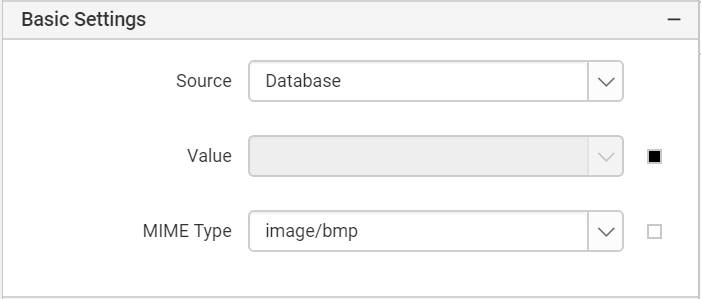
Download the above report design from link.
Link sub report into main report
Once you drag and drop the subreport item into design area, respective item properties will be listed in the properties panel.
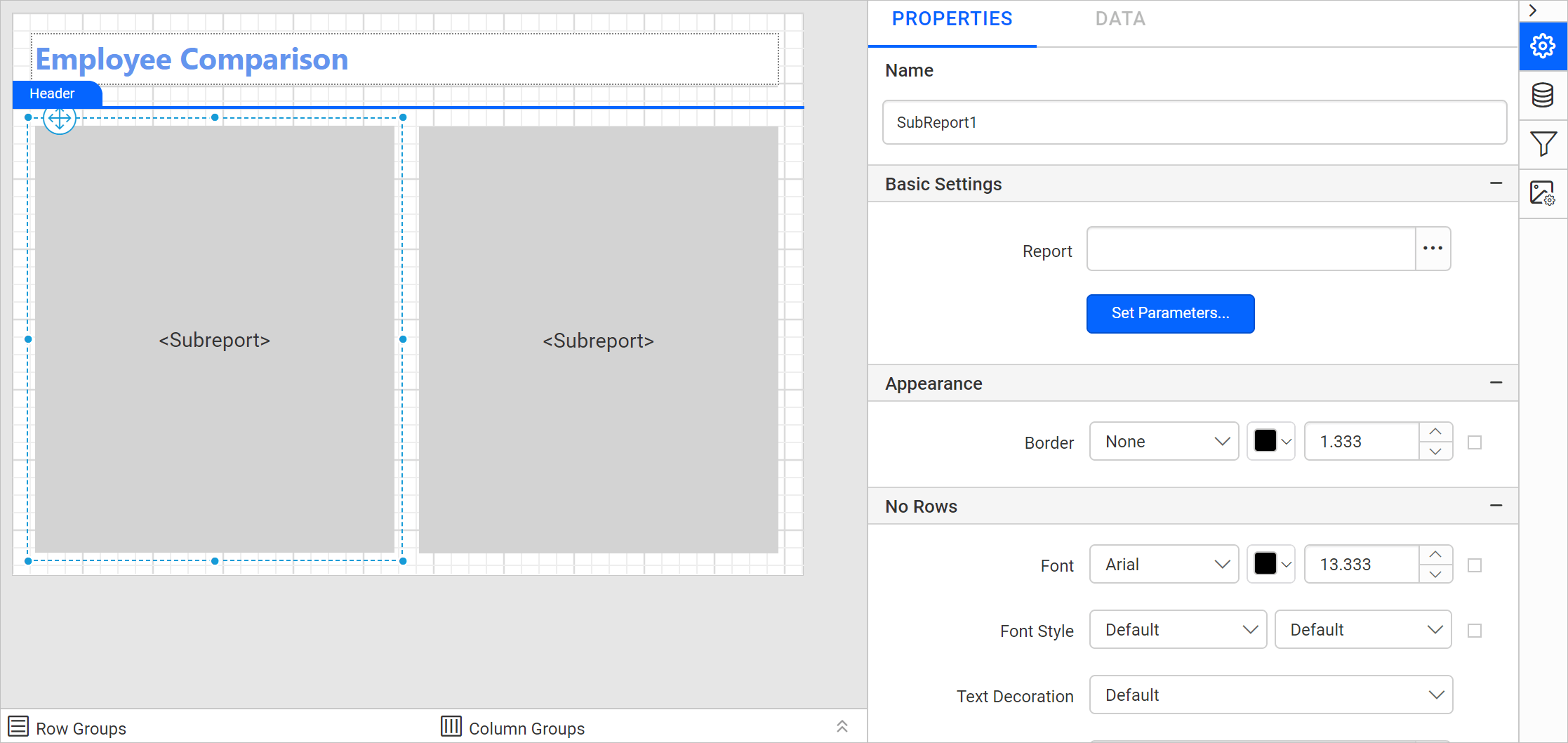
Follow the below steps to link subreport into main report
-
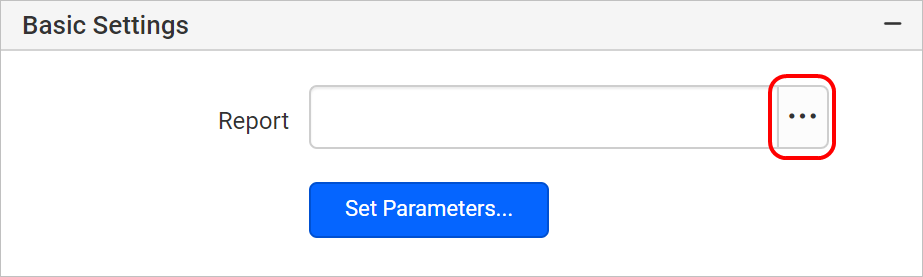
Click on the browse button in Report option as shown below.
-
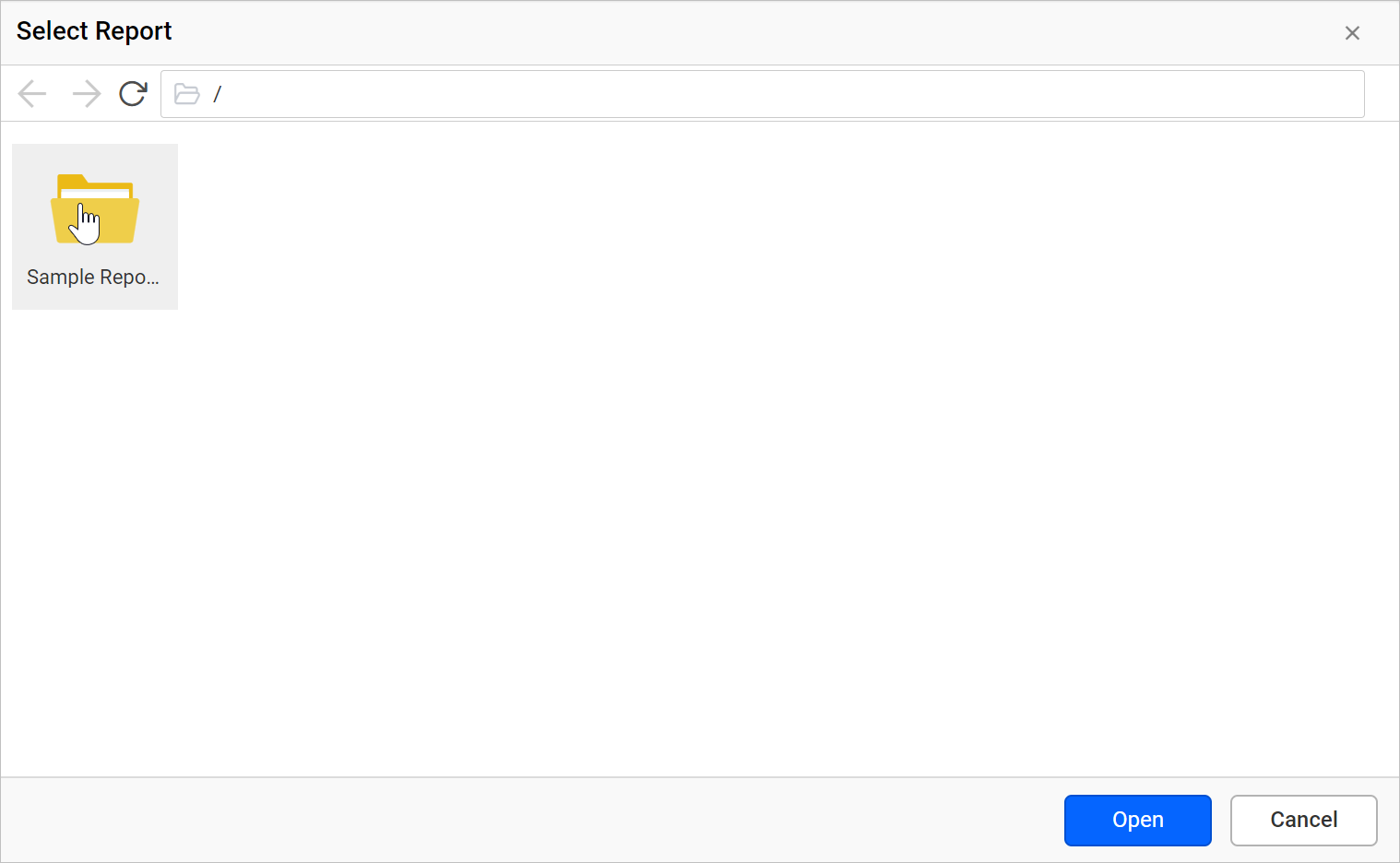
Browse dialog will open, click on Sample Reports folder.
-
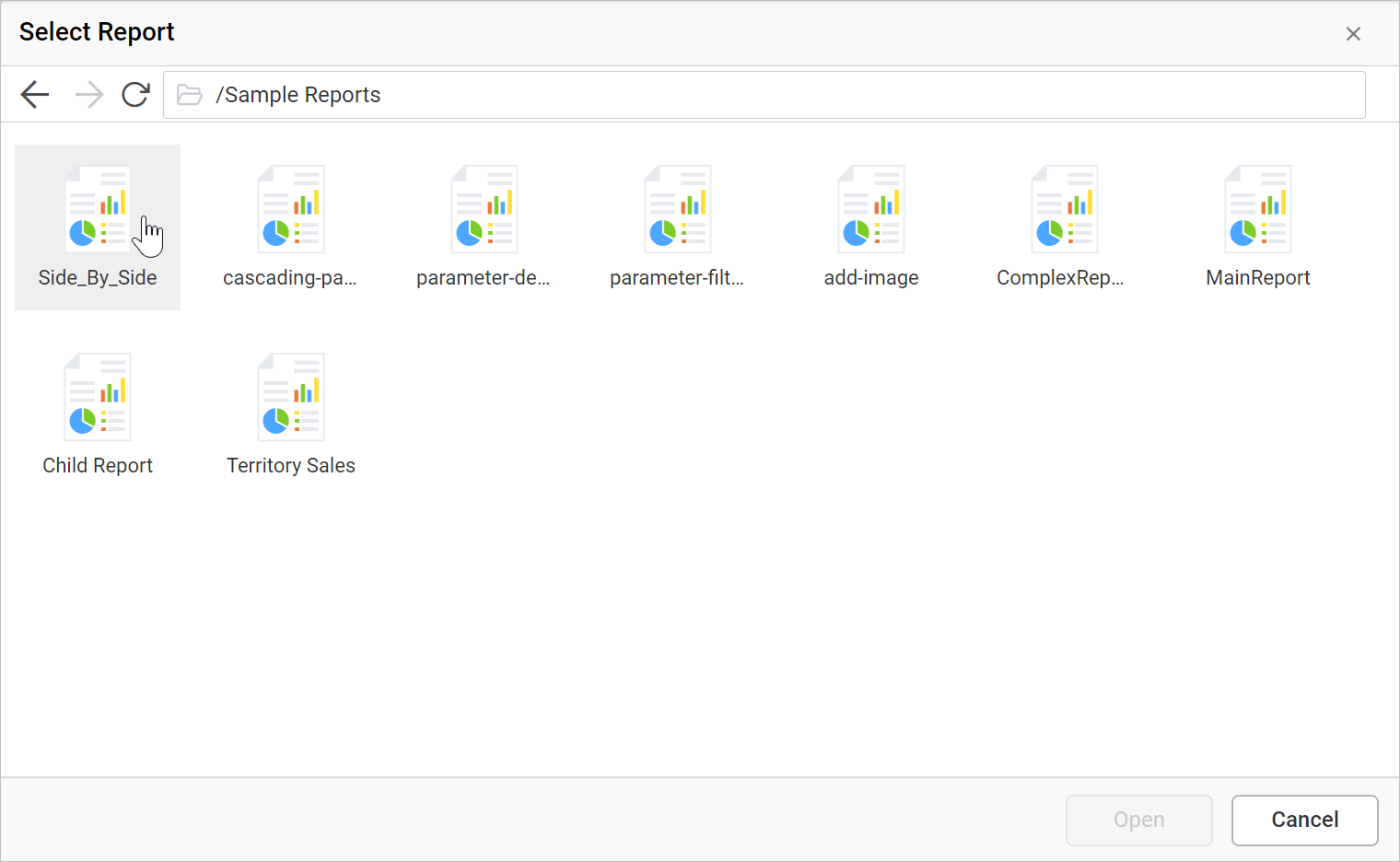
Select the already designed sub report and click Open.
-
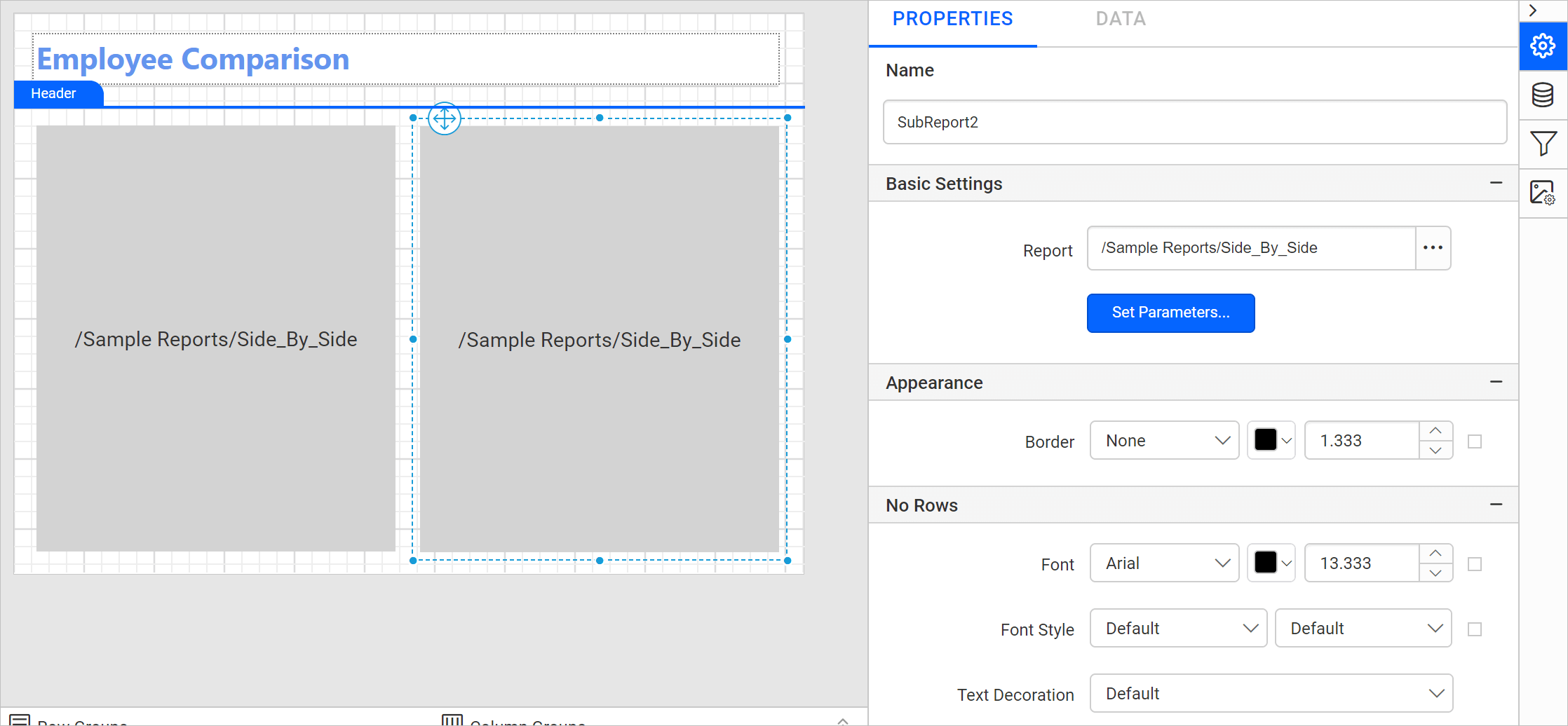
Selected report path is linked in the Report option and subreport item in the design area as shown below.
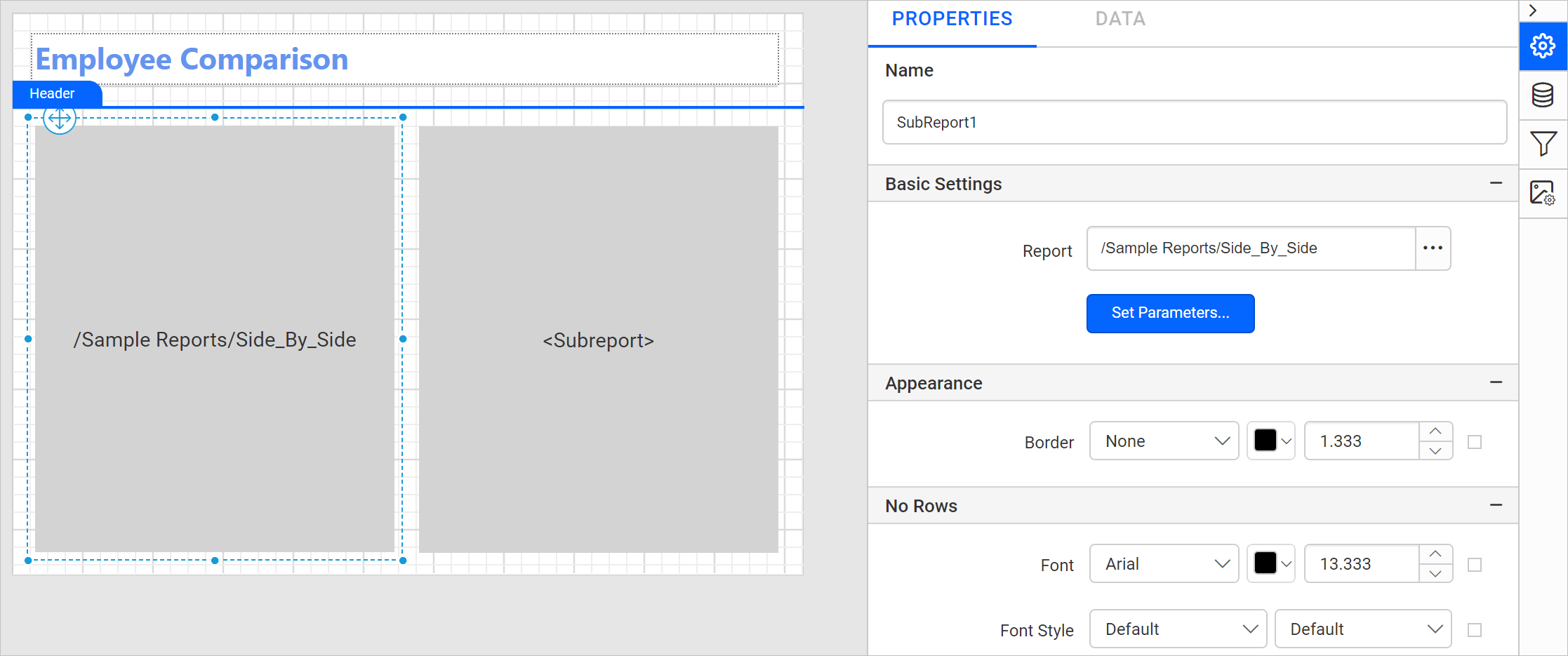
Similarly set the report path to the another subreport item by following the above steps.
Set Parameters values
To assign parameter values to the sub report from main report follow the below steps:
- Click on the Set Parameters button and click on the ADD icon.
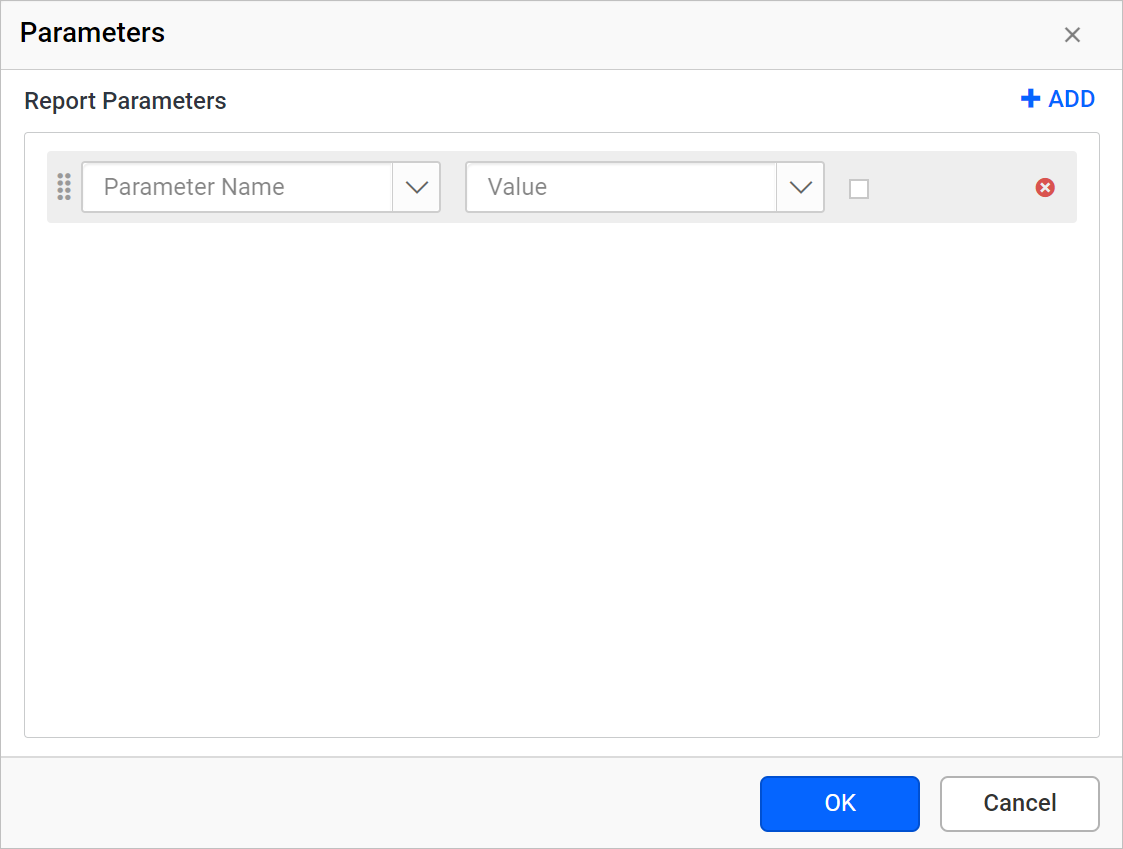
- The available parameters in the sub report will be listed in the
Parameters Namedrop down, choose the parameter name and assign values. Here, the following expression=Parameters!Employee-A.Valueis assigned to theSalesPersonIDparameter of subreport.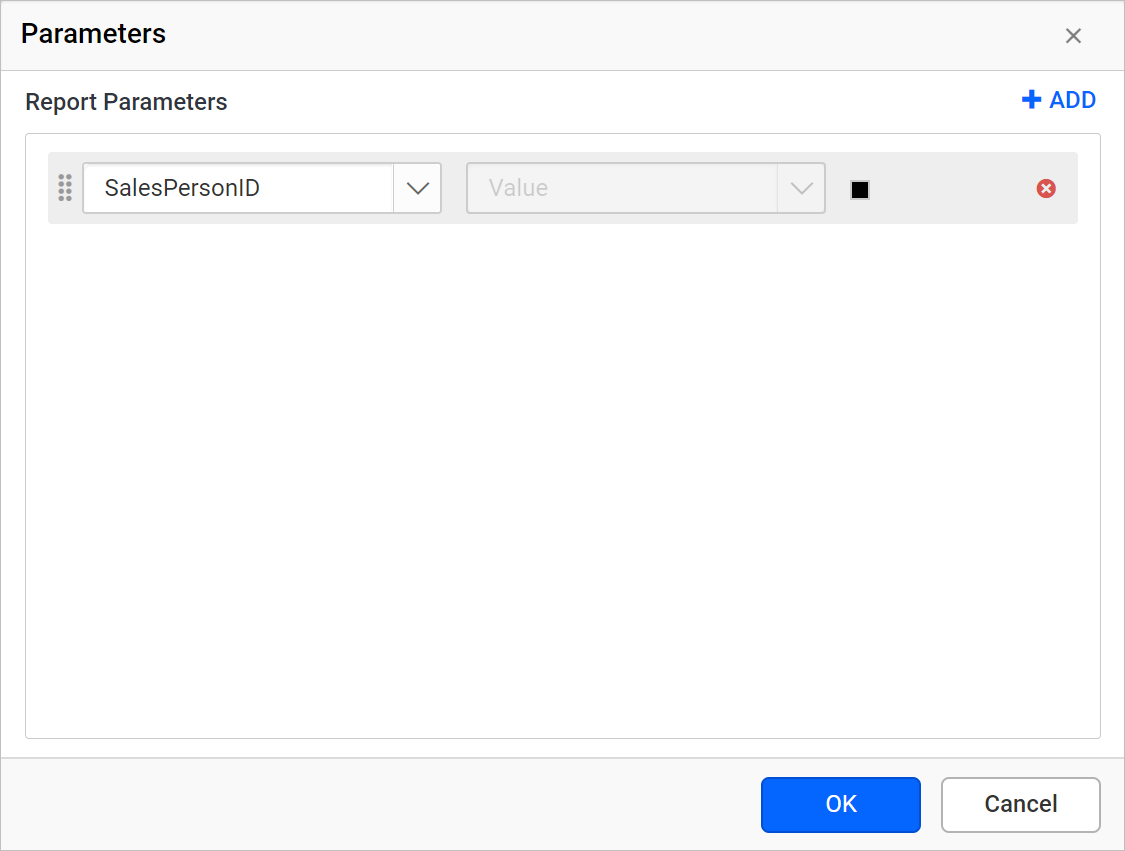
- Similarly set the parameter name and assign values to the another subreport item by following the above steps.
Now, the report path and parameters are set for both subreport item in the report as shown below snap.
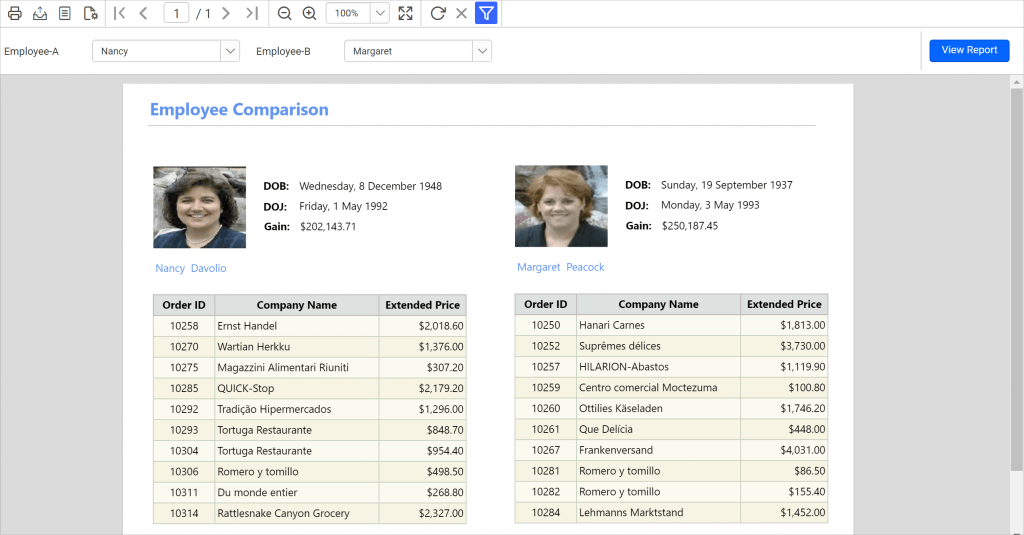
Preview the report and choose the required employee name in the Left Side Employee and Right Side Employee parameter drop-down and click on view report. On report preview, the comparison report for two employees will be shown based on the values selected in the parameter drop-down.
Download the above report design from link.