Interactive sorting
Interactive sorting can be used to enable a user to toggle between ascending and descending order dynamically in the Report Viewer by setting interactive sorting on a TextBox report item within a data region.
Create data
To present data in the table, create a dataset and bind data to the table data region. In this designing section, the following dataset query is used for dataset creation.
SELECT PC.Name AS ProdCat, PS.Name AS SubCat, DATEPART(yy, SOH.OrderDate) AS OrderYear, 'Q' + DATENAME(qq, SOH.OrderDate) AS OrderQtr,SUM(SOD.UnitPrice * SOD.OrderQty) AS Sales
FROM Production.ProductSubcategory PS INNER JOIN
Sales.SalesOrderHeader SOH INNER JOIN
Sales.SalesOrderDetail SOD ON SOH.SalesOrderID = SOD.SalesOrderID INNER JOIN
Production.Product P ON SOD.ProductID = P.ProductID ON PS.ProductSubcategoryID = P.ProductSubcategoryID INNER JOIN
Production.ProductCategory PC ON PS.ProductCategoryID = PC.ProductCategoryID
WHERE (SOH.OrderDate BETWEEN '1/1/2002' AND '12/31/2003')
GROUP BY DATEPART(yy, SOH.OrderDate), PC.Name, PS.Name, 'Q' + DATENAME(qq, SOH.OrderDate), PS.ProductSubcategoryID
Refer Create Data section and create dataset using the above query.
AdventuresWorksdatabase is used here.
Add interactive sorting
Design a simple table report as shown below.
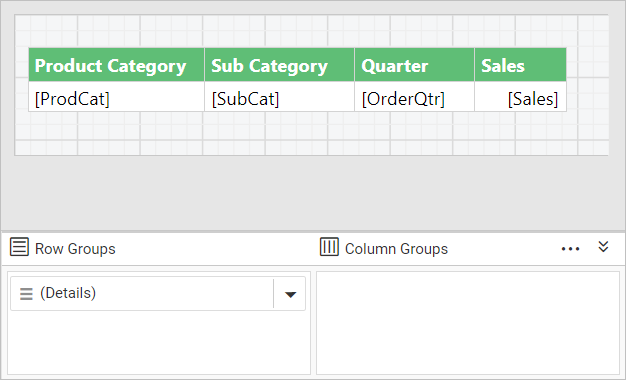
Select the column header textbox of the column to which you want to enable interactive sorting. Here, lets add interactive sorting on the Product Category column.
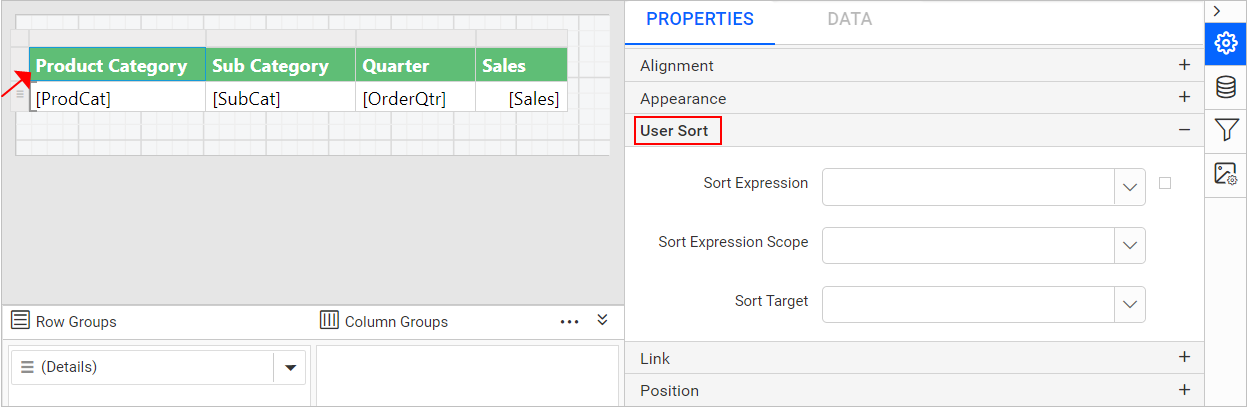
In User Sort property, set the interactive sorting using following fields:
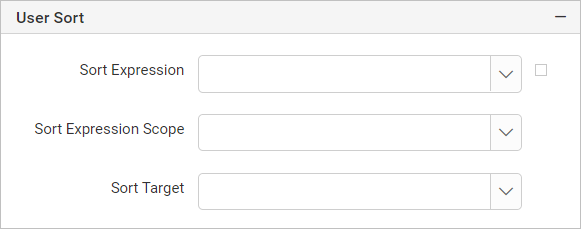
- Sort Expression: Available fields in the assigned data set will be listed in the
Sort Expressionfield. Select the expression containing the value of the field on which you want to provide sorting.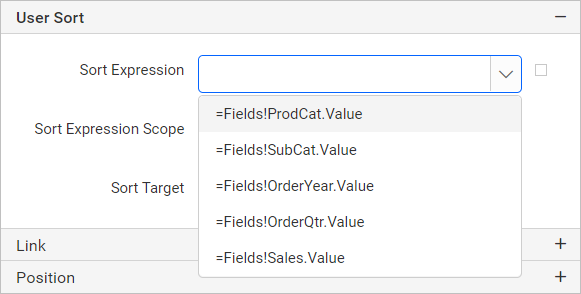
- Sort Expression Scope: Available details, row and column grouping in the respective data region will be listed in the
Sort Expression Scopefield.- To enable the interactive sorting on
Details Rowthen choose details group. - To enable the interactive sorting on
Grouping Columnthen choose the group.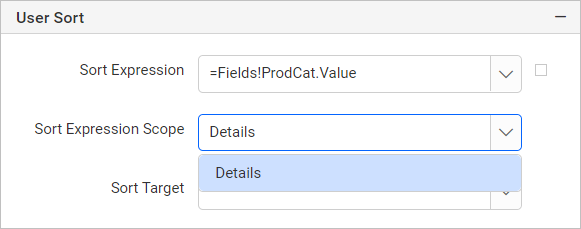
- To enable the interactive sorting on
- Sort Target: Select the grouping level or data region within the report to sort.
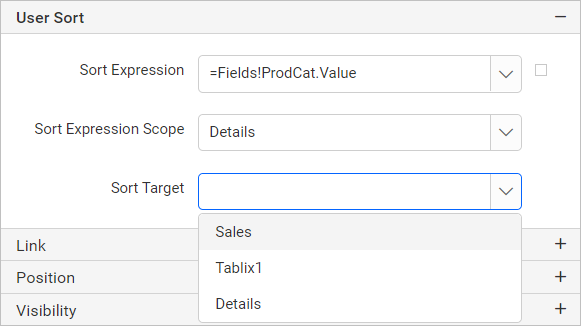
By default sorting will be applied to the current scope, you can optionally choose a different scope in
Sort Expression ScopeandSort Targetfields.
Preview
On report preview, interactive sorting button will be enabled in the respective column header.
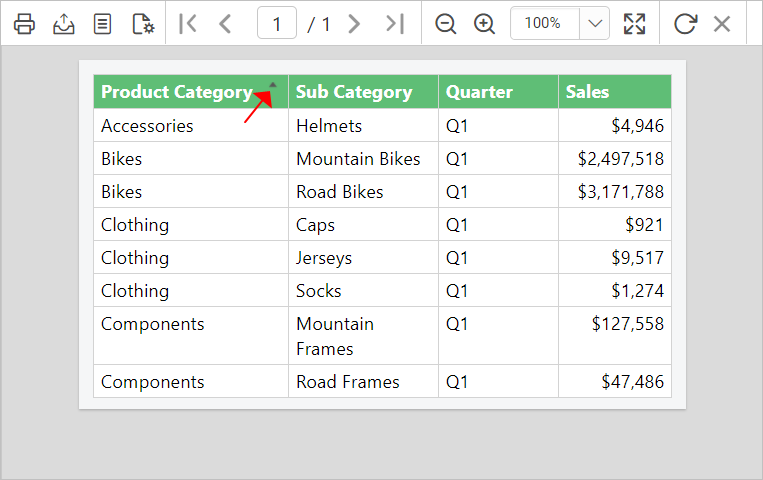
Click on the arrow icon to sort the column dynamically in ascending or descending order.
Download the above report design from the link