Word to RDL Converter
To convert a Microsoft Word document to an RDL file, upload it to the Bold Reports® Word to RDL Converter and click Migrate & Download. The converter transforms Word documents into Report Definition Language (RDL) files. Use the following steps to convert a Word document to an RDL file.
How do I convert a Word document to RDL?
To convert a Word document with the Bold Reports® Word to RDL Converter, open the conversion tool, upload the DOCX or DOC file, and download the converted RDL file.
-
Navigate to Conversion Tool
To begin the conversion process, open the Word to RDL conversion tool in your Bold Reports® account.
-
Upload Your Document
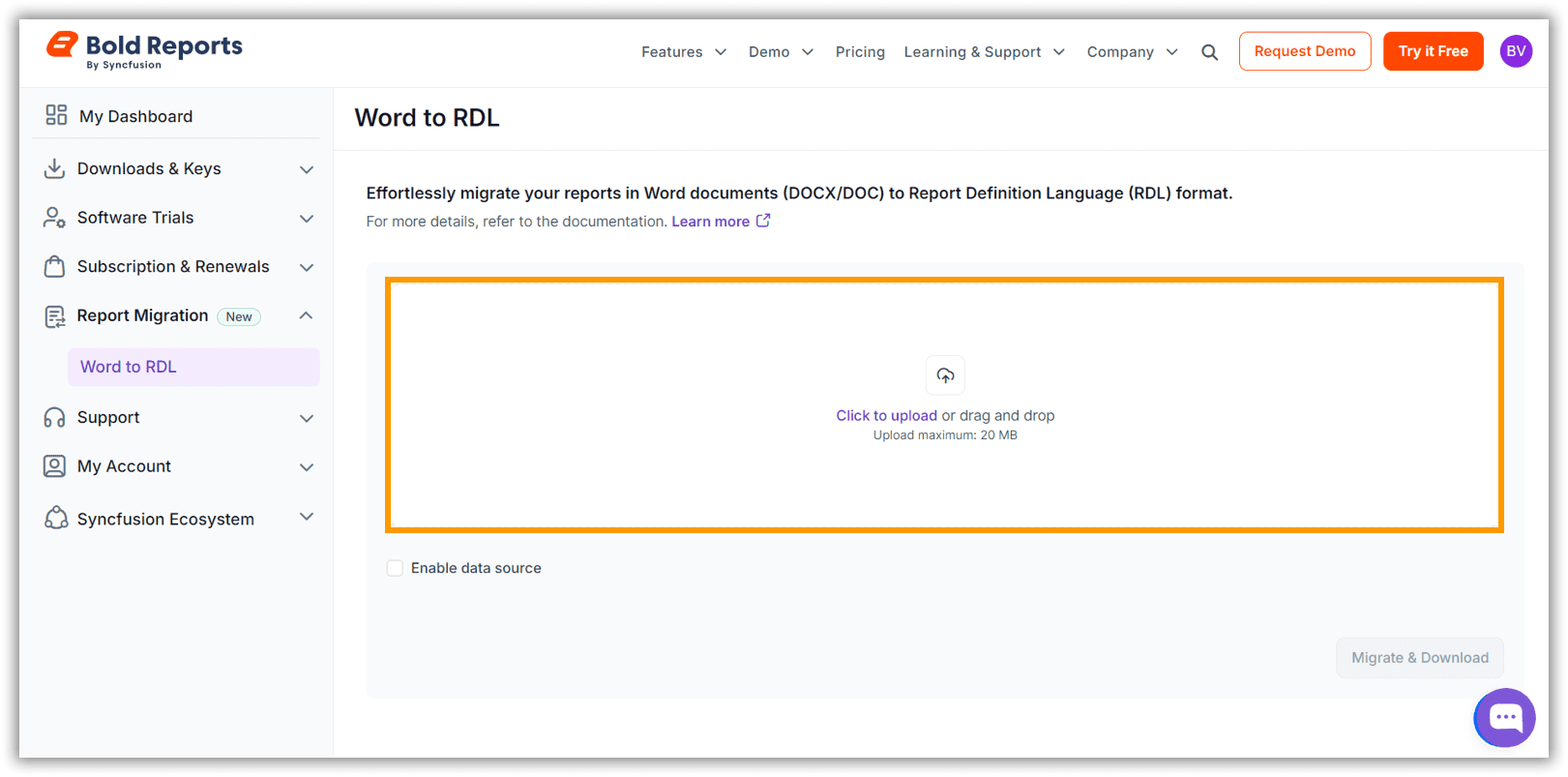
Upload or drag and drop your Word document (DOCX/DOC) into the designated area.
-
Convert and Download
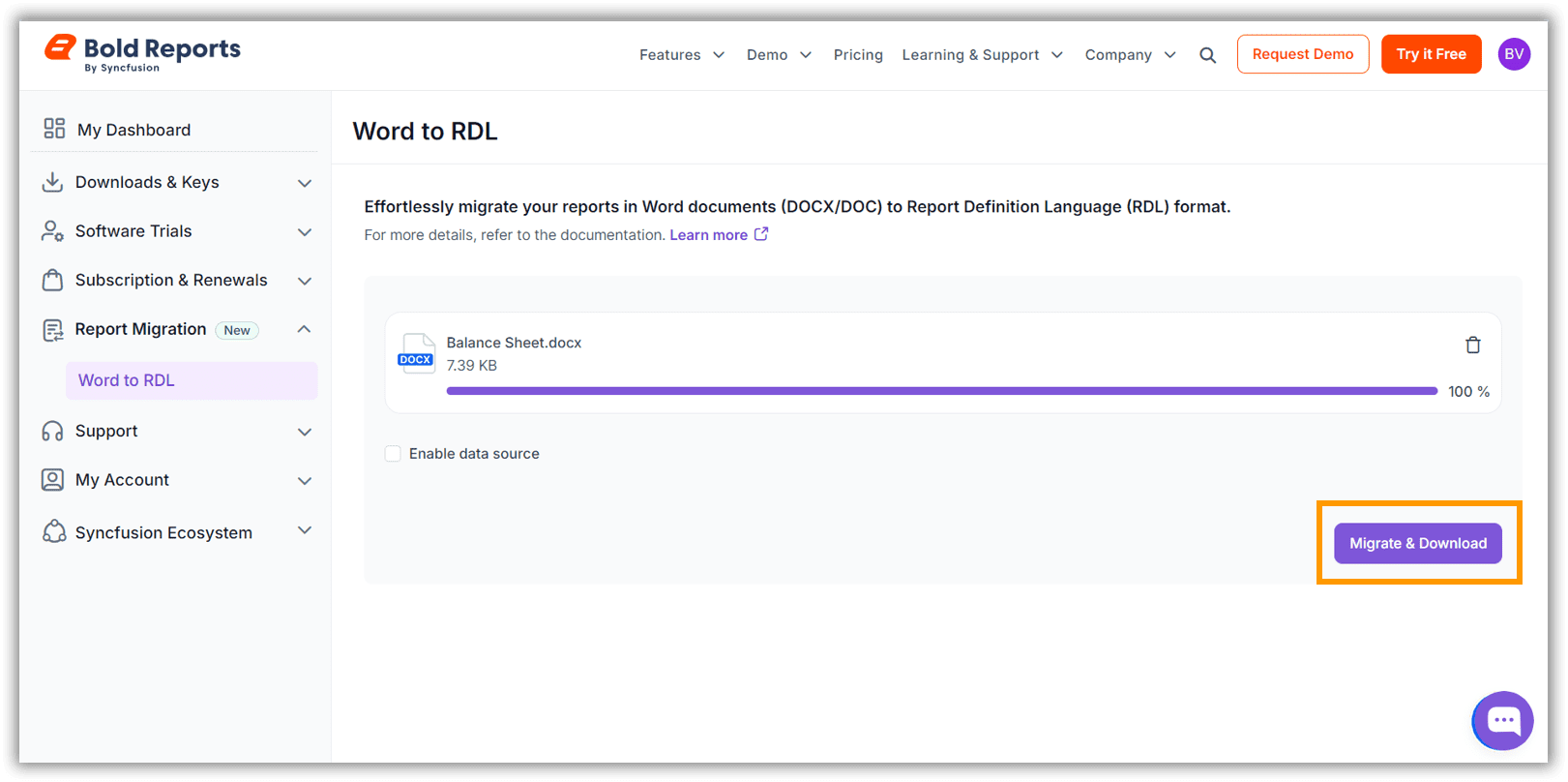
Click the Migrate & Download button to start the conversion and download the RDL file.
Note: The downloaded file will be in ZIP format. Once extracted, it will contain an RDL file and an error log file detailing any issues with the Word template. If you encounter any problems, contact Bold Reports® Support with the generated error log.
How do I edit the converted RDL file?
To edit the converted RDL file, open it in the Bold Reports® Report Designer and refine the layout, parameters, and data. After converting the Word document, you receive a converted report that you can further refine and complete in our standalone designer to ensure the report is fully accurate.
Refine RDL with Standalone Designer
-
Open in Designer
Use the Bold Reports® Report Designer to open and edit the RDL file.
-
Refine the Report
Layout and Style: Resolve any layout overlaps to improve the presentation of your report. You can also define parameters and use the expression editor to create dynamic content.
Data Connectors: For reports containing tables, add the needed datasources and datasets.
-
Preview
Use the preview button in the designer to verify the final output before publishing. Ensure there are no errors or issues during the preview to guarantee the report is ready for deployment.
-
Upload for Final Result
Once editing is complete, upload the RDL file to a cloud-based or on-premise report server for final processing and deployment.
Note: If you receive an error log file or a ZIP file with an error log, contact Bold Reports® Support for further assistance.
How do I add a data source during Word to RDL conversion?
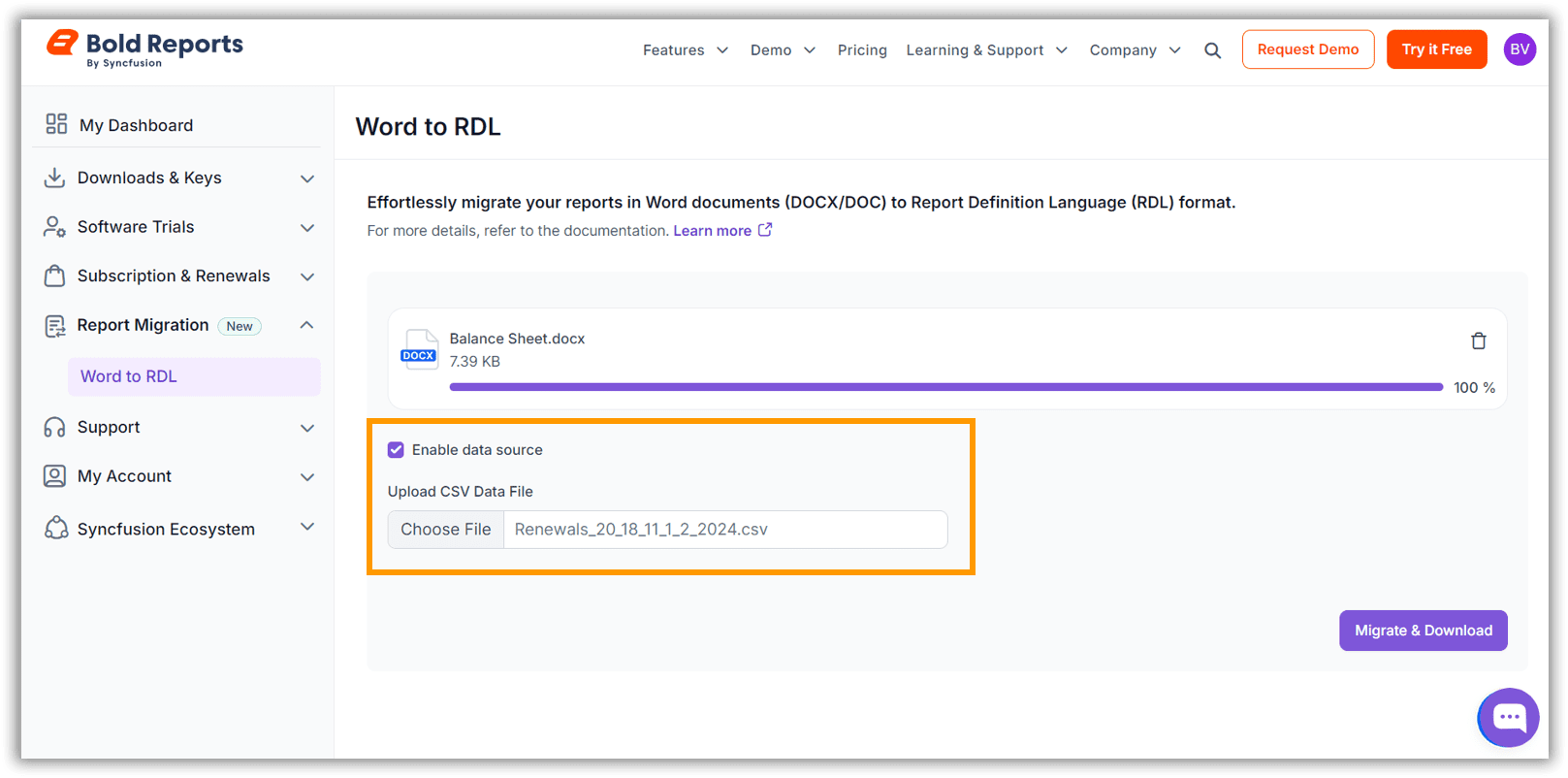
To add a dataset to the converted RDL file, select the Enable data source option in the Bold Reports® Word to RDL Converter and upload a CSV file to be used as the dataset.
Note: The CSV file must have the column header that is used to populate the report dataset field.