Tablix Wizard
The tablix wizard helps user to design reports that display data in a tabular or matrix format. It provides options to define row and column groups for organizing data hierarchically.
Overview
-
The tablix wizard is listed in the item panel under the
Data Regionscategory.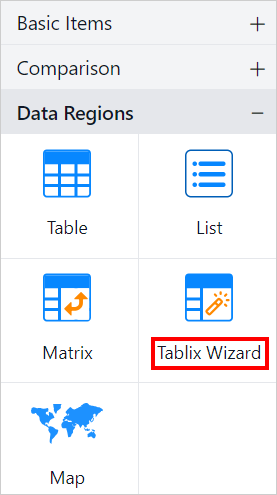
-
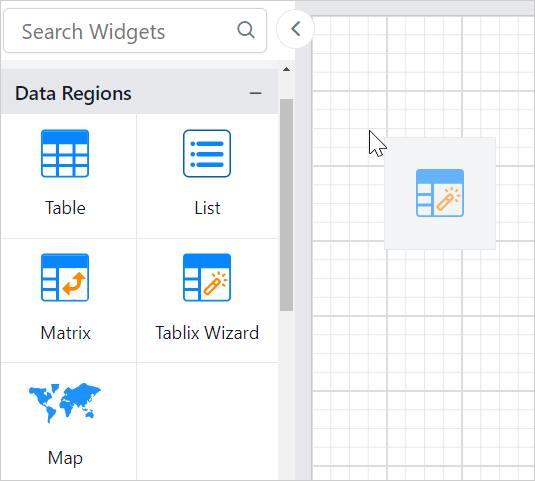
Drag and drop the tablix wizard report item into the design area from the item panel.
-
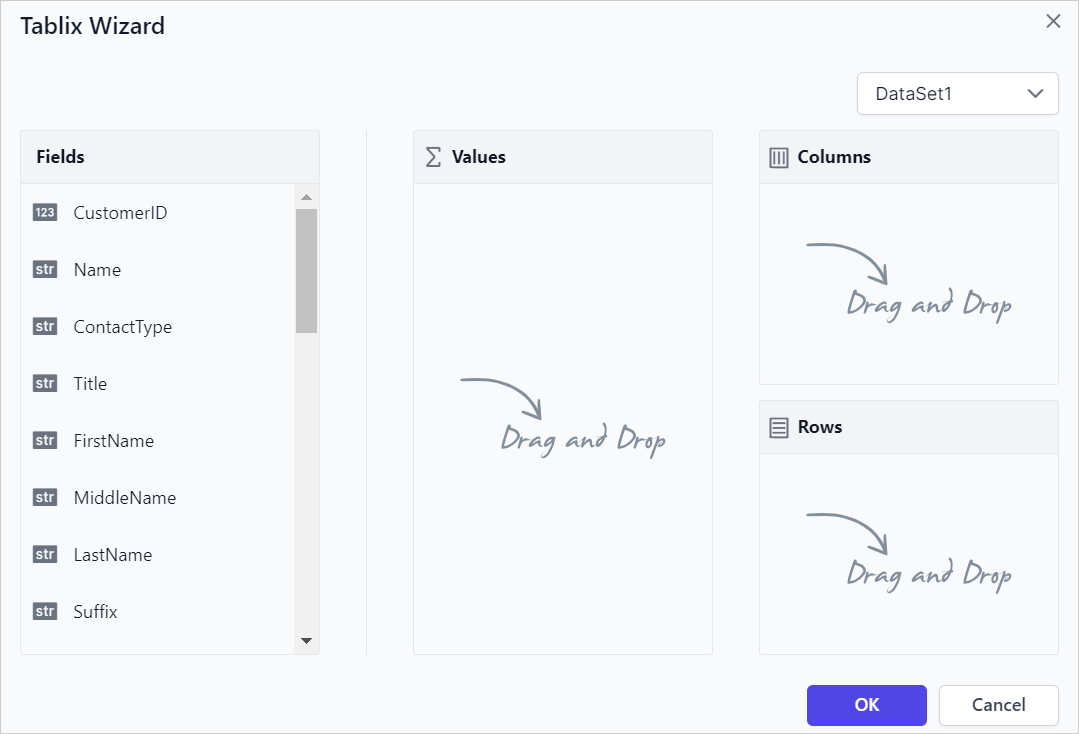
The Tablix Wizard will be rendered as shown below,
-
Data- The available dataset in the report is listed in the Dataset drop-down. -
Fields- This list box displays the fields available from the dataset which is selected in the drop-down list. -
Values- Users can drag and drop fields into theValuessection to specify which data to analyze or summarize in the Tablix view. -
Columns- Users can add fields to theColumnssection to display data in a hierarchical column view in the Tablix design. -
Rows- Users can add fields to theRowssection to display data in a hierarchical row view in the Tablix design.
-
-
Drag and drop the required fields into
Valuessection to create a flat table design.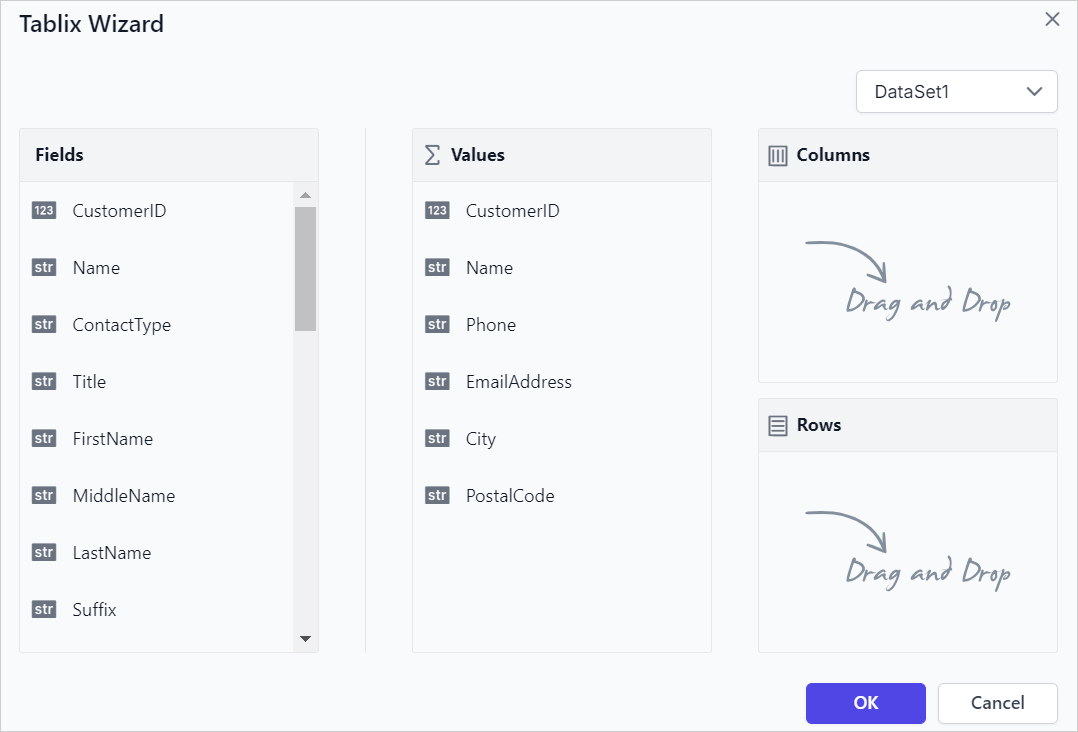
-
Click the
OKbutton. The table design will render on the design surface as shown below,
Managing Fields
Search Functionality
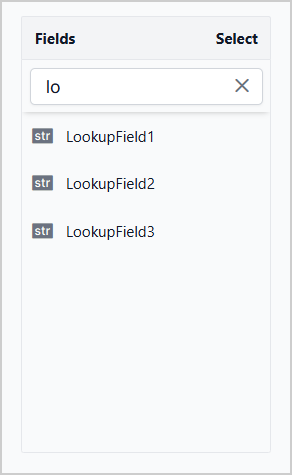
The Fields pane provides a search capability that helps you locate fields within the selected dataset. As you enter text in the search box, the field list is dynamically filtered to display matching results.
Multi-Select Functionality
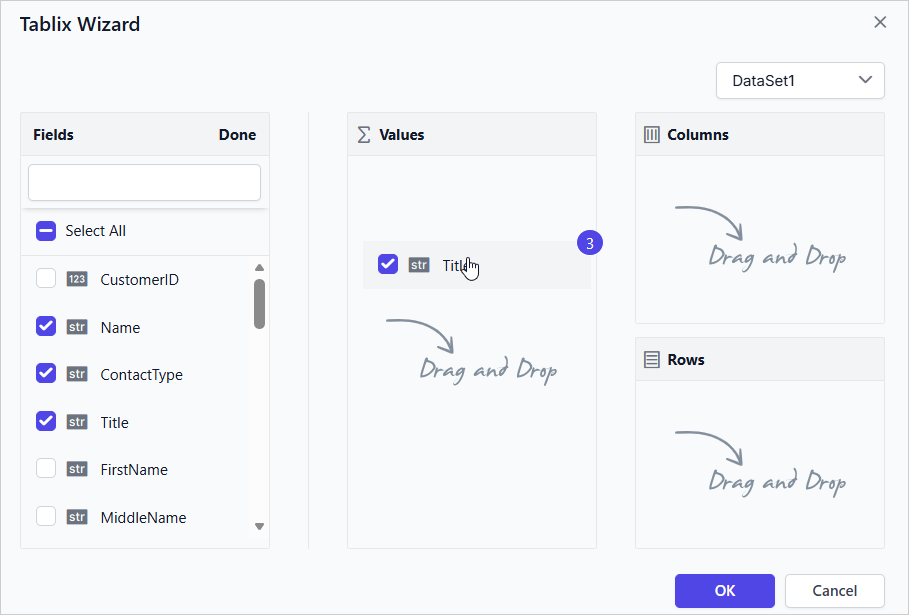
The Tablix Wizard supports selecting multiple fields simultaneously, enabling efficient assignment of fields to values, rows and columns sections. By default, fields can be selected individually. To enable multi-select mode:
- Click Select in the Fields pane.
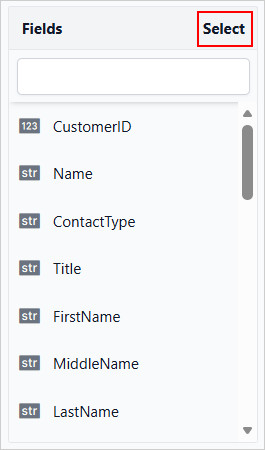
- The Select All checkbox becomes available, allowing multiple fields to be selected.
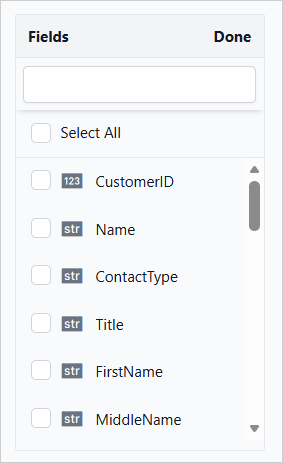
- Select the required fields using their corresponding checkboxes.
- To select all available fields, select the Select All checkbox.
- Drag the selected fields to the required section: Values, Columns or Rows.
Clear All Functionality
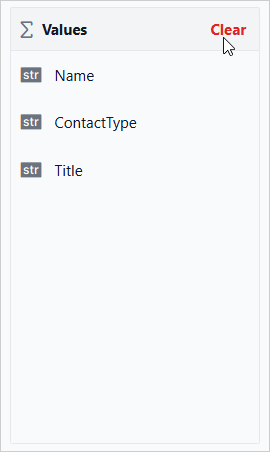
The Values, Columns, and Rows sections provide a Clear option to remove all assigned fields from a section.
To clear fields from a section:
- Click Clear in the required section.
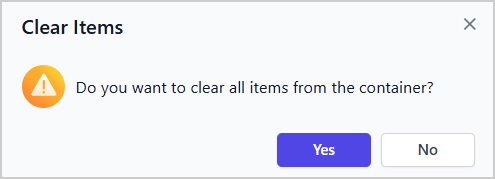
- In the confirmation dialog, click Yes to remove all fields from the selected section.
- Click No to retain the existing field assignments and close the dialog.
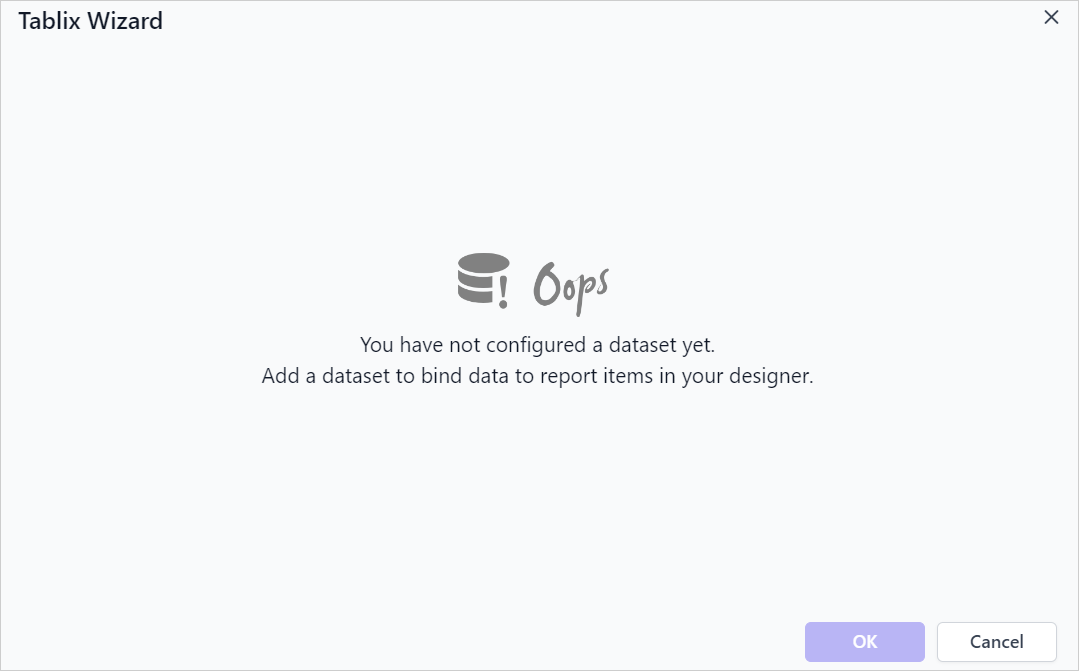
If the report has no datasets, the Tablix Wizard interface will display as shown below.