Chart StripLines
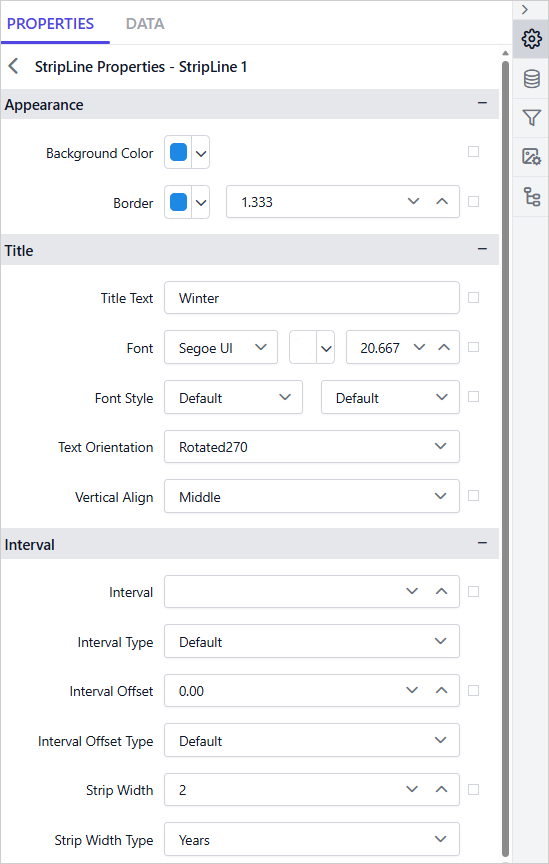
StripLines are visual indicators used to highlight specific values or ranges on a chart axis. It can be used to emphasize important data points, thresholds, or intervals. This section explains how to customize the appearance of chart striplines using the Properties panel.

To create a stripline, click the + Add button. The total number of striplines is displayed next to the add button.
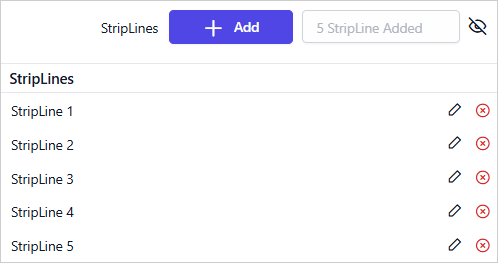
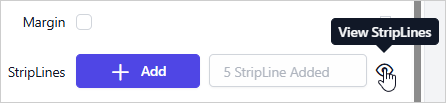
Use the Eye icon to show or hide the striplines list.
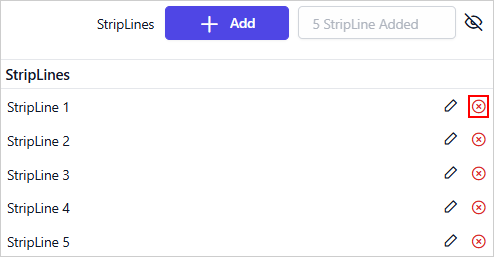
To remove a stripline, click the Delete icon.
To customize a stripline, click the Edit icon.
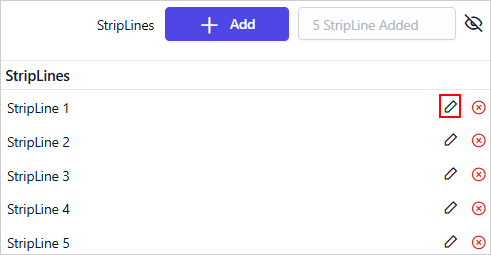
Now, the respective stripline properties will be displayed in secondary panel.
Note: The StripLines property is not supported for Polar and Radar chart types. Also, the applied StripLine properties do not appear in the design view they are only visible in the report preview.
Appearance
Background Color
Background color properties can be used to customize the chart stripline background color. If the chart has multiple stripline, you can differentiate the stripline using this property.

You can also set properties based on dynamic values, by using the Expressions. Refer Set Expression and Reset Expression section to open set/reset expression menu in properties panel.
Border
Border properties can be used to customize the chart stripline border color and width.
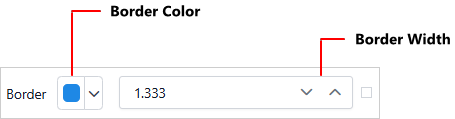
You can also set properties based on dynamic values, by using the Expressions. Refer Set Expression and Reset Expression section to open set/reset expression menu in properties panel.
Title
Title Text
The title can be customized by editing the Title Text property of the chart stripline.

You can also set properties based on dynamic values, by using the Expressions. Refer Set Expression and Reset Expression section to open set/reset expression menu in properties panel.
Font
The font family, font size, font color, font style, and font weight properties are used to style the title content in the stripline.
Font Family
Supported font family names are listed in the drop-down under the Title category. To change the Font Family of the stripline title, choose the required font family from the drop-down list.
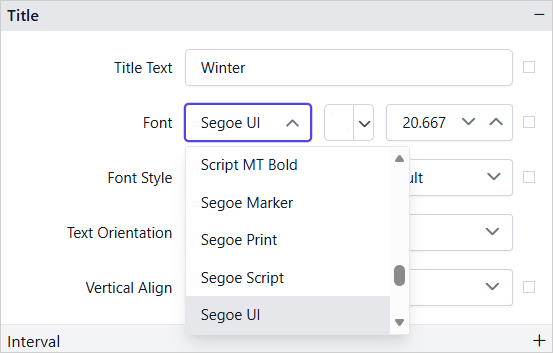
You can also set properties based on dynamic values, by using the Expressions. Refer Set Expression and Reset Expression section to open set/reset expression menu in properties panel.
Font Color
To set the font color for the title content in a stripline, click on the color palette icon and choose the required color in the Color Palette.

You can also set properties based on dynamic values, by using the Expressions. Refer Set Expression and Reset Expression section to open set/reset expression menu in properties panel.
Font Size
The font size property allows you to control the size of the title text in a stripline. Use the numeric drop-down to increase or decrease the font size.

You can also set properties based on dynamic values, by using the Expressions. Refer Set Expression and Reset Expression section to open set/reset expression menu in properties panel.
Font Styles
To change the font style of the title content in a stripline, choose the required font style in the Font Style drop-down list. The following font styles are supported:
- Default
- Normal
- Italic
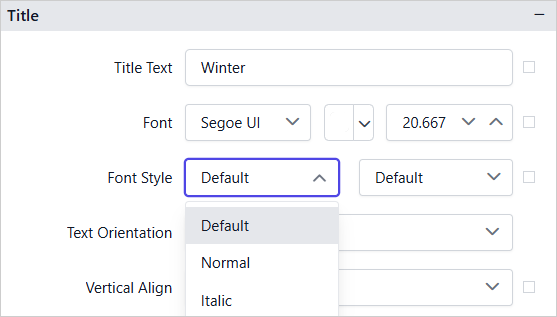
You can also set properties based on dynamic values, by using the Expressions. Refer Set Expression and Reset Expression section to open set/reset expression menu in properties panel.
Font Weight
To change the font weight of the title content in a stripline, choose the required font weight from the drop-down list.
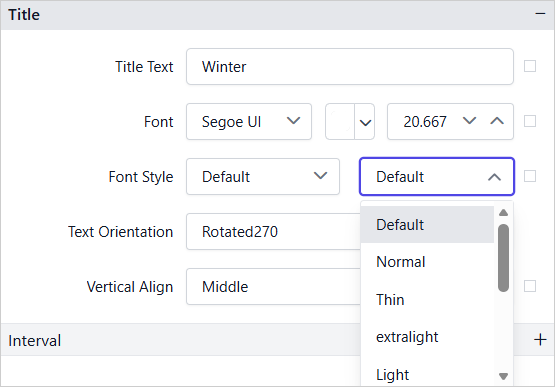
You can also set properties based on dynamic values, by using the Expressions. Refer Set Expression and Reset Expression section to open set/reset expression menu in properties panel.
Text Orientation
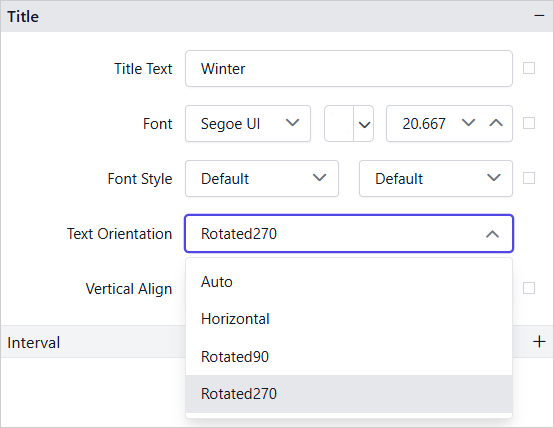
The Text Orientation property controls the direction of the stripline title text. Choose the required option from the drop-down list.
- Auto - Automatically adjusts the text orientation based on the stripline direction.
- Horizontal - Displays the text in the standard horizontal direction.
- Rotated90 - Rotates the text 90 degrees clockwise.
- Rotated270 - Rotates the text 270 degrees clockwise (equivalent to 90 degrees counterclockwise).
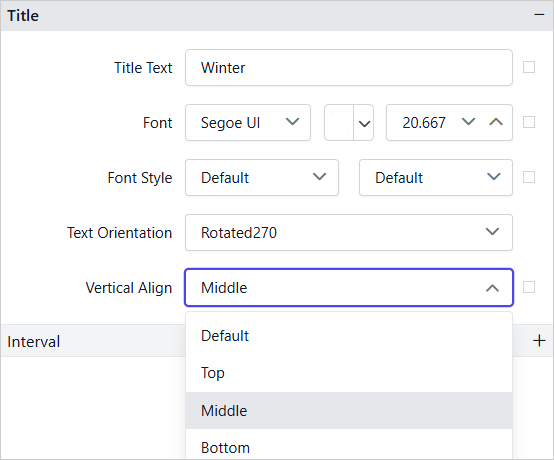
Vertical Align
You can align the title content in a stripline to Top, Middle, or Bottom positions. Choose the required option from the Vertical Align drop-down list.
You can also set properties based on dynamic values, by using the Expressions. Refer Set Expression and Reset Expression section to open set/reset expression menu in properties panel.
Interval
Interval
The Interval property defines the frequency at which the stripline is repeated along the axis. For example, setting an interval of 2 renders a stripline at every 2 units along the axis. Leave the field empty to render the stripline only at the position defined by Interval Offset.

You can also set properties based on dynamic values, by using the Expressions. Refer Set Expression and Reset Expression section to open set/reset expression menu in properties panel.
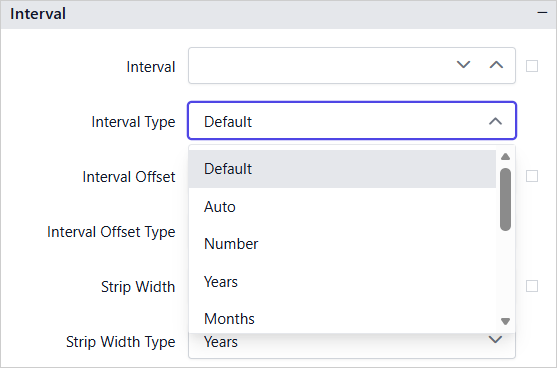
Interval Type
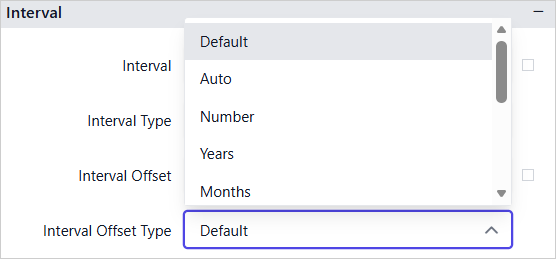
The Interval Type property specifies the unit of measurement for the Interval value.
Interval Offset
The Interval Offset property specifies the starting position of the stripline on the axis. For example, setting an offset of 10 places the stripline at value 10 on the axis.

You can also set properties based on dynamic values, by using the Expressions. Refer Set Expression and Reset Expression section to open set/reset expression menu in properties panel.
Interval Offset Type
The Interval Offset Type property specifies the unit of measurement for the Interval Offset value.
Strip Width
The Strip Width property defines the width of the stripline band measured along the axis. Use this property to render the stripline as a shaded range rather than a single reference line. For example, setting a Strip Width of 5 renders a band spanning 5 units along the axis.

You can also set properties based on dynamic values, by using the Expressions. Refer Set Expression and Reset Expression section to open set/reset expression menu in properties panel.
Strip Width Type
The Strip Width Type property specifies the unit of measurement for the Strip Width value.
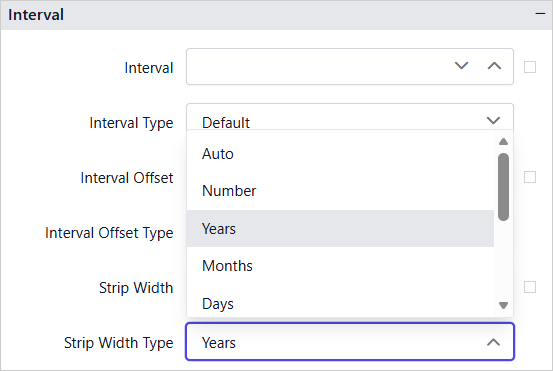
The above properties are configured for StripLine 1. Likewise, the remaining four striplines are configured with the appropriate properties to represent different seasonal periods throughout the year to depict the weather report shown in report preview.
Report Preview
In the following example, striplines are configured on the Category Axis to represent the weather report and highlight different seasonal periods throughout the year.
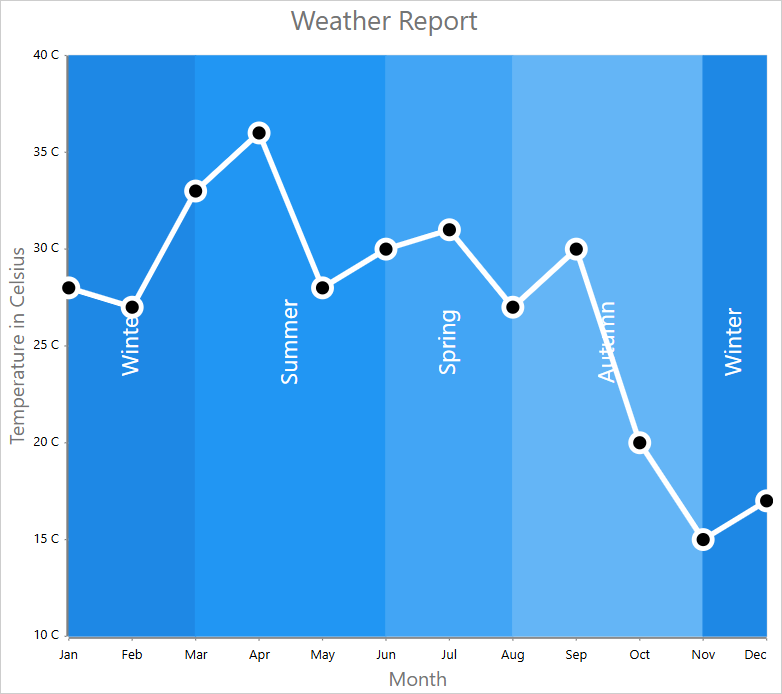
Download the above report from this link.
Download the report for the
Value Axisstripline example from this link.