NuGet Packages for ASP.NET Web Forms
Refer to the following steps to configure Bold Reporting NuGet packages for ASP.NET Web Forms application.
Configure NuGet feed URL
Online NuGet feed URL
The Bold Reporting NuGet packages are published in Nuget.org. To configure the online packages, use the following steps:
-
Open Visual Studio application.
-
On the Tools menu, select Options.
-
Expand the NuGet Package Manager and select Package Sources.
-
Click the Add button, enter the following
Package NameandPackage Source URL, and then click Update.Name:
NuGet.orgSource:
https://api.nuget.org/v3/index.json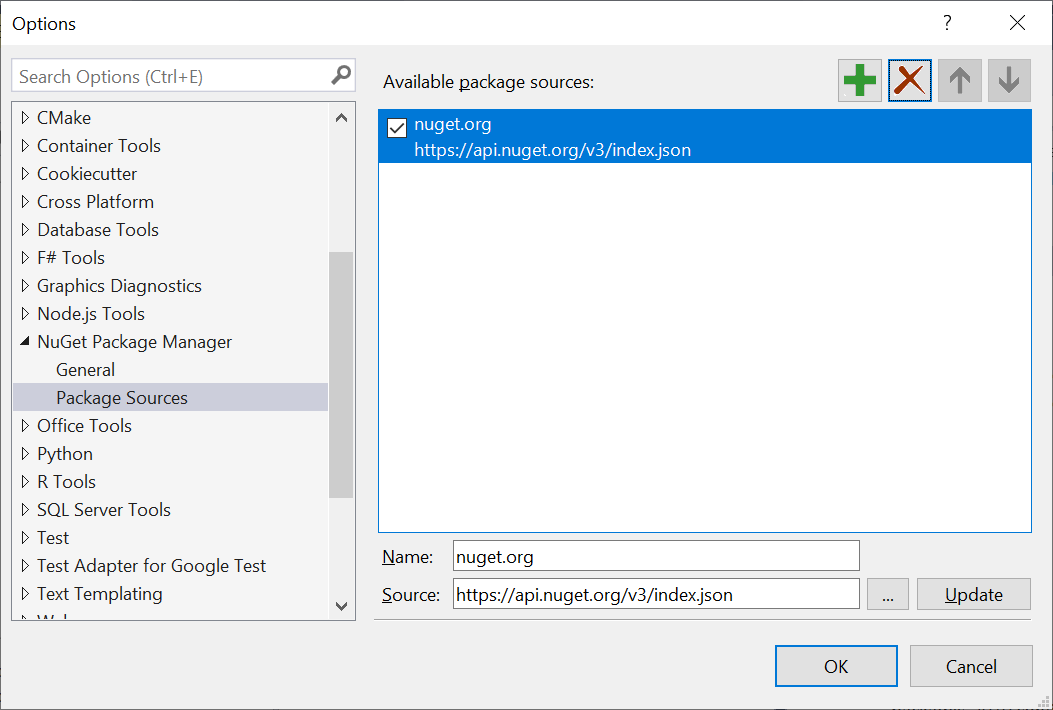
Offline NuGet feed URL
Bold Reporting NuGet packages are shipped into our Bold Reporting Tools build. To configure the packages from Bold Reports® installed location, use the following steps:
-
Open your Visual Studio application.
-
On the Tools menu, select Options.
-
Expand the NuGet Package Manager, and then select Package Sources.
-
Click the Add button, enter the following
Package NameandPackage Source URL, and then click Update.Name: Bold Reports® installed NuGet
Source:
{System Drive}:\Program Files (x86)\Bold Reports\Reporting Tools\Nuget Packages.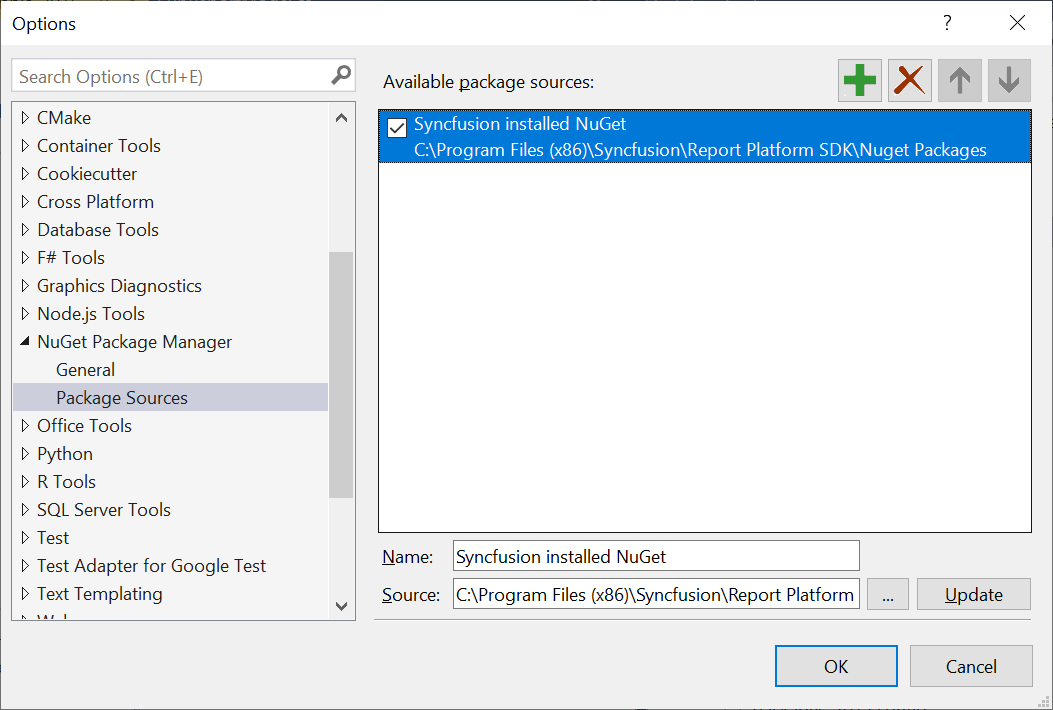
The system drive varies based on the installed location in your machine.
Installing NuGet packages
Install using NuGet Package Manager
The NuGet Package Manager can be used to search and install NuGet packages in Visual Studio solution or project:
- On the Tools menu, click NuGet
Package Manager | Manage NuGet Packages for Solution. Alternatively, right-click the project/solution in Solution Explorer tab, and choose Manage NuGet Packages. - By default, the
NuGet.orgpackage is selected in the Package source drop-down. Select package source, search for the packages (BoldReports.WebFormsorBoldReports.Web), and then click Install button.
Install using Package Manager Console
To install the Bold Reporting component using the Package Manager Console as NuGet packages,
-
On the Tools menu, select NuGet Package Manager, and then click Package Manager Console.
-
Run the following NuGet installation commands:
#install specified package in default project
Install-Package <Package Name>

#install specified package in default project with specified package source
Install-Package <Package Name> -Source <Source Location>

#install specified package in specified project
Install-Package <Package Name> - ProjectName <Project Name>
For example:
# install specified package in default project
Install-Package BoldReports.WebForms

#install specified package in default project with specified Package Source
Install-Package BoldReports.Web –Source “https://api.nuget.org/v3/index.json”

#install specified package in specified project
Install-Package BoldReports.WebForms -ProjectName BoldReportsApplication
Upgrading NuGet packages
Upgrading using NuGet Package Manager
NuGet packages can be updated to their specific version or latest version available in the Visual Studio solution or project:
- On the Tools menu, click NuGet Package Manager | Manage NuGet Packages for Solution…. Alternatively, right-click the project/solution in the Solution Explorer tab, and then choose Manage NuGet Packages.
- Select the Updates tab to see the packages available for update from the desired package sources, select the required packages and specific version from the drop-down, and then click the Update button.
Upgrading using Package Manger Console
To update the installed Bold Reporting NuGet packages using the Package Manager Console:
-
On the Tools menu, select NuGet Package Manager, and then select Package Manager Console.
-
Run the following NuGet installation commands:
#Update specific NuGet package in default project
Update-Package <Package Name>

#Update all the packages in default project
Update-Package

#Update specified package in default project with specified package source
Update-Package <Package Name> -Source <Source Location>

#Update specified package in specified project
Update-Package <Package Name> - ProjectName <Project Name>
For example:
#Update specified Bold Reporting NuGet package
Update-Package BoldReports.Web

#Update specified package in default project with specified Package Source
Update-Package BoldReports.Web –Source “https://api.nuget.org/v3/index.json”

#Update specified package in specified project
Update-Package BoldReports.Web -ProjectName BoldReportsApplication
Upgrading using NuGet CLI
Using the NuGet CLI, all the NuGet packages in the project can be updated to the available latest version:
-
Download the latest NuGet CLI.
To update the existing
nuget.exeto latest version use the following command:nuget update -self -
Open the downloaded executable location in the command window. Run the following “update commands” to update the Bold Reporting NuGet packages.
#update all NuGet packages from config file nuget update <configPath> [options] #update all NuGet packages from specified Packages Source nuget update -Source <Source Location> [optional]configPathis optional. It identifies thepackage.configor solutions file lists the packages utilized in the project.For example:
#Update all NuGet packages from config file
nuget update “C:\Users\BoldReportsApplication\package.config”

#Update all NuGet packages from specified Packages Source
nuget update -Source “https://api.nuget.org/v3/index.json”
The Update command is not working as expected in Mono (Mac and Linux) and projects using PackageReference format.