Create an RDLC report using business object data source
To create an RDLC report for the Bold Reports® ASP.NET Web Forms Report Viewer that uses a business object data source, build a class library with the data class, add a report with the Visual Studio Report Wizard, and then configure the data source and table.
Prerequisites
- Microsoft Visual Studio 2017 or higher
- Microsoft RDLC Report Designer
If you are using Microsoft Visual Studio lower to 2017 version then you should update SSDT with the Business Intelligence templates. Refer to Download SQL Server Data Tools.
How do I create the business object class?
To create the business object class for an RDLC report in the Bold Reports® ASP.NET Web Forms Report Viewer, add a class with the report fields to a class library project in Visual Studio.
- Open Visual Studio from the File menu and select New Project.
- Create project with class library type from the project type list.
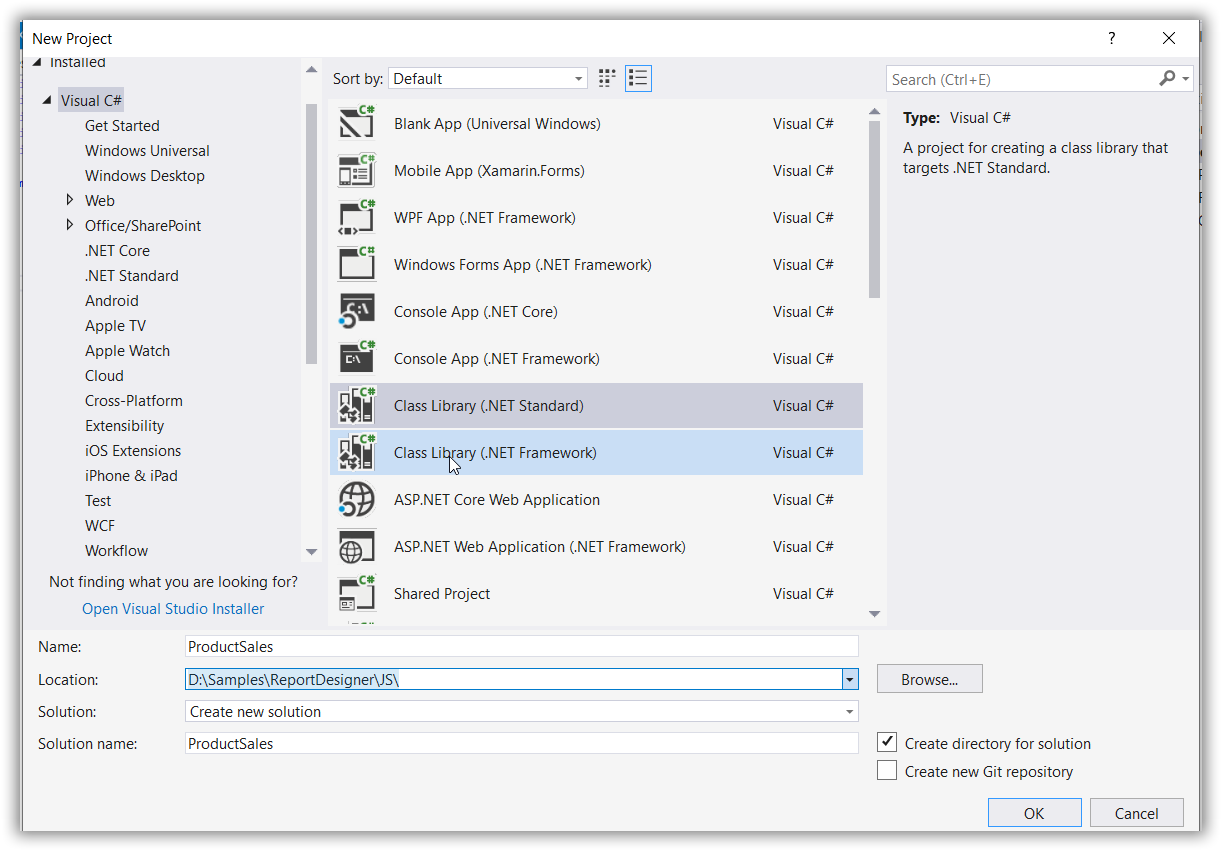 3. Create the class with the necessary properties. Use the following code as a reference.
```csharp
public class ProductSales
{
    public string ProdCat { get; set; }

    public string SubCat { get; set; }

    public string OrderYear { get; set; }

    public string OrderQtr { get; set; }

    public double Sales { get; set; }
}
```- Clean and build the application.
How do I add an RDLC report in Visual Studio?
To add an RDLC report in Visual Studio, use the Report Wizard item, which starts report creation with dataset selection.
- Right-click the project and click Add > New Item.
- Search Report with new item and select
Report Wizardto start the creation with dataset selection. - Click Add.
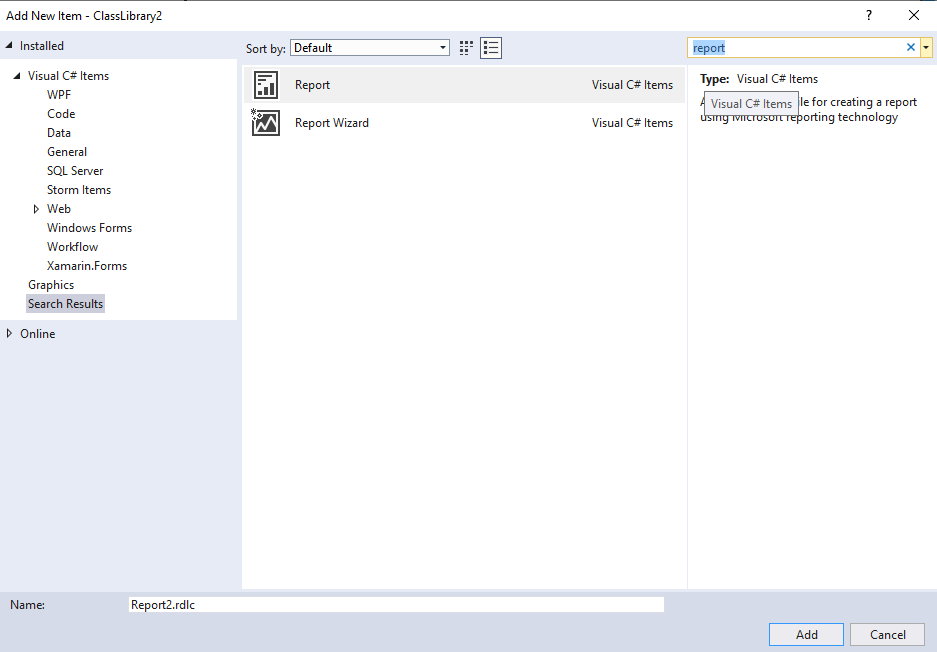
Data source and table configuration wizard
- Choose object type from the Data Source Configuration wizard and click Next.
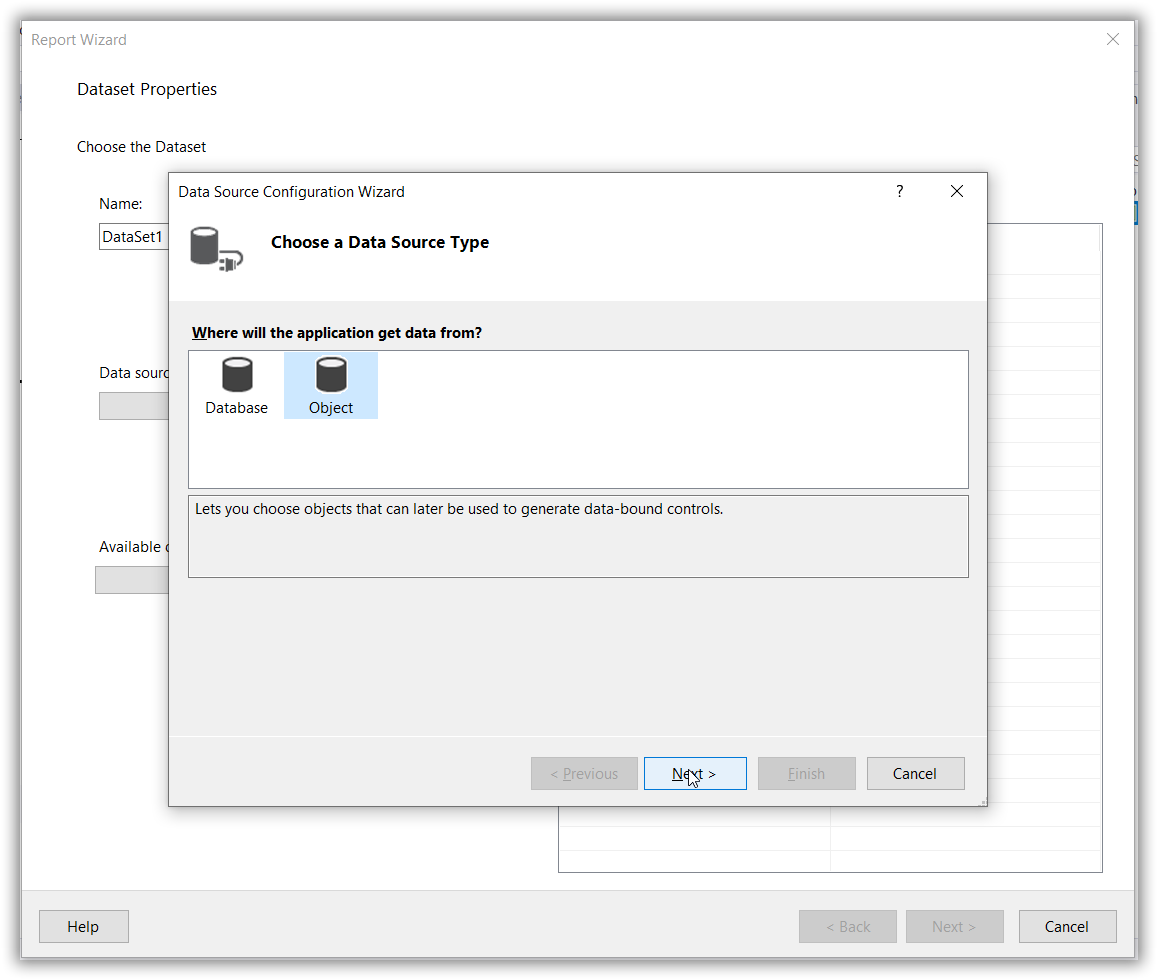
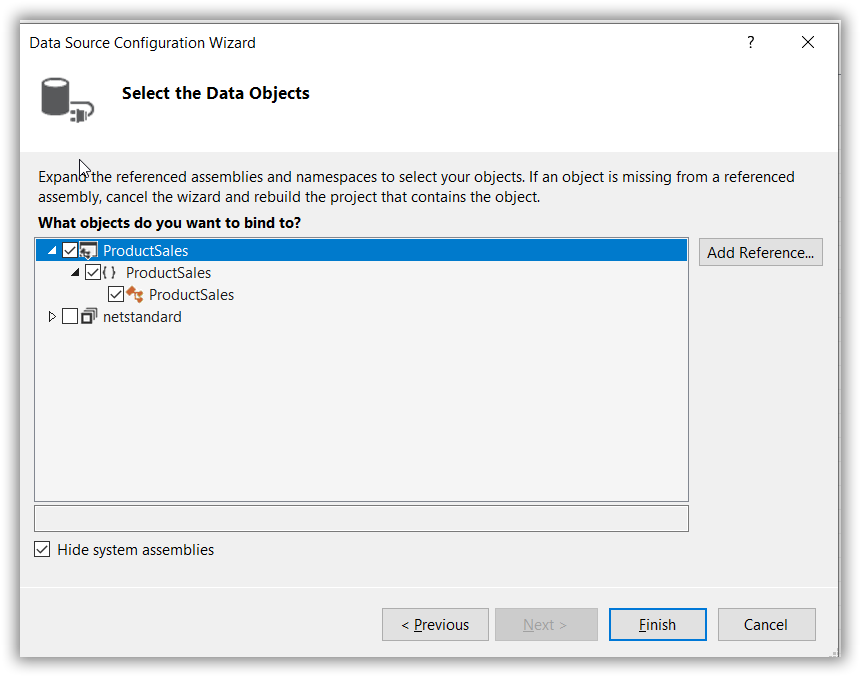
- Expand the tree view and select
ProductSales, and then click Finish.
- In the DataSet Properties wizard, specify the dataset name as
SalesData.
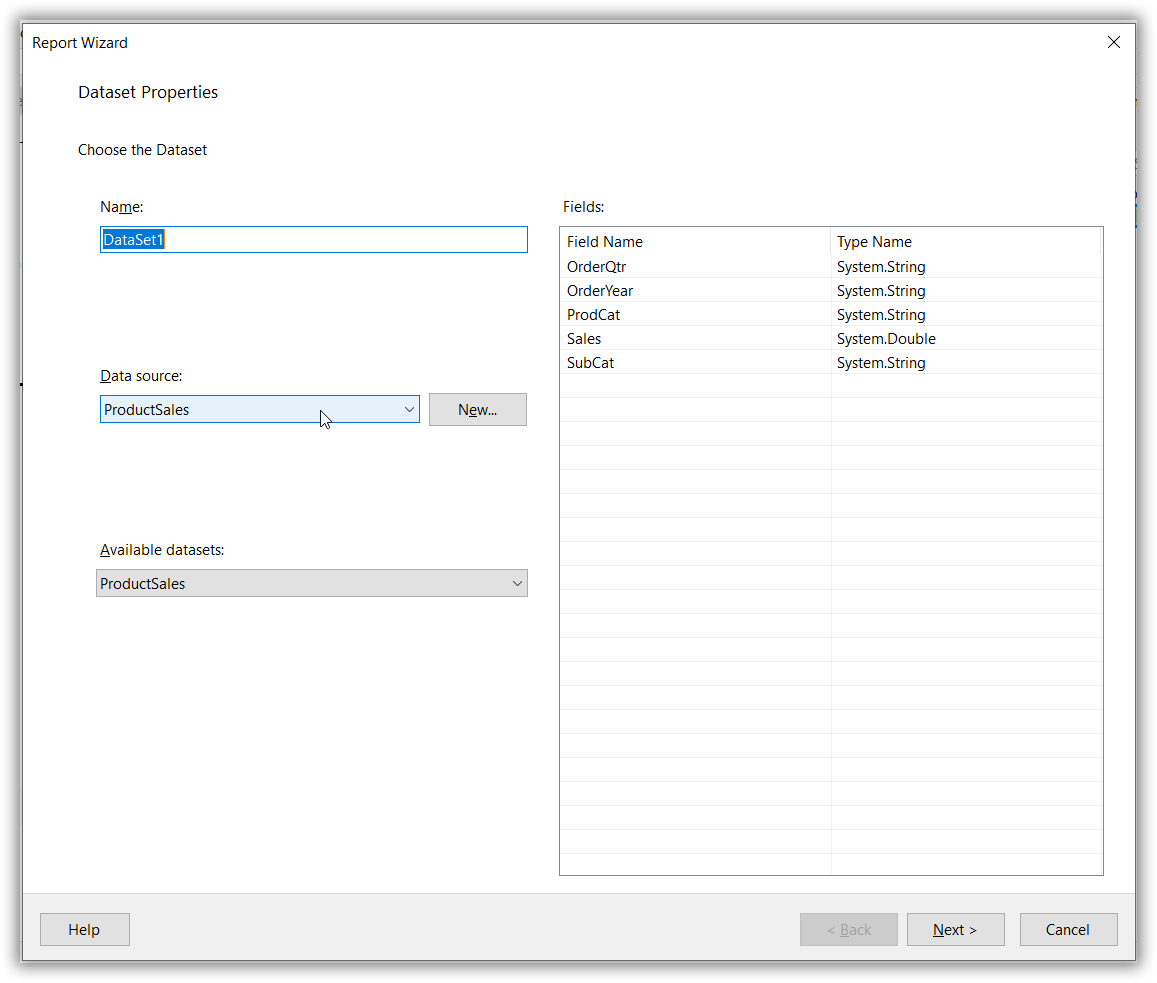
- Drag the fields into Values, Row, and Column groups, and then click Next.
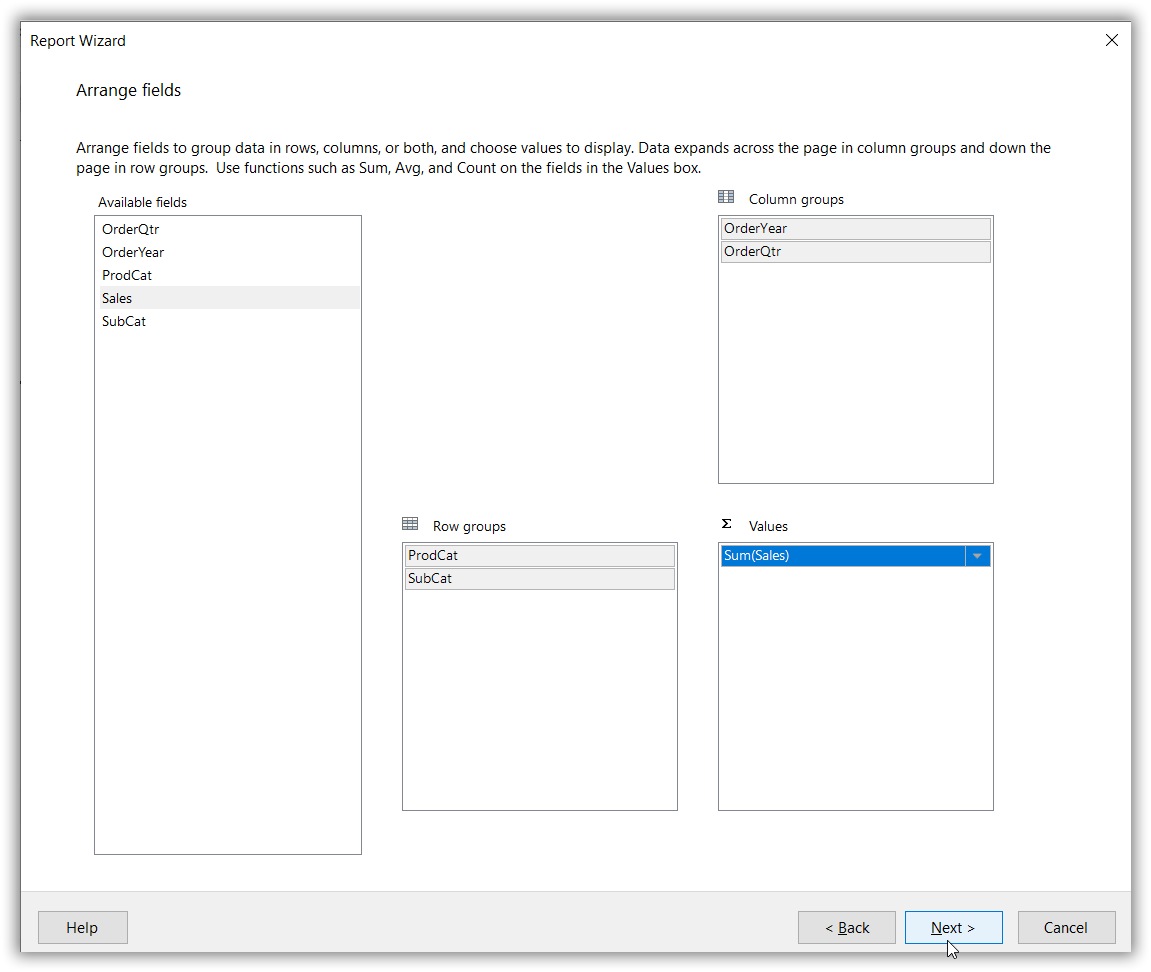
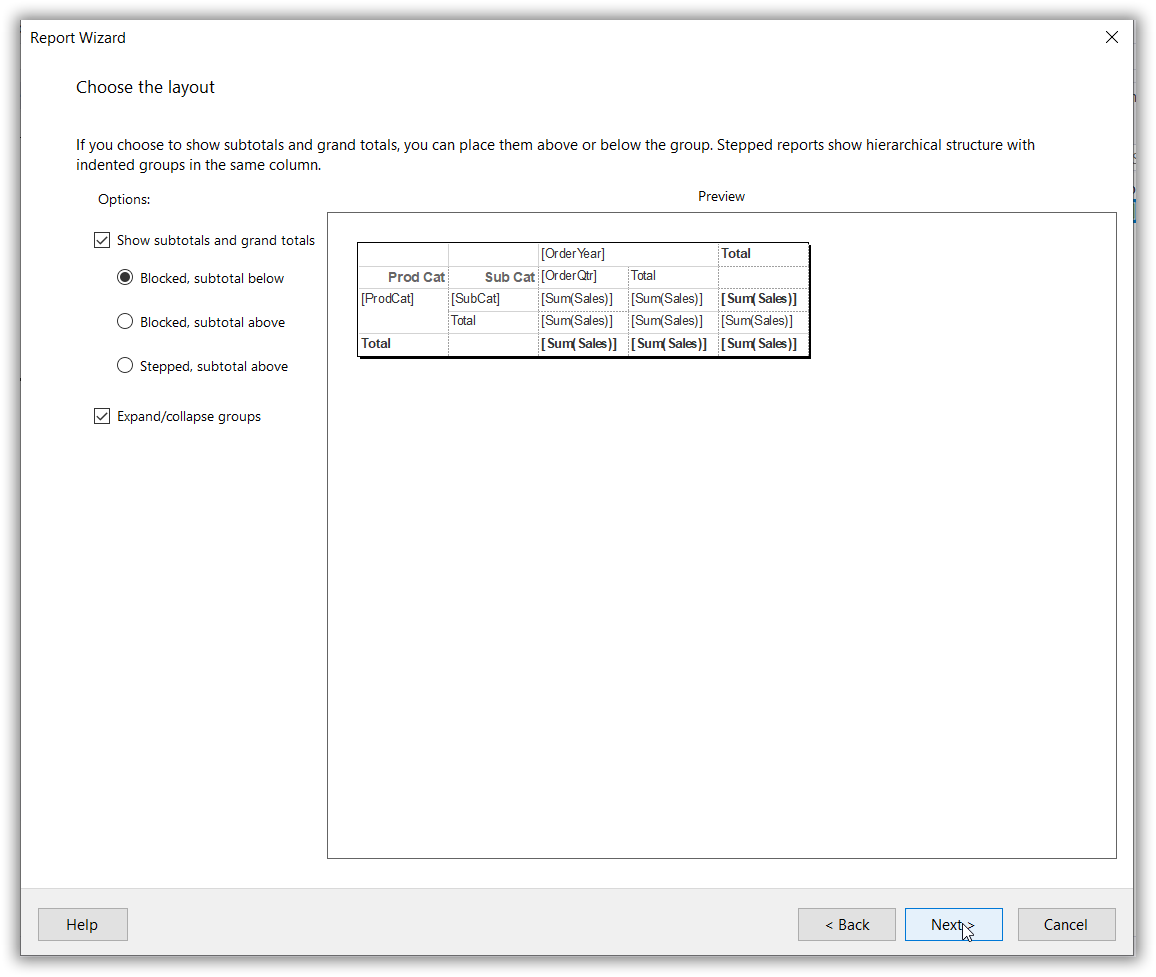
- Choose the table layout and click Next.
- Select table style and click Finish.
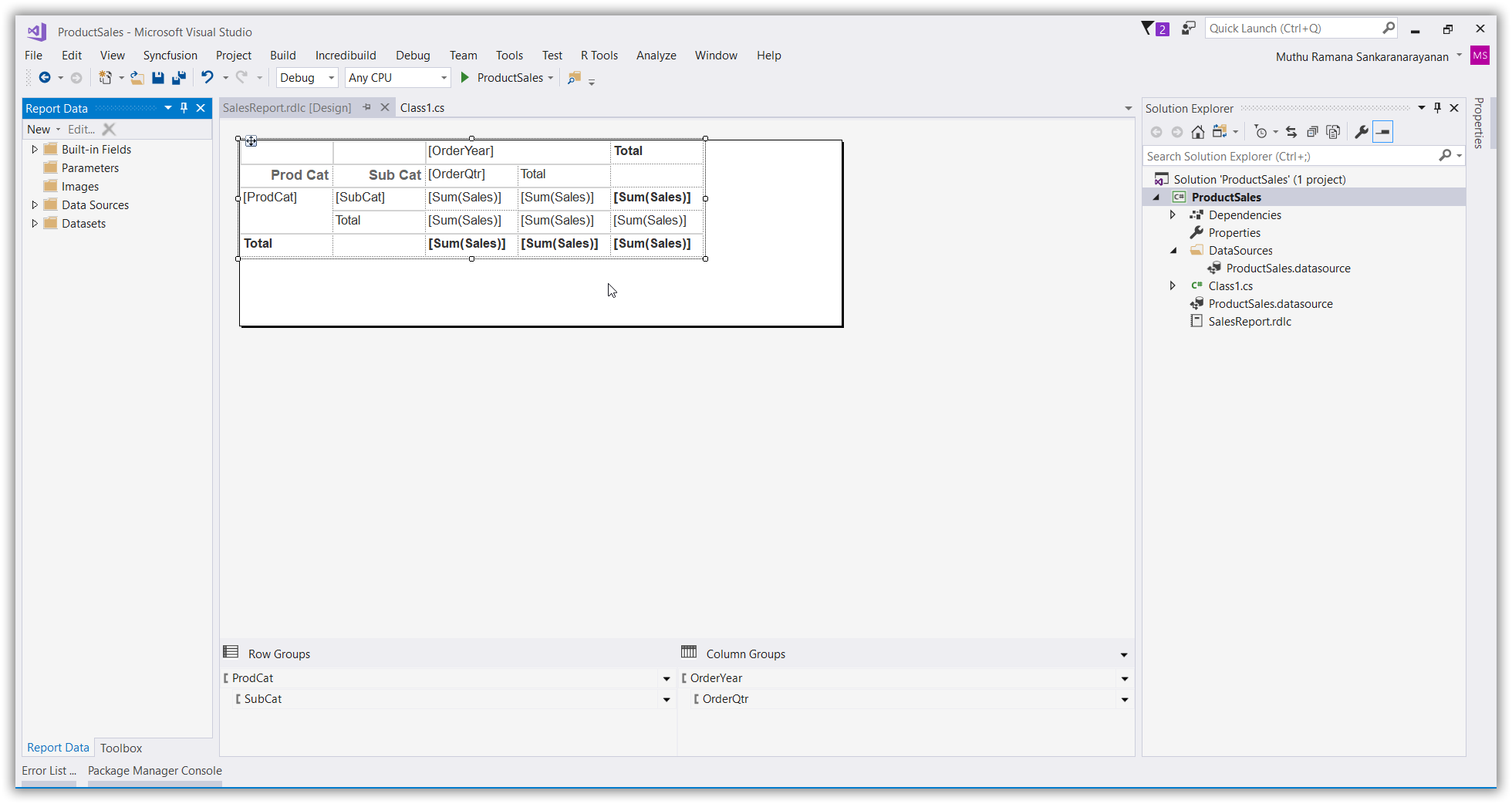
Visual Studio now displays the RDLC report design, as in the following image:
To render the RDLC report in the Bold Reports® ASP.NET Web Forms Report Viewer, refer to the RDLC report section.