Toolbar custom properties
Toolbar custom properties in the Bold Reports® ASP.NET Web Forms Report Viewer show or hide toolbar buttons and controls for a report, such as print, refresh, find, zoom, export, page navigation and document map.
How do I show or hide the print button in the toolbar?
To show or hide the print button in the Report Viewer toolbar, set the ShowPrintButton custom property.
You can set the ShowPrintButton property value, as shown below:
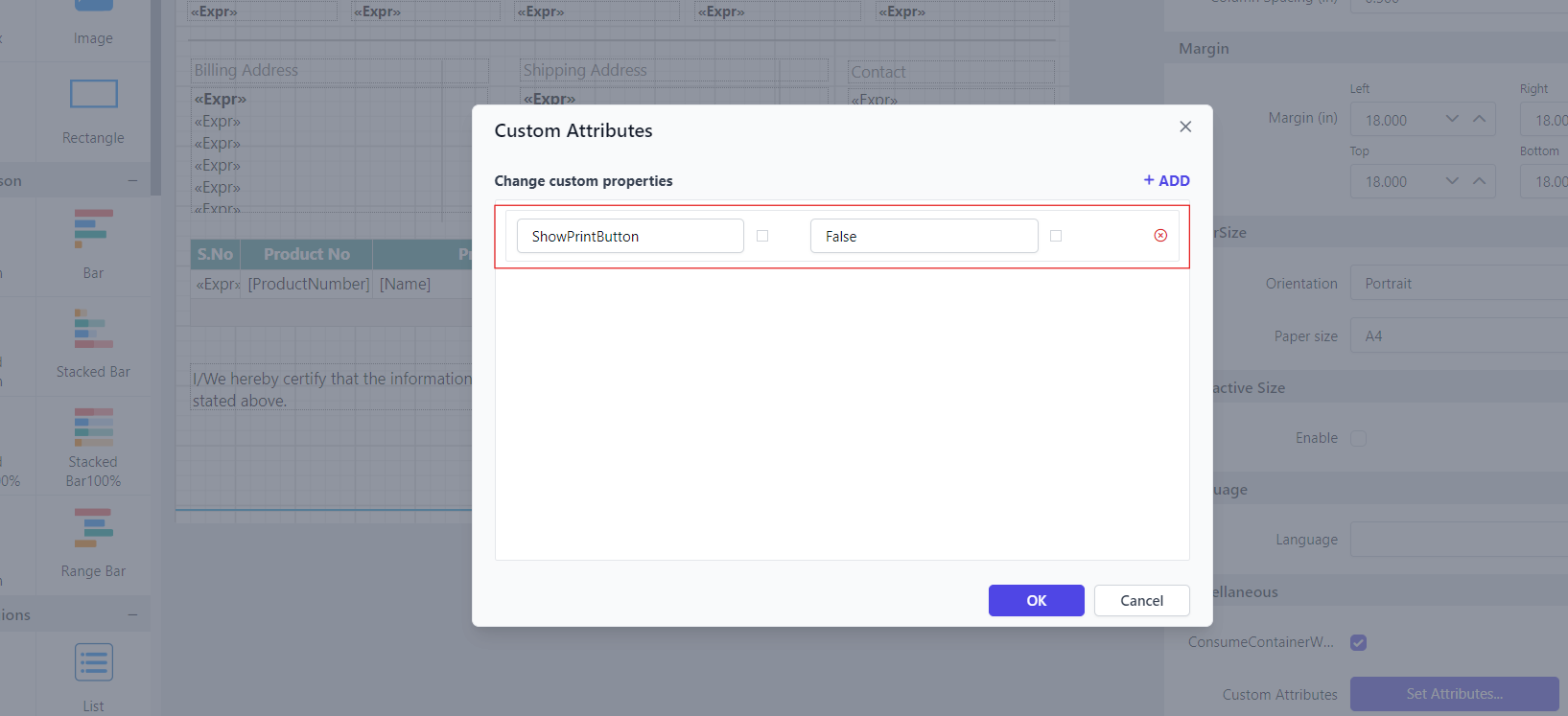
Before setting the ShowPrintButton property, the print button will be displayed in the toolbar.
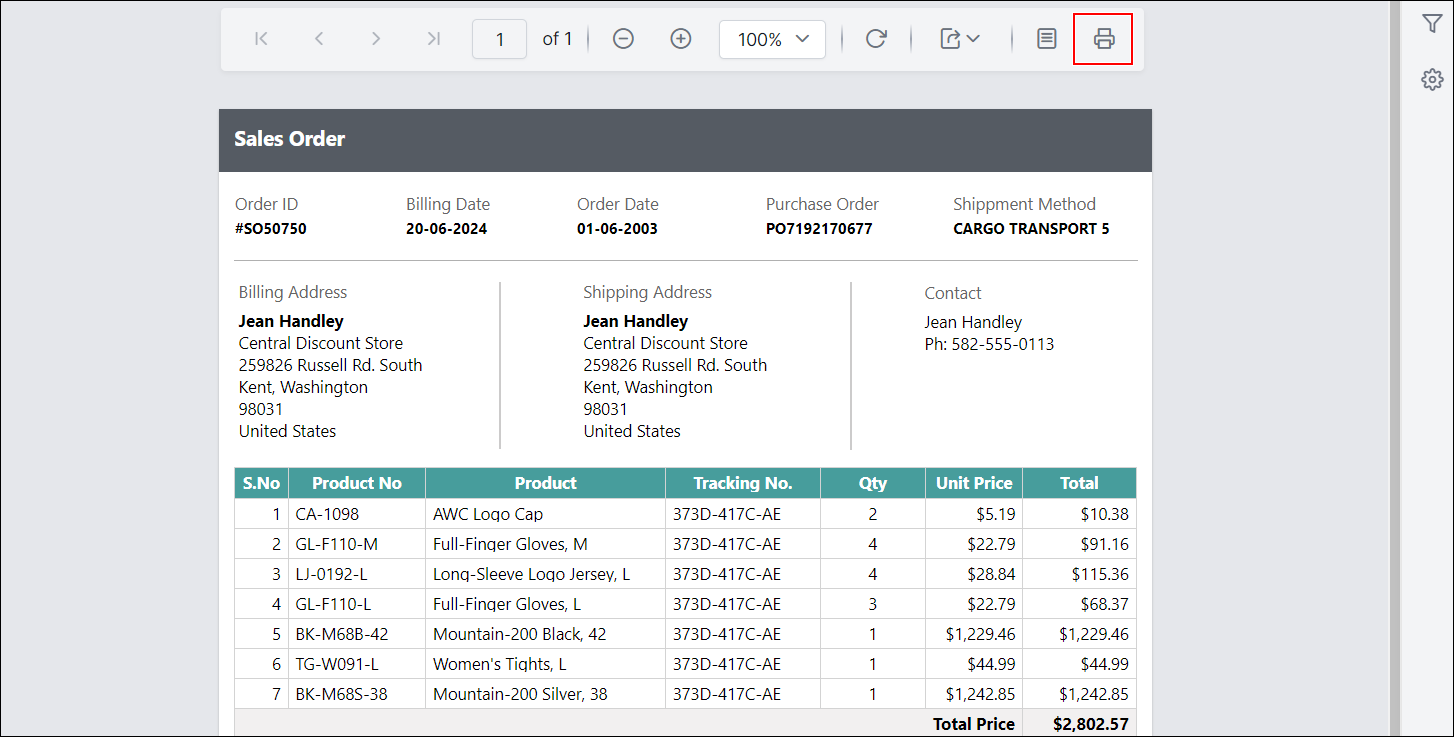
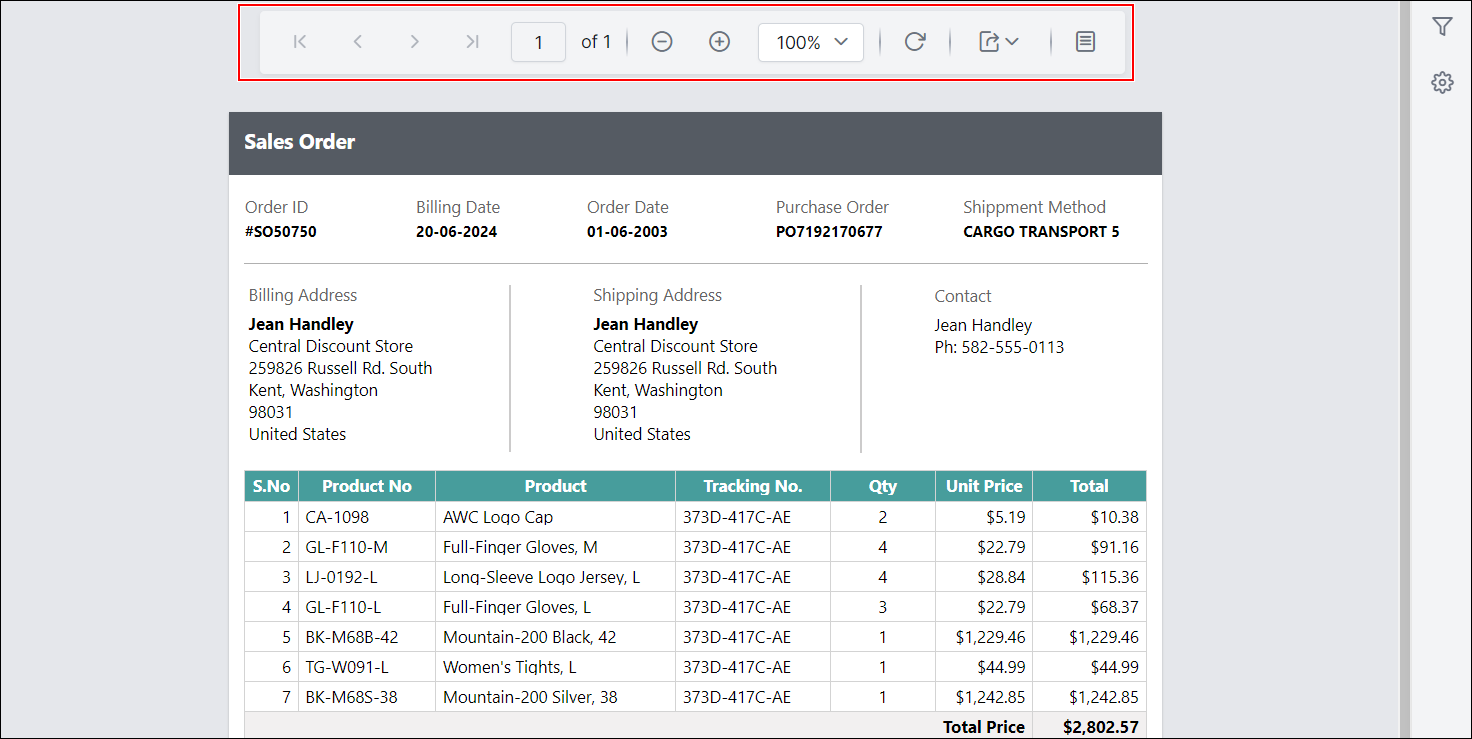
Preview the report and see that the print button is hidden in the toolbar.
How do I show or hide the refresh button in the toolbar?
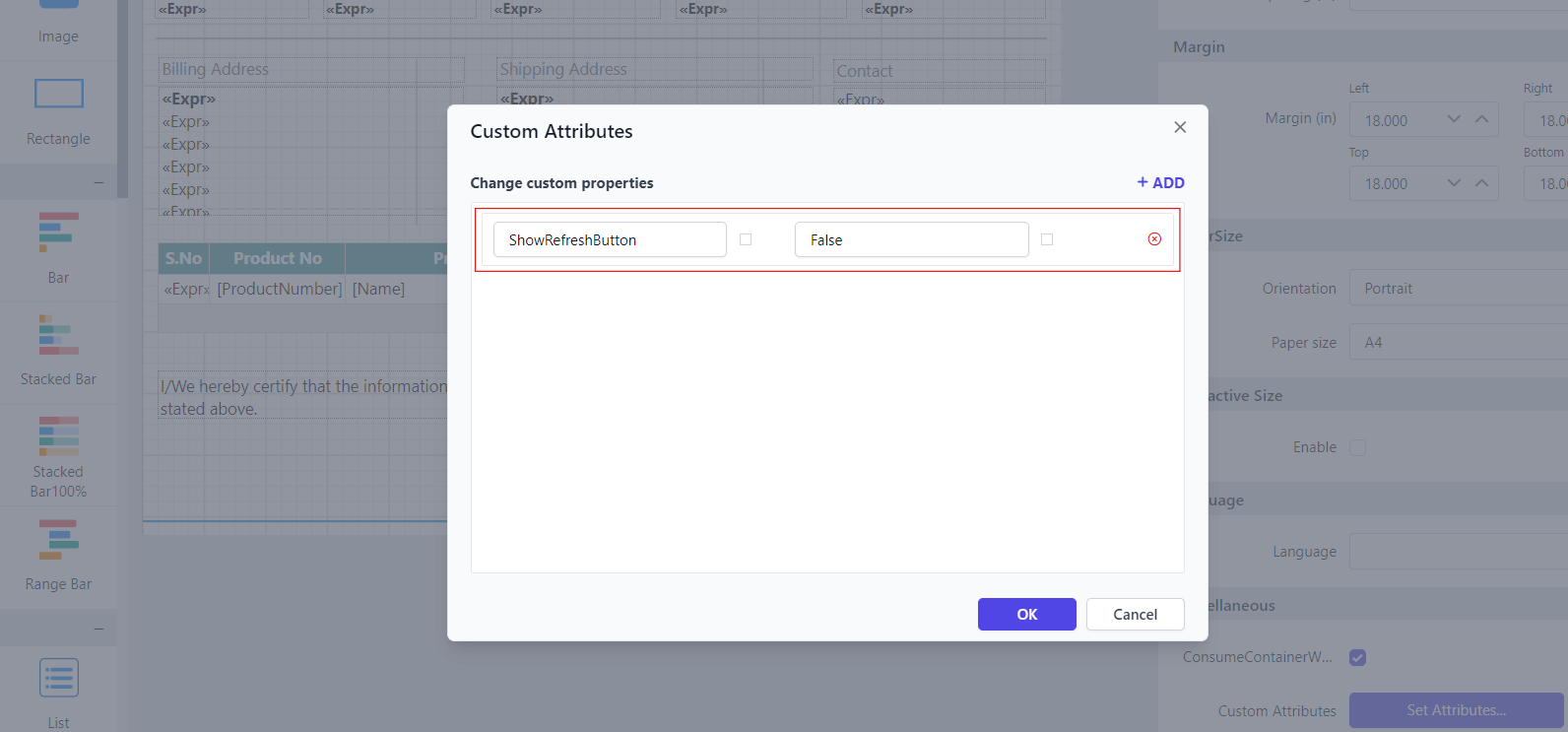
To show or hide the refresh button in the Report Viewer toolbar, set the ShowRefreshButton custom property.
You can set the ShowRefreshButton property value, as shown below:
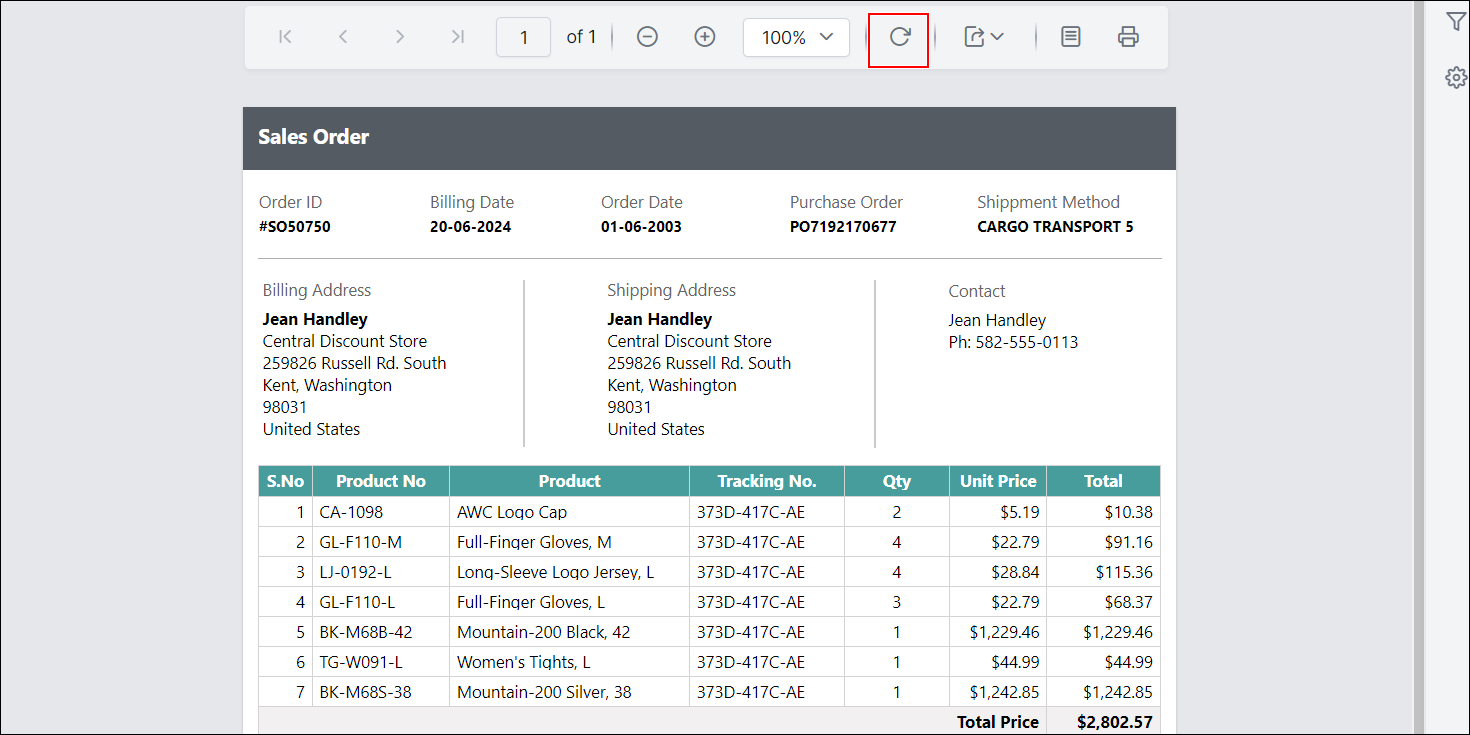
Before setting the ShowRefreshButton property, the refresh button will be displayed in the toolbar.
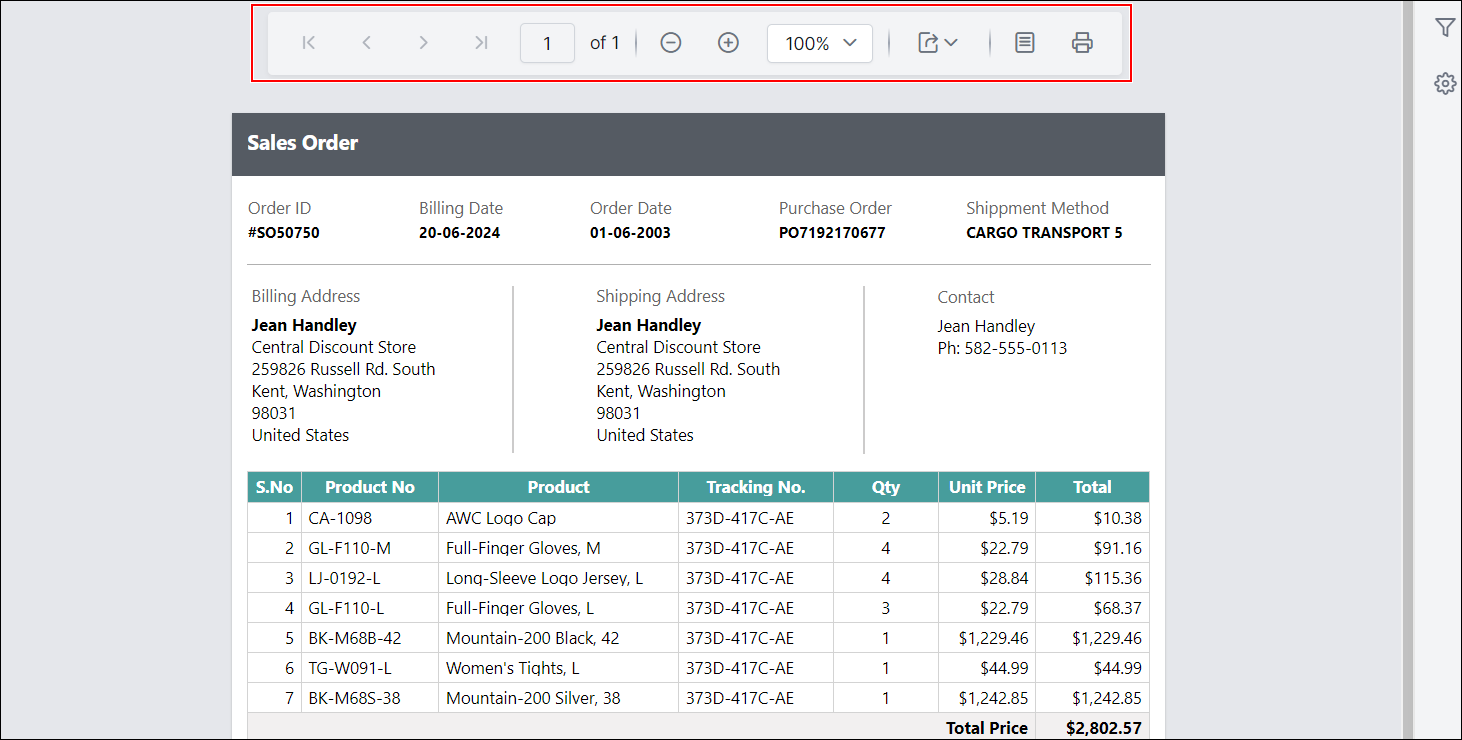
Preview the report and see that the refresh button is hidden in the toolbar.
How do I show or hide the find button in the toolbar?
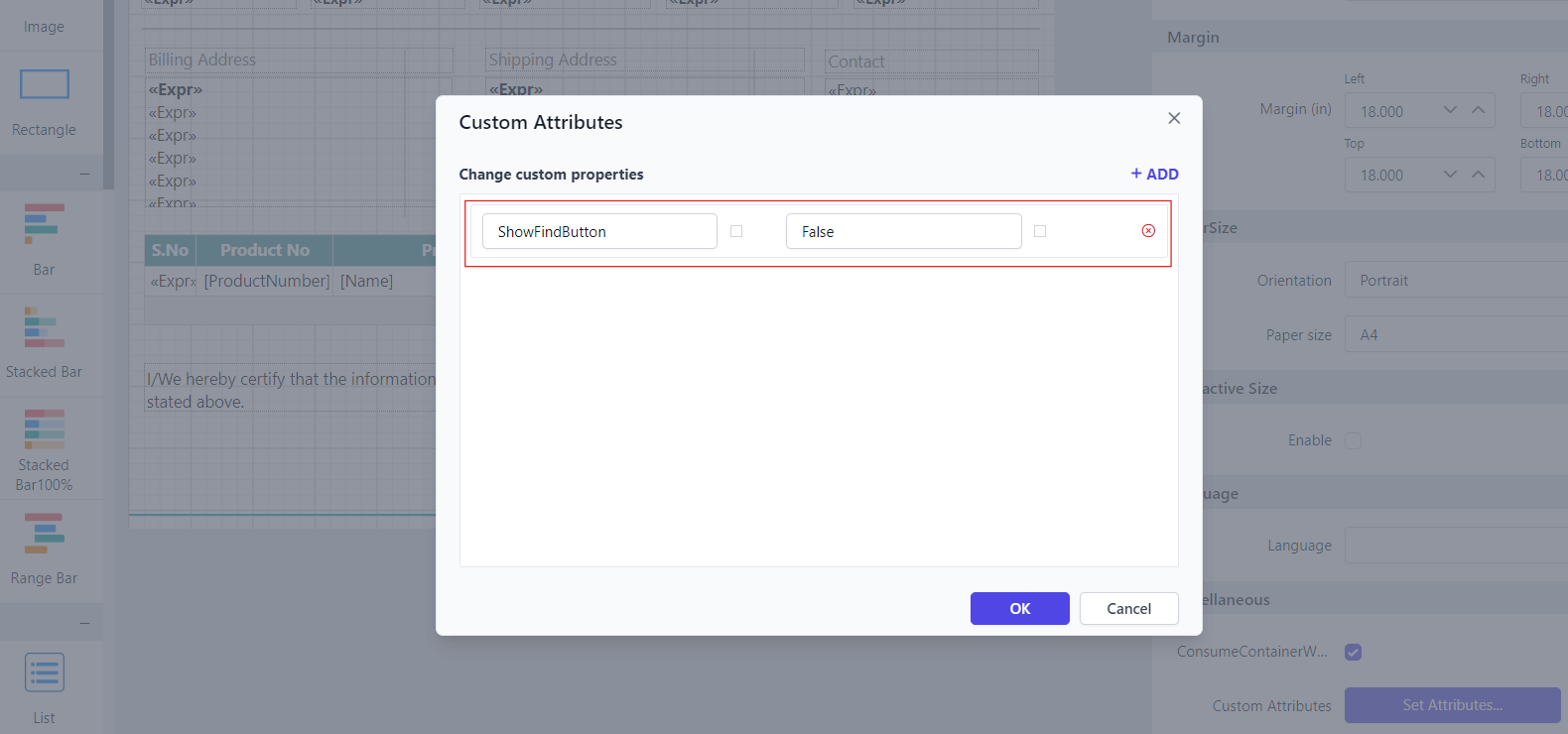
To show or hide the find button in the Report Viewer toolbar, set the ShowFindButton custom property.
You can set the ShowFindButton property value, as shown below:
Before setting the ShowFindButton property, the find button will be displayed in the toolbar.
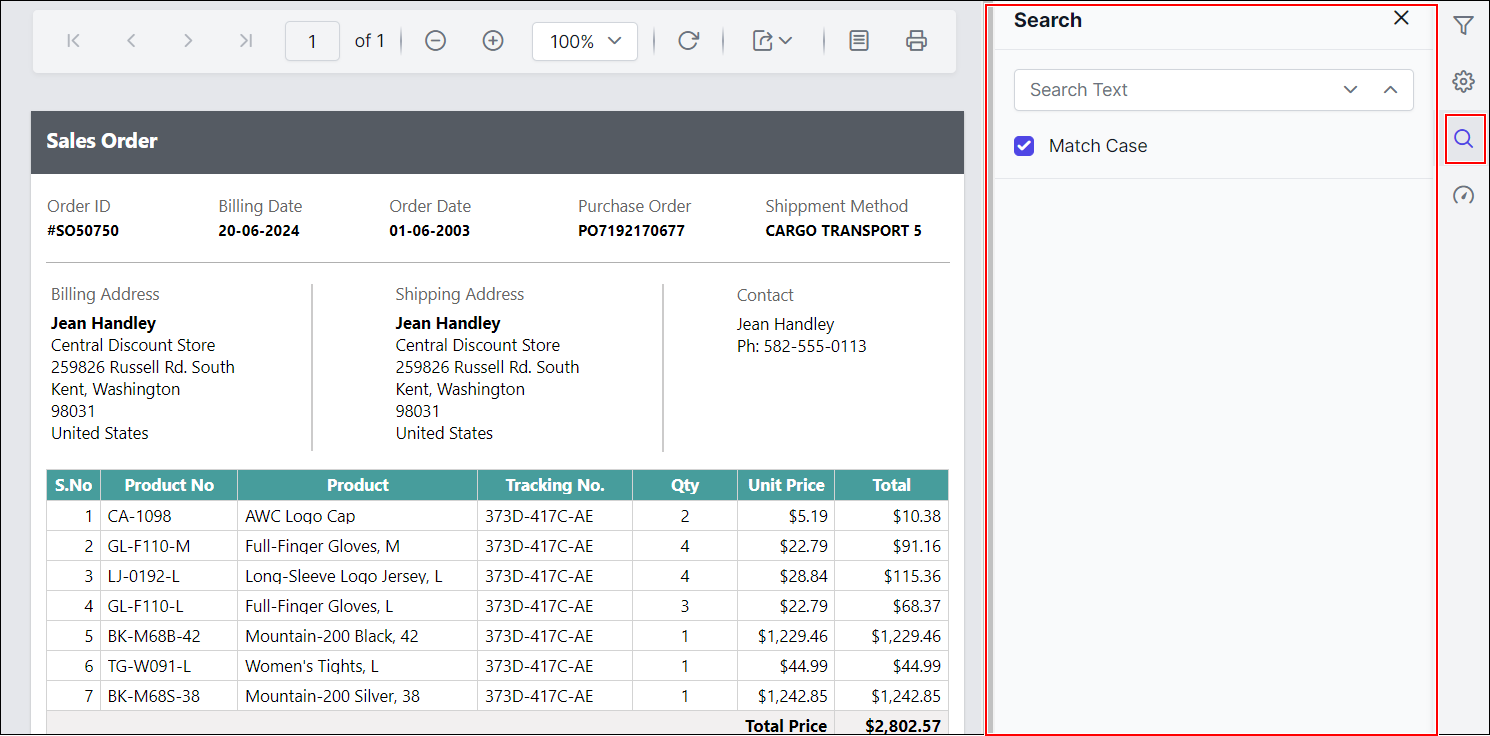
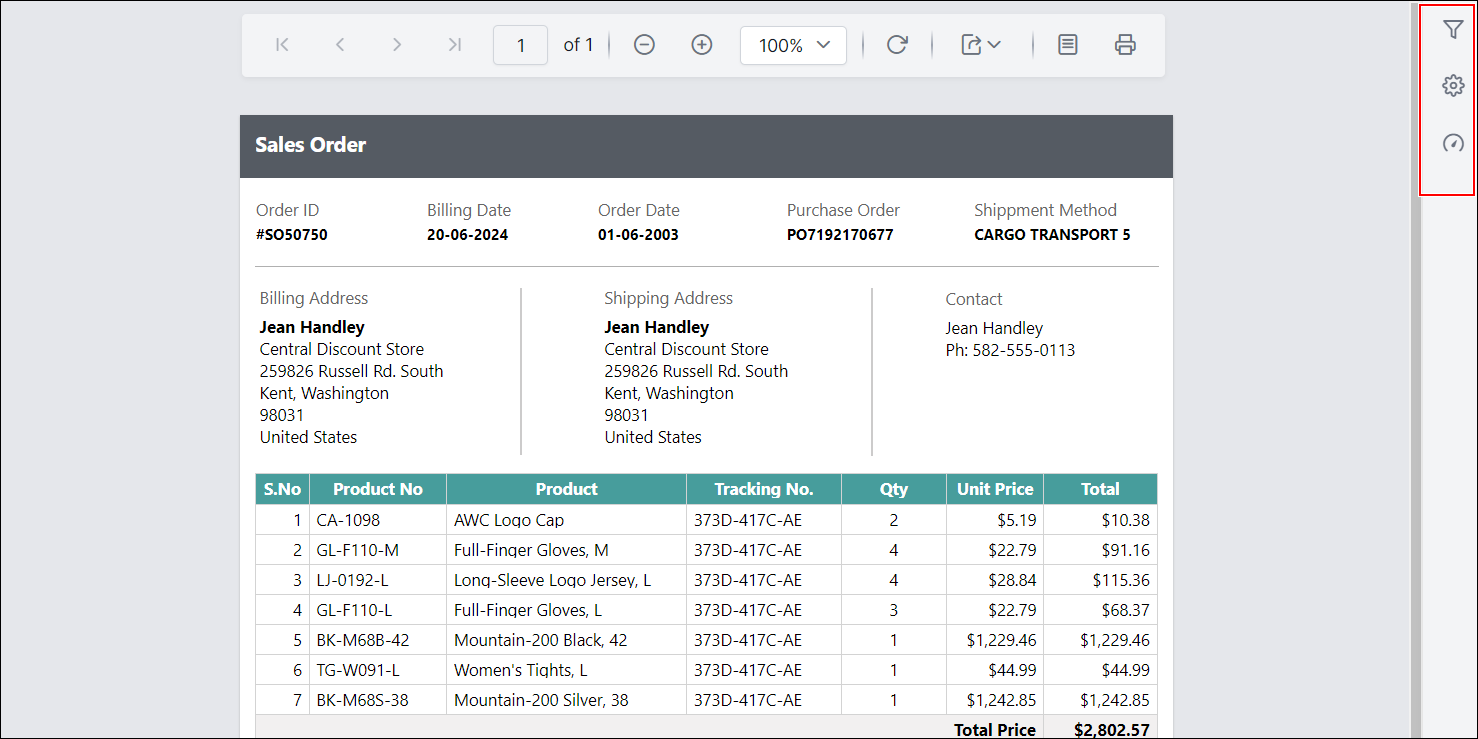
Preview the report and see that the find button is hidden in the toolbar.
How do I show or hide the zoom controls in the toolbar?
To show or hide the zoom controls in the Report Viewer toolbar, set the ShowZoomControl custom property.
You can set the ShowZoomControl property value, as shown below:
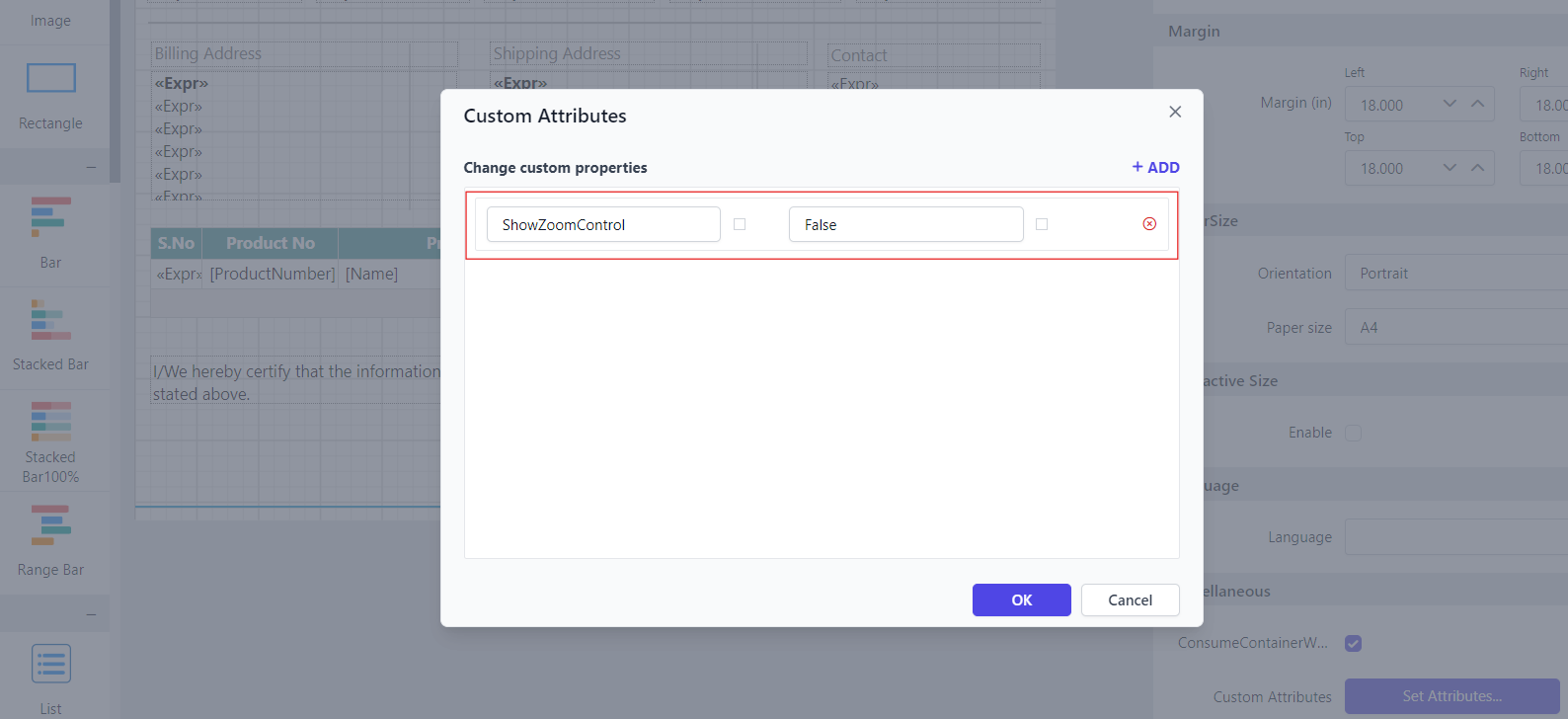
Before setting the ShowZoomControl property, the zoom control will be displayed in the toolbar.
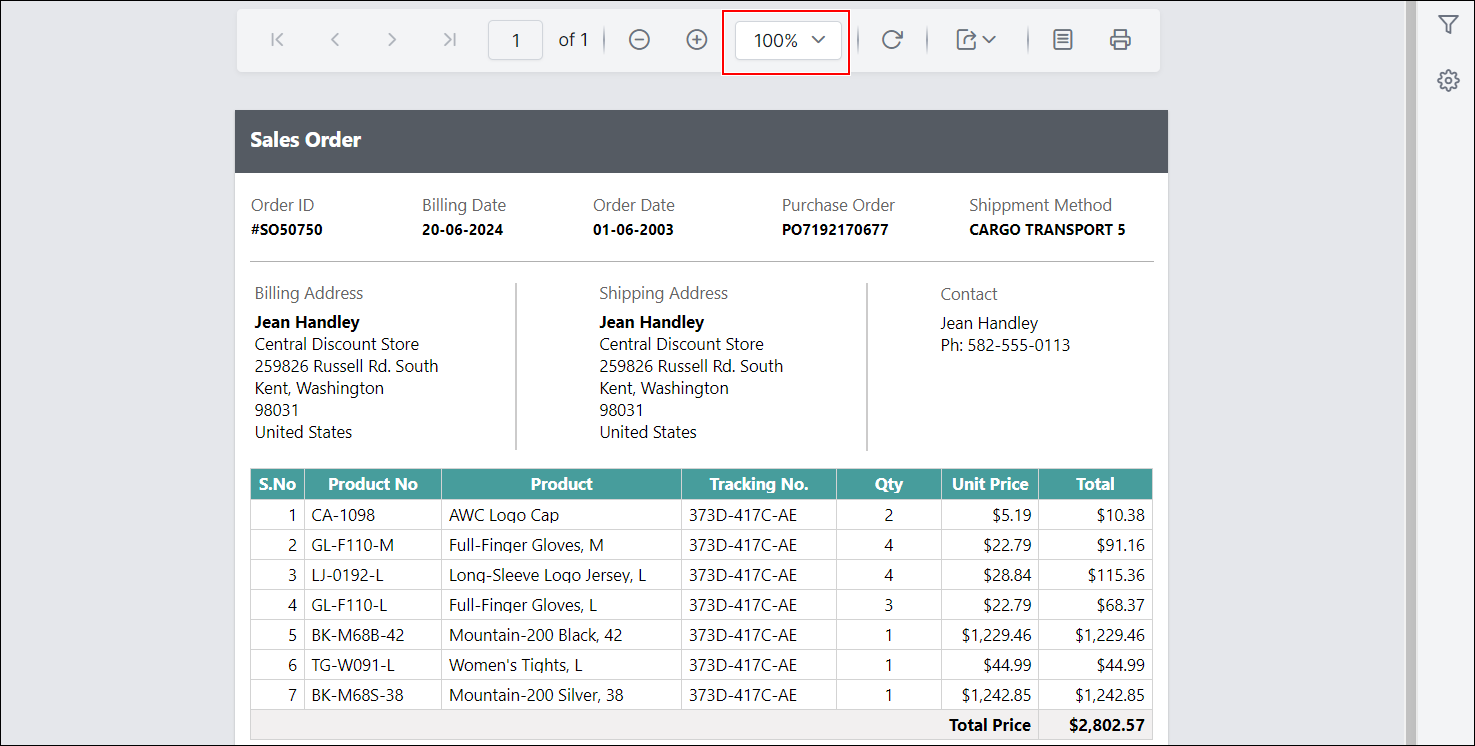
Preview the report and see that the zoom control is hidden in the toolbar.
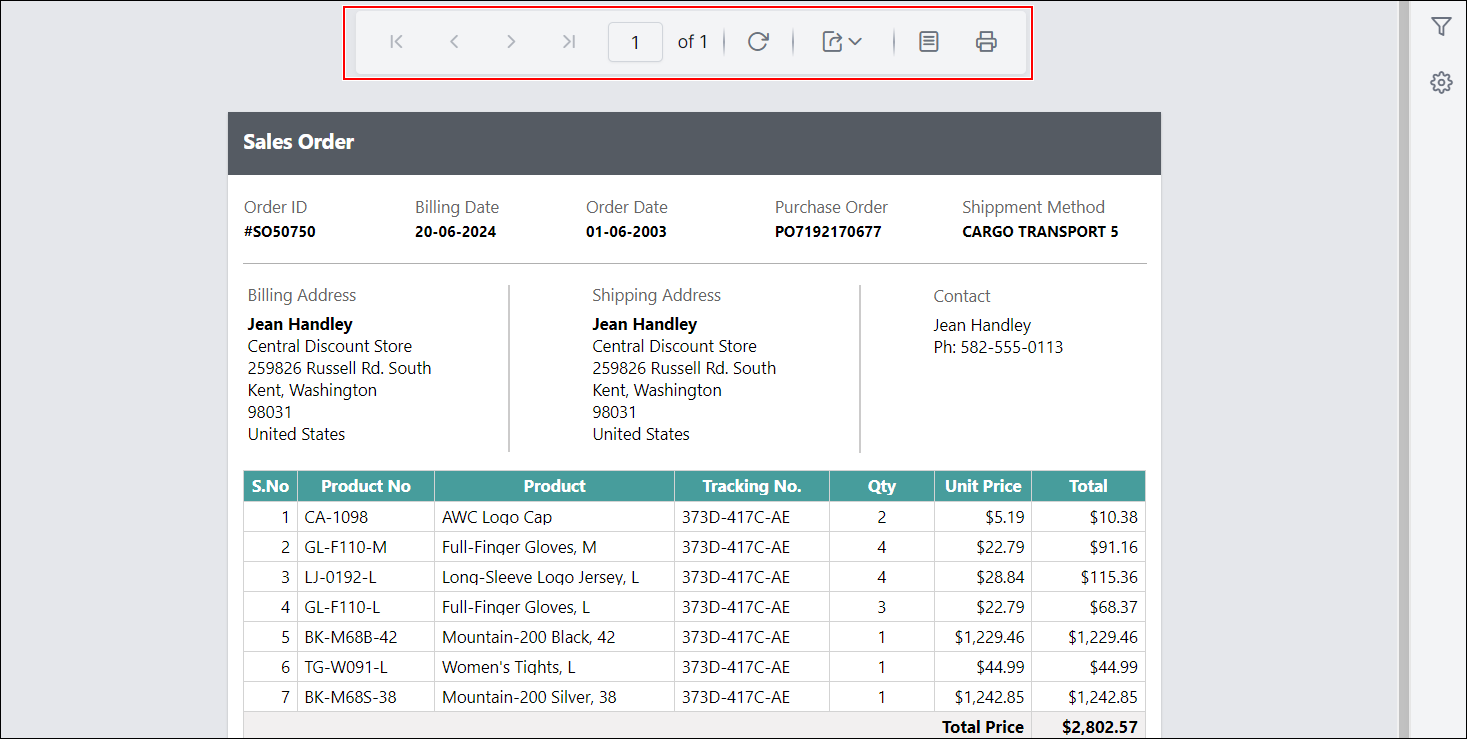
How do I show or hide the export controls in the toolbar?
To show or hide the export controls (such as PDF, Excel, Word, etc.) in the Report Viewer toolbar, set the ShowExportControls custom property.
You can set the ShowExportControls property value, as shown below:
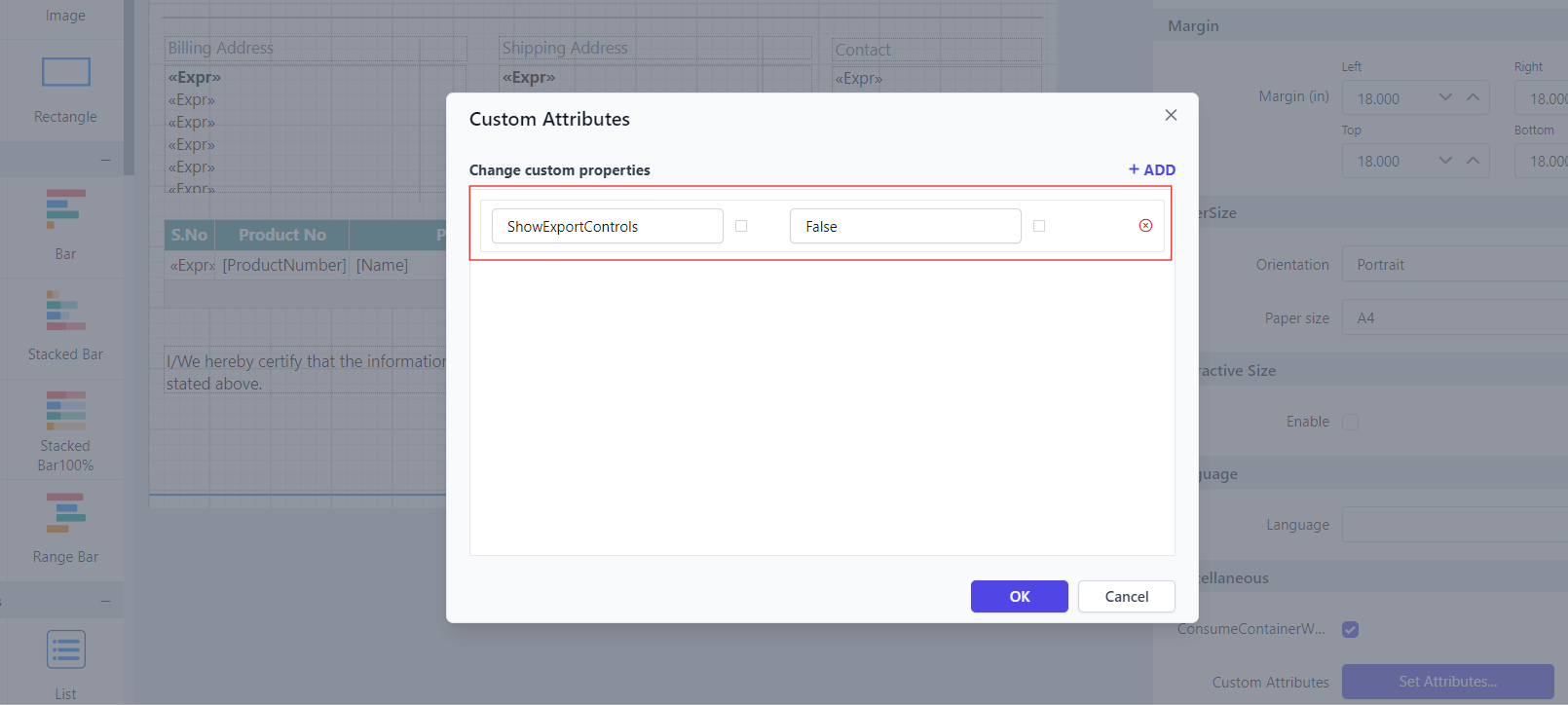
Before setting the ShowExportControls property, the export controls will be displayed in the toolbar.
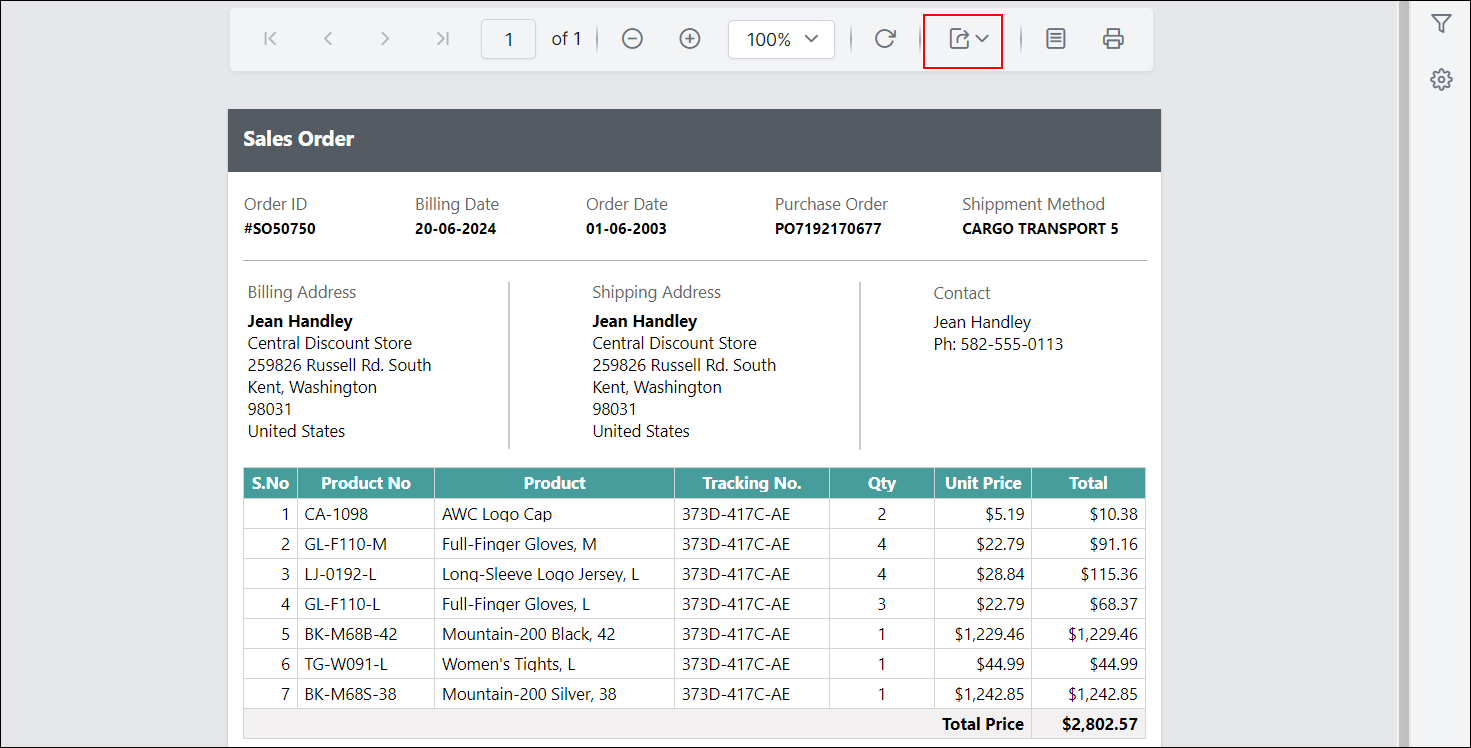
Preview the report and see that the export controls are hidden in the toolbar.
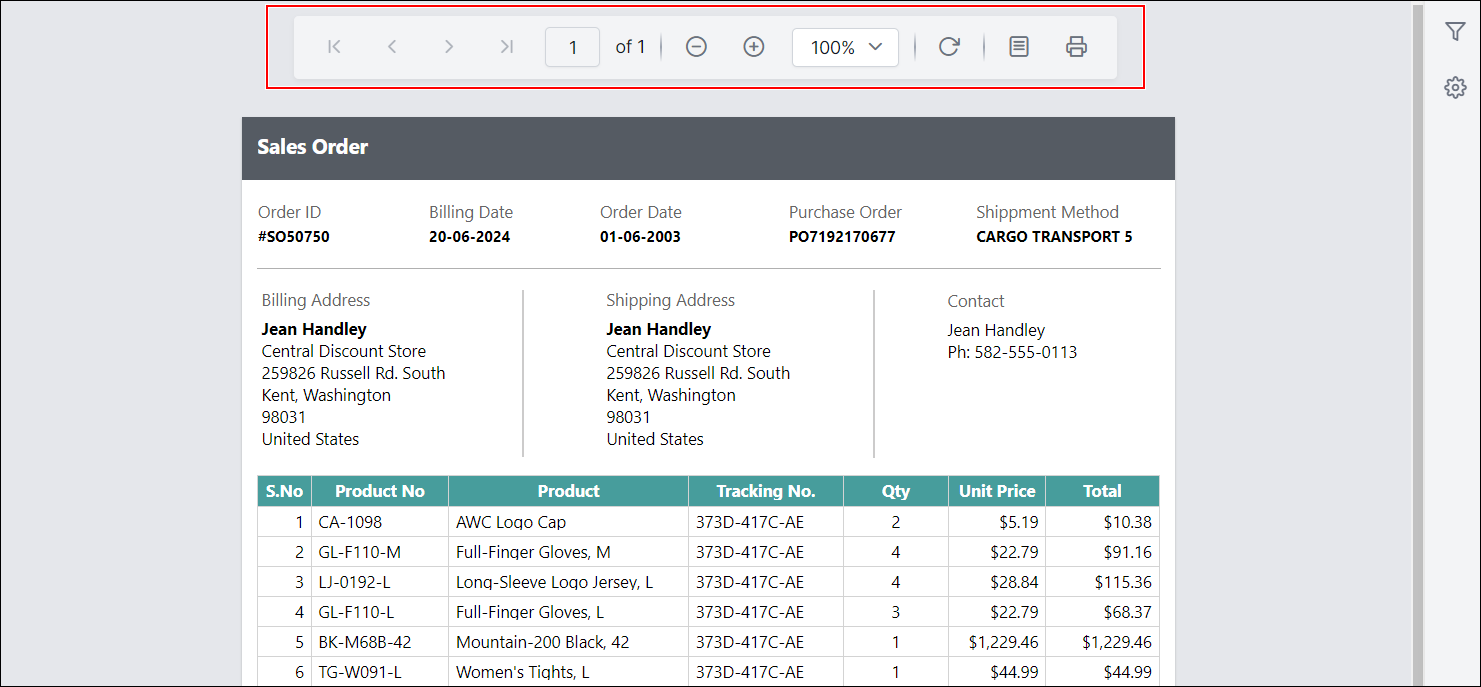
How do I show or hide the print page setup button in the toolbar?
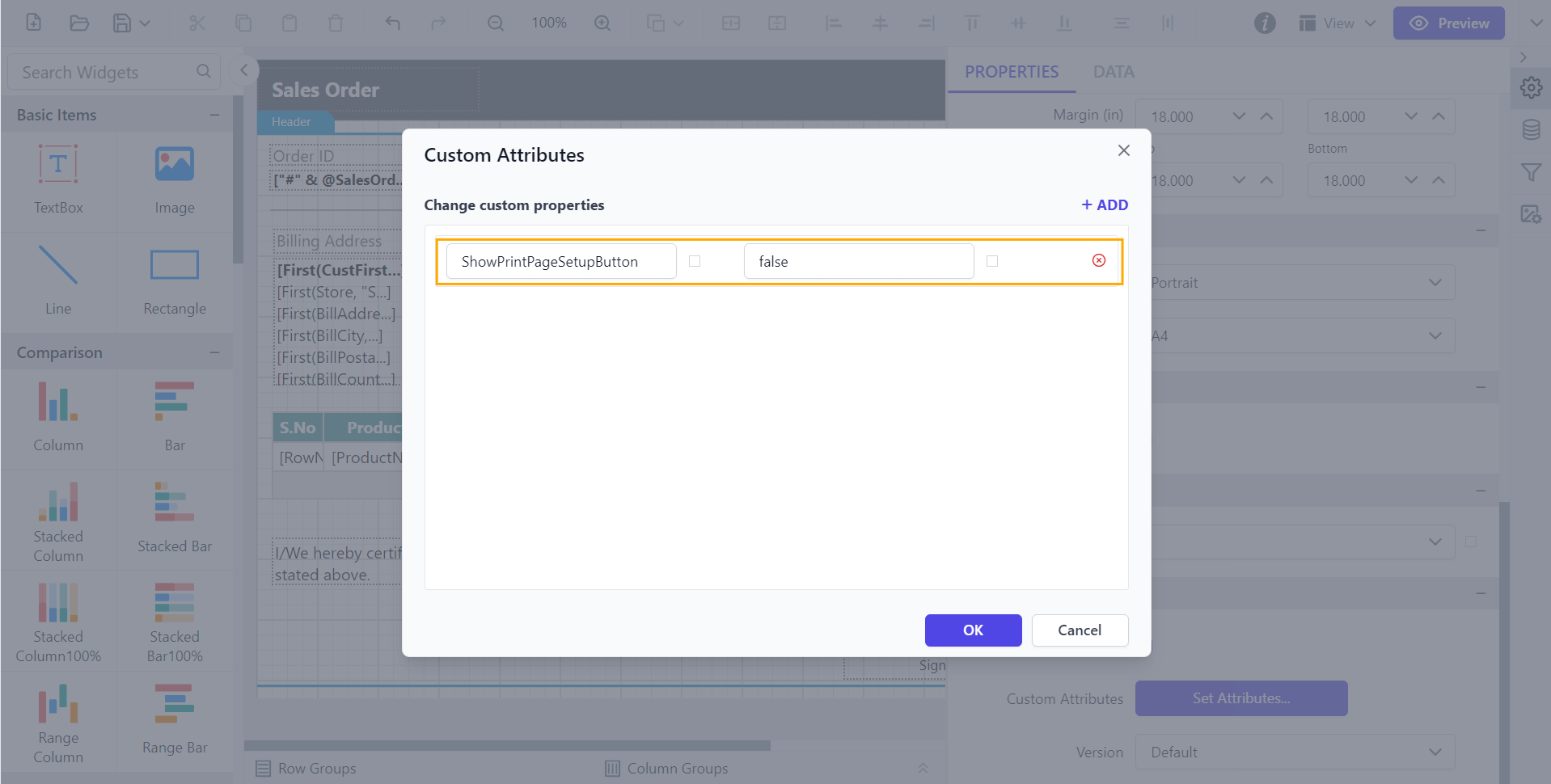
To show or hide the print page setup button in the Report Viewer toolbar in Classic View, set the ShowPrintPageSetupButton custom property.
You can configure the ShowPrintPageSetupButton property.
Before setting the ShowPrintPageSetupButton property, the print page setup will be displayed in the toolbar.
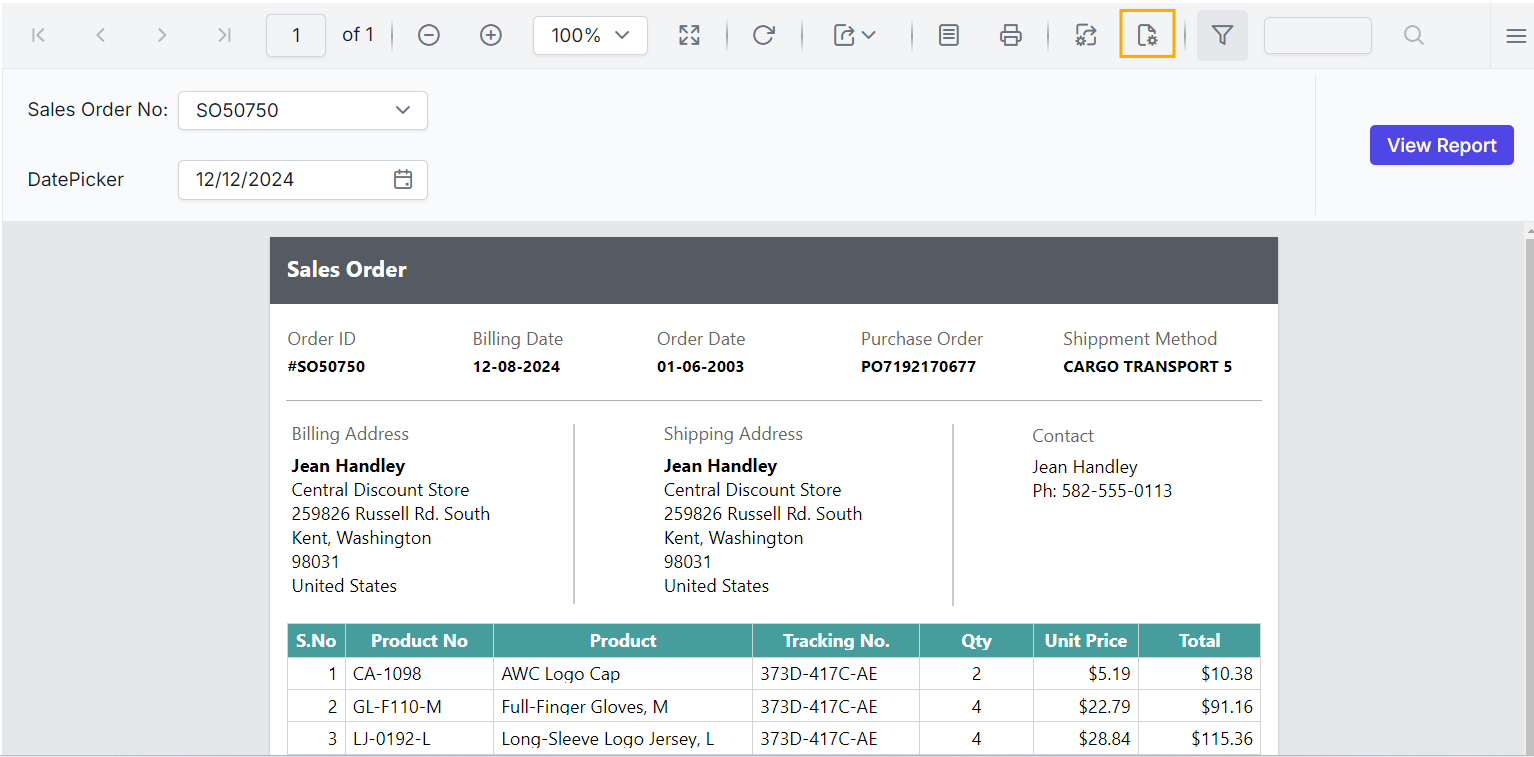
Preview the report and see that the print page setup is hidden in the toolbar.
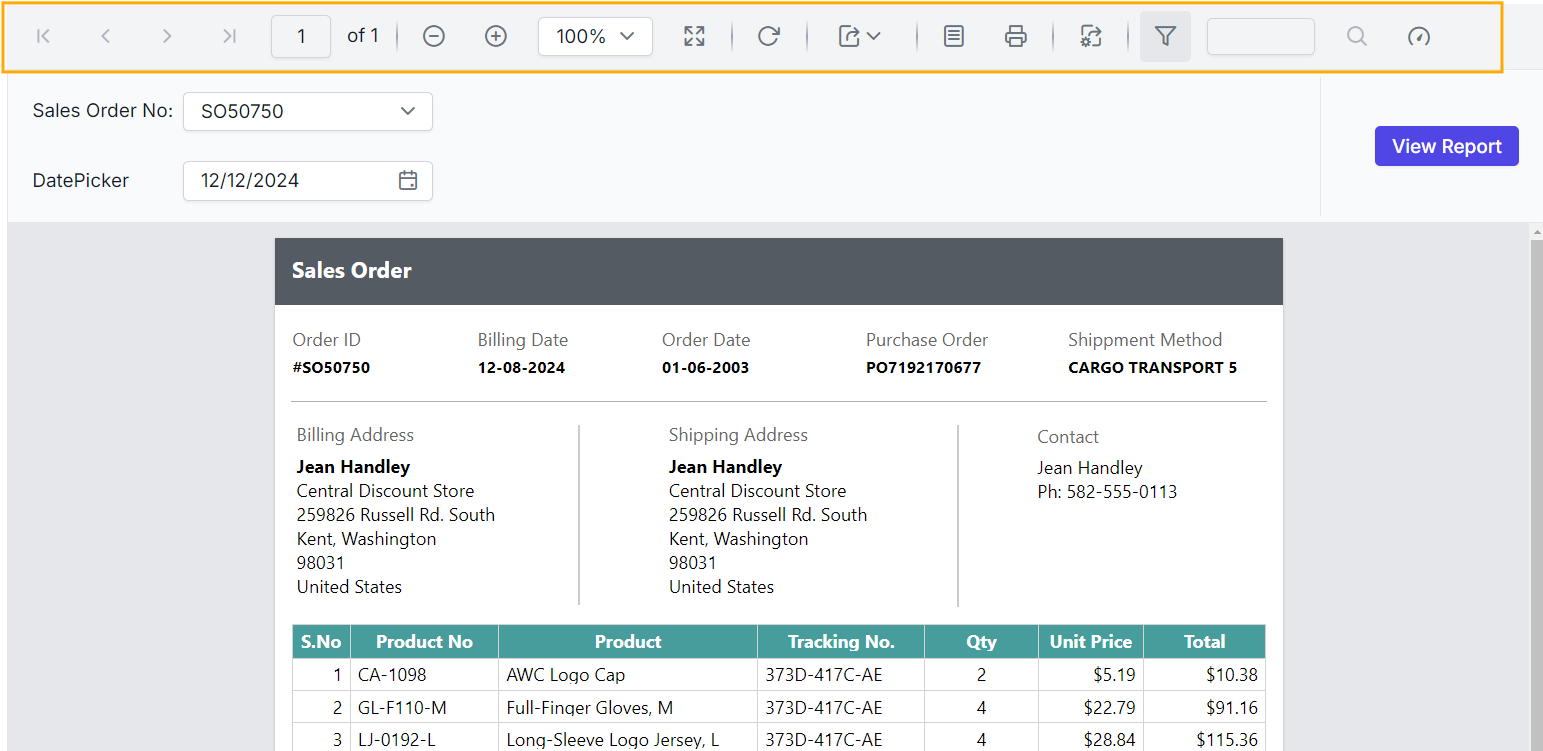
How do I show or hide the performance metrics button?
To show or hide the performance metrics button in the Report Viewer, set the ShowPerformanceMetricsButton custom property.
You can configure the ShowPerformanceMetricsButton property.
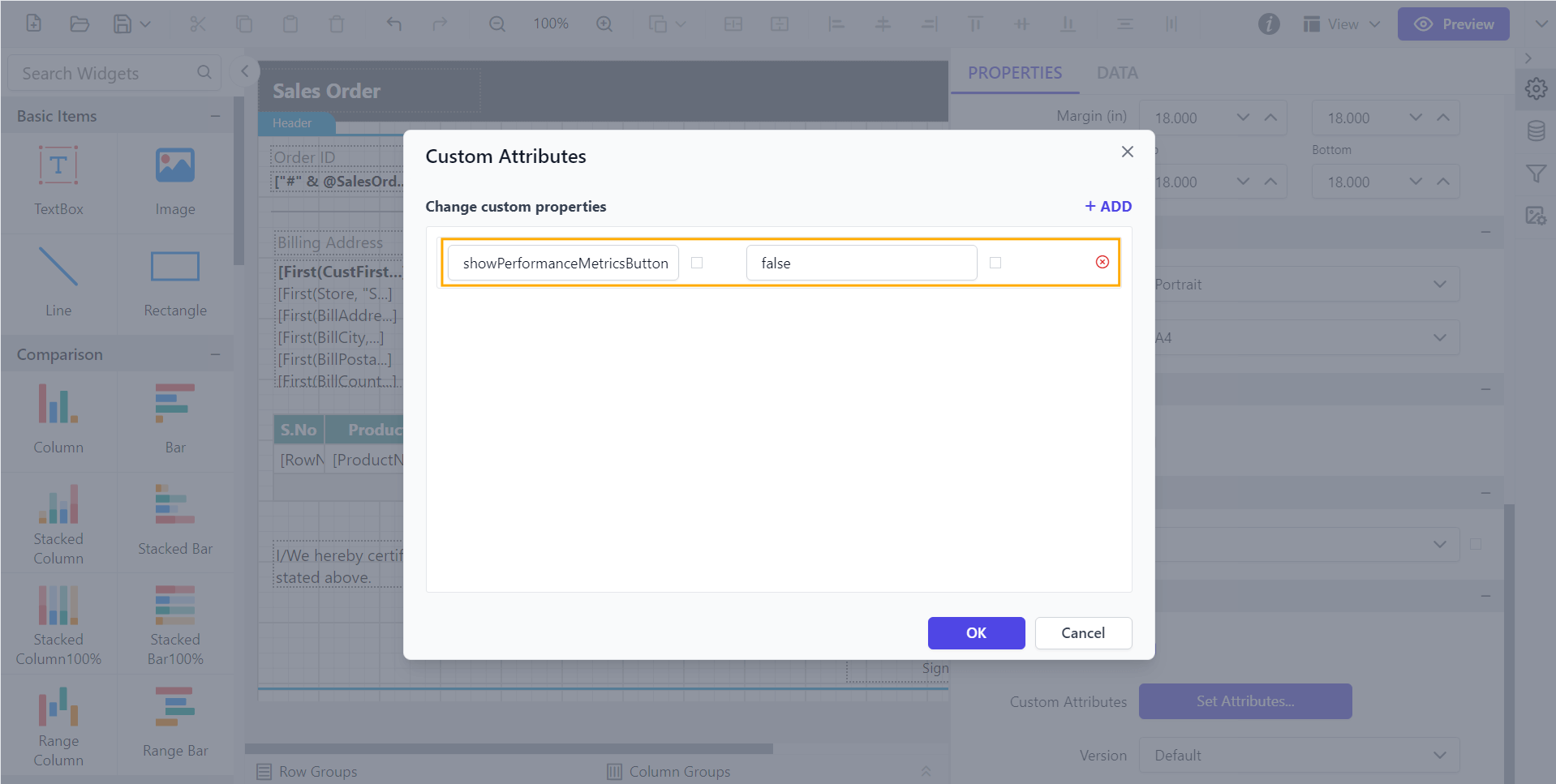
Before setting the ShowPerformanceMetricsButton property, the performance metrics button will be displayed.
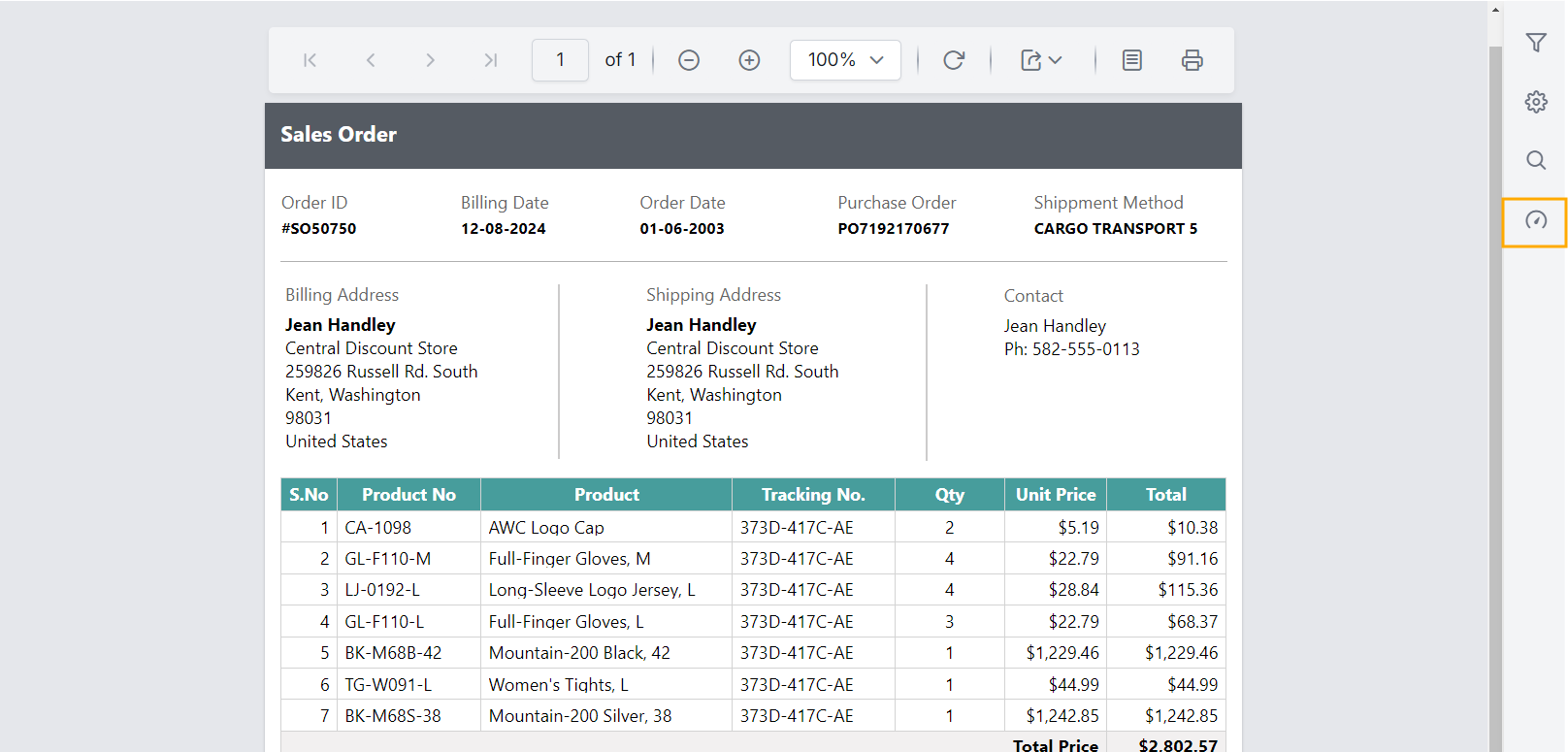
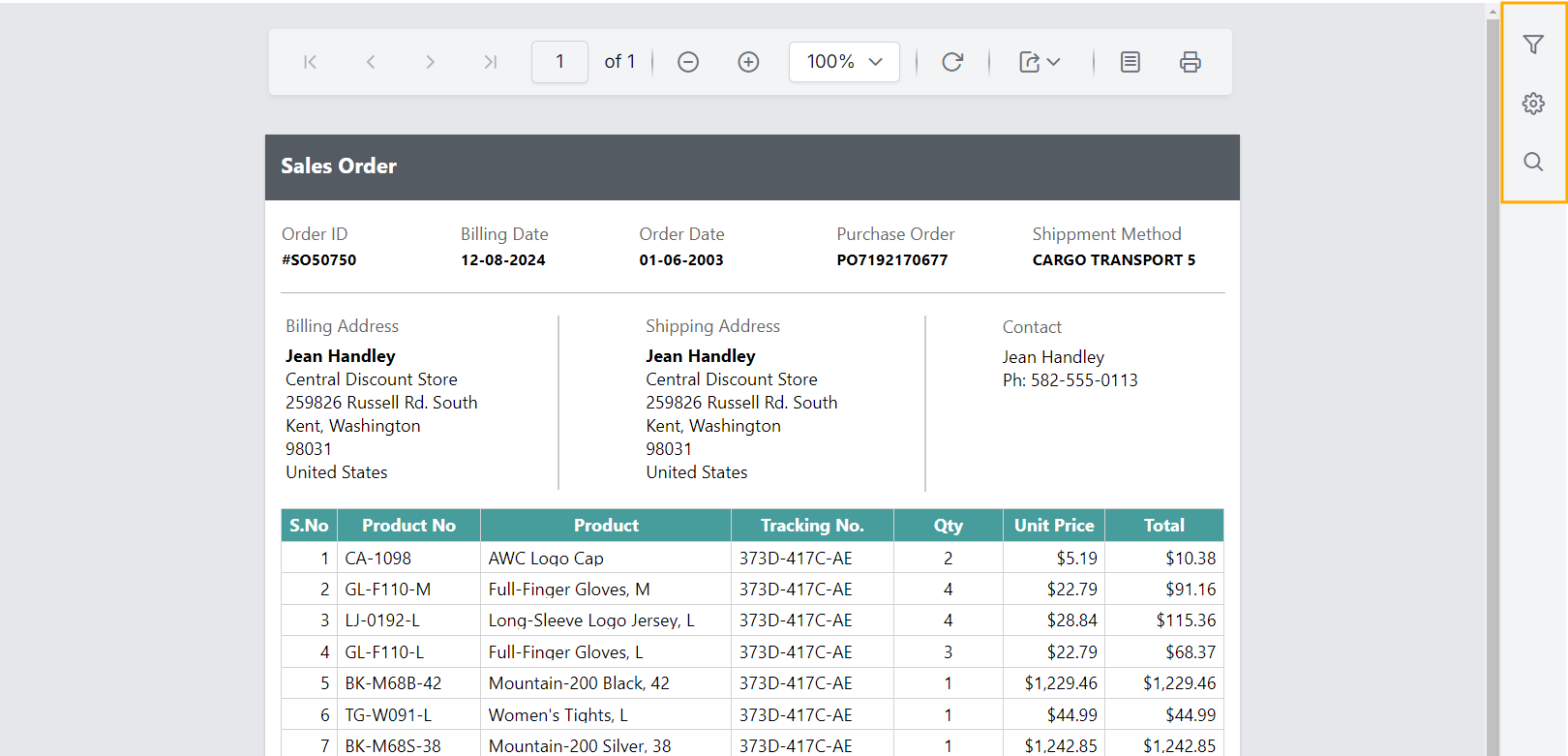
Preview the report and see that the performance metrics button is hidden.
How do I show or hide the navigation controls?
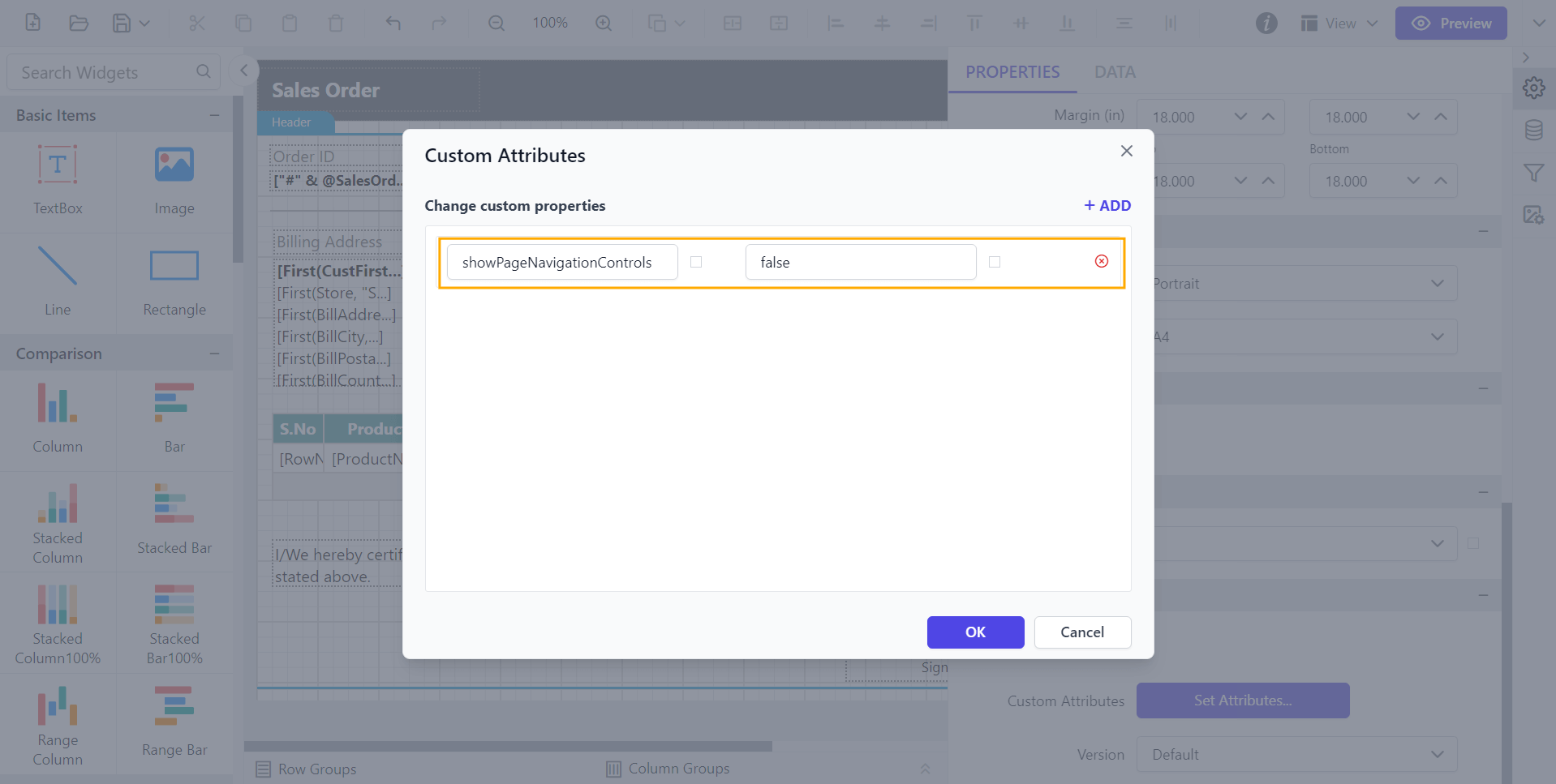
To show or hide the page navigation controls in the Report Viewer, set the ShowPageNavigationControls custom property.
You can set the ShowPageNavigationControls property value, as shown below:
Before setting the ShowPageNavigationControls property, the navigation controls will be displayed.
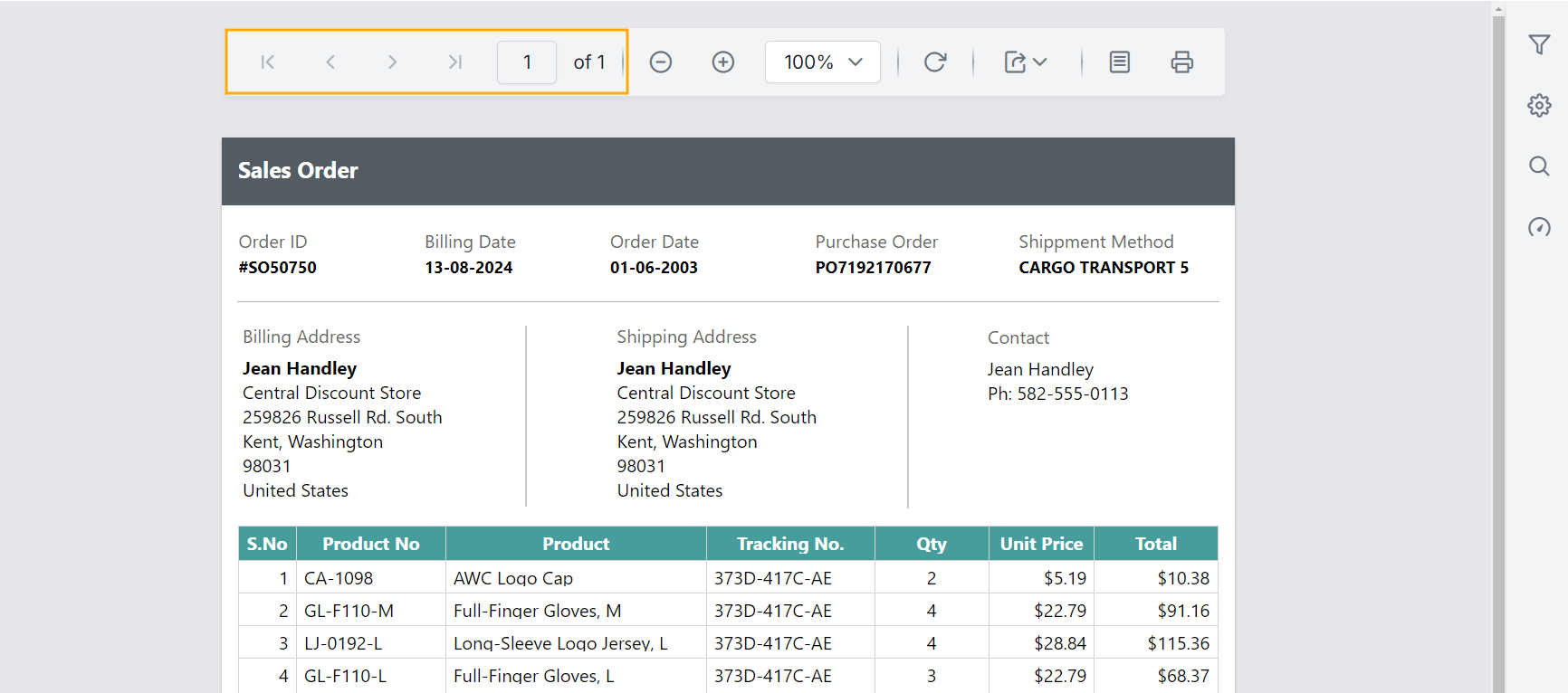
Preview the report to see that the navigation controls are hidden.
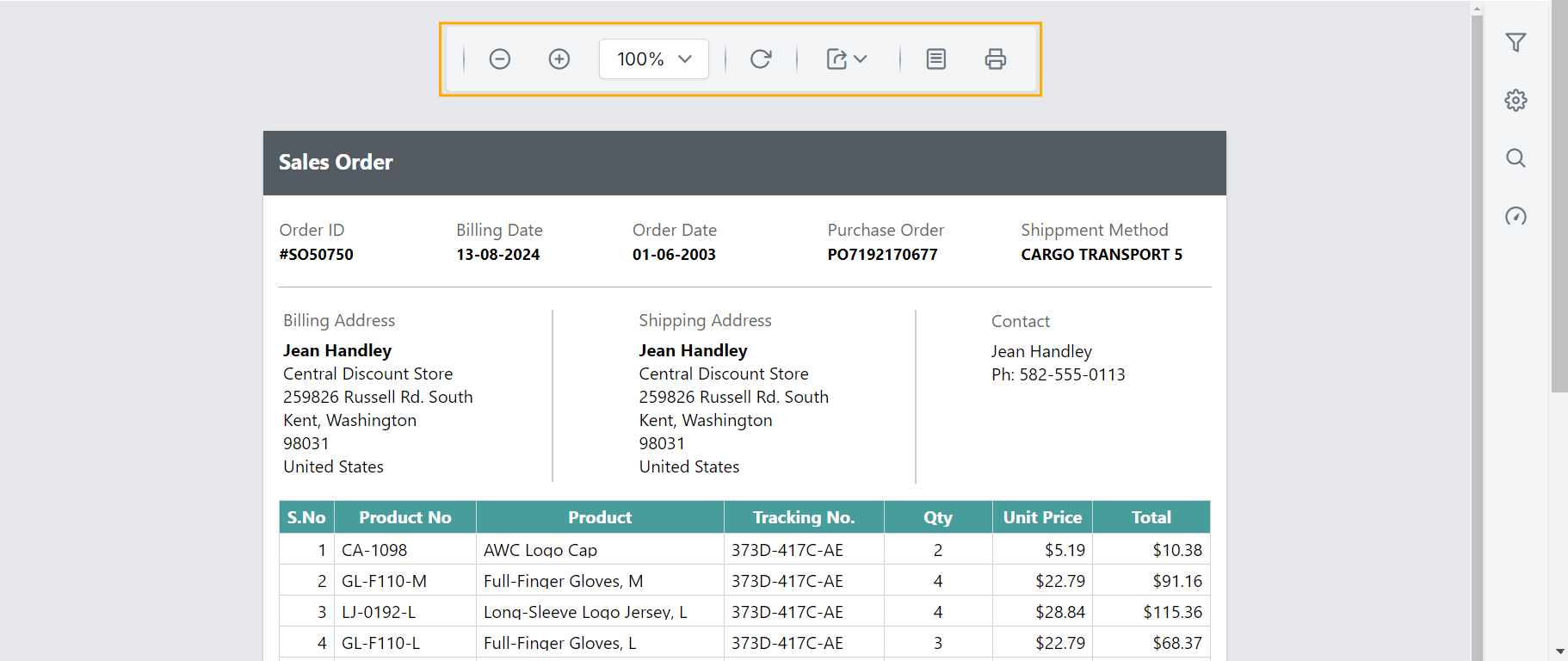
How do I show or hide the print layout button?
To show or hide the print layout button in the Report Viewer, set the ShowPreviewButton custom property.
You can set the ShowPreviewButton property value, as shown below:
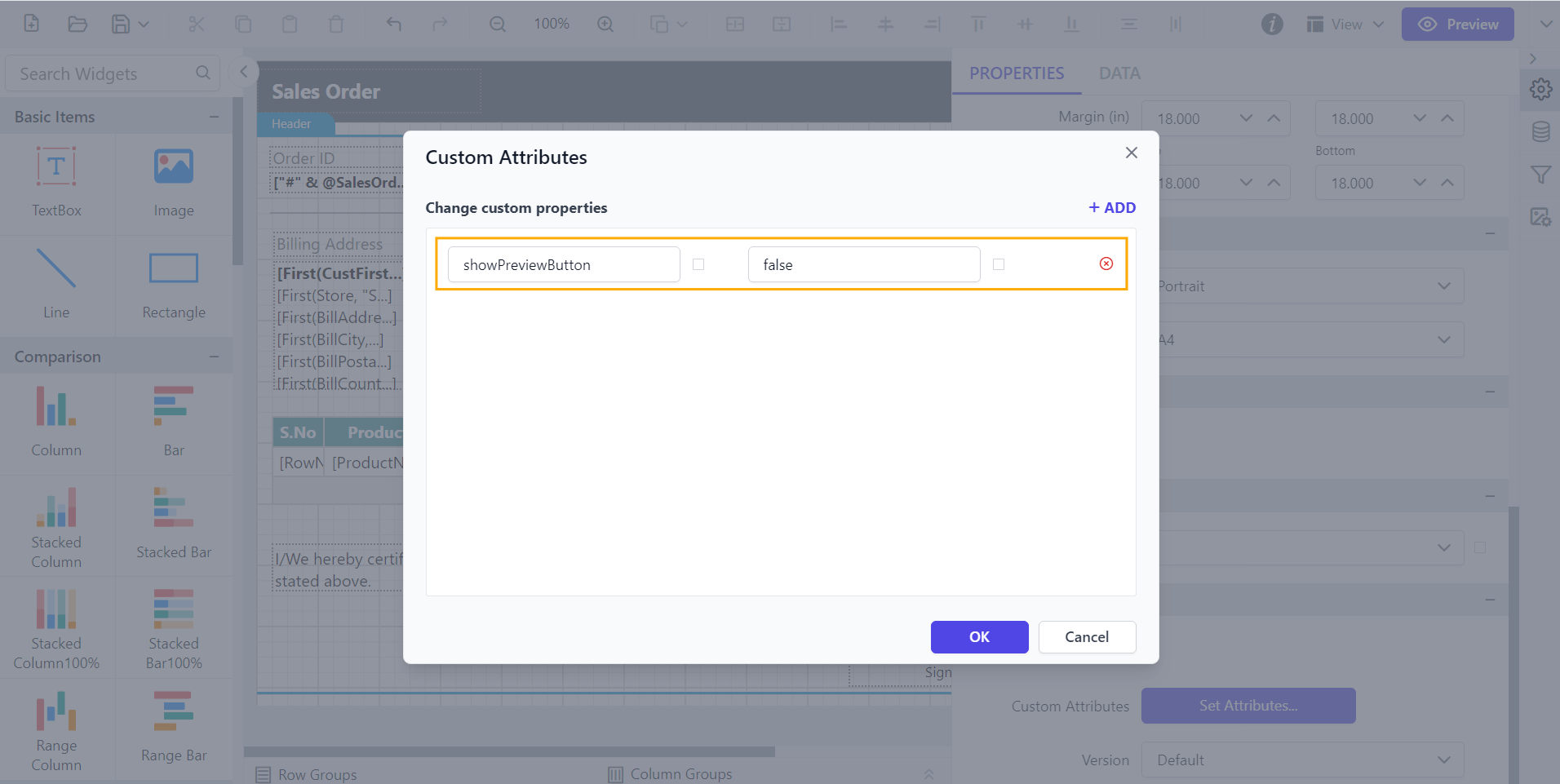
Before setting the ShowPreviewButton property, the print layout button is displayed.
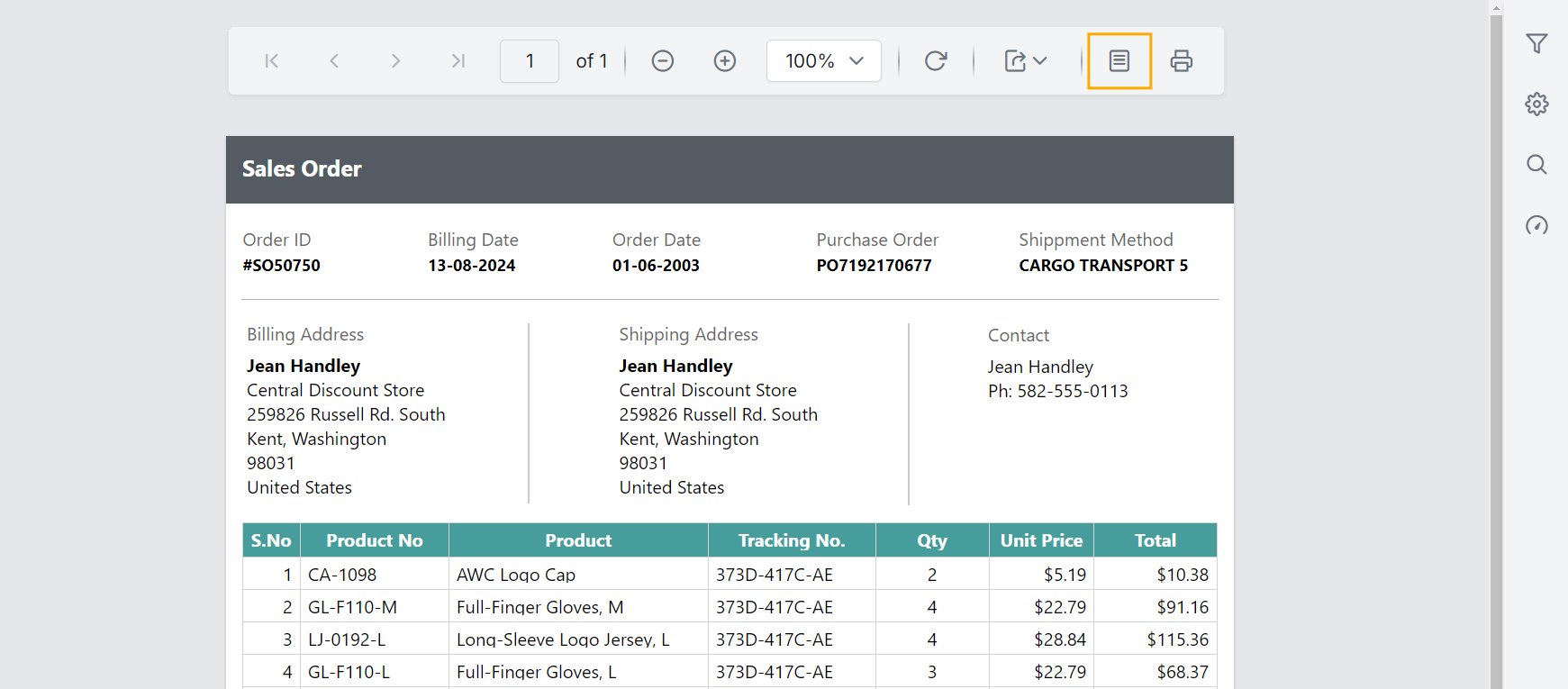
Preview the report to see that the print layout button is hidden.
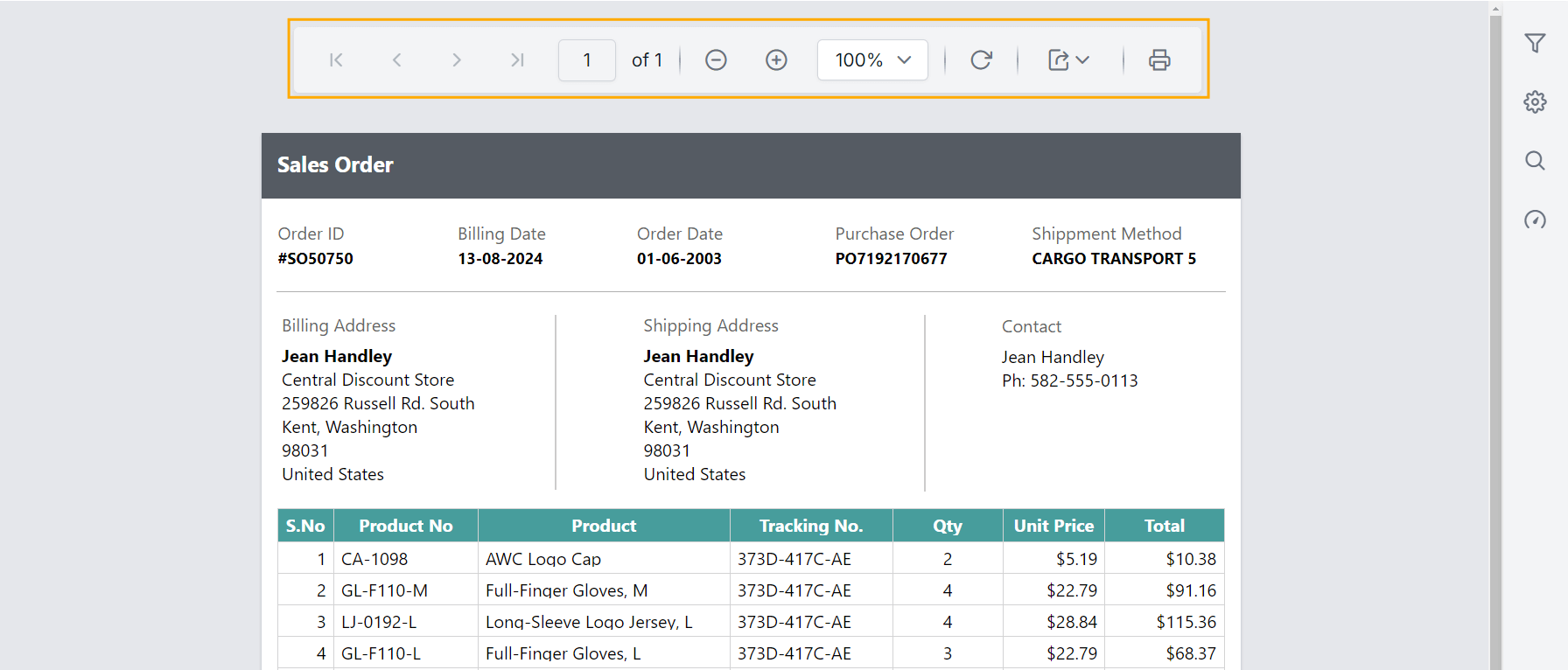
How do I show or hide the document map button?
To show or hide the document map button in the Report Viewer, set the ShowDocumentMap custom property.
You can set the ShowDocumentMap property value, as shown below:
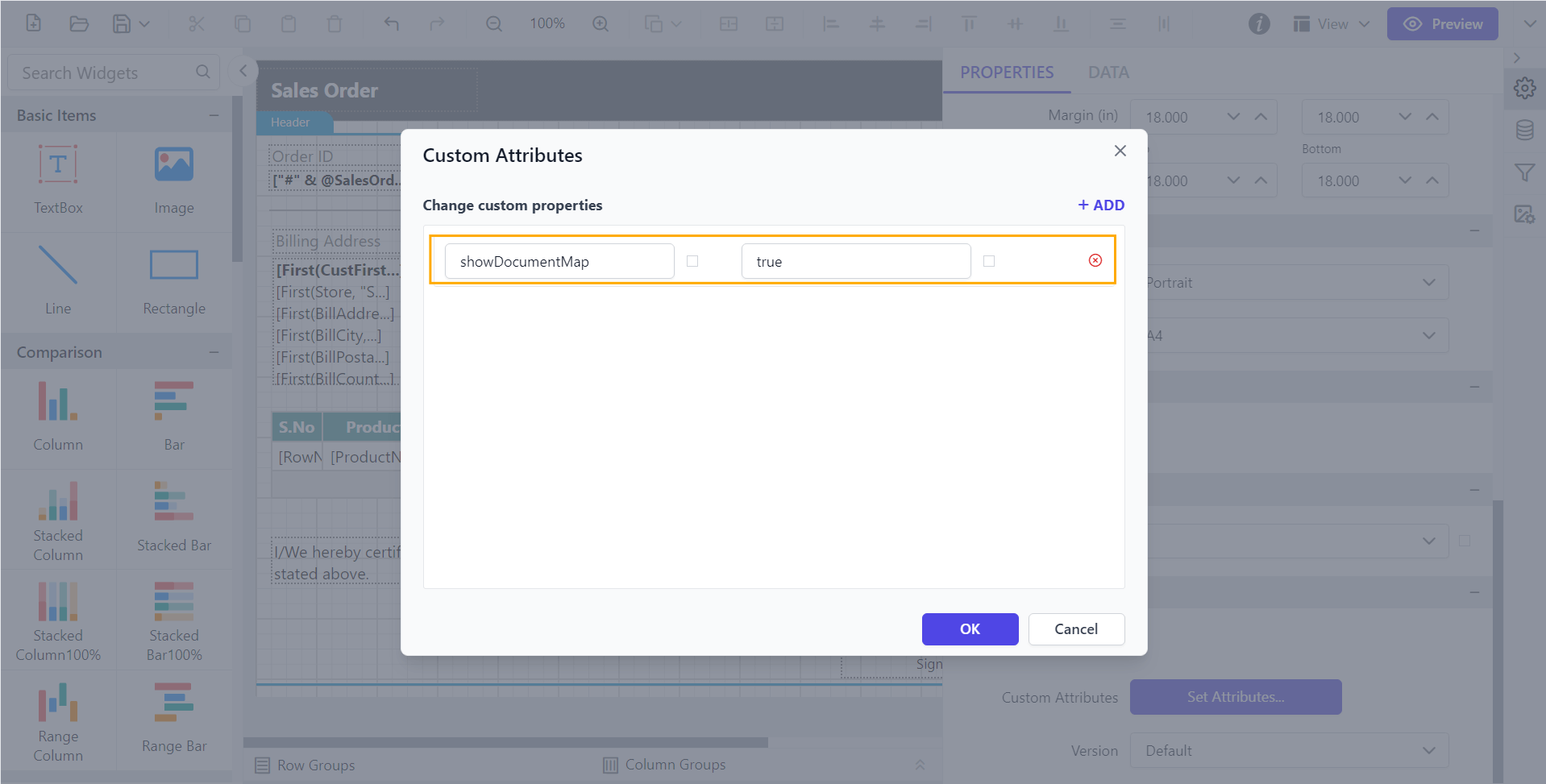
Before setting the ShowDocumentMap property, the document map button will not be displayed.
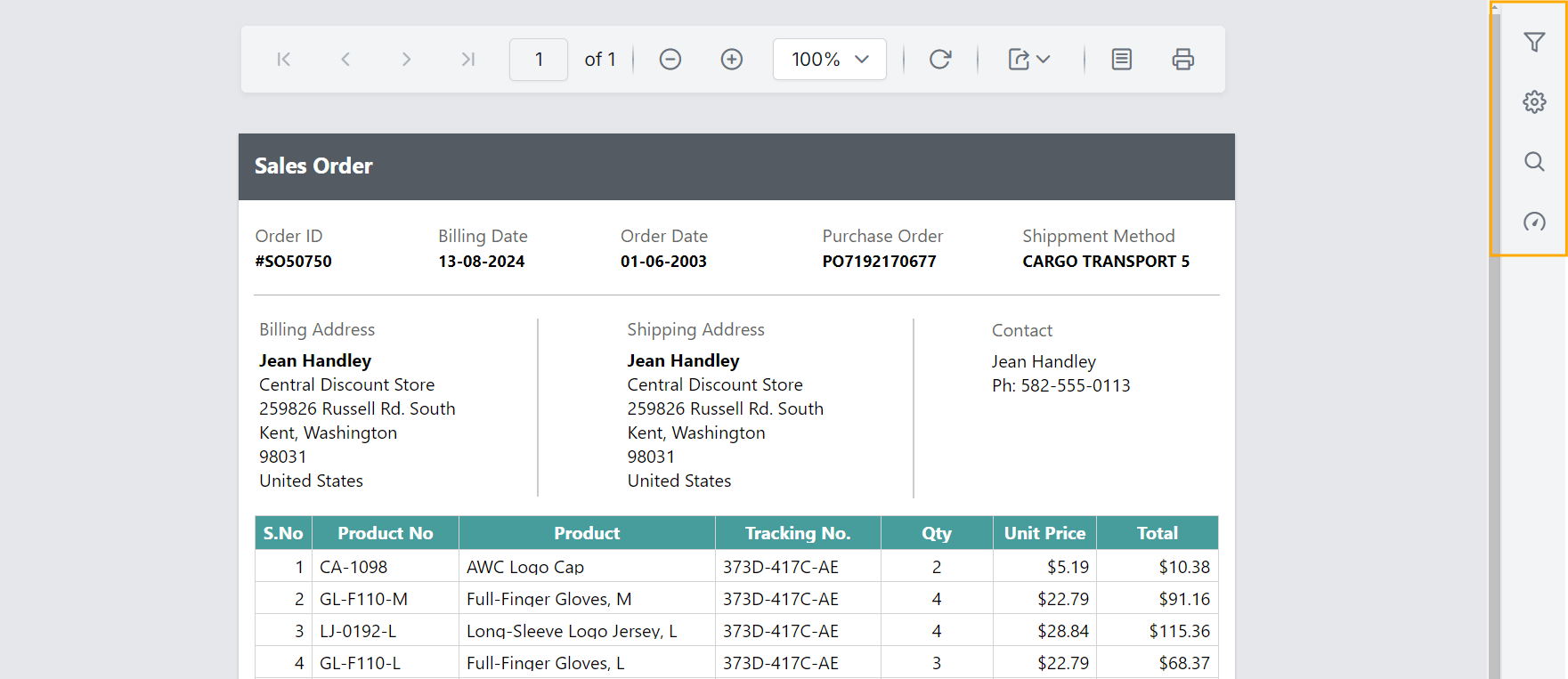
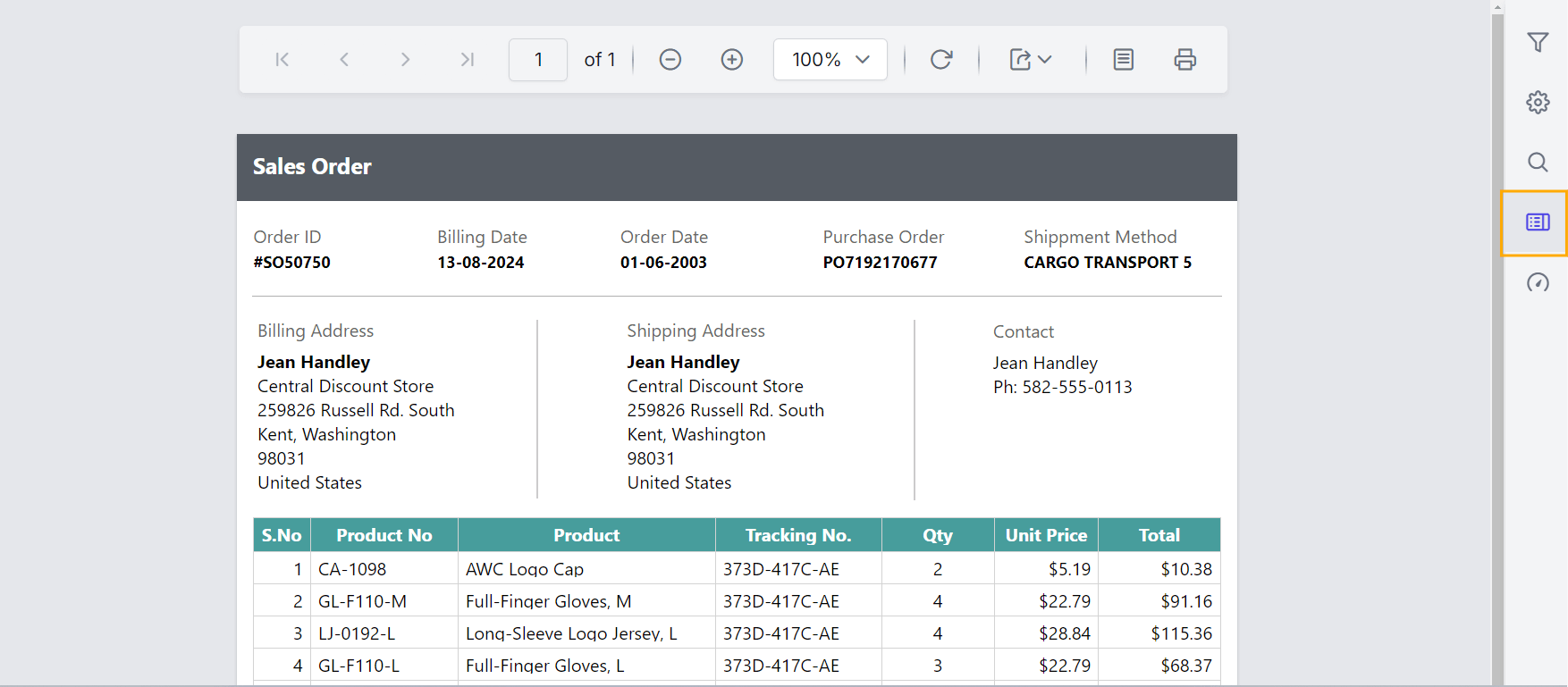
Preview the report and see that the document map button is displayed.
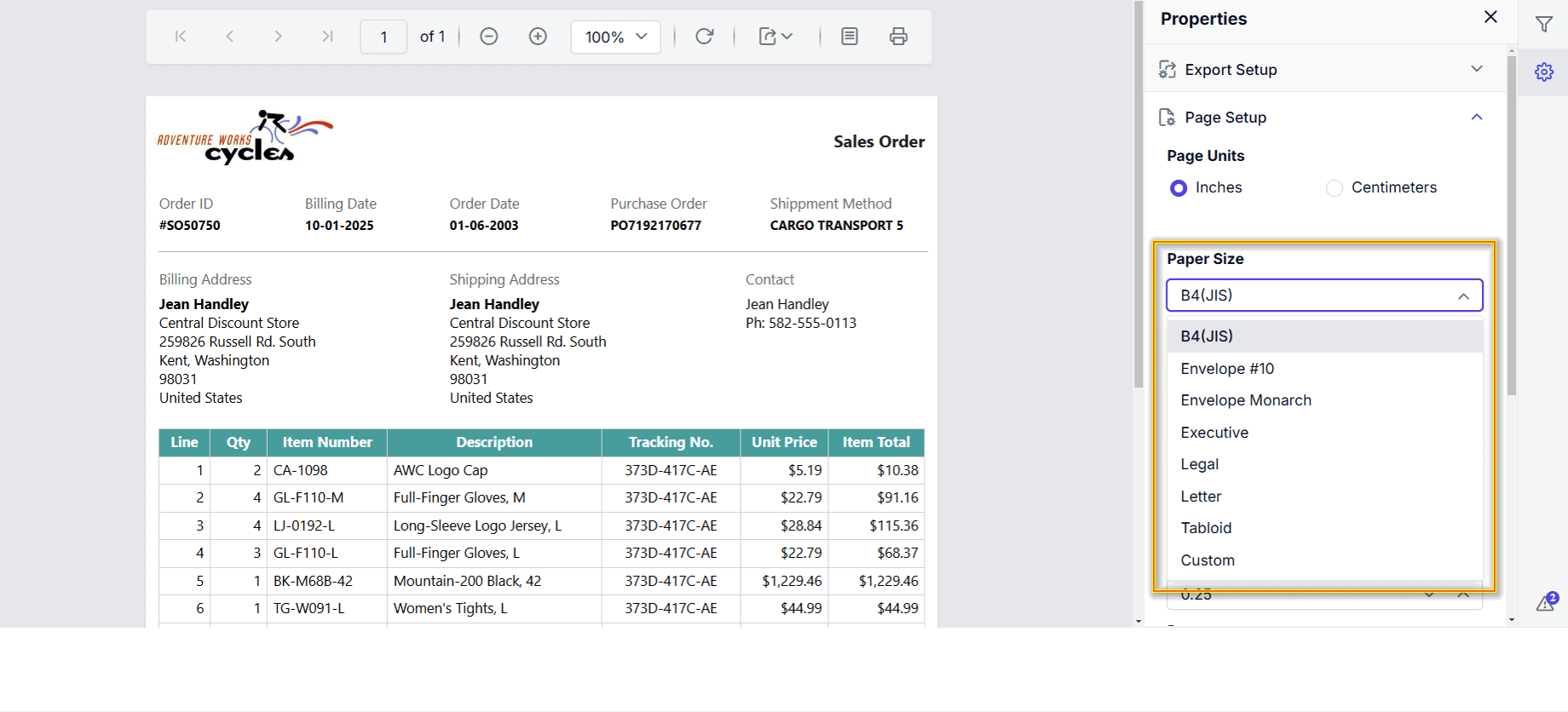
How do I hide paper sizes in the page settings?
To hide one or more paper sizes in the Report Viewer Page Settings, set the HidePagePaperSizes custom property with comma-separated values.
You can set the HidePagePaperSizes property value, as shown below:
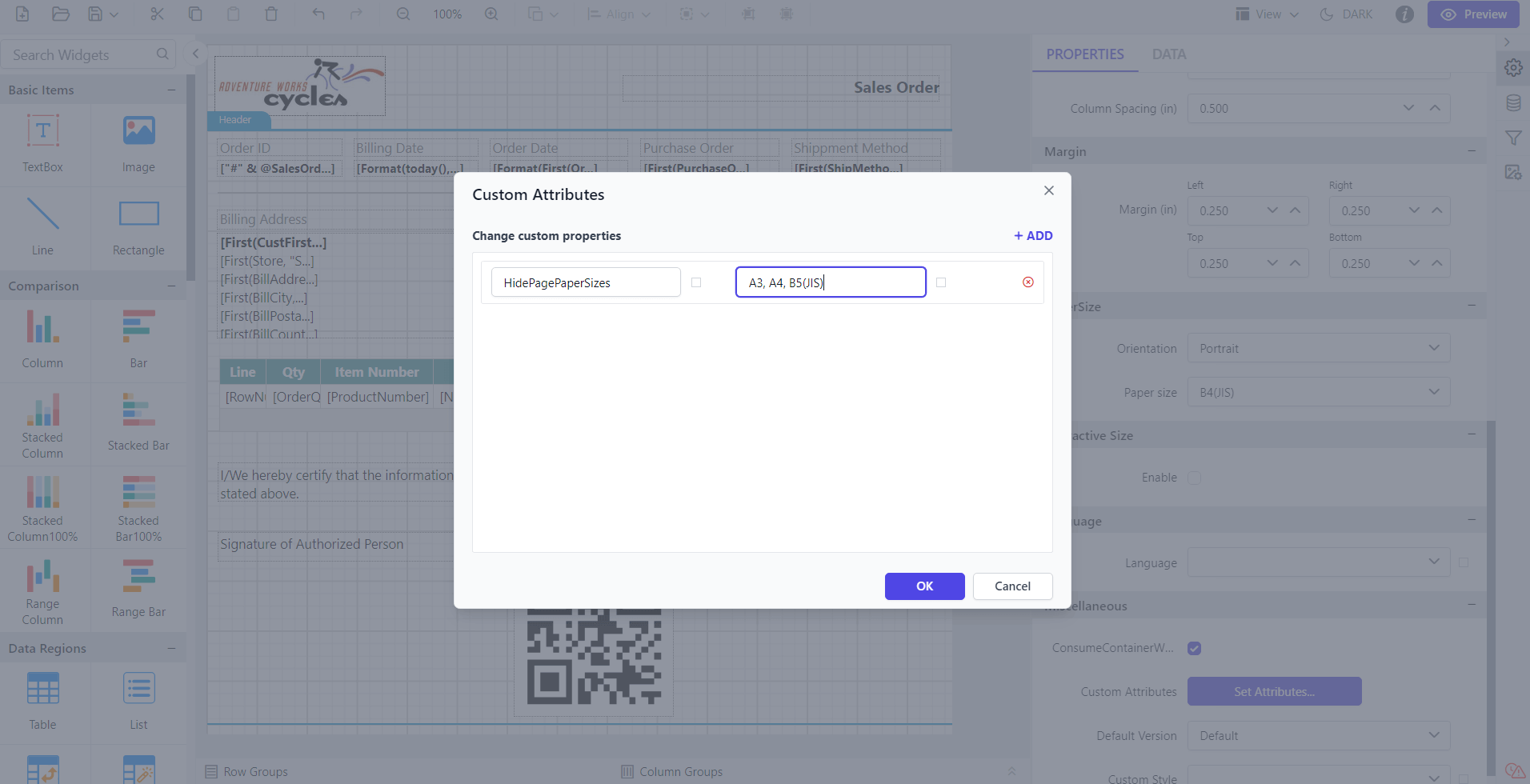
Before setting the HidePagePaperSizes property, the paper sizes in page settings is displayed.
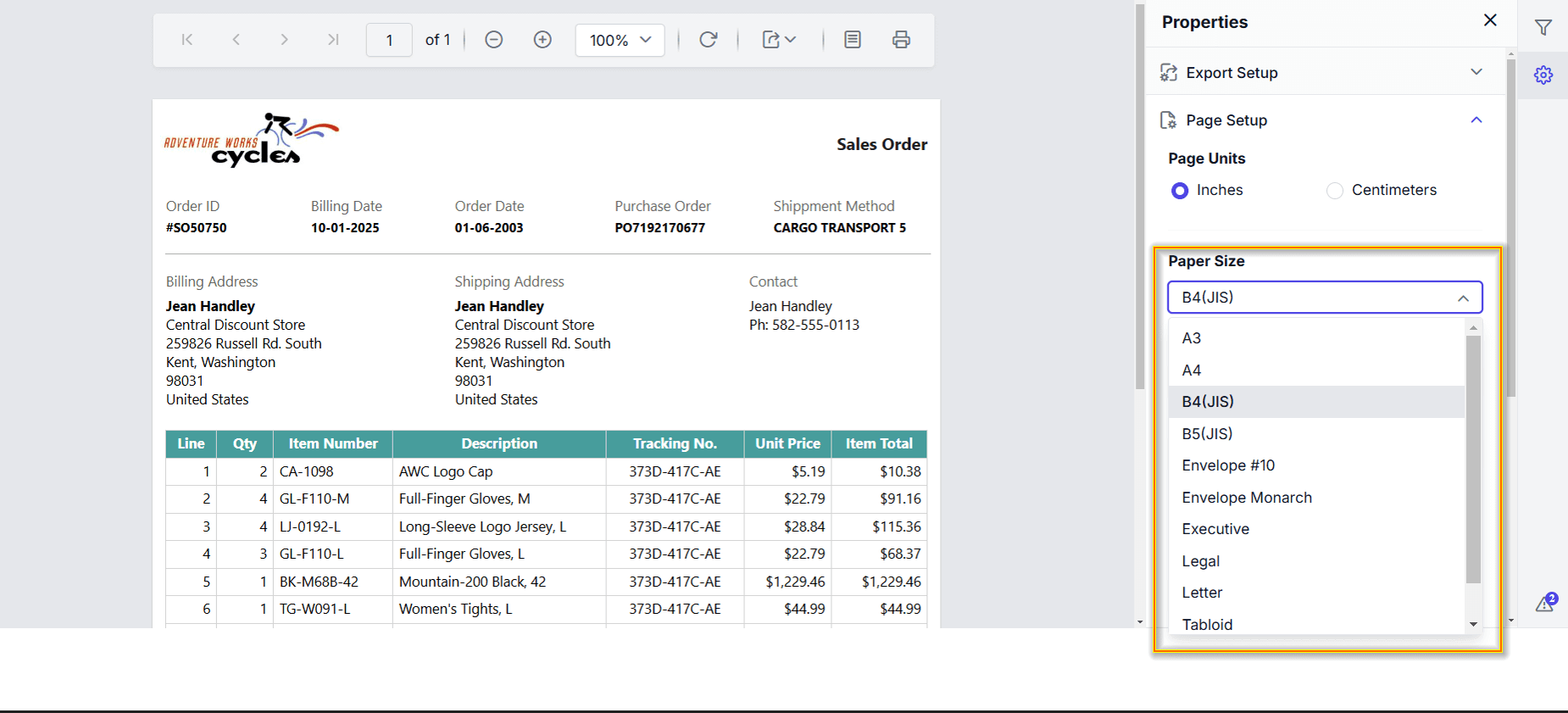
Preview the report to see that the Paper sizes in page settings is hidden.