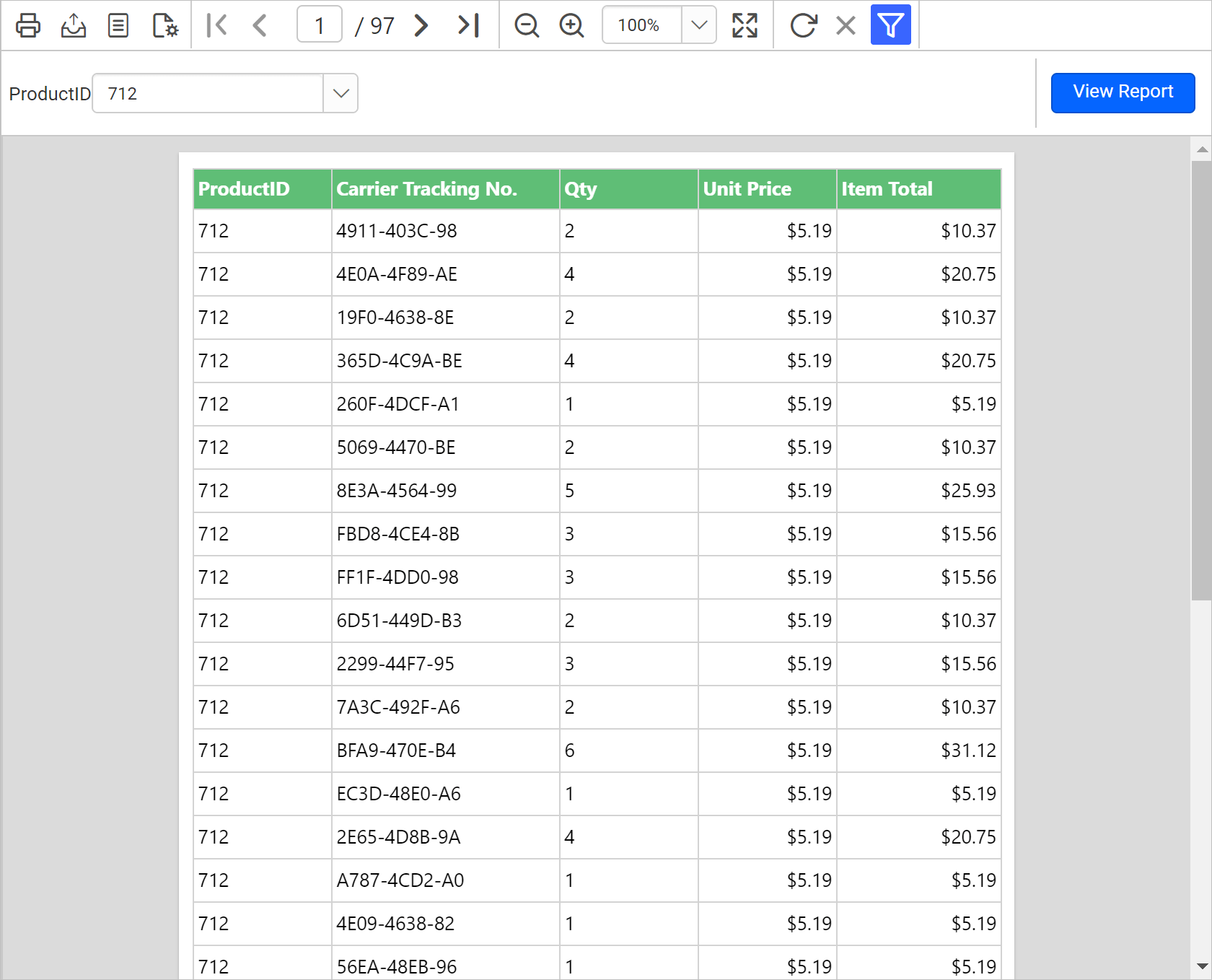
Define available values for a parameter
An available values can be specified for a report parameter to allow the user to select only valid values on report preview action. The available values defined for the parameter will be listed in the drop-down list when previewing the report.
Refer Create Parameter section for better understanding with the following steps.
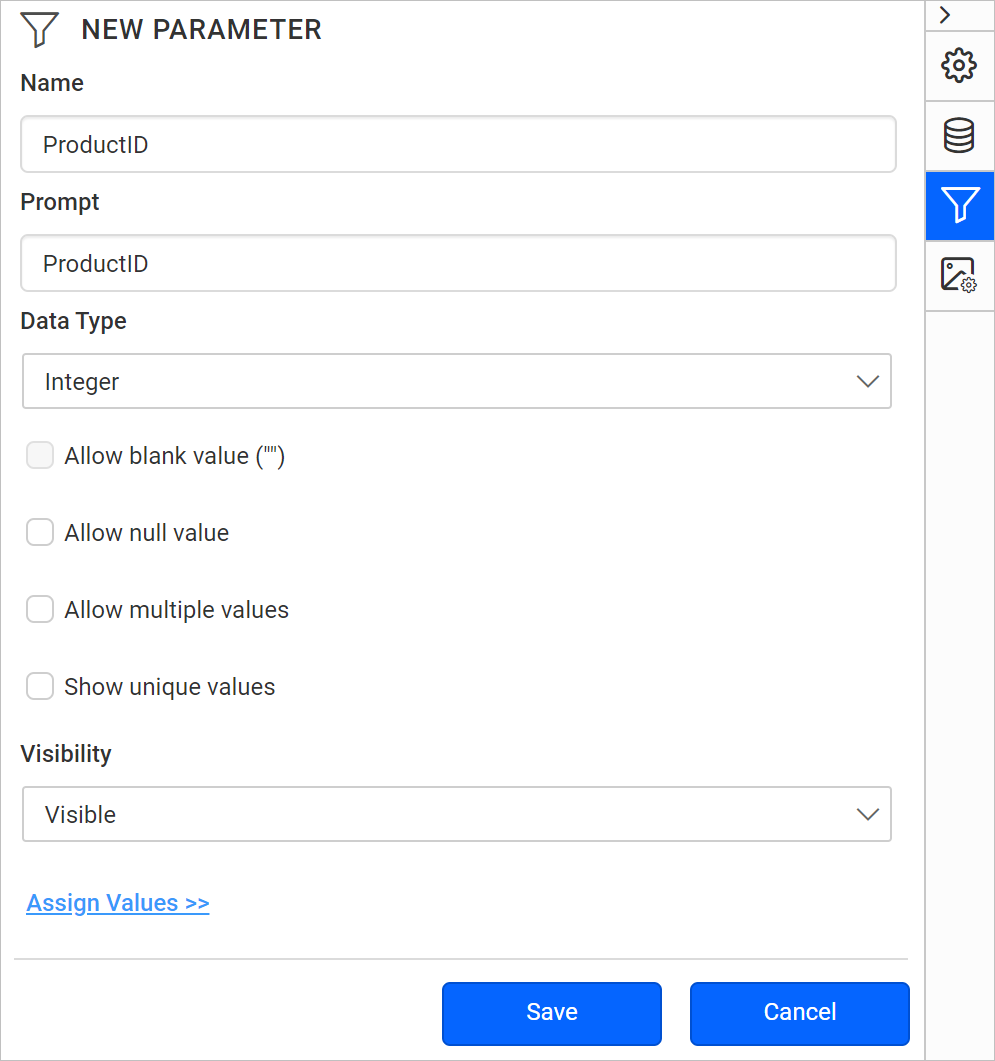
Click on Assign Value >> to open parameter assign dialog.
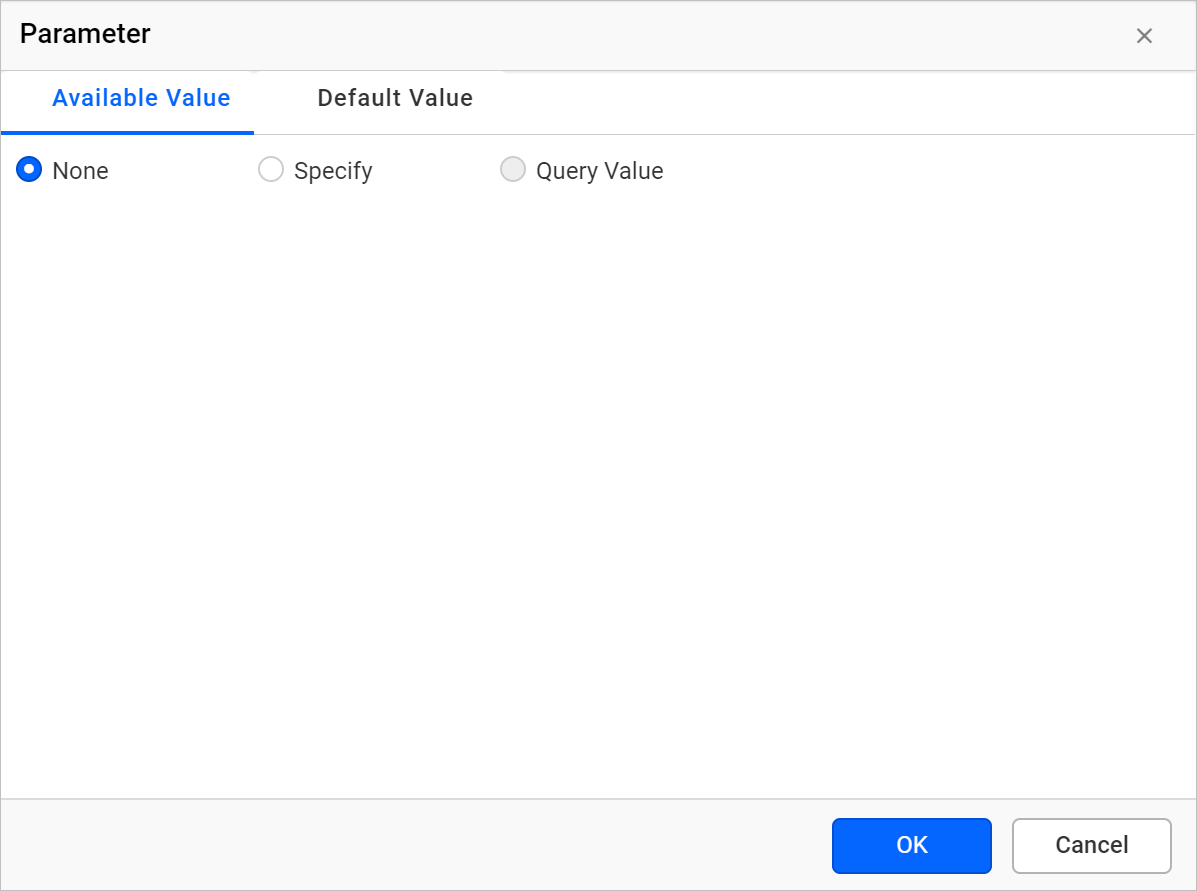
Manual values
Follow the below steps to add available values for the parameter.
-
Select
Specifyoption underAvailable Valuetab.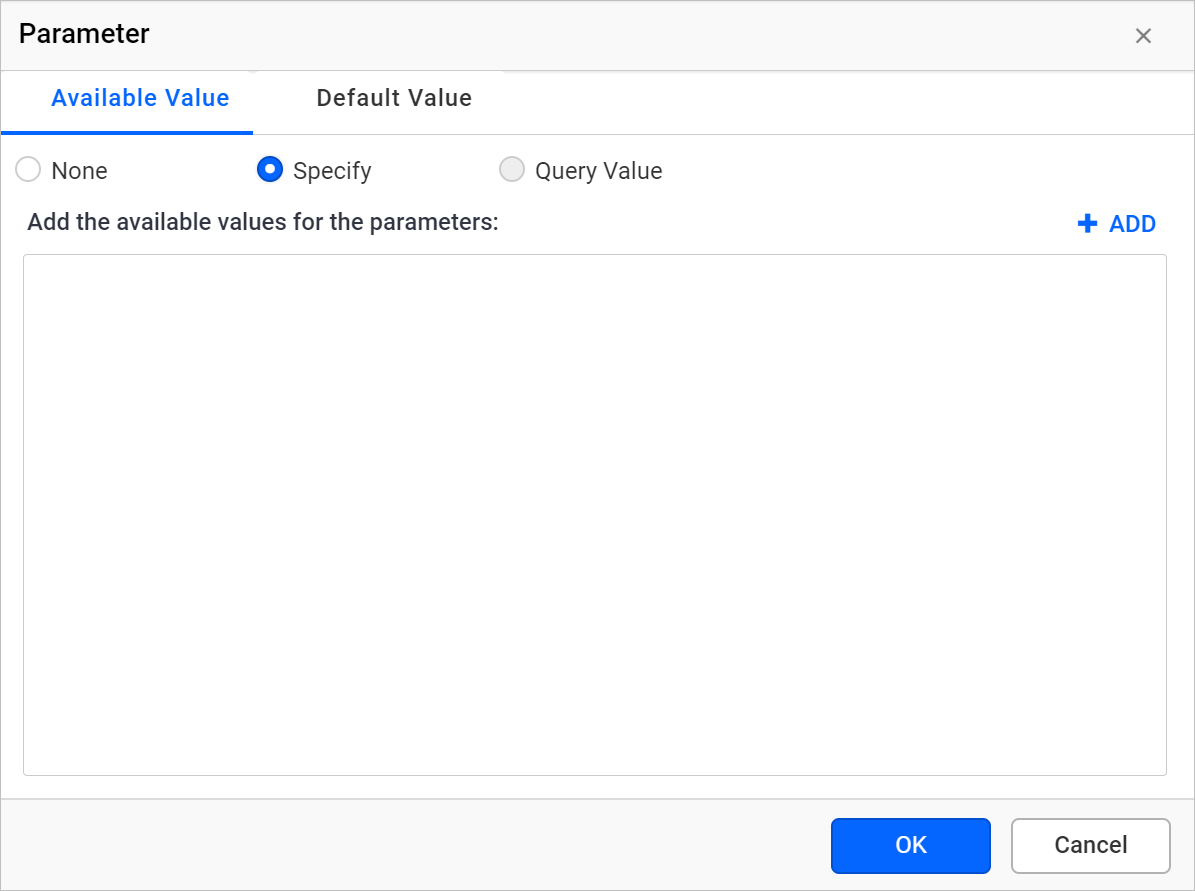
-
Click on the Add icon. Now, a list in which you can type values and labels appears.
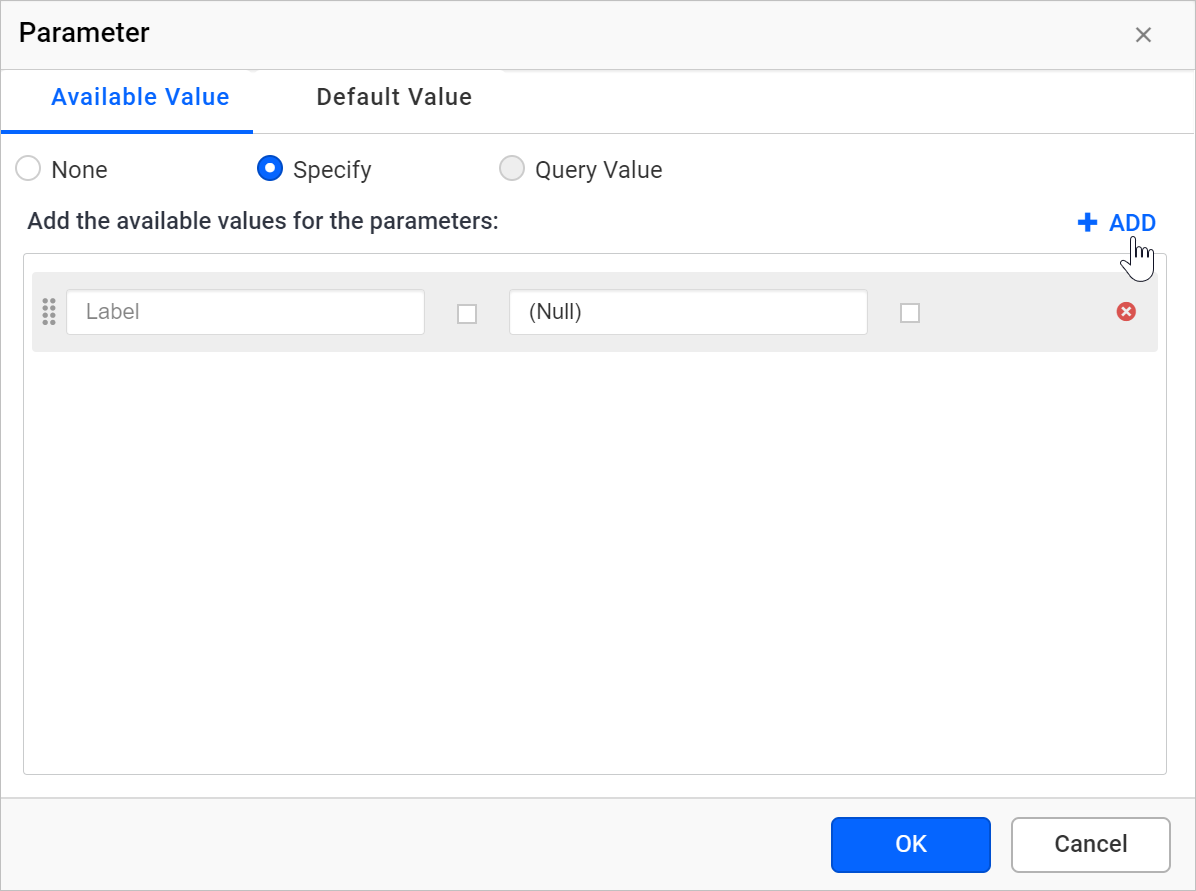
-
Enter the value in the Value text box, and optionally, the label in the Label text box.
If you do not provide the label, the value is used.
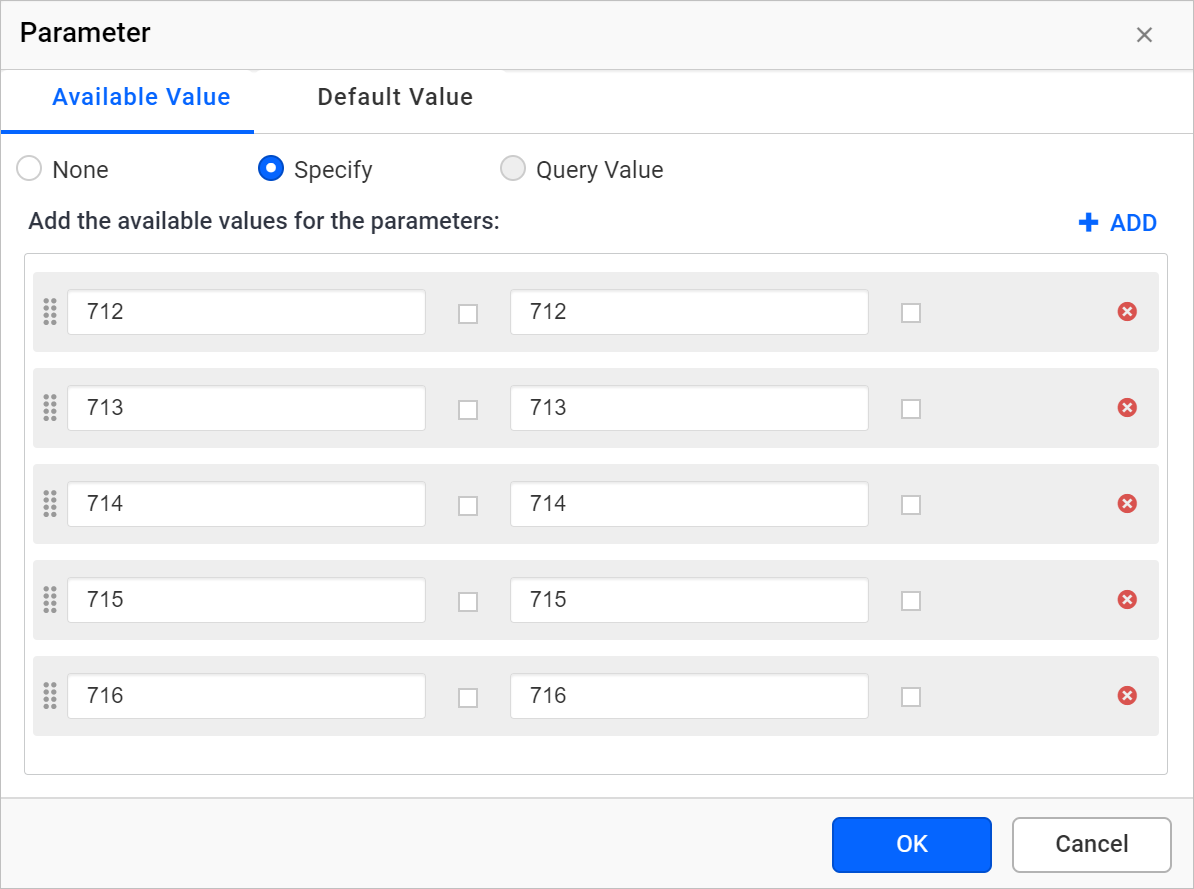
-
Click
OKandSavethe parameter.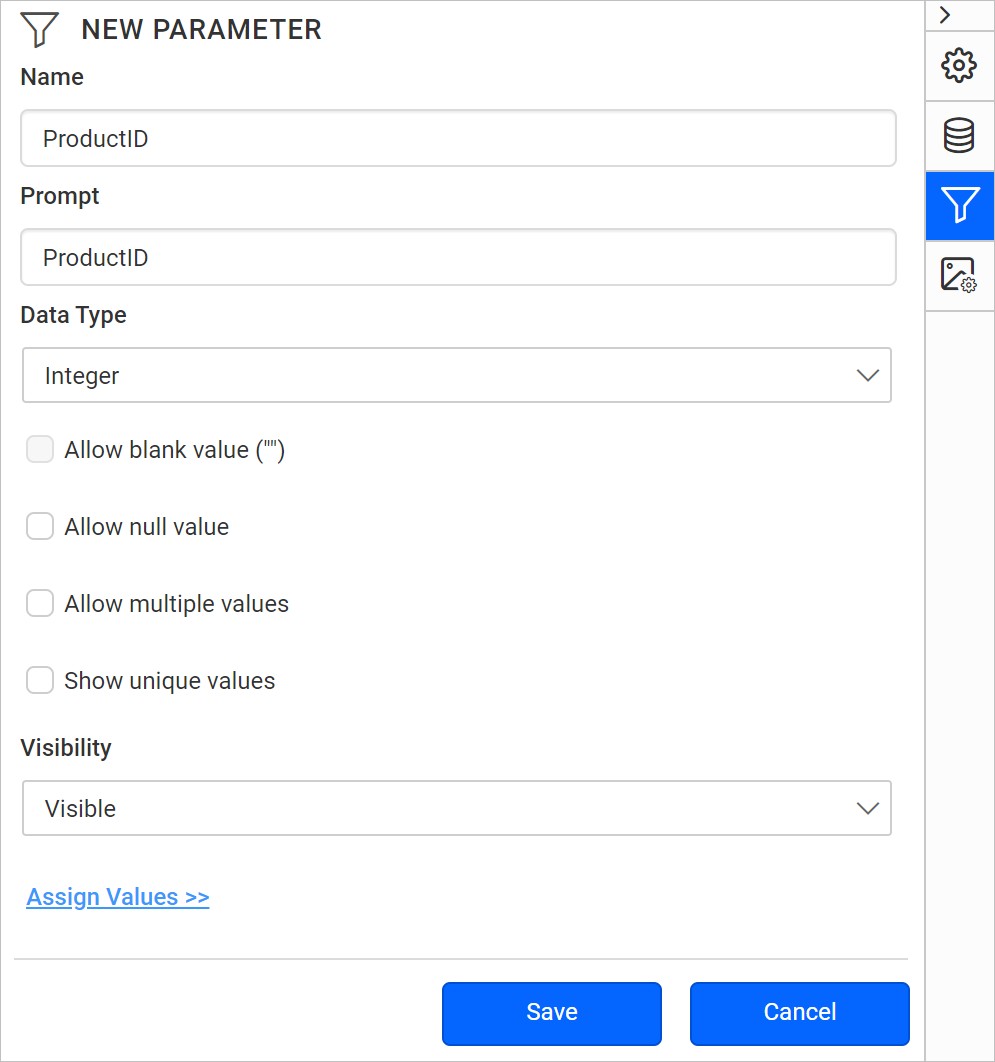
On report preview, the available values defined for the parameter will be listed in the drop-down list like below.
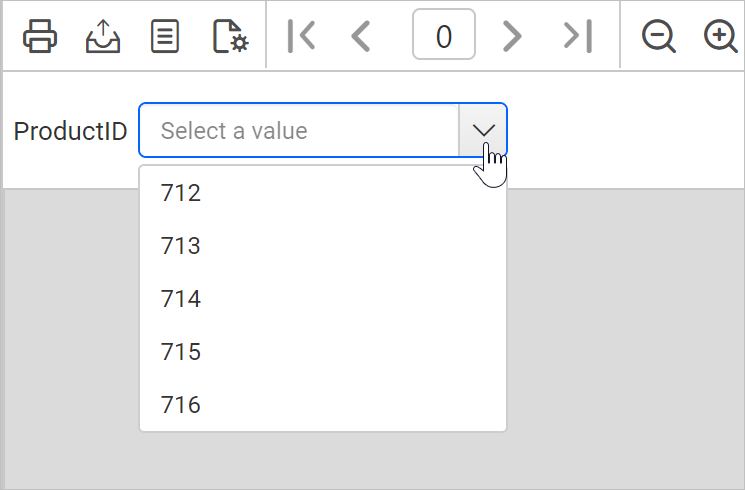
Query values
- Select
Query Valueoption underAvailable Valuetab.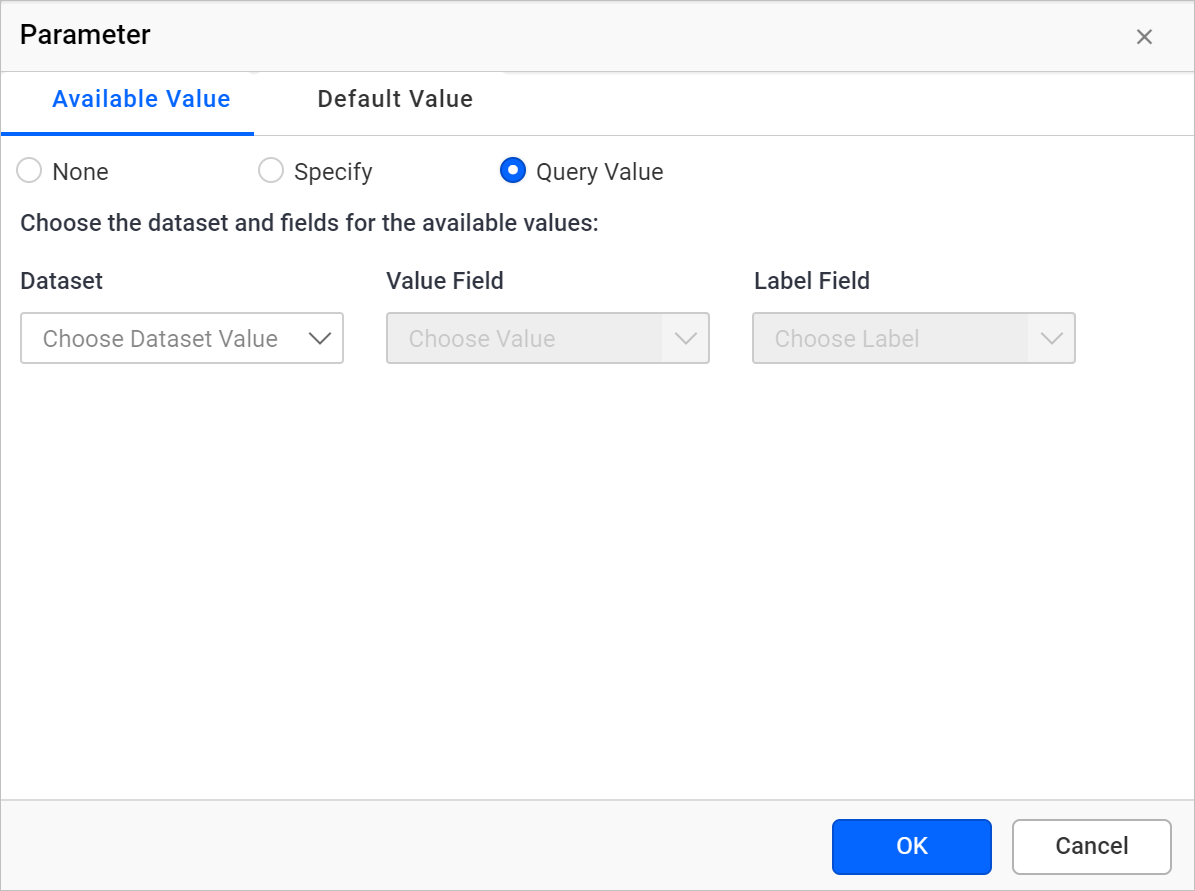
- In Dataset drop-down, choose the name of the dataset. Datasets can be defined using the data view.
- In Value field, choose the name of the field that provides parameter values.
Note: These fields are retrieved from the list of column or field names in the dataset.
- In Label field, choose the name of the field that provides the parameter names. If there is no separate field for names, choose the same field similar to Value field.
- Click
OK.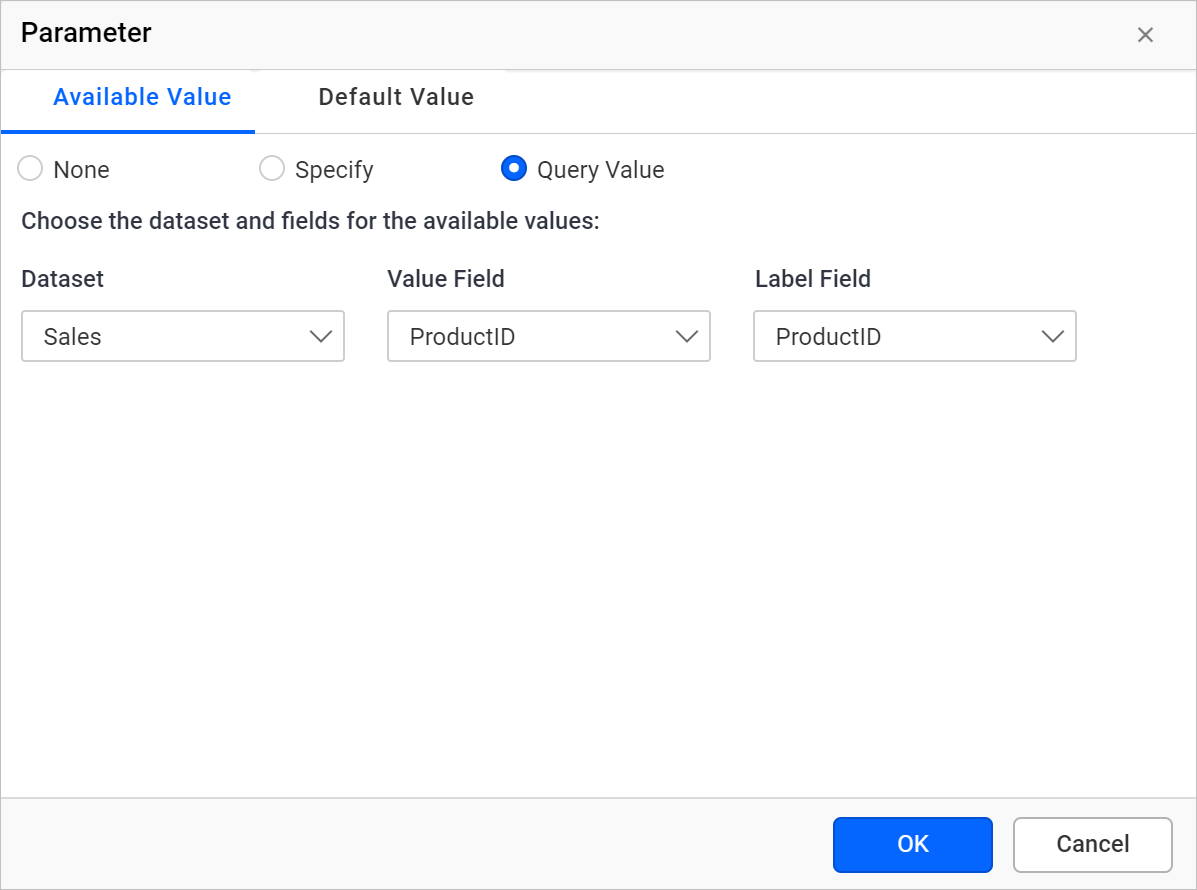
- Save the parameter.
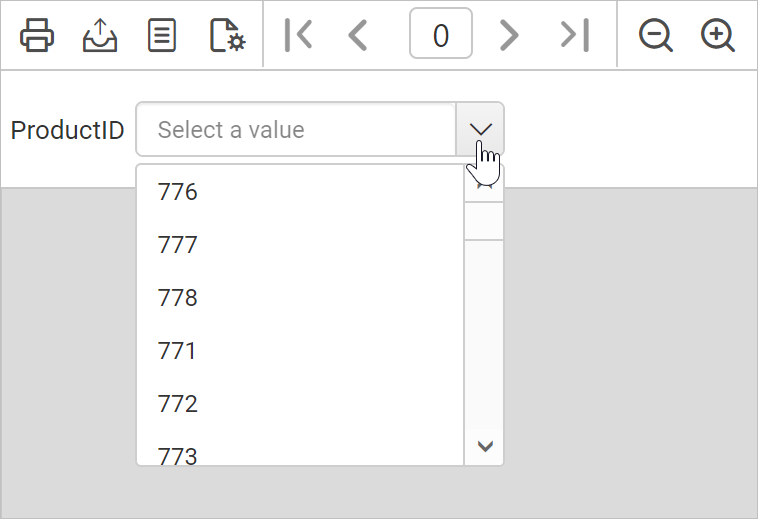
On report preview, the ProductID parameter will list the values of ProductID field from query data.
Remove available values
To remove the available values defined for the parameter follow the below steps:
- Refer Edit Parameter section and open parameter properties.
- Click on
Assign Value >>to open parameter assign dialog. - Under the
Available Valuestab, choose theNoneoption.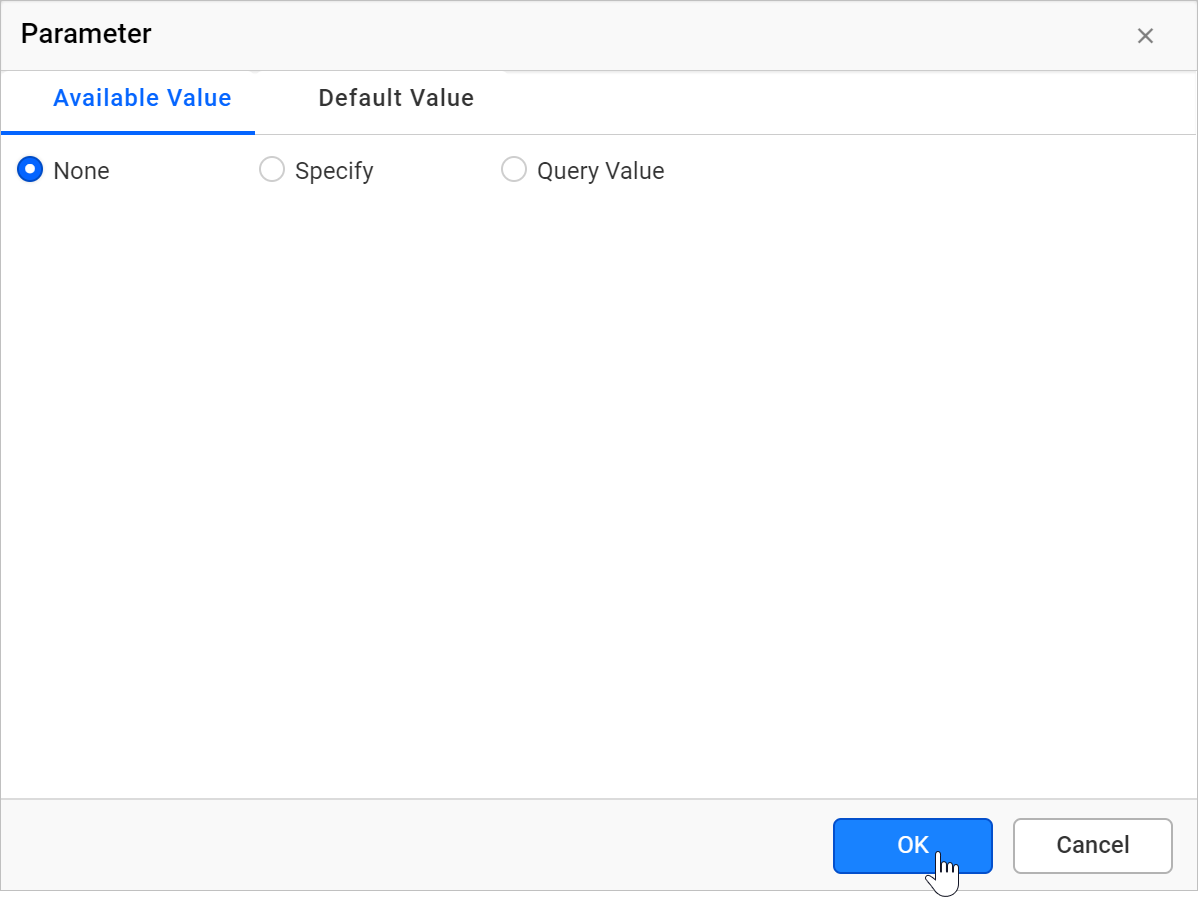
- Click
OKand save the parameter.
Filter a table data based on report parameter
Using the ProductID parameter, we can filter the ProductID field values at runtime like below.
- Select the table report item to enable grouping panel in the designer.
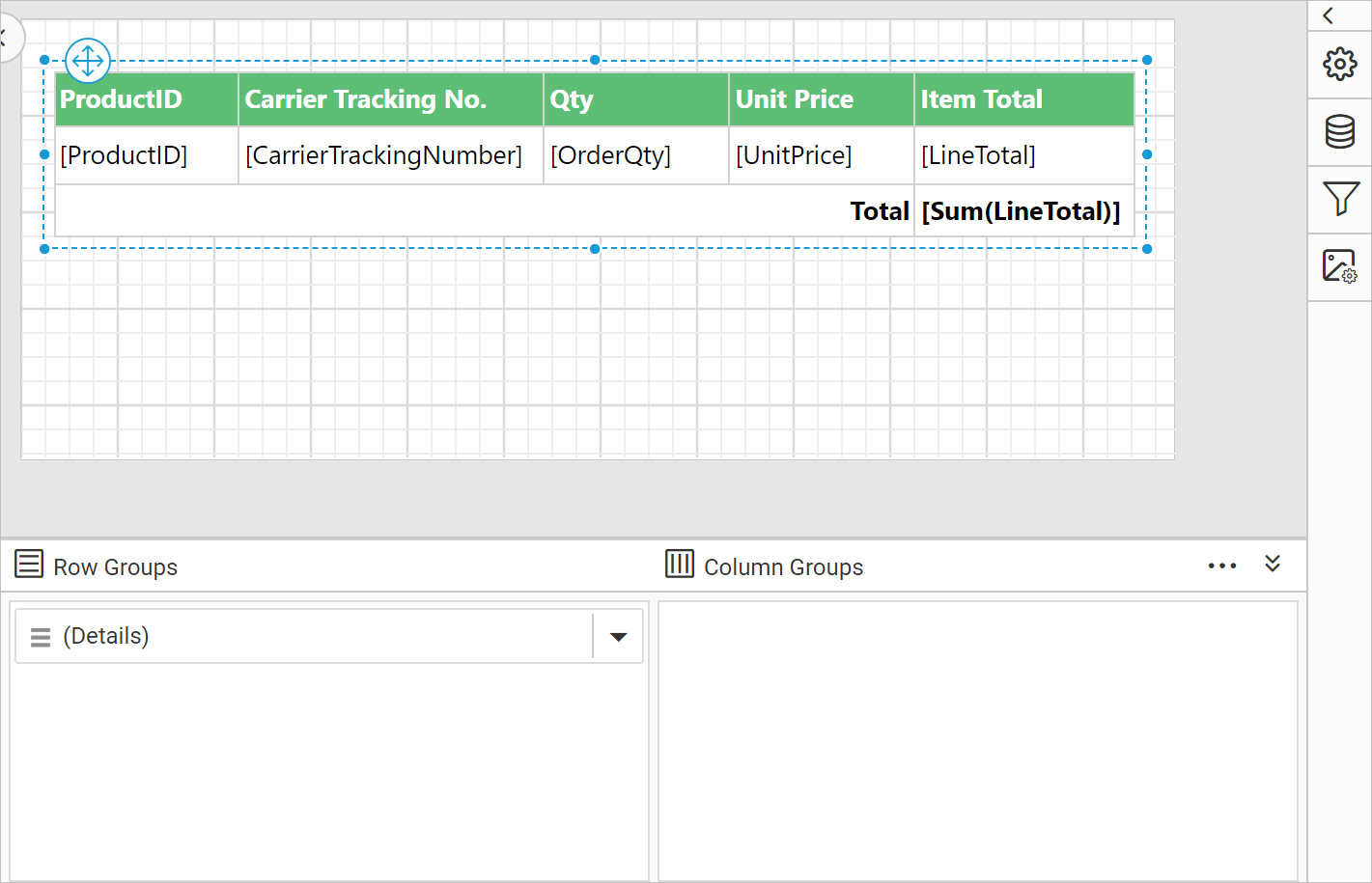
- Now, click on the
(Details)member field in the grouping panel to open the tablix member properties.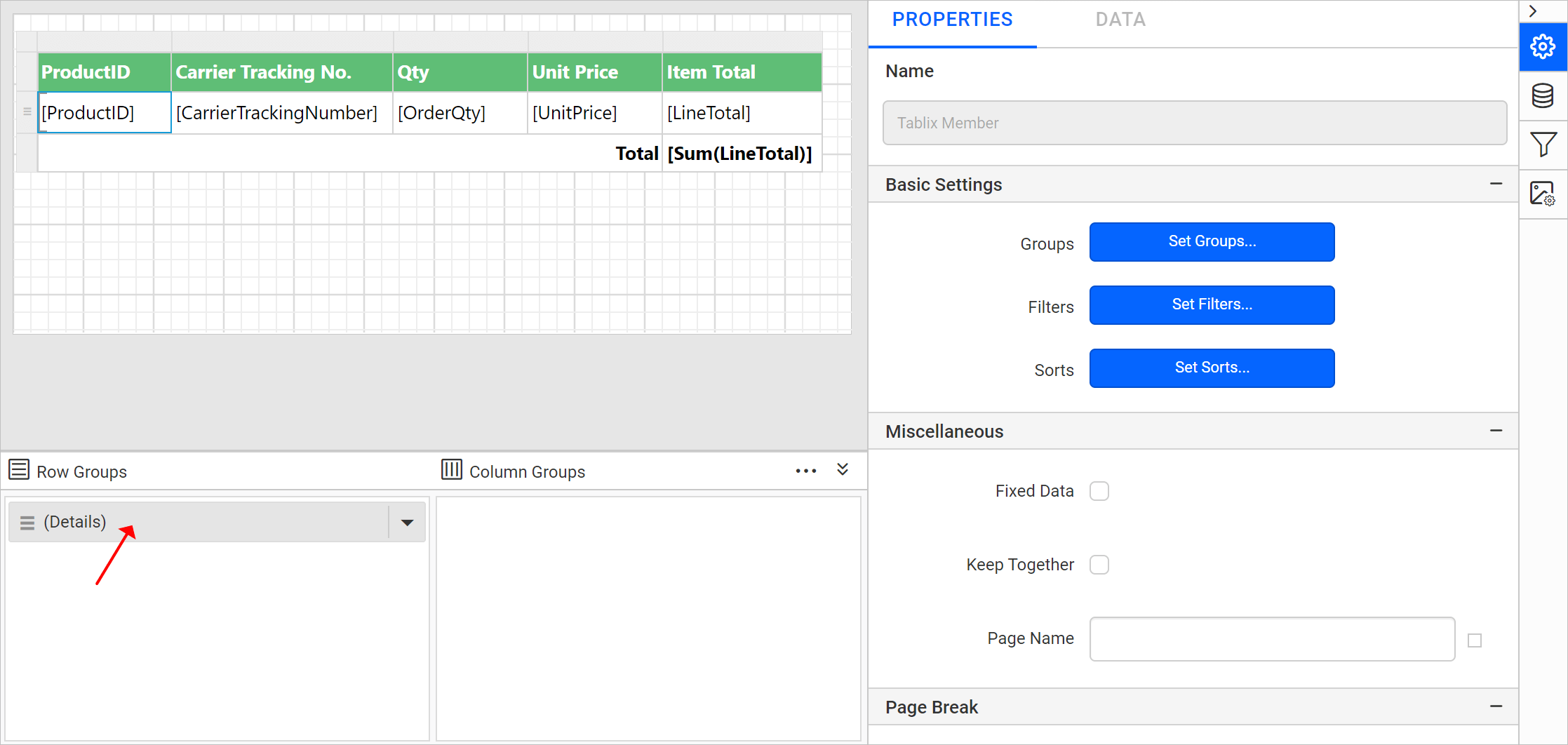
- In
Tablix Memberproperties, click onSet Filters...button.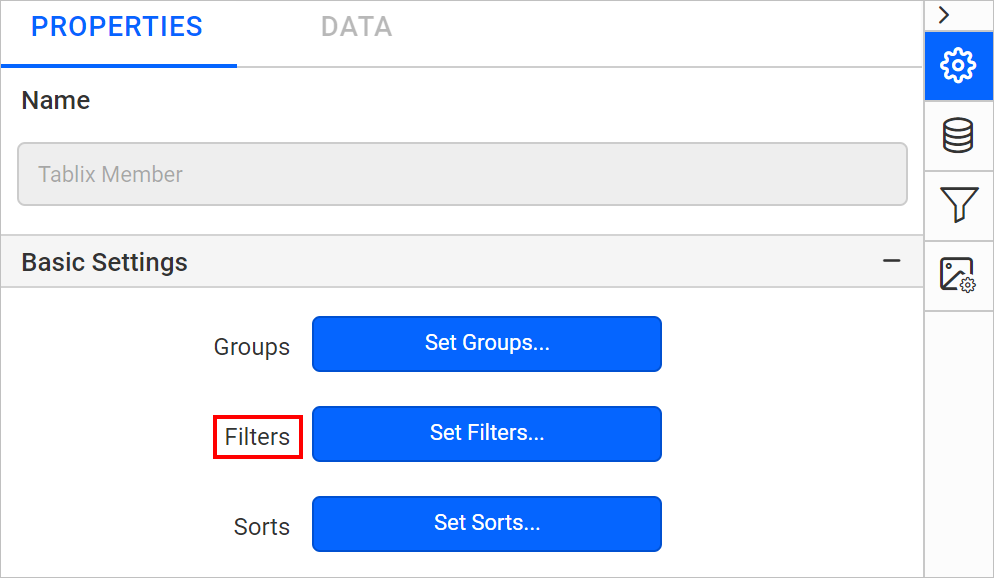
- Refer Set filters section to create new filter expression.
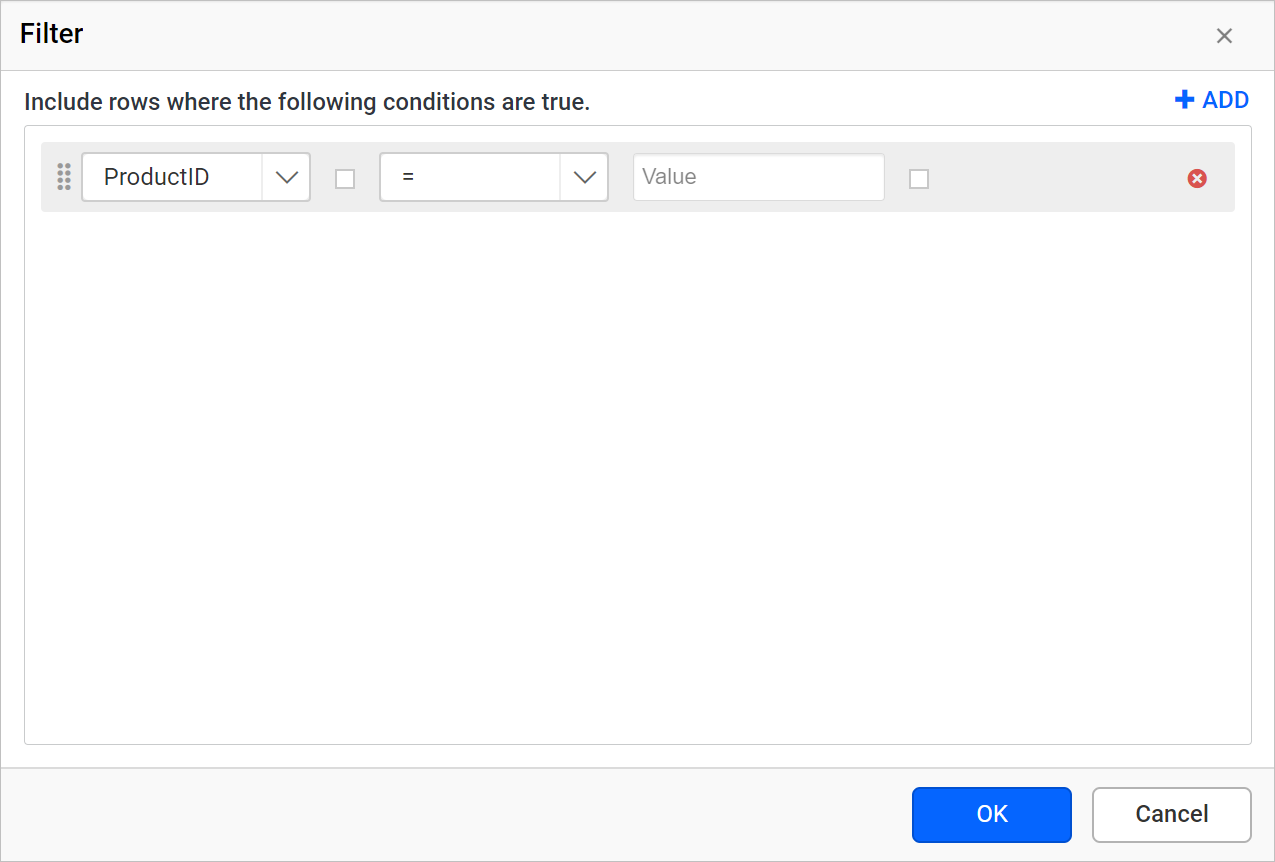
- Choose the
Equaloperator and assign theProductIDparameter in the Value field. Save the filter.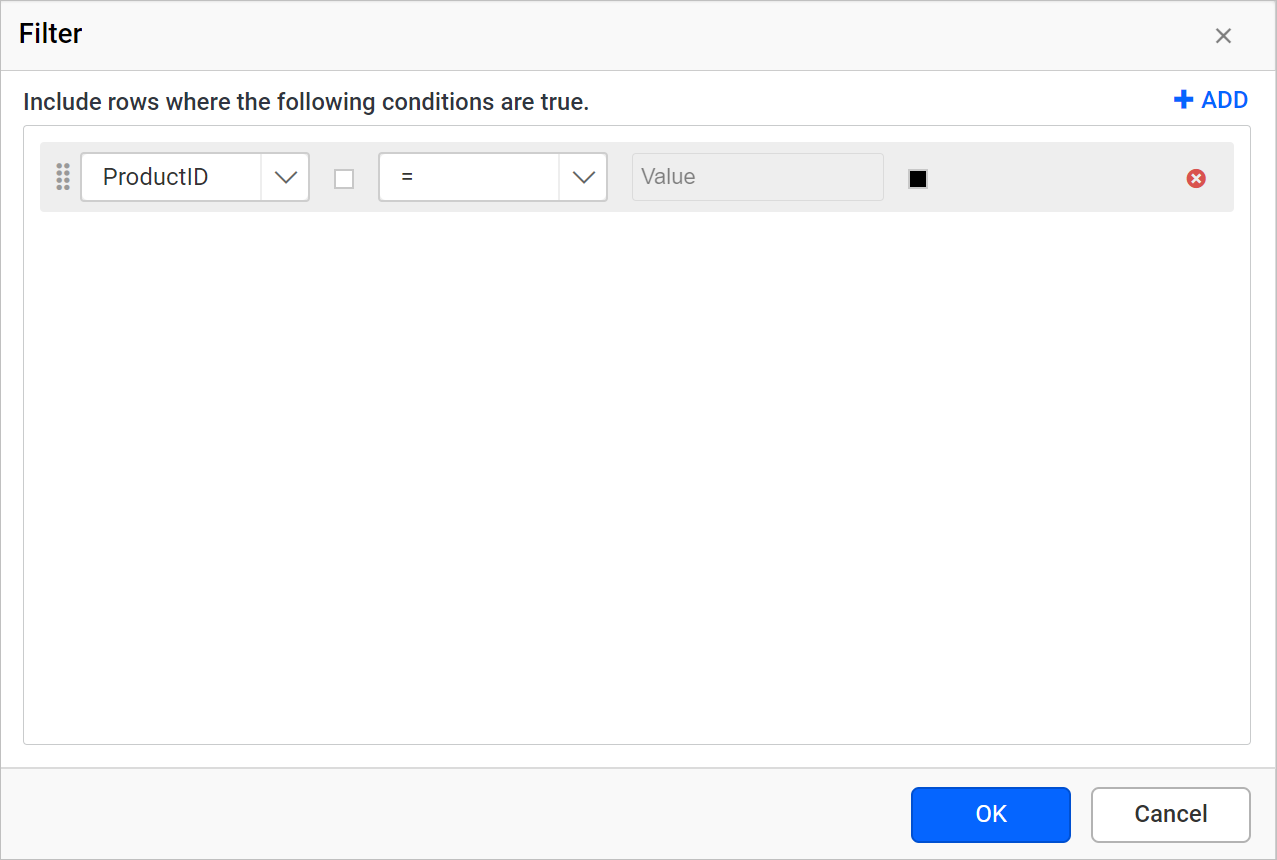
- Preview the report, now the following view will be displayed.
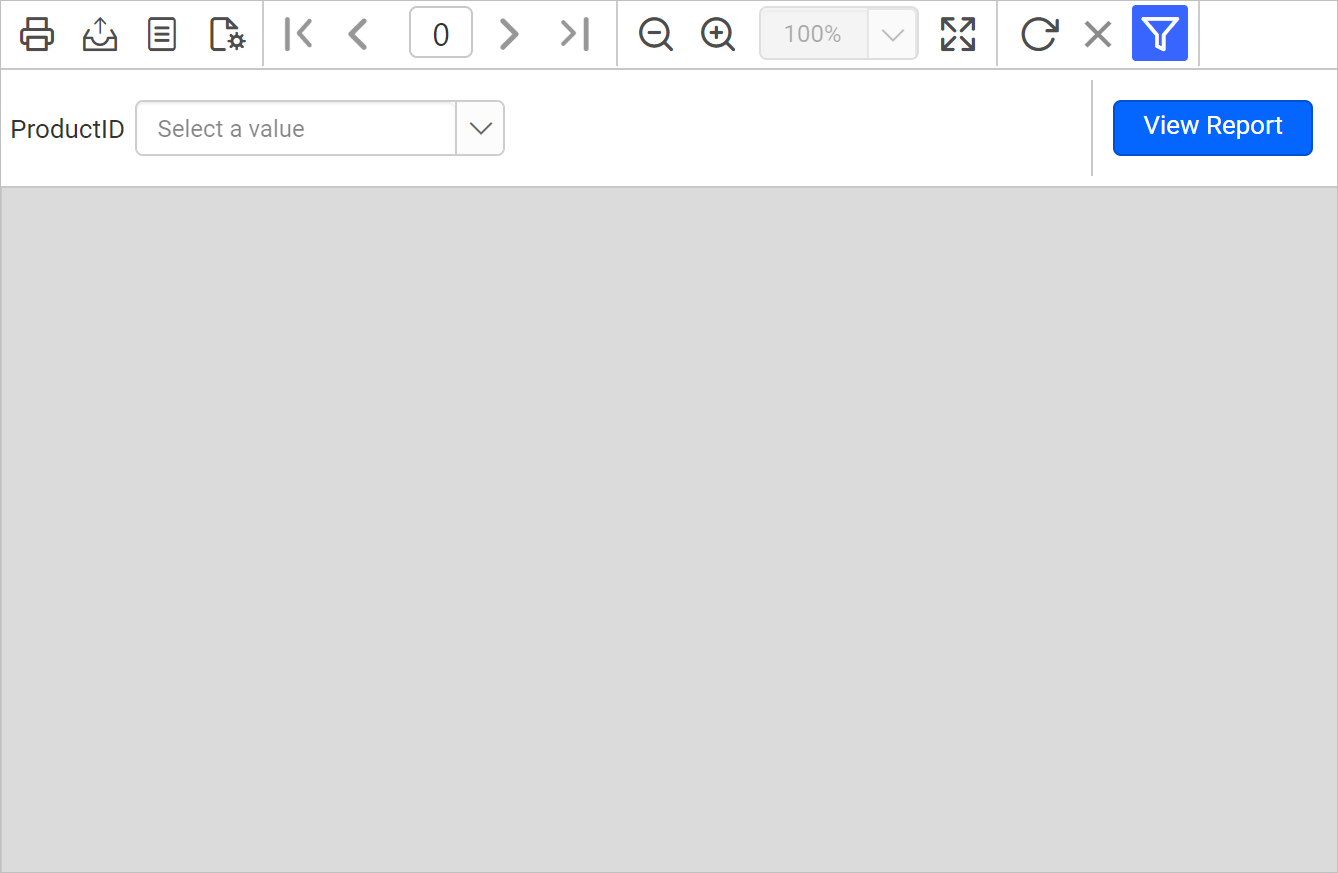
- The manually created values will be listed in the drop-down. Choose any value from the drop-down list.
- Click on
View Report.