How to configure custom report item extension
This section explains the steps required to register and load custom report item in Web Report Viewer ASP.NET core application. For demonstration purpose one-dimensional and two-dimensional barcodes configuration steps are explained. You can add any other report item by following same procedure.
Create ASP.NET Core Report Viewer Application
Refer Getting Started and create a ASP.NET Core Report Viewer Application.
Install barcode custom report item extension NuGet
To render the one-dimensional and two-dimensional barcodes and preview install BoldReports.CRI.Barcode package in the application.
Right-click the project or solution in the Solution Explorer tab, and choose Manage NuGet Packages. Alternatively, select the Tools > NuGet Package Manager > Manage NuGet Packages for Solution menu command.
Refer to the NuGet Packages to learn more details about installing and configuring Report Designer NuGet packages.
Search for BoldReports.CRI.Barcode NuGet package, and install it in your application.
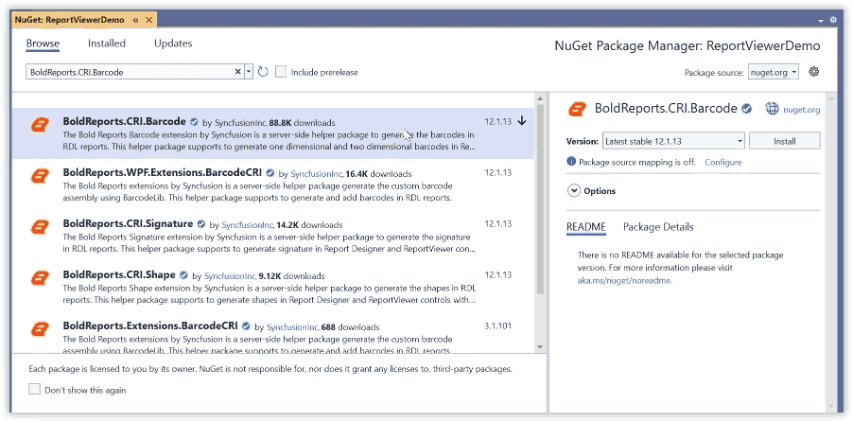
BoldReports.CRI.Barcode will install into your application. Click OK. Now, the assembly will be added in the respective project references.
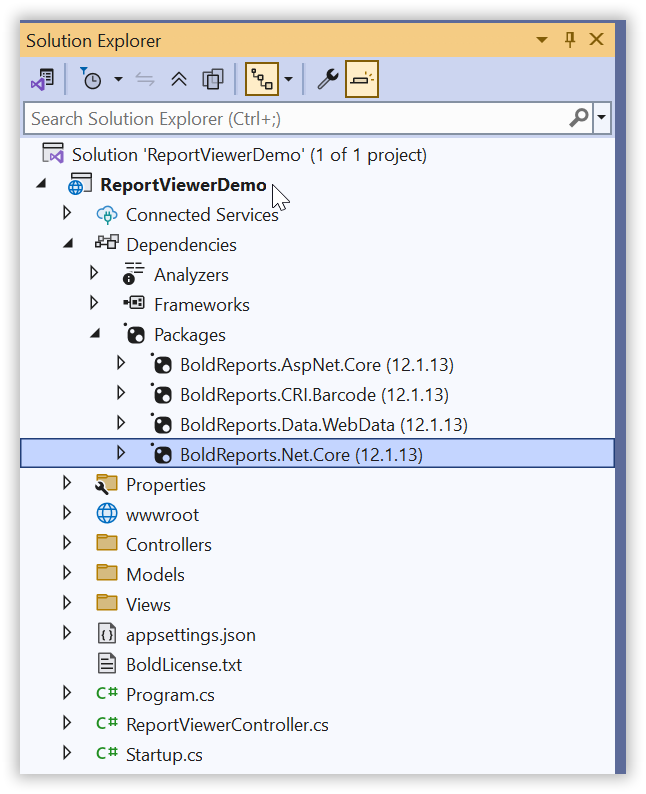
BoldReports.CRI.Barcode NuGet package is available with Bold Reports® release version 3.3 and above. Both one-dimensional and two-dimensional barcodes can be rendered with this single assembly.
Register barcode custom report item extension in application startup
To register the extension in the application, follow the below steps.
-
Open the code-behind file
Startup.csand add the following using statement.using BoldReports.Web; -
Then add the the following code to register extension assembly in
Startupmethod.public Startup(IConfiguration configuration, IWebHostEnvironment _hostingEnvironment) { //Use the below code to register extensions assembly into report designer ReportConfig.DefaultSettings = new ReportSettings().RegisterExtensions(new List<string> { "BoldReports.CRI.Barcode" }); Configuration = configuration; env = _hostingEnvironment; }
To register multiple custom report item extensions in the application, provide the assembly name’s as list of strings. Here both one-dimensional and two-dimensional barcodes rendering can be done with BoldReports.CRI.Barcode assembly, so single assembly name is added in the list.
Run the application
-
Run the ASP.NET Core Report Viewer Application
-
Now we can able to see the report rendered with barcode report item.