Configure a new data source extension in ASP.NET Core Report Viewer
To use extension data sources such as Web API, JSON, XML, and OData in the Bold Reports® ASP.NET Core Report Viewer, install the data source NuGet package and register its assembly in Startup.cs. SQL, ODBC and OLEDB data sources are built in.
The following steps show how to register and connect to new extension data sources in a Report Viewer application.
Create ASP.NET Core Report Viewer Application
Follow Getting Started with the ASP.NET Core Report Viewer to create an ASP.NET Core Report Viewer application.
How do I install a data source extension in the ASP.NET Core Report Viewer?
To use data sources such as Web API, JSON, XML, and OData in the Bold Reports® ASP.NET Core Report Viewer, install the NuGet package for the data connector you need in the Report Viewer application.
Based on the required data connector, install the respective NuGet package in the Report Viewer application. The following table lists the NuGet package for each data connector.
| Data source | Package Name | Assembly Name |
|---|---|---|
| Web data sources(WebAPI, JSON, XML, and OData) | BoldReports.Data.WebData | BoldReports.Data.WebData.dll |
| PostgreSQL data sources | BoldReports.Data.PostgreSQL | BoldReports.Data.PostgreSQL.dll |
| CSV data sources | BoldReports.Data.Csv | BoldReports.Data.Csv.dll |
| Excel data sources | BoldReports.Data.Excel | BoldReports.Data.Excel.dll |
| MySQL data sources | BoldReports.Data.MySQL | BoldReports.Data.MySQL.dll |
| Oracle data sources | BoldReports.Data.Oracle | BoldReports.Data.Oracle.dll |
For example, to register and load web data sources in the application install BoldReports.Data.WebData package.
Right-click the project or solution in the Solution Explorer tab, and choose Manage NuGet Packages. Alternatively, select the Tools > NuGet Package Manager > Manage NuGet Packages for Solution menu command.
Refer to the NuGet Packages to learn more details about installing and configuring NuGet packages.
Search for BoldReports.Data.WebData NuGet package, and install it in your application.
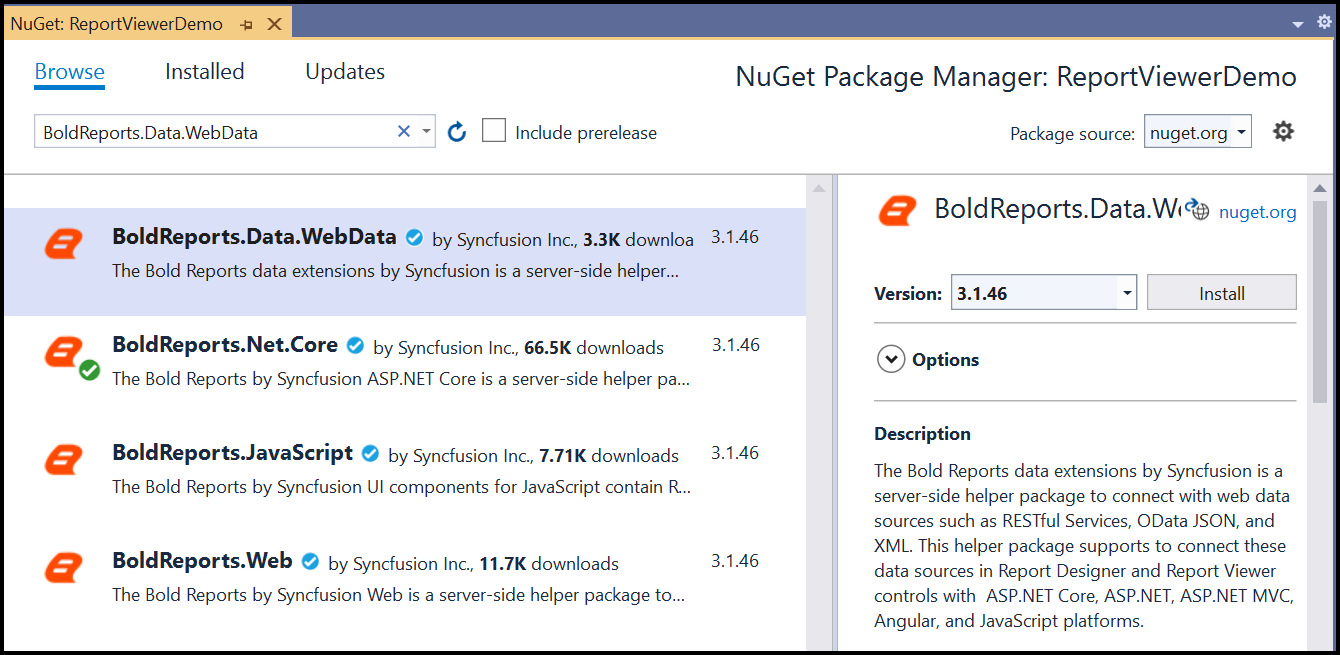
BoldReports.Data.WebData installs into your application. Click OK. The assembly is then added to the respective project references.
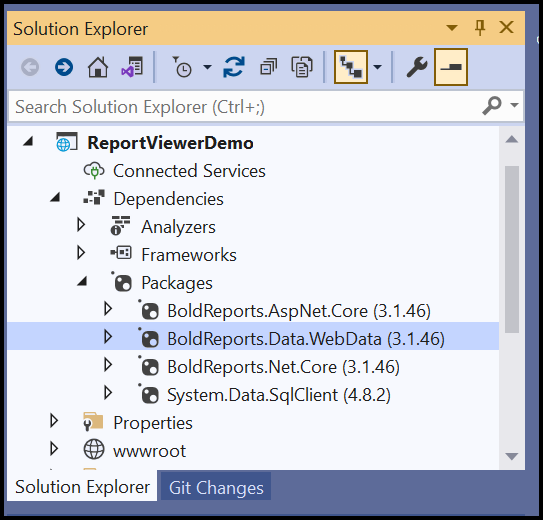
Register data source extension
-
Open the code-behind file
Startup.csand add the following using statement.using BoldReports.Web; -
Then add the following code to register extension assembly in
Startupmethod.public Startup(IConfiguration configuration, IWebHostEnvironment _hostingEnvironment) { //Use the below code to register extensions assembly into report viewer ReportConfig.DefaultSettings = new ReportSettings().RegisterExtensions(new List<string> { "BoldReports.Data.WebData" }); //To register multiple data extensions, provide the assembly name's as list of strings. For example: "ReportConfig.DefaultSettings = new ReportSettings().RegisterExtensions(new List<string> { "BoldReports.Data.WebData", "BoldReports.Data.Excel"};" //Incase the data source extensions fails to register or any error occurs replace the code as below, "ReportConfig.DefaultSettings = new ReportSettings().RegisterExtensions(new List<string> {System.IO.Path.Combine(System.AppDomain.CurrentDomain.BaseDirectory) + "BoldReports.Data.WebData.dll" });" ... ... }
Run the application
-
Run the ASP.NET Core Report Viewer Application.
-
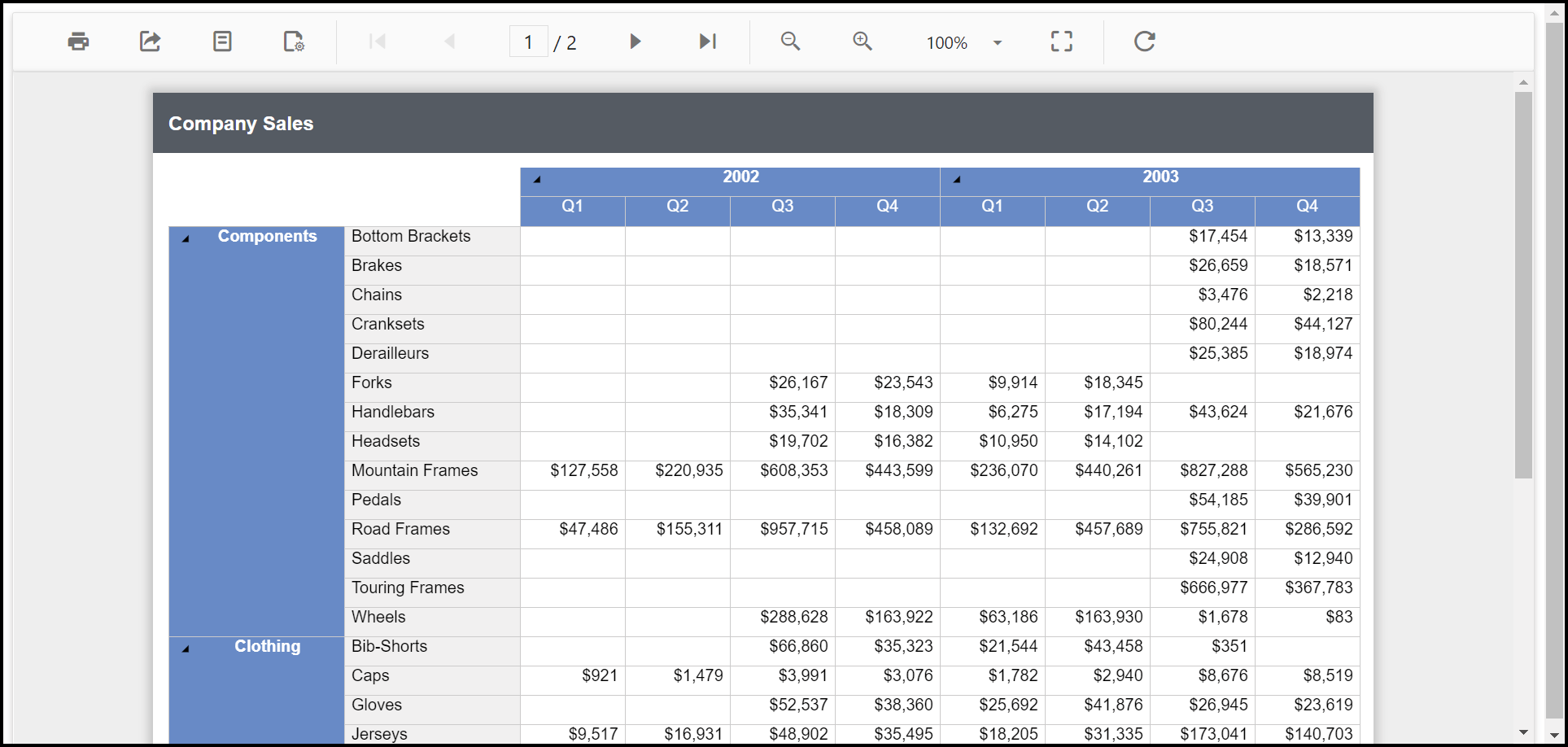
The company sales report renders with
JSONdata.
Download the Report Viewer sample with a custom data extension