Add Classic Web Report Designer to an ASP.NET Core Razor Pages
To add the classic Bold Reports® Web Report Designer to an ASP.NET Core Razor Pages application, install the BoldReports.AspNet.Core and BoldReports.Net.Core packages, refer the scripts and styles, and configure a Web API controller. To create an ASP.NET Core Razor Pages application with the classic Bold Reports® Report Designer, follow these steps:
Follow this getting started section to embed the Bold Reports® Designer version less than
v5.2.xx. The source code for this ASP.NET Core Razor Pages application is available on GitHub.
What do I need before I add the classic Report Designer to Razor Pages?
Before you add the classic Bold Reports® Report Designer to ASP.NET Core Razor Pages, make sure your development environment includes the following requirements.
- Visual Studio 2022 with ASP.NET and Web Development workloads.
- .NET Core 6.0 Framework.
Bold Reports® ASP.NET Core supports from
.NET Core 2.1only. So, choose the .NET Core versionASP.NET Core 2.1or higher versions for Designer API creation.
Create ASP.NET Core application
- Start Visual Studio 2022 and click Create new project.
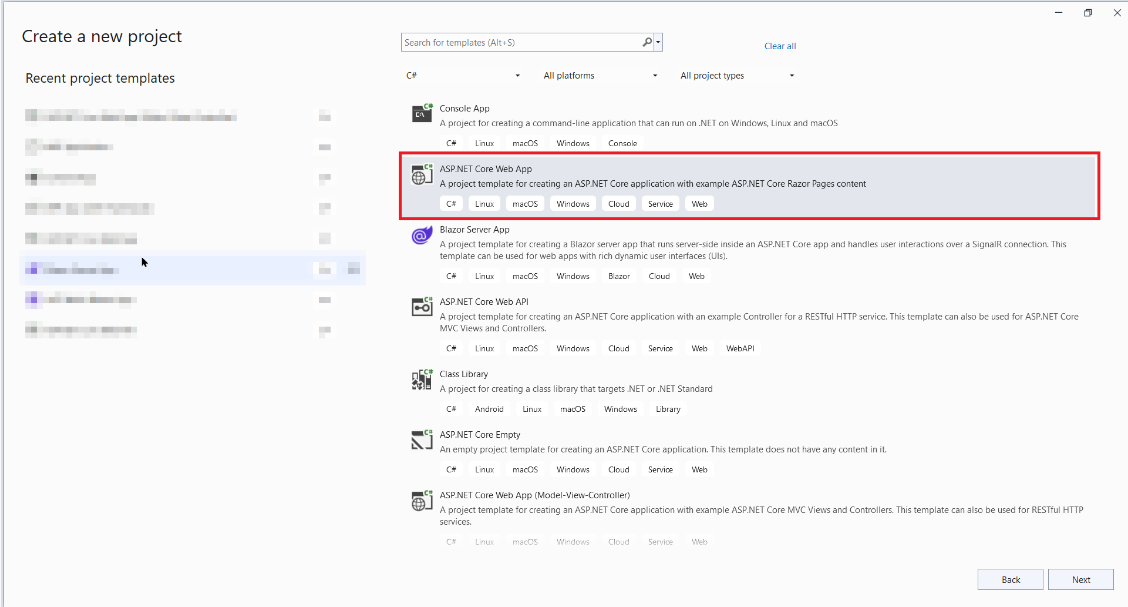
- Choose ASP.NET Core Web App, and then click Next.
- Change the project name, and then click Create.
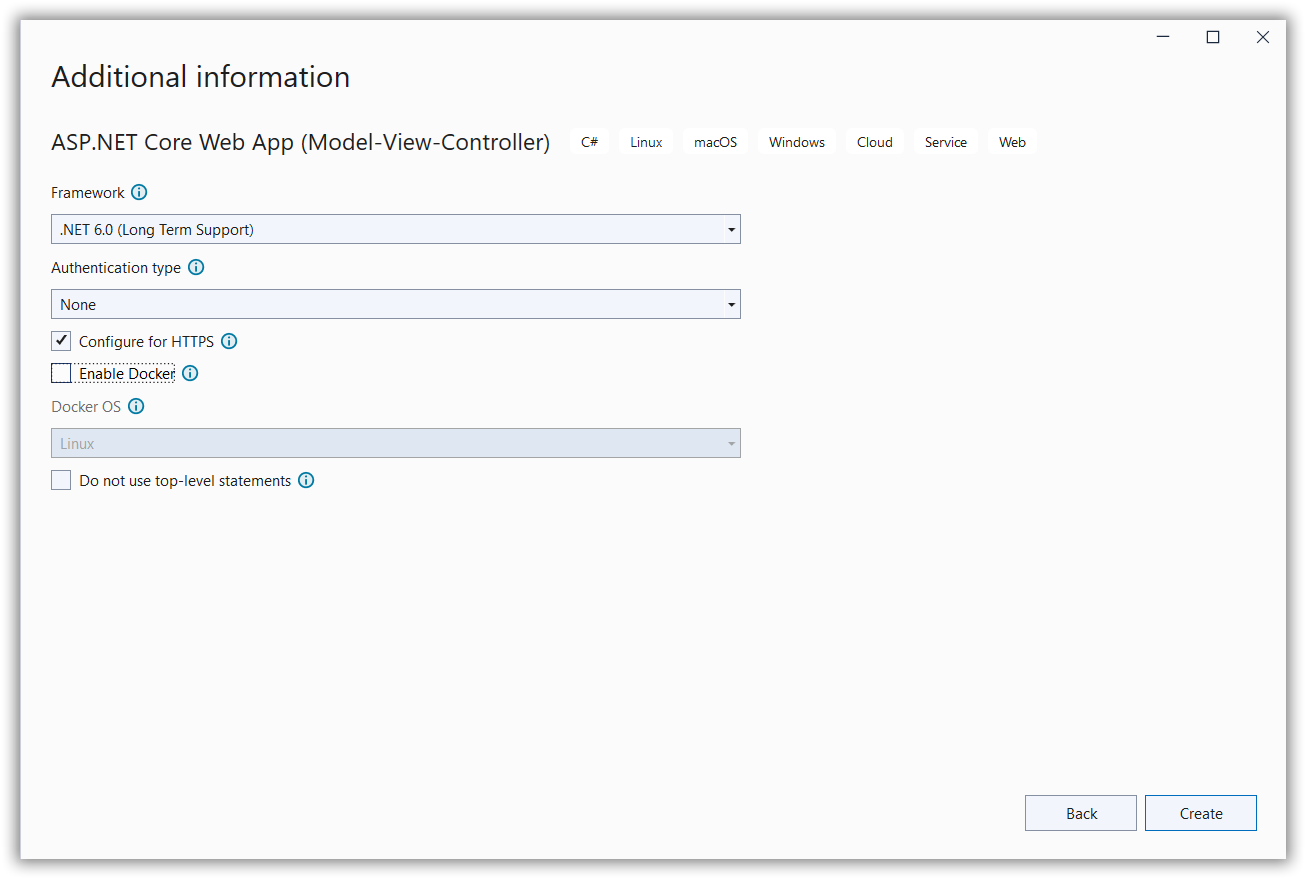
- In the dropdown for the Framework, choose .NET 6.0, then click Create.
Which NuGet packages does the classic Report Designer need?
The classic Bold Reports® ASP.NET Core Report Designer needs the BoldReports.AspNet.Core and BoldReports.Net.Core NuGet packages for the Web API service configuration. The Web API service configuration requires the following report server-side packages.
Right-click the project or solution in the Solution Explorer tab, and choose Manage NuGet Packages. Alternatively, select the Tools > NuGet Package Manager > Manage NuGet Packages for Solution menu command and then search the following BoldReports.AspNet.Core and BoldReports.Net.Core packages to install them in the application. The following table provides details about the packages and their usage.
| Package | Purpose |
|---|---|
BoldReports.Net.Core |
Used to create Web API service for processing the reports. |
BoldReports.AspNet.Core |
Contains tag helpers to create client-side web Report Designer control. |
Refer to the NuGet Packages to learn more details about installing and configuring Report Designer NuGet packages.
The following table provides details about the dependency packages and its usage.
| Assemblies | Purpose |
|---|---|
Syncfusion.Compression.Net.Core |
Supports for exporting the report to PDF, Microsoft Word, and Microsoft Excel format. It is a base library for the packages Syncfusion.Pdf.Net.Core , Syncfusion.DocIO.Net.Core and Syncfusion.XlsIO.Net.Core. |
Syncfusion.Pdf.Net.Core |
Supports for exporting the report to a PDF. |
Syncfusion.DocIO.Net.Core |
Supports for exporting the report to a Word. |
Syncfusion.XlsIO.Net.Core |
Supports for exporting the report to an Excel. |
Syncfusion.OfficeChart.Net.Core |
It is a base library of the Syncfusion.XlsIO.Net.Core package. |
Newtonsoft.Json |
Serialize and deserialize the data or report for web report designer. It is a mandatory package for the web report designer, and the package version should be higher of 10.0.1 for NET Core 2.0 and others should be higher of 9.0.1. |
System.Data.SqlClient |
This is an optional package for the report viewer and designer. It should be referred in project when process the RDL report and which contains the SQL Server and SQL Azure data source. Also, the package version should be higher of 4.1.0 . |
Refer Scripts and CSS
Directly refer the scripts and style sheets that are mandatorily required to render the classic web Report Designer, from CDN links.
-
Open the
~/Pages/Shared/_Layout.cshtmlpage and refer the following scripts and styles. -
Replace the following code in your
~/Pages/Shared/_Layout.cshtmlpage<head>tag.<link href="https://cdn.boldreports.com/15.1.10/content/material/bold.reports.all.min.css" rel="stylesheet" /> <link href="https://cdn.boldreports.com/15.1.10/content/material/bold.reportdesigner.min.css" rel="stylesheet" /> <link href="https://cdnjs.cloudflare.com/ajax/libs/codemirror/5.37.0/codemirror.min.css" rel="stylesheet" /> <link href="https://cdnjs.cloudflare.com/ajax/libs/codemirror/5.37.0/addon/hint/show-hint.min.css" rel="stylesheet" /> <script src="https://cdn.boldreports.com/15.1.10/scripts/common/ej2-base.min.js"></script> <script src="https://cdn.boldreports.com/15.1.10/scripts/common/ej2-data.min.js"></script> <script src="https://cdn.boldreports.com/15.1.10/scripts/common/ej2-pdf-export.min.js"></script> <script src="https://cdn.boldreports.com/15.1.10/scripts/common/ej2-svg-base.min.js"></script> <script src="https://cdn.boldreports.com/15.1.10/scripts/data-visualization/ej2-lineargauge.min.js"></script> <script src="https://cdn.boldreports.com/15.1.10/scripts/data-visualization/ej2-circulargauge.min.js"></script> <!--Render the map item. Add this script only if your report contains the map report item.--> <script src="https://cdn.boldreports.com/15.1.10/scripts/data-visualization/ej2-maps.min.js"></script> <script src="https://cdn.boldreports.com/external/jquery-1.10.2.min.js" type="text/javascript"></script> <script src="https://cdn.boldreports.com/external/jsrender.min.js" type="text/javascript"></script> <script src="https://cdnjs.cloudflare.com/ajax/libs/codemirror/5.37.0/codemirror.min.js" type="text/javascript"></script> <script src="https://cdnjs.cloudflare.com/ajax/libs/codemirror/5.37.0/addon/hint/show-hint.min.js" type="text/javascript"></script> <script src="https://cdnjs.cloudflare.com/ajax/libs/codemirror/5.37.0/addon/hint/sql-hint.min.js" type="text/javascript"></script> <script src="https://cdnjs.cloudflare.com/ajax/libs/codemirror/5.37.0/mode/sql/sql.min.js" type="text/javascript"></script> <script src="https://cdnjs.cloudflare.com/ajax/libs/codemirror/5.37.0/mode/vb/vb.min.js" type="text/javascript"></script> <script src="https://cdn.boldreports.com/15.1.10/scripts/common/bold.reports.common.min.js"></script> <script src="https://cdn.boldreports.com/15.1.10/scripts/common/bold.reports.widgets.min.js"></script> <script src="https://cdn.boldreports.com/15.1.10/scripts/common/bold.report-designer-widgets.min.js"></script> <script src="https://cdn.boldreports.com/15.1.10/scripts/data-visualization/ej.chart.min.js"></script> <!-- Report component script--> <script src="https://cdn.boldreports.com/15.1.10/scripts/bold.report-viewer.min.js"></script> <script src="https://cdn.boldreports.com/15.1.10/scripts/bold.report-designer.min.js" type="text/javascript"></script>
Refer to the Dependencies to learn more details about classic web Report Designer dependent scripts and style sheets links. To learn more about rendering a report with data visualization report items, refer to the how to render data visualization report items section.
Tag helper
Define the following tag helper within the _ViewImports.cshtml page to initialize the classic Report Designer component with tag helper support.
    @using BoldReports.TagHelpers
    @addTagHelper *, BoldReports.AspNet.Core
Configure Script Manager
Open the ~/Pages/Shared/_Layout.cshtml page and add the reporting Script Manager at the end of <body> element as in the following code sample.
<body>
    <div>
        @RenderBody()
    </div>

    @RenderSection("Scripts", required: false)
    <!-- Bold Reports<sup>®</sup> script manager -->
   <bold-script-manager></bold-script-manager>
</body>
Initialize Report Designer
-
Open the
Index.cshtmlpage. -
Remove the existing codes and add the following code:
<div style="min-height: 950px;width: 100%;">
    <bold-report-designer id="designer"></bold-report-designer>
</div>
Add API Controller
- Right-click the project and select Add > New Item from the context menu.
- In the Add New Item dialog, select API Controller class and name it as
ReportingAPIController, and then click Add.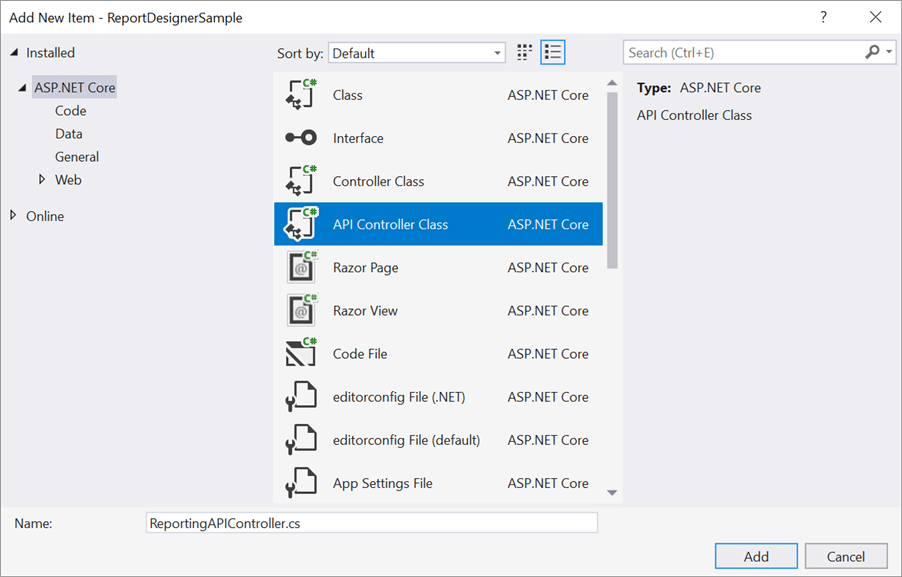
While adding API Controller class, name it with the suffix
Controllerthat is mandatory.
Configure Web API
The IReportDesignerController interface contains the required actions and helper methods declaration to process the designer file and data actions. The ReportDesignerHelper and ReportHelper class contains methods that help to process Post or Get request from the control and return the response.
ReportDesignerHelper
The class ReportDesignerHelper contains helper methods that help to process Post or Get request from the web Report Designer control and returns the response to the web Report Designer control. It has the following methods.
| Methods | Description |
|---|---|
| GetResource | Returns the report resource for the requested key. |
| ProcessReport | Processes the report request and returns the result. |
ReportHelper
The class ReportHelper contains helper methods that help process Post or Get request for report preview action and returns the response to the web Report Designer. It has the following methods.
| Methods | Description |
|---|---|
| GetResource | Returns the report resource for the requested key. |
| ProcessReport | Processes the report request and returns the result. |
Open ReportingAPIController.cs file and replace the following code example:
using System;
using System.Collections.Generic;
using System.Linq;
using System.Threading.Tasks;
using Microsoft.AspNetCore.Http;
using Microsoft.AspNetCore.Mvc;
using BoldReports.Web.ReportViewer;
using BoldReports.Web.ReportDesigner;

namespace ReportDesignerSample
{
    [Route("api/[controller]/[action]")]
    public class ReportingAPIController : Controller, BoldReports.Web.ReportDesigner.IReportDesignerController
    {
        private Microsoft.Extensions.Caching.Memory.IMemoryCache _cache;
        private Microsoft.AspNetCore.Hosting.IWebHostEnvironment _hostingEnvironment;

        public ReportingAPIController(Microsoft.Extensions.Caching.Memory.IMemoryCache memoryCache, Microsoft.AspNetCore.Hosting.IWebHostEnvironment hostingEnvironment)
        {
            _cache = memoryCache;
            _hostingEnvironment = hostingEnvironment;
        }

        [NonAction]
        private string GetFilePath(string itemName, string key)
        {
            string rootPath = this._hostingEnvironment.WebRootPath ? this._hostingEnvironment.WebRootPath : this._hostingEnvironment.ContentRootPath;
            string dirPath = Path.Combine(rootPath, "Cache", key);

            if (!System.IO.Directory.Exists(dirPath))
            {
                System.IO.Directory.CreateDirectory(dirPath);
            }

            return Path.Combine(dirPath, itemName);
        }

        public object GetImage(string key, string image)
        {
            return ReportDesignerHelper.GetImage(key, image, this);
        }

        public object GetResource(ReportResource resource)
        {
            return ReportHelper.GetResource(resource, this, _cache);
        }

        [NonAction]
        public void OnInitReportOptions(ReportViewerOptions reportOption)
        {
            //You can update report options here
        }

        [NonAction]
        public void OnReportLoaded(ReportViewerOptions reportOption)
        {
            //You can update report options here
        }

        [HttpPost]
        public object PostDesignerAction([FromBody] Dictionary<string, object> jsonResult)
        {
            return ReportDesignerHelper.ProcessDesigner(jsonResult, this, null, this._cache);
        }

        public object PostFormDesignerAction()
        {
            return ReportDesignerHelper.ProcessDesigner(null, this, null, this._cache);
        }

        public object PostFormReportAction()
        {
            return ReportHelper.ProcessReport(null, this, this._cache);
        }

        [HttpPost]
        public object PostReportAction([FromBody] Dictionary<string, object> jsonResult)
        {
            return ReportHelper.ProcessReport(jsonResult, this, this._cache);
        }

        [NonAction]
        public bool SetData(string key, string itemId, ItemInfo itemData, out string errorMessage)
        {
            errorMessage = string.Empty;
            if (itemData.Data != null) {
                System.IO.File.WriteAllBytes(this.GetFilePath(itemId, key), itemData.Data);
            }
            else if (itemData.PostedFile != null) {
                var fileName = itemId;
                if (string.IsNullOrEmpty(itemId)) {
                    fileName = System.IO.Path.GetFileName(itemData.PostedFile.FileName);
                }

                using(System.IO.MemoryStream stream = new System.IO.MemoryStream())
                {
                    itemData.PostedFile.OpenReadStream().CopyTo(stream);
                    byte[] bytes = stream.ToArray();
                    var writePath = this.GetFilePath(fileName, key);

                    System.IO.File.WriteAllBytes(writePath, bytes);
                    stream.Close();
                    stream.Dispose();
                }
            }
            return true;
        }
        [NonAction]
        public ResourceInfo GetData(string key, string itemId)
        {
            var resource = new ResourceInfo();
            try
            {
                var filePath = this.GetFilePath(itemId, key);
                if (itemId.Equals(Path.GetFileName(filePath), StringComparison.InvariantCultureIgnoreCase) && System.IO.File.Exists(filePath))
                {
                    resource.Data = System.IO.File.ReadAllBytes(filePath);
                }
                else
                {
                    resource.ErrorMessage = "File not found from the specified path";
                }
            }
            catch (Exception ex)
            {
                resource.ErrorMessage = ex.Message;
            }
            return resource;
        }

        [HttpPost]
        public void UploadReportAction()
        {
            ReportDesignerHelper.ProcessDesigner(null, this, this.Request.Form.Files[0], this._cache);
        }
    }
}
Web API with ASP.NET Core Web Application
The default ASP.NET Core Razor Pages template (Web Application) does not have the MapControllers configuration to use Web API. So, add the MapControllers option with App using the following steps:
-
Open
Program.csfile. -
Call
MapControllerswithappafterapp.UseRouting()as in the following code:.... .... app.UseRouting(); app.MapControllers(); .... ....
Your final Program.cs file looks like the following code:
    var builder = WebApplication.CreateBuilder(args);

    // Add services to the container.
    builder.Services.AddRazorPages();
    var app = builder.Build();

    // Configure the HTTP request pipeline.
    if (!app.Environment.IsDevelopment())
    {
        app.UseExceptionHandler("/Error");
        app.UseHsts();
    }

    app.UseHttpsRedirection();
    app.UseStaticFiles();

    app.UseRouting();
    app.MapControllers();

    app.UseAuthorization();
    app.MapRazorPages();
    app.Run();
Set the service URL
To browse, open and save the reports in the application, set the WebAPI controller name to the ServiceUrl property of the classic web Report Designer. You can replace the following code in your classic web Report Designer page.
<div style="min-height: 950px;width: 100%;">
  <bold-report-designer id="designer" service-url="/api/ReportingAPI" ></bold-report-designer>
</div>
Run the Application
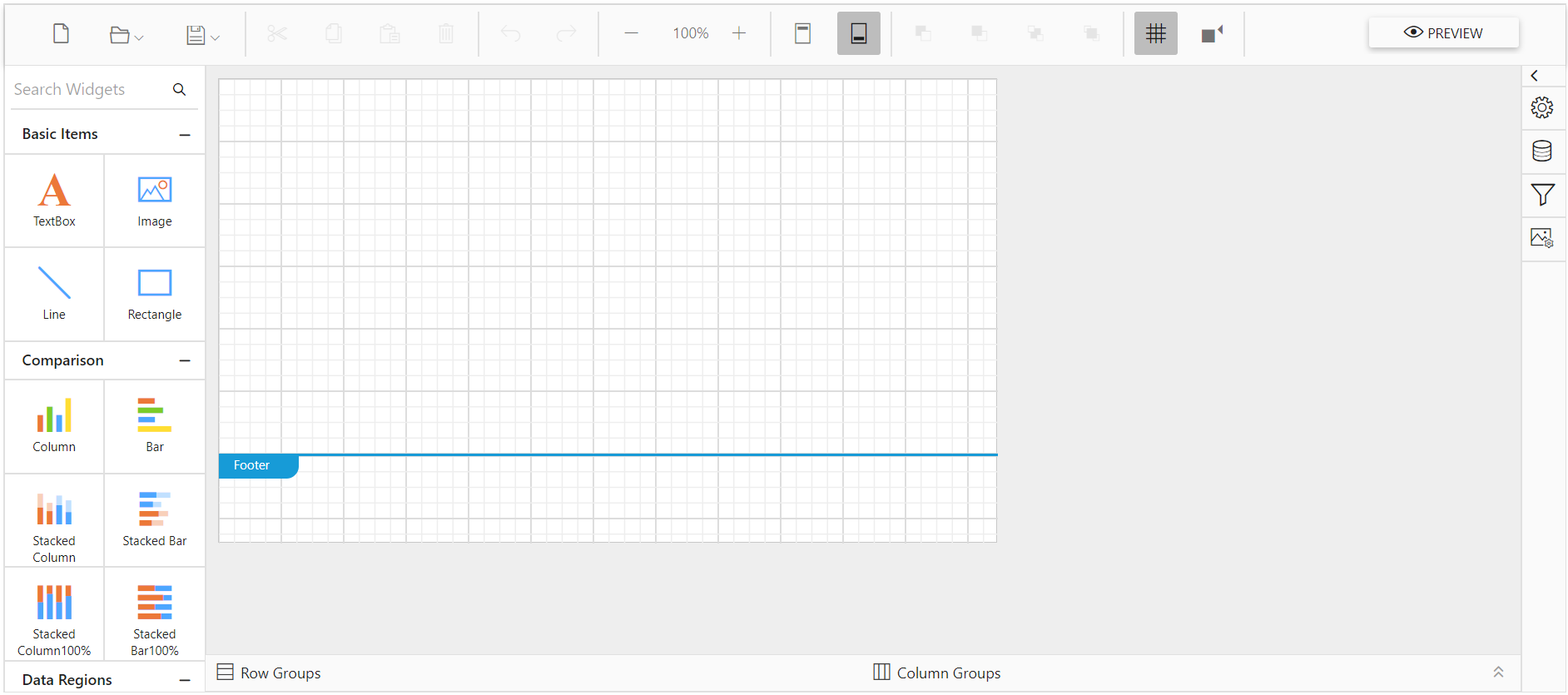
Run the sample application to see the classic Report Designer on the page, as in the following screenshot: