Add a report parameter to a report in the Bold Reports® Web Report Designer
In the Bold Reports® Web Report Designer, report parameters filter the report data or associate related reports together. Follow the steps in this guide to add a report parameter to your report.
Prefer watching over reading? Watch this video about report parameters:
Create parameter
You create a Bold Reports® report parameter from the PARAMETERS panel of the Web Report Designer. Follow these steps:
-
Click the
Parametericon in theData Configurationpanel. ThePARAMETERSpanel opens.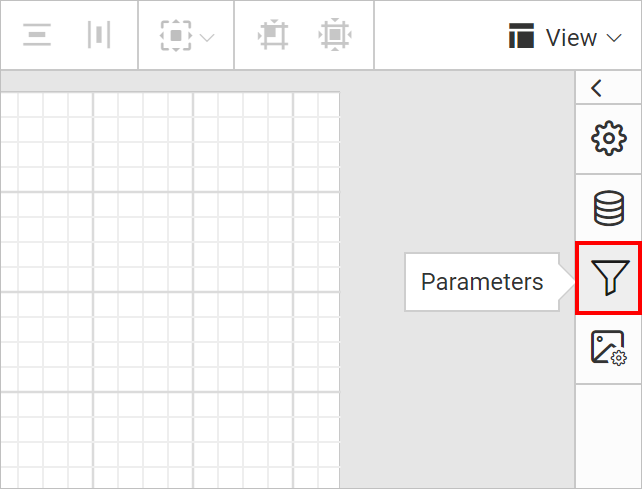
-
Click the
NEW PARAMETERbutton in thePARAMETERSpanel.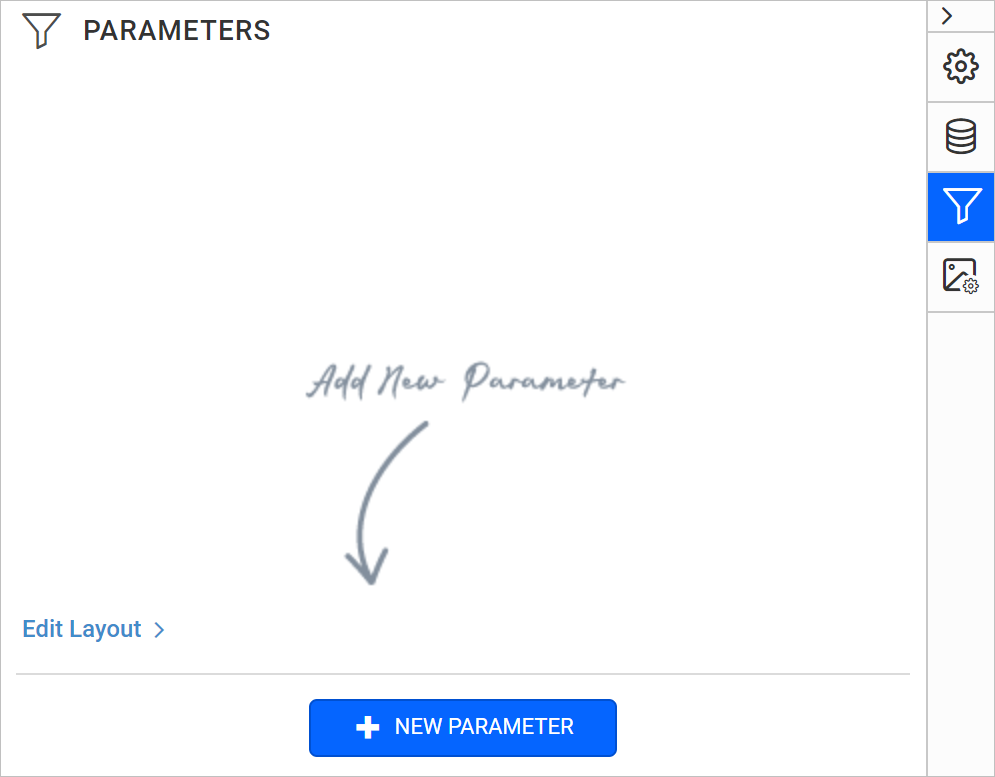
-
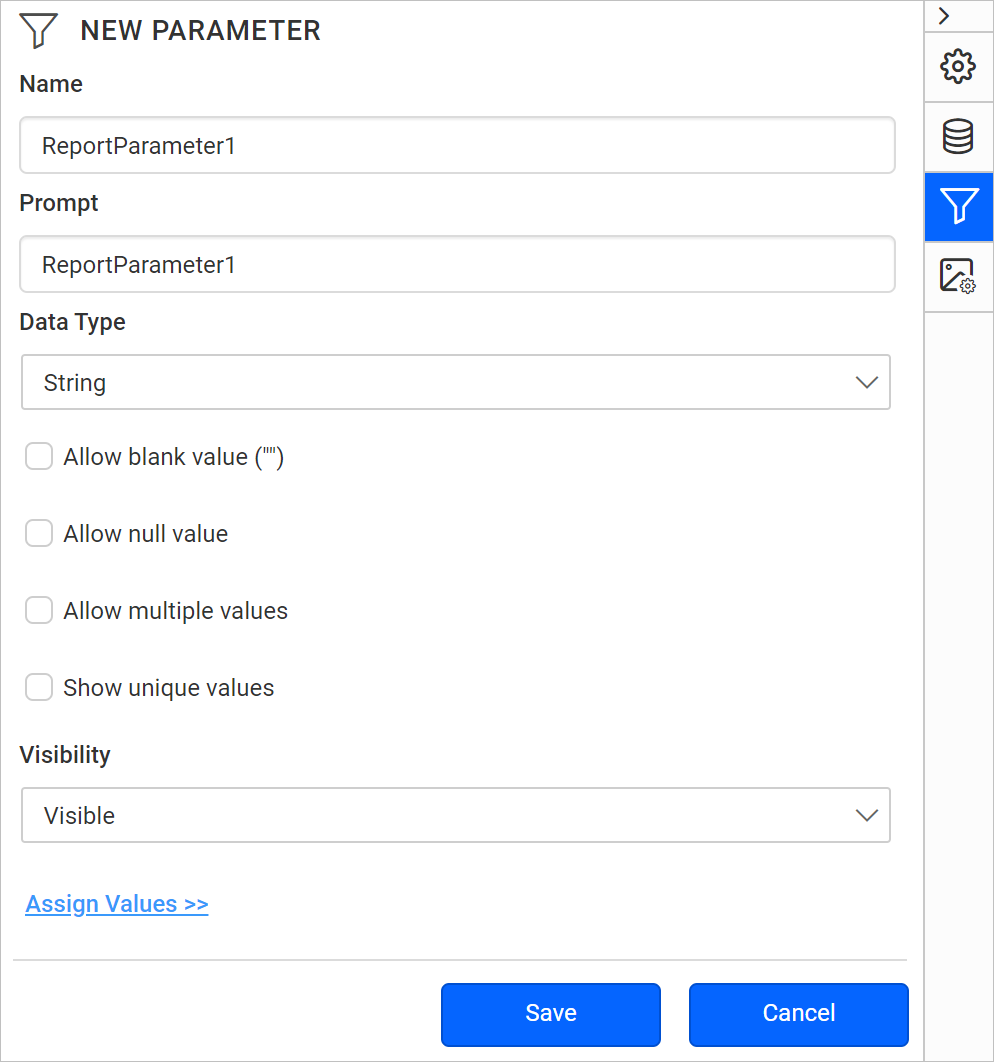
The following wizard is displayed.
-
In the Name field, type the name of the parameter or use the default name. By default, manually created parameter names are similar to
ReportParameter1. -
In the Prompt field, type the text that appears next to the parameter when the user previews the report.
-
In the Data type field, select the data type of the parameter value. The supported data types are
Boolean,DateTime,Integer,FloatandText. -
Select Allow blank value if the parameter value needs to be set as an empty string or a blank value.
Note: If you specify valid values for a parameter, and you want a blank value to be one of the valid values, you must include it as one of the values that you specify. Selecting this option does not automatically include a blank value for available values.
-
Select Allow null value if the value of the parameter needs to be set as null.
Note: If you specify valid values for a parameter, and you want null to be one of the valid values, you must include null as one of the values that you specify. Selecting this option does not automatically include the null value for available values.
-
Select Allow multiple values if the parameter should accept multiple values. Null values are not allowed.
-
Set the
visibilityoption.- Select Visible to display the report parameter at the top of the report while running the report. Use this option to select parameter values at run time.
- Select Hidden to hide the report parameter in the published report. The report parameter values can still be set on a report URL, in a subscription definition, or on the Bold Reports® Report Server.
- Select Internal to hide the report parameter. In the published report, the report parameter can only be viewed in the report definition.
-
-
Click the
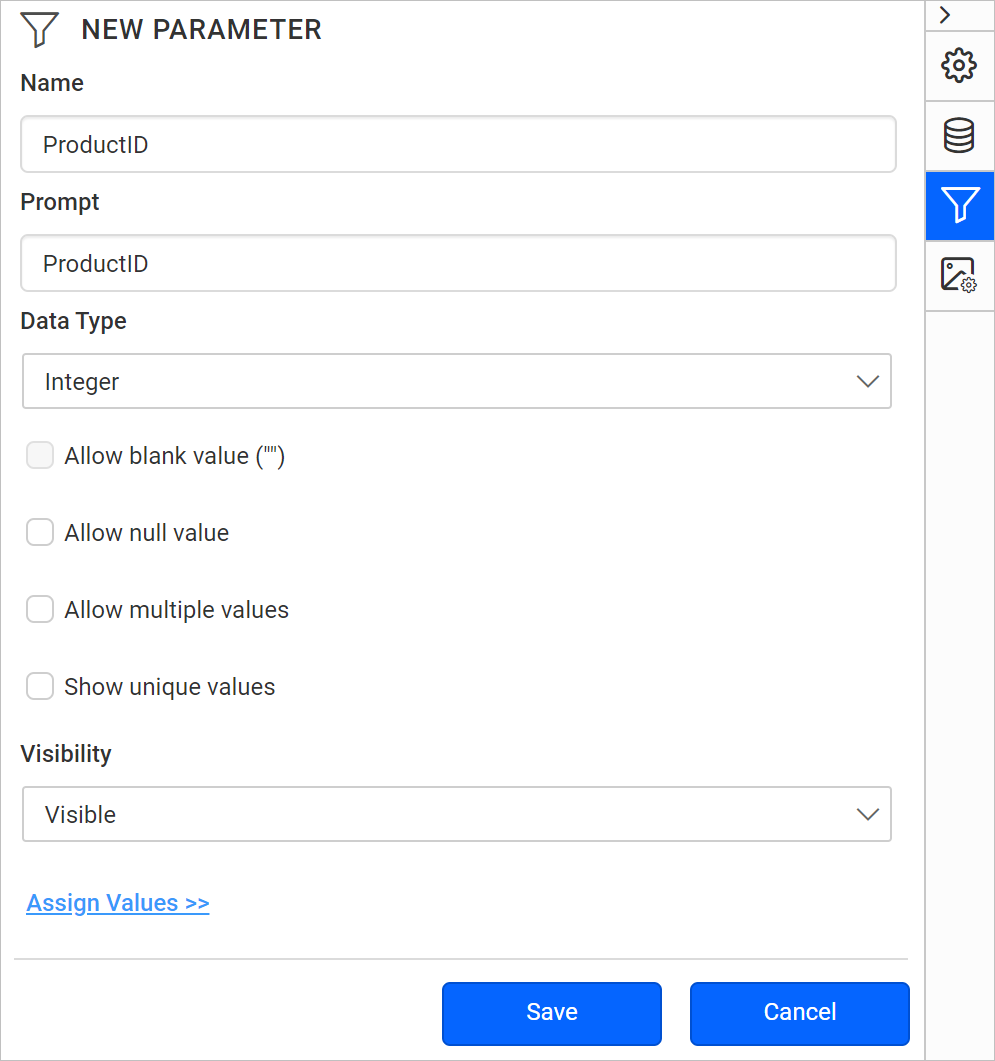
Savebutton. The parameter is listed under thePARAMETERSpane, as shown in the following image.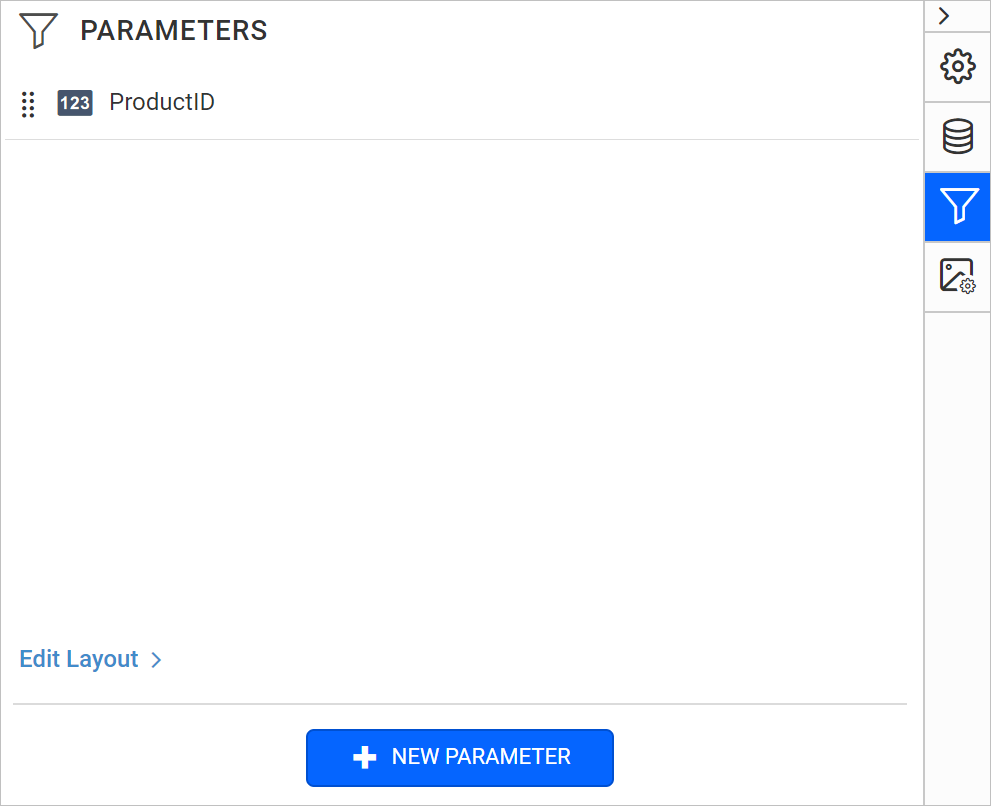
How do I filter table data based on a report parameter?
A Bold Reports® report parameter can filter table data at run time. In this example, the ProductID parameter filters the ProductID field values.
- Select the table report item to enable the grouping panel in the designer.
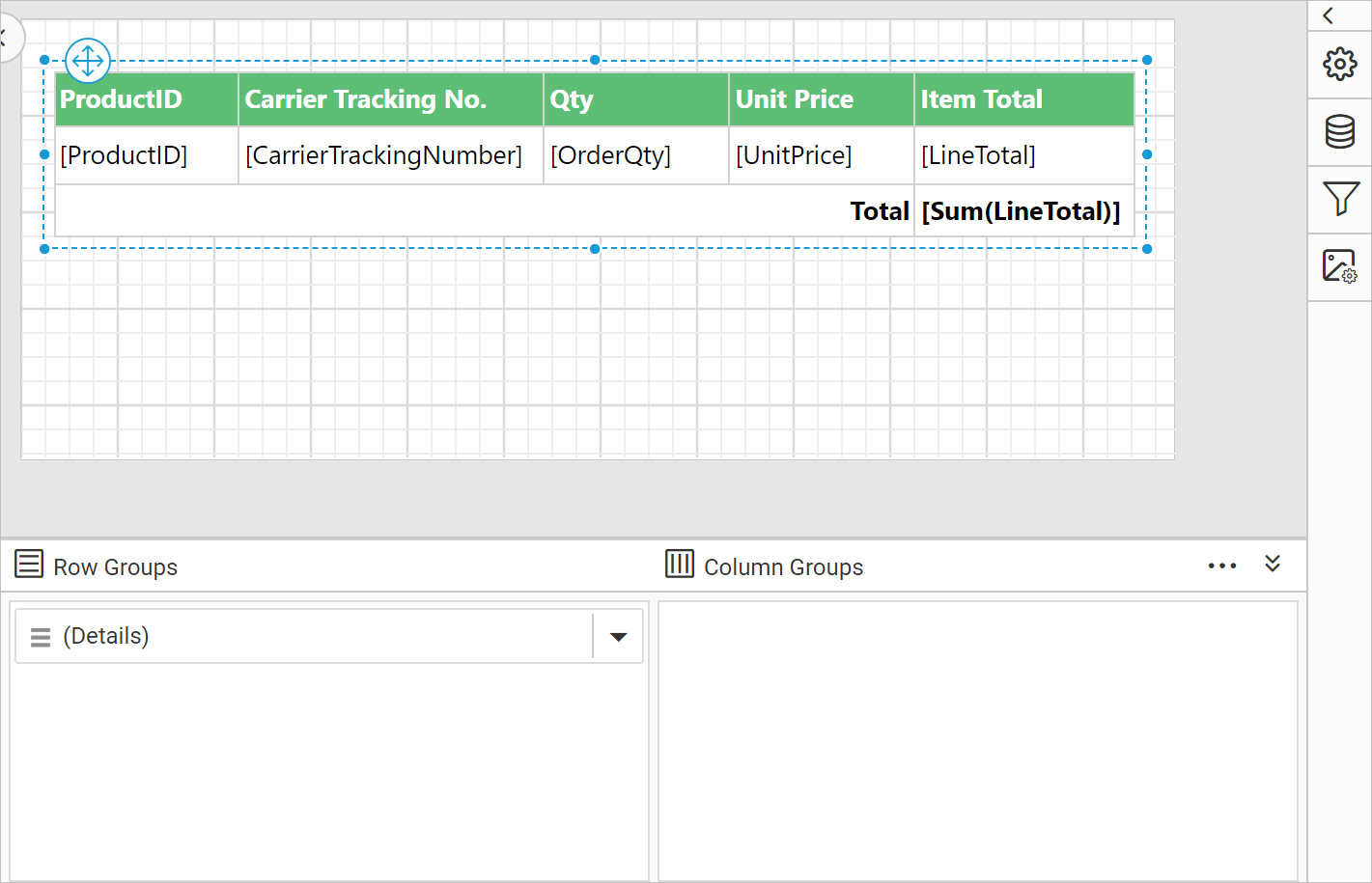
- Click the
(Details)member field in the grouping panel to open the tablix member properties.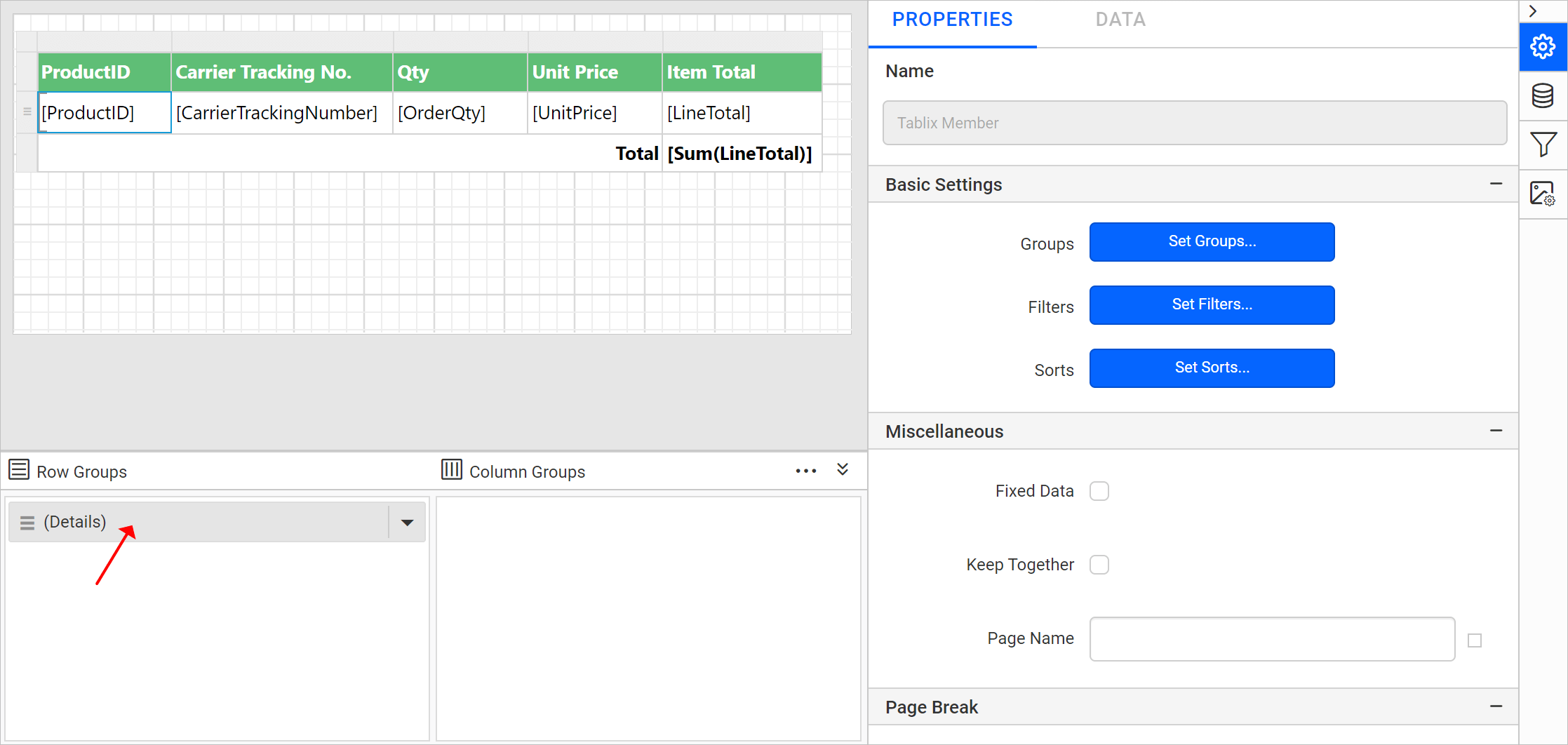
- In the
Tablix Memberproperties, click theSet Filters...button.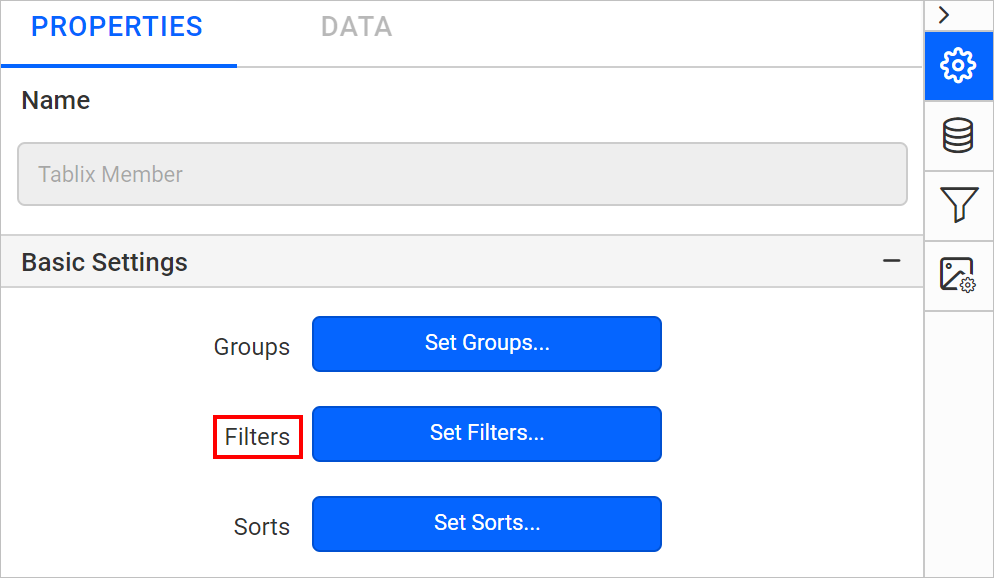
- See the Set filters section to create a new filter expression.
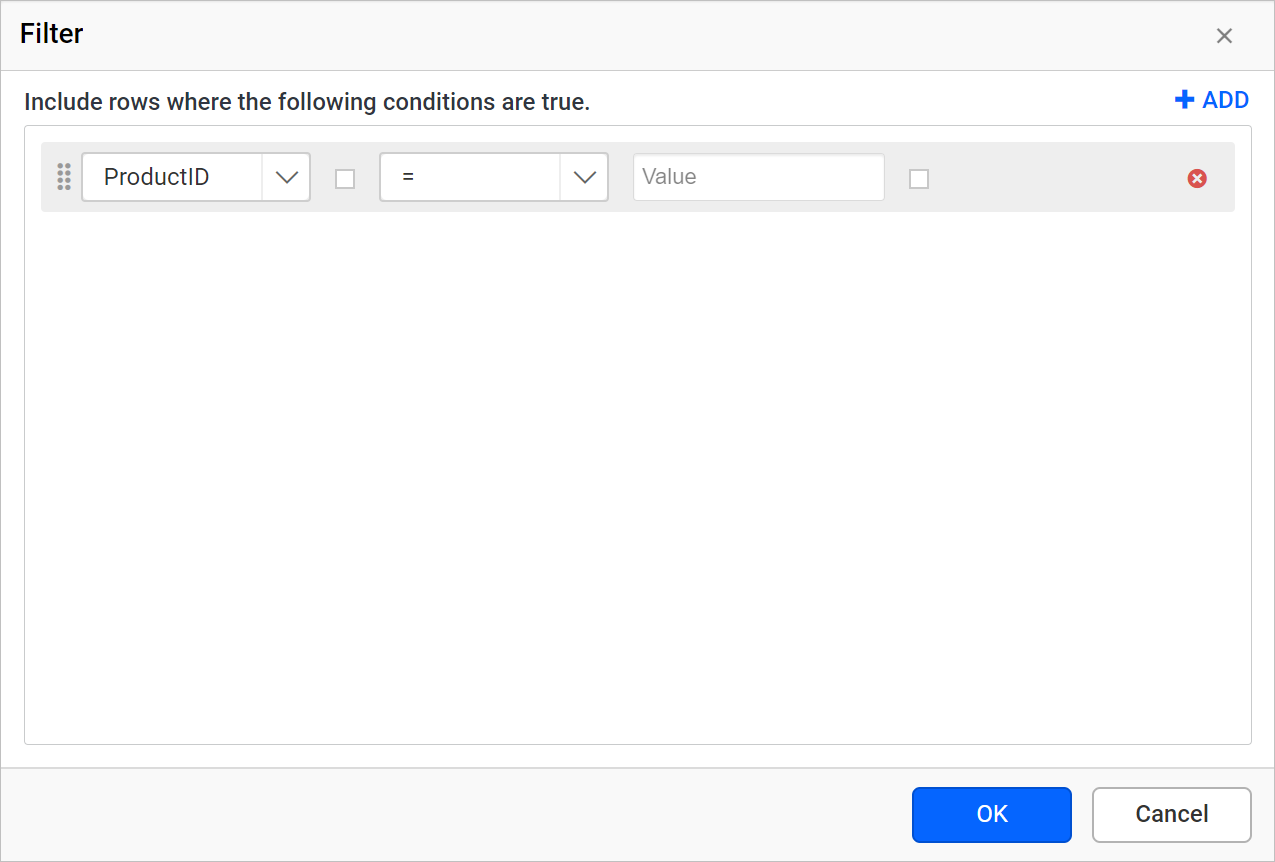
- Choose the
Equaloperator and assign theProductIDparameter in the Value field. Save the filter.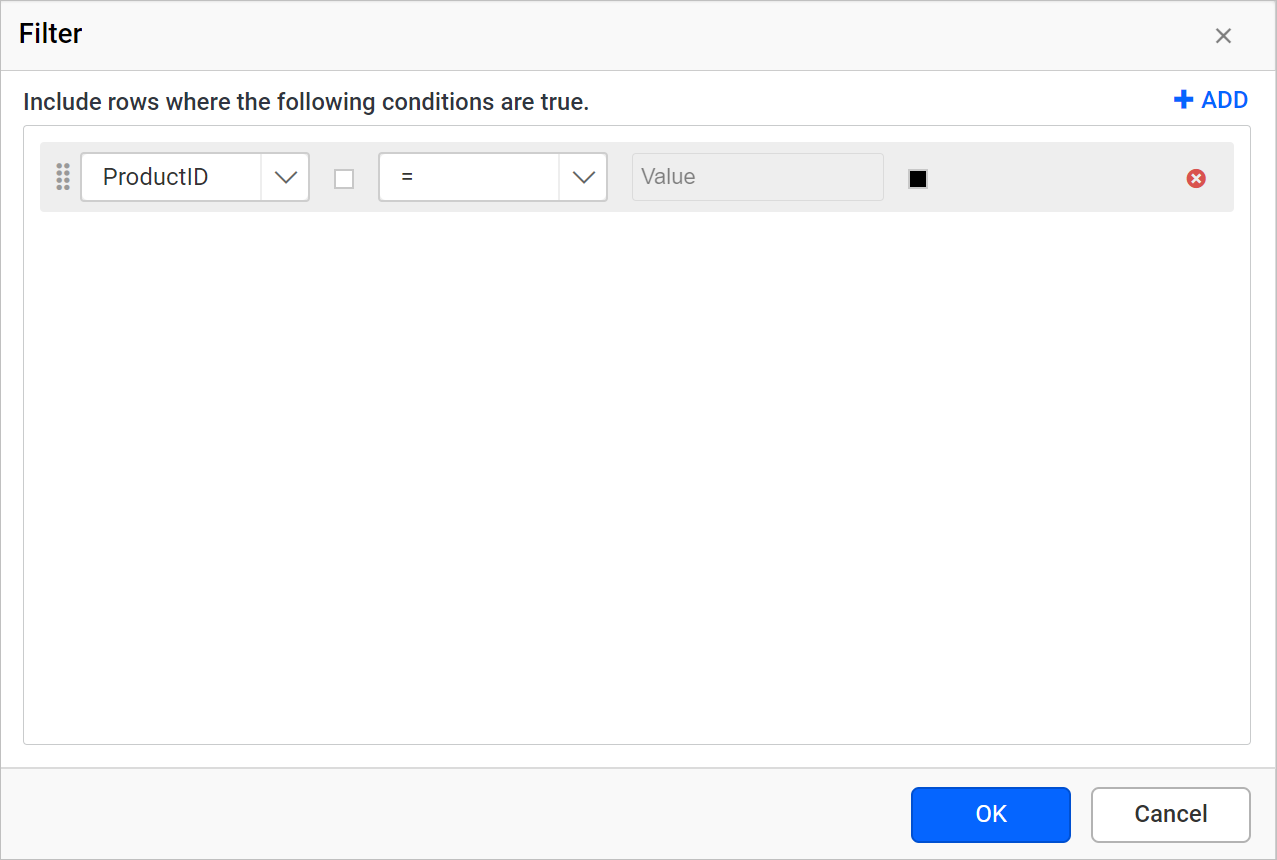
- Preview the report. The following view is displayed.
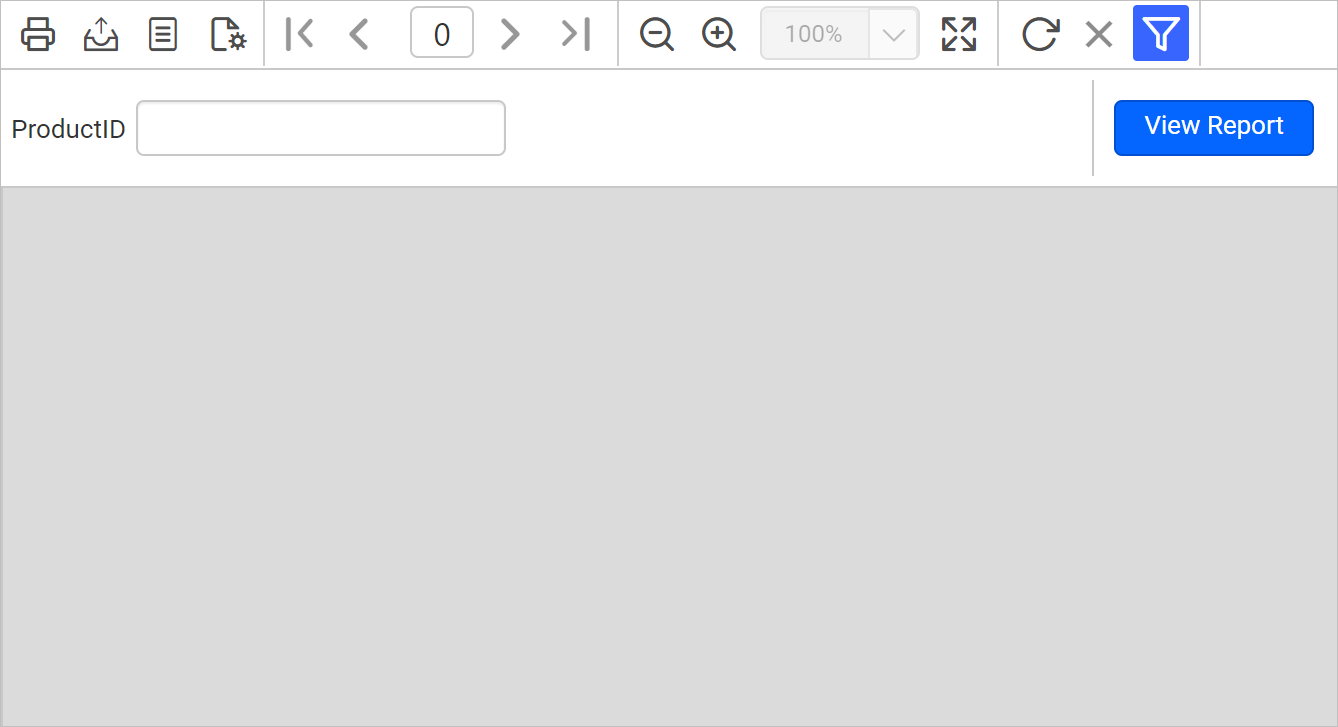
- Enter a valid
ProductIDin the textbox and clickView Report.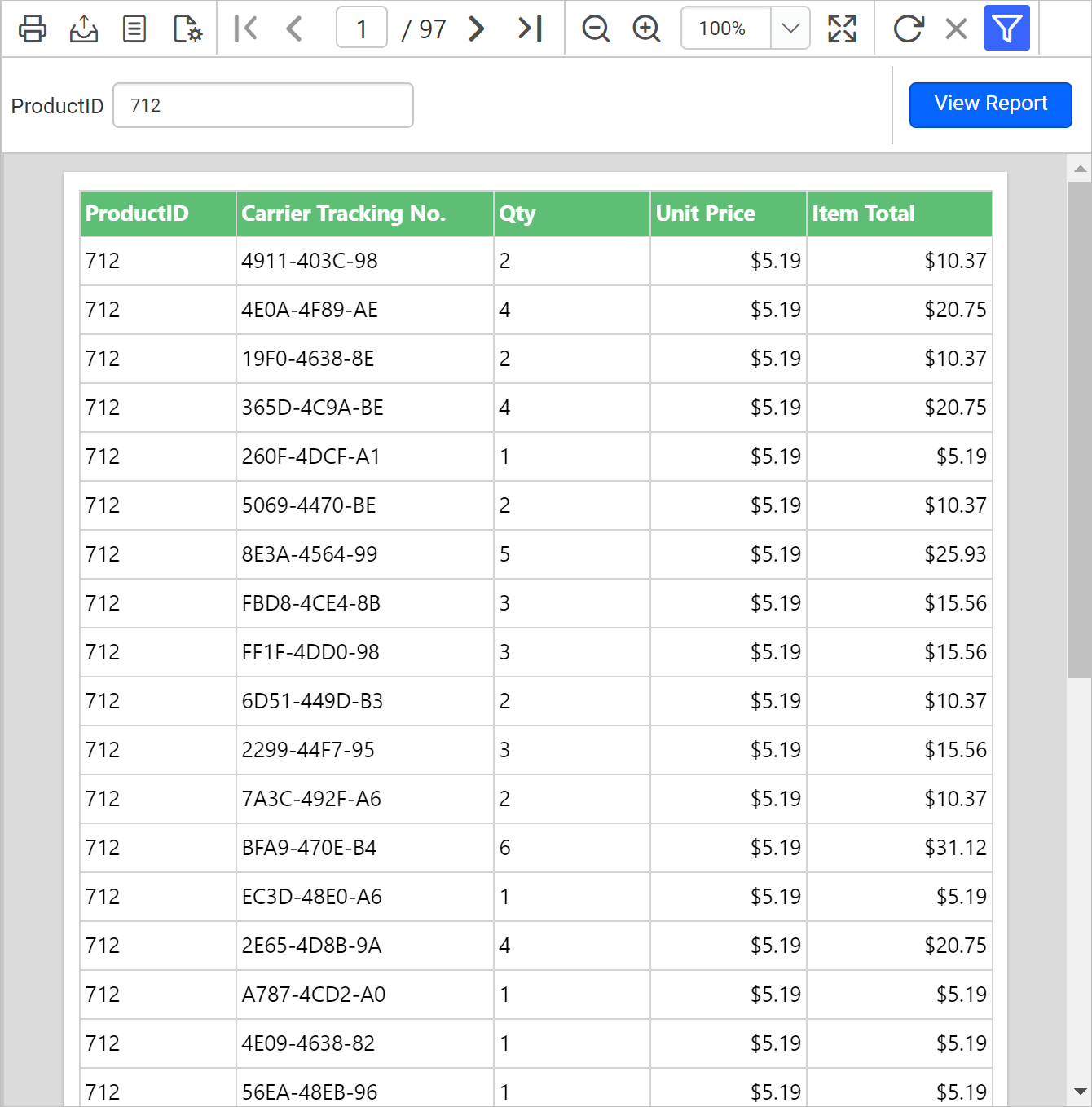
Download this report design from the filter table data based on report parameter RDL sample.
Frequently asked questions
Which data types can a report parameter use?
A Bold Reports® report parameter supports the Boolean, DateTime, Integer, Float, and Text data types.
What is the difference between Hidden and Internal visibility?
A Hidden parameter is hidden in the published report, but its values can still be set on a report URL, in a subscription definition, or on the Report Server. An Internal parameter can only be viewed in the report definition.