NuGet Packages for Angular
To use the Bold Reports® NuGet packages for the Angular Report Designer Web API service, configure the NuGet feed URL in Visual Studio, then install packages such as BoldReports.Web. Use the following steps to configure the Bold Reporting tools NuGet packages for an Angular Web API application.
How do I configure the NuGet feed URL?
You can configure the Bold Reports® Report Designer NuGet feed with the online NuGet.org source or with the offline source in the Bold Reports® installed location.
Online NuGet feed URL
The Bold Reporting tools NuGet packages are published in Nuget.org. To configure the online packages, use the following steps:
-
Open Visual Studio application.
-
On the Tools menu, select Options.
-
Expand the NuGet Package Manager and select Package Sources.
-
Click the Add button, enter the following
Package NameandPackage Source URL, and then click Update.Name:
NuGet.orgSource:
https://api.nuget.org/v3/index.json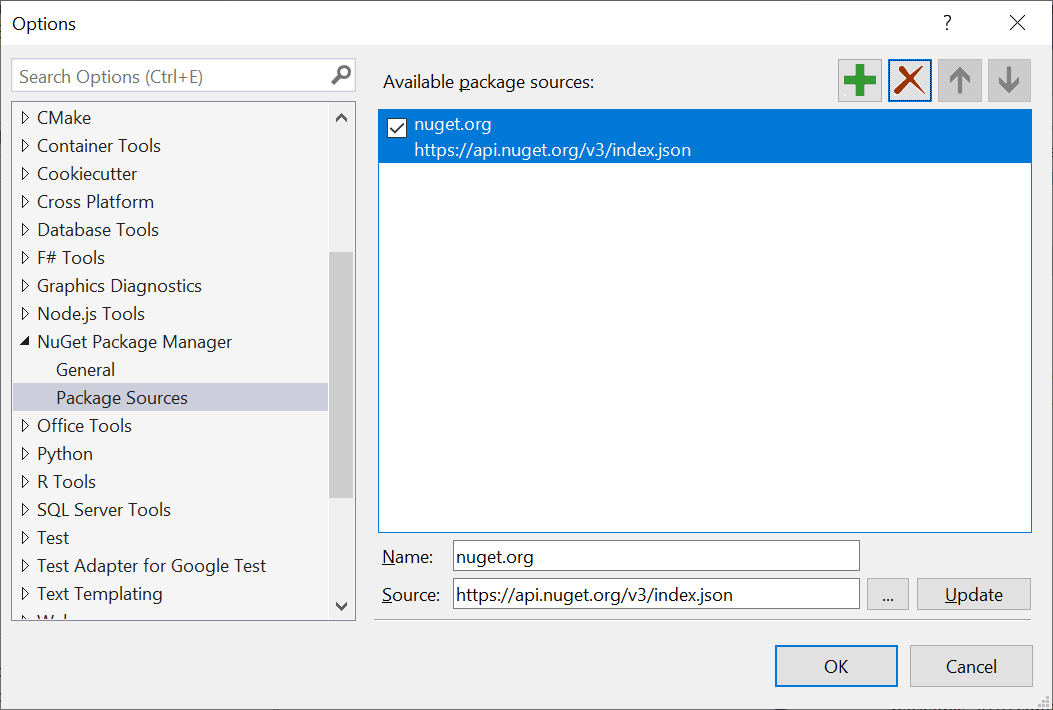
Offline NuGet feed URL
Bold Reporting tools NuGet packages are shipped into our Report Platform SDK build. To configure the packages from Bold Reports® installed location, use the following steps:
-
Open your Visual Studio application.
-
On the Tools menu, select Options.
-
Expand the NuGet Package Manager, and then select Package Sources.
-
Click the Add button, enter the following
Package NameandPackage Source URL, and then click Update.Name: Bold Reports® installed NuGet
Source:
{System Drive}:\Program Files (x86)\Bold Reports\Reporting Tools\Nuget Packages.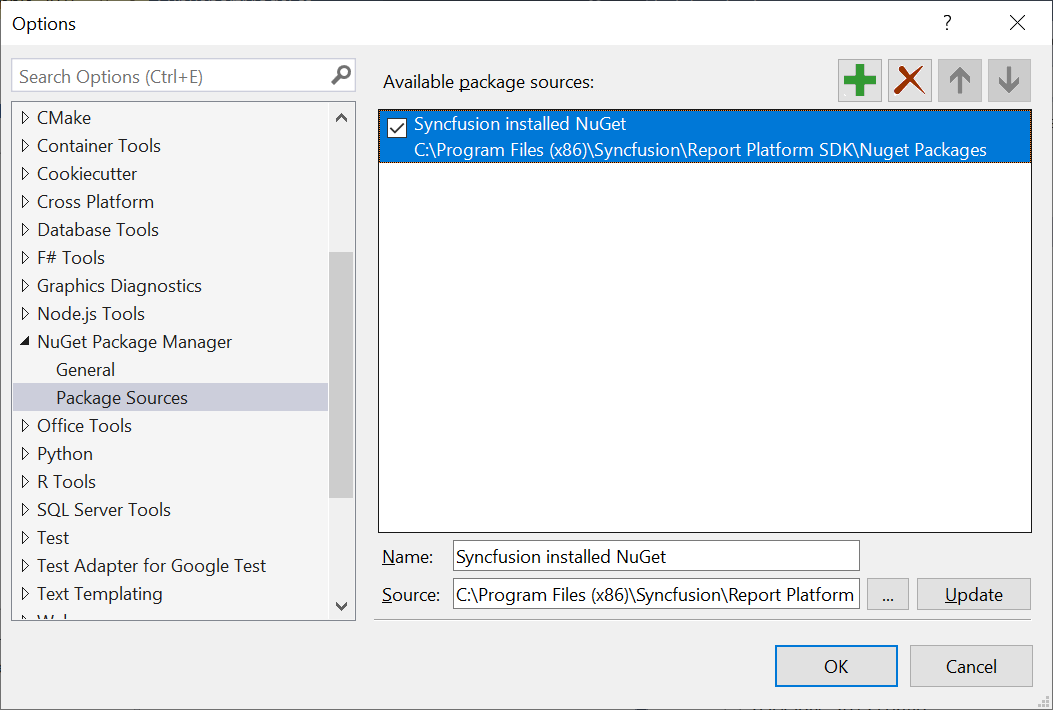
The system drive varies based on the installed location in your machine.
How do I install the Report Designer NuGet packages?
You can install the Bold Reports® Report Designer NuGet packages with the NuGet Package Manager or the Package Manager Console in Visual Studio.
Install using NuGet Package Manager
The NuGet Package Manager can be used to search and install NuGet packages in Visual Studio solution or project:
- On the Tools menu, click NuGet
Package Manager | Manage NuGet Packages for Solution. Alternatively, right-click the project/solution in Solution Explorer tab, and choose Manage NuGet Packages. - By default, the
NuGet.orgpackage is selected in the Package source drop-down. Select package source, search for the packagesBoldReports.Web, and then click Install button.
Install using Package Manager Console
To install the Reporting component as NuGet packages using the Package Manager Console, use the following steps:
-
On the Tools menu, select NuGet Package Manager, and then click Package Manager Console.
-
Run the following NuGet installation commands:
#install specified package in default project
Install-Package <Package Name>

#install specified package in default project with specified package source
Install-Package <Package Name> -Source <Source Location>

#install specified package in specified project
Install-Package <Package Name> - ProjectName <Project Name>
For example:
# install specified package in default project
Install-Package BoldReports.Web

#install specified package in default project with specified Package Source
Install-Package BoldReports.Web –Source “https://api.nuget.org/v3/index.json”

#install specified package in specified project
Install-Package BoldReports.Web -ProjectName BoldReportingApplication
How do I upgrade the Report Designer NuGet packages?
You can upgrade the Bold Reports® Report Designer NuGet packages with the NuGet Package Manager, the Package Manager Console, or the NuGet CLI.
Upgrading using NuGet Package Manager
NuGet packages can be updated to their specific version or latest version available in the Visual Studio solution or project:
- On the Tools menu, click NuGet Package Manager | Manage NuGet Packages for Solution…. Alternatively, right-click the project/solution in the Solution Explorer tab, and then choose Manage NuGet Packages.
- Select the Updates tab to see the packages available for update from the desired package sources, select the required packages and specific version from the drop-down, and then click the Update button.
Upgrading using Package Manger Console
To update the installed Bold Reporting tools NuGet packages using the Package Manager Console:
-
On the Tools menu, select NuGet Package Manager, and then select Package Manager Console.
-
Run the following NuGet installation commands:
#Update specific NuGet package in default project
Update-Package <Package Name>

#Update all the packages in default project
Update-Package

#Update specified package in default project with specified package source
Update-Package <Package Name> -Source <Source Location>

#Update specified package in specified project
Update-Package <Package Name> - ProjectName <Project Name>
For example:
#Update specified Bold Reporting NuGet package
Update-Package BoldReports.Web

#Update specified package in default project with specified Package Source
Update-Package BoldReports.Web –Source “https://api.nuget.org/v3/index.json”

#Update specified package in specified project
Update-Package BoldReports.Web -ProjectName BoldReportingApplication
Upgrading using NuGet CLI
Using the NuGet CLI, all the NuGet packages in the project can be updated to the available latest version:
-
Download the latest NuGet CLI.
To update the existing
nuget.exeto latest version use the following command:nuget update -self -
Open the downloaded executable location in the command window. Run the following “update commands” to update the Bold Reporting tools NuGet packages.
#update all NuGet packages from config file nuget update <configPath> [options] #update all NuGet packages from specified Packages Source nuget update -Source <Source Location> [optional]configPathis optional. It identifies thepackage.configor solutions file lists the packages utilized in the project.For example:
#Update all NuGet packages from config file
nuget update “C:\Users\SyncfusionApplication\package.config”

#Update all NuGet packages from specified Packages Source
nuget update -Source “https://api.nuget.org/v3/index.json”
The Update command is not working as expected in Mono (Mac and Linux) and projects using PackageReference format.