Add Classic Web Report Designer to an Angular application using Angular CLI
This section explains the steps required to add classic Web Report Designer to an Angular application.
Follow this getting started section to embedded Bold Reports® Designer version less than
v5.2.xx.
To get start quickly with classic Report Designer, you can check on this video:
If you are using lower version of Bold Reports® Angular (< v2.2.28), then refer Getting Started for earlier version.
Prerequisites
Before getting started with classic Bold Report Designer, make sure your development environment includes the following,
Install the Angular CLI
Angular provides the easiest way to set Angular CLI projects using Angular CLI tool. To install the CLI application globally to your machine, run the following command in Command Prompt.
npm install -g @angular/cli@latestTo learn more about
angular-clicommands refer here
Create a new application
To create a new Angular application run the below command in Command Prompt.
ng new project-name

E.g : ng new reportdesignerapp
The
ng newcommand prompts you for information about features to include in the initial app project. Add theAngular Routingto your angular application by enteringyin the prompt window then press Enter key. Now, choose theCSSstylesheet format using the arrow keys and then press Enter key. The Angular CLI installs the required Angular npm packages and other dependencies.
Configure Bold Report Designer in Angular CLI
Bold Reporting packages are distributed in npm as @boldreports/angular-reporting-components.
-
To configure the classic web Report Designer component, change the directory to your application’s root folder.
cd project-name E.g : cd reportdesignerapp -
Run the following commands to install the Bold Reports® Angular library.
Angular version NPM package installation 12 or greater than 12 npm install @boldreports/angular-reporting-components@latest —save-dev lesser than 12 npm install @boldreports/[email protected] —save-dev Note: It is important to exercise caution during the package installation process to avoid potential complications with package compilation.
-
Also, Install Bold Reports® typings by executing the below command.
npm install --save-dev @boldreports/types -
Register the
@bold-reports/typesunder thetypeRootsand add the typingsjqueryandreports.allto thetsconfig.app.jsonfile.{ ... ... "compilerOptions": { ... ... "typeRoots": [ "node_modules/@types", "node_modules/@boldreports/types" ], "types": [ "jquery", "reports.all" ] }, ... ... }If you are using Angular CLI version 7.x.x, you will get an error like
Cannot find type definition file for 'reports.all'. To resolve this error, you need to replace thenode_modules/@boldreports/typesline undertypeRootsarray intsconfig.app.jsonwith the following code"./../node_modules/@boldreports/types" -
Report Designer requires a
window.jQueryobject to render the component.-
For
Angular version 12 or higher, create a filesrc/globals.tsand import thejQueryas shown in the below code snippet.import * as jquery from 'jquery'; let windowInstance = (window as { [key: string]: any }); windowInstance['jQuery'] = jquery; windowInstance['$'] = jquery; -
In the
src/app/app.module.tsfile, import thesrc/globals.tsfile prior to importing theBold Reportsviewer or designer component in theapp.module.ts.import './../globals'; -
For
Angular version lesser than 12, importjQueryinto thesrc/polyfills.tsfile as shown in the following code snippet.import * as jquery from 'jquery'; let windowInstance = (window as { [key: string]: any }); windowInstance['jQuery'] = jquery; windowInstance['$'] = jquery;
-
Adding CSS reference
-
Open the
angular.jsonfile from your application’s root directory. -
Refer the classic web Report Designer component style scripts
bold.reports.all.min.cssandbold.reportdesigner.min.cssunder thestylesnode ofprojectssection as in the below code example.If you are using Angular 6 or lower version project, add the changes in
angular-cli.jsonfile.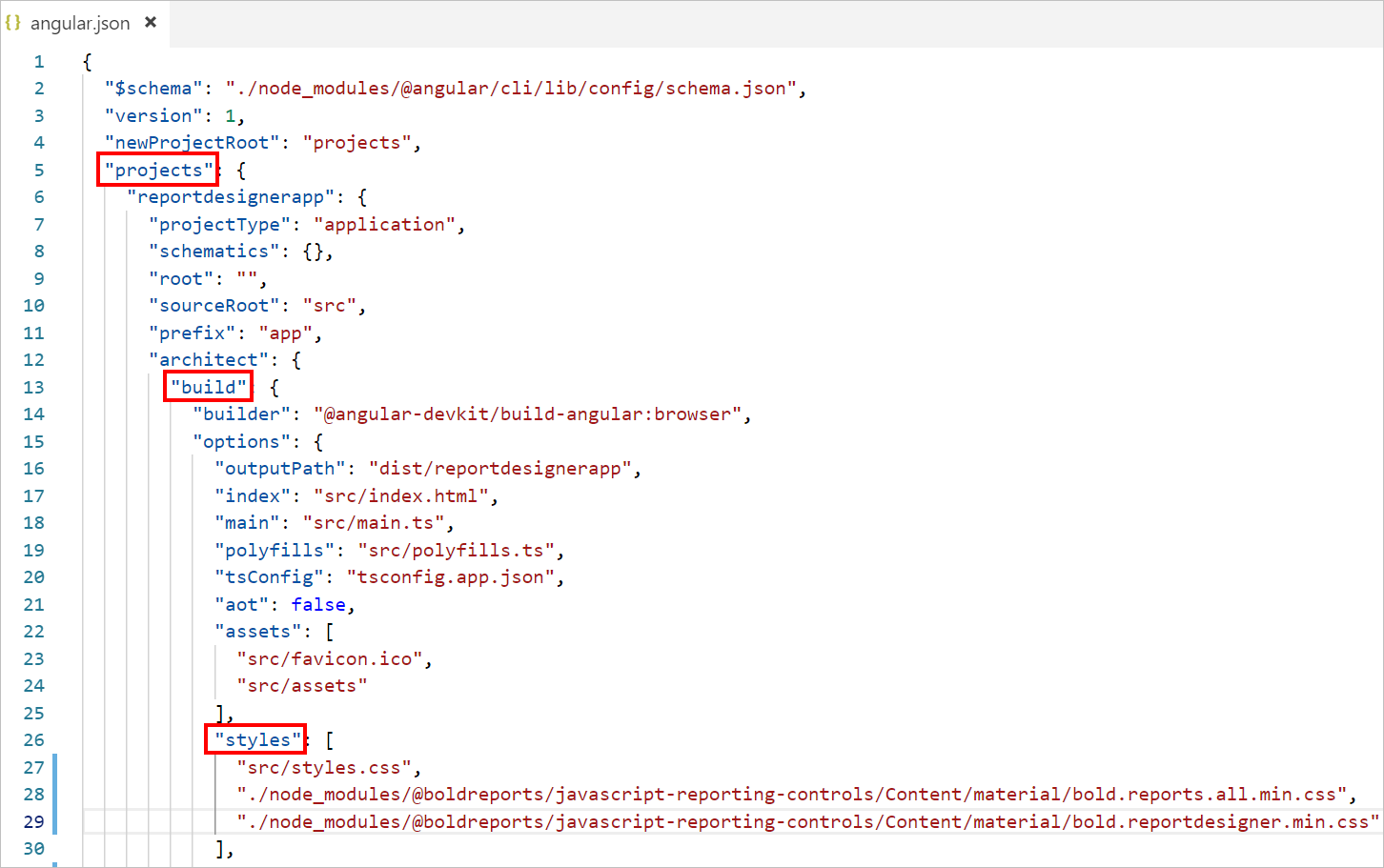
{
  "$schema": "./node_modules/@angular/cli/lib/config/schema.json",
  "version": 1,
  "newProjectRoot": "projects",
  "projects": {
    "reportdesignerapp": {
      "root": "",
      "sourceRoot": "src",
      "projectType": "application",
      "prefix": "app",
      "schematics": {},
      "architect": {
        "build": {
          "builder": "@angular-devkit/build-angular:browser",
          "options": {
            "outputPath": "dist/reportdesignerapp",
            "index": "src/index.html",
            "main": "src/main.ts",
            "polyfills": "src/polyfills.ts",
            "tsConfig": "src/tsconfig.app.json",
            "assets": [
              "src/favicon.ico",
              "src/assets"
            ],
            "styles": [
              "src/styles.css",
            "./node_modules/@boldreports/javascript-reporting-controls/Content/material/bold.reports.all.min.css",
           "./node_modules/@boldreports/javascript-reporting-controls/Content/material/bold.reportdesigner.min.css"
            ],
            "scripts": [],
            "es5BrowserSupport": true
          },
      . . .
      . . .
      }
In the above code snippet the
materialtheme is used. You can modify the theme based on your application, refer the following syntax:./node_modules/@boldreports/javascript-reporting-controls/Content/[theme-name]/bold.reports.all.min.cssand./node_modules/@boldreports/javascript-reporting-controls/Content/[theme-name]/bold.reportdesigner.min.css
If you are using Angular CLI version 10.x.x, you will get a warning like
CommonJS or AMD dependencies can cause optimization bailouts. To resolve this warning, you need to register the Bold Report JavaScript files underallowedCommonJsDependenciesarray inangular.jsonfile.
. . .
        "build": {
          "builder": "@angular-devkit/build-angular:browser",
          "options": {
            "allowedCommonJsDependencies": [
              "@boldreports/javascript-reporting-controls/Scripts/bold.report-viewer.min",
              "@boldreports/javascript-reporting-controls/Scripts/bold.report-designer.min",
              "@boldreports/javascript-reporting-controls/Scripts/data-visualization/ej.bulletgraph.min",
              "@boldreports/javascript-reporting-controls/Scripts/data-visualization/ej.chart.min"
            ],
            . . .
            . . .
Adding code mirror reference
Report Designer requires the code mirror scripts and styles to edit the SQL queries and Visual Basic code functions with syntax highlighter.
-
Run the below command, to install the code mirror dependencies.
npm install codemirror@5.45.0 -
Open the
angular.jsonfile from your application’s root directory and Refer the code mirror script and styles under thescriptsandstylesnode ofprojectssection as in the below code example.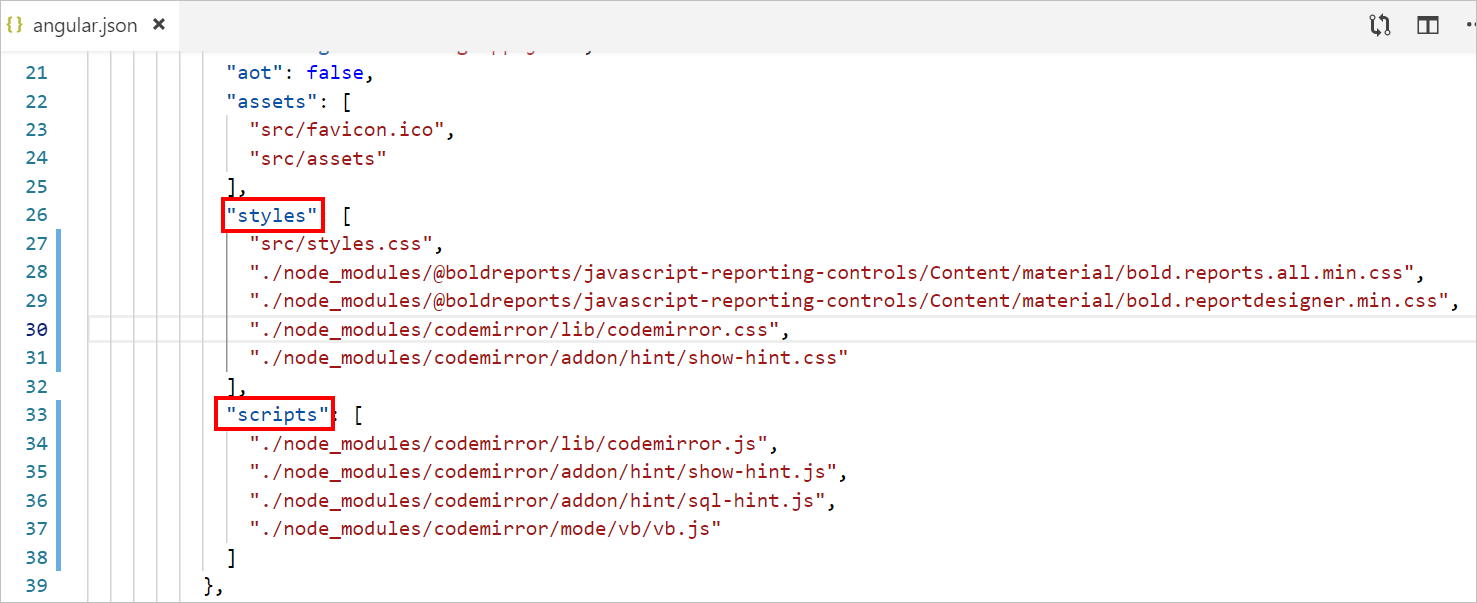
{
  "$schema": "./node_modules/@angular/cli/lib/config/schema.json",
  "version": 1,
  "newProjectRoot": "projects",
  "projects": {
    "reportdesignerapp": {
      "root": "",
      "sourceRoot": "src",
      "projectType": "application",
      "prefix": "app",
      "schematics": {},
      "architect": {
        "build": {
          "builder": "@angular-devkit/build-angular:browser",
          "options": {
            "outputPath": "dist/reportdesignerapp",
            "index": "src/index.html",
            "main": "src/main.ts",
            "polyfills": "src/polyfills.ts",
            "tsConfig": "src/tsconfig.app.json",
            "assets": [
              "src/favicon.ico",
              "src/assets"
            ],
            "styles": [
              "src/styles.css",
            "./node_modules/@boldreports/javascript-reporting-controls/Content/material/bold.reports.all.min.css",
            "./node_modules/@boldreports/javascript-reporting-controls/Content/material/bold.reportdesigner.min.css",
            "./node_modules/codemirror/lib/codemirror.css",
            "./node_modules/codemirror/addon/hint/show-hint.css"
            ],
            "scripts": [
              "./node_modules/codemirror/lib/codemirror.js",
              "./node_modules/codemirror/addon/hint/show-hint.js",
              "./node_modules/codemirror/addon/hint/sql-hint.js",
              "./node_modules/codemirror/mode/vb/vb.js"
            ],
            "es5BrowserSupport": true
          },
      . . .
      . . .
      }
Adding Report Designer component
To add the classic web Report Designer component refer the following steps:
-
Open the
src/app/app.module.tsfile. -
You can replace the following code snippet in the
app.module.tsfile.import { BrowserModule } from '@angular/platform-browser'; import { NgModule } from '@angular/core'; import { BoldReportDesignerModule } from '@boldreports/angular-reporting-components'; import { AppRoutingModule } from './app-routing.module'; import { AppComponent } from './app.component'; // Report viewer import '@boldreports/javascript-reporting-controls/Scripts/bold.report-viewer.min'; // Report Designer import '@boldreports/javascript-reporting-controls/Scripts/bold.report-designer.min'; // data-visualization import '@boldreports/javascript-reporting-controls/Scripts/data-visualization/ej.bulletgraph.min'; import '@boldreports/javascript-reporting-controls/Scripts/data-visualization/ej.chart.min'; @NgModule({ declarations: [ AppComponent ], imports: [ BrowserModule, BoldReportDesignerModule ], providers: [], bootstrap: [AppComponent] }) export class AppModule { } -
Open the
index.htmlfile and refer the following scripts in<head>tag.<!-- Data-Visualization --> <script src="https://cdn.boldreports.com/14.1.12/scripts/common/ej2-base.min.js"></script> <script src="https://cdn.boldreports.com/14.1.12/scripts/common/ej2-data.min.js"></script> <script src="https://cdn.boldreports.com/14.1.12/scripts/common/ej2-pdf-export.min.js"></script> <script src="https://cdn.boldreports.com/14.1.12/scripts/common/ej2-svg-base.min.js"></script> <script src="https://cdn.boldreports.com/14.1.12/scripts/data-visualization/ej2-lineargauge.min.js"></script> <script src="https://cdn.boldreports.com/14.1.12/scripts/data-visualization/ej2-circulargauge.min.js"></script> <script src="https://cdn.boldreports.com/14.1.12/scripts/data-visualization/ej2-maps.min.js"></script> -
Open the
src/app/app.component.htmlfile and initialize the web Report Designer. -
You can replace the following code snippet in the
app.component.htmlfile.<bold-reportdesigner id="designer" style="position: absolute;height: 550px; width: 1250px;"> </bold-reportdesigner> -
Open the
src/app/app.component.tsand replace the below code example.import { Component } from '@angular/core'; @Component({ selector: 'app-root', templateUrl: './app.component.html', styleUrls: ['./app.component.css'] }) export class AppComponent { title = 'reportdesignerapp'; public serviceUrl: string; constructor() { // Initialize the Report Designer properties here. } }If you have faced the issue
'ej' is not definedafter the above configuration in Angular CLI latest version 7, Please refer the below code snippet in your application where you have rendered Bold Reporting Components(model file) to resolve the issue.`/// <reference types="reports.all" />`
Create Web API service
The web Report Designer requires a Web API service to process the data and file actions. You can skip this step and use our online Web API service at https://demos.boldreports.com/services/api/ReportingAPI to create, edit, and browse reports or you must create any one of the following Web API service.
Set Web API service URL
To set Web API service, open the app.component.ts file and add the code snippet as in the constructor.
import { Component } from '@angular/core';

@Component({
  selector: 'app-root',
  templateUrl: './app.component.html',
  styleUrls: ['./app.component.css']
})
export class AppComponent {
  title = 'reportdesignerapp';
  public serviceUrl: string;

    constructor() {
        this.serviceUrl = "https://demos.boldreports.com/services/api/ReportingAPI";
    }
}
Open the app.component.html to set ServiceUrl property of classic web Report Designer as in the following code snippet.
<bold-reportdesigner id="designer" [serviceUrl] = "serviceUrl" style="position: absolute;height: 550px; width: 1250px;">
</bold-reportdesigner>
Serve the application
-
Go to the workspace folder (reportdesignerapp).
-
Launch the server by using the CLI command ng serve, with the —open option.
ng serve --open -
The
ng servecommand launches the server and the--openoption automatically opens your browser tohttp://localhost:4200/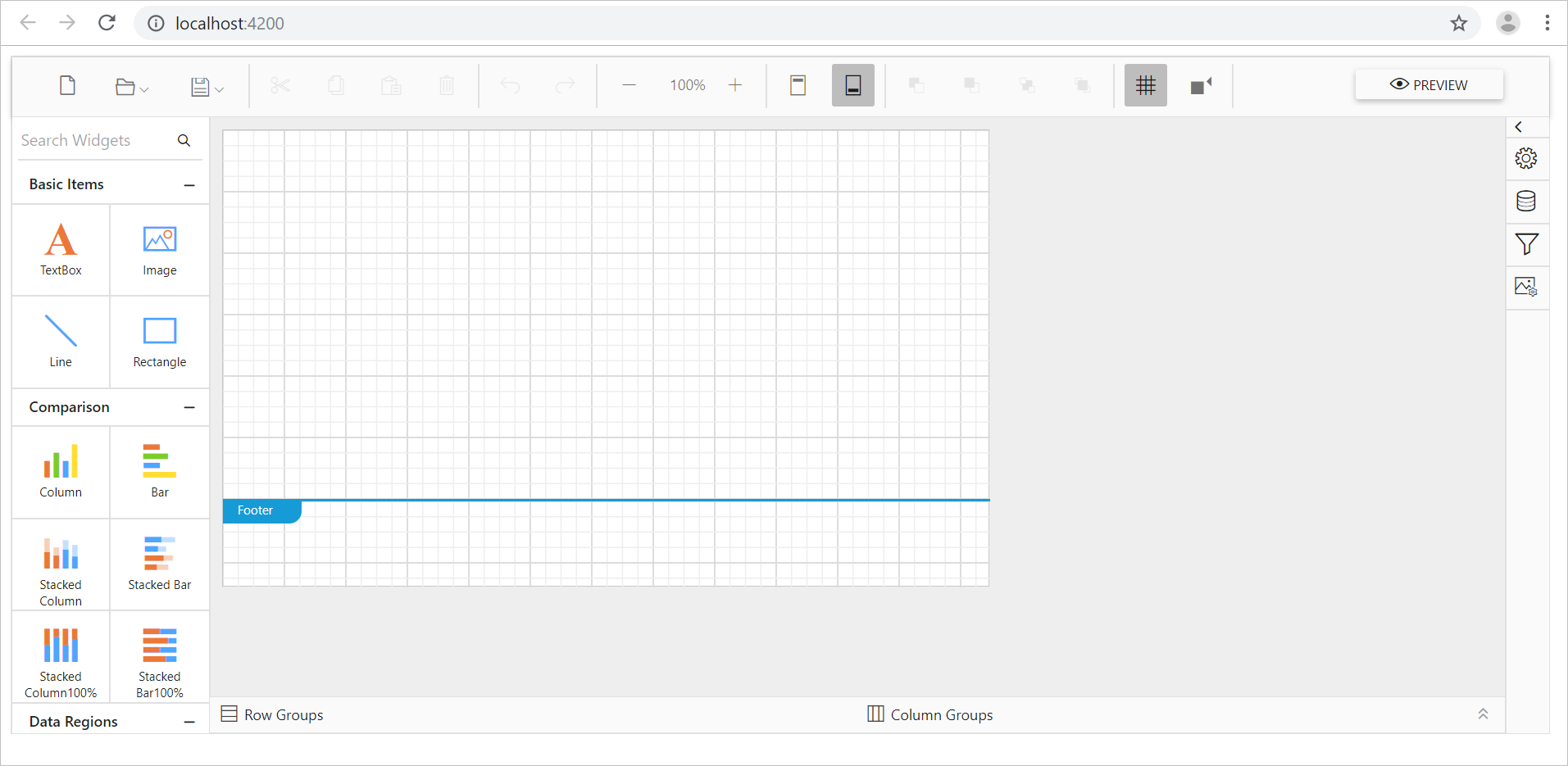
-
Click view option to view the demo.
import { Component } from '@angular/core';

@Component({
  selector: 'ej-sample',
  templateUrl: './app.component.html',
  styleUrls: ['./app.component.css']
})
export class AppComponent {
  public serviceUrl: string;

  constructor() {
    this.serviceUrl = 'https://demos.boldreports.com/services/api/ReportingAPI';
  }
}<bold-reportdesigner id="designer" [serviceUrl]="serviceUrl" >
</bold-reportdesigner>import { NgModule } from '@angular/core';
import { BrowserModule } from '@angular/platform-browser';
import { BoldReportsModule } from '@boldreports/angular-reporting-components';
import { AppComponent } from './app.component';
// data-visualization
import '@boldreports/javascript-reporting-controls/Scripts/v2.0/common/bold.reports.common.min';
import '@boldreports/javascript-reporting-controls/Scripts/v2.0/common/bold.reports.widgets.min';
//Reports
import '@boldreports/javascript-reporting-controls/Scripts/v2.0/bold.report-viewer.min';
import '@boldreports/javascript-reporting-controls/Scripts/v2.0/bold.report-designer.min';
// code-mirror
import 'codemirror/lib/codemirror';
import 'codemirror/addon/hint/show-hint';
import 'codemirror/addon/hint/sql-hint';
import 'codemirror/mode/sql/sql';
import 'codemirror/mode/vb/vb';
import * as CodeMirror from 'codemirror';
const codemirror = 'CodeMirror';
window[codemirror] = CodeMirror;
@NgModule({
declarations: [
AppComponent
],
imports: [
BrowserModule,
BoldReportsModule
],
providers: [],
bootstrap: [AppComponent]
})
export class AppModule { }Note: You can refer to our feature tour page for the Angular Report Designer to see its innovative features. Additionally, you can view our Angular Report Designer examples which demonstrate the rendering of SSRS RDLC and RDL reports.