Define query parameters
In query designer, the query parameter can be created in both design and query mode. The following sections describes the steps to create query parameters in design and query mode.
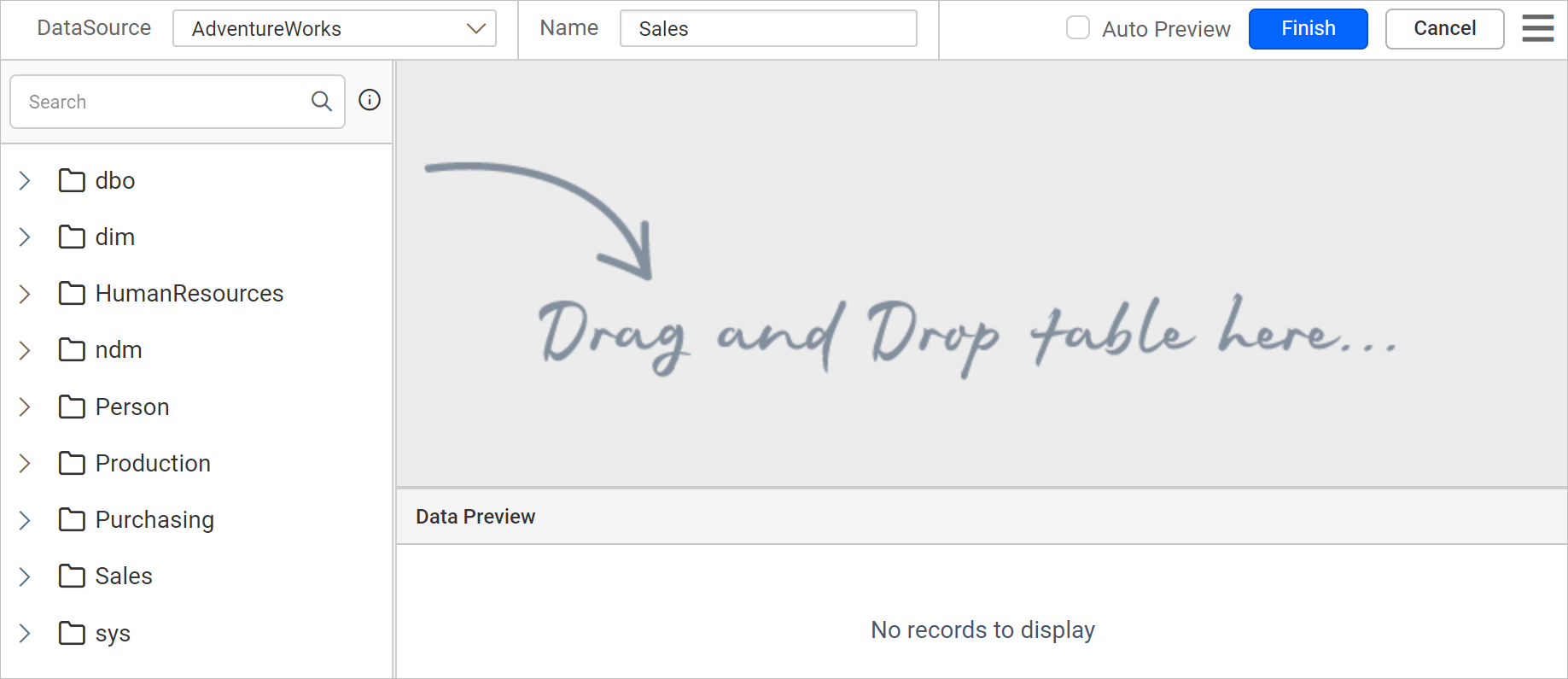
Refer Create Data section for better understanding with the following sections. The below image showcases the initial view of query designer.
Create query parameter in design mode
- Drag and drop a table into design area and open the
Query Filtersdialog, in the query designer.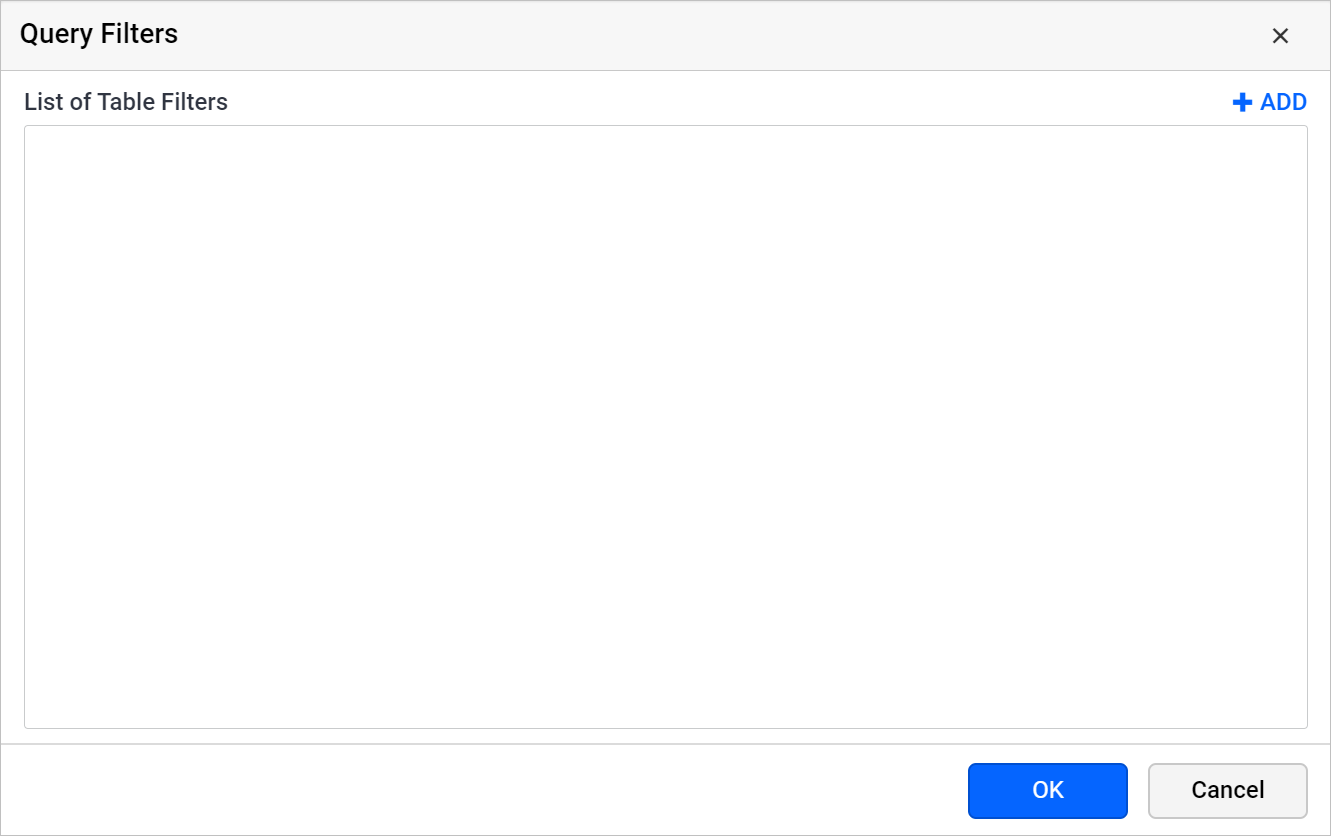
Refer Query filters section to learn more about query filters.
- Click on the Add icon, to create a new filter.
- Choose any dataset field in the first drop-down list.
- Choose any Operator in the second drop-down list.
- In the Value field, provide a value to filter the data.
- Select the checkbox next to the value filed, to create a new
query parameter. - Click on the
OKbutton.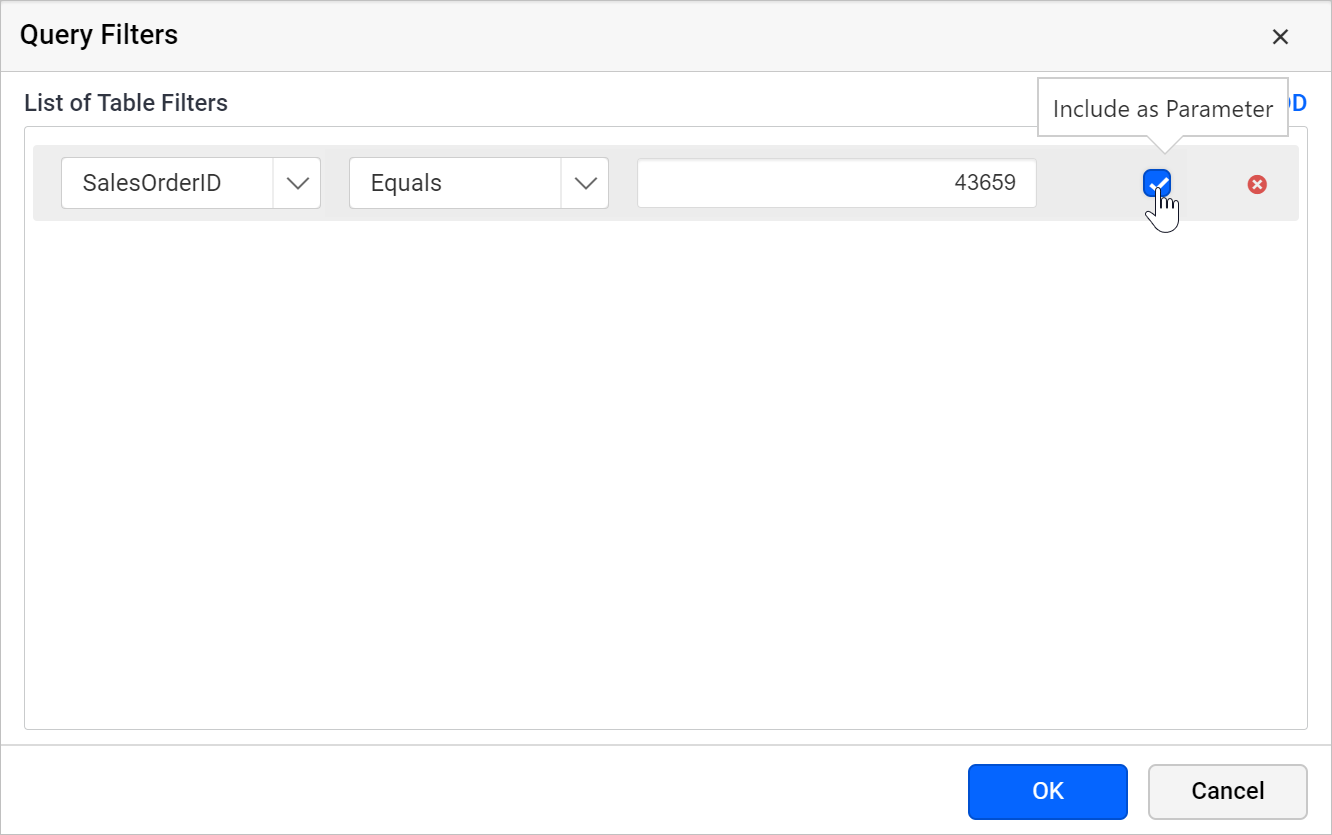
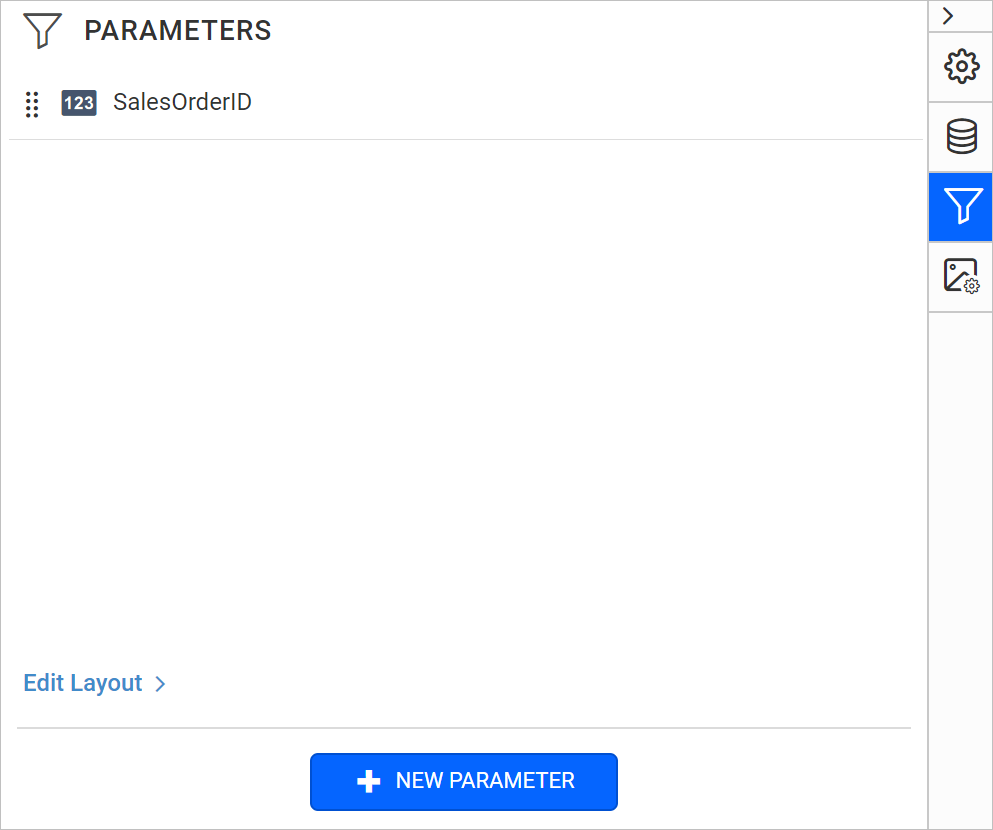
Once you save the dataset, an equivalent report parameters will be created under the PARAMETERS panel like below.
Create query parameter in code mode
- Click on the
switcherin query designer toolbar, to switch to the query mode.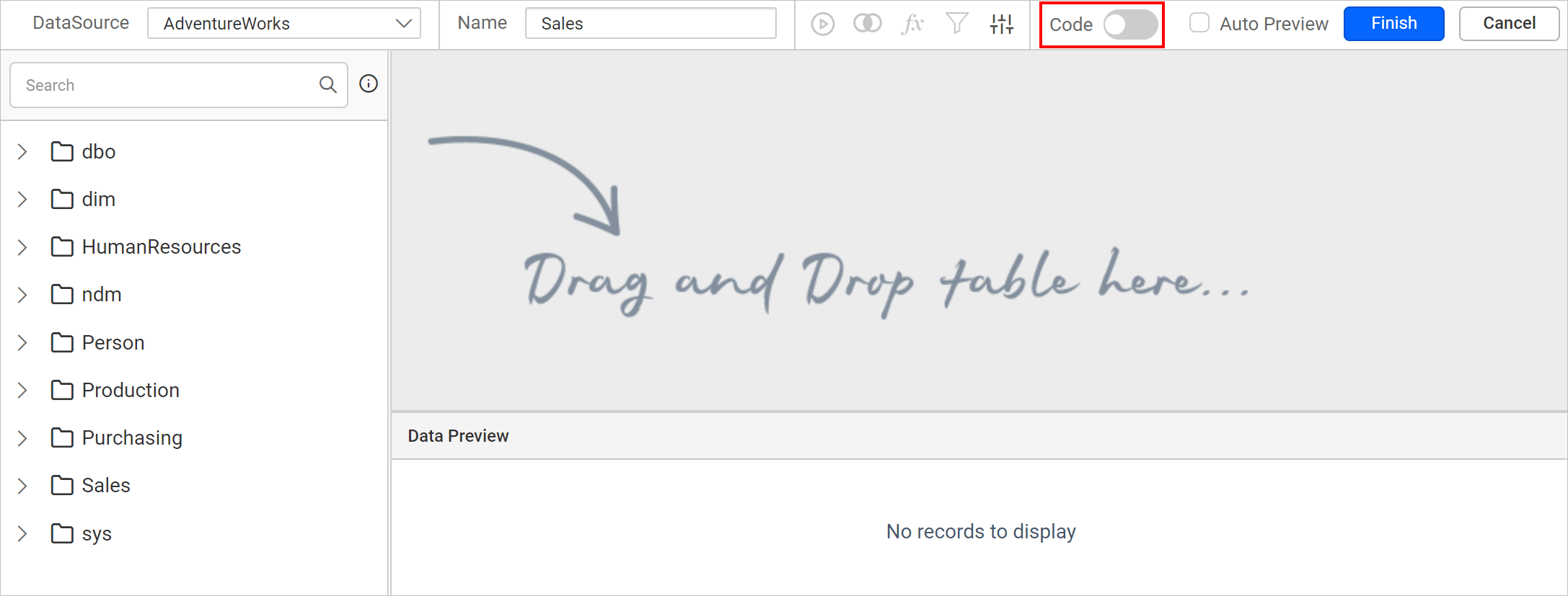
- Specify the query in the text area, the query specified in the below snap returns the list of data from the
AdventureWorksdatabase,SalesOrderDetailtable for theSalesschema.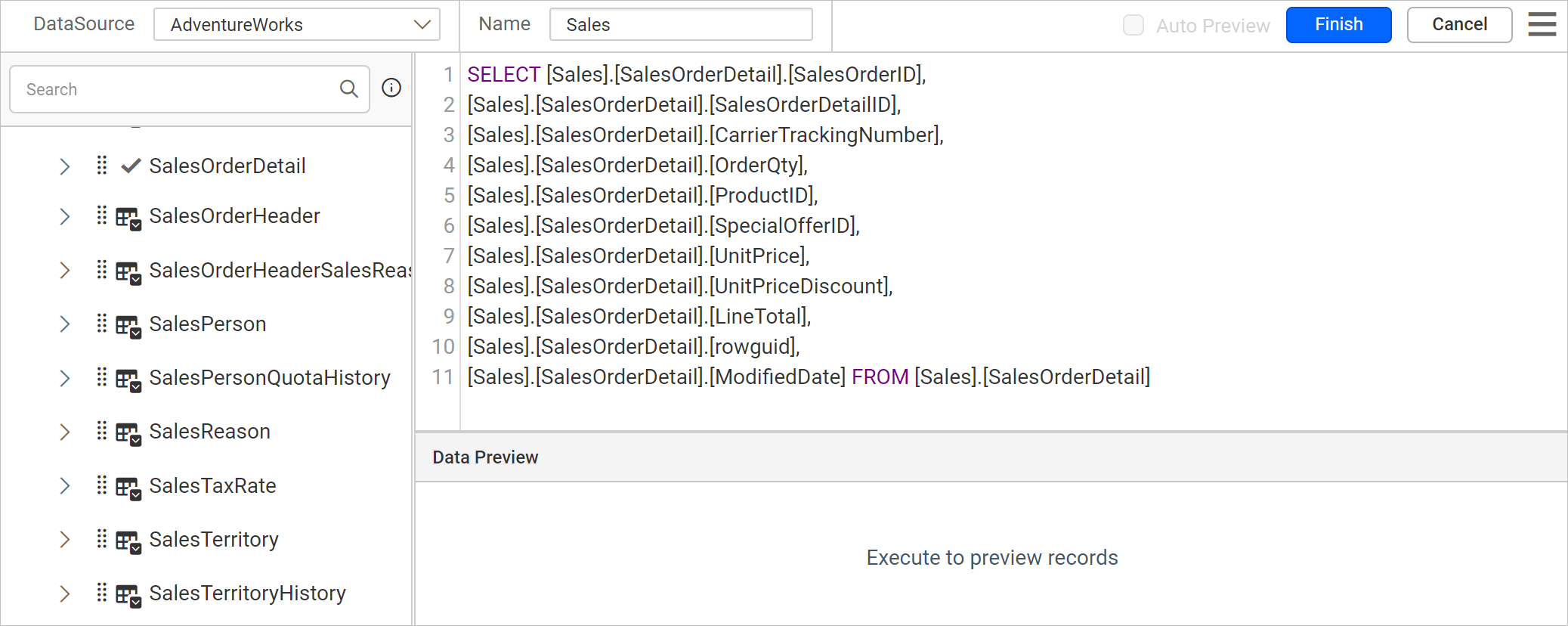
- Now, add the following
WHEREclause at the end of the query to create a query parameter.WHERE (([Sales].[SalesOrderDetail].[SalesOrderID] = @SalesOrderID))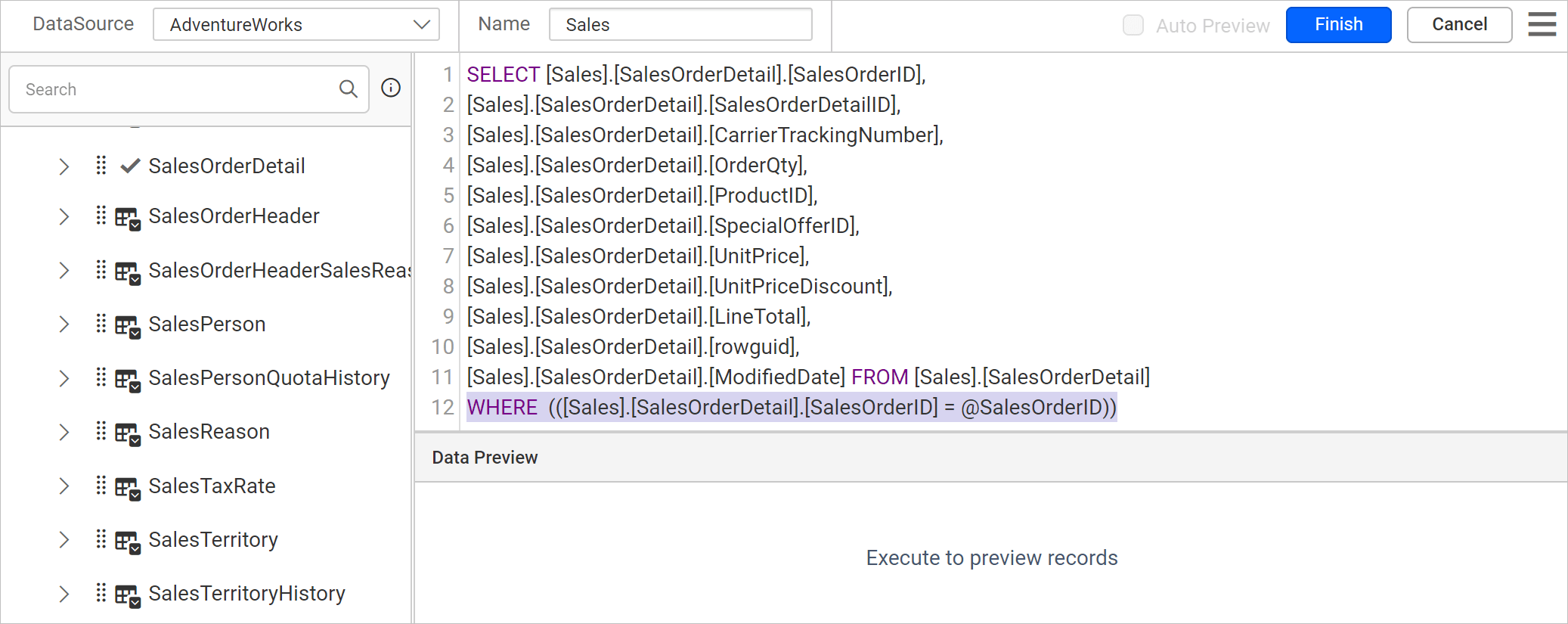
- Click on the
Finishbutton, now theParametersdialog opens.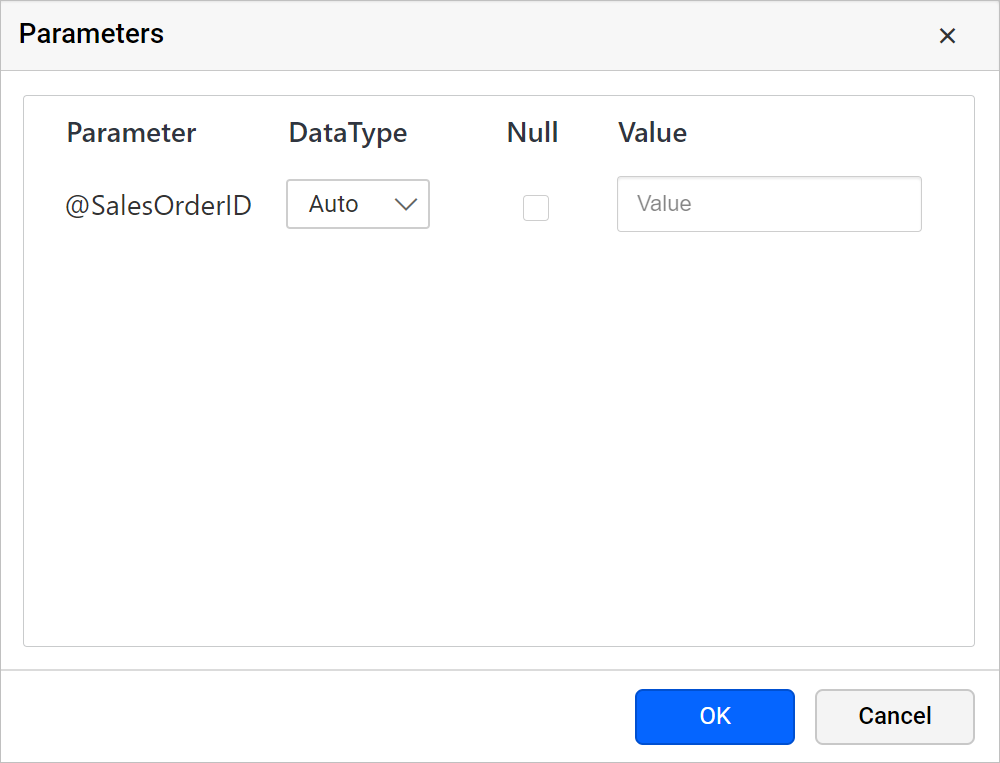
- Enter the value for parameter in the value field and click
OK.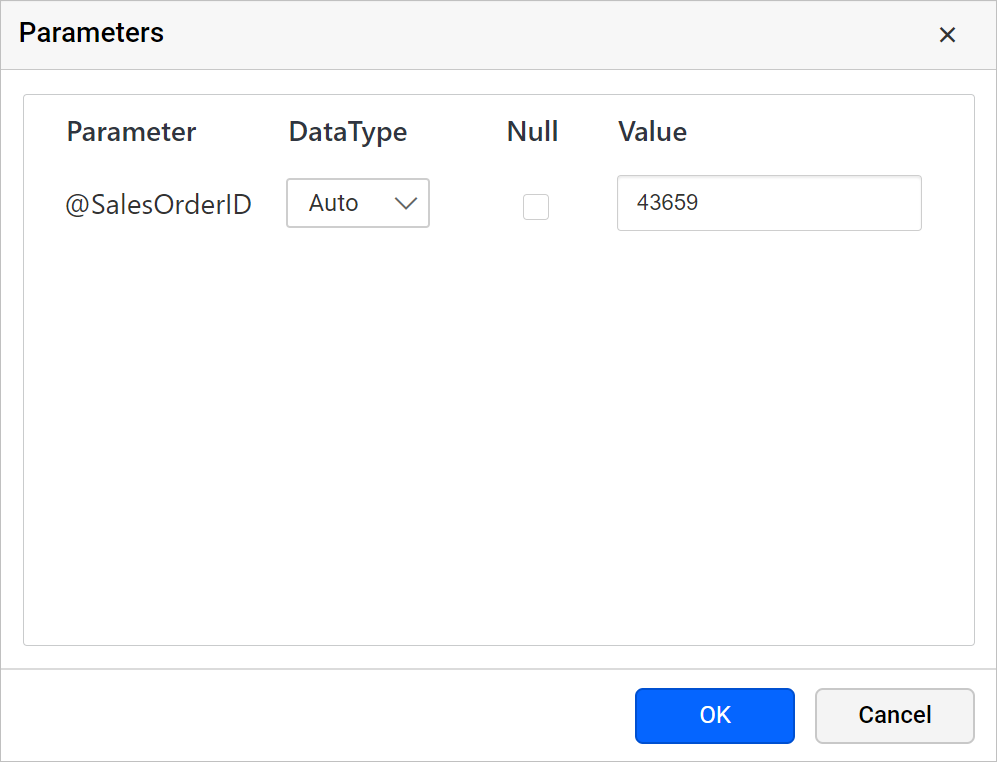
Once you save the dataset, an equivalent report parameters will be created under the PARAMETERS panel like below.