Add an electronic signature to an RDL report in Bold Reports®
The electronic signature item in the Bold Reports® Web Report Designer lets users graphically sign a report by drawing a signature directly within the report interface. The item is intended solely for visual representation of a person’s signature on reports or documents.
How do I design an invoice report with an electronic signature?
You add an electronic signature to the Invoice Details report in the Web Report Designer by downloading the sample, placing the signature item, and drawing the signature. The steps below walk through each part.
How do I get the invoice report?
You can download the invoice sample report (RDL) to follow along in the Bold Reports® Web Report Designer.
Add the electronic signature item to the report
You add the signature item in the Web Report Designer by dragging it onto the report and drawing the signature in the signature dialog.
- Open the downloaded
invoicereport.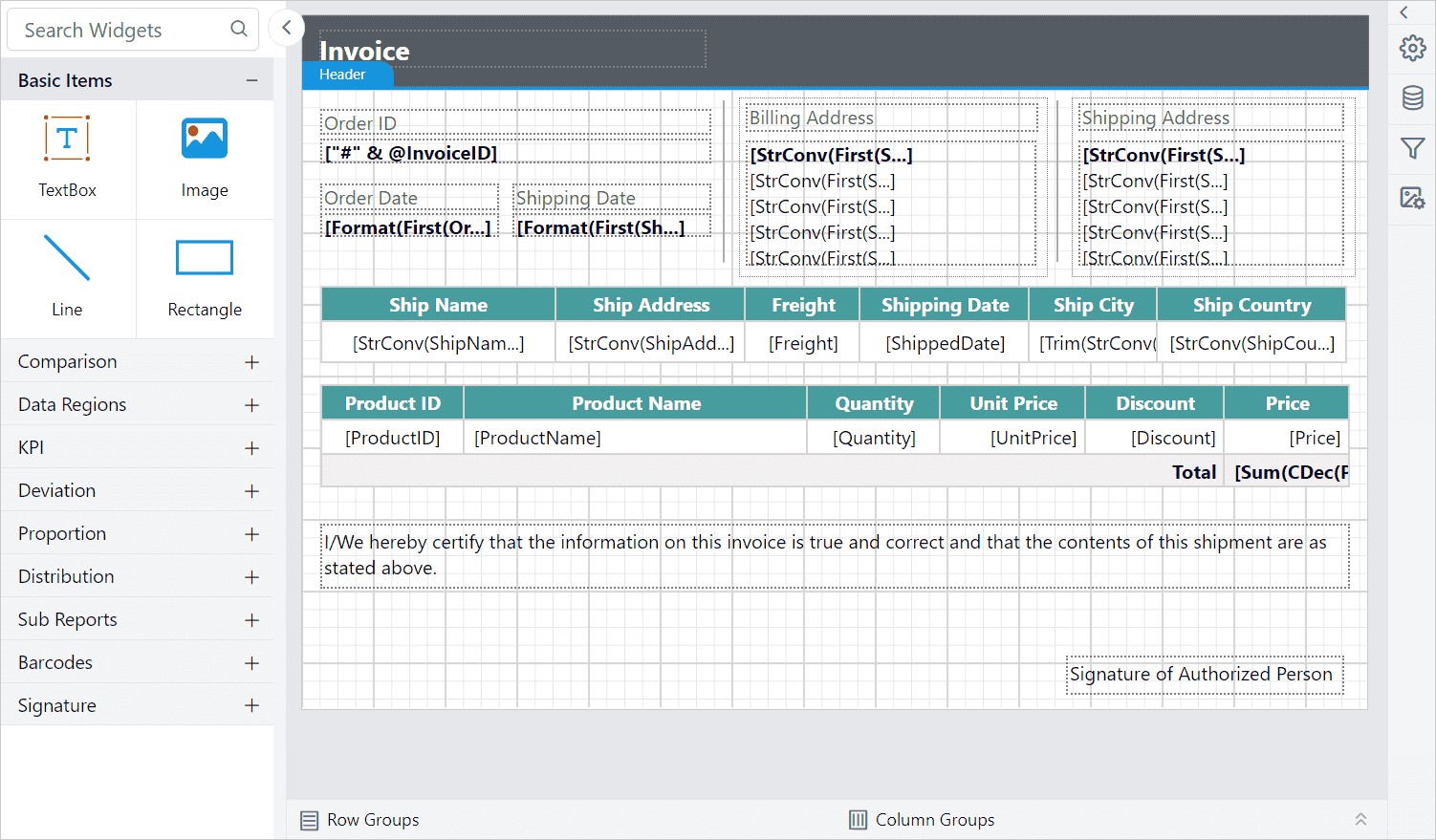
- Drag and drop the signature report item into the required area of the report.
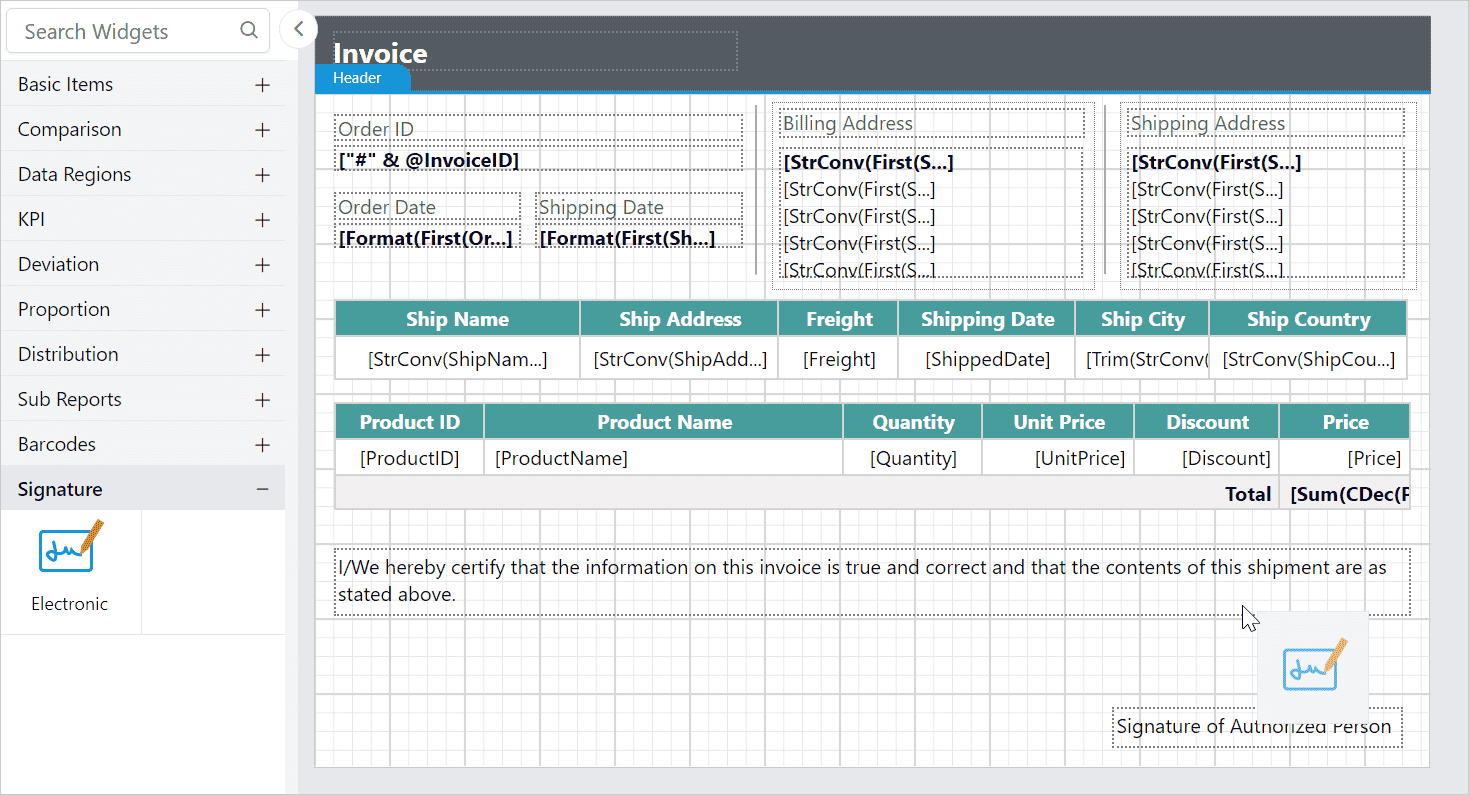
- Check that the item properties are now listed in the properties panel. Click the
Draw...button to open the signature dialog.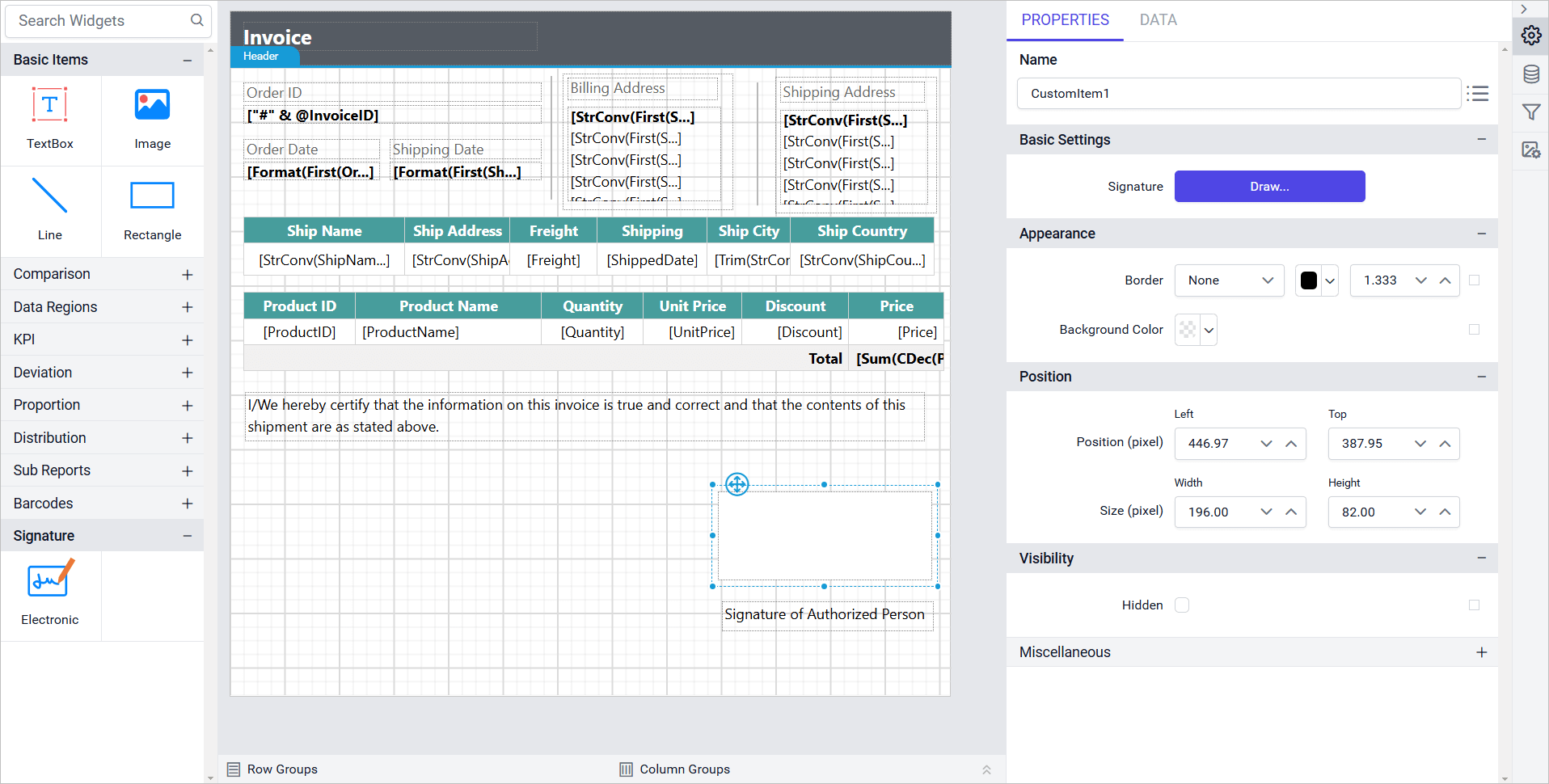
- Draw the signature using a mouse or touch input within the dialog. You can also:
Stroke width- Adjust the thickness of the signature lines.Stroke color- Change the color of the signature lines to enhance visibility and match the design of your document.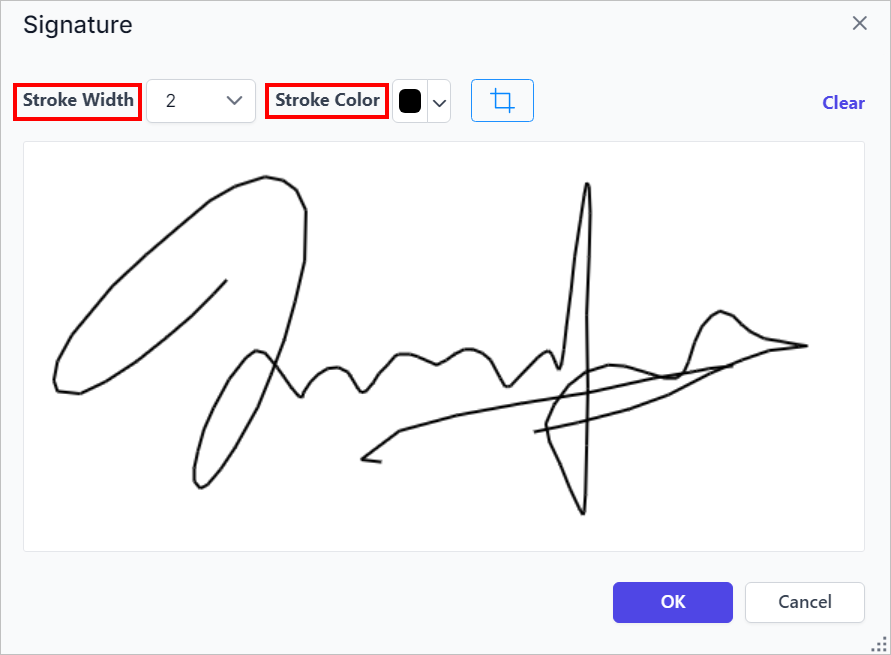
- Click the
Cropbutton to enable cropping and fine-tune the visible portion of the signature.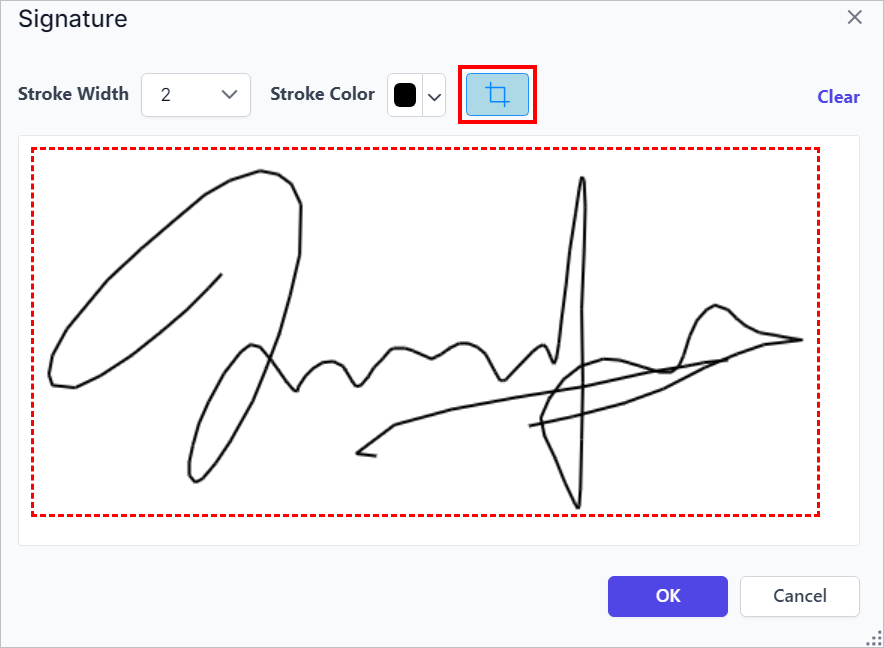
- Click
OK. The signature is updated on the canvas in the Designer Area. You can change the height and width of the signature.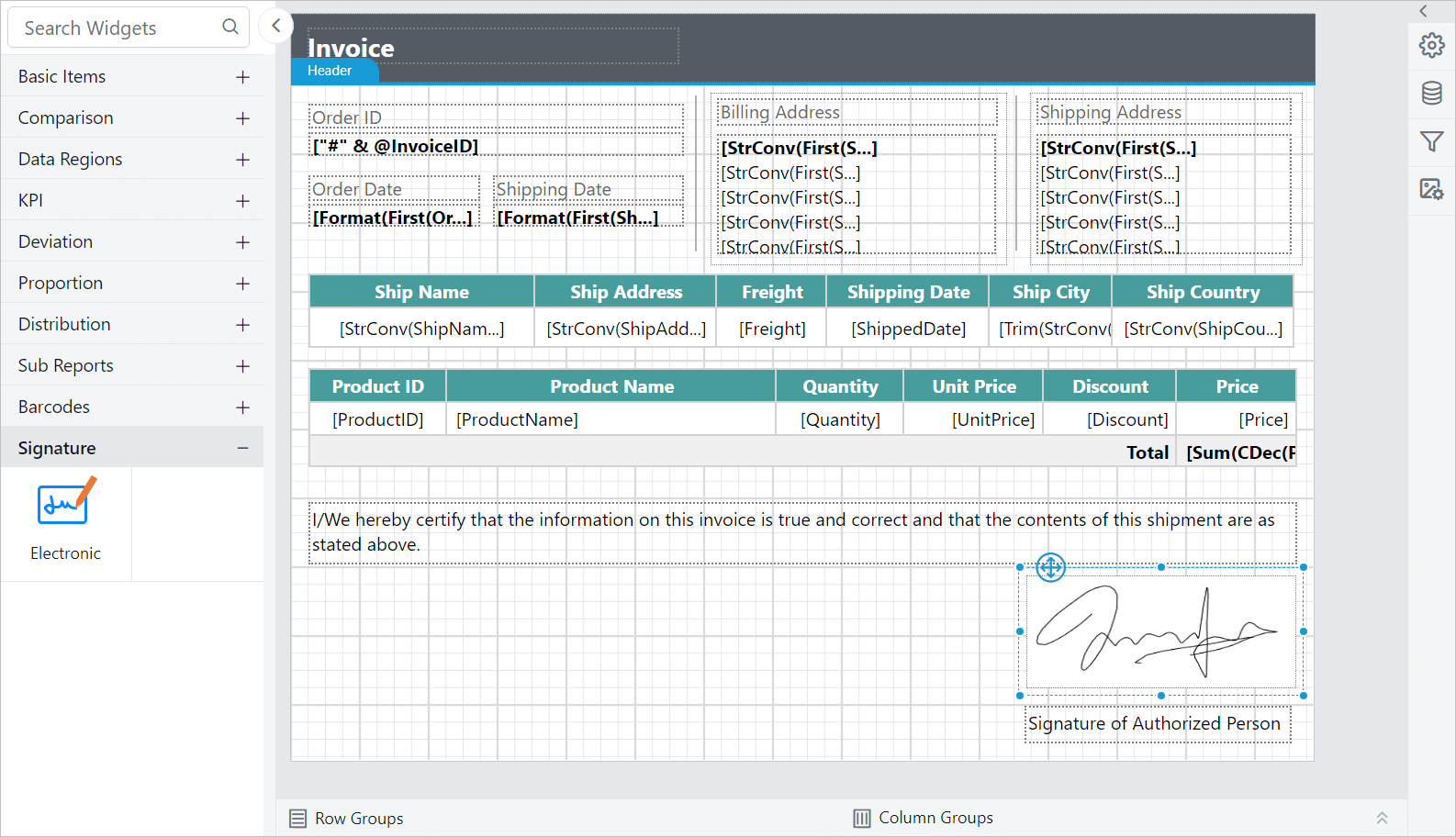
Note: The electronic signatures are intended to visually represent a person’s signature on a report. They do not include cryptographic security or digital certificate validation, and are not legally binding. This feature is best used for adding a personal touch or indicating informal approval within internal workflows.
Preview and edit signature
You can edit an electronic signature in the Bold Reports® Web Report Designer preview without returning to design mode.
- Click the
Previewbutton in the report header.
- Hover over the signature to see the
Editicon, and click it to open the Signature Dialog.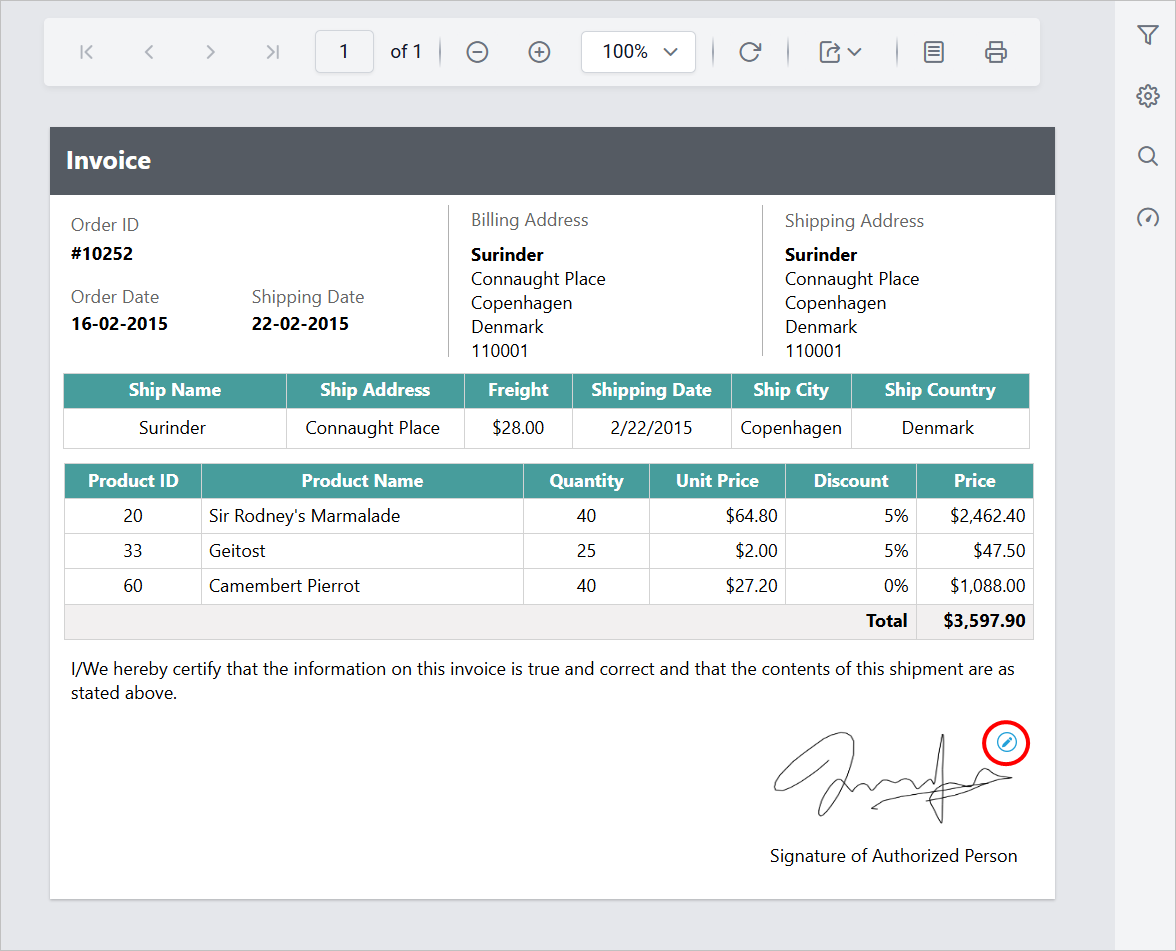
- If needed, clear the existing signature and draw a new one directly within the dialog.
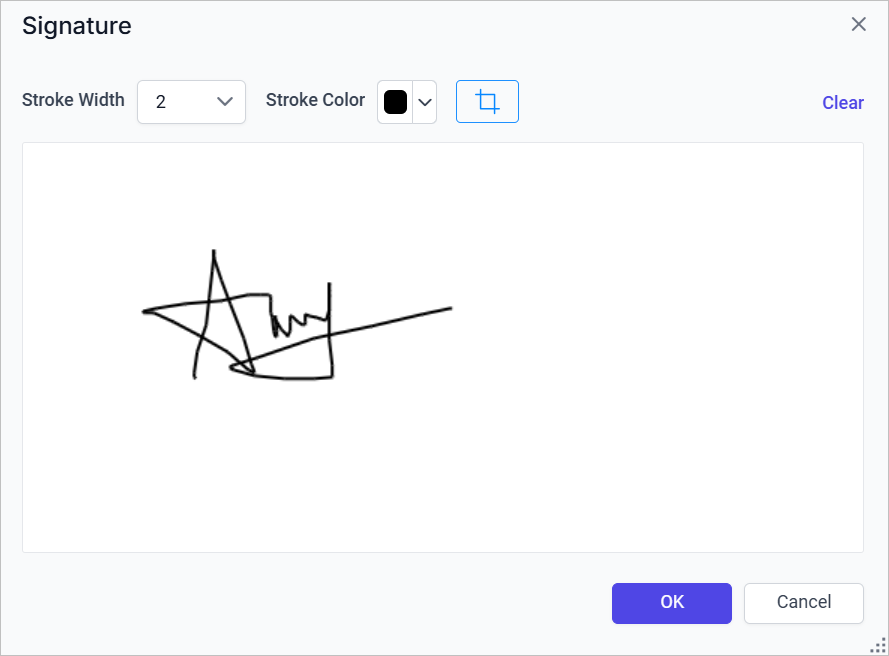
- Click
OK. The updated signature appears in the Preview Area.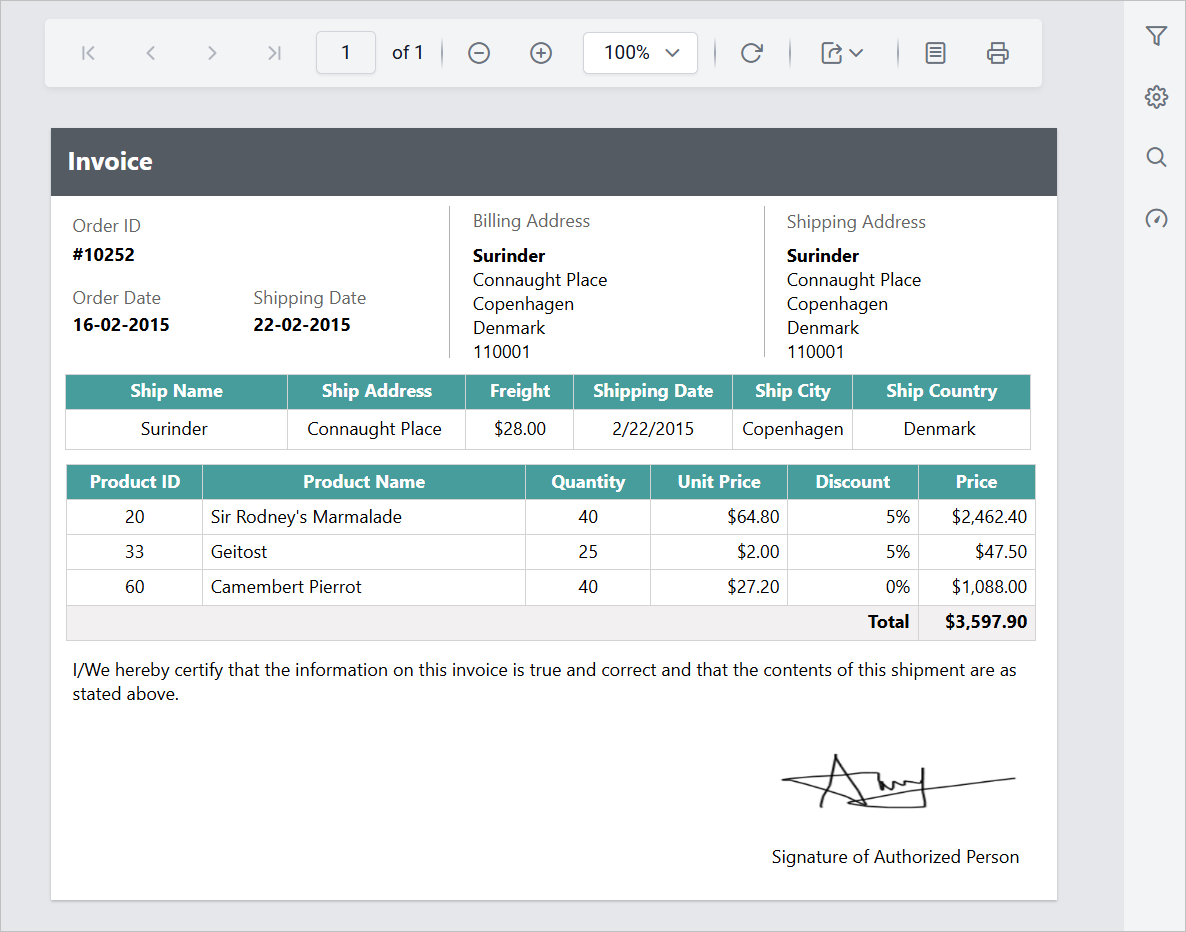
Is the signature included when I export the report?
Yes. When you export a report from the Bold Reports® Web Report Designer, the signature in the preview area is included in the exported report.
Download the electronic signature report design (RDL).
Frequently asked questions
Is the electronic signature legally binding?
No. Electronic signatures in Bold Reports® visually represent a person’s signature and do not include cryptographic security or digital certificate validation.
Can I change the stroke of the signature?
Yes. In the signature dialog, you can adjust the Stroke width and Stroke color of the signature lines.