Report variables in Bold Reports® Web Report Designer
The report variables option in Bold Reports® Web Report Designer adds custom variables to a report. A variable value can be static text or an expression. Create report variables when a report design needs a value or calculation many times. Each variable name must be unique in a report.
How do report variables work?
At run time, Bold Reports® calculates the value of a report variable once and keeps it until the report is processed again. You can set a report variable type to Read-only or Read-write. By default, it is set to Read-only type.
Read-only - Use this type to set a constant value for the variable, for example, to create a time stamp. Use the following syntax to call a report variable anywhere in the report, =Variables!MyVariable.Value.
Read-write - Use this type to assign a value dynamically to the variable at run time. When you set the type to read-write, the Writable property for that variable is set to true. Use the following syntax to set a value for a report variable, =Variables!MyVariable.SetValue(“test”).
Add a report variable
You add a report variable in Web Report Designer from the Code category of Report properties. For example, you may want to add the report printing time on each page. A direct expression in a text box prints a different time on each page. To solve this, create a report variable that holds the same time on each page.
- Click the Properties icon to open Report Properties. The report variables property is listed under Report properties.

- Find the report variable option under the Code category.
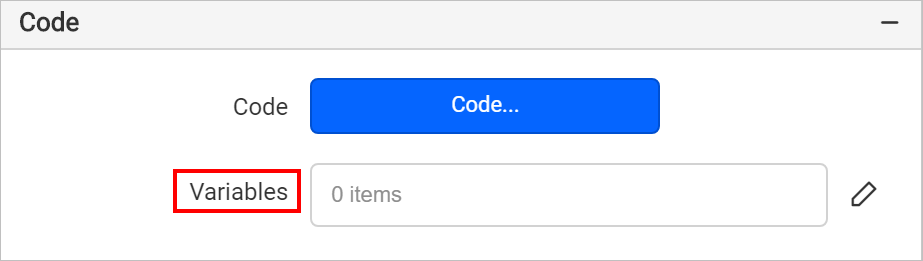
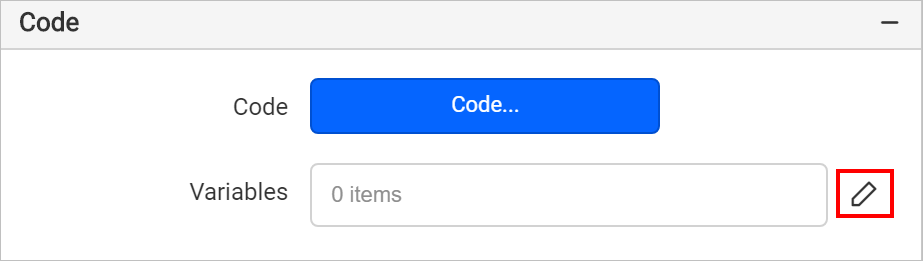
- Click the editor icon to open the Variables panel.
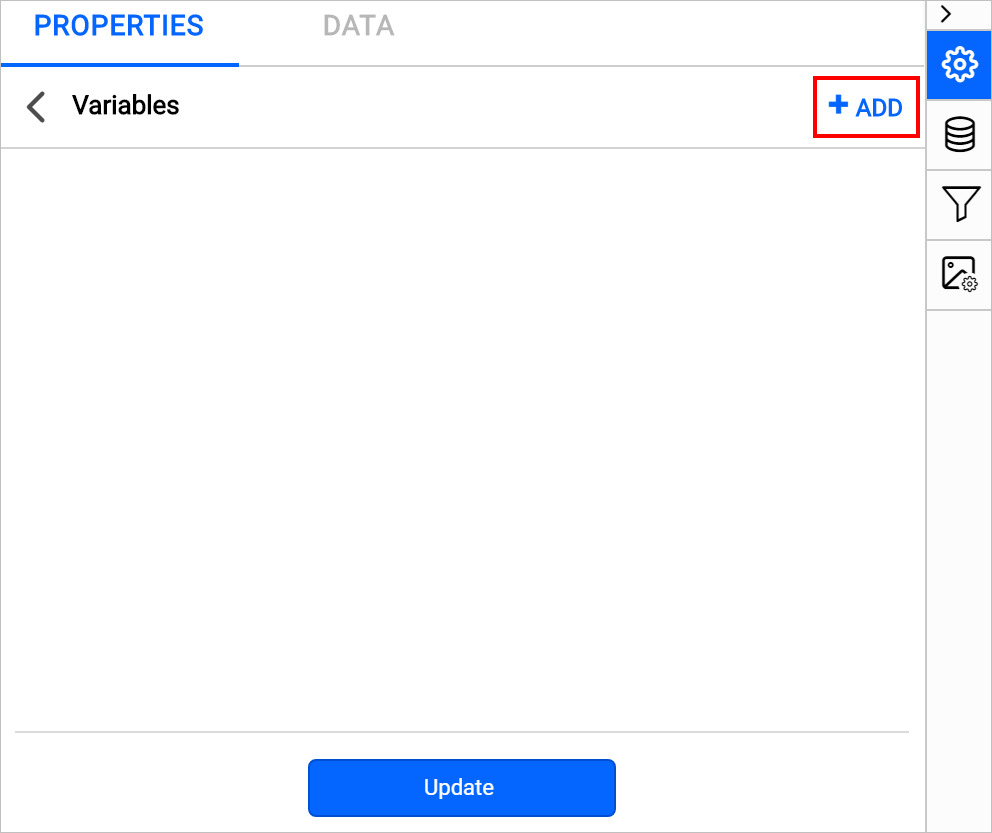
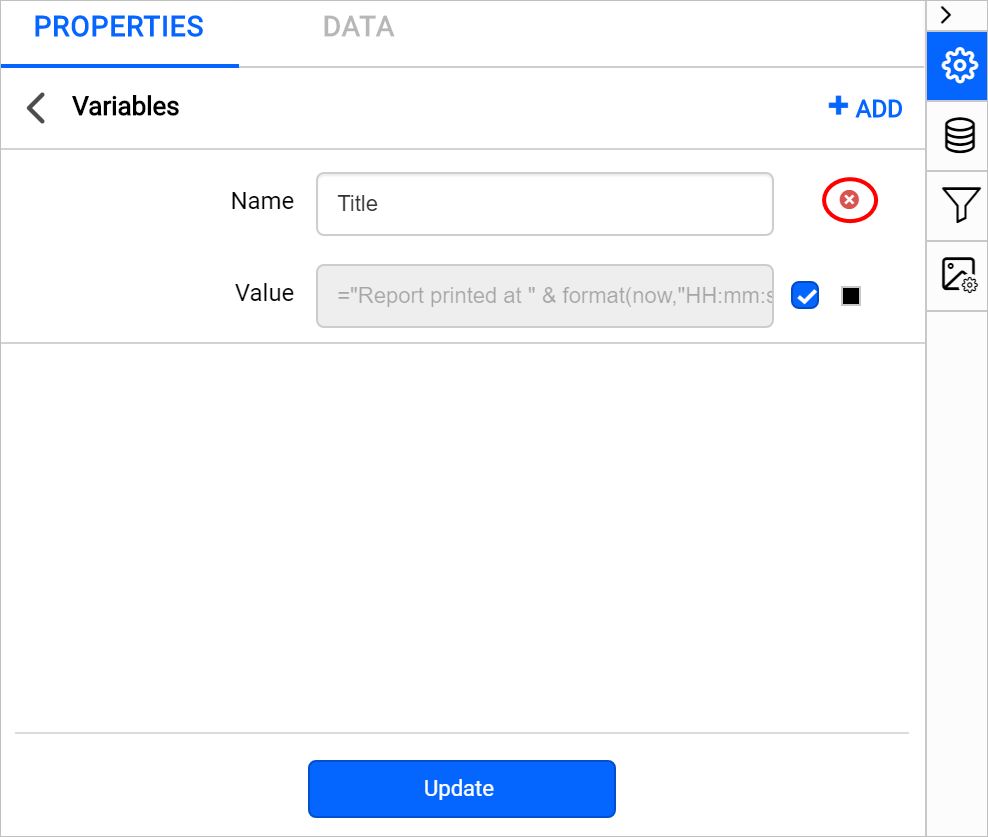
- Click the ADD icon in the top right corner to add a new variable field.
- Enter the name of the variable in the Name field.
Note: A name should start with an alphabet character and it should not contain spaces and special characters except underscore.
- In the value field, enter a direct value in the text field, or click the small square icon to enter an expression.
- Clear the checkbox to set the variable type to Read-write. By default, it is set to Read-only.
- Click the Update button in the variable panel to save the report variables state.
The following image shows a new report variable in the Variables panel.
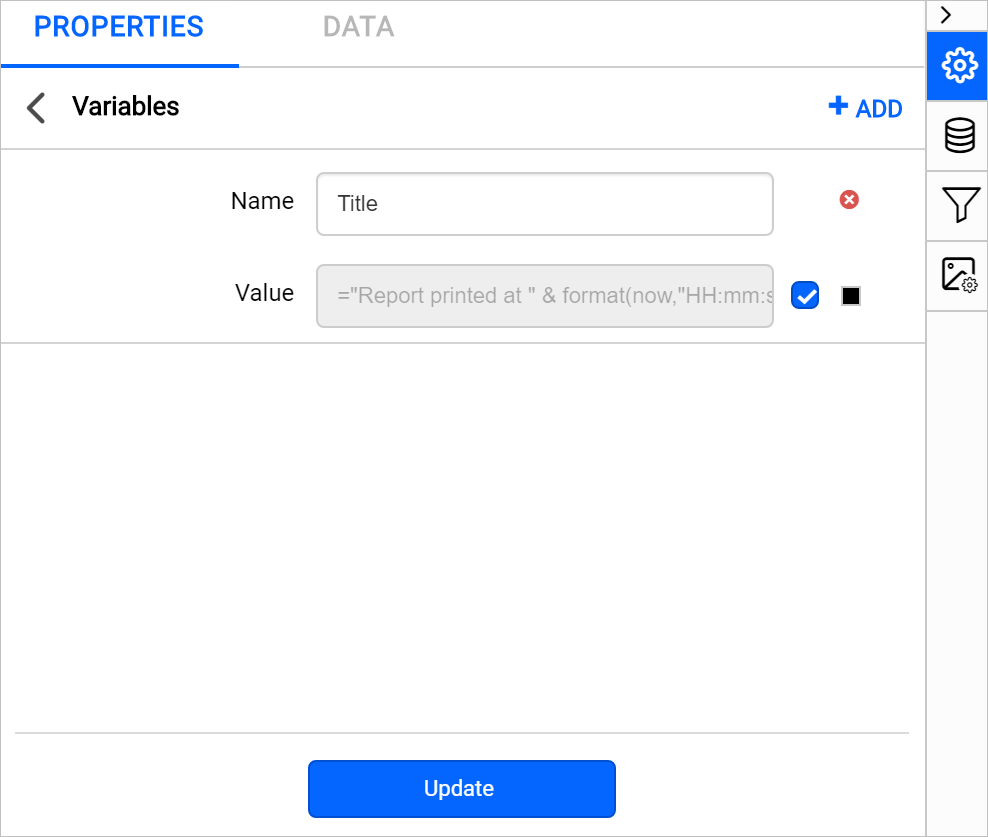
You can edit the variable name and value anytime in the report. Open the variables panel, edit the variables you need, and then click the update button.
Delete a report variable
You delete a report variable in Web Report Designer by clicking the delete icon on the right side of the variable field, and then clicking update.
Call report variable in a report
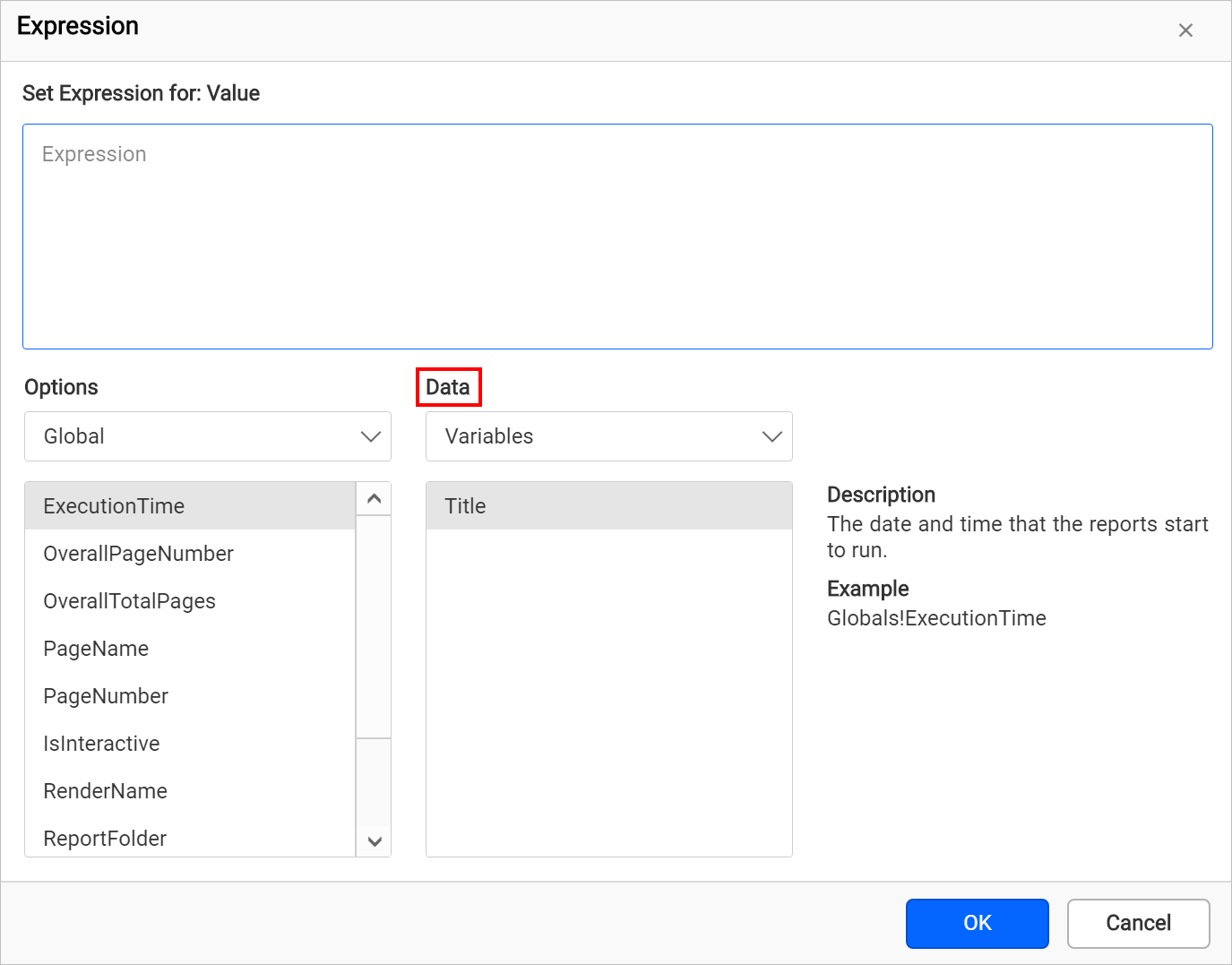
You call a report variable in Bold Reports® from any expression. The report variables available in the report are listed under the Data dropdown in Expression Builder.
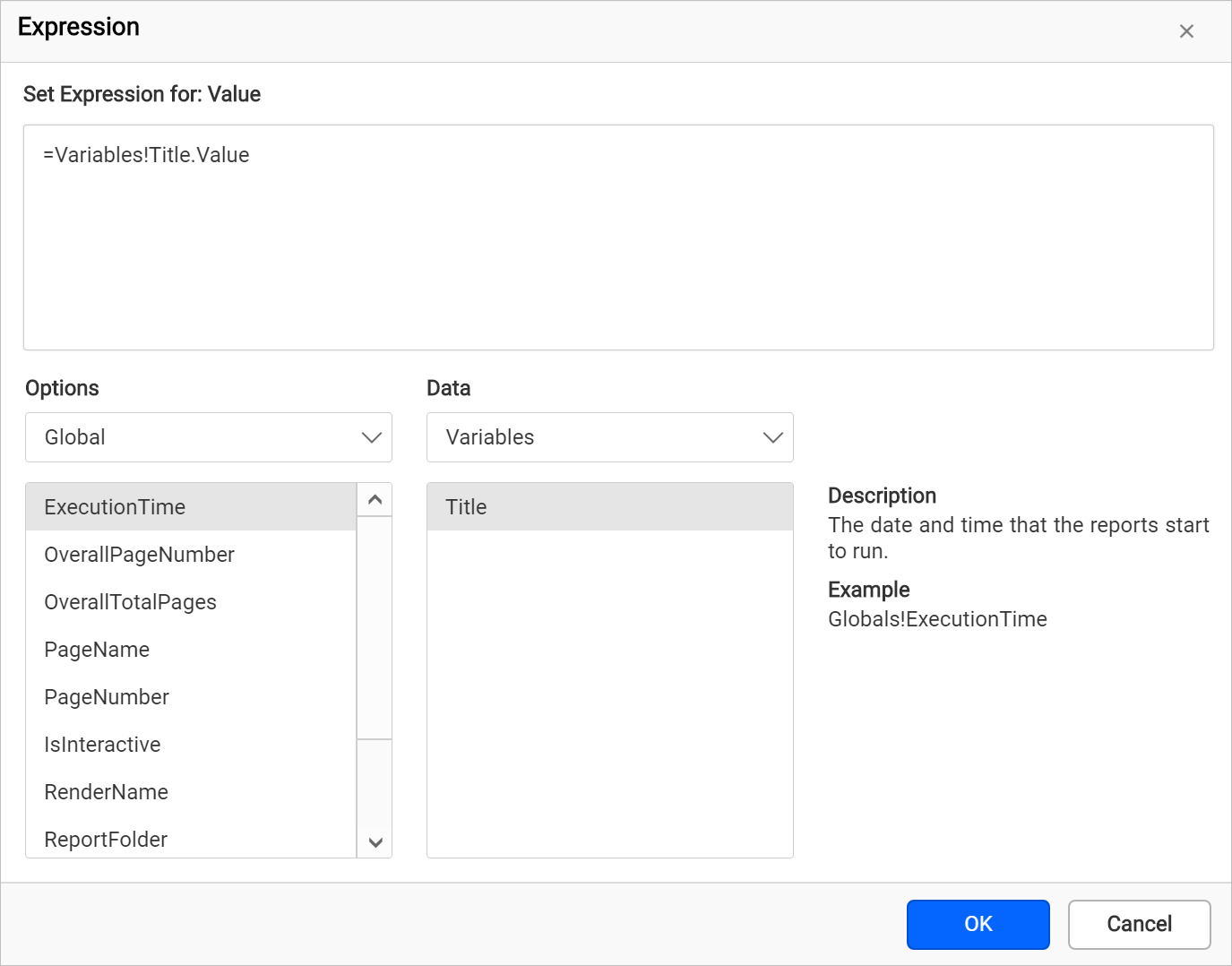
Double-click the variable name to insert it into the text editor, and then click OK.
Frequently asked questions
What is the default report variable type?
By default, a report variable is set to Read-only type.
How often is a report variable value calculated?
At run time, the value is calculated once and kept until the report is processed again.