Configure performance settings in Bold Reports® Web Report Designer
Performance Settings in Bold Reports® Web Report Designer apply best practices and optimized ways to render RDL and RDLC reports. These properties let Bold Reports® render millions of records in seconds. The associated properties are:
SmartRenderingPageCreationVirtualEvaluationAutoGrowTextFetchLimit
How do I open the Performance Settings panel?
You open Performance Settings in Web Report Designer from the Report Properties under the Basic Settings category.
- Click the outer grey surface of the report area, and then click the Properties icon to open the Report Properties.
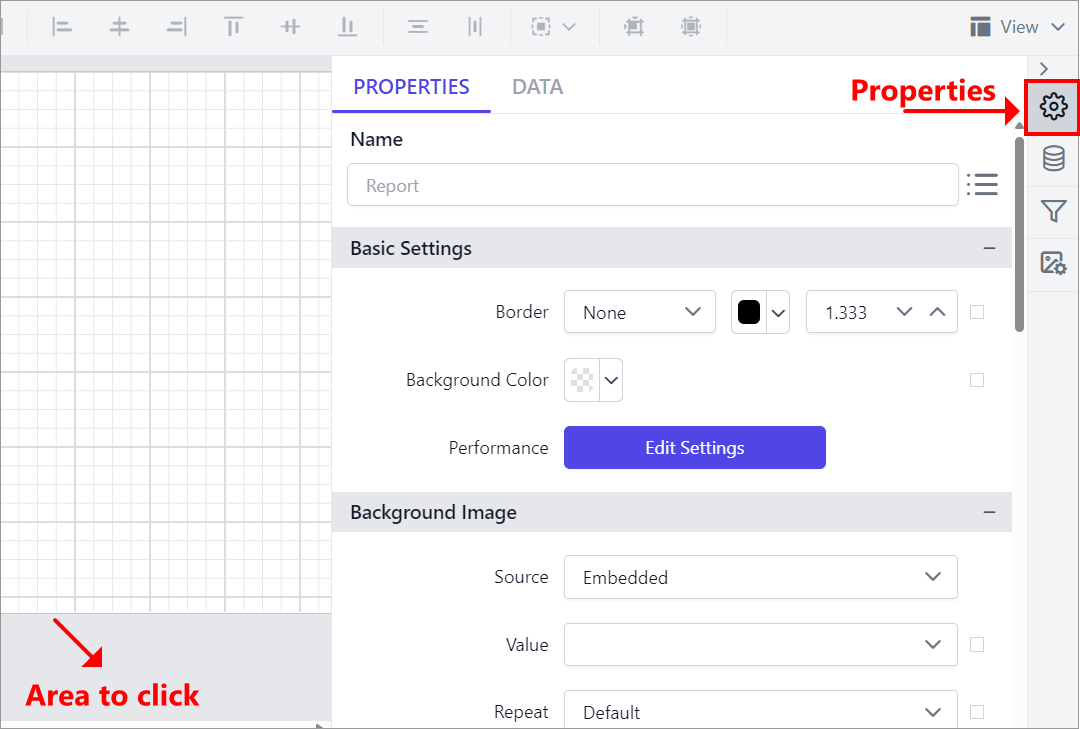
- Find the Performance Settings option under the
Basic Settingscategory. Click Edit Settings to open the Performance Settings secondary panel.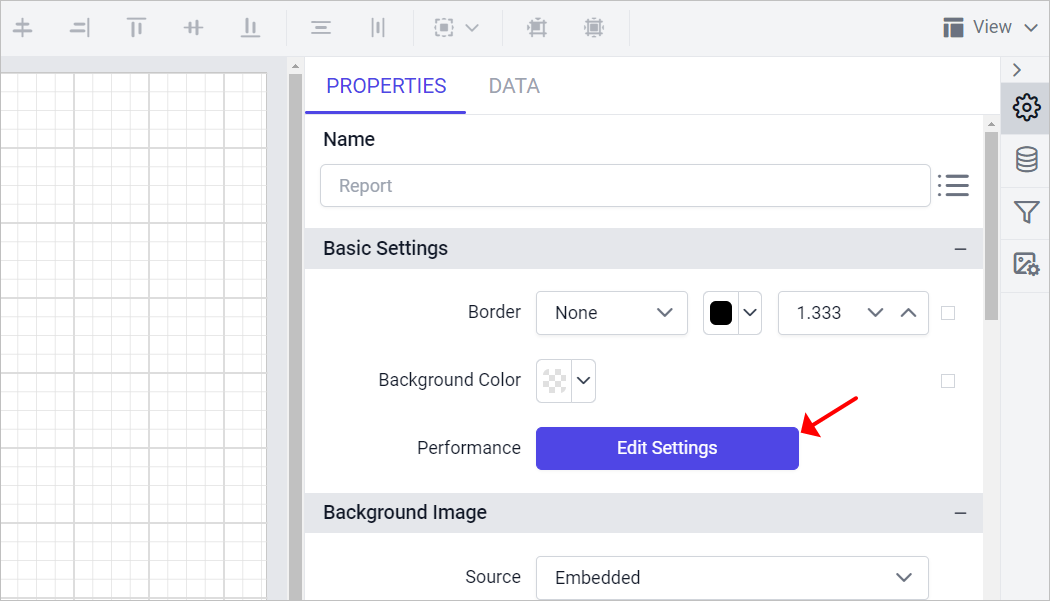
- The Performance Settings panel opens.
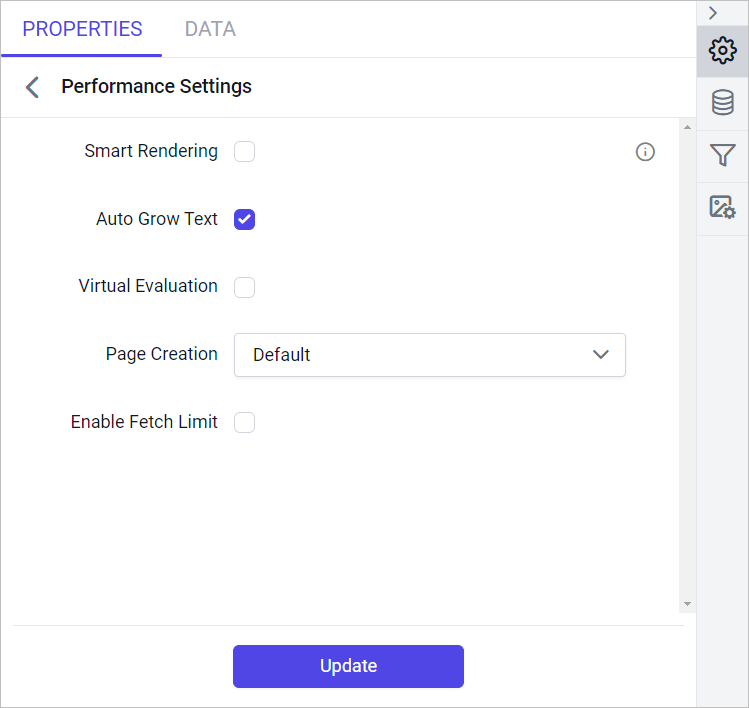
Smart Rendering
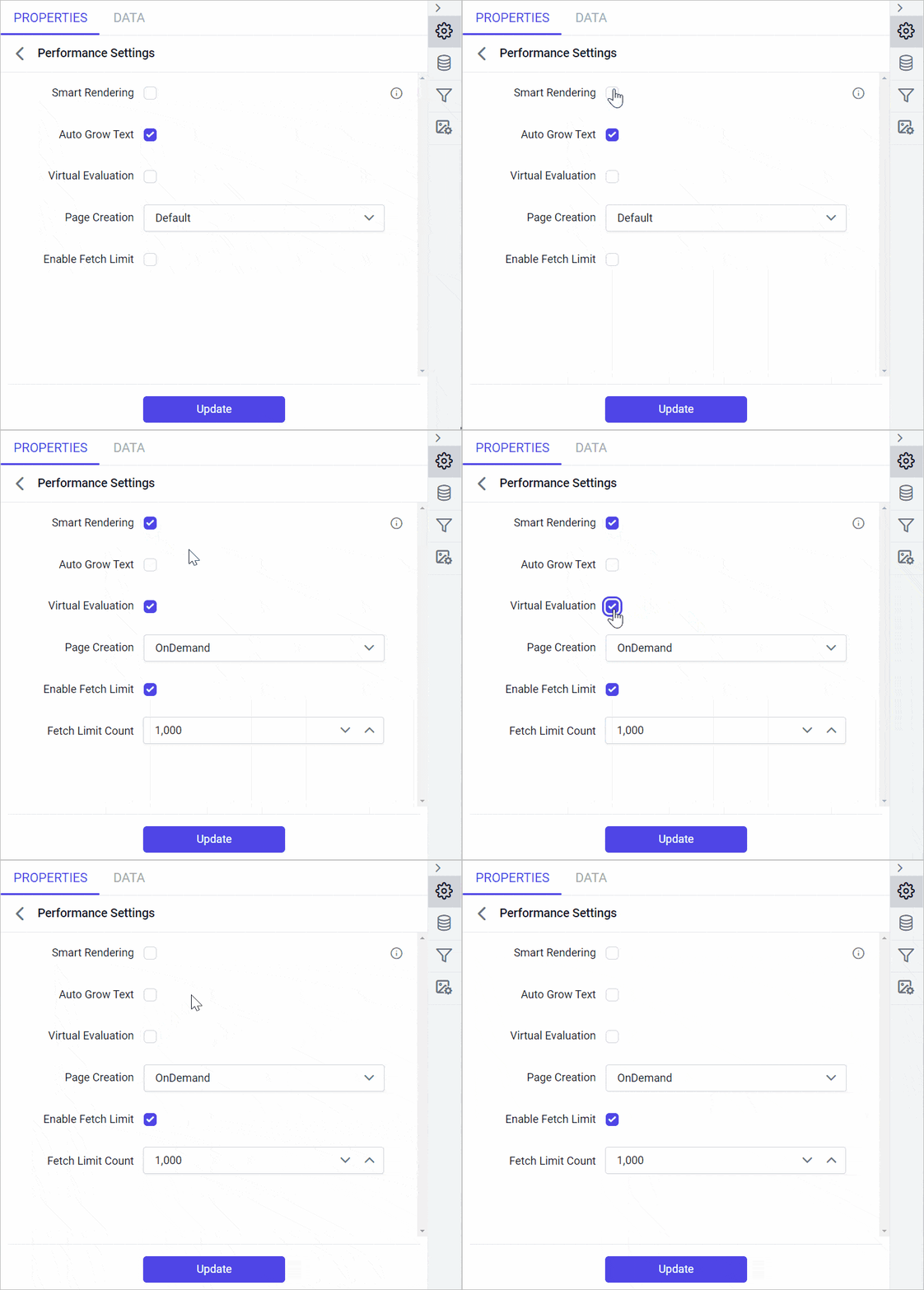
Smart rendering in Bold Reports® optimizes report rendering. Enabling smart rendering updates the dependent properties as follows:
AutoGrowTextis set tofalse.PageCreationis set toOnDemand.VirtualEvaluationis set totrue.EnableFetchLimitis set totrue, andFetchLimitCountbecomes visible and is set to1000.
If you modify any of the above values, the
SmartRenderingproperty is set tofalse. Disabling smart rendering reverts the dependent items to their default states.
The following animation shows how to enable smart rendering.
Auto Grow Text
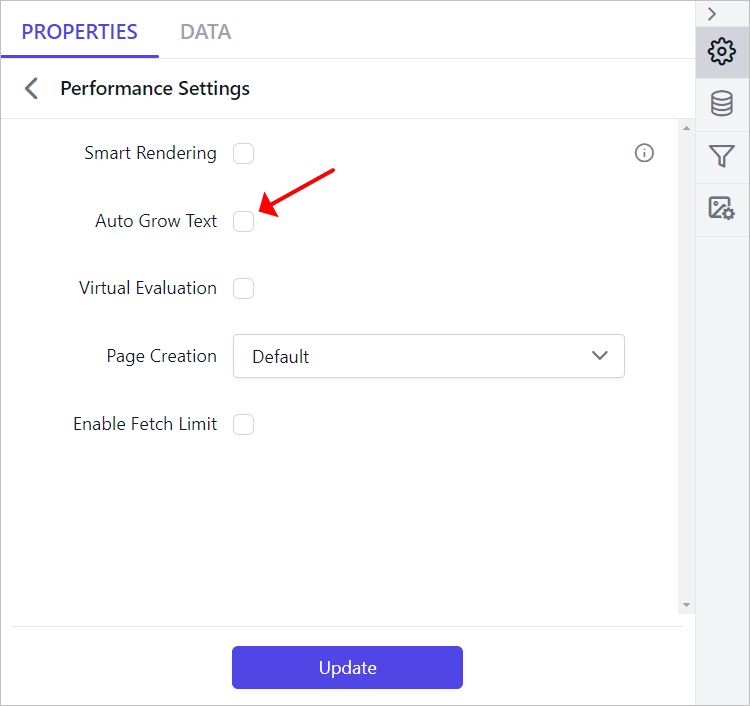
The AutoGrowText property in Bold Reports® adjusts the text box height dynamically based on the content. When AutoGrowText is set to true, the viewer may take extra time to calculate the height of each text box, depending on the data.
You can enable or disable AutoGrowText for a report in the designer. By default, AutoGrowText is set to true. Configure AutoGrowText and click Update.
Virtual Evaluation
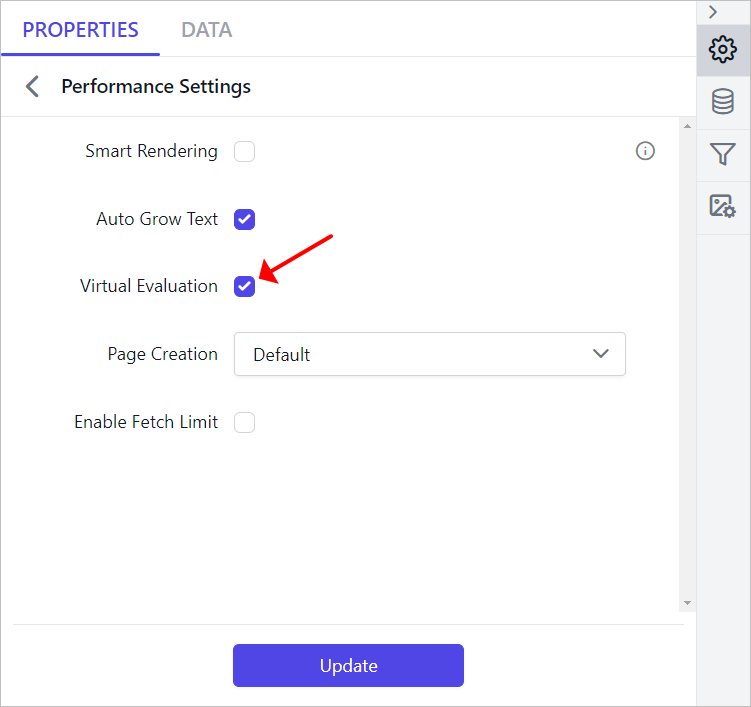
The VirtualEvaluation property in Bold Reports® reuses tablix cell objects to optimize memory usage. To enable it for a specific report, turn on the VirtualEvaluation property in the designer.
By default, VirtualEvaluation is set to false. Configure VirtualEvaluation and click Update.
Page Creation
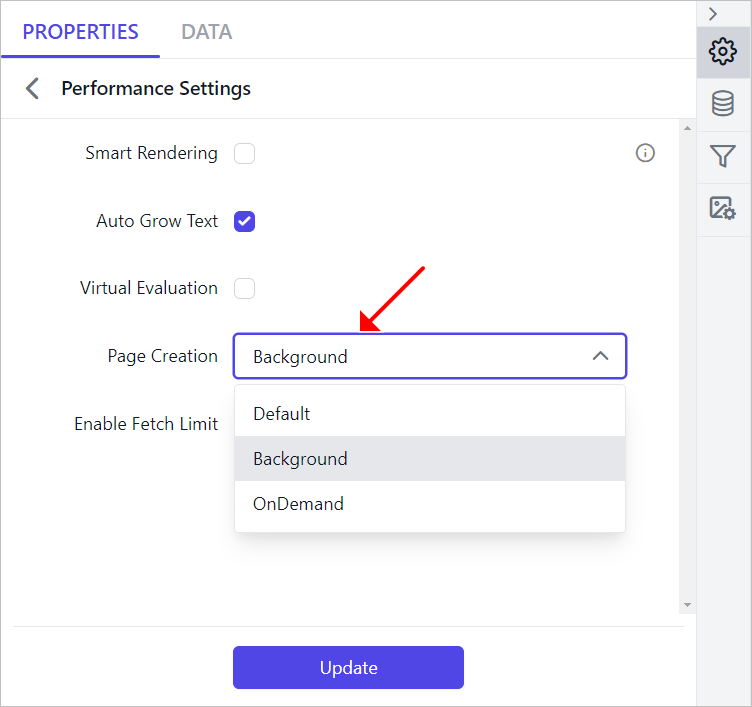
The PageCreation property controls how pages are processed and created in Bold Reports®.
| Property | Description |
|---|---|
Default |
Creates all pages first, then sends the first page to the client for rendering. |
OnDemand |
Renders the first page immediately; subsequent pages are created as the user navigates. |
Background |
Renders the first page immediately; remaining pages are created in the background, with progress updates. |
To set the PageCreation property for a specific report, choose a value from the dropdown in the designer and click Update.
Fetch Limit
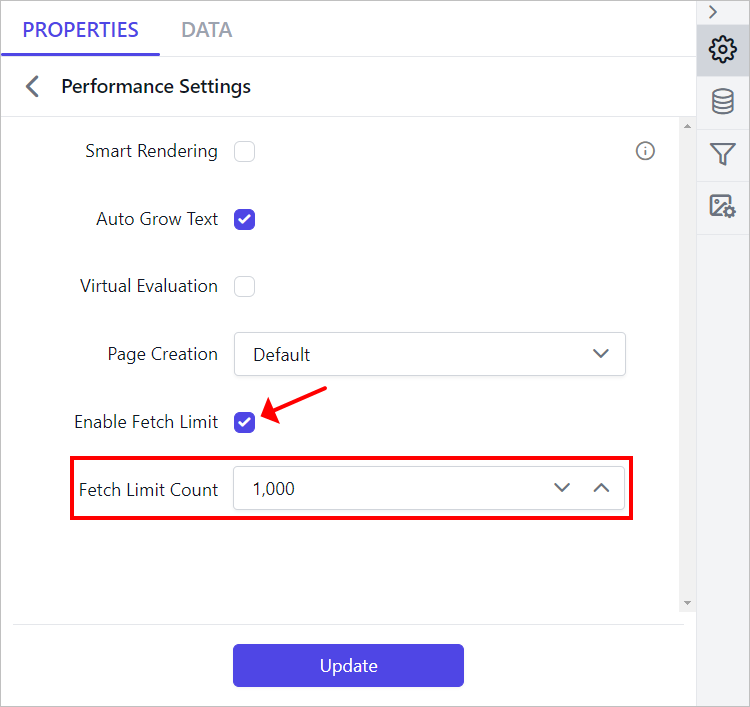
The FetchLimit property in Bold Reports® controls the number of records fetched in a report. To use it, enable FetchLimit in the designer and enter the record count you want in the FetchLimitCount numeric box.
By default, FetchLimit is set to false. When FetchLimit is set to true, the FetchLimitCount numeric box becomes visible.
How does Smart Rendering behave during report generation?
Smart rendering in Bold Reports® can freeze the parameter panel while the report is generated.
- When
SmartRenderingis active in eitherOnDemandorBackgroundmode, the parameter panel may freeze during report generation. This happens because the document is being created, and the progress bar is visible at the bottom left of the report. - To modify parameters while the report is rendering, click
Cancelto stop the rendering process. You can then enter new parameters before you run the report again.
What are the limitations of Smart Rendering?
Smart rendering in Bold Reports® is available for tablix-based reports only. It has the following limitations:
- Nested tables are not supported.
- Multiple tables in a report are not supported.
- Tablix cells must contain only text; cells with images or charts are not supported.
- Image-based reports are not supported.
- Reports with toggle items are not supported.
- Sub-reports are not supported.
- Document mapping or bookmark labels are unsupported.
- Table cell sorting in the viewer is limited.
- Tablix structures with repeat headers are unsupported.
- File storage cache settings are not supported.
- Tablix structures with column groups are unsupported.
Frequently asked questions
What happens if I change a property after enabling Smart Rendering?
If you modify any of the dependent values, the SmartRendering property is set to false.
What is the default value of FetchLimitCount with Smart Rendering?
Enabling smart rendering sets EnableFetchLimit to true and sets FetchLimitCount to 1000.