Report item selection in Web Report Designer
Report item selection in Bold Reports® Web Report Designer plays a major role in positioning and formatting report items on the design surface. You can select report items with mouse actions or keyboard shortcuts.
How do I select report items using the mouse?
The Web Report Designer selects a report item when you hover over it and click it.
-
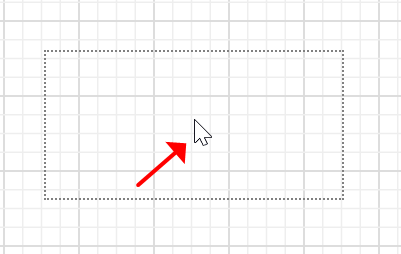
Hover the mouse over the report item that you want to select.
-
Click the left or right mouse button. The selection is applied to the report item.

To select multiple report items in the design surface:
-
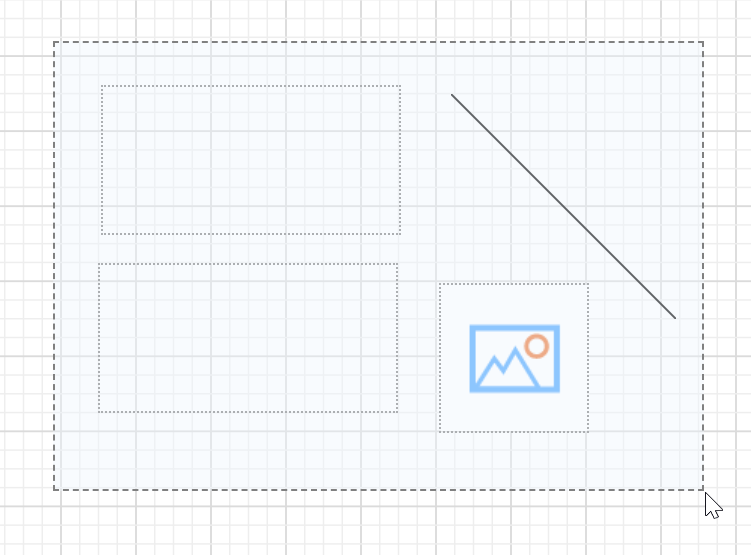
Hold the mouse button and draw a bounding rectangle around the required items.
-
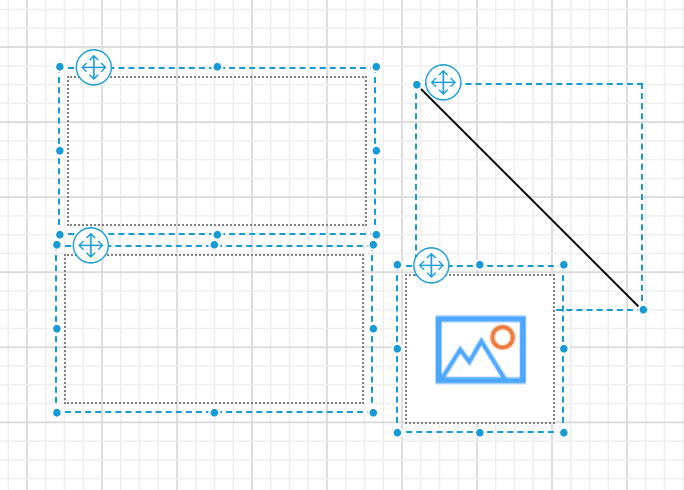
Release the mouse button. The selection is applied to those report items in the designer surface.
Which keyboard shortcuts select report items?
The Web Report Designer supports these keyboard shortcuts for selecting report items on the design surface:
-
To select all report items in the design surface, hold
Ctrland pressAkey. -
To navigate selection between report items in design surface, use
Shift + TaborTabkeys. -
To remove selection from report items, press
Esckey.