Define custom colors
This option can be used to define any number of colors sets based on your desired output. To define custom colors, follow these steps:
- In the properties panel, under the Shape Color Rule or Marker Color Rulecategory, choose Custom in Type property. Now, the Custom Colors field will start displaying under the type drop-down.
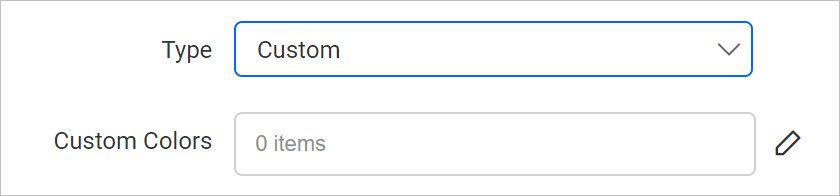
- Then click on the edit icon for the
Custom Colorsproperty.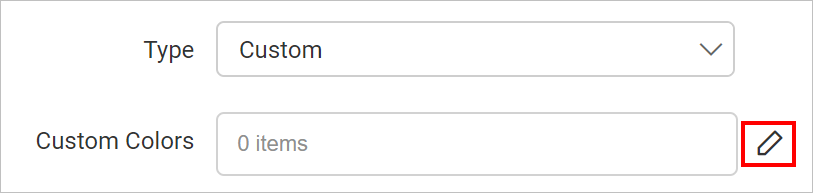
- Now, you will be taken to the Map Custom Colors panel.
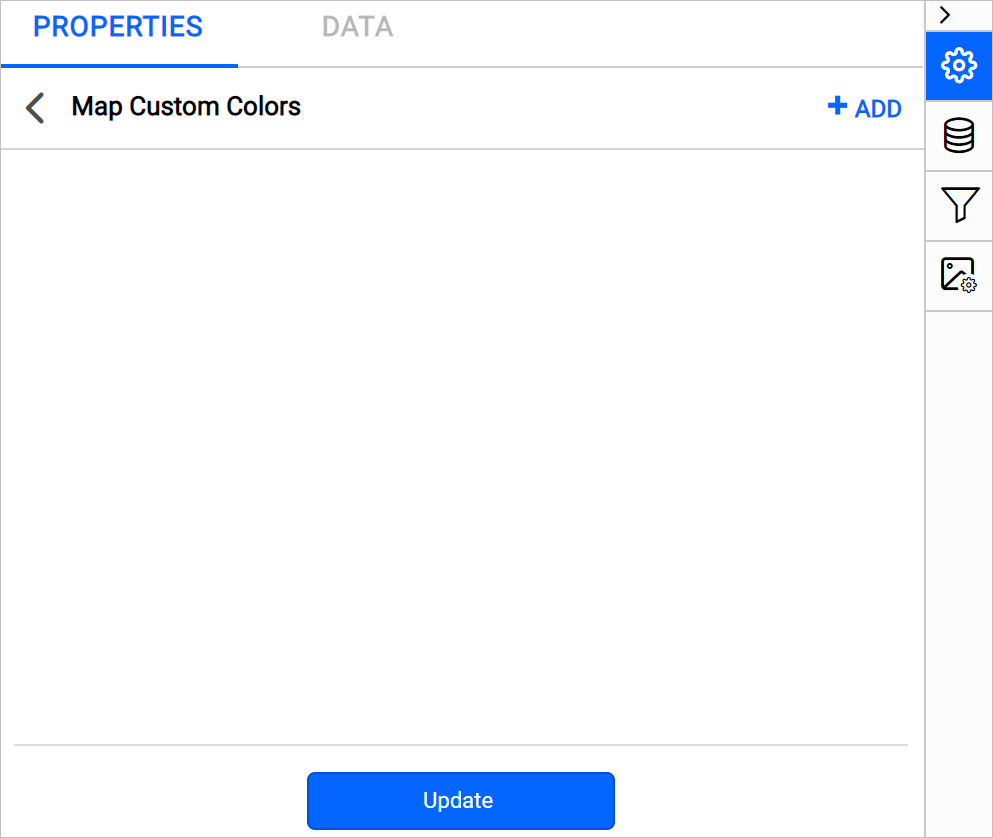
- Click on the ADD icon in the top-right corner. A new field with option to set color will be added in the panel.
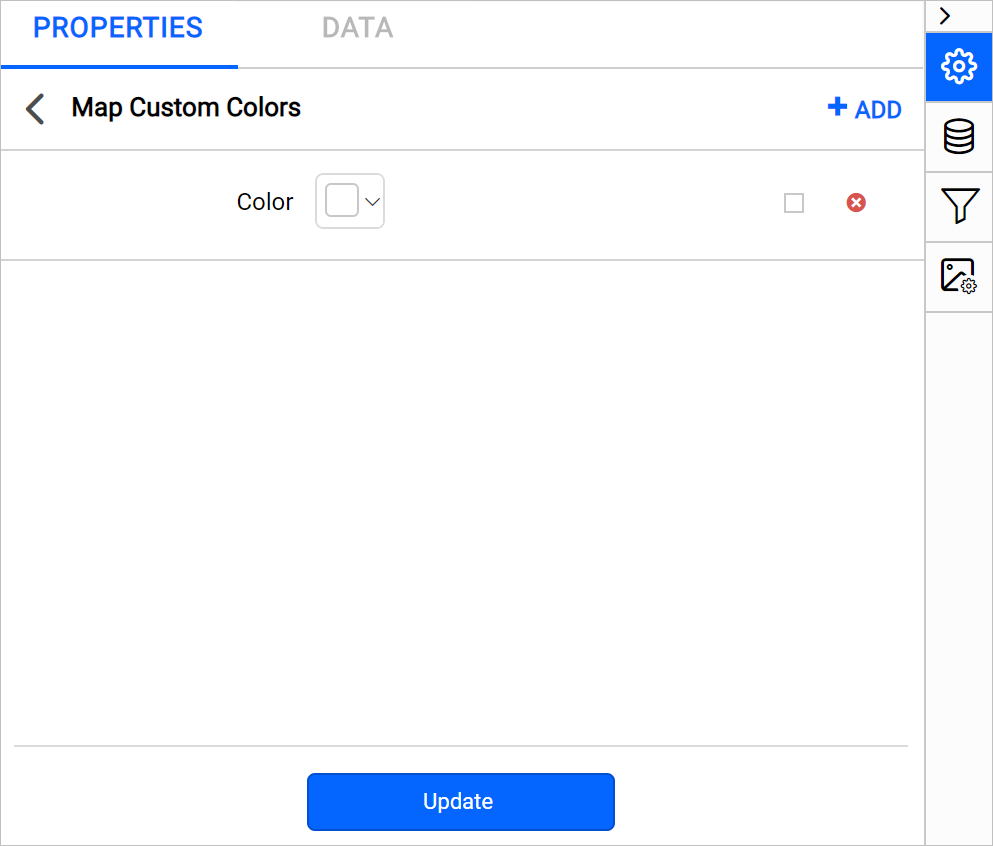
- Set the desired color in the color field.
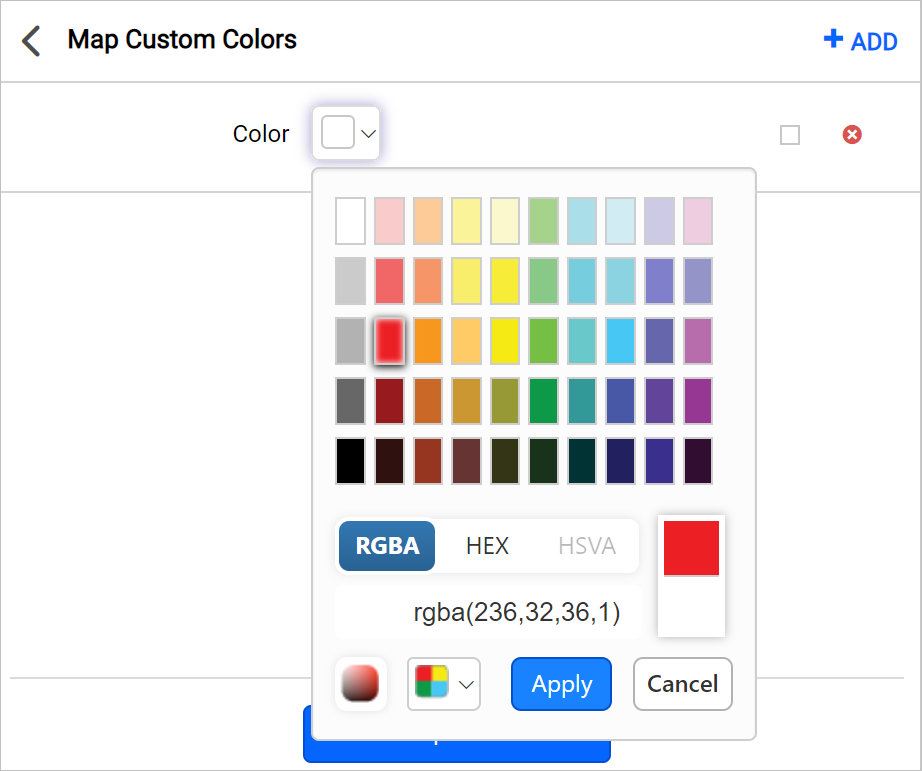
- Click on the Update.
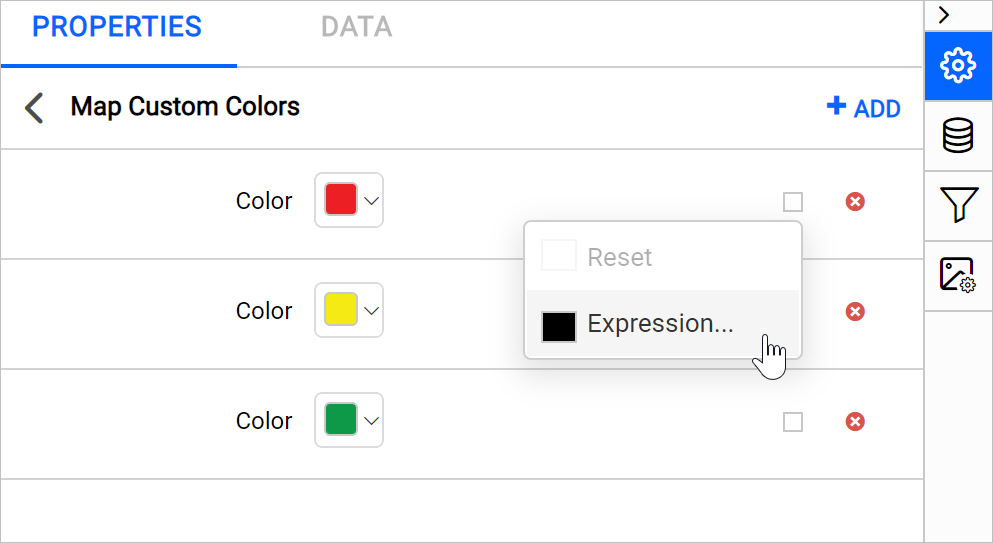
You can also set color based on dynamic values, by using the Expressions. Refer Set Expressions and Reset Expressions section to open set/reset expression menu in properties panel. Click on the square icon in the right side of the each field to open expression menu,
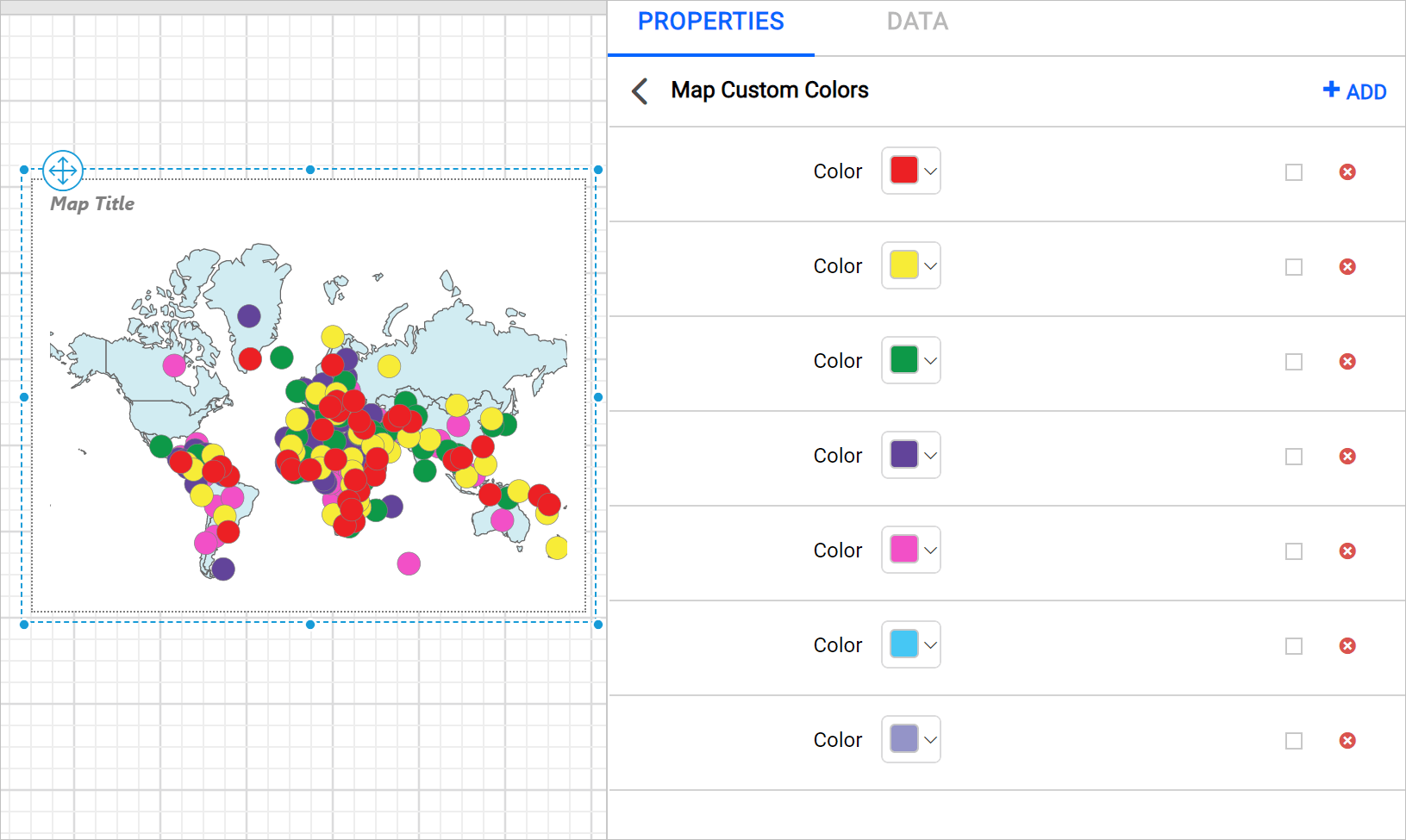
Repeat the above steps to create multiple colors sets or edit existing color sets. For example, I have added seven colors in custom colors panel and it will be distributed on the map surface based on the distribution type and data range.
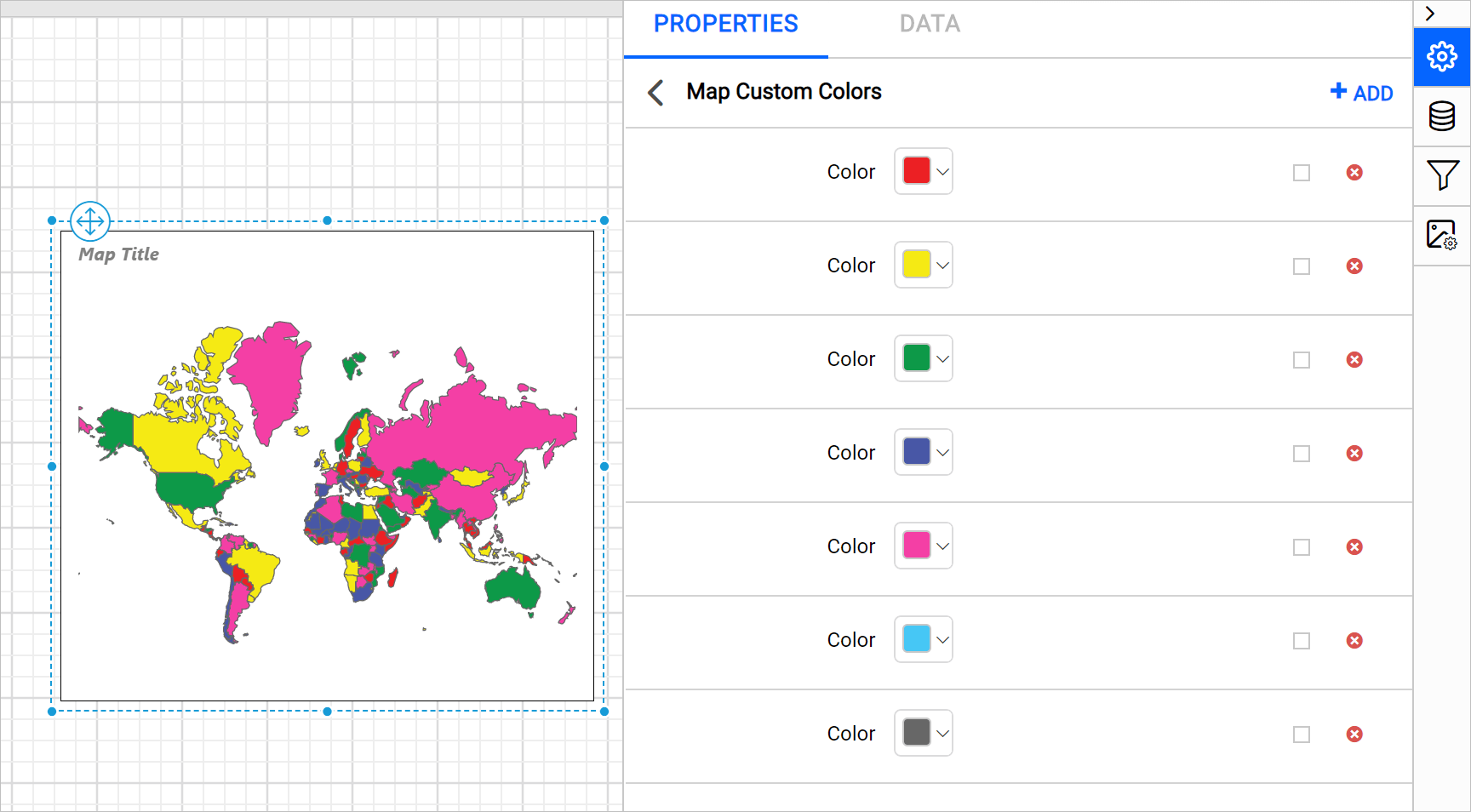
If we apply the same to map markers the colors will be distributed on marker icon background on the distribution type and data range.
Delete color set
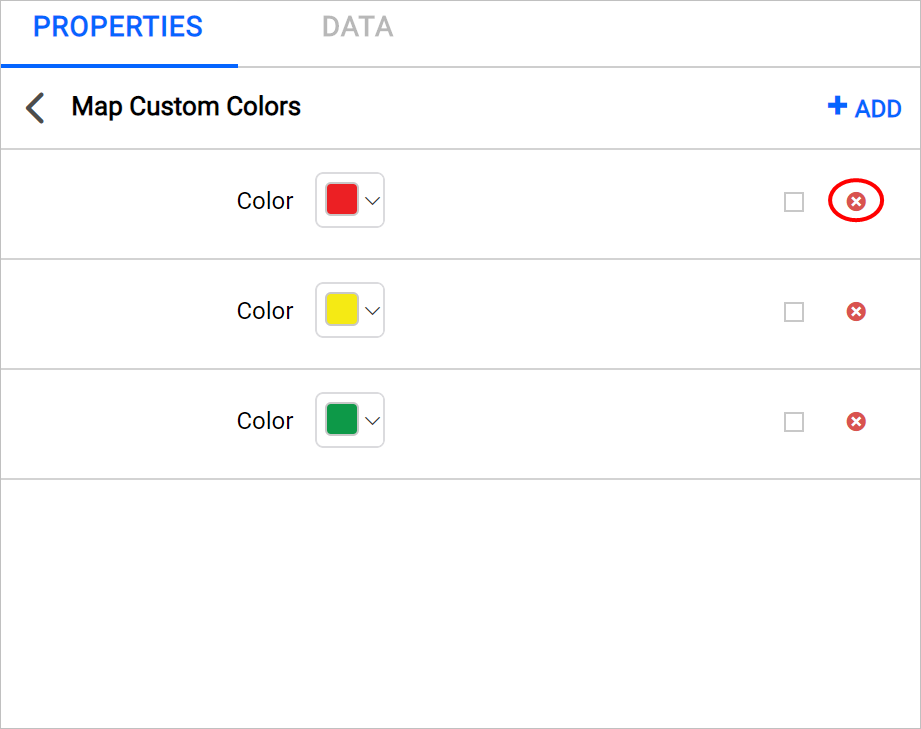
To delete the existing color set, click on the edit icon for the Custom Colors property. Now, the available color sets will be listed Map Custom Colors panel. Click on the Delete icon in the right corner of required color set and click on the Update.