How do I use MariaDB as a data source in Cloud Reporting?
The Bold Reports® Cloud Web Report Designer connects to a MariaDB database using a SQL query.
What does the MariaDB connector support?
The Web Report Designer connects to MariaDB with the following options.
| Item | Supported in Cloud Reporting |
|---|---|
| Default port | 3306 |
| Query design | Query mode only. You write and execute a SQL query. |
| Connection options | Basic options (server, port, username, password, database) or advanced options (your own connection string) |
| Authentication types (advanced options) | Authentication, Prompt, None |
| Save password | Embeds the credentials in the report saved in the Report Server. A downloaded report does not keep them. |
How to choose the MariaDB data source
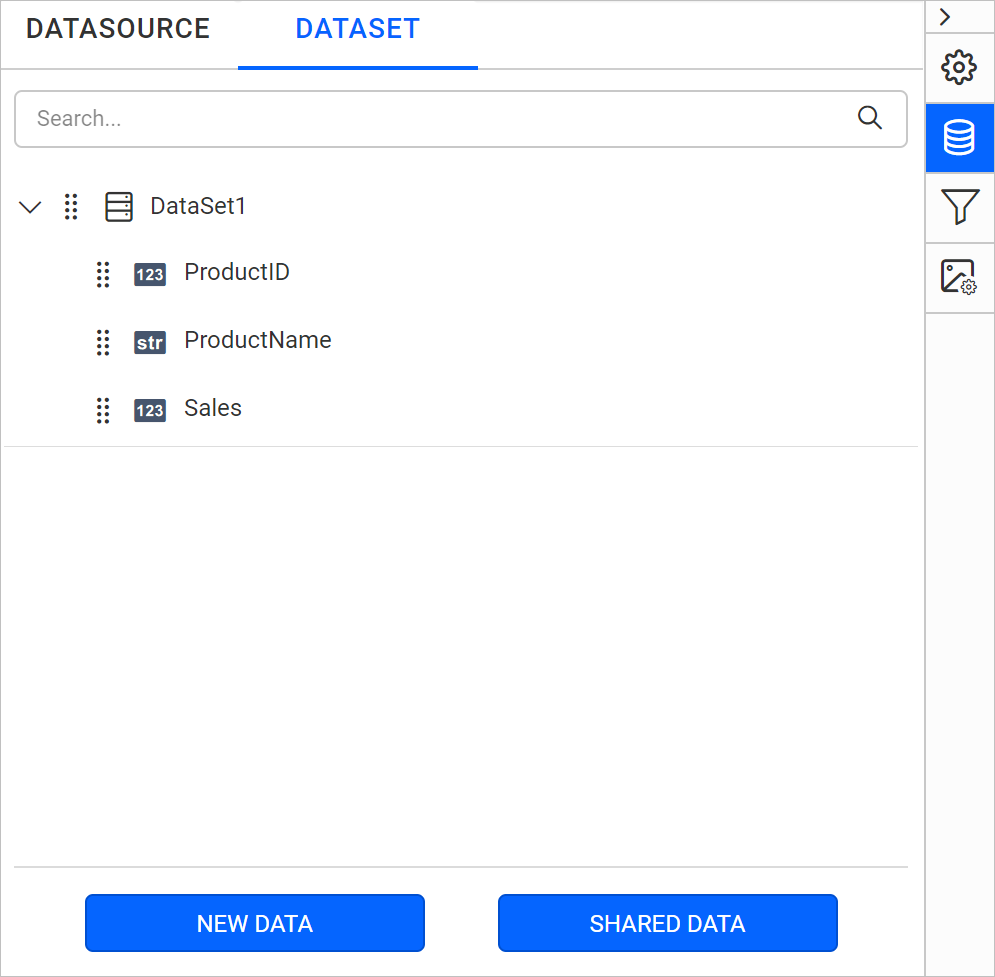
You add a MariaDB data source from the DATA configuration panel of the Web Report Designer by clicking NEW DATA and selecting MariaDB.
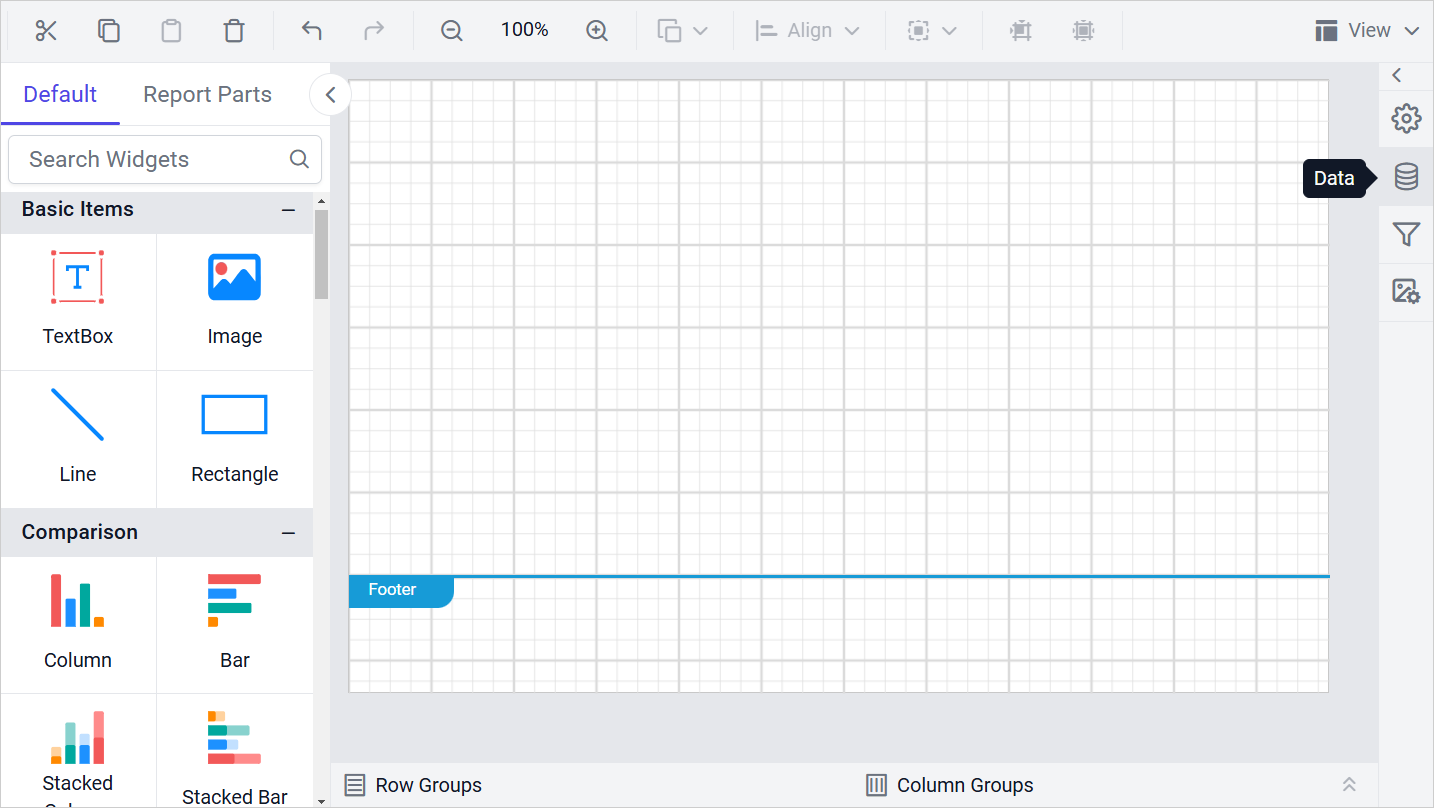
- Click the Data icon in the configuration panel.
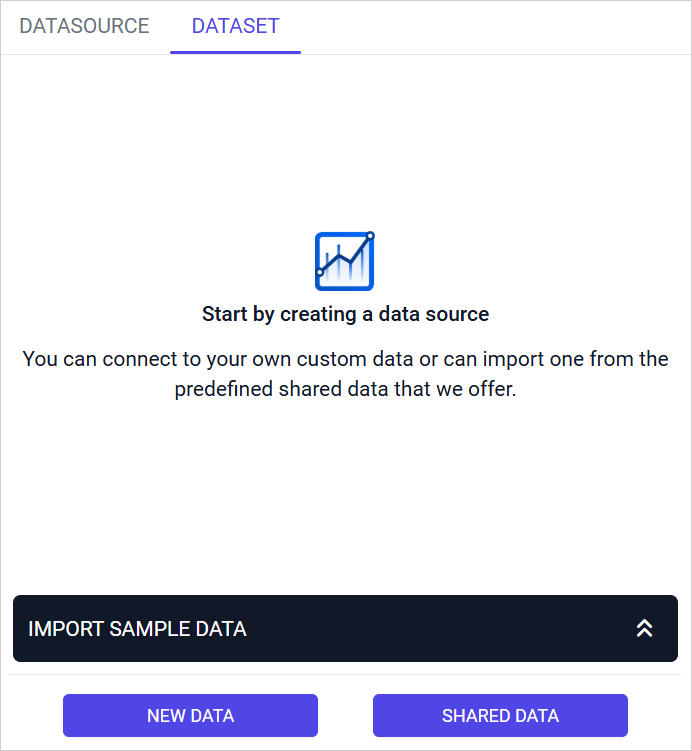
- In the DATA configuration panel, click NEW DATA.
- In the connection type panel, select MariaDB.

Create MariaDB data source with basic options
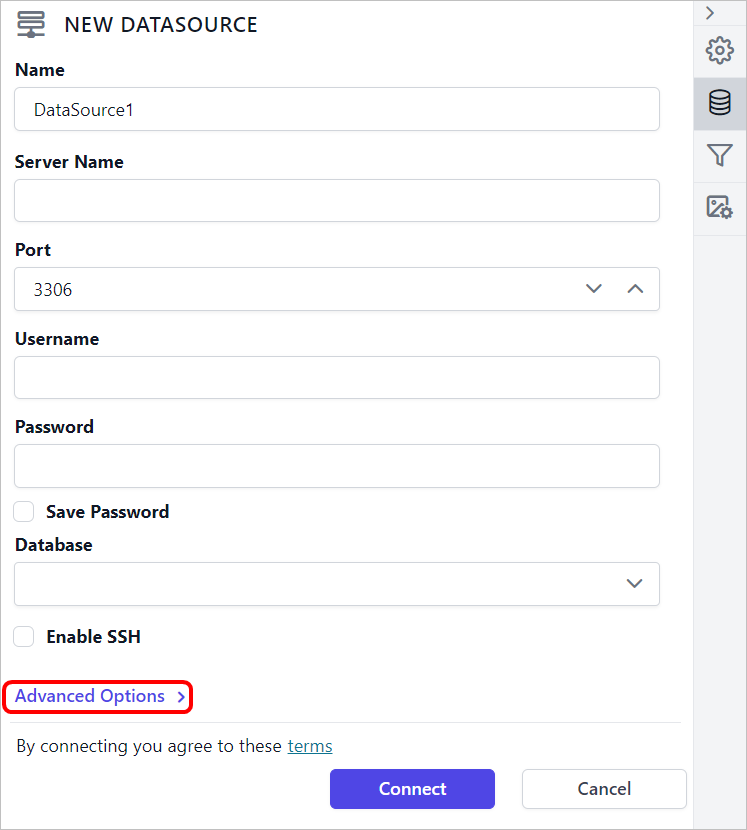
The NEW DATASOURCE panel opens with basic options when you create new data. Enter the connection details as follows:
- Specify the data source name without special characters, in Name field.
- In the Server Name field, enter the remote server name, such as
myserver.domain.com. - In the Port field, enter the port number. The default port is
3306. - Specify the username of your MariaDB server in Username field.
- Specify the password of your MariaDB server in Password field.
- Enable the Save password option to embed the credentials within the report when saving it in Bold Reports® Report Server.
- Choose or enter an existing valid database, such as Northwind.
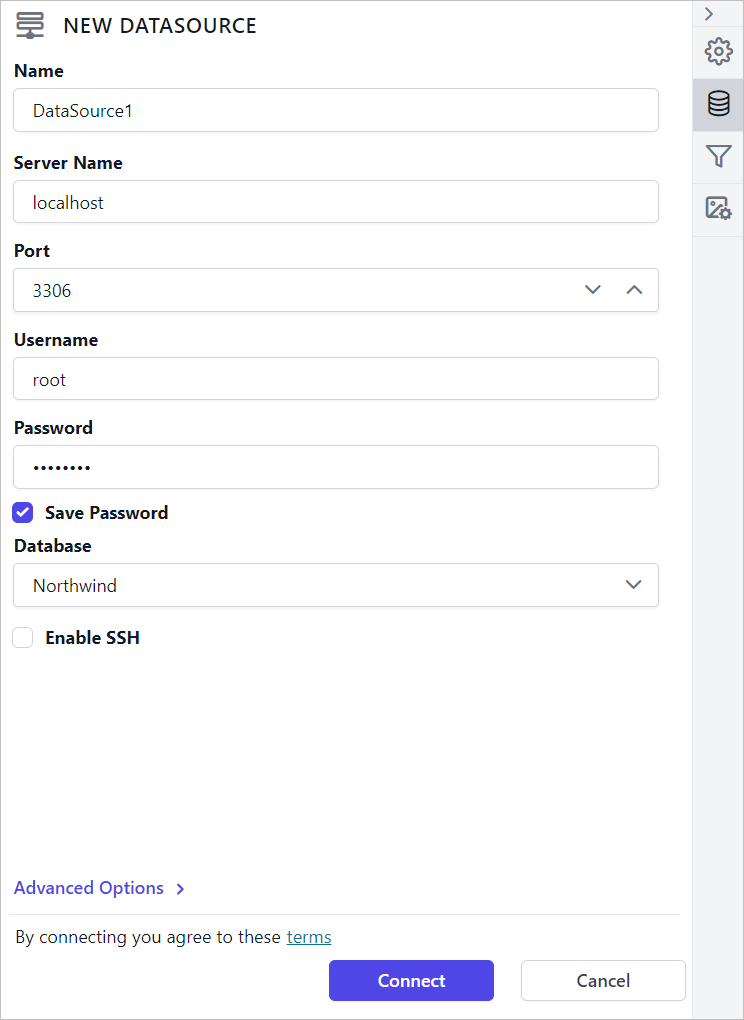
- Click Connect to open the query design pane, and then enter and execute your query. The query results appear in the preview grid.
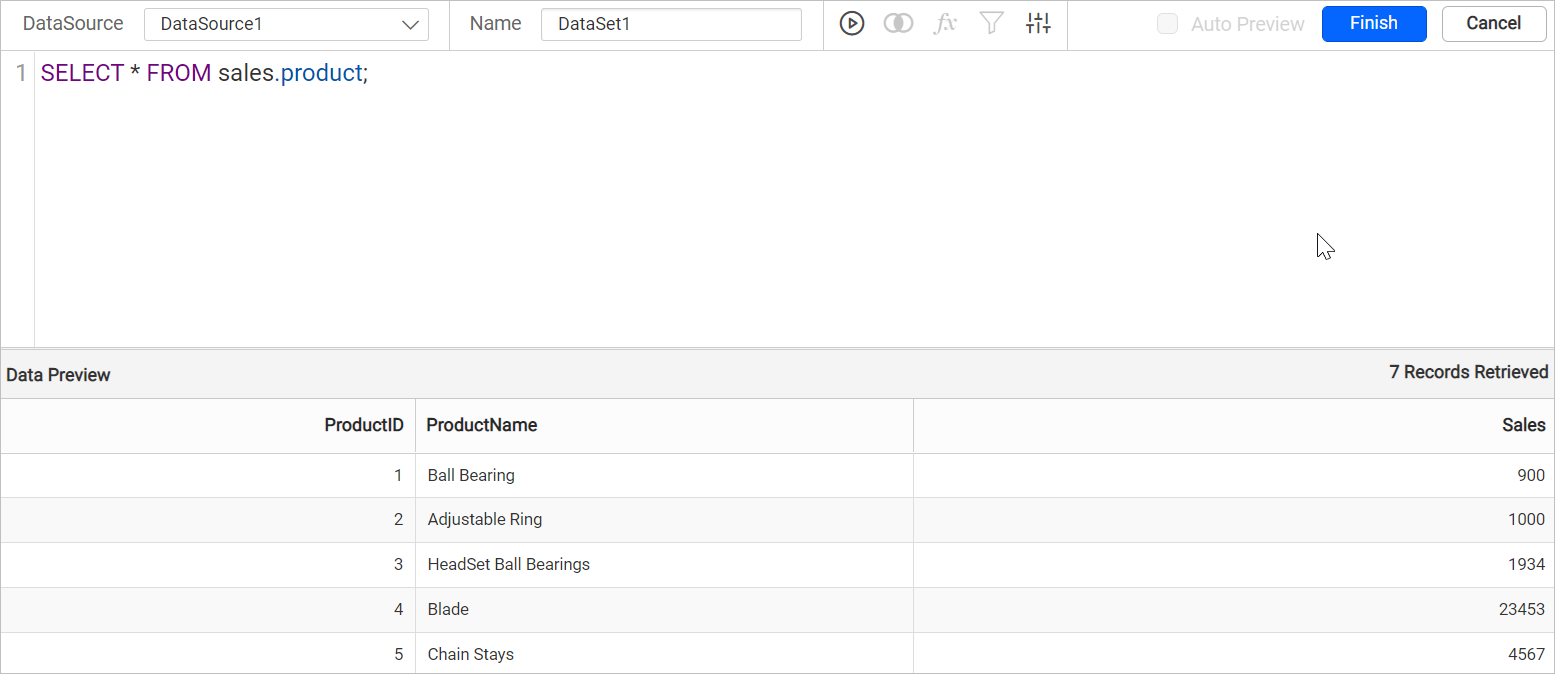
Only query mode is supported for MariaDB data source.
- Click Finish to save the data source and continue designing the report.
Create MariaDB data source with advanced options
To connect to MariaDB with advanced options, click Advanced Options in the New Data panel.
Now, the panel is switched to advanced options. In advanced options, you can build your own connection string.
Set the connection string and input the username and password of MariaDB server.
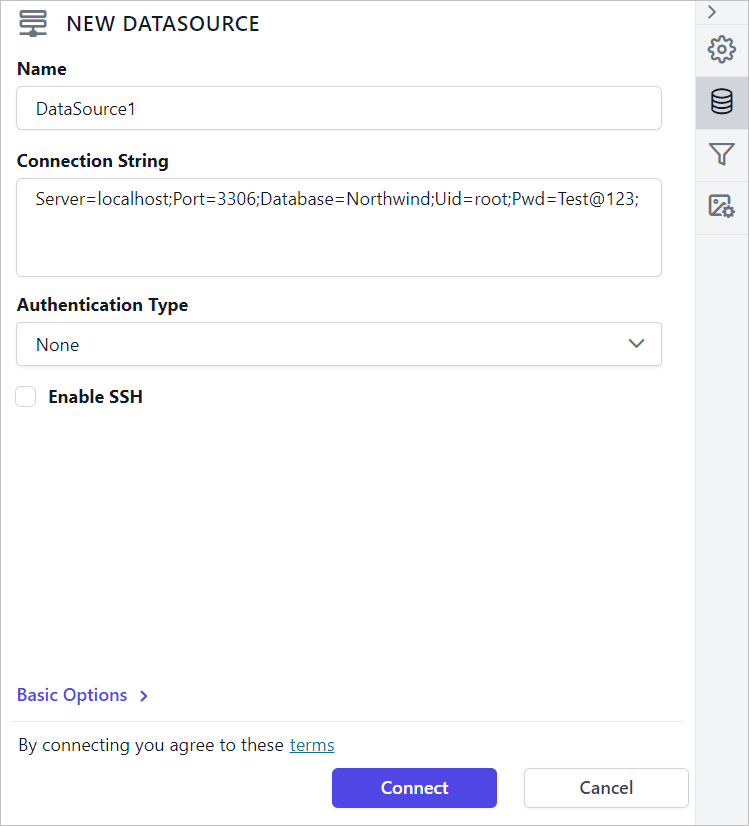
Click on the Connect to proceed with query design pane. Now, enter the required query and execute. Its corresponding values will be shown in grid for preview.
Only query mode is supported for MariaDB data source.
Click Finish to save the data source with a relevant name to proceed with designing report.
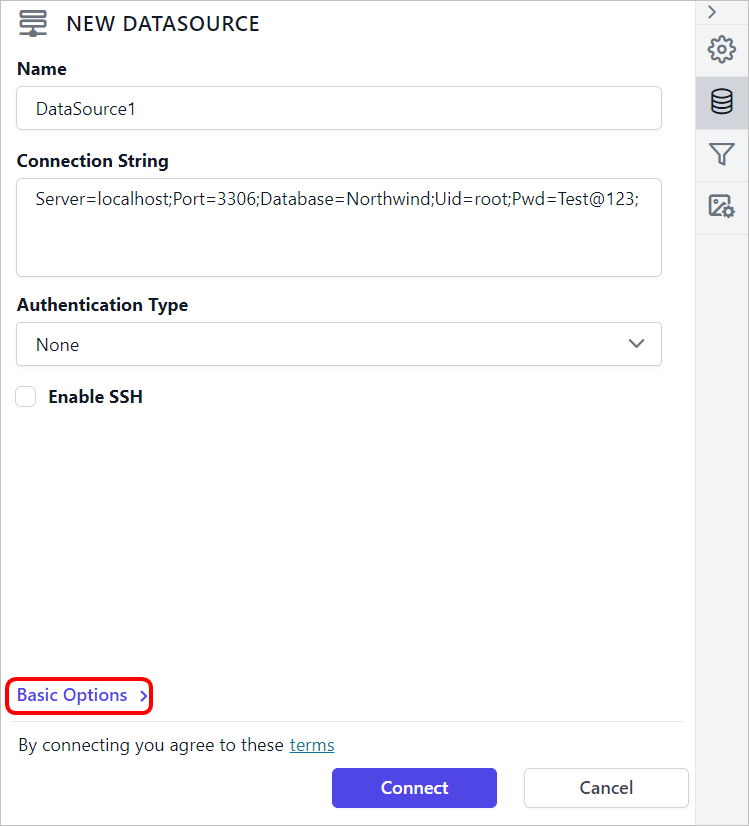
Click on
Basic Optionsto switch back to the basic connection settings.
Authentication types for advanced connection
The MariaDB advanced options support three authentication types: Authentication, Prompt, and None.
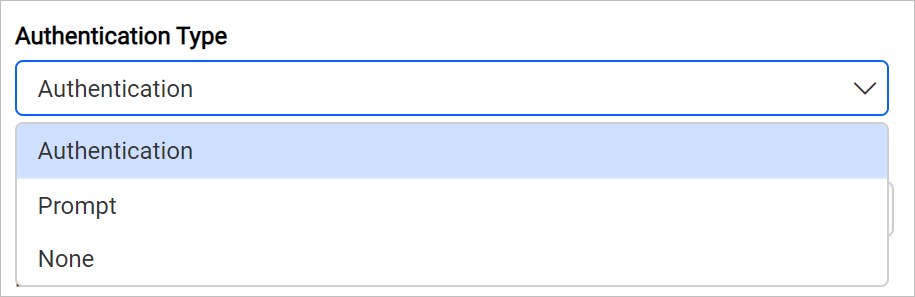
Authentication - A user name and password must be supplied to access the database, the credentials might be for a database login. The credentials are passed to the data source for authentication.
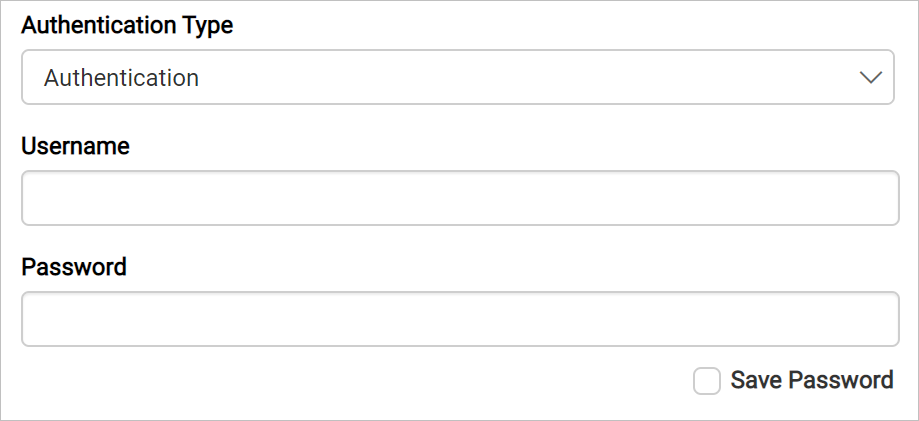
Enable the Save Password option to embed the credentials within the report when saving it in Report Server.
When you download the report, the credentials are not saved with the report data.
Prompt - When you configure a data source connection to use prompted credentials, each user who accesses the report must enter a user name and password on preview action to retrieve the data.
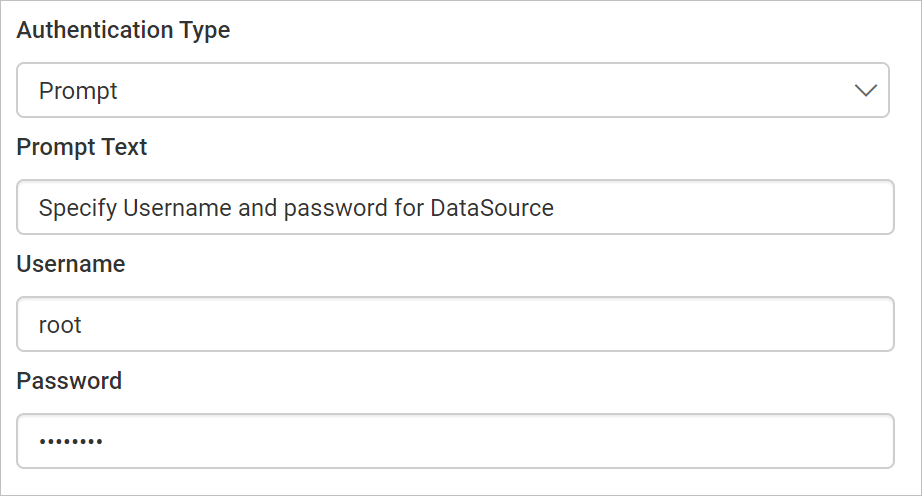
None - Choose the authentication type as None, when the authentication details or any other arguments required to connect with the data source are provided in connection string.
Frequently asked questions
Which port does the MariaDB connector use?
The MariaDB connector uses port 3306 by default. Enter a different port in the Port field if your MariaDB server listens on another port.
Can I build a MariaDB query visually?
No. Only query mode is supported for the MariaDB data source. Enter your SQL query in the query design pane, execute it, and preview the values in the grid.
Why can’t Cloud Reporting connect to my MariaDB server?
Connections to your MariaDB server come from fixed IP addresses. Allow inbound connections from those addresses in your database firewall or security group. See IP addresses to whitelist for remote database access.
Can I connect to MariaDB with a connection string?
Yes. Click Advanced Options in the New Data panel, enter your connection string, and choose Authentication, Prompt, or None as the authentication type.
Why is MariaDB missing from the connection type panel?
An administrator may have disabled the MariaDB connector. Only the connectors enabled on the Settings page of the Report Server appear when you create a data source. See Connectors settings.