Report item resizing
To improve the report readability, we can resize the height and width of the report items in design area.
Resize using resizer
Resize height:
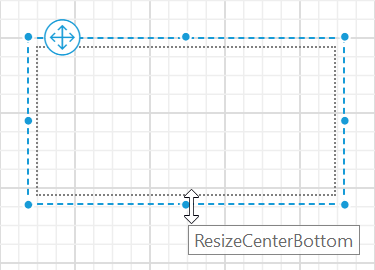
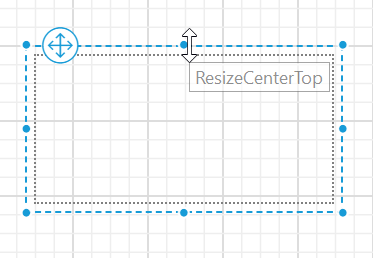
To change the height of the report items , place the mouse pointer in the CenterTop or CenterBottom position of the specific report item selection line.
Use CenterBottom to increase height towards downward direction or to decrease height towards upward direction,
Use CenterTop to increase height towards upward direction or to decrease height towards downward direction,
Resize width:
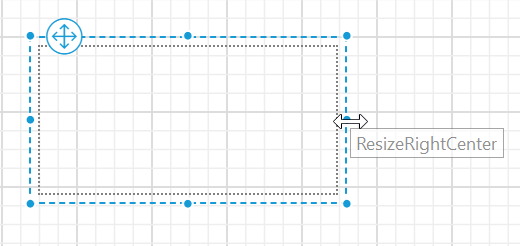
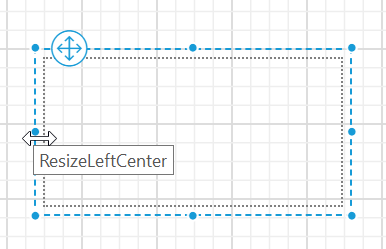
To change the width of the report item , place the mouse pointer in the RightCenter or LeftCenter position of the report item selection line.
Use RightCenter to resize the width outwards or inwards in right side direction,
Use LeftCenter to resize the width outwards or inwards in left direction,
Change width and height proportionally:
- Select the report item in the design area.
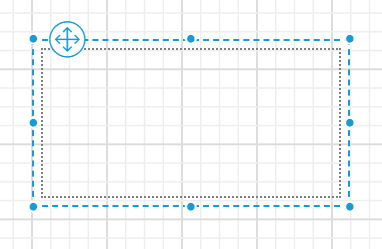
- To resize the report item place the mouse pointer in
LeftToporRightToporLeftBottomorRightBottomposition on the report item.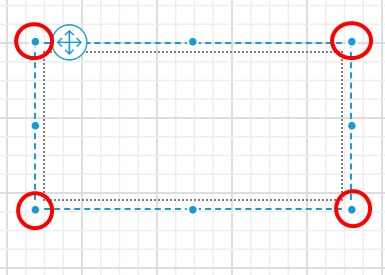
- Now, the resizer arrow will be enabled in the respective position. Hold and drag the resizer arrow, now the report item will be resized proportionally in all direction.
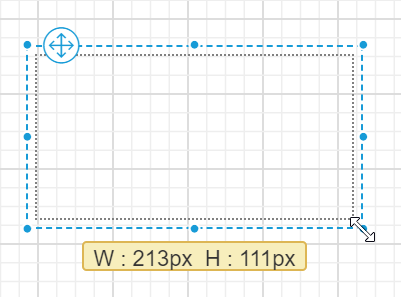
Resize using width and height properties
- Select a report item, now the respective item properties will be listed in the properties panel.
- In the properties panel, modify the
HeightandWidthproperty of the specific report item.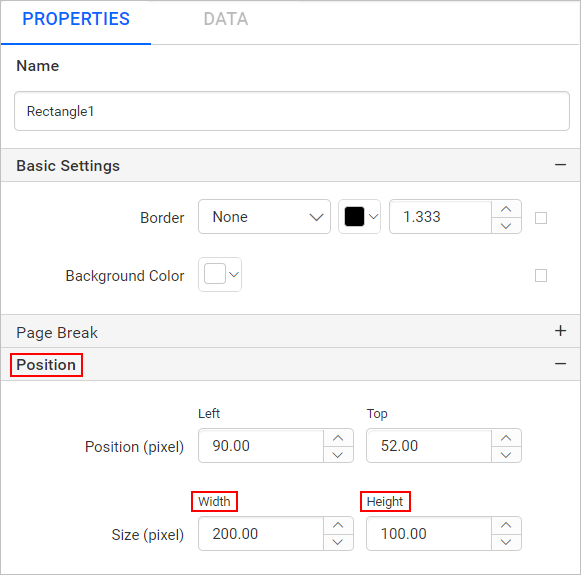
Resize using keyboard shortcuts
You can resize report item in design surface using the keyboard short-cut keys. Select the report item and use any of the below key combinations to resize the report item.
-
To increase the width of the report item, hold
Ctrl + Shiftkeys or onlyShiftand pressRight Arrowkey. -
To decrease the width of the report item use hold
Ctrl + Shiftkeys or onlyShiftand pressLeft Arrowkey. -
To increase the height of the report item use hold
Ctrl + Shiftkeys or onlyShiftand pressUp Arrowkey. -
To decrease the height of the report item use hold
Ctrl + Shiftkeys or onlyShiftand pressDown Arrowkey.
Ctrl + Shift + Arrow Keyscombination increase or decreases the value by1point, whereasShift + Arrow Keyscombination increases or decreases the value by 8 points.
To know more about supported keyboard shortcut keys, refer Design report using keyboard shortcuts section.
Using touch resizer
To increase or decrease the width and height using touch resizer, select the report item and hold any of the highlighted points in below snap.
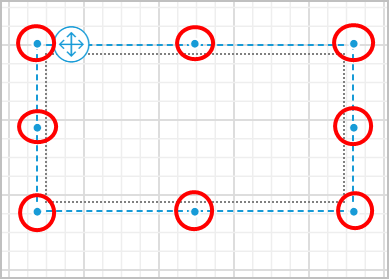
Then drag towards the required direction in design area.