What schedule settings does Cloud Reporting offer?
In Bold Reports® Cloud, the schedule report settings control schedule processing for the site, file compression and password protection for exported reports, and export to FTP or SFTP locations and Amazon S3 buckets.
This is an optional setting, and you can export the uncompressed report by simply unchecking the
Enable File Compressionoption.
How to stop schedule processing
You stop all scheduled tasks for a site by turning on Disable Process Schedule on the Schedule tab of the Reports settings.
-
Click on the Settings option in the Bold Reports® Report Server left-side panel and navigate to the Reports tab.

-
On the Schedule tab, turn on Disable Process Schedule to stop all scheduled tasks for this site.

-
Click Save to apply the changes.
How to enable file compression
You compress exported reports into a zip file by selecting Enable File Compression on the Schedule tab of the Reports settings.
-
Select Settings in the left-side panel of the Report Server, and then open the Reports tab.
-
Open the Schedule tab.

-
Select Enable File Compression, and then click Save.
-
To protect exported reports with a password, select Enable Password Protection. The Default Password option is selected by default.
For the default password setting, the system will generate a password by combining the first four and the last four characters of the user’s email.
-
To set your own password rule, select Custom Password. The password rule must include the username or first name.

-
For example, consider a sample user with the following details:
First Name : John
Last Name : Michael
Email: [email protected] -
The following table shows password rules and the unlock password for this sample user:
Password Rule Unlock Password The First four characters of the Email
+
The Last four characters of the First NamejohnJohn First four characters of First Name
+
First four characters of Last NameJohnMich First four characters of Email
+
Last four characters of Last Name
+
johnhael
FTP or SFTP Settings
You export reports to an FTP or SFTP location by enabling the FTP / SFTP Location Export check box and entering the server credentials. Save the changes to apply them.

How to export reports to an Amazon S3 bucket
You export reports to an Amazon S3 bucket by enabling the S3 Bucket Export check box and entering the bucket details.
-
Access Key: Provide the access key for your Amazon S3 bucket.
-
Secret Key: Provide the secret key for your Amazon S3 bucket.
-
Bucket Name: Enter the name of the S3 bucket.
-
Region: Specify the region where your S3 bucket is located.

KMS Key
-
KMS Key: Enter the AWS KMS key used to access and encrypt objects stored in the S3 bucket.
-
Bucket Name: Enter the name of the Amazon S3 bucket where exported reports will be stored.
-
Region: Select the AWS region in which the S3 bucket is hosted.
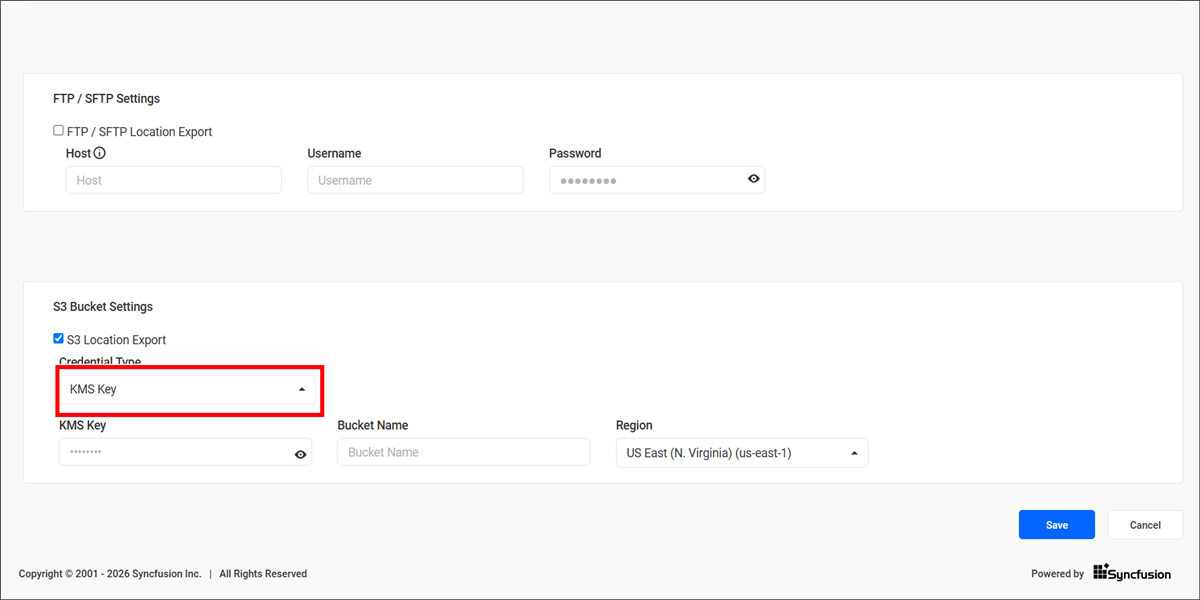
NOTE: When using a KMS key, the environment hosting the Bold Reports® application must have the necessary AWS permissions to access both the specified Amazon S3 bucket and the AWS KMS key. Ensure that the configured IAM user or role has the required S3 and KMS permissions.
After you enter the required details, click Save.
Frequently asked questions
How do I stop every scheduled report on my site?
Open Settings, go to the Reports tab, enable Disable Process Schedule, and click Save. All scheduled tasks for the site stop.
What is the default password for protected exports?
The Default Password combines the first four and the last four characters of the user’s email. Choose Custom Password to set your own rule.
How does Cloud Reporting authenticate to Amazon S3?
Use either an Access Key with a Secret Key, or a KMS Key, together with the bucket name and region. A KMS Key needs IAM permissions for both the S3 bucket and the key.