Report
Mark Reports as Public - Allow/Restrict Switch
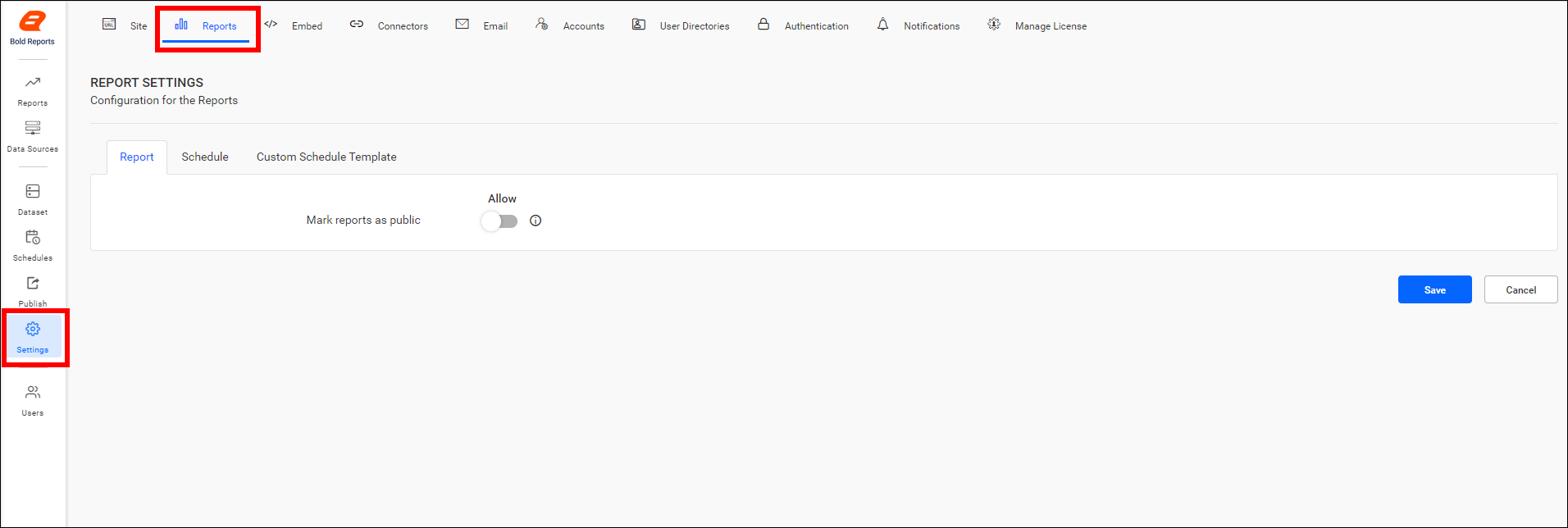
This section provides instructions on enabling or restricting the ability to mark reports as public from the Reports Settings page. Administrators can control whether users have the ability to designate reports as public by enabling the Mark reports as public option.
Take Control Over the Public Reports
If the Administrator has allowed, users can mark reports as public, and other users can view these public reports. If the Administrator has restricted, users cannot mark reports as public, and they won’t be visible to other users.
Control Public Report Access
-
The Mark report as public option is disabled by default on the Reports settings page.
-
Choosing the
Make Publicoption from the context menu of the respective report will prompt the following message to appear for the administrator: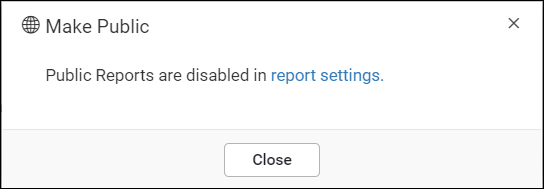
-
Choosing the
Make Publicoption from the context menu of the respective report will prompt the following message to appear for the user: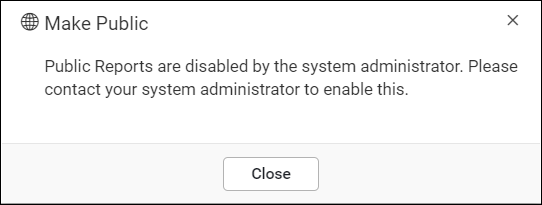
Enable Mark Reports as Public Option:
Follow the steps below to make the Reports accessible to anonymous users.
-
Enable the
Mark reports as publicoption and save the changes in the reports settings page.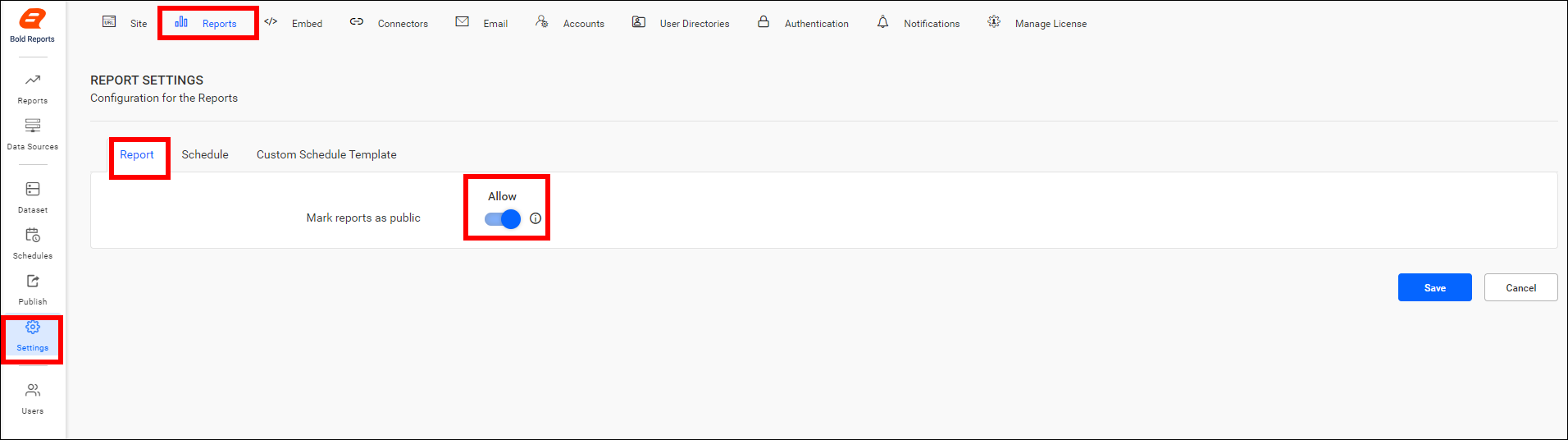
-
Click on the
Make Publicoption from the context menu of the respective report.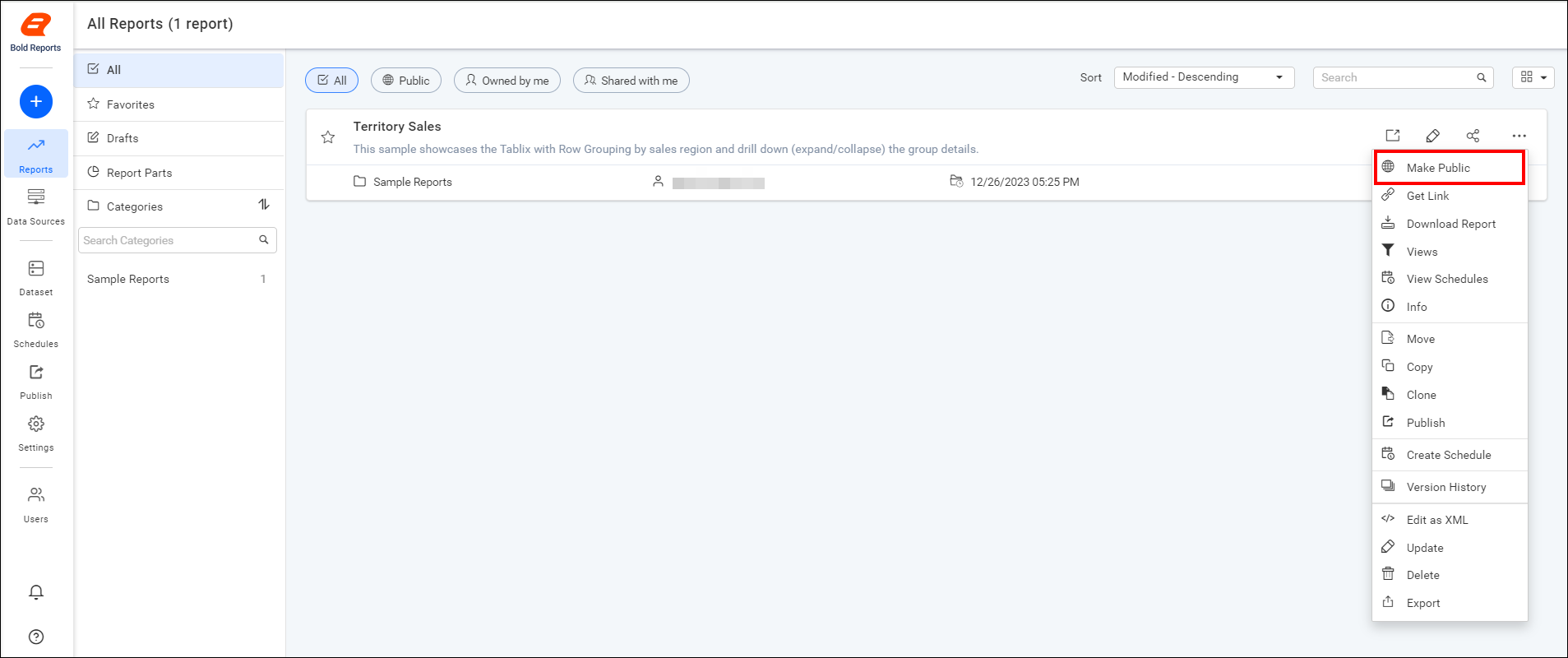
-
Click on
Make Publicin the confirmation dialog box; the report will then be marked as public and will be displayed on the Public page.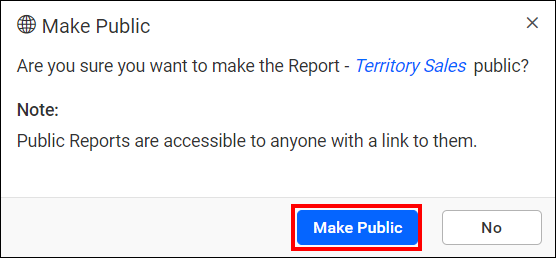

Disable Mark Reports as Public Option:
-
Disable the
Mark reports as publicoption and save the changes in the reports settings page.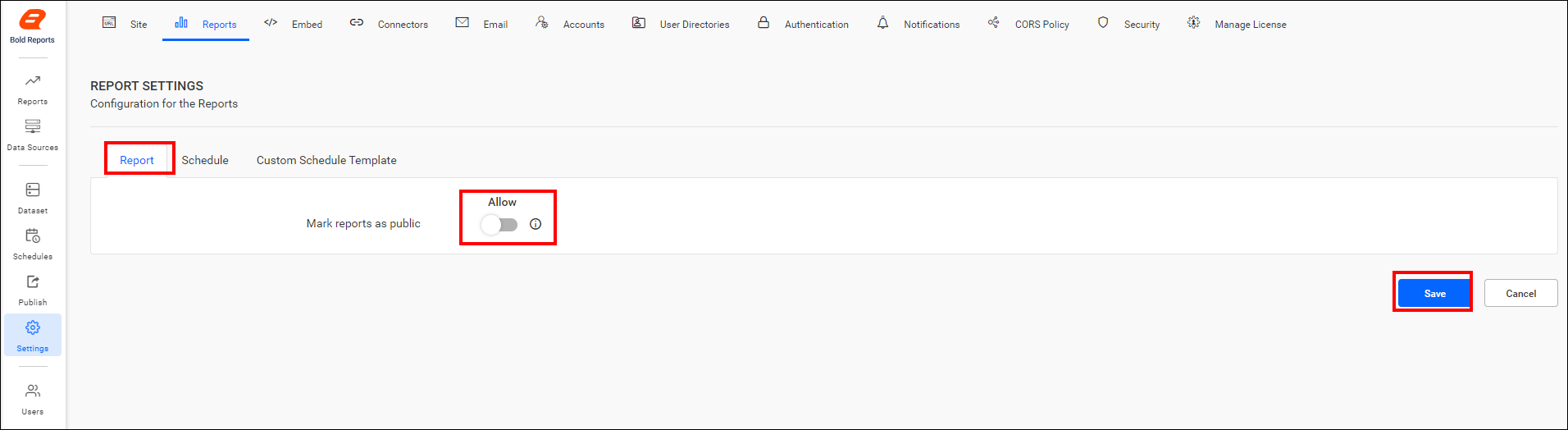
-
After restricting the
Mark reports as publicoption, if the administrator clicks on the Public Reports tab, the following message will be displayed:
-
After restricting the
Mark reports as publicoption, if the end user clicks on the Public Reports tab, the following message will be shown.
Note: Learn more about Public Reports by visiting the Public Reports Guide.
Report Designer
-
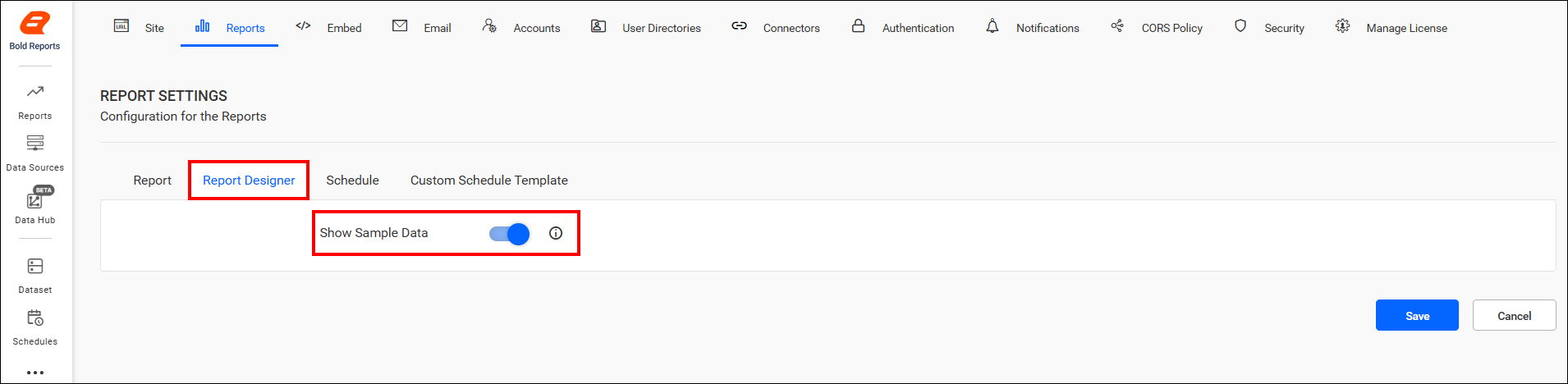
The Show Sample Data option is initially enabled by default in the report settings.
-
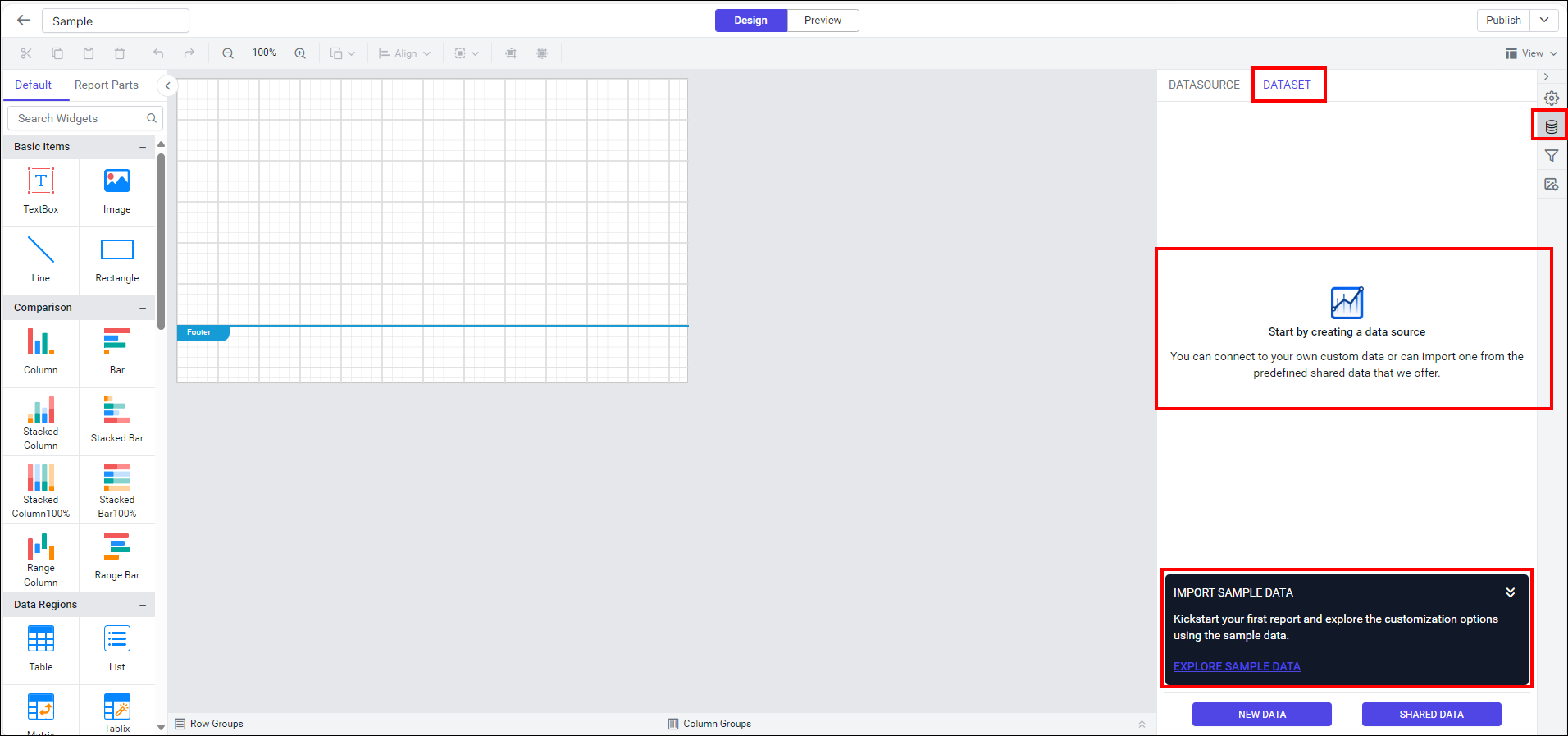
When enabled, the Import Sample Data option will be visible in the report designer, letting you import sample reports directly on the designer page
-
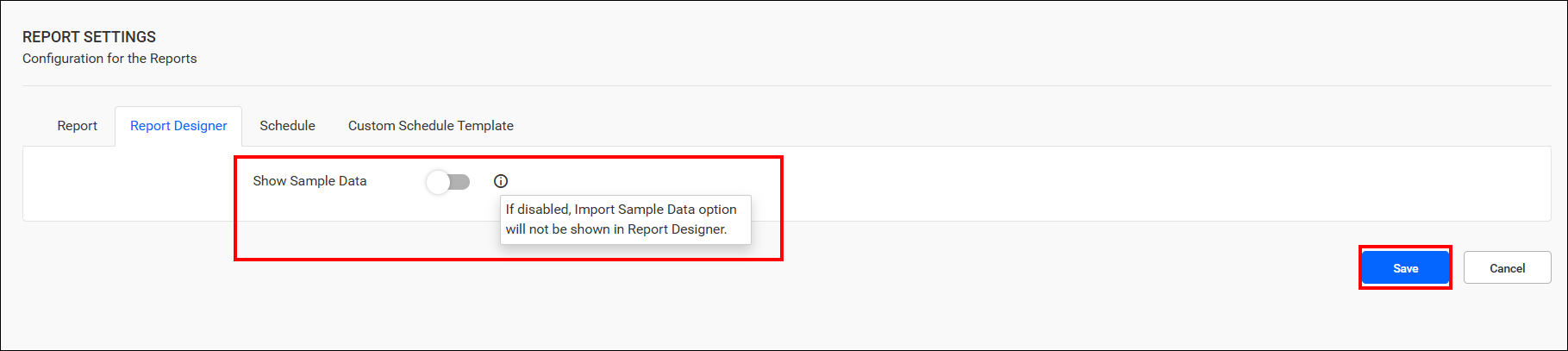
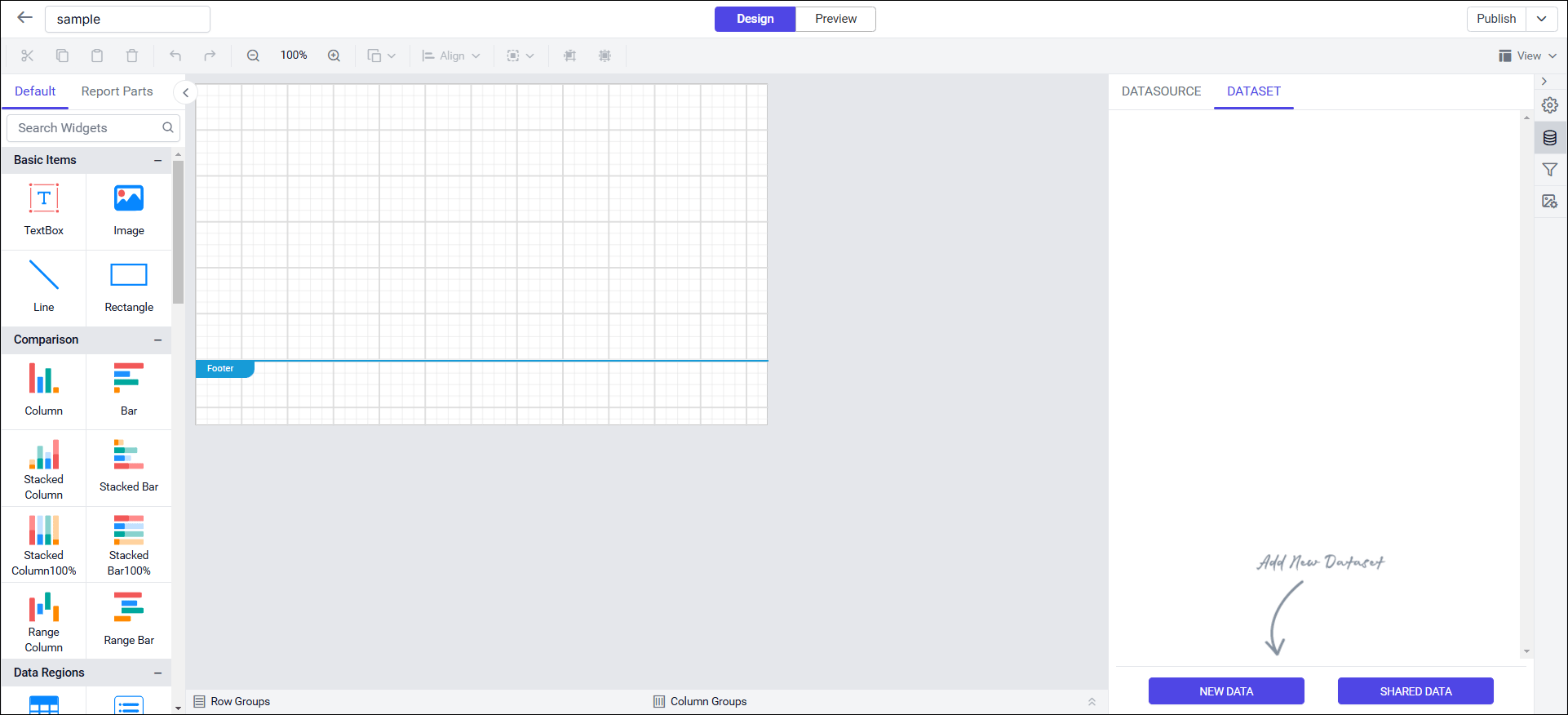
Disable this option and save the changes to hide the Import Sample Data option in the report designer, preventing you from importing the sample reports directly on the designer page.
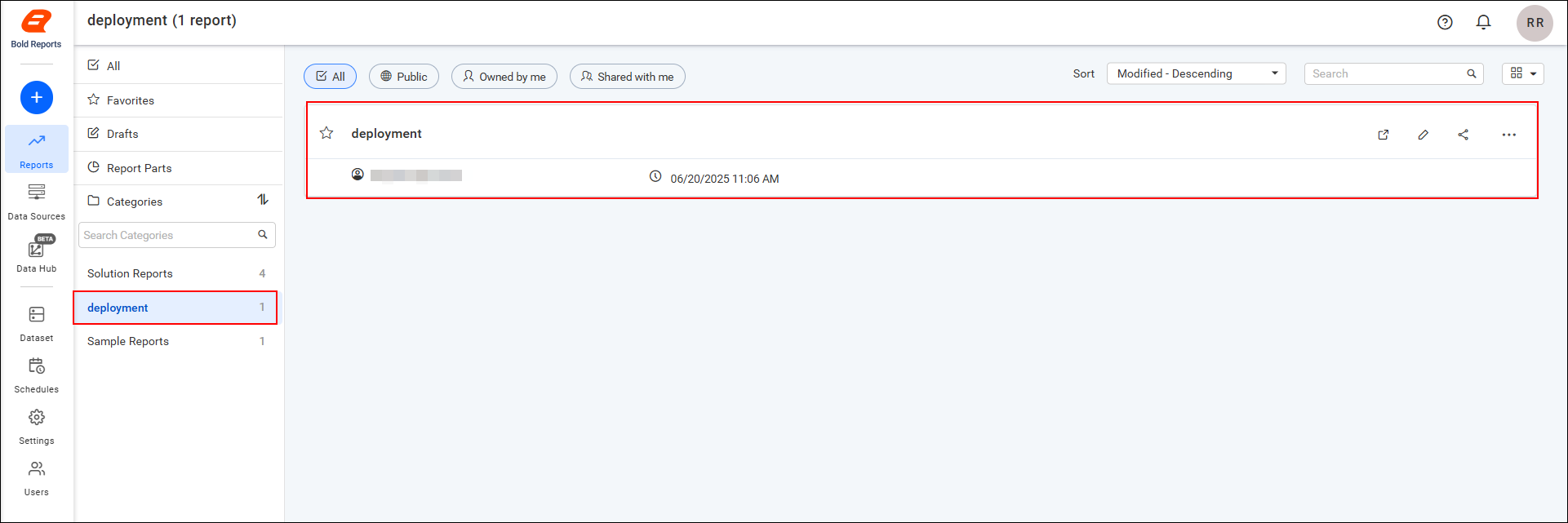
Deployment Reports:
Publishing Reports to Site Deployments:
Deployment Reports allow you to create and manage reports centrally in the master site and automatically publish them to all associated site deployments.
Adding a Deployment Report
To add a report for deployment:
-
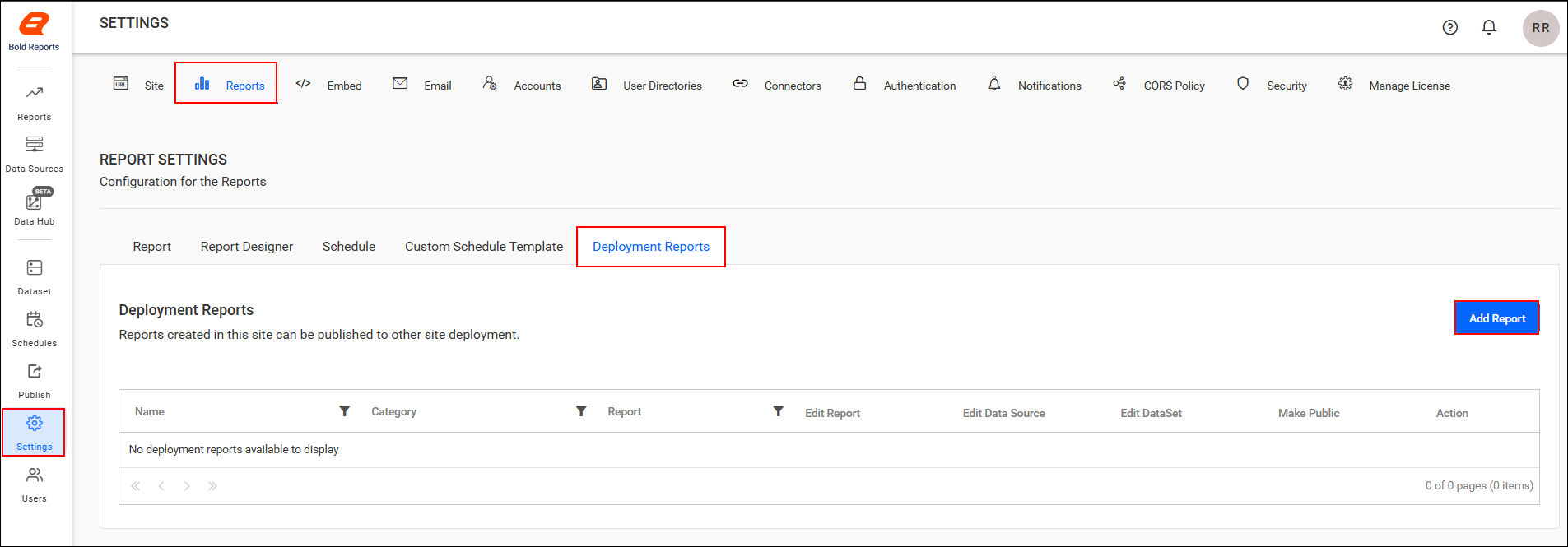
Click Add Report in the Deployment Reports section.
-
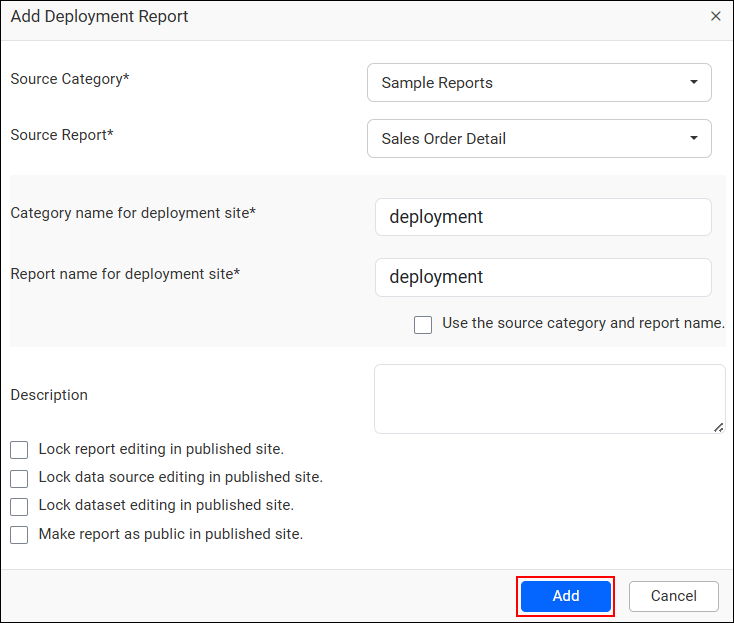
The Add Deployment Report dialog will appear.
-
Enter the required details and Click Add.
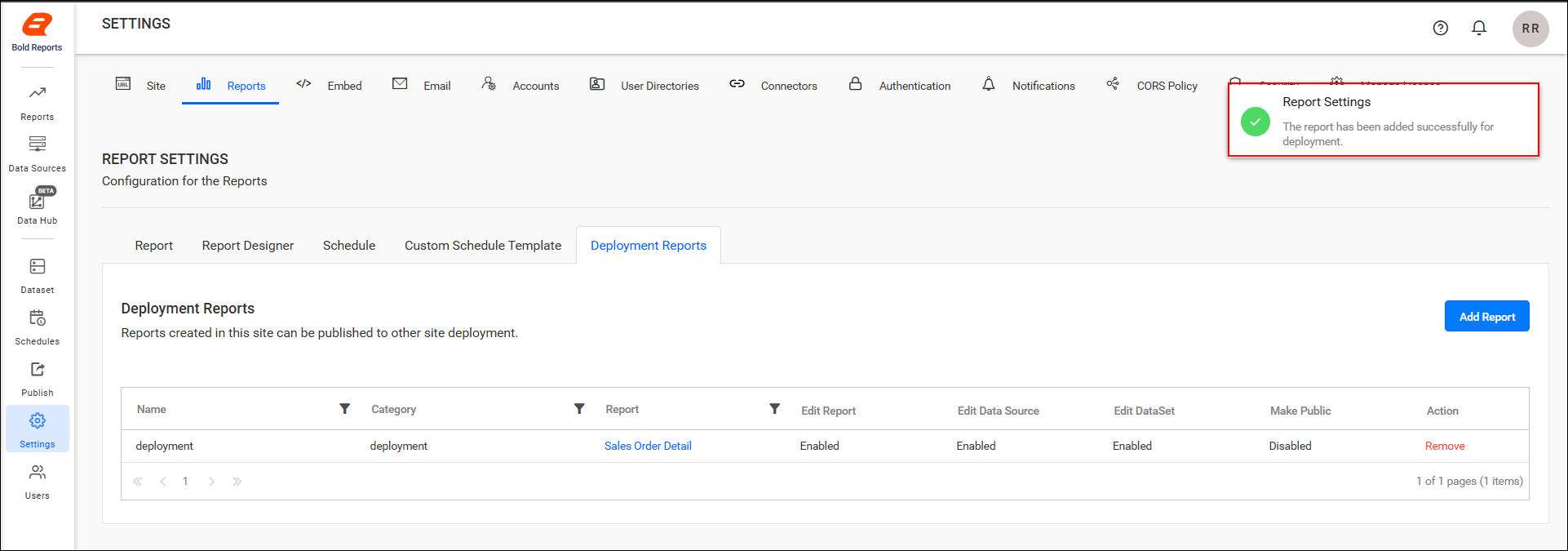
After the report is added, it appears in the Deployment Grid, and a confirmation message is displayed: The report has been added successfully for deployment.
Publishing to New Sites
When a new site is created, any reports already present in the Deployment Grid are automatically published to the newly deployed site.