PDF Signature
A PDF digital signature is a secure, cryptographic form of electronic signature used to verify a document’s authenticity and integrity. It confirms the signer’s identity and ensures the document has not been altered after signing.
Design a Non Disclosure Agreement report with a PDF signature
This section describes how to add a PDF signature to the Non Disclosure Agreement report. You can download the sample report from here.
Add a PDF signature to the report
-
Open the downloaded
Non Disclosure Agreementreport.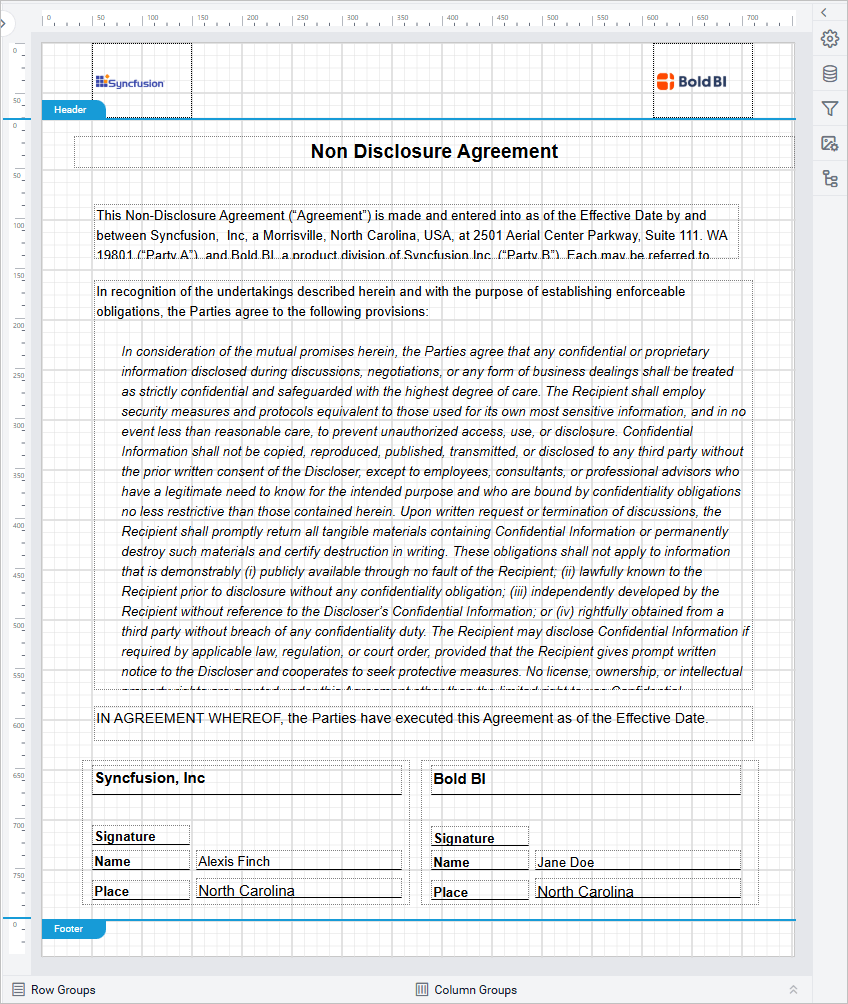
-
Drag and drop the PDF signature report item into the required area of the report.
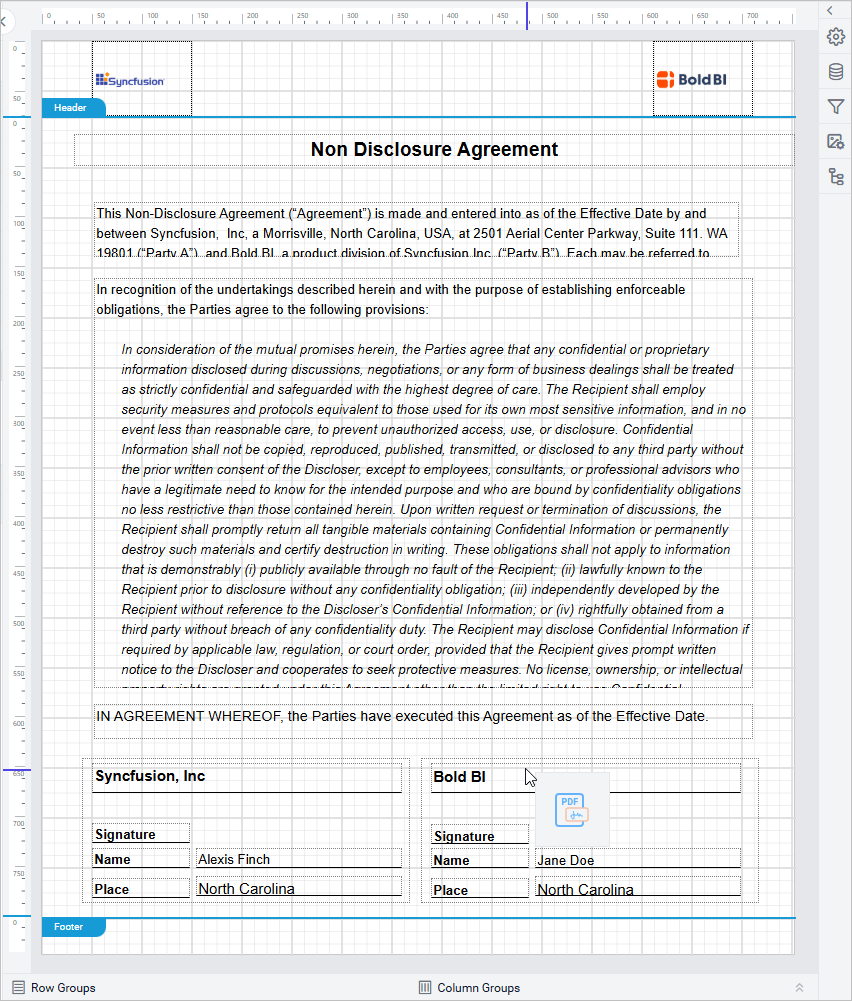
-
The corresponding item properties will now appear in the Properties panel.
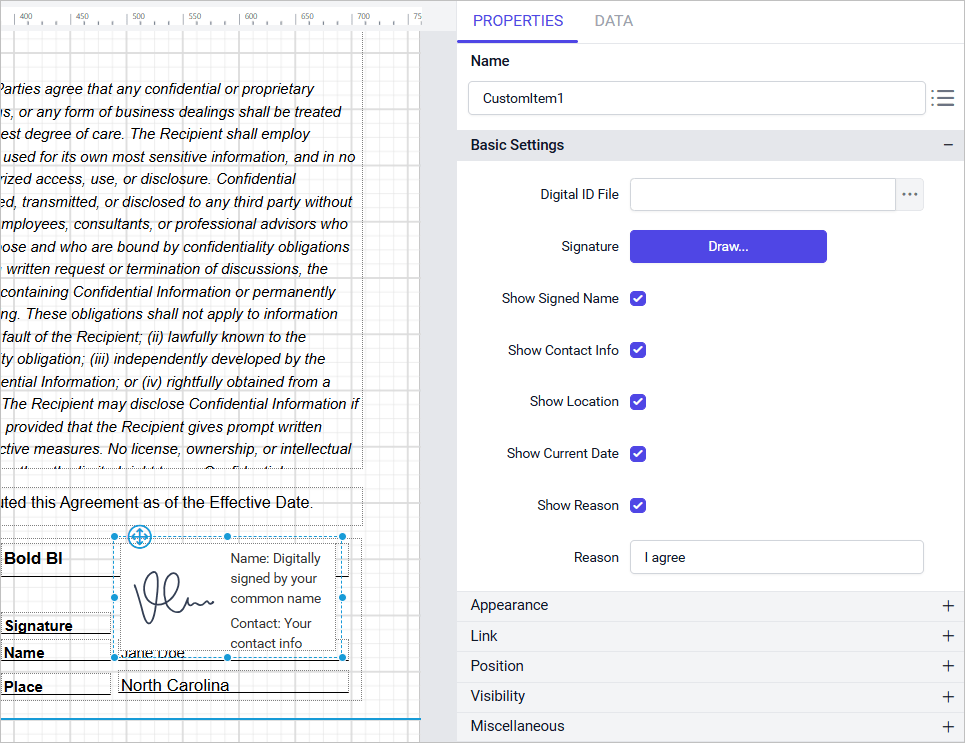
Basic properties
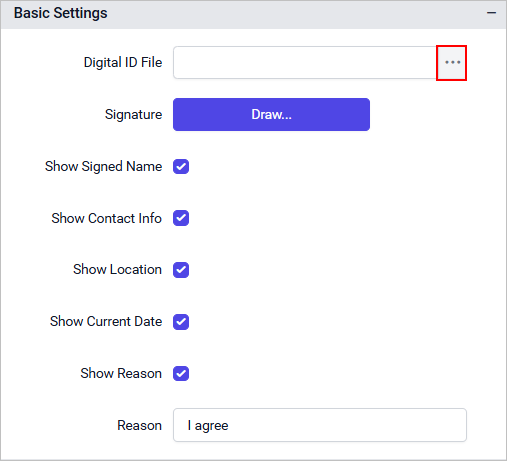
The Basic Settings category contains properties specific to PDF signatures. Resize the report item to view all available fields, as shown below:
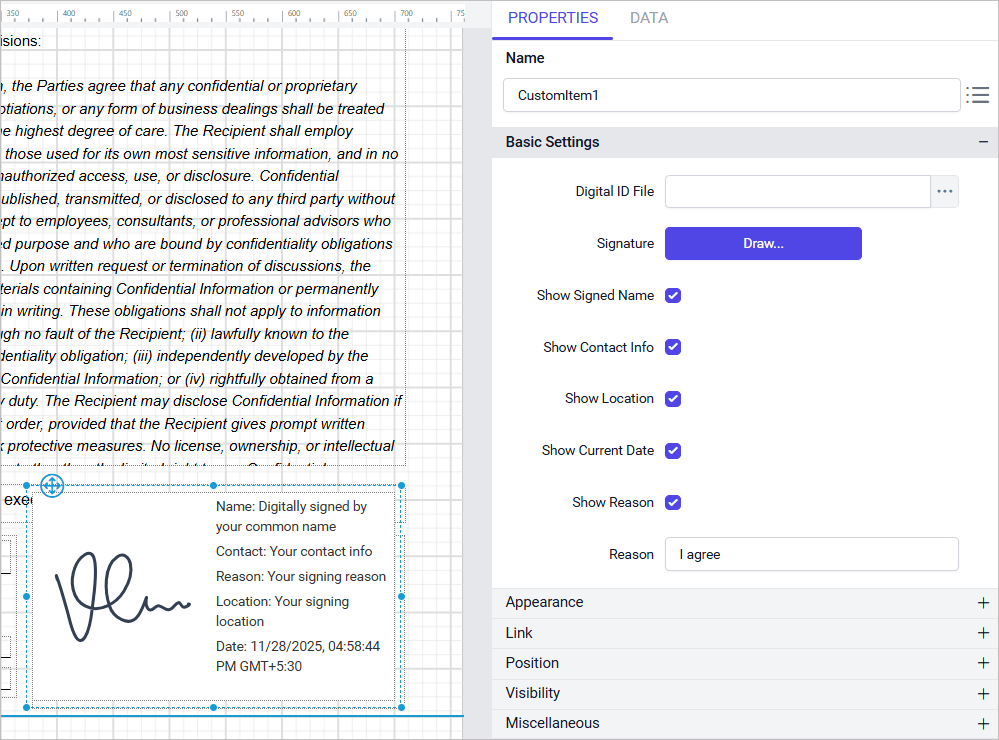
Digital ID file
Click on the browse button in the Digital ID file, option as shown below.
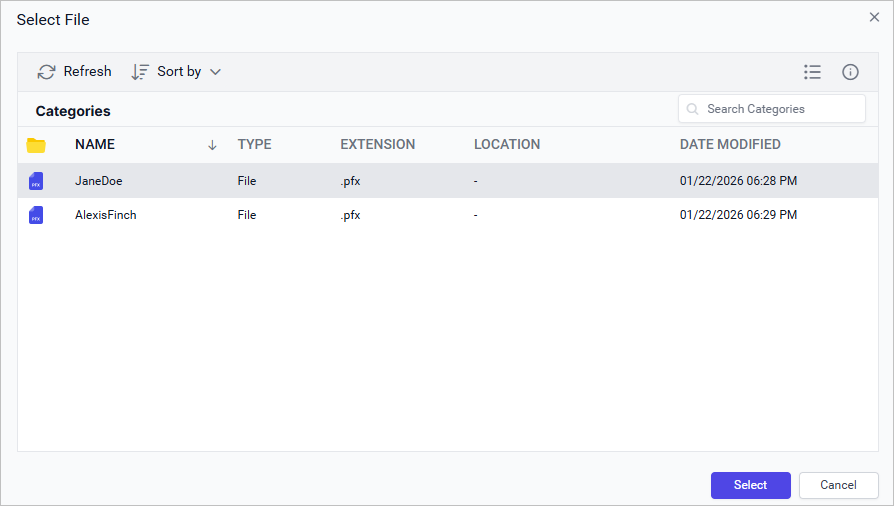
The dialog will list the digital ID (PFX) certificates uploaded to the Bold Reports® server.
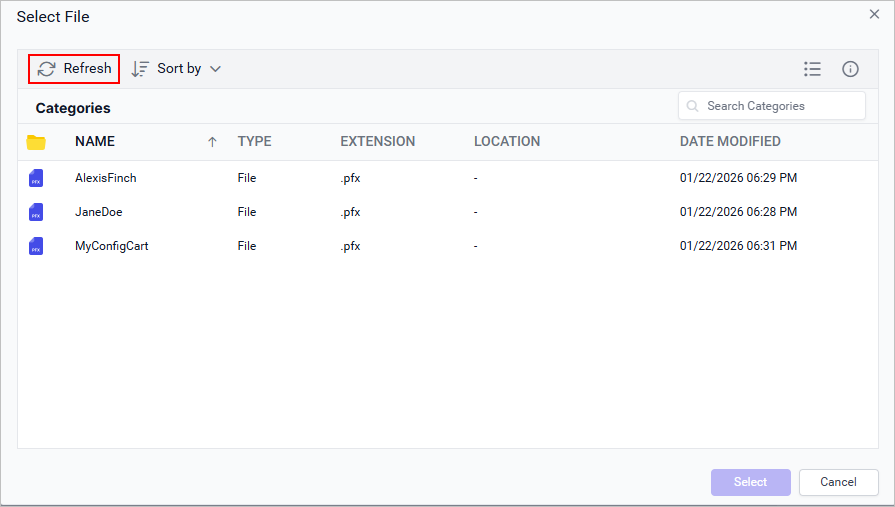
You can use the refresh button to get the latest updated digital ID file list from server as shown below:
Signature
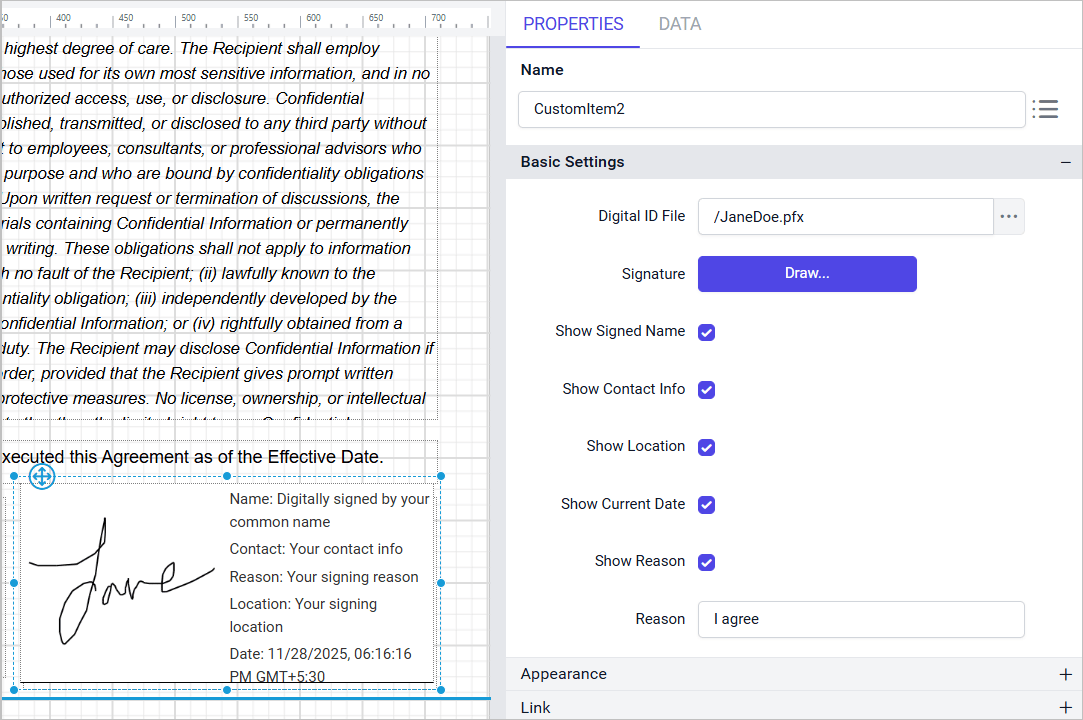
You can add your signature in the signature dialog by clicking the Draw… button. For more details on using the dialog, refer to the documentation here.
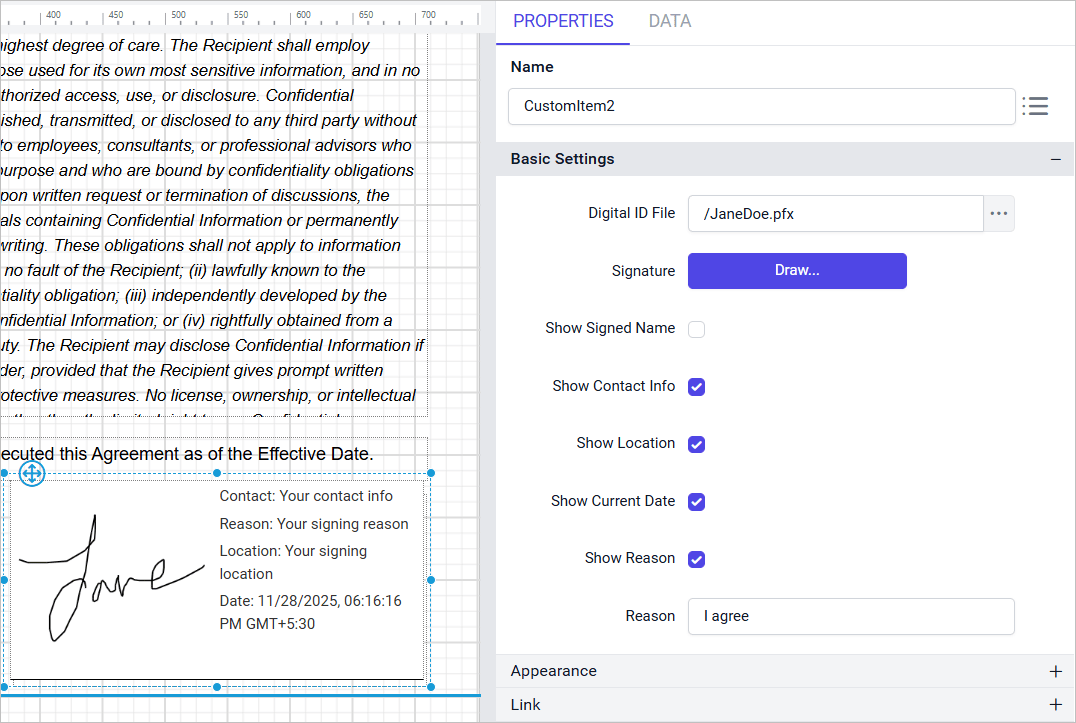
Show signed name
The signed name refers to the name associated with the Digital ID file. Enable or disable this property to display or hide the signer’s name during export.
The image below shows the Show signed name property when disabled.
Show contact info
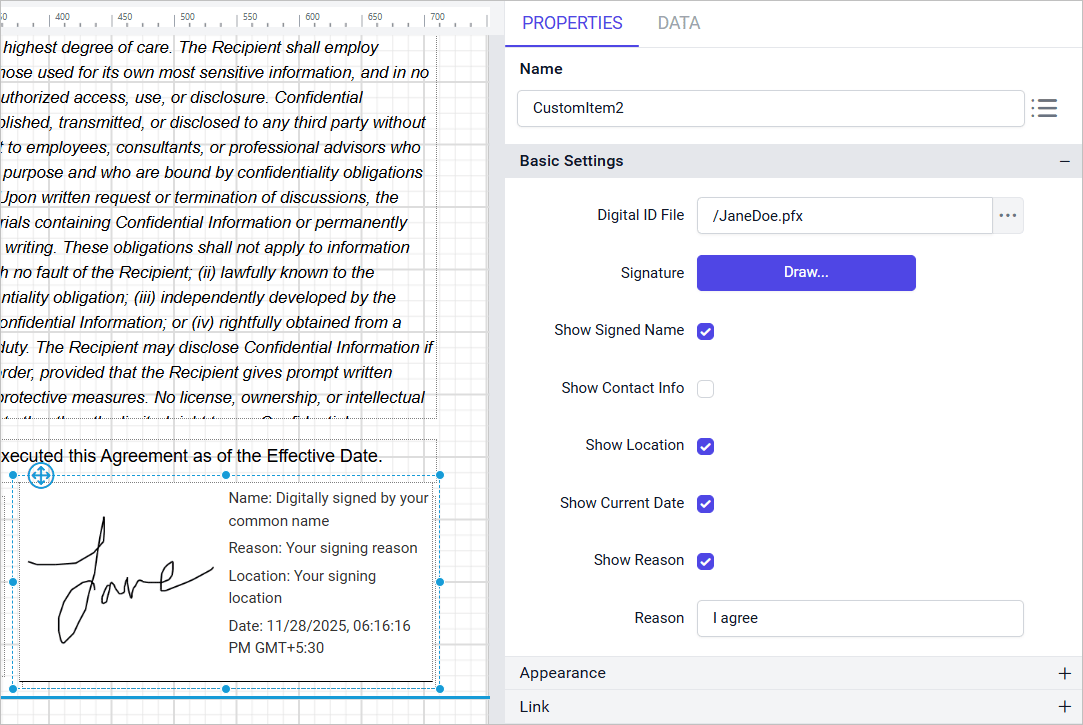
Contact information refers to details such as the email address stored in the digital ID file. Enable or disable this property to show or hide the contact information in the report item during export.
The image below shows the Show contact info property when disabled.
Show reason
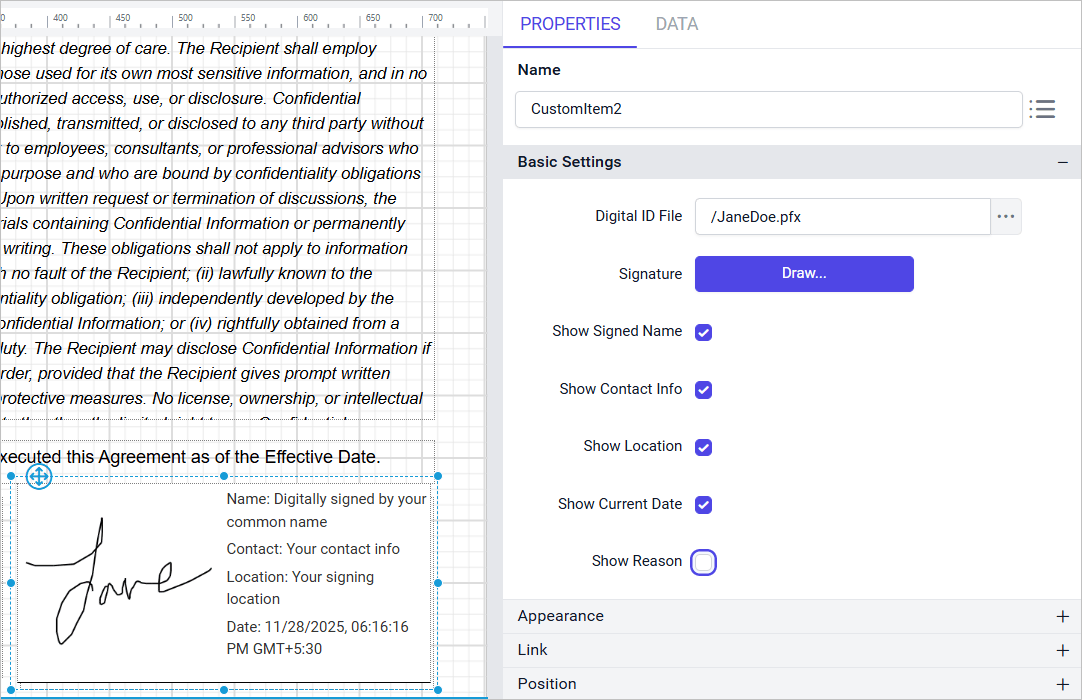
Reason refers to the input text given in the Reason property. Enable or disable this property to show or hide the reason in the report item during export.
The image below shows the Show reason property when disabled.
Reason
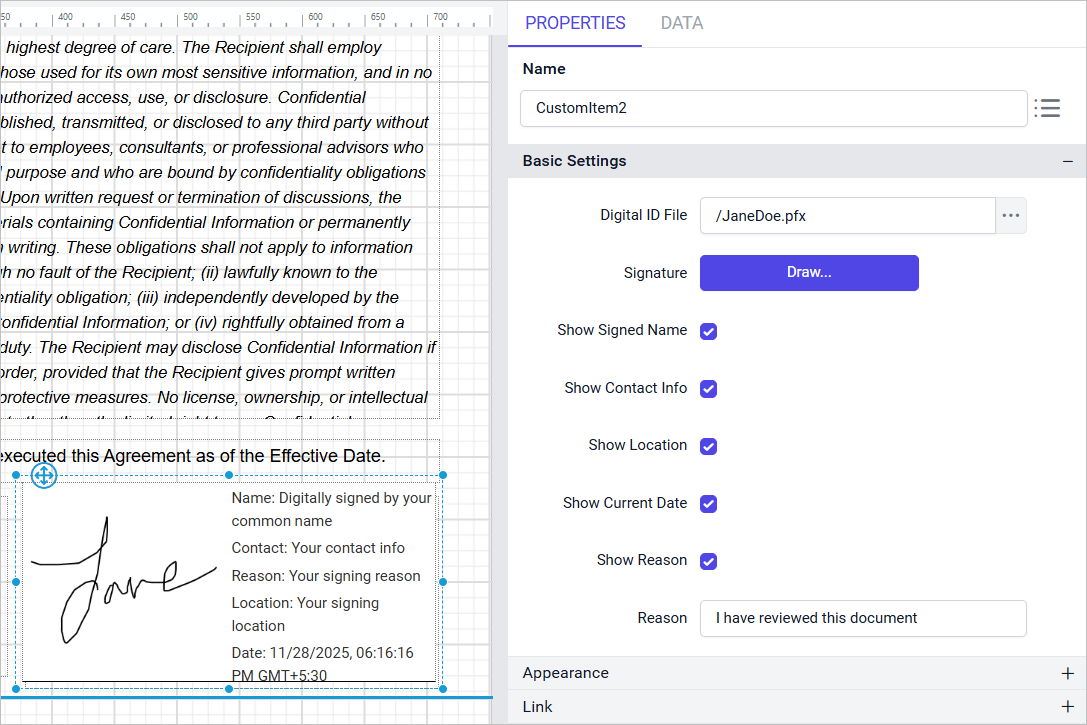
Use this text box to specify the reason for signing. The default value is I agree, which you can modify. Based on the Show reason property, this field will either appear or be hidden during export.
The image below shows the Reason property when disabled.
Show location
Location refers to the value stored in the digital ID file. Enable or disable this property to show or hide the location in the report item during export.
The image below shows the Show location property when disabled.
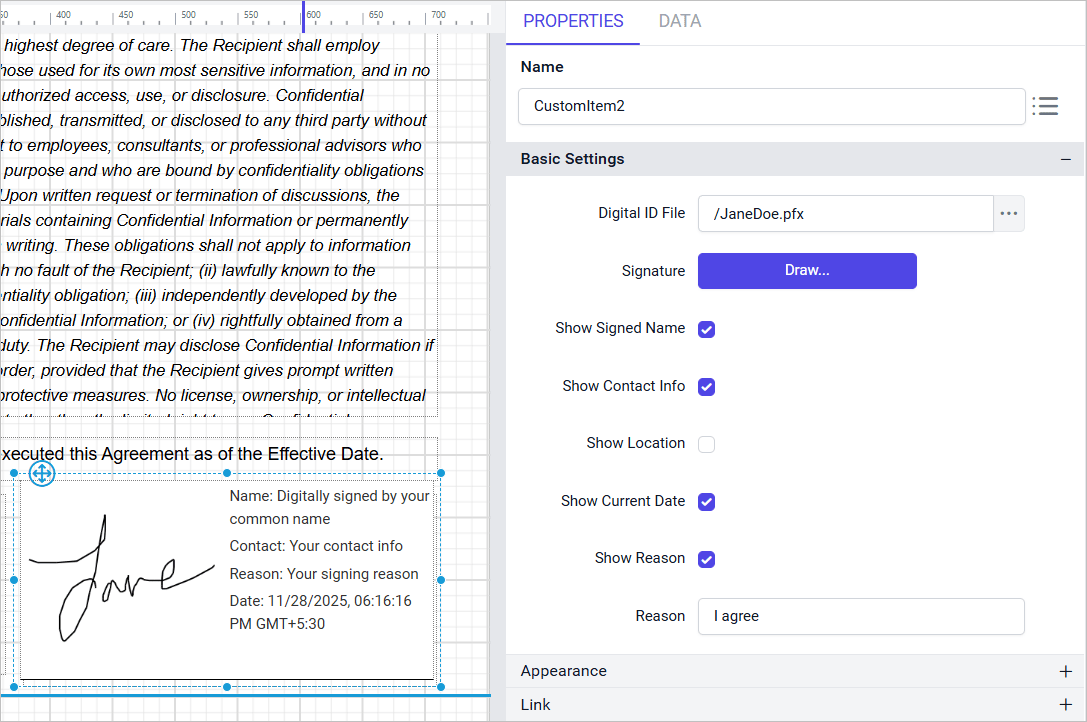
Show current date
The current date and time are shown during design and export. Enable or disable this property to show or hide the current date and time in the report item during export.
The image below shows the Show current date property when disabled
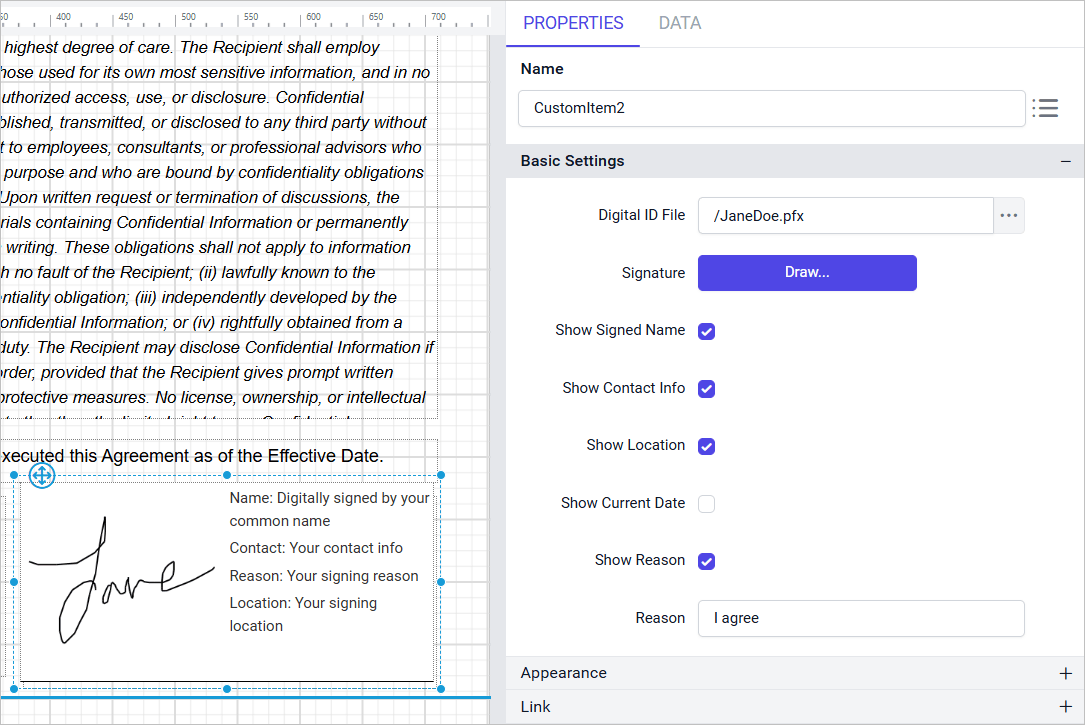
Note: In the report item’s design and preview modes, the static text displayed after the colon (e.g., signer’s name, contact information, location, reason, and date) serves as a visual placeholder. These values are not dynamically linked to any certificate data at design time. During PDF export, the actual signature details are programmatically extracted from the selected Digital ID file, replacing the placeholder content with authenticated information.
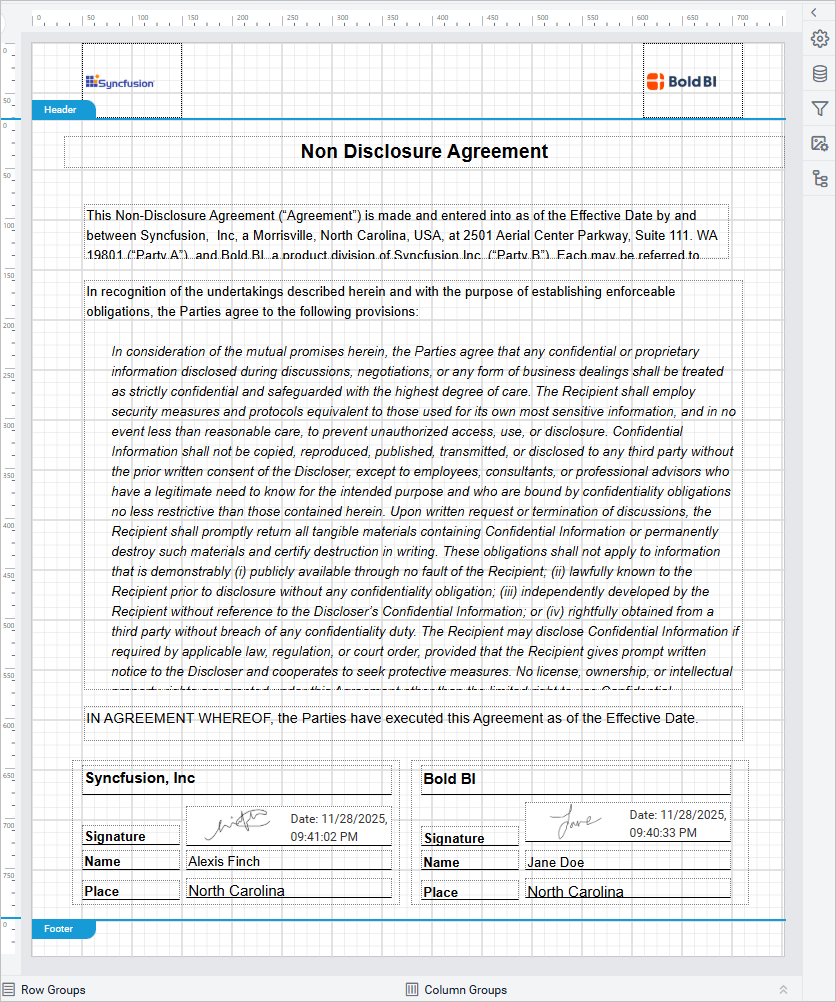
Final Design
The final design of the Non Disclosure Agreement report is shown below, with the PDF signature report item resized and customized for optimal placement. For simplicity, this example shows the design of a single PDF signature. In practice, an additional PDF signature was included in the same way to represent both parties signing the NDA.
Report Preview
-
Click on the
Previewbutton in the report header.
-
In preview mode, the PDF signature in
Non Disclosure Agreementreport is displayed as shown below: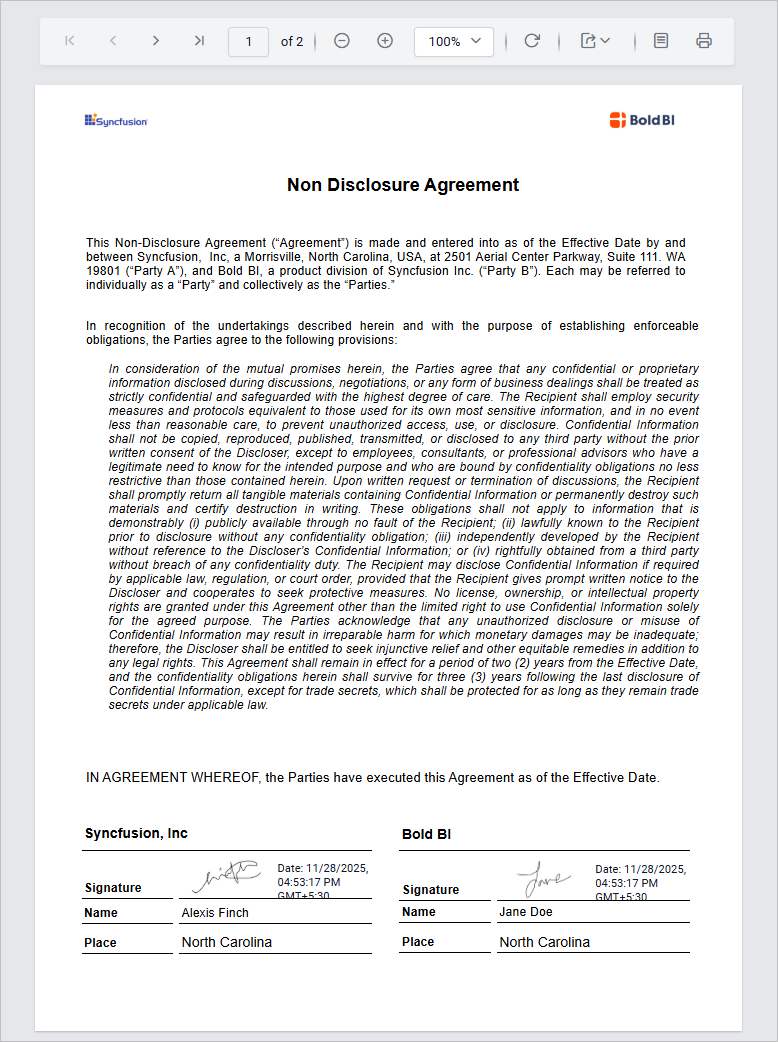
You can also edit the signed signature directly in preview mode. For more details, refer: Preview and edit the signature.
Export Report
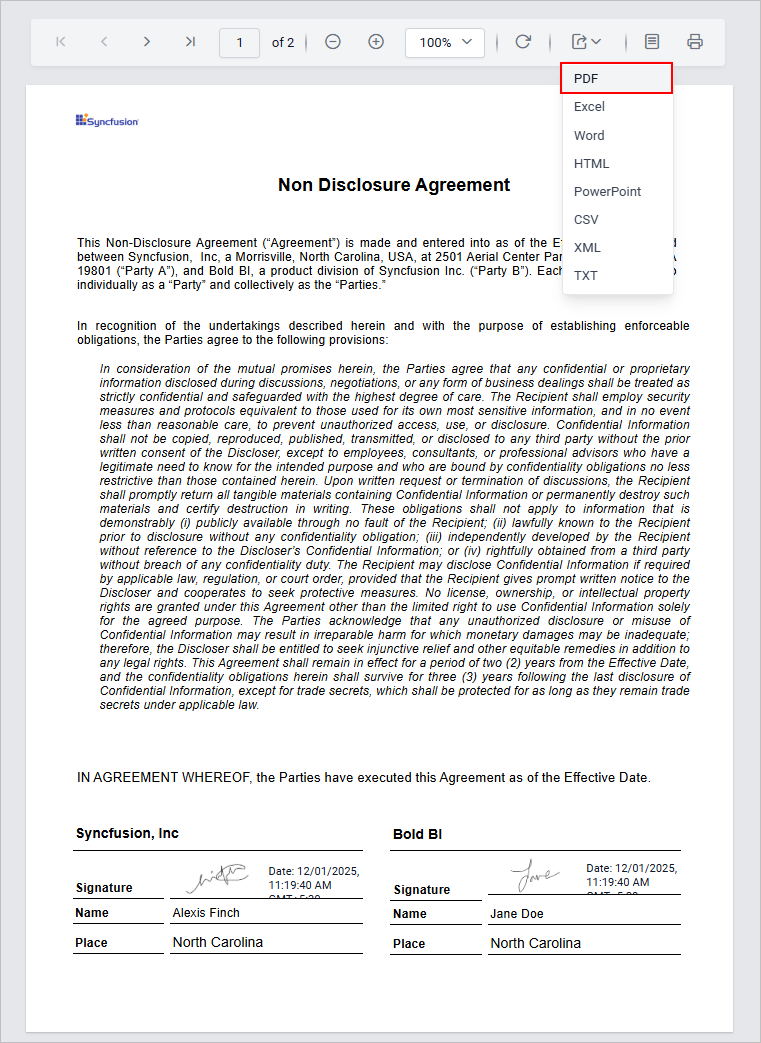
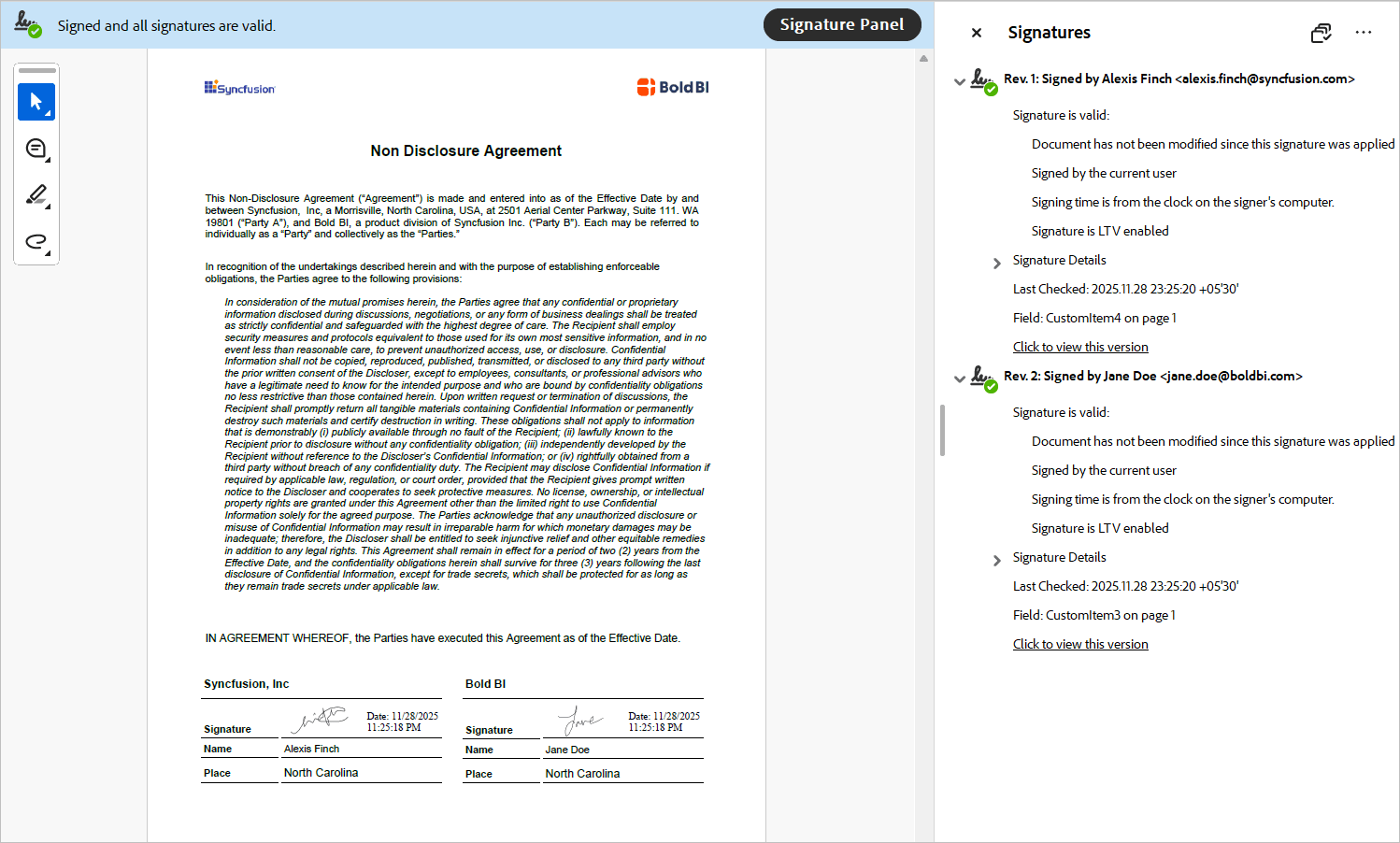
When exporting to PDF, the configured digital signature is automatically included and will appear as valid as long as the certificate is trusted by the viewer. PDF signatures are supported only in the PDF export format and are not applied to other export types.
Click the PDF option as shown below to export the report.
Export and view the Non Disclosure Agreement Report as shown below in any PDF viewer application.
Download the above report from this link.
Limitations
- When exporting a PDF signature using the standalone designer, the PDF file includes a signature placeholder instead of an actual digital signature. This placeholder reserves space for the signature but does not contain any secure data. The document is still unsigned and can be digitally signed later using external PDF signing tools.