Troubleshooting and FAQ
Why do I see a Blink files missing error when viewing the report?
Reason
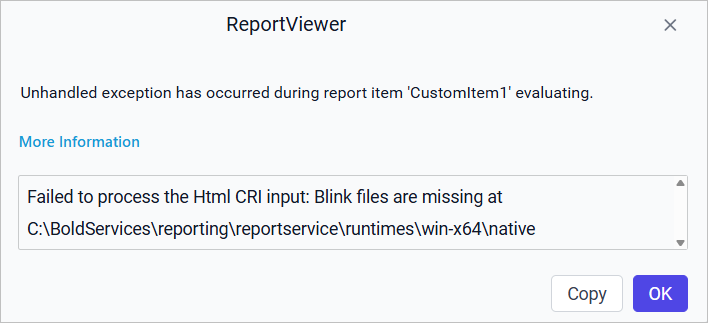
The HTML report item relies on the Chromium browser to process and render HTML content. If the Chromium packages are not available in the installed Enterprise build location, the HTML report item will not work. In such cases, you will encounter an error similar to the image below:
Solution
You can resolve this issue in one of the following ways:
-
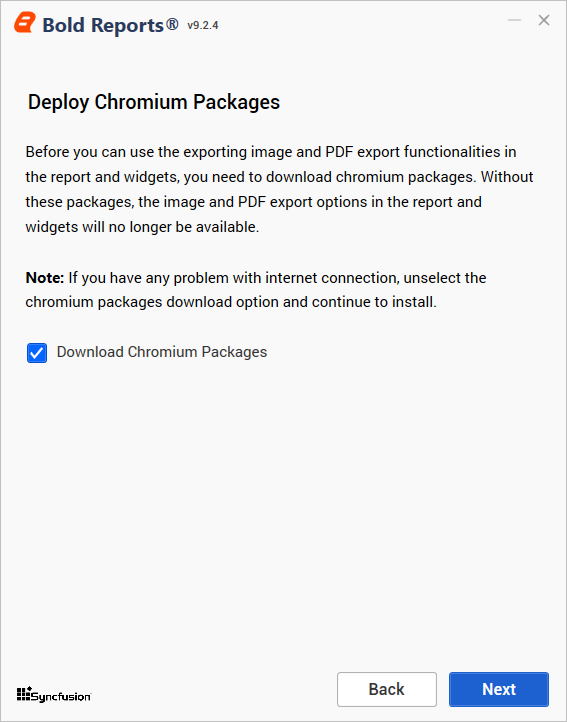
During Build Installation
When setting up the Enterprise build, make sure to enable the checkbox to download the Chromium package.
-
Manual Approach
You can also manually download the Chromium package by following this guide and place it in the location specified in the documentation.
What are the performance benchmarks of the HTML report item?
The HTML report item takes additional time to process and convert the provided HTML content into an image because it relies on the Chromium browser for rendering.
| Time taken for HTML content | Approximately 2 to 5 seconds for conversion |
|---|---|
| Time taken for online URL | More than 10 seconds for conversion |
Why is the script tag not executing in the HTML report item?
The HTML report item does not execute script tags by default. To allow script execution, it must be explicitly enabled using the EnableJavascript property.
Steps to enable script execution
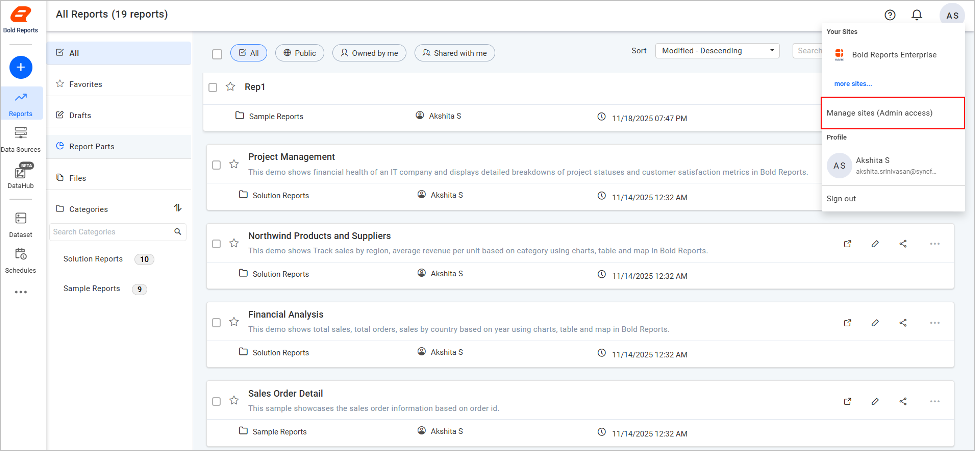
- Click the profile icon in the top-right corner and navigate to Manage Sites.
- Navigate to Settings > Configuration, then select the
reporting\config.xmlfile.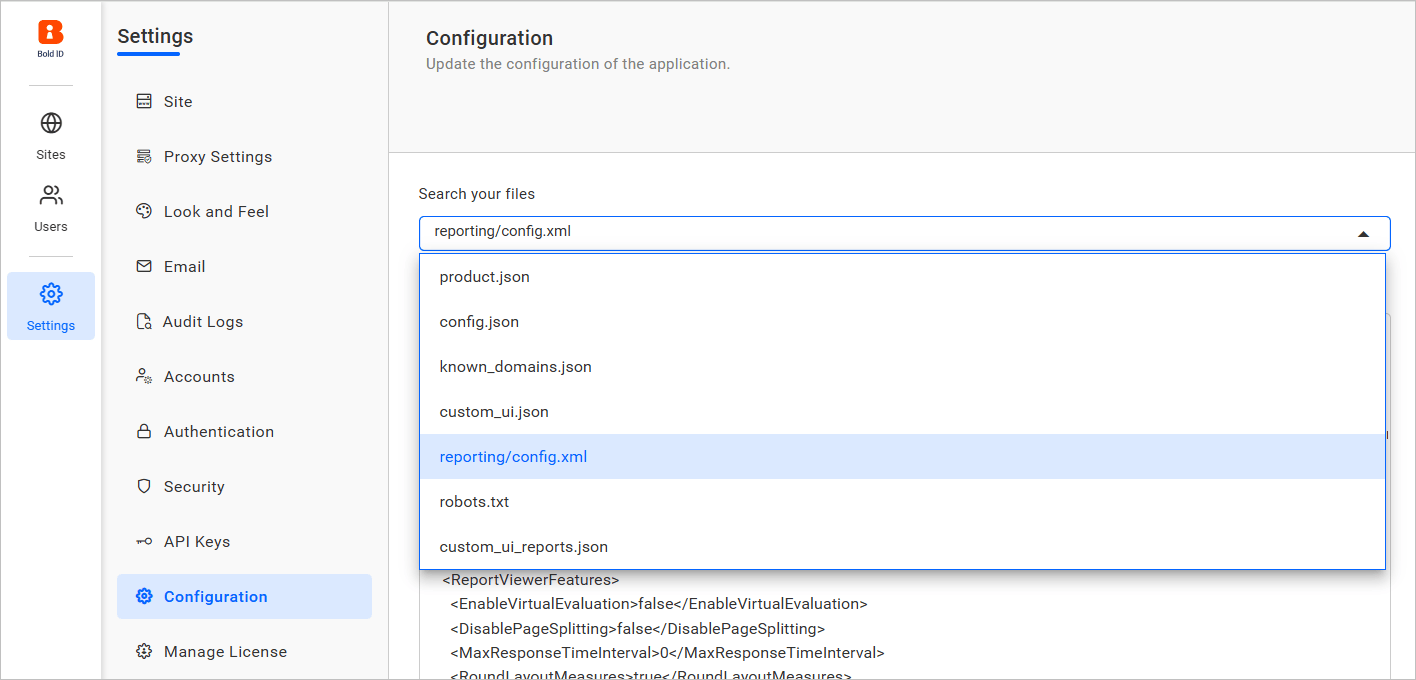
- Add the
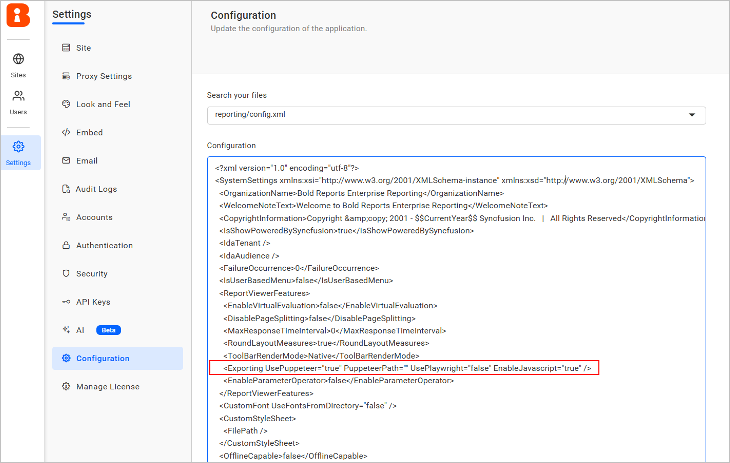
EnableJavascriptproperty inside the<Exporting>XML tag, as shown in the image below.