HTML
The HTML report item allows users to embed rich HTML content directly within reports. It supports the inclusion of CSS for styling along with standard HTML tags. This feature uses the Chromium browser engine to process the HTML content and renders it as an image, ensuring the output appears exactly as it would in a web browser.
Add an HTML report item
- The HTML report item is listed in the item panel under the
Documentscategory.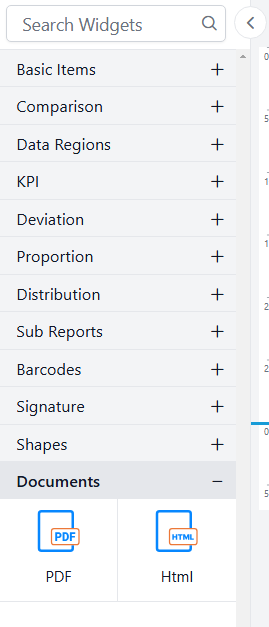
- Drag and drop the HTML report item from the item panel into the design area.
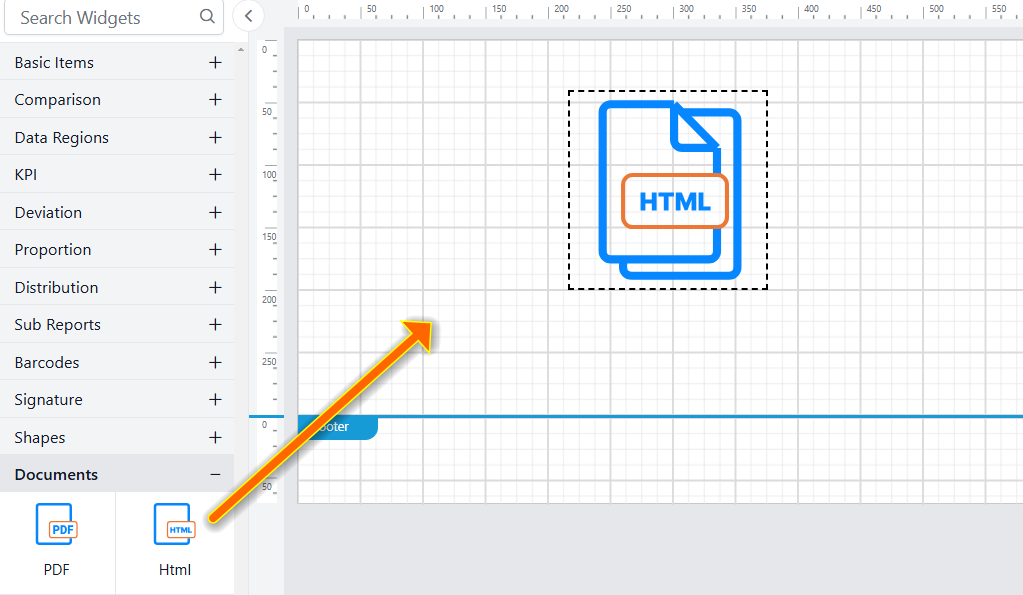
- After placing the HTML item in the design area, its properties will be displayed in the properties panel.

General Properties
Basic Settings
Basic Settings contains Source, Content and Sizing properties.
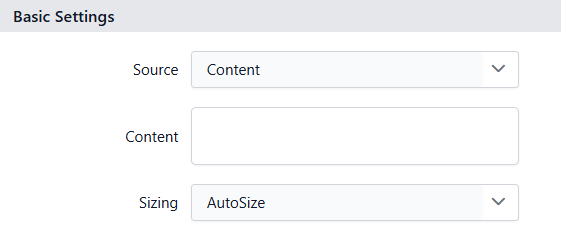
Source
The Source property specifies the input type for the HTML document, allowing you to choose from Content, URL , Database, or Server.
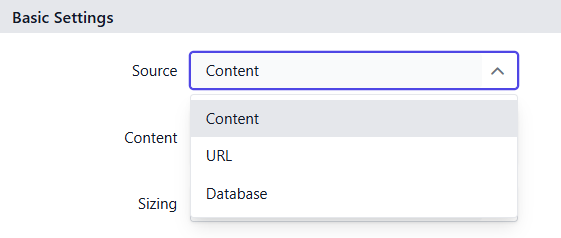
-
Content
The Content option allows user to enter the
HTML contentmanually along with theCSStags. -
URL
The
URLoption allows you to provide an HTML document either as an online URL, which is a direct link to the HTML file hosted on the web, or as a Base64-encoded string representing the HTML content. This method is particularly useful when the document is accessible via a web link or when you have the HTML encoded as a Base64 string for secure or offline usage. -
Database
The
Databaseoption enables you to provide an HTML document stored within your database in various formats, including a URL that serves as a direct link to the HTML file, a Base64-encoded string representing the HTML content, a byte array containing the raw binary data of the HTML, or the raw HTML content of the page itself. Additionally, you can use an expression to dynamically provide the HTML document by clicking theExpressionbox. -
Server
The
Serveroption displays the list of HTML files that have been uploaded on the Bold Reports® server. You can select any of these uploaded HTML files and use them directly in your report.
Sizing
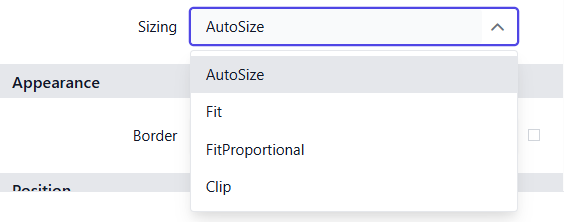
The Sizing property allows users to control the size of HTML content displayed as an image in the report viewer. It offers four options to adjust the size of the rendered image: AutoSize, Fit, FitProportional and Clip.
-
AutoSize
The
AutoSizeoption displays the converted HTML content at its original size in the report viewer. If the image size is larger than the report paper size, the image will be cropped across multiple pages to prevent the data loss. -
Fit
The
Fitoption scales the converted HTML content to fit within the report item, based on the report item size set in the design area. -
FitProportional
The
FitProportionaloption adjusts the converted HTML content to fit within the report item while maintaining certain aspect ratio. -
Clip
The
Clipoption displays only a portion of the converted HTML content as an image within the report item, starting from the top-left corner. If the image is larger than the report item, only the visible part of the image will be shown.
General Properties
Name
The Name property can be used to provide a unique name to the HTML item in the report.
Appearance
The appearance of the HTML item, including border style, color, width, which are used to style the HTML item and customize its appearance in the report design. These options are available under the Appearance category in the properties panel.
Link
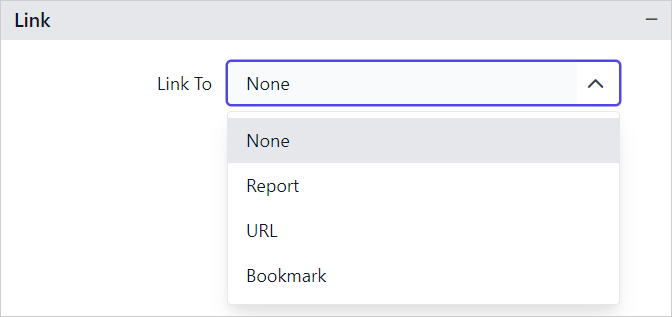
The Linking property in reports enables you to create interactive and user-friendly reports by adding actions such as Hyperlink and Report Linking. Refer Linking section to know more about linking.
Border
Border properties allow you to add or customize the border around an HTML item to visually separate it from other elements in the report design. To set border properties using the properties panel, refer to the Border Properties section.
Position
The position property is used to set the width, height, left and top position of the HTML item in the report design. For guidance on handling these properties using the properties panel, refer to thePosition section.
Visibility
The visibility property is used to conditionally show or hide the HTML report item during report preview or export actions. To set the visibility of the HTML item using the properties panel, refer to the Visibility section.
Miscellaneous
Tooltip
The tooltip property can be used to display informative text or values when the user hovers over the report item in report preview. To set a tooltip for the HTML item using the properties panel, refer to the Tooltip section.
Bookmark
Bookmark links enable users to navigate to different parts of an SSRS report. You can add bookmarks to textboxes, images, tables, charts, or unique group values in a tablix, directing users to specified locations in the report. The value of the bookmark property can be either custom strings or expressions. For more details, refer to the Bookmark section to configure bookmark in the report design.
Static or dynamic text can be set as the value for the bookmark property. For setting and resetting dynamic text, refer to the Set Expression and Reset Expression sections.
Custom Style
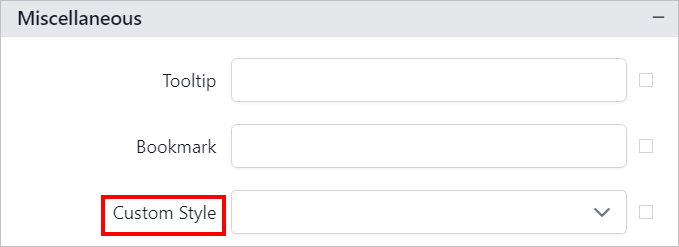
The Custom Style property enables the use of external CSS for styling report items, providing enhanced flexibility beyond the built-in styling options. This property allows you to meet specific design requirements and maintain consistent styling across multiple reports. For a step-by-step guide on setting up custom styles in your report, check the How To section of this guide.
Set expression
Expressions can be applied to certain properties of the HTML report item to process the property values based on expressions. To set expressions for the HTML report item properties, refer to the Set Expression section.
Reset expression
To Reset the expression applied to a property, refer to the Reset Expression section.
Advanced properties
Some properties of the HTML report item contain nested properties. For information on opening and handling nested properties, refer to the Advanced Properties section.