Chart Axis in Bold Reports® Web Report Designer
A chart in the Bold Reports® Web Report Designer typically has two axes that measure and categorize data: a vertical (y) primaryYAxis and a horizontal (x) primaryXAxis. You customize the axis appearance through the properties under the Category Axis and Value Axis categories of the chart properties.
Where do I set axis properties?
You set chart axis properties in the Web Report Designer properties panel. To customize the category axis, change the properties under the Category Axis property. For the value axis, change the properties under the Value Axis category.
Axis Type
The Axis Type dropdown in the Bold Reports® chart properties displays options for both Primary and Secondary axes.
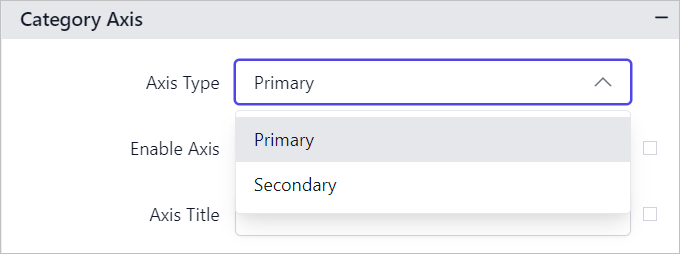
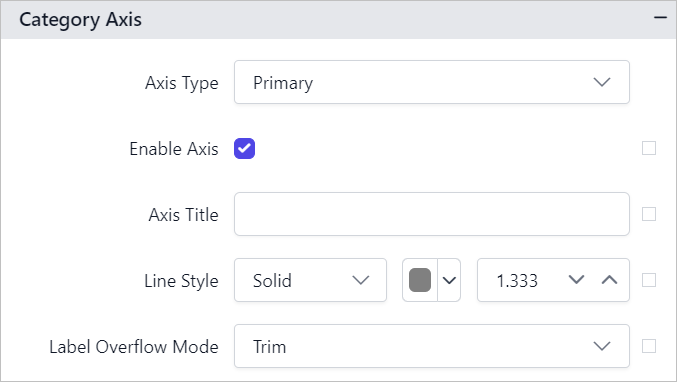
Choose the Primary option in the Axis Type dropdown to set the properties below for primary axes. These values apply uniformly to all series marked as primary axes in the chart.
Similarly, choose the Secondary option in the Axis Type dropdown to set the properties below for secondary axes. These values apply uniformly to all series marked as secondary axes in the chart.
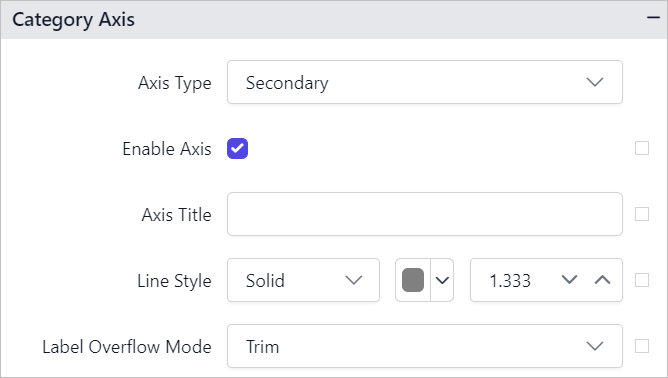
The steps above configure the category axis, and the process is the same for the value axis.
How do I show or hide an axis?
You show or hide a chart axis in the Web Report Designer by toggling the Enable Axis checkbox in the properties panel.

If you enable the Enable Axis checkbox, the chart axis is displayed in the chart area.

You can also enable or disable the chart axis based on dynamic values by using Expressions. Refer to the Set Expression and Reset Expression sections to open the set or reset expression menu in the properties panel.
Axis Title
The axis title property in the Bold Reports® chart customizes the text and font of the axis title. You can customize the font family, font style, font weight, alignment, and size. The axis does not display the title by default.
To display title text for an axis, enter the text in the Axis Title textbox.

The text is then displayed on the respective axis of the chart design.
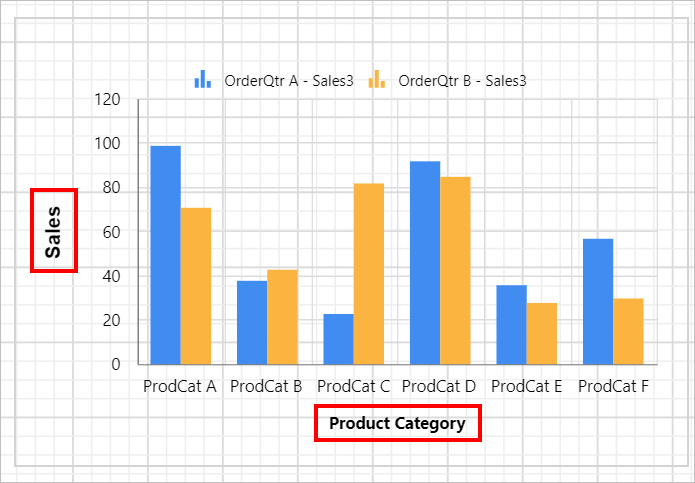
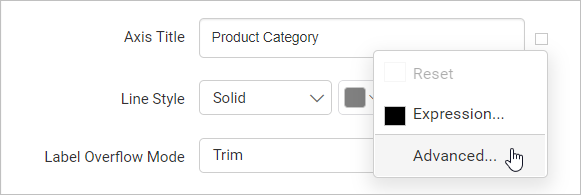
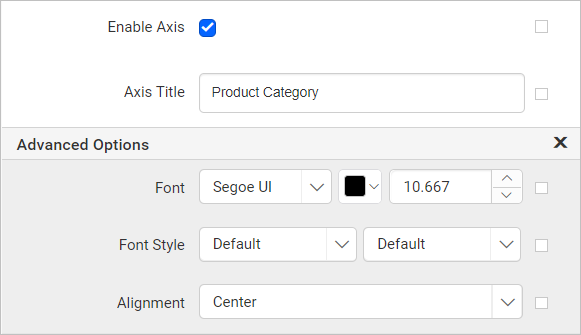
To set the font weight, color, style, size, and alignment, open the Advanced Menu of the axis title property.
The font properties are listed in the Advanced Options menu.
You can also set the chart axis title text based on dynamic values by using Expressions. Refer to the Set Expression and Reset Expression sections to open the set or reset expression menu in the properties panel.
Line Style
The Line Style property of the chart axis sets the line style, width, and color of the axis line.

In the following image, the line style, color, and width properties are applied to the chart axes.
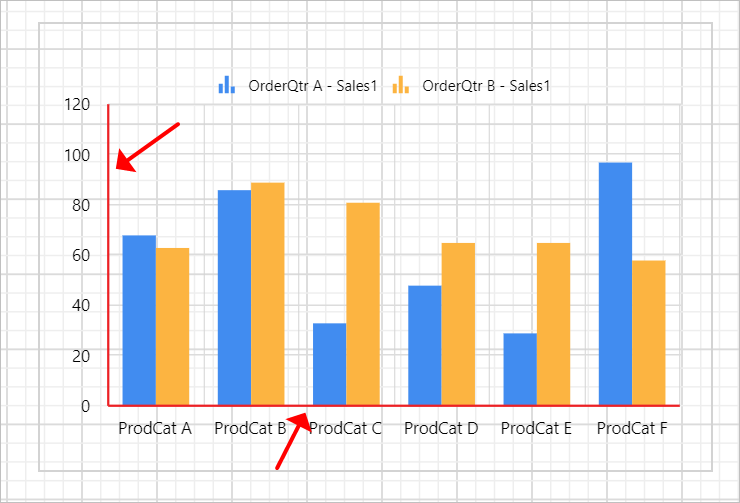
You can also apply the line style, color, and width properties based on dynamic values by using Expressions. Refer to the Set Expression and Reset Expression sections to open the set or reset expression menu in the properties panel.
Label Overflow Mode
The Label Overflow Mode property of the chart axis handles the display mode of overlapping labels.
Trim
The Trim option trims the end of overlapping labels on the axis.
Hide
The Hide option hides overlapping labels on the axis.
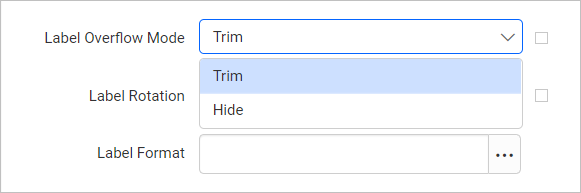
You can also apply the label overflow mode based on dynamic values by using Expressions. Refer to the Set Expression and Reset Expression sections to open the set or reset expression menu in the properties panel.
Label Rotation
The Label Rotation property of the chart axis defines the rotation angle of the axis labels in the chart design.

Increase or decrease the rotation angle in the label rotation numeric textbox.
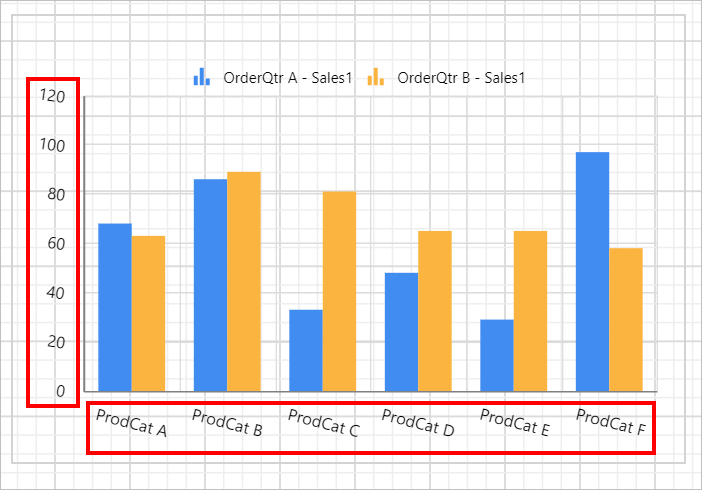
You can also set the label rotation property based on dynamic values by using Expressions. Refer to the Set Expression and Reset Expression sections to open the set or reset expression menu in the properties panel.
Label Format
The Label Format property of the chart axis applies formatting options such as display type, denominations, decimal places, currency culture, and negative value display format to the value axis labels.

Refer to the Format Data section to set different formats for the axis label. In this example, the Currency format is applied to the Sales values in the value axis.
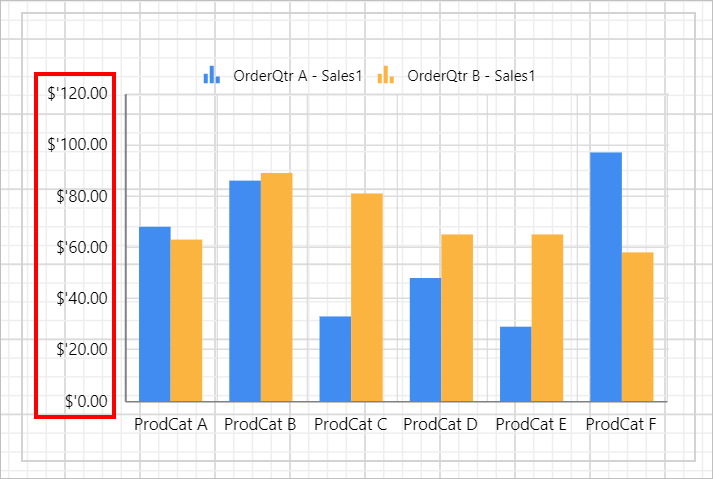
You can also set the label format based on dynamic values by using Expressions. Refer to the Set Expression and Reset Expression sections to open the set or reset expression menu in the properties panel.
Label Font
The label font properties of the chart axis, font family, font size, and font color, customize the label text.
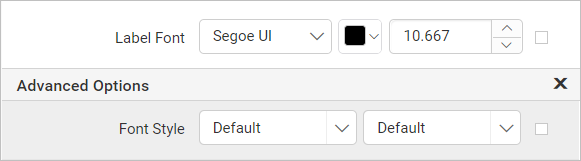
You can also apply font properties based on dynamic values by using Expressions. Refer to the Set Expressions and Reset Expressions sections to open the set or reset expression menu in the properties panel.
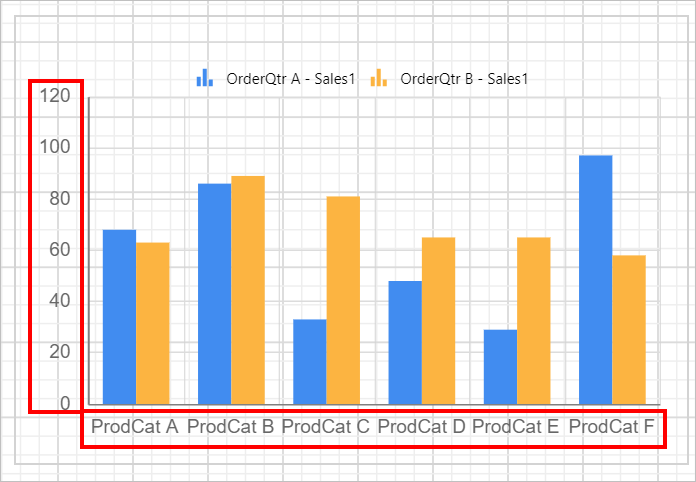
Labels AutoFit Disabled
The Labels AutoFit Disabled property of the chart axis avoids skipping labels at run time. By default, the Interval Auto setting for the chart axis can cause the X or Y axis labels to show only every second interval. Enable or disable this property based on the label rendering behavior of the chart design.
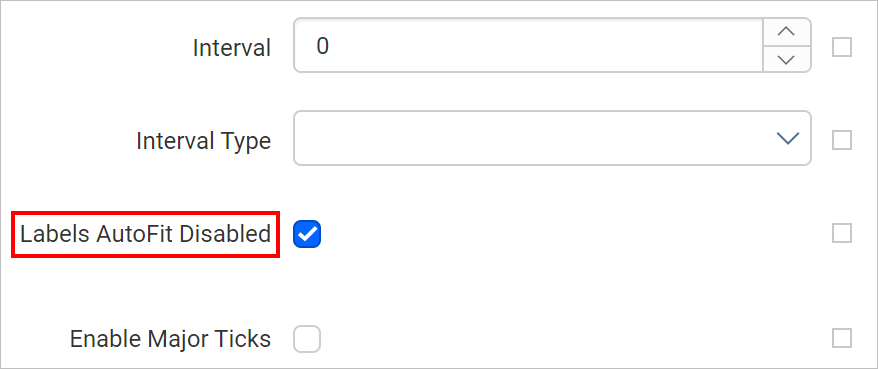
You can also enable or disable the label autofit based on dynamic values by using Expressions. Refer to the Set Expression and Reset Expression sections to open the set or reset expression menu in the properties panel.
Tick
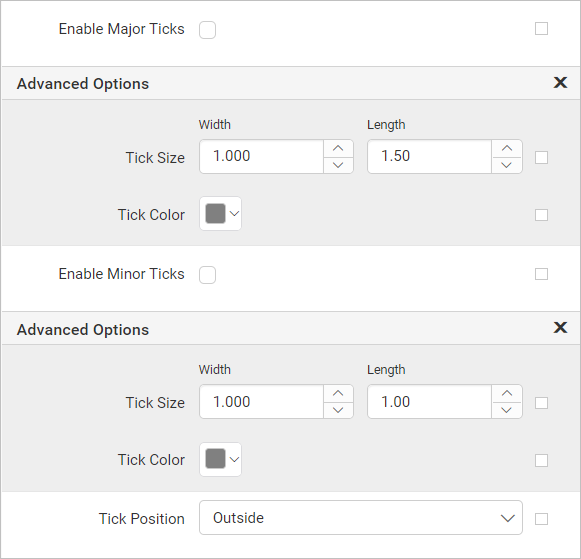
The Tick properties of the chart axis set the style, width, color, and length of the axis tick, and set the visibility of the major and minor tick marks.
Major Ticks
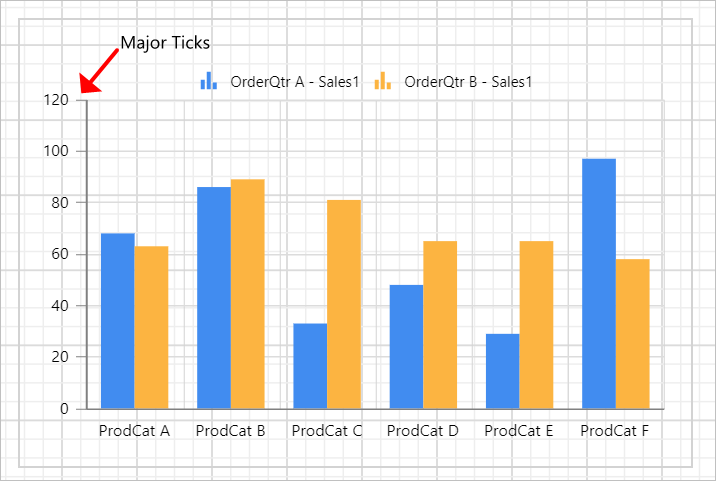
To enable major ticks on the chart axis, toggle the Enable Major Ticks checkbox.

The major ticks are then enabled on the respective chart axis.
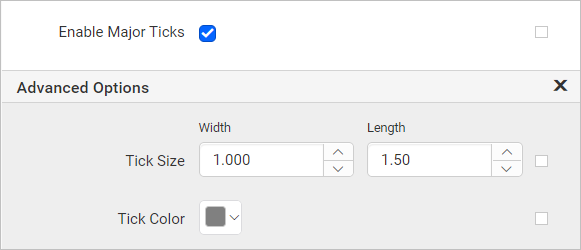
To customize the tick color, width, and length, open the Advanced... menu.
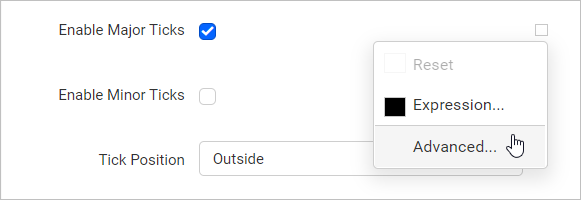
Click the Advanced... option. The properties are listed in the Advanced Option pane.
Minor Ticks
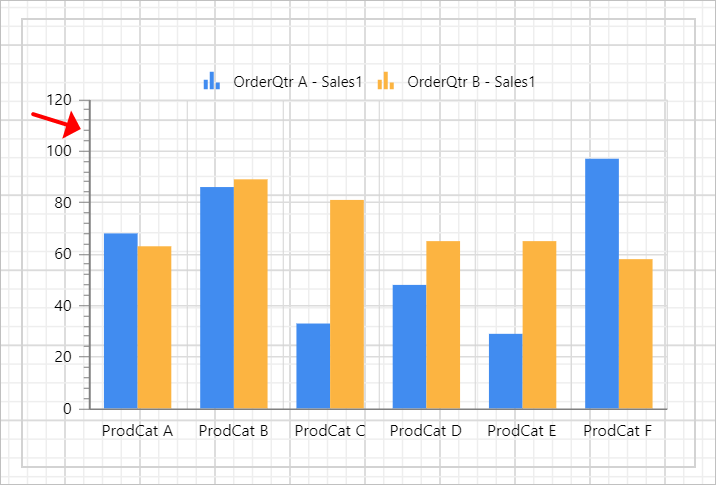
To enable minor ticks on the chart axis, toggle the Enable Minor Ticks checkbox.

The minor ticks are then enabled on the respective chart axis.
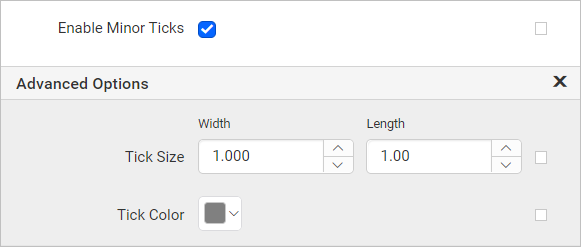
To customize the tick color, width, and length, open the Advanced... menu.
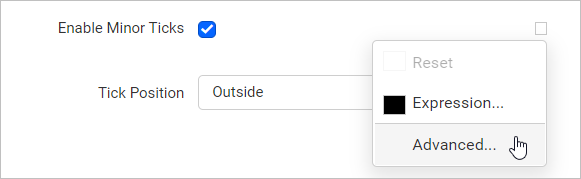
Click the Advanced... option. The properties are listed in the Advanced Option pane.
You can also enable or disable ticks based on dynamic values by using Expressions. Refer to the Set Expressions and Reset Expressions sections to open the set or reset expression menu in the properties panel.
Tick Position
The Tick Position property positions the ticks outside or inside the chart axis.
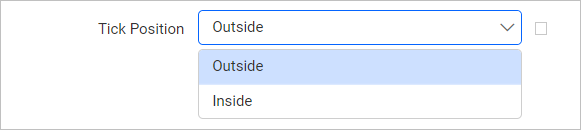
By default, ticks are positioned outside the chart axis. In the following image, the position is changed to Inside.
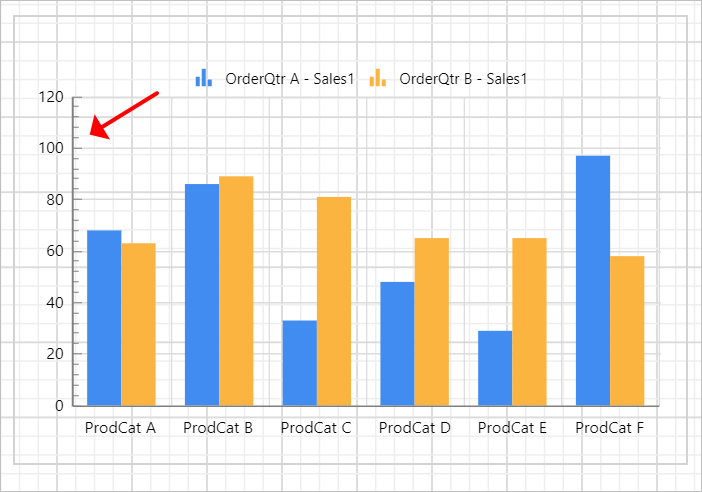
You can also apply the tick position based on dynamic values by using Expressions. Refer to the Set Expressions and Reset Expressions sections to open the set or reset expression menu in the properties panel.
Reverse
The Reverse property reverses the chart axis. Toggle the Reverse checkbox in the properties panel.

When the category axis is reversed:
-
The axis direction changes from right to left.
-
The value axis shifts to the right side of the chart.
When the value axis is reversed:
-
The axis direction changes from top to bottom.
-
The category axis shifts to the top of the chart.
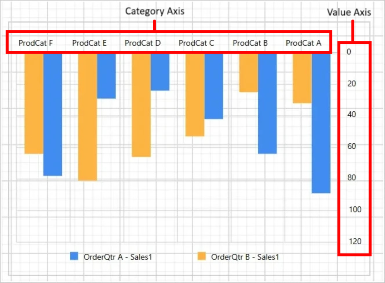
You can also reverse the chart axis based on dynamic values by using Expressions. Refer to the Set Expression and Reset Expression sections to open the set or reset expression menu in the properties panel.
Scale Type
The Axis Scale Type dropdown of the chart axis specifies how values on the chart’s category axis are interpreted and scaled. The available options are Category and Scalar.
The following image shows the Axis Scale Type dropdown in its expanded state.
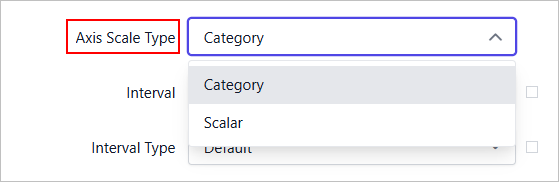
If you choose the Category option in the Axis Scale Type dropdown, the chart treats the Category Axis field values as discrete category members. It spaces them evenly along the axis. This option is recommended when the axis represents text, labels, or grouped values where relative distance or proportional spacing is not required, and it supports the Margin property.
The following image shows the Category option selected along with its dependent properties.
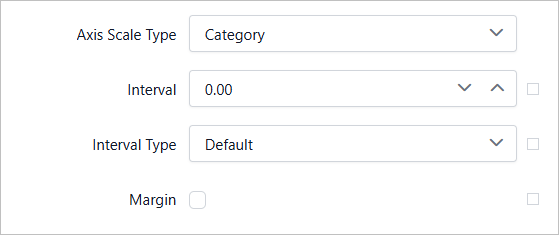
Similarly, if you choose the Scalar option in the Axis Scale Type dropdown, the chart treats the Category Axis values as a continuous scale. The scale is based on numeric or DateTime data. Data points are positioned according to their actual numeric or time values, and the intervals between them reflect true proportional differences. This option supports the Include Zero, Minimum, Maximum, and Enable Log Scale properties.
The following image shows the Scalar option selected along with its dependent properties.
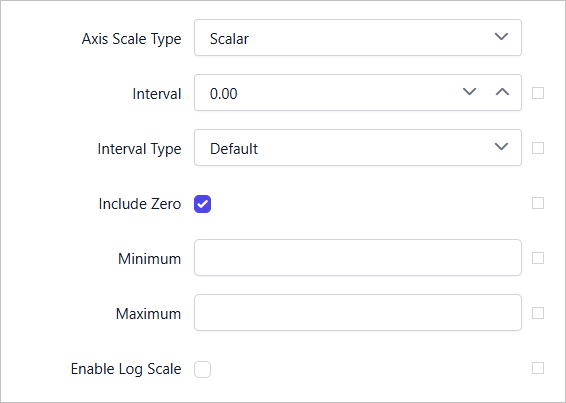
Note: The Axis Scale Type property is not applicable to the Value Axis. Its effect can be observed only when previewing the chart and is not reflected during configuration in the Web Report Designer.
Interval
The Interval and Interval Type properties of the chart axis define the spacing of data points on the category (x) and value (y) axes. These properties control the number of intervals displayed on the axes, ensuring consistent measurement and clear representation of data points in the chart report.
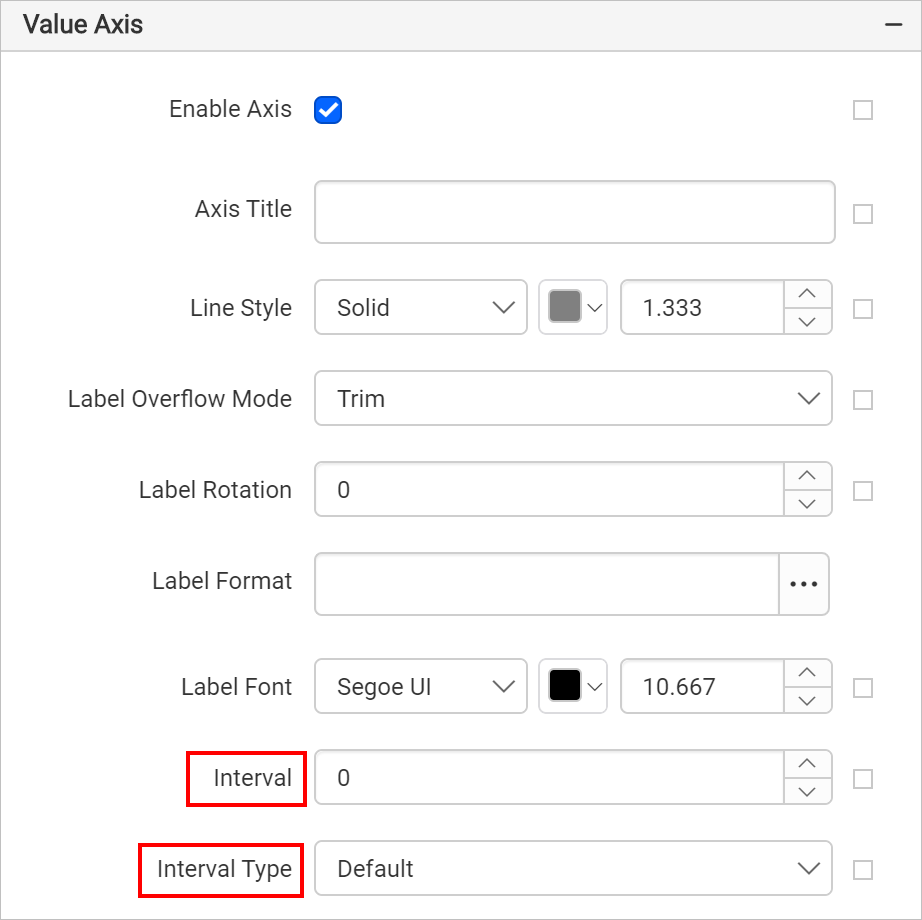
You can also set the interval and interval type dynamically using Expressions. Refer to the Set Expression and Reset Expression sections to open the set or reset expression menu in the properties panel.
Margin
The Margin property of the chart axis specifies the size of the chart’s margins. Margins are calculated inward from the specified chart size. Increasing the margin does not increase the overall chart size; instead, it reduces the chart area as needed. This property is applicable only when the Axis Scale Type is set to Category in the Category Axis.
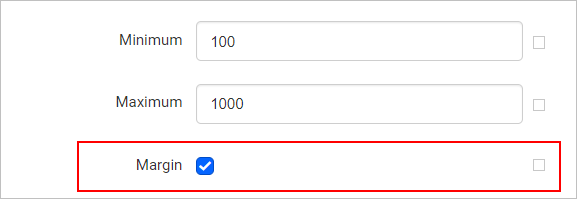
This property does not apply to pie, doughnut, funnel, or pyramid chart types.
You can also set the margin property dynamically using Expressions. Refer to the Set Expression and Reset Expression sections to open the set or reset expression menu in the properties panel.
Include Zero
The Include Zero property of the chart axis makes the y-axis range always include zero when enabled. If the y-values are large and the differences between data points are difficult to distinguish, you can disable the Include Zero property. Disabling it lets the y-axis adjust its range so that differences between data points are displayed more clearly. The Include Zero property is applicable only when the Axis Scale Type is set to Scalar in the Category Axis.
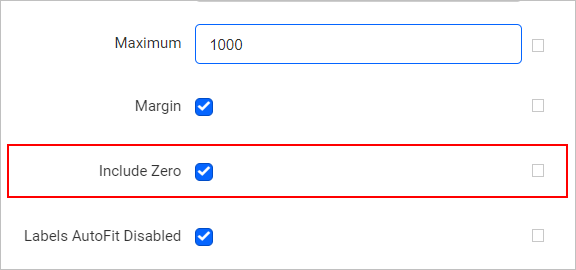
You can also set the include zero property dynamically using Expressions. Refer to the Set Expression and Reset Expression sections to open the set or reset expression menu in the properties panel.
Maximum and Minimum
The Maximum and Minimum properties of the chart axis define the minimum and maximum values on a chart axis. These properties are applicable only when the Axis Scale Type is set to Scalar in the Category Axis.
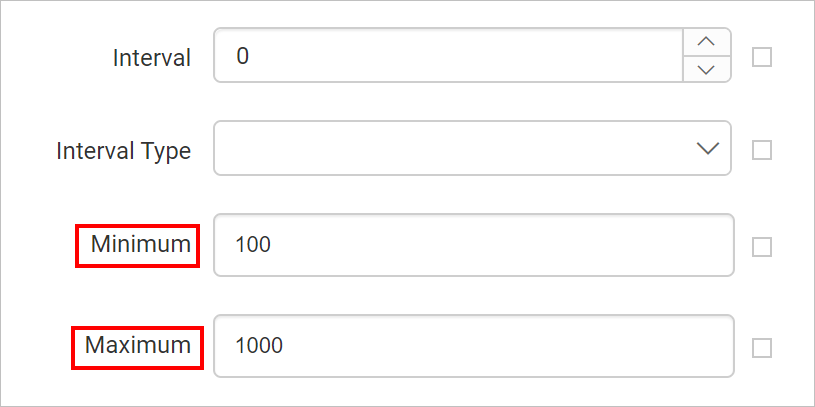
You can also set the maximum and minimum properties dynamically using Expressions. Refer to the Set Expression and Reset Expression sections to open the set or reset expression menu in the properties panel.
Log Scale
The log scale property of the chart axis is enabled by toggling the Enable Log Scale checkbox in the properties panel. Once enabled, you can configure the Log Base value (commonly base 10 or base 2). This property is useful for visualizing data that spans multiple orders of magnitude, making large value ranges easier to interpret. The Enable Log Scale property is applicable only when the Axis Scale Type is set to Scalar in the Category Axis.

You can also enable the log scale dynamically using Expressions. This is helpful when you want to control the setting based on parameters or data values. Refer to the Set Expression and Reset Expression sections to open the set or reset expression menu in the properties panel.
Log Base
The Log Base value of the chart axis defines the base of the logarithmic scale (for example, base 10 or base 2). To set the Log Base value of a chart, toggle the Enable Log Scale property.
The minimum allowed value is 2. The most commonly used value is 10, which displays axis intervals as powers of 10 (for example, 10, 100, 1000).

You can view the effects of the log scale only when previewing the chart, not during design.
You can also set the log base dynamically using Expressions. This is helpful when you want to control the setting based on parameters or data values. Refer to the Set Expression and Reset Expression sections to open the set or reset expression menu in the properties panel.
StripLines
StripLines on a Bold Reports® chart axis are visual indicators that highlight specific values or ranges. You can use them to emphasize important data points, thresholds, or intervals.
To create a stripline, click the + Add button. The total number of striplines is displayed next to the add button. Use the Eye icon to show or hide the striplines list.

For information on managing chart striplines, refer to the StripLines section. That section covers how to add, remove, and customize striplines using the Properties panel.
Note: Axis properties are not applicable for
Proportionchart types.
Frequently asked questions
Which properties need the Scalar axis scale type?
In the Bold Reports® Web Report Designer, Include Zero, Minimum, Maximum, and Enable Log Scale apply only when the Axis Scale Type is set to Scalar in the Category Axis.
What is the minimum Log Base value?
The minimum allowed Log Base value is 2. The most commonly used value is 10.
Do axis properties apply to all chart types?
No. Axis properties are not applicable for Proportion chart types.