Property Navigator
The Property Navigator displays the report structure in a hierarchical format, enabling users to quickly locate and select report elements to configure their properties.
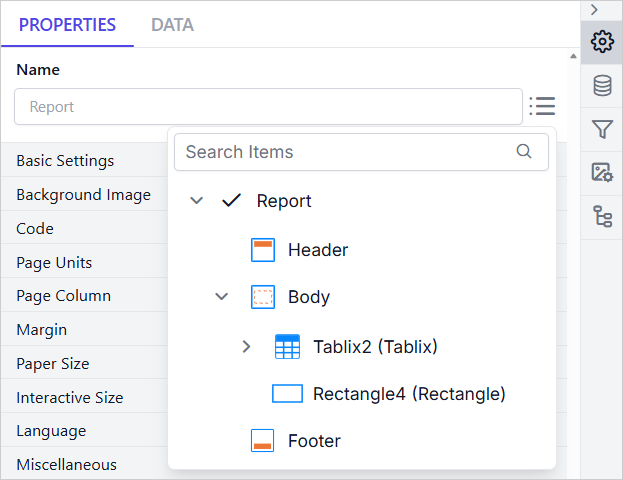
Overview
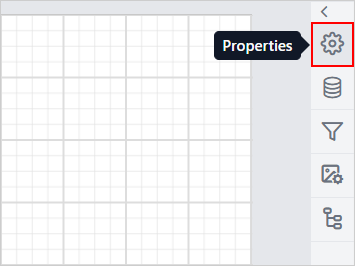
To open the Property Navigator, first access the Properties Panel by clicking the Properties icon.
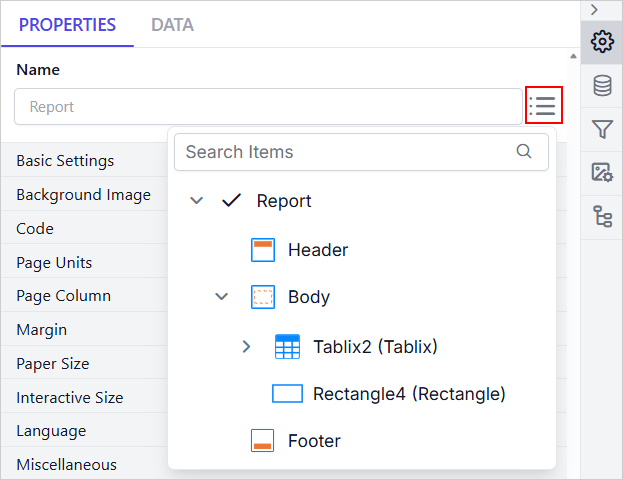
Next, click the highlighted Property Navigator icon. The popup list will appear as shown below.
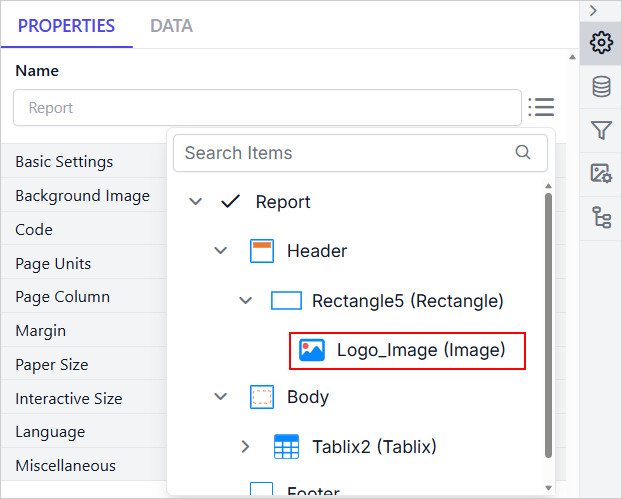
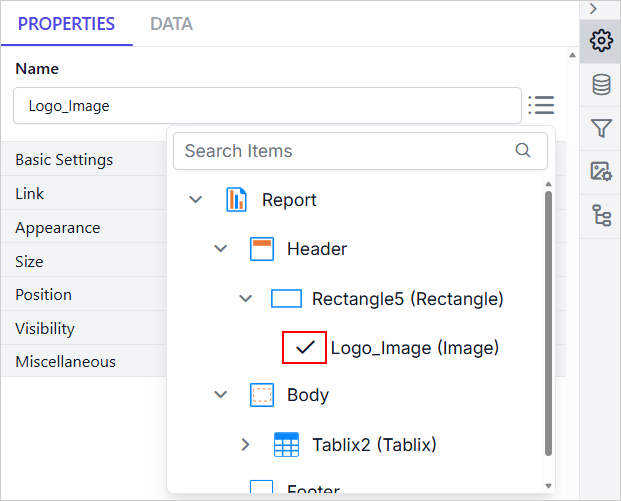
In the Property Navigator popup list, the report structure is shown in a hierarchical format. Each report element is represented by its name and type. In the example below:
-
The icon and the tag (Image) indicate the type of the report item.
-
Logo_Imageis the name of the report item.
You can use the search option to find a specific report element in the Property Navigator popup list. When you search for a report element by name, the results are displayed in a parent-child hierarchical format.
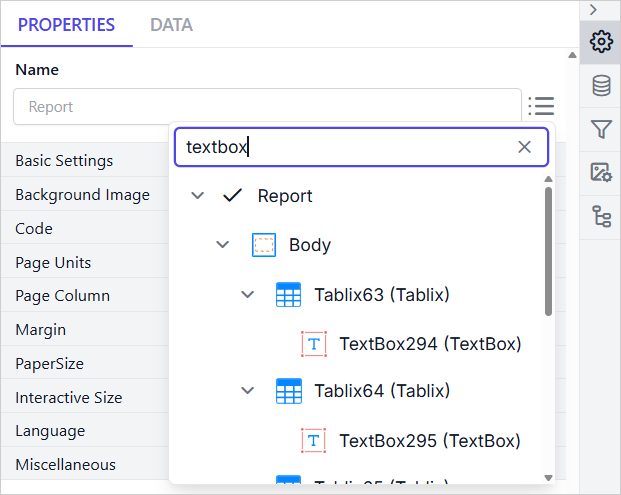
If no results are found, a No matches found message will appear.

Selecting a report section (such as Report, Header, Body, or Footer) or a specific report item in the Property Navigator displays its properties in the Properties Panel.
To close the Property Navigator popup list, click anywhere outside the popup area.