Sybase Source
The Sybase connector connects to a Sybase database and allows users to fetch data from tables or views. It supports authentication, handles nested or related data, and presents the results in a clean, structured format for easy use.
Grab Sybase ODBC Connection Details
- Configure ODBC DSN on your system:
- Open ODBC Data Source Administrator.
- Go to the System DSN tab and click Add.
- Select the Sybase ODBC driver and configure it with: - Data Source Name (DSN) - Server Name/IP - Port - Database Name
- Provide Credentials:
- Enter your Username and Password for the Sybase database.
- Connect in Bold Reports®:
- In Bold Reports®, choose the Sybase connector.
- Select the configured DSN, enter your credentials, and click Connect.
Connection Properties
The config section in a YAML file includes the following properties:
connectorname: Sybase
dsn: <>
username: <>
password: <>
Example Configuration
version: 1.0.1
destination:
plugins:
  extractors:
    - name: Sybase
      connectorname: Sybase
      config:
        dsn: <>
        username: <>
        password: <>
      select:
        - tablename
Configure the Data Hub to connect Sybase
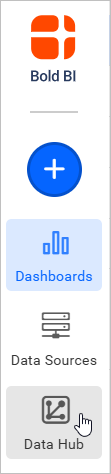
- To start, Click the
Bold Data Hubicon on the Navigation Pane.
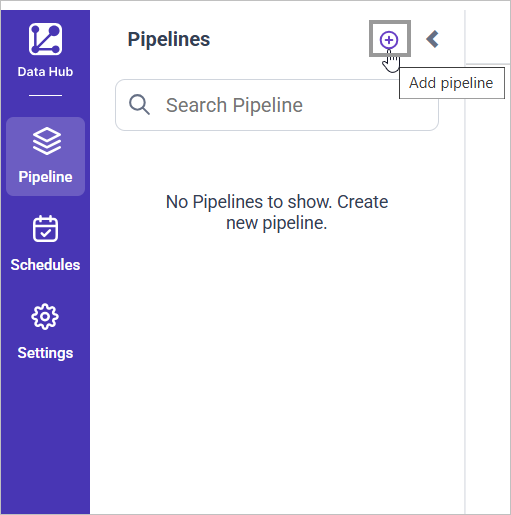
- Click
Add Pipelineand provide the name for the new pipeline.
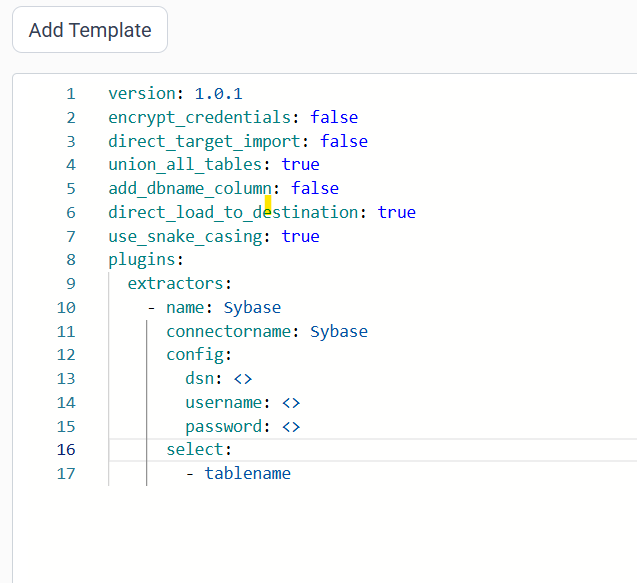
- Select the newly created pipeline and choose the Sybase connector. Double click or Click on Add Template option to add template.
Configuration Parameters
| Parameters | Description |
|---|---|
| Username: | Provide the username to authenticate with the Sybase server. |
| Password: | Provide the password associated with the Sybase username. |
| DSN Name: | Specify the ODBC Data Source Name configured for the Sybase database |
| Select: | Tablename(s): Specify the list of tables to load data from the Sybase server. |
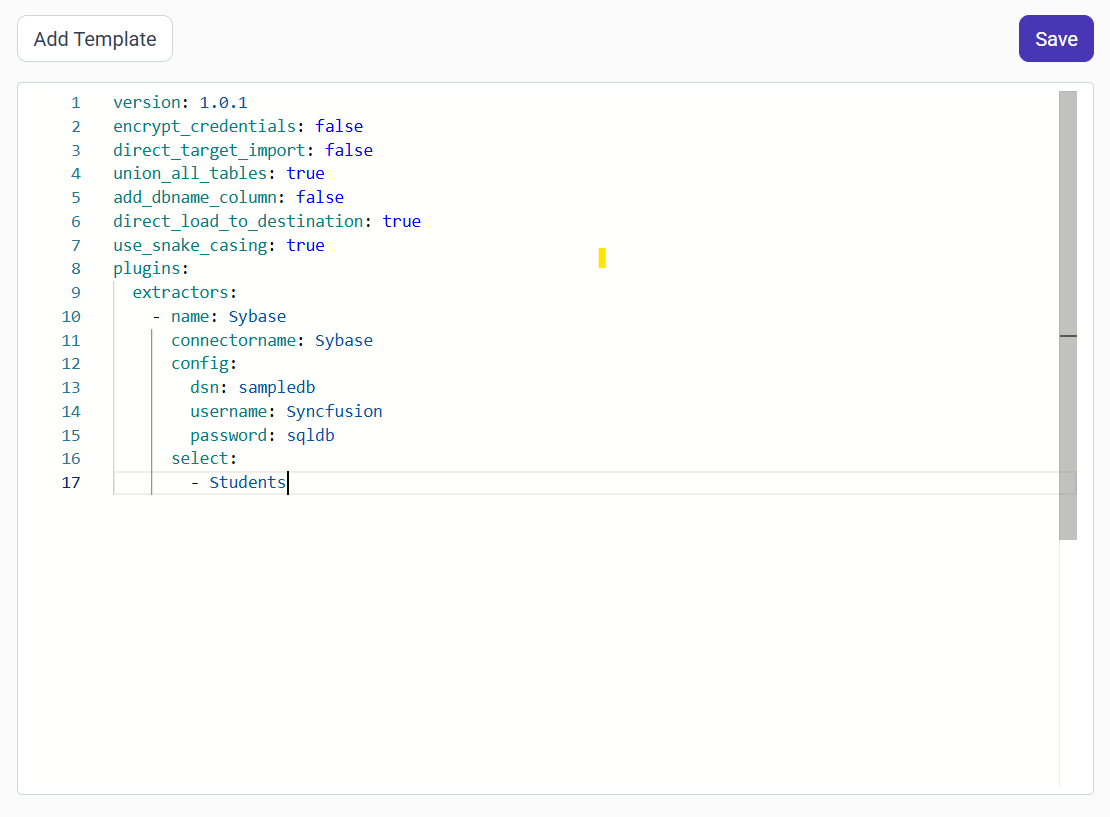
- Click Save and choose the desired destination to save the pipeline.
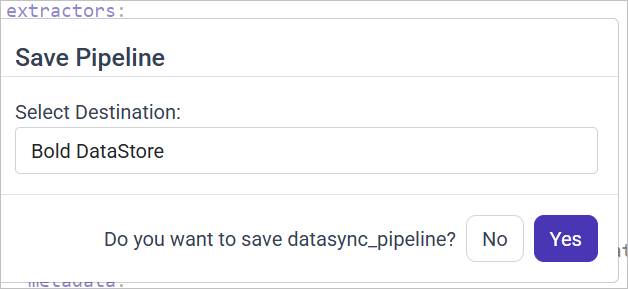
- Creating a Pipeline in Bold Data Hub automatically creates a Data Source in Bold Reports®. The Bold Reports® Data Source is a live data source to the destination database used in Bold Data Hub. For more information on the relationship between Bold Data Hub Pipeline and the associated Data Sources in Bold Reports®.

Schedule Data Hub Job
- To configure interval-based scheduling, click on the schedules tab and select the created pipeline and click on the schedule icon and configure it.


- For on-demand refresh, click
Run Nowbutton.
 .
.
- The Schedule history can be checked using the history option as well as logs.
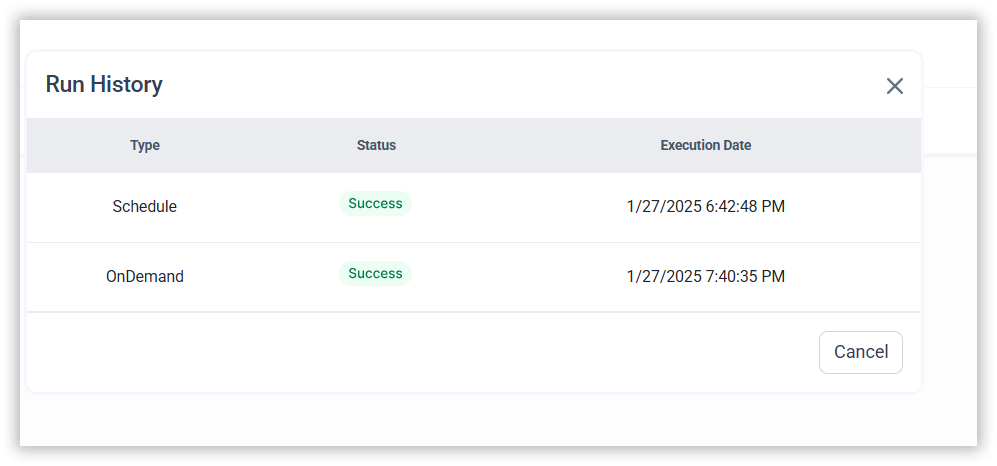
- Click on Logs to see if the run is completed and data source is created in Bold Reports®
.
- Click
Edit DataSourceOption to view the created tables.
Thank you for your feedback and comments.We will rectify this as soon as possible!