Stripe
Stripe is an online payment platform that enables businesses to securely process and manage customer transactions over the Internet.
Grab Credentials
- Log in to your Stripe account.
- Click on Settings in the top right corner.
- Navigate to Developers in the top menu.
- Choose “API Keys”.
- Under “Standard Keys”, click on “Reveal test key” next to the Secret Key.
- Make a note of the
API_secret_keyfor configuringsecrets.toml.
Connection Properties
The configuration section in the YAML file includes the following properties:
Connectorname: Stripe
Stripe_secret_key: Stripe secret key
Metadata Properties
In this section, define the mode of data refresh. There are two modes: INCREMENTAL and FULL_TABLE.
| INCREMENTAL |
|
This mode will retrieve data from the date column specified in the replication key starting from the date indicated in the replication value. Once it is scheduled, the replication value will be automatically updated based on the imported data. |
| FULL_TABLE |
|
This mode will fetch data from the date column mentioned in the replication key starting from the date specified in the replication value. Once scheduled, the replication value is automatically updated from the imported data. |
Example
FULL_TABLE
version: 1
encrypt_credentials: false
plugins:
  extractors:
    - name: stripe_data
      connectorname: stripe
      config:
        stripe_secret_key: <SECRET KEY>
      select:
         - TABLE1
         - TABLE2
      metadata:
        TABLE1:
          replication_method: FULL_TABLE
          replication_key: last_modified_on
          replication_value: 2023-07-19 00:00:00
          interval_type: days
          interval_value: 6
        TABLE2:
          replication_method: FULL_TABLE
          replication_key: last_modified_on
          replication_value: 2023-07-19 00:00:00
          interval_type: days
          interval_value: 6
INCREMENTAL
version: 1
encrypt_credentials: false
plugins:
  extractors:
    - name: stripe_data
      connectorname: stripe
      config:
        stripe_secret_key: <SECRET KEY>
      select:
         - TABLE1
         - TABLE2
      metadata:
        TABLE1:
          replication_method: FULL_TABLE
          replication_key: last_modified_on
          replication_value: 2023-07-19 00:00:00
        TABLE2:
          replication_method: FULL_TABLE
          replication_key: last_modified_on
          replication_value: 2023-07-19 00:00:00
Configure the Data Hub to connect Stripe
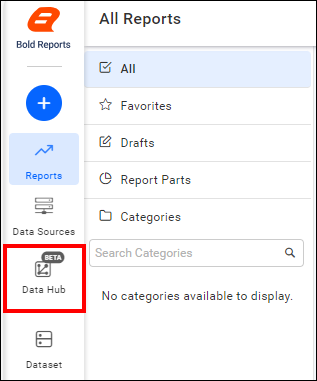
- To start, Click the
Bold Data Hubicon on the Navigation Pane.
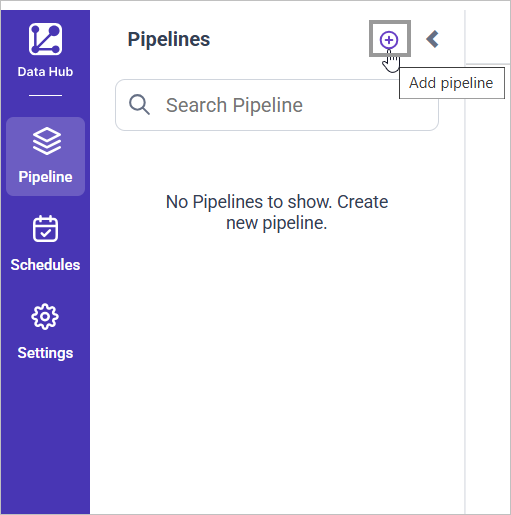
- Click
Add Projectand provide the name for the new project.
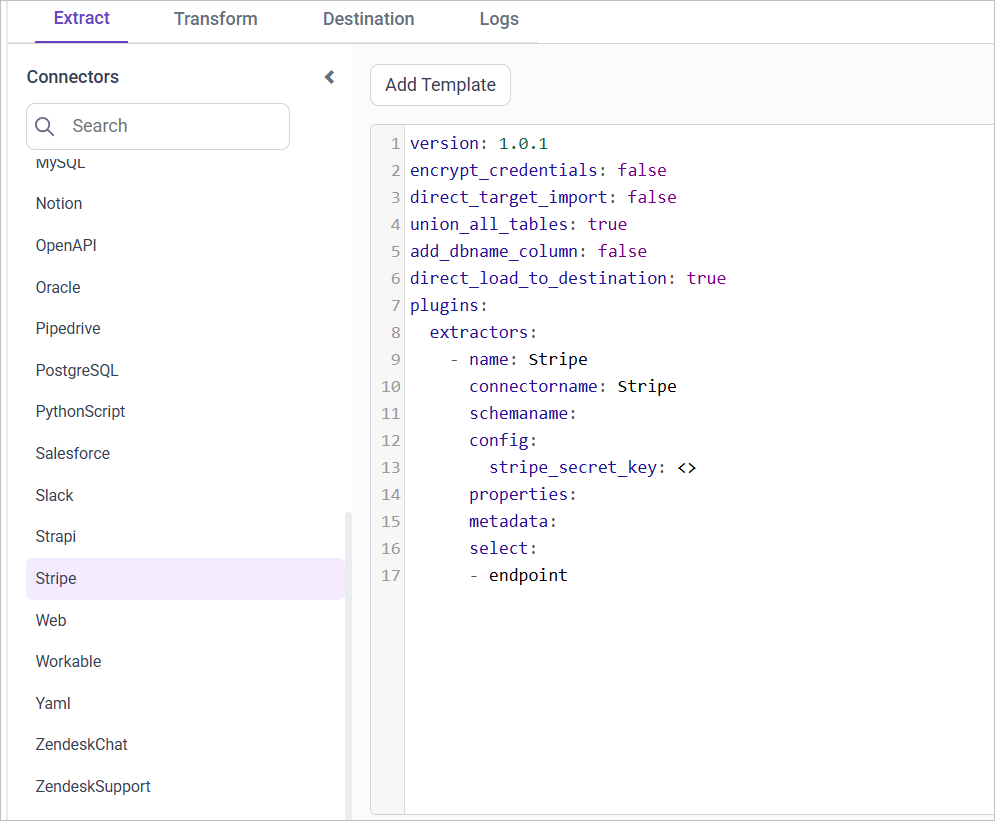
- Select the newly created project and add the
Stripetemplate.
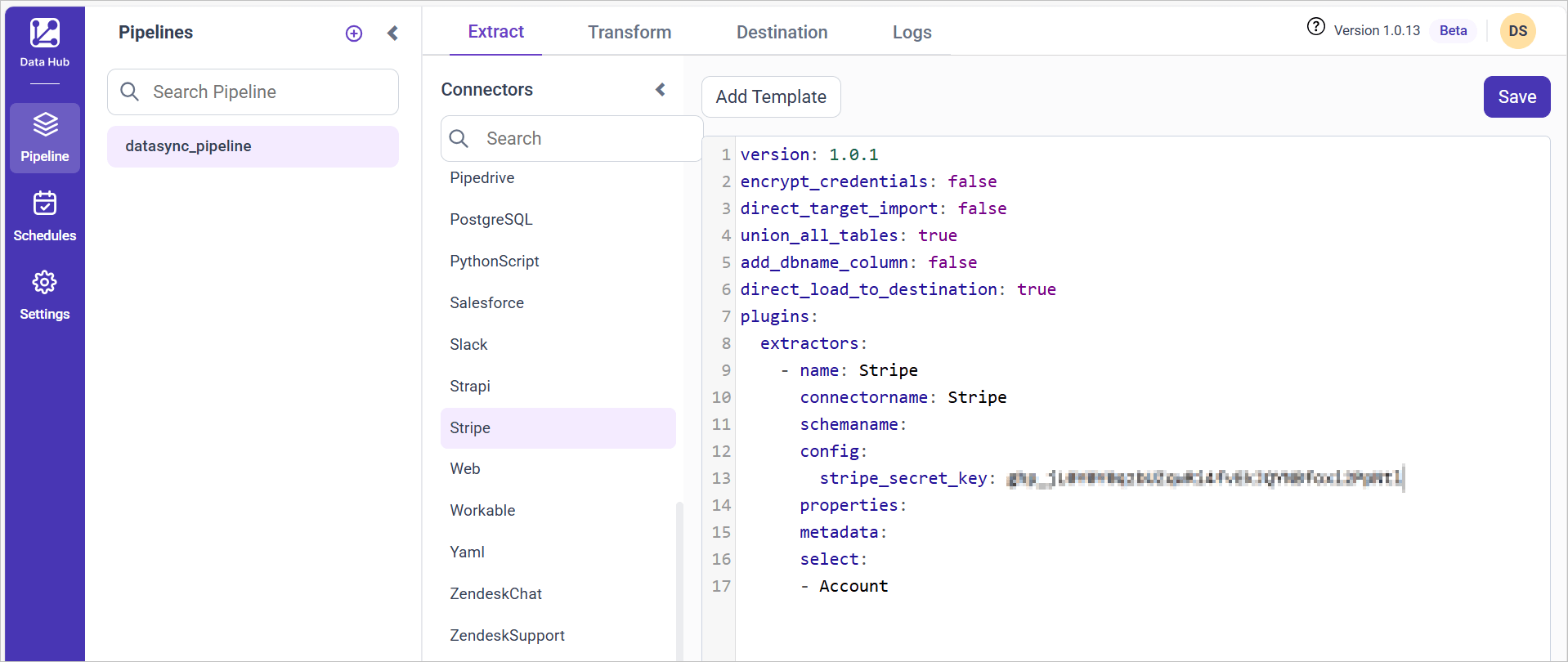
- Update the stripe secret key in the template. Also, Update the resources on the
selectproperty and Click Save, choose the desired destination to save the pipeline.
- Creating a Pipeline in Bold Data Hub automatically creates a Data Source in Bold Reports®. The Bold Reports® Data Source is a live data source to the destination database used in Bold Data Hub.
The available resources are supported in Stripe
- Subscription
- Account
- Coupon
- Customer
- Product
- Price
- Event
- Invoice
- BalanceTransaction
Warning:
1. The `Encrypt_Credentials` property should be set to false when updating the new access token on the template. If you have modified other properties, such as 'select' or 'account id', the `Encrypt_Credentials` property must be set to true.
2. The default lifetime of the access token is 1 hour. Therefore, you need to convert it to a long-lived access token in order to use the same token for 60 days. Existing tables should be maintained even if the token has expired or is being used as an invalid token.
Schedule Data Hub Job
- To configure interval-based scheduling, click on the schedules tab and select the created pipeline and click on the schedule icon and configure it.


- For on-demand refresh, click
Run Nowbutton.
 .
.
- The Schedule history can be checked using the history option as well as logs.
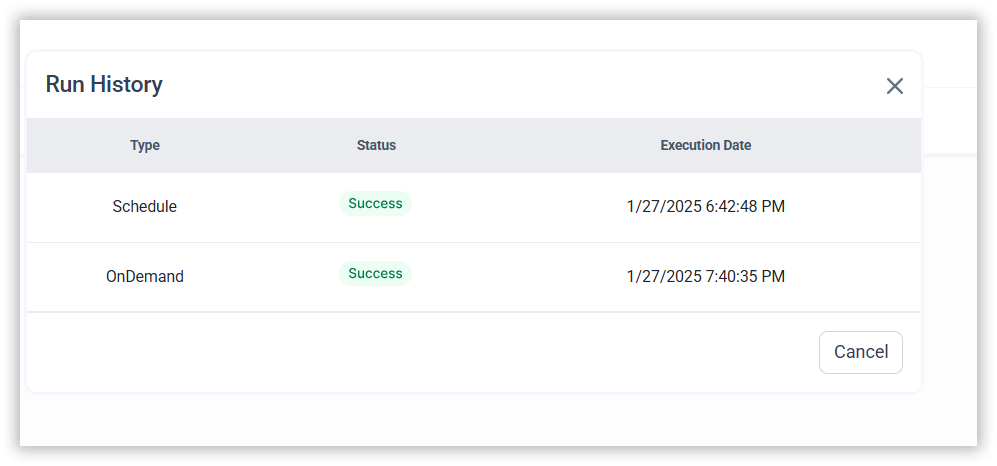
- Click on Logs to see if the run is completed and data source is created in Bold Reports®.

- Click
Edit DataSourceOption to view the created tables.
CONTENTS
CONTENTS
Thank you for your feedback and comments.We will rectify this as soon as possible!