PythonScript
PythonScript is a file with a .py extension that contains a sequence of instructions written in the Python programming language to perform tasks such as automation, data processing or analysis.
Example Configuration
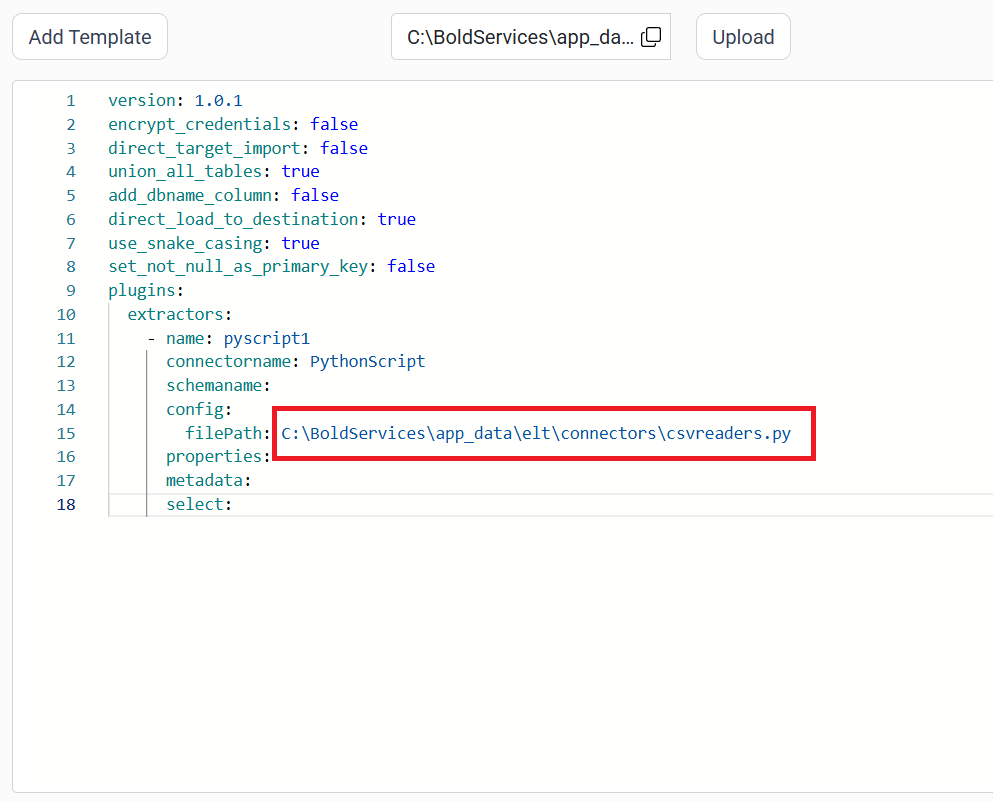
version: 1.0.1
encrypt_credentials: false
union_all_tables: true
add_dbname_column: false
use_snake_casing: true
plugins:
  extractors:
  - name: pyscript1
    connectorname: PythonScript
    schemaname:
    config:
      filePath: C:\BoldServices\app_data\elt\connectors\csvreaders.py
    properties:
    metadata:
    select:
Configure the Bold Data Hub to connect PythonScript
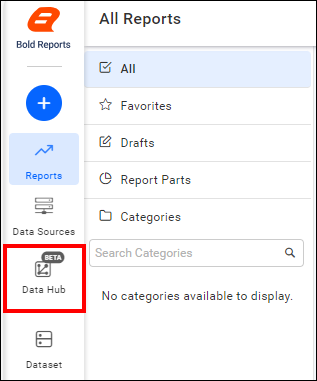
- Click the
Data Hubicon on the Navigation Pane.
- Click
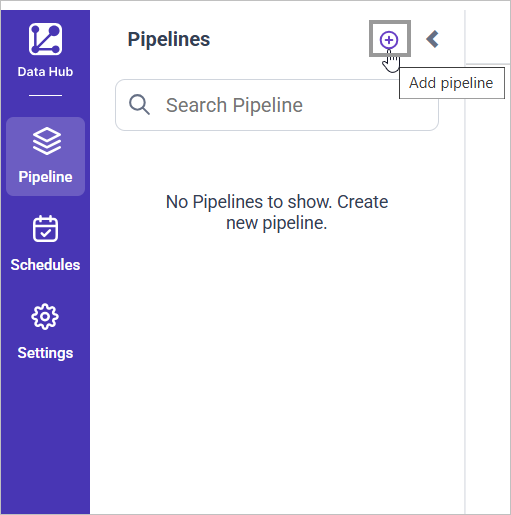
Add Pipelineand provide the new pipeline’s name.
- Select the newly created pipeline and add the
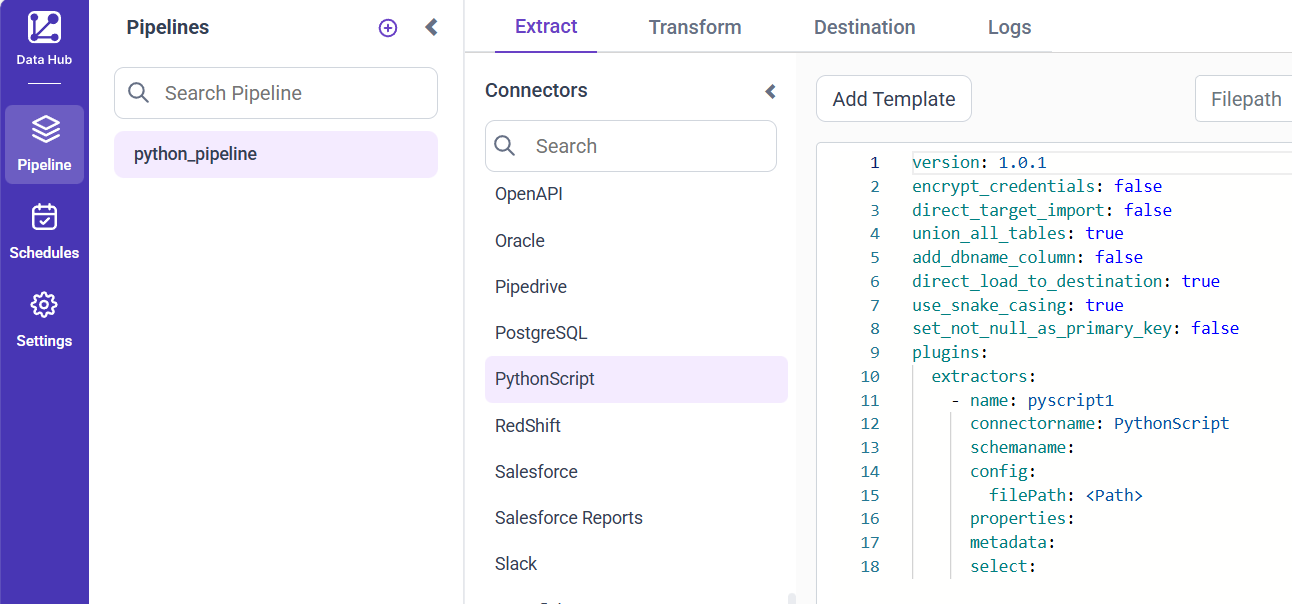
PythonScripttemplate.
- In your Python Script, ensure you have a
data frameobject. Add the following line after the dataframe object that is moved to tables usingBold ETL.
pipeline.run(yourdataframename, table_name="yourtablename")Replace yourdataframename with dataframe name & yourtablename with desired table name in your destination database.
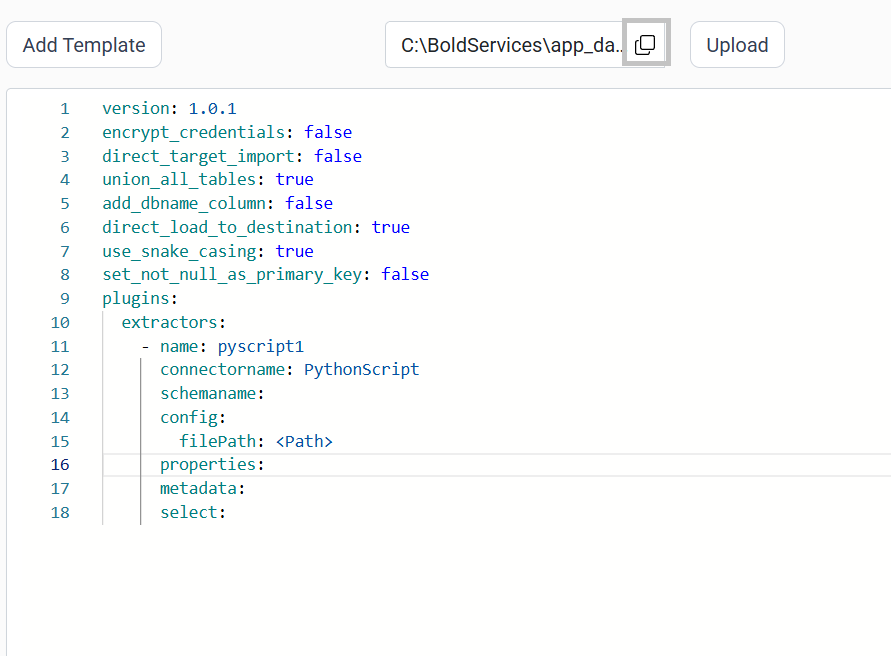
- Click the “Upload File” button to upload your Python file.

- Copy the filepath and replace in filePath property.
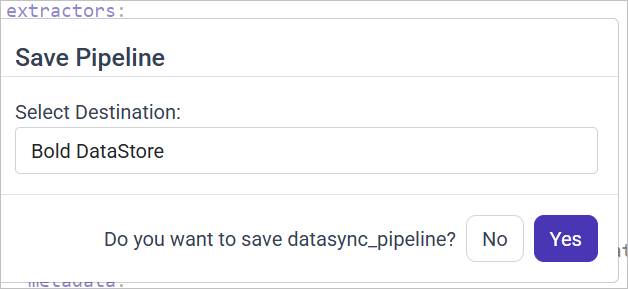
- Click Save and choose the desired destination to save the pipeline.
- Creating a Pipeline in Bold Data Hub automatically creates a Data Source in Bold Reports®. The Bold Reports® Data Source is a live data source to the destination database used in Bold Data Hub.

Schedule Bold Data Hub Job
- To configure interval-based scheduling, click on the schedules tab and select the created pipeline and click on the schedule icon and configure it.


- For on-demand refresh, click
Run Nowbutton.

- The Schedule history can be checked using the history option as well as logs.
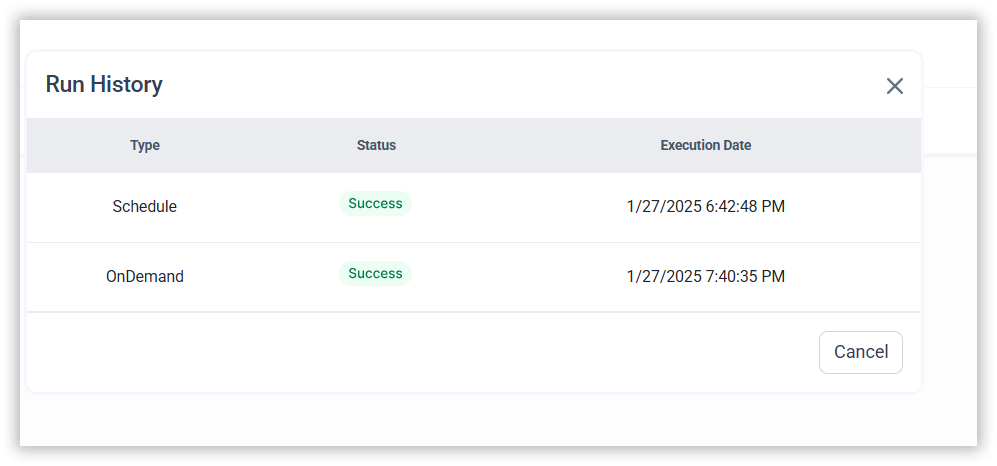
- Click on Logs to see if the run is completed and data source is created in Bold Reports®.
- Click
Edit DataSourceOption to view the created tables.
CONTENTS
CONTENTS
Thank you for your feedback and comments.We will rectify this as soon as possible!