MariaDB
MariaDB is an open-source relational database management system based on SQL – Structured Query Language. It is widely used for various purposes including web applications, data warehousing, and e-commerce due to its reliability, performance, and rich feature set.
Connection Properties
In a YAML file, the config section contains the following properties:
Connectorname: MariaDB
host: Hostname or IP address of the server
port: Server running port
username: Username
password: Password
database: Database
drivername: mysql+pymysql
Example Configuration
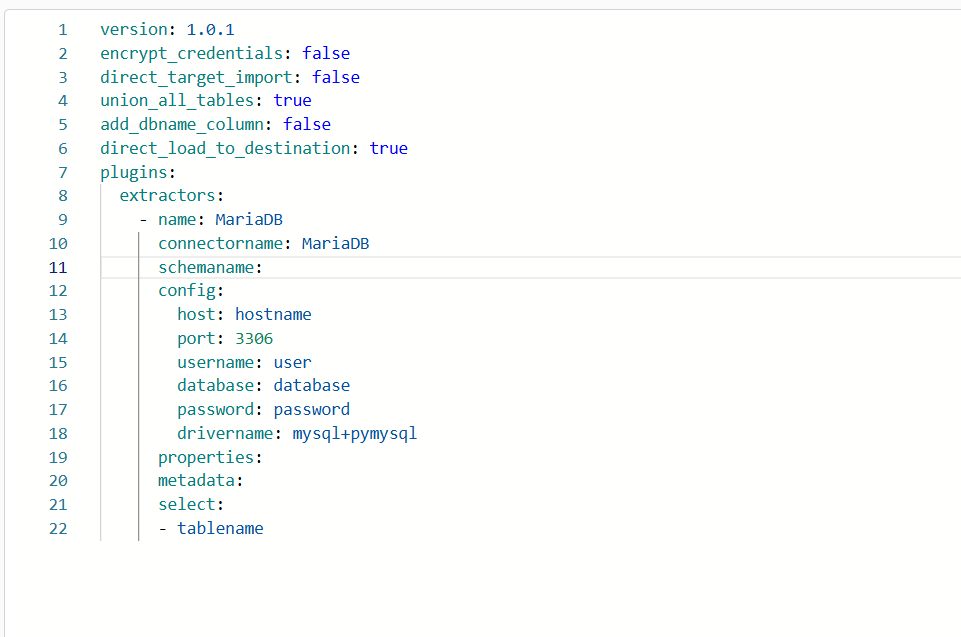
version: 1.0.1
encrypt_credentials: false
direct_target_import: false
union_all_tables: true
add_dbname_column: false
direct_load_to_destination: true
plugins:
  extractors:
    - name: MariaDB
      connectorname: MariaDB
      schemaname:
      config:
        host: hostname
        port: 3306
        username: user
        database: database
        password: password
        drivername: mysql+pymysql
      properties:
      metadata:
      select:
        - tablename
Configure the Bold Data Hub to connect MariaDB
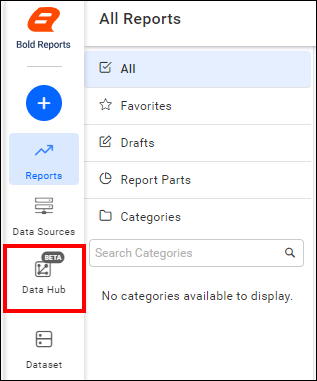
- Click the
Data Hubicon on the Navigation Pane.
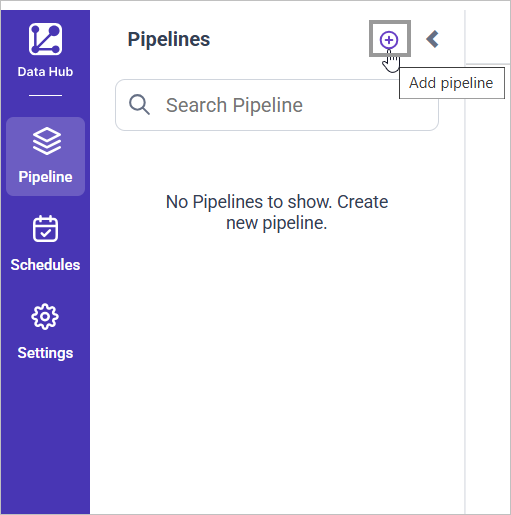
- Click
Add Projectand provide the new project’s name.
- Select the newly created project and add the
MariaDBtemplate.
Configuration Parameters
| Parameters | Description |
|---|---|
| Host: | Specify the hostname of the MariaDB server. |
| Port: | Specify the port number of the MariaDB server (default is 3306). |
| Username: | Provide the username to authenticate with the MariaDB server. |
| Password: | Provide the password to authenticate with the MariaDB server. |
| Database: | Specify the name of the MariaDB database from which data will be extracted. |
| Driver Name: | Specify the driver name for connecting to MariaDB (e.g., mysql+pymysql). |
| Select: | Tablename(s): Specify the table name list to load tables from the MariaDB server. |
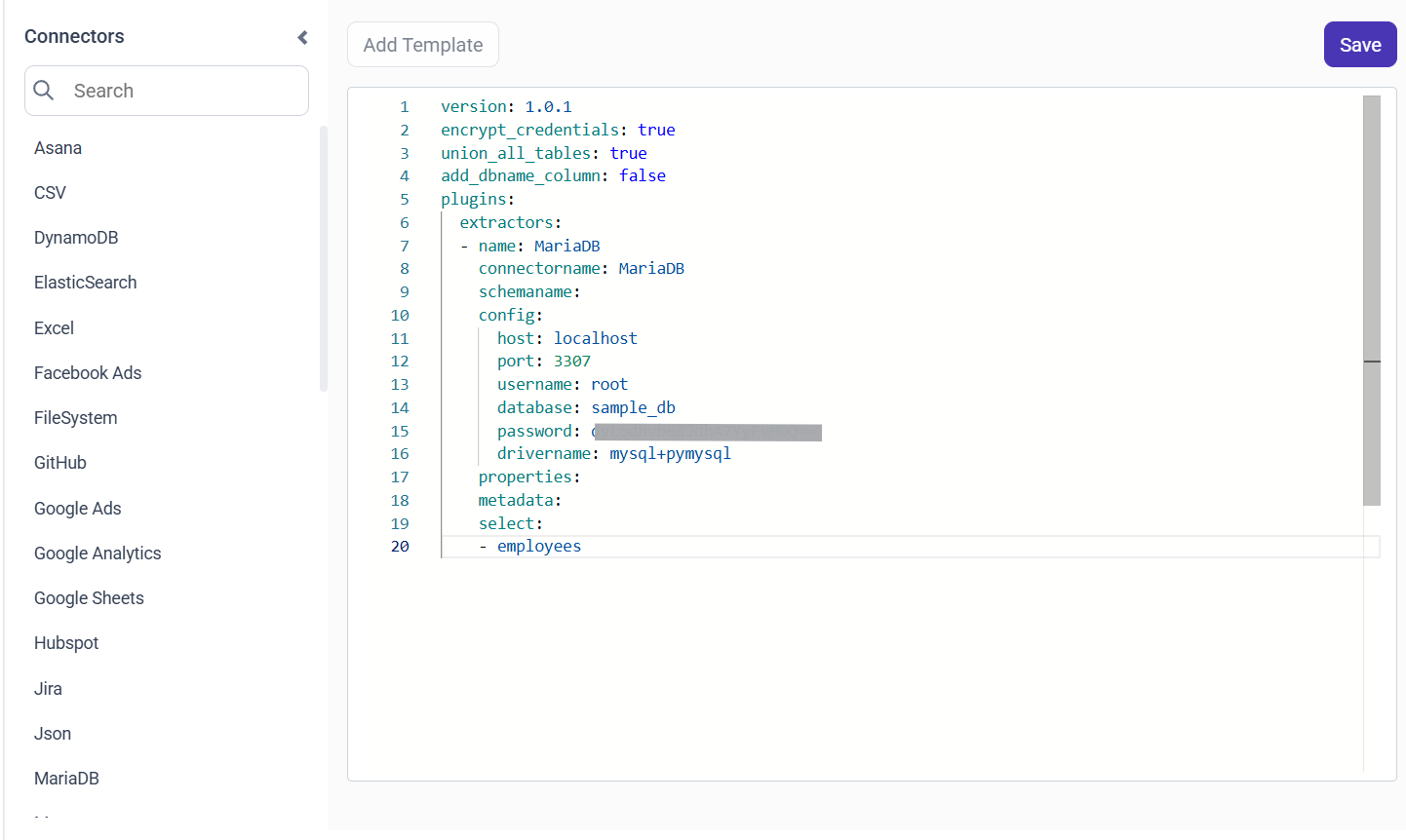
- Update the details required in the template and Click Save, choose the desired destination to save the pipeline.
- Creating a Pipeline in Bold Data Hub automatically creates a Data Source in Bold Reports®. The Bold Reports® Data Source is a live data source to the destination database used in Bold Data Hub.
Schedule Bold Data Hub Job
- To configure interval-based scheduling, click on the schedules tab and select the created pipeline and click on the schedule icon and configure it.


- For on-demand refresh, click
Run Nowbutton.
 .
.
- The Schedule history can be checked using the history option as well as logs.
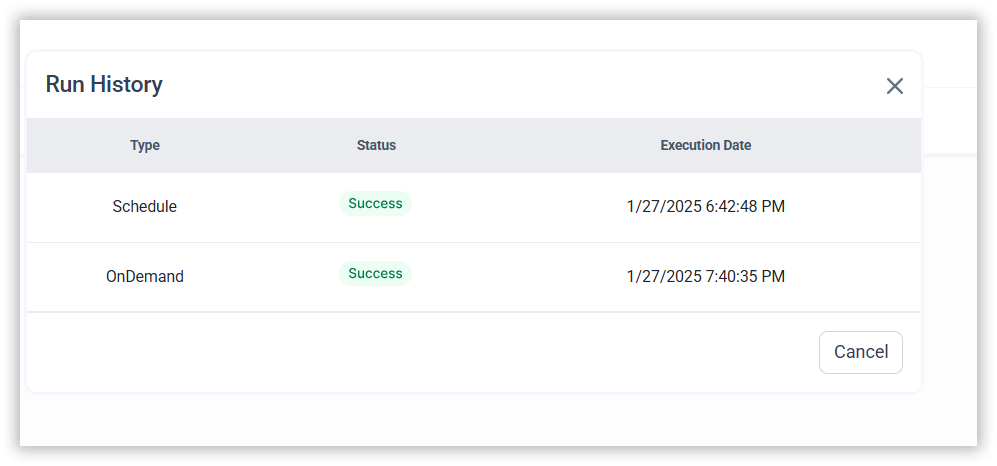
- Click on Logs to see if the run is completed and data source is created in Bold Reports®.

- Click
Edit DataSourceOption to view the created tables.