JSON
JSON is a lightweight text format used to store and exchange data. It is widely used in web APIs and applications because it is simple and structured. It is easy for humans to read and write, and easy for machines to parse and generate.
Example Configuration
version: 1.0.1
encrypt_credentials: false
union_all_tables: true
add_dbname_column: false
use_snake_casing: true
plugins:
  extractors:
  - name: FileSystem
      connectorname: FileSystem
      schemaname:
      config:
      properties:
        storage: local
        type: json
        filePath: C:\BoldServices\app_data\elt\connectors\mockdata.json
      metadata:
      select:
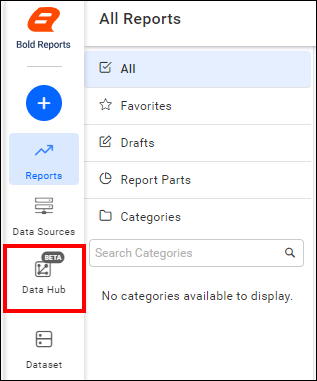
Configure the Bold Data Hub to connect JSON
- Click the
Data Hubicon on the Navigation Pane.
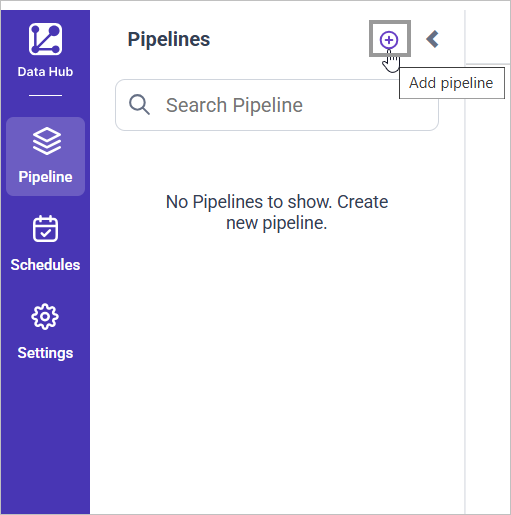
- Click
Add Pipelineand provide the new pipeline’s name.
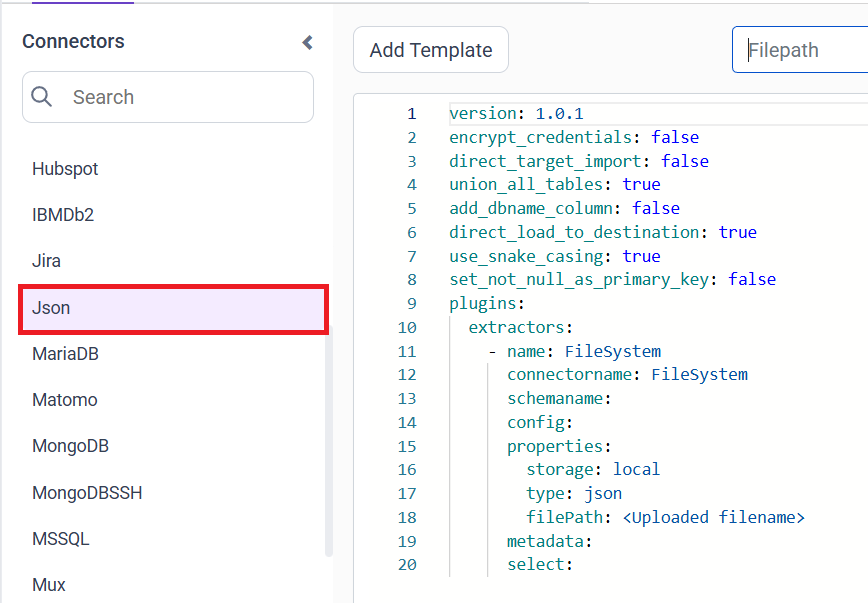
- Select the newly created pipeline and add the
JSONtemplate.
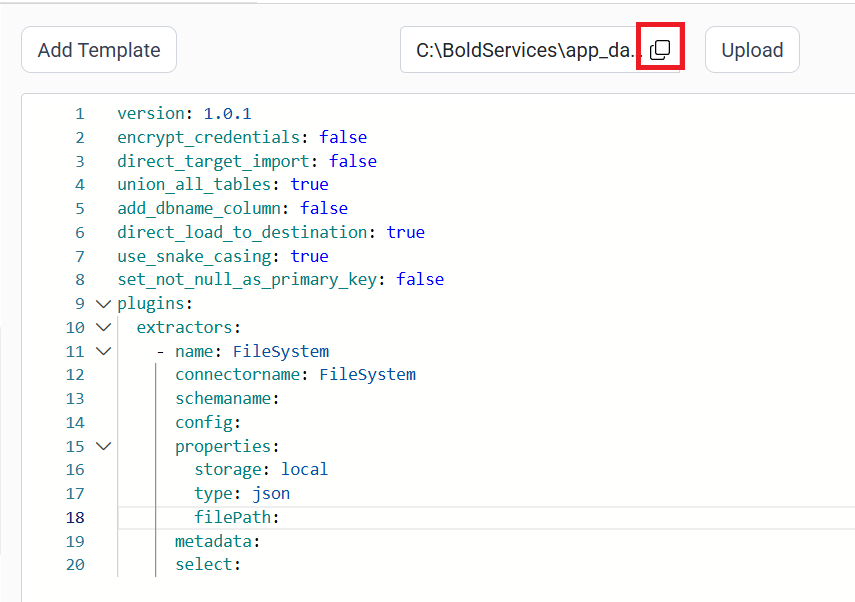
- Click the “Upload File” button to upload your JSON file.

- Copy the filepath and replace in filePath property.
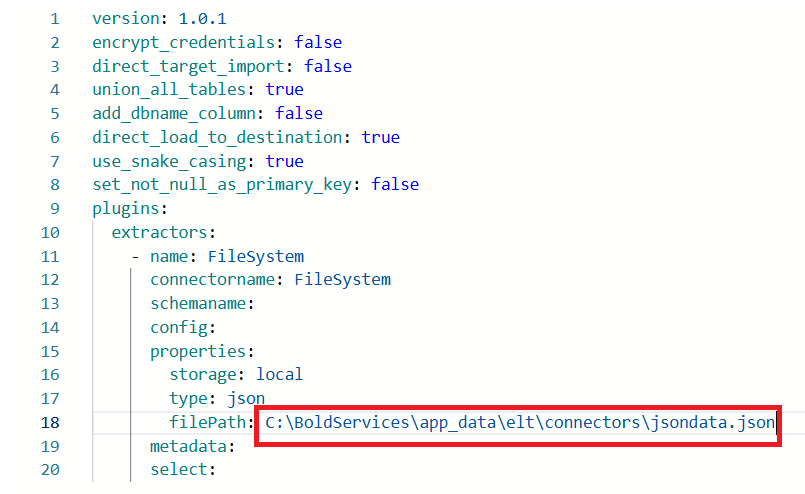
- Click Save and choose the desired destination to save the pipeline.
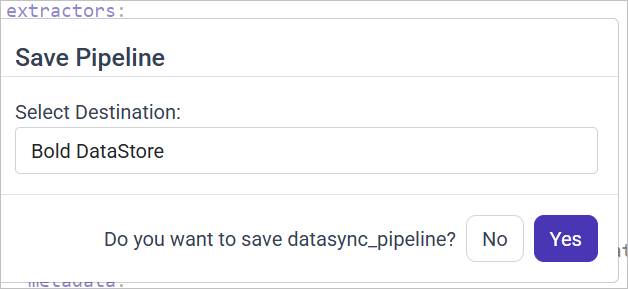
- Creating a Pipeline in Bold Data Hub automatically creates a Data Source in Bold Reports®. The Bold Reports® Data Source is a live data source to the destination database used in Bold Data Hub.

Schedule Data Hub Job
- To configure interval-based scheduling, click on the schedules tab and select the created pipeline and click on the schedule icon and configure it.


- For on-demand refresh, click
Run Nowbutton.

- The Schedule history can be checked using the history option as well as logs.
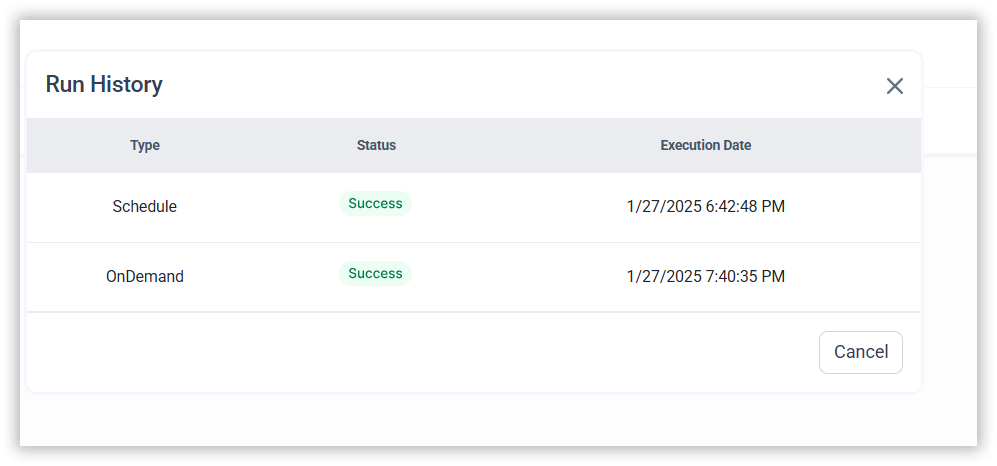
- Click on Logs to see if the run is completed and data source is created in Bold Reports®.
CONTENTS
CONTENTS
Thank you for your feedback and comments.We will rectify this as soon as possible!