ElasticSearch
ElasticSearch is a distributed, RESTful search and analytics engine designed for handling a variety of data types, such as logs, metrics, search indexes, and application monitoring datasets. It is commonly used for real-time search, logging, analytics dashboards, and large-scale data ingestion.
Grab Credentials
To connect to ElasticSearch through Bold Data Hub, you must gather the required authentication details. ElasticSearch supports both API Key Authentication and Username/Password (Basic Auth) depending on how your cluster is configured.
Steps to obtain connection details
- Host & Port
- For Elastic Cloud deployments, the host URL is provided in the cluster dashboard.
- Example:
- The port is usually 9200, unless otherwise configured.
- API Key Authentication
- Open the Elastic Cloud Console.
- Navigate to Management > Security > API Keys.
- Click Create API Key.
- Provide a suitable name (e.g.,
boldbi-access-key). - Copy the generated API Key and store it securely.
- Username/Password
- Default username in Elastic Cloud is: elastic.
- Reset or copy the password from Elastic Cloud under Security Settings.
Connection Properties
The config section in the YAML file accepts the following properties:
 ConnectorName: ElasticSearch
 host: hostname
 port: 9200
 api_key: api_key
 username: user
 password: password
 index_name: <indexname>
 page_size: 10000
Configure the Data Hub to Connect ElasticSearch
-
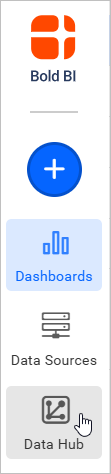
Click the Bold Data Hub icon from the left navigation panel.
-
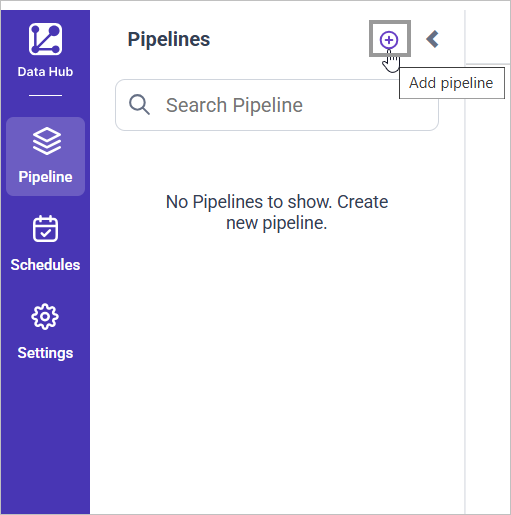
Click Add Pipeline and enter a name for your new pipeline.
-
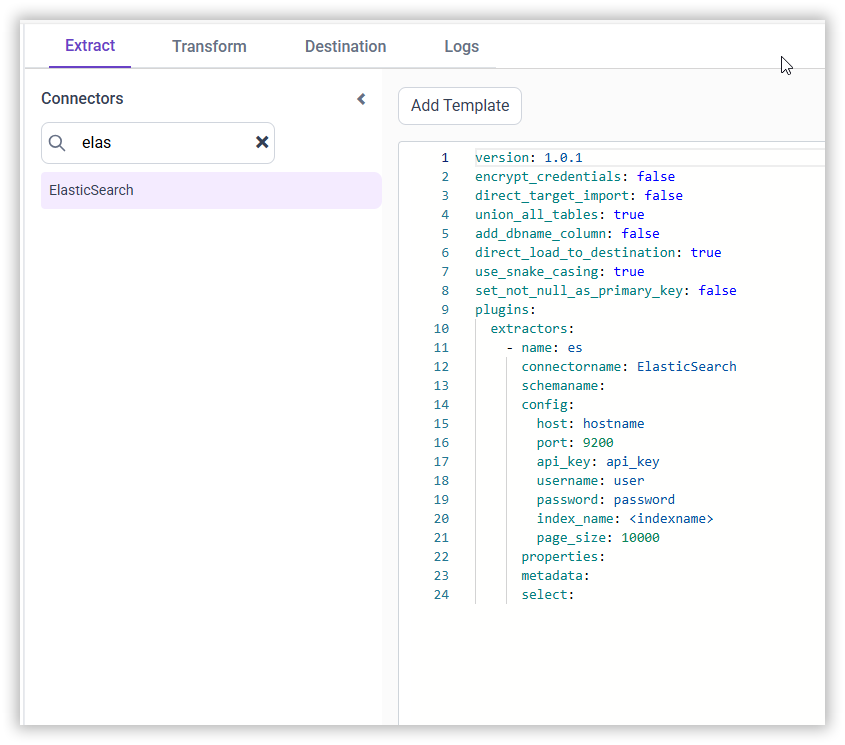
Select the newly created pipeline and add the ElasticSearch template.
-
Enter the
host,port,credentials, andindex_namein the template. -
Creating a Pipeline in Bold Data Hub automatically creates a Data Source in Bold BI. The Bold BI Data Source is a live data source to the destination database used in Bold Data Hub. For more information on the relationship between Bold Data Hub Pipeline and the associated Data Sources in Bold BI , please refer to Relationship between Bold Data Hub Pipeline and Associated Data Sources in Bold BI
-
Click Save, then choose the destination database.

Warning:
- The
Encrypt_Credentialsproperty should be set to false when updating the new access token on the template. If you have modified other properties, such as ‘select’ or ‘account id’, theEncrypt_Credentialsproperty must be set to true.
Schedule Data Hub Job
-
To configure interval-based scheduling, click on the schedules tab and select the created pipeline and click on the schedule icon and configure it.


-
For on-demand refresh, click
Run Nowbutton. .
. -
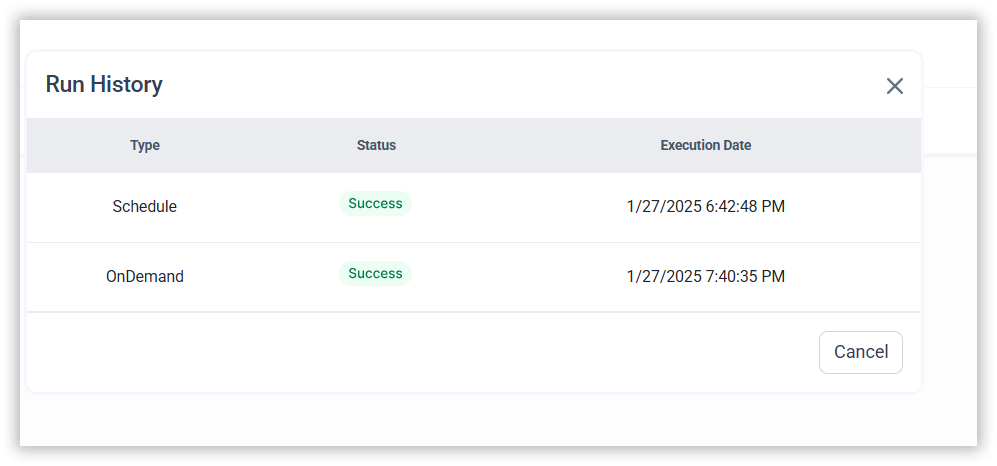
The Schedule history can be checked using the history option as well as logs.
-
Click on Logs to see if the run is completed and data source is created in Bold BI.
-
Click
Edit DataSourceOption to view the created tables.