Migrate Bold Reports® On-Premises Edition
You can migrate your resources from v4.1 (Syncfusion Reports Server) or v1.2 (Bold Reports Single Tenant) to v2.1 (Bold Reports Multi Tenant) with the data migration utility.
What do I need before I migrate?
Before you run the Bold Reports® data migration utility, back up your data and set up a fresh Bold Reports® Report Server.
- Take a backup of the database and resource files from the following folder locations:
| Product | Location | Back Up Example |
|---|---|---|
| Syncfusion® Report Server |
|
|
| Bold Reports® Report Server (Single Tenant) |
|
|
For an Azure App Service, take a backup of the
App_Datafolder by using the FTP application. Place the backup folder on the machine where you installedbold reports v2.1.
-
After you take the backup, uninstall the current Syncfusion® / Bold Reports® Report Server.
-
Install the Bold Reports® Report Server as a fresh installation by following the Bold Reports® installation and deployment guide
-
Configure the application with SQL Database by following Application startup. When you configure the admin details, use the admin email ID of Syncfusion® Reports Server / Bold Reports® Server (Single Tenant).
-
After the configuration is done, you can migrate your old data to this application.
Steps to run the data migration utility
Run the Bold Reports® data migration utility after you update its config file with your backup path, decryption key, and IDP path.
-
Download the Bold Reports® data migration tool.
-
Extract the file and edit the
Syncfusion.Server.DataMigration.exe.configfile. -
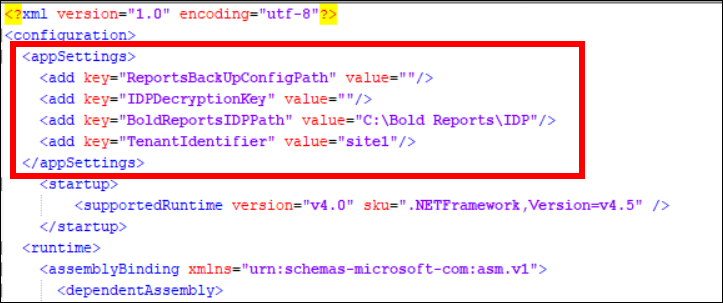
Update the values of the following keys in the config file:
<add key="ReportsBackUpConfigPath" value=""/><add key="IDPDecryptionKey" value=""/><add key="BoldReportsIDPPath" value="C:\Bold Reports\IDP"/>
The following screenshot shows these keys in the config file.
-
Copy the
Configurationpath in your Report Server backup folder and paste it as the value of theReportsBackUpConfigPathkey. For example,<add key="ReportsBackUpConfigPath" value="C:\backup_boldreports\Report Server\App_Data\Configuration"/>. -
Go to the installation location
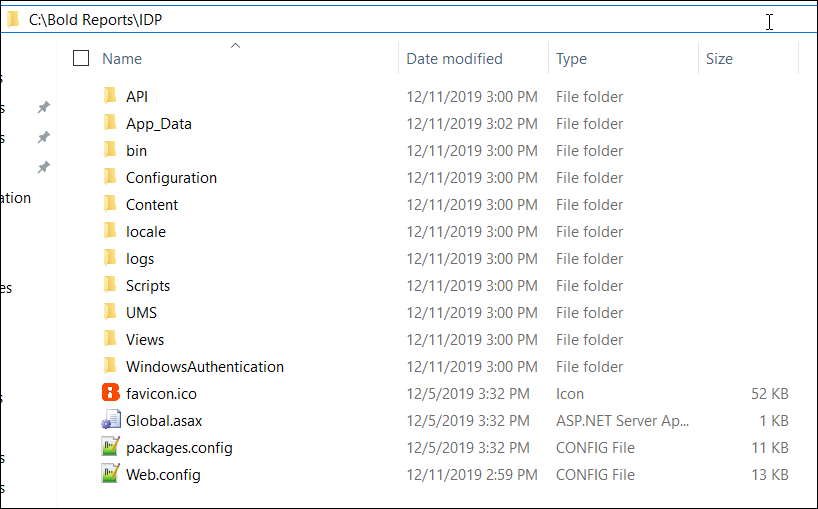
C:\Bold Reports\IDP\and copy thedecryptionkeyvalue from theweb.configfile. Then, paste it as the value of theIDPDecryptionKeykey inSyncfusion.Server.DataMigration.exe.config.

- By default, the Bold Reports® installation is deployed under
C:\Bold Reports\IDP, and the same path is set in theSyncfusion.Server.DataMigration.exe.configfile. If Bold Reports® is deployed in another location, update the IDP path location in the value of theBoldReportsIDPPathkey. For example,<add key="BoldReportsIDPPath" value="C:\Bold Reports\IDP"/>.
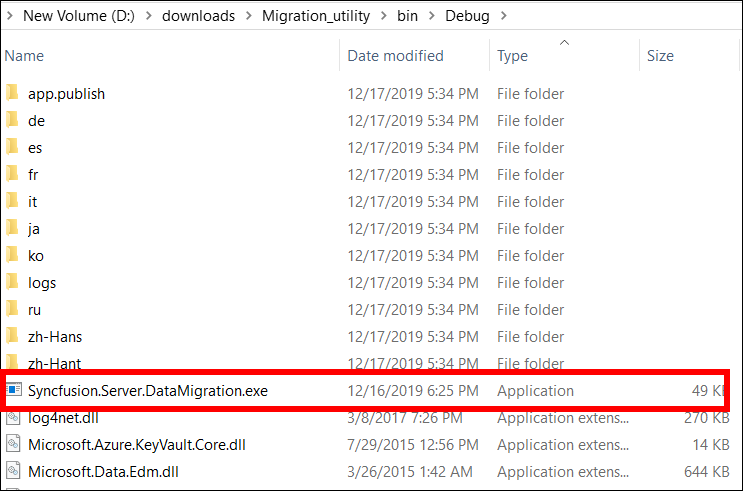
- Run the tool
Syncfusion.Server.DataMigration.exefrom the extracted location.
What does the migration utility migrate?
The Bold Reports® data migration utility migrates most resources, but it skips a few items.
- The migration tool can migrate your resources like Reports, Data Sets, Data Sources, Schedules, Users, Groups and Permissions.
- The utility does not migrate the following items: Users without an email address, Admin Settings, and Profile Pictures.
- If you need any further assistance, contact Syncfusion® Support.
Frequently asked questions
Which admin email should I use when I configure the new Report Server?
Use the admin email ID of Syncfusion® Reports Server / Bold Reports® Server (Single Tenant) when you configure the admin details.
Does the migration utility migrate admin settings?
No. The utility does not migrate Admin Settings, Profile Pictures, or users without an email address.