Install Bold Reports® Enterprise Edition offline using Docker
This section explains how to deploy Bold Reports® Enterprise Edition on Docker using the offline installation process.
Steps to deploy offline Bold Reports® in docker
-
First, you need to save the container image to a file, so you can copy it to the offline server.
-
Let us pull the image to your online machine first by running this command in your command line interface:
docker pull syncfusion/boldreports -
When the download is complete, you can run this command to verify and find the container image name.
docker images -
Now, you need to save the downloaded image into a file using the docker save command.
docker save -o <output path and filename> <docker image name:tag>Example: docker save -o C:\User\Bold Reports<sup>®</sup>.tar Syncfusion<sup>®</sup>/Bold Reports<sup>®</sup>:latestWhen the command is finished, you should see a container file created at the path you specified.
-
Now, you need to load the file using the docker load command.
docker load -i <path and filename>Example: docker load -i C:\User\Bold Reports<sup>®</sup>.tar -
Once the loading is complete, you can now run docker images to verify that it has been loaded.
docker imagesNow, the image has been loaded onto the offline machine.
-
Run the command to launch Bold Reports® on your machine.
docker run --name boldreports -p 80:80 -d syncfusion/boldreportsAfter running the command, you can access the Bold Reports® App by entering
http://localhostin a browser.
Application Startup
Configure the Bold Reports® application start-up to utilize the application. Please refer to the following link for more details on configuring the application start-up:
NOTE: Offline installation requires a valid offline license key.
Offline unlock key available for selected customers only. Please contact us to get access to the offline unlock key, and then follow the licensing documentation to obtain the required license key.
Offline Setup for License Activation
After completing the installation steps mentioned in the installation documentation, you will be redirected to the Licensing page.
License activation
On the Licensing page, choose Upload license file to proceed with offline activation
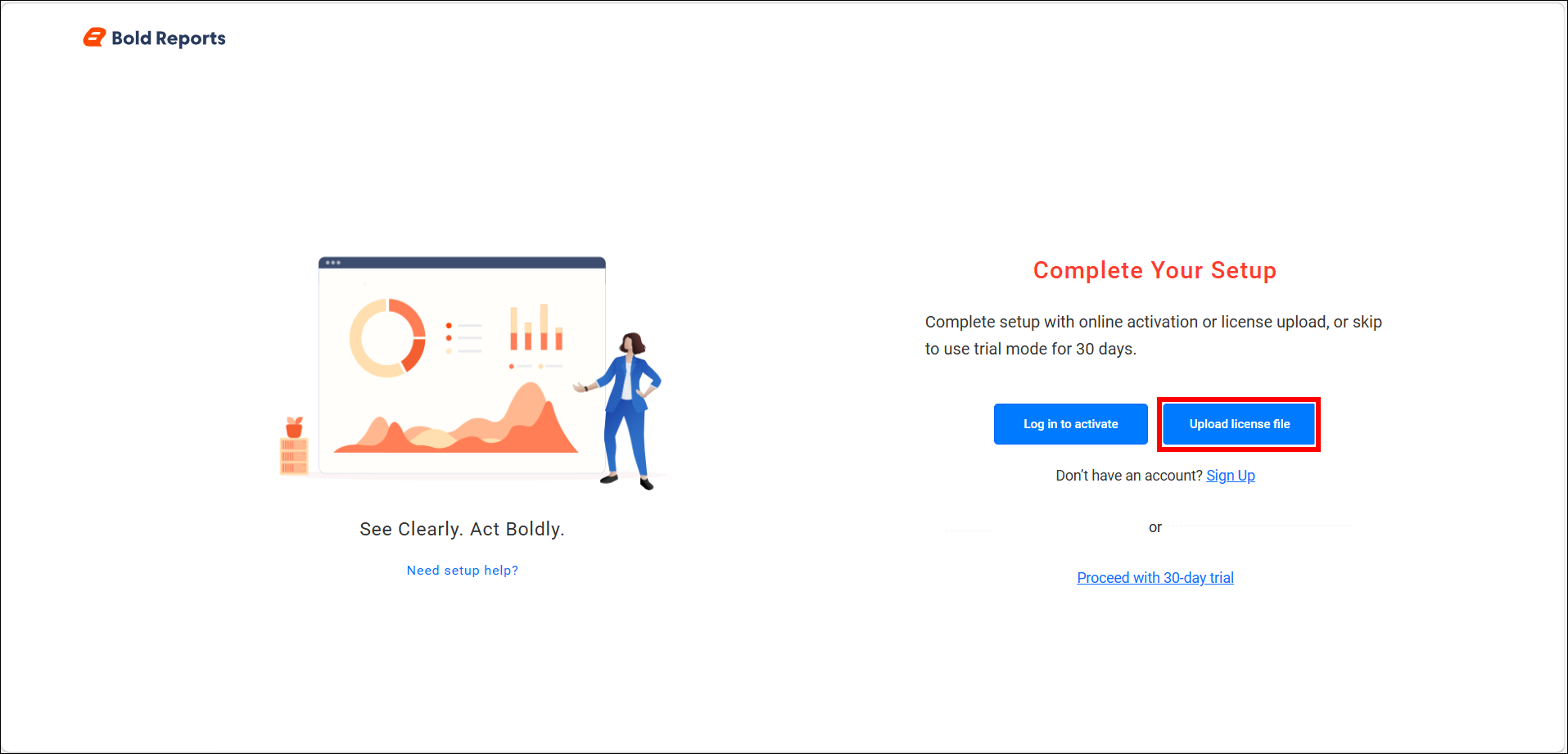
Offline Setup screen
The Offline Setup dialog is displayed.
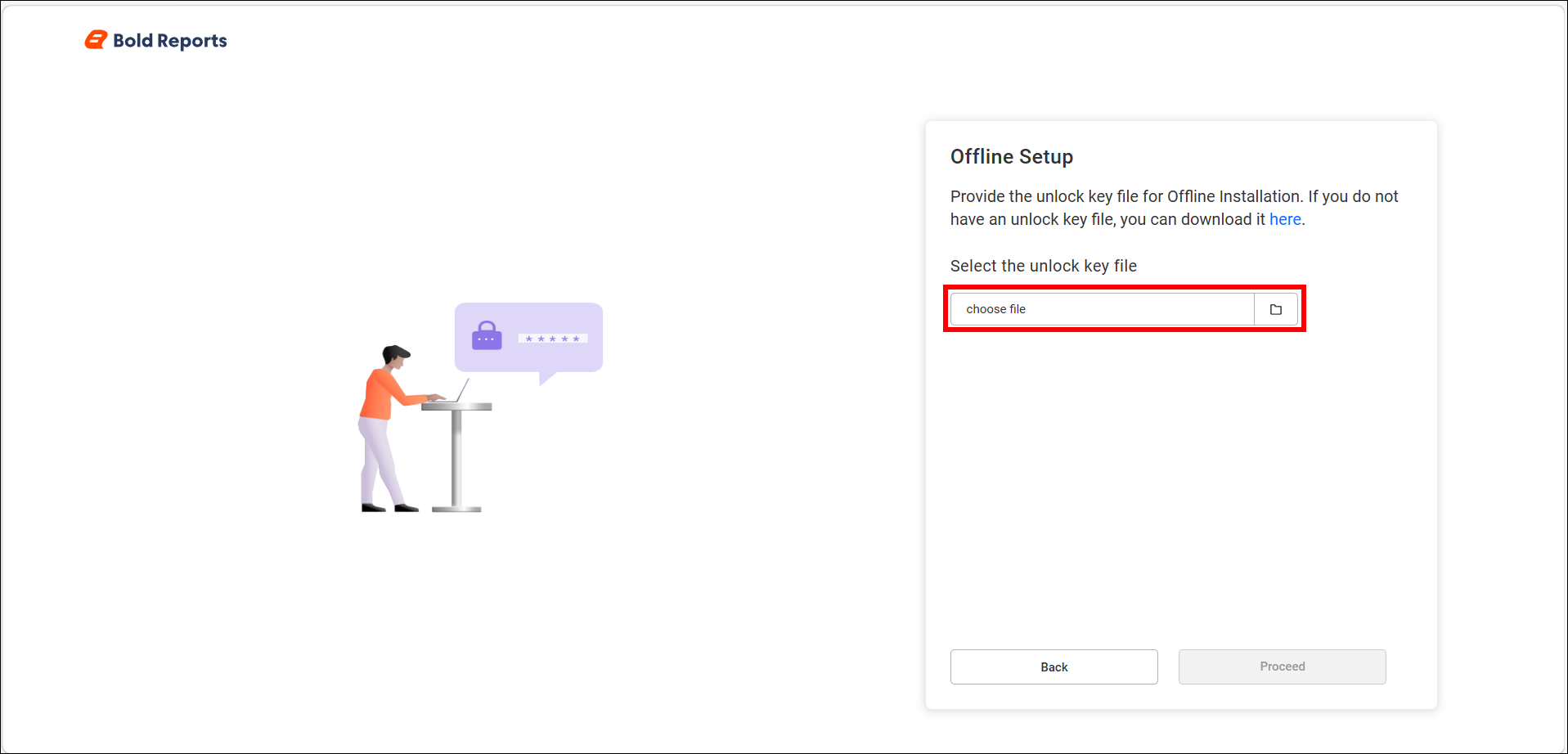
Upload the offline unlock key
-
Click Choose file and select the offline license file from your local machine.
-
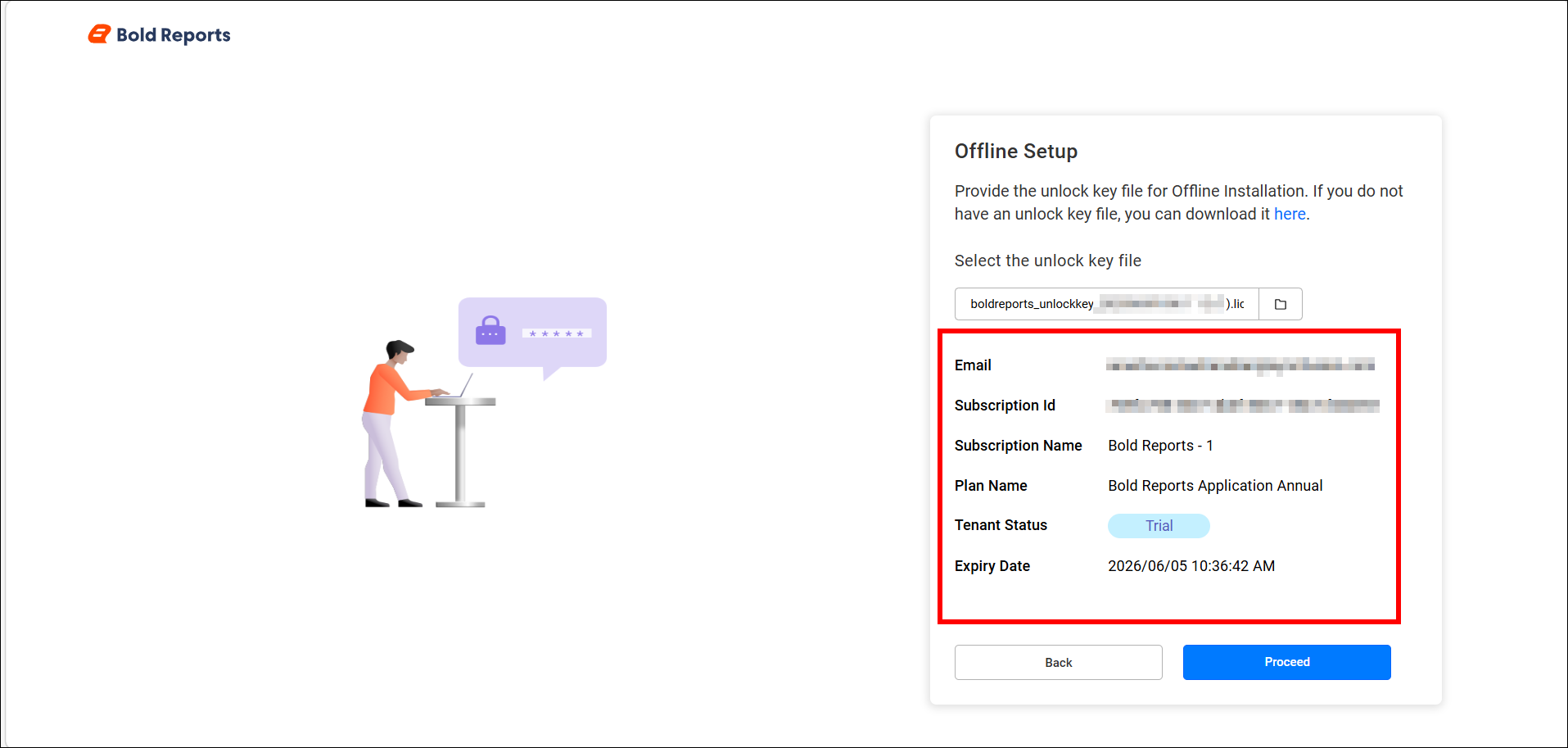
After the file is uploaded, click Proceed to continue.
After clicking Proceed, the activation is completed and you can access Bold Reports® using the configured URL.
How to enable offline mode after application startup?
If Bold Reports® Enterprise Edition is running without an internet connection, you may experience issues such as reports not displaying in the Report Viewer or data source creation errors.
If any of these issues occur after completing offline activation, follow the steps below to resolve them.
Step 1: Open the configuration settings
Go to the UMS Configuration Settings page and choose reporting/config.xml from the Search Your Files drop‑down.
Example: {your_domain}/ums/administration/config-editor
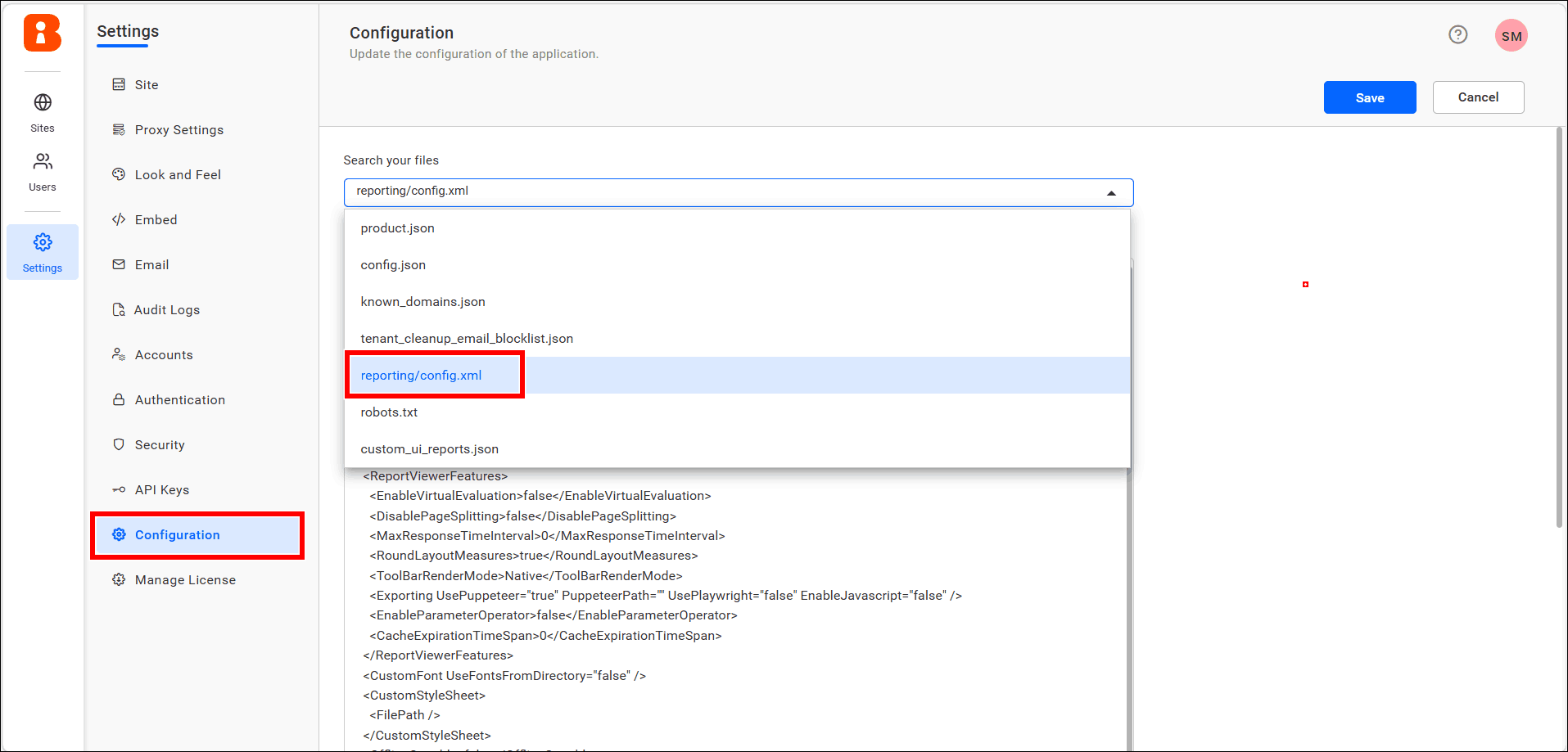
Step 2: Enable the OfflineCapable node
Set the OfflineCapable node value to true and save the configuration.
<OfflineCapable>true</OfflineCapable>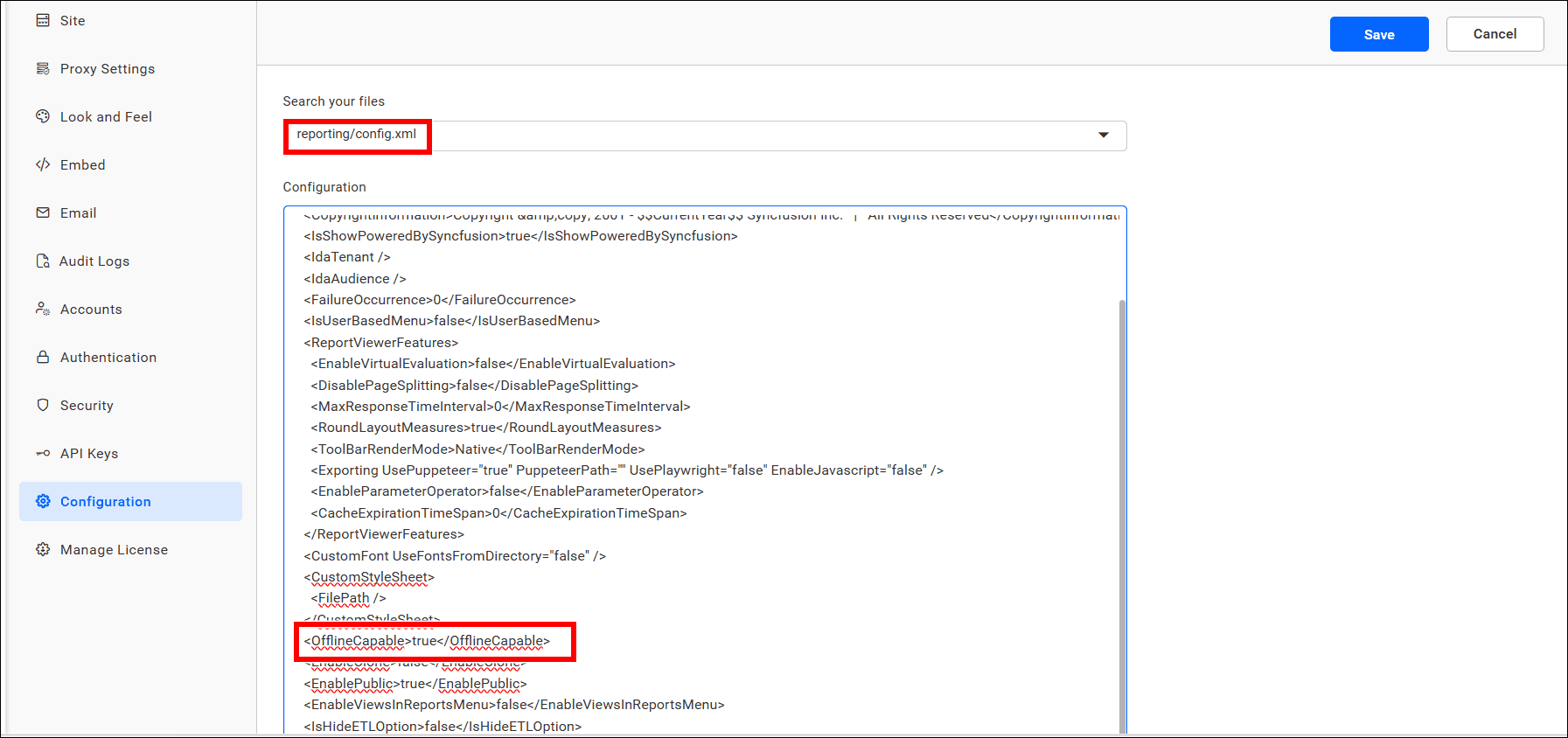
If the OfflineCapable node is not available, add the above code manually and save the configuration.
Restart the Bold Reports® application to ensure the configuration changes are applied.
NOTE: To restart the Bold Reports® Enterprise application, refer to the FAQ on how to restart the Bold Reports® application
Upgrade Bold Reports® Enterprise Edition
Bold Reports® Enterprise Edition can be upgraded manually to the latest version at any time.
Refer to the Upgrade Bold Reports® to the latest version guide to upgrade the Bold Reports® server.