Self-deploy a Bold Reports® Server on Google Cloud Platform
The following steps guide you through deploying Bold Reports® on a GCP VM instance. Follow the steps according to your instance type.
Deploying Bold Reports® on a GCP Windows Instance
Set up a GCP Windows Instance
-
Go to Google Cloud Console. and log in to your GCP account.
-
Navigate to
Compute Engineand click onVM Instances.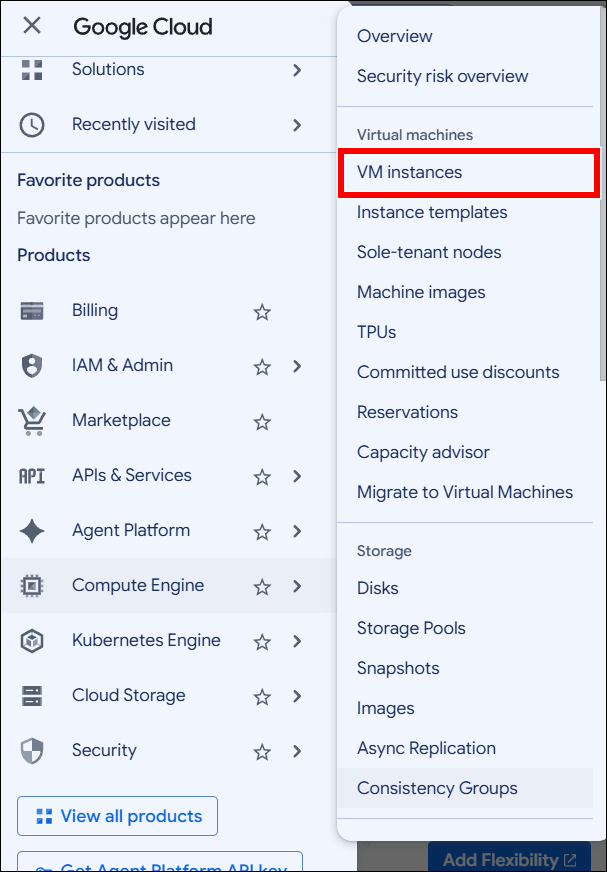
-
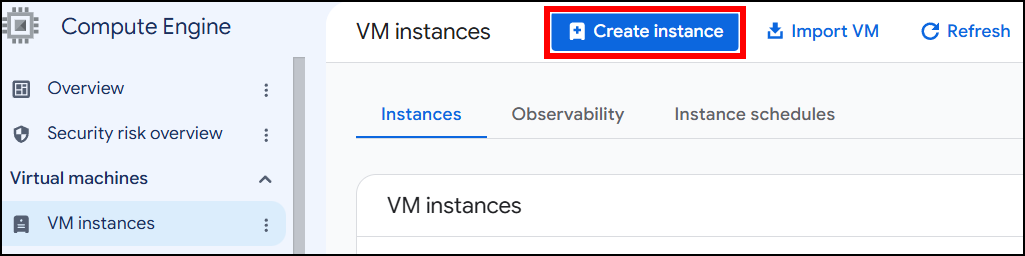
On the VM Instances page, click on the
Create Instancebutton to start creating a new VM instance.
-
Enter a
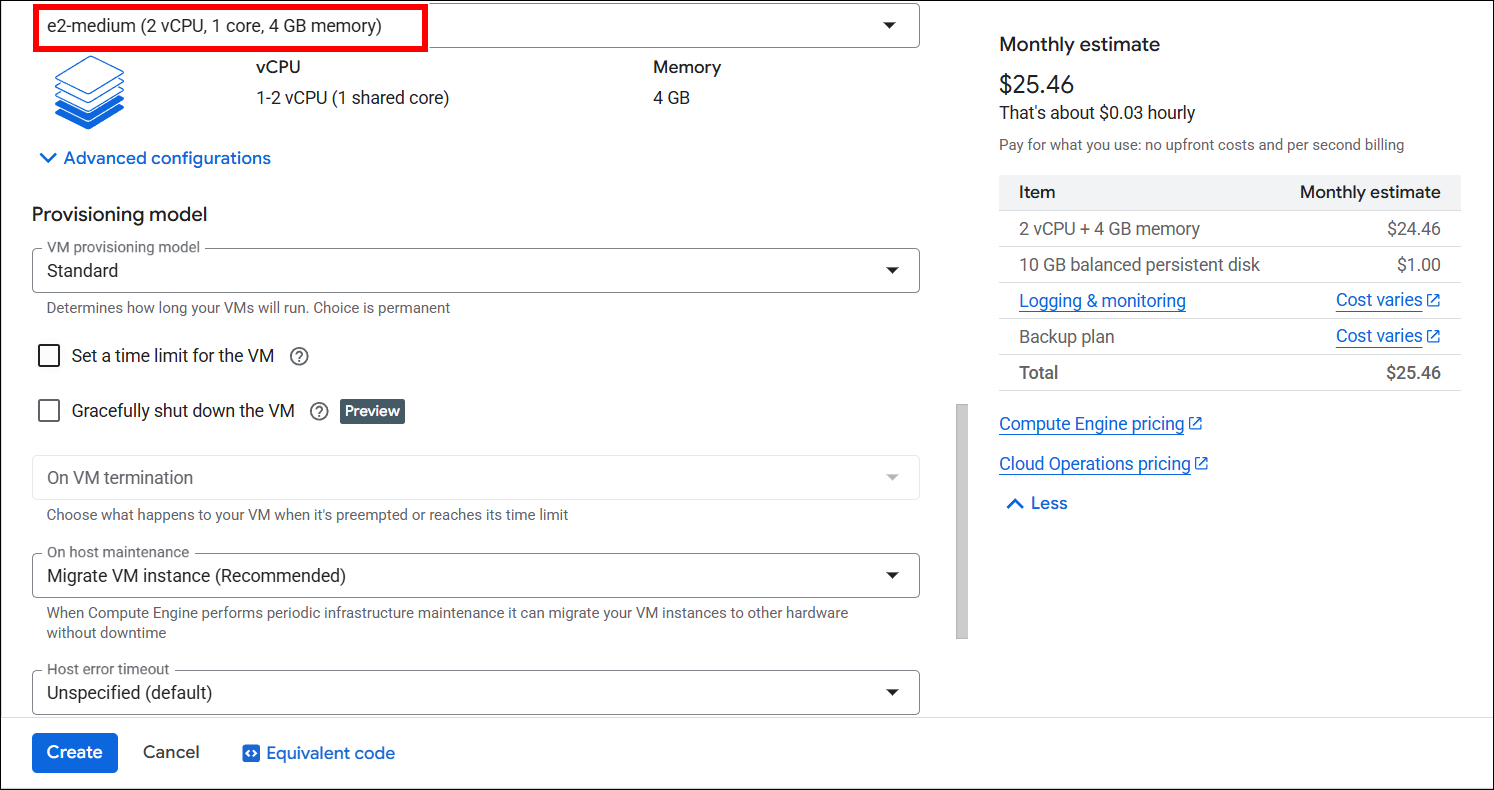
namefor your VM instance. Select theregionandzonewhere you want to create the VM instance. Select themachine typefor your VM instance.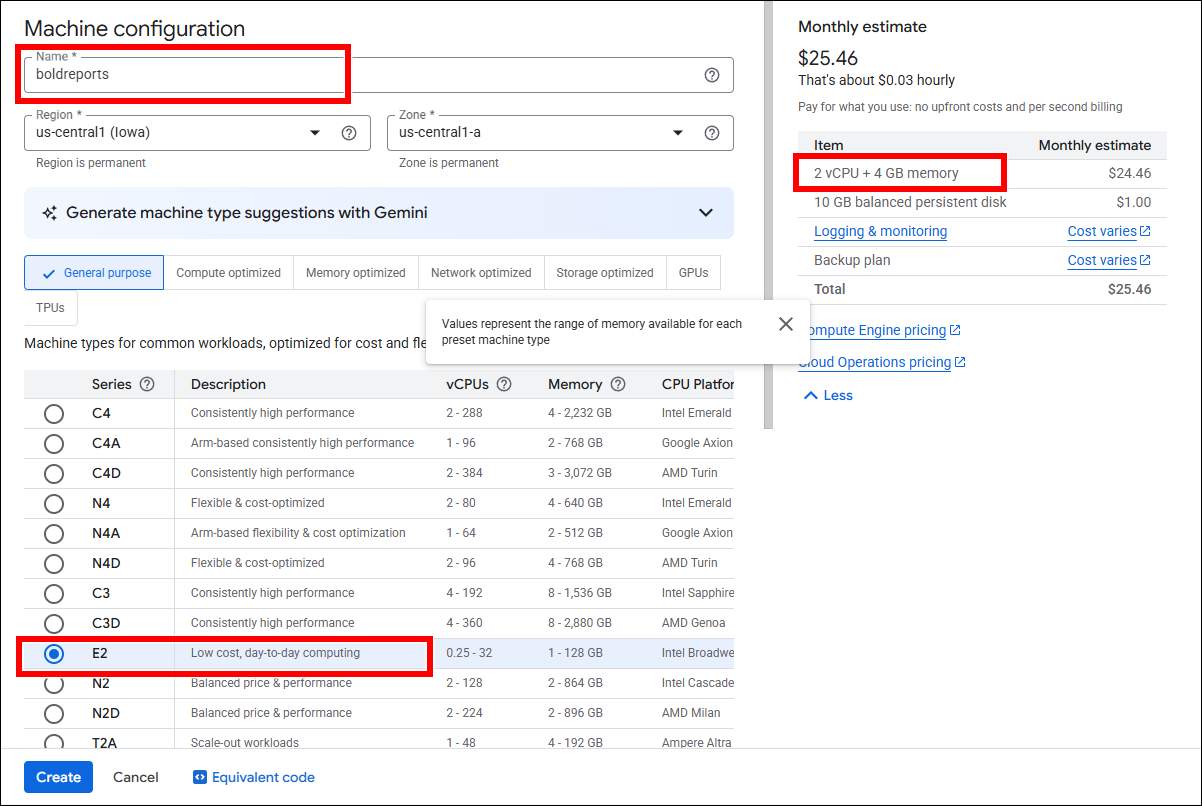
-
Click on
Changein the Boot disk section to begin configuring your boot disk. SelectWindows Serverfrom the Operating system list on the Public images tab. ChooseWindows Server 2019or later from the Version list. Refer to the recommended system configuration for Bold Reports® Server and clickSelect.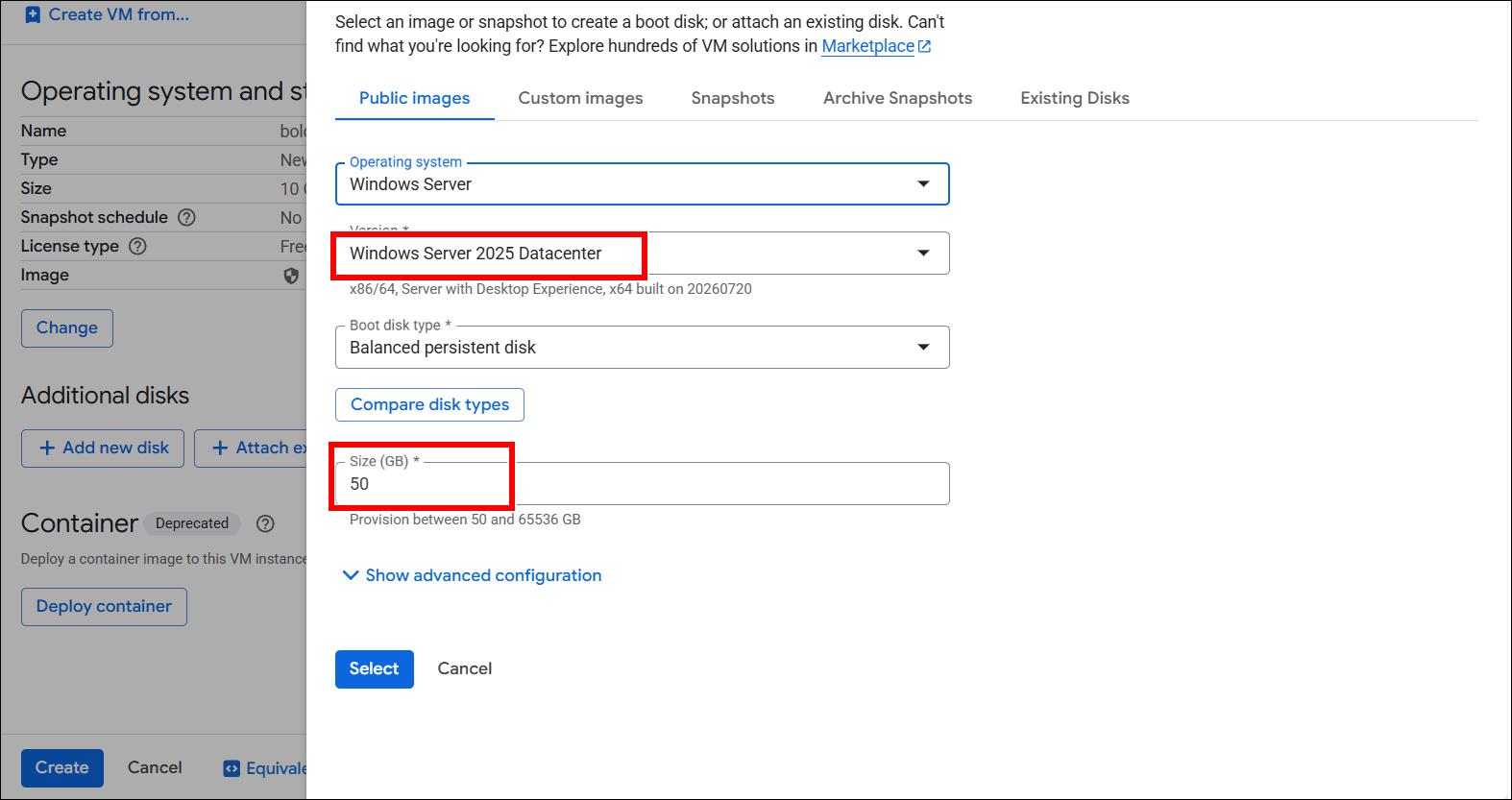
-
Within the Firewall section, allow specific network traffic. Then click on
Createto create the VM.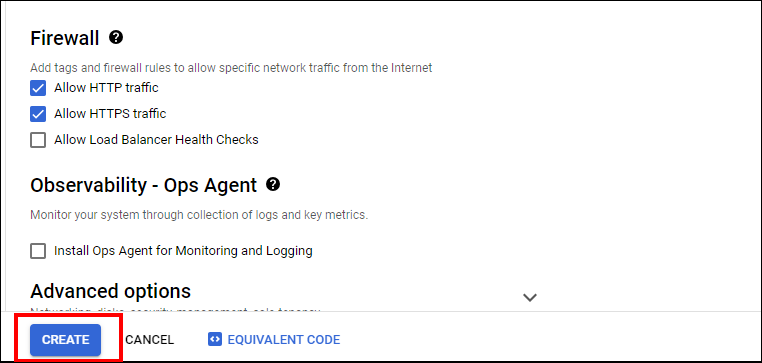
-
Wait a short while for the VM instance to start. Once it’s ready, its status will change to
running.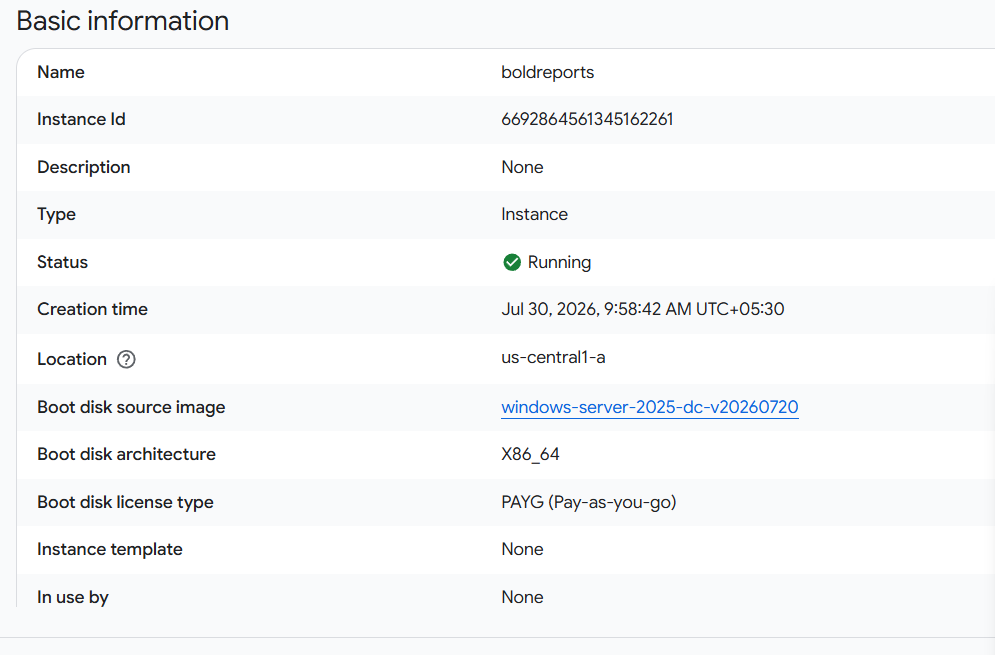
Connect to Windows Instance using RDP
-
Find your Windows VM instance and make note of its external IP address.
-
On your local machine (Windows), search for
Remote Desktop Connectionin the Start menu and open the application. -
In the
Remote Desktop Connectionwindow, enter the external IP address of your Windows VM. ClickConnectto establish the RDP connection.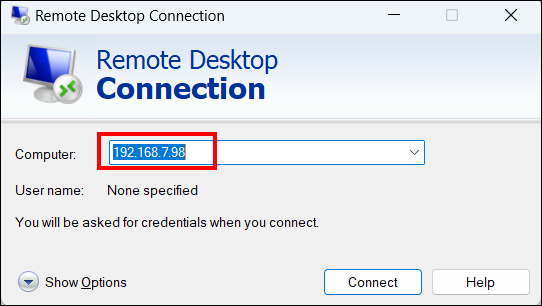
-
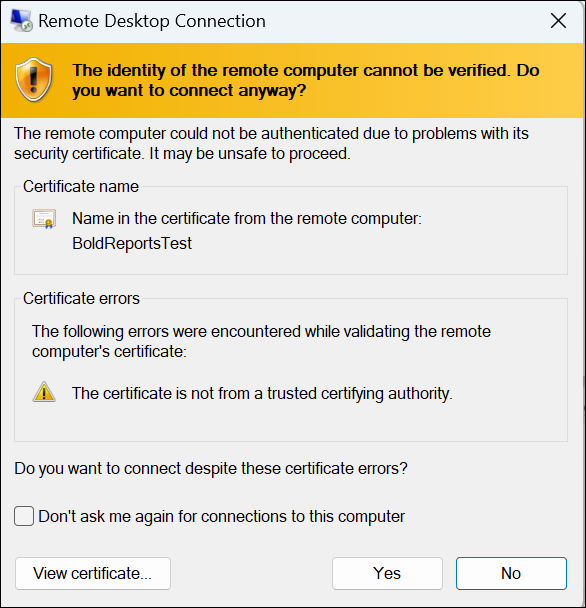
You may be prompted for credentials. Enter the username and password for the Windows user account on the VM, then click
Yesin the prompted window.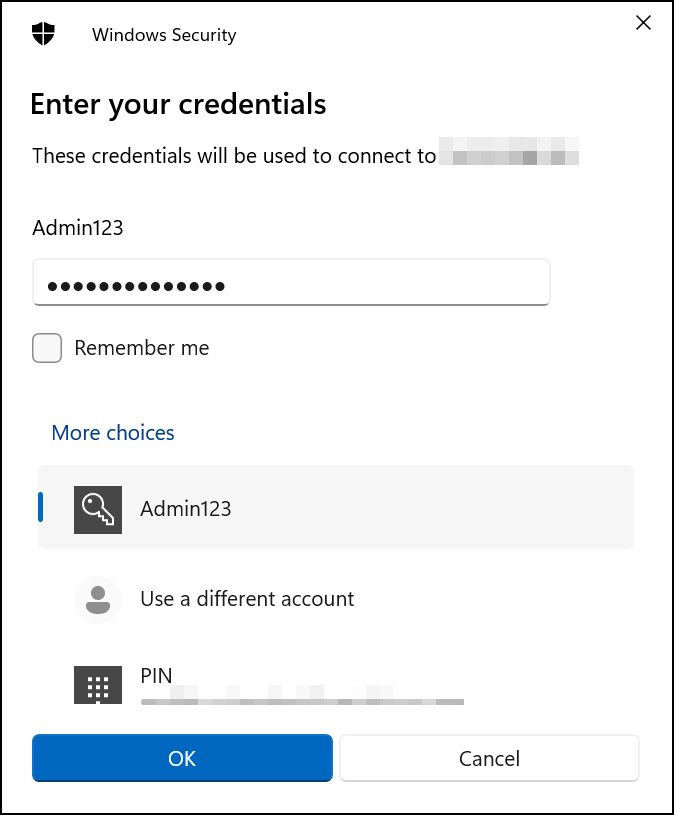
-
Once connected, you will see the Windows desktop of your VM, allowing you to interact with it as if you were using a local Windows machine.
-
Other methods are available for connecting to your Windows instance. Refer to the Google Cloud documentation:
https://cloud.google.com/compute/docs/instances/connecting-to-windows
Installing and Running the Bold Reports® Server on Windows
This section provides instructions on how to install and run the Bold Reports® Server on a virtual machine (VM).
-
Install Bold Reports® Enterprise Reporting Server on the created Windows virtual machine (VM) using the Windows installation documentation.
-
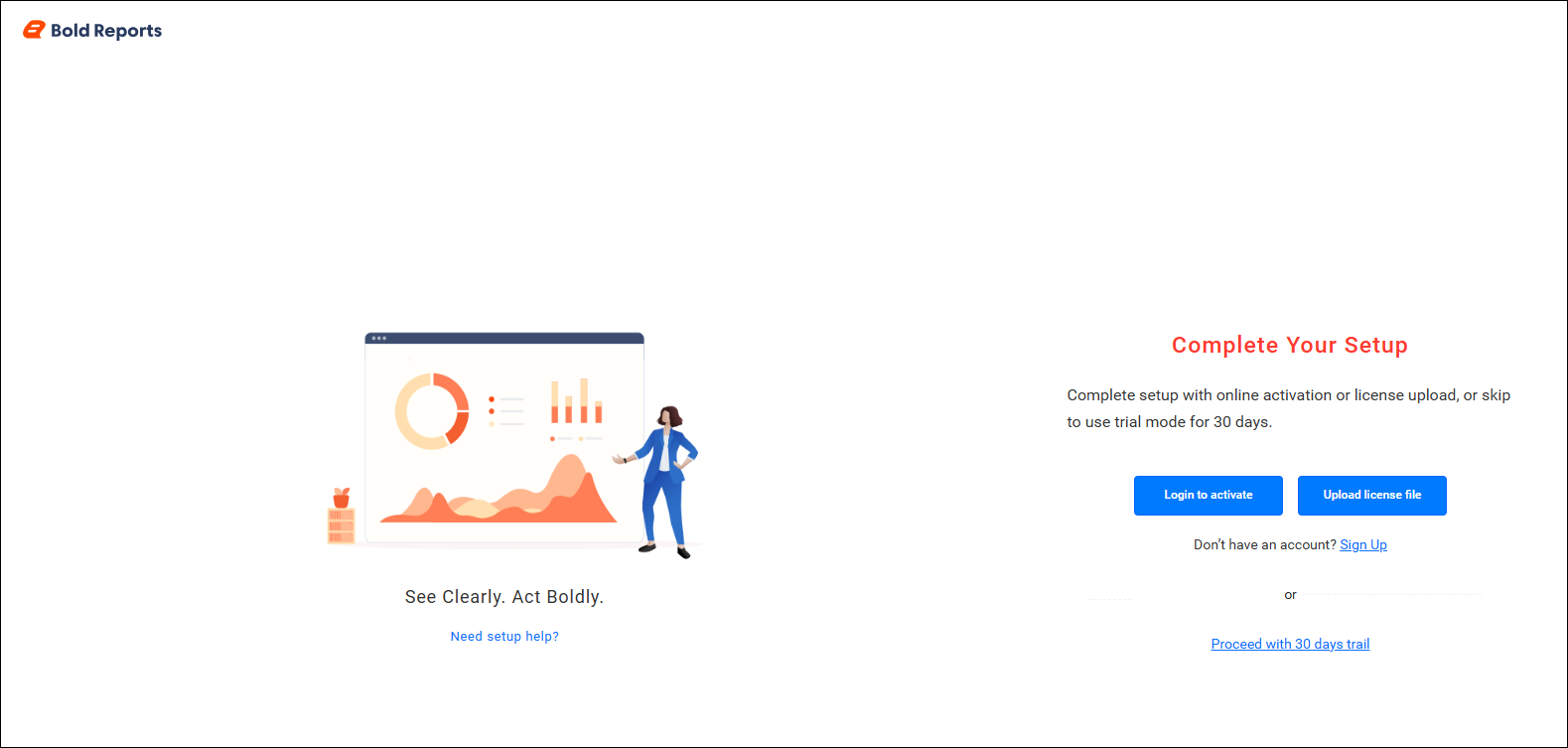
Launch the Bold Reports® application from the desktop shortcut or IIS hosted URL after the installation.
-
Complete the application startup and configuration process.
Deploying Bold Reports® on a GCP Linux Instance
Set up a GCP Linux Instance
-
Go to Google Cloud Console and log in to your GCP account.
-
Navigate to
Compute Engineand click onVM Instances. -
On the VM Instances page, click on the
Create Instancebutton to start creating a new VM instance. -
Enter a
namefor your VM instance, select theregionandzonewhere you want to create the VM instance, and choose themachine typefor your VM instance. -
Click on
Changein the Boot disk section to begin configuring your boot disk. Under the Public images tab, chooseUbuntufrom the Operating system list. SelectUbuntu 20.04 LTSor later from the Version list. Refer to the recommended system configuration for Bold Reports® Server and clickSelect.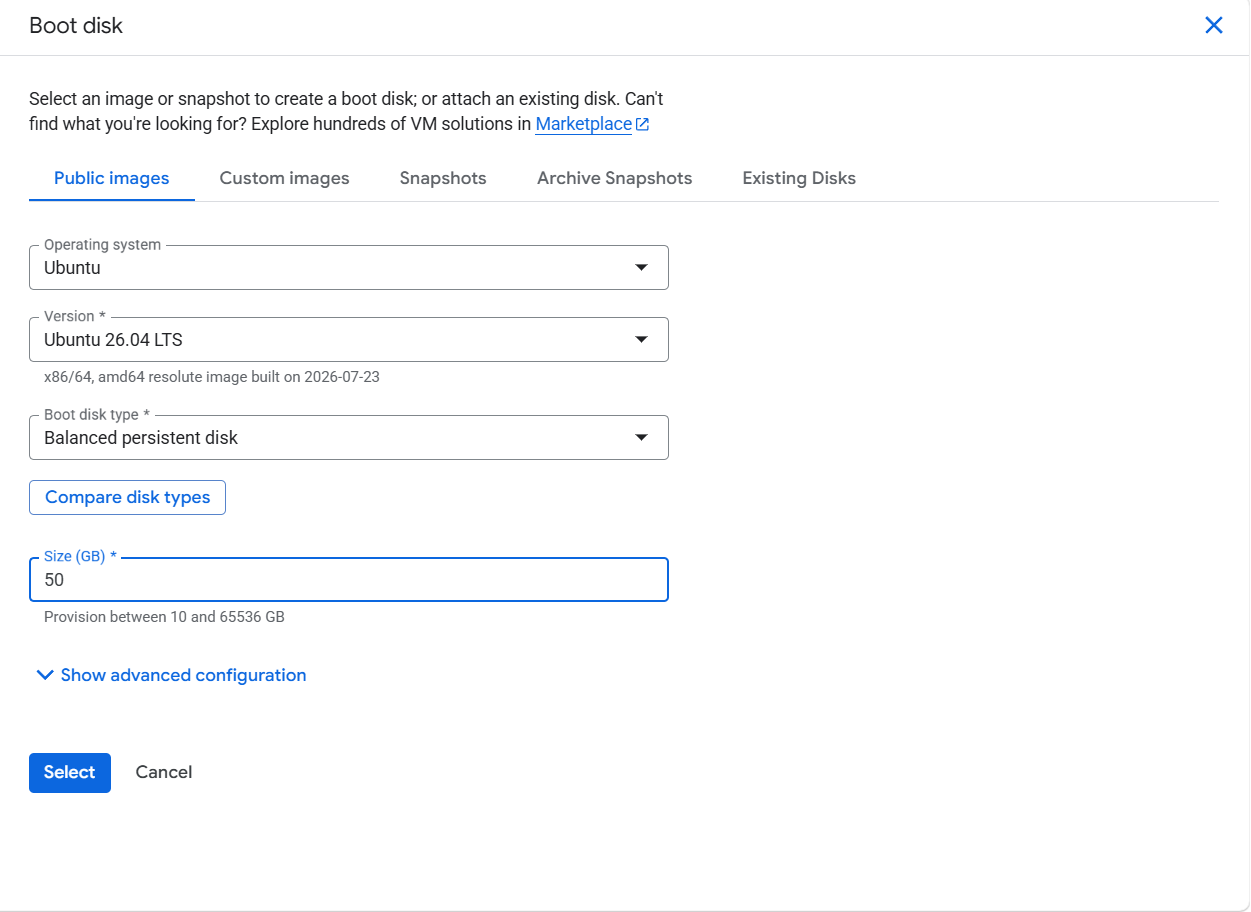
-
Within the Firewall section, allow specific network traffic. Then click on
Createto create the VM. -
Wait a short while for the VM instance to start. Once it’s ready, its status will change to
running.
Connect to Linux Instance using SSH
-
Navigate to the
VM Instancespage. -
Locate the VM instance you want to connect to and click the
SSHbutton next to it. ClickOpen in browser window. This will open a new browser window with an SSH connection to your VM.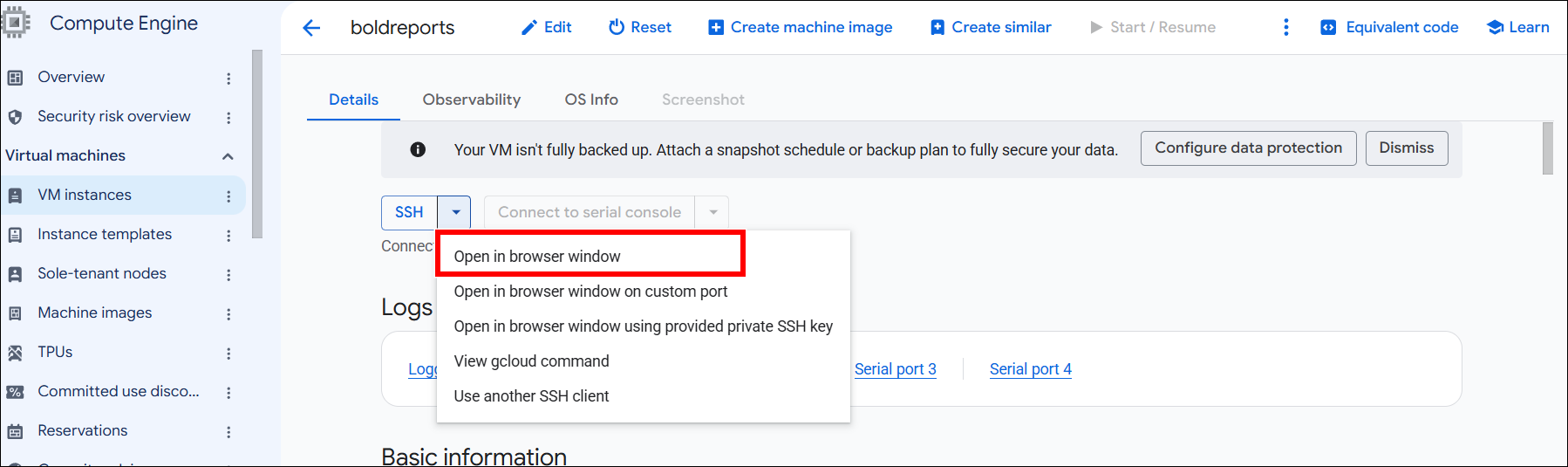
-
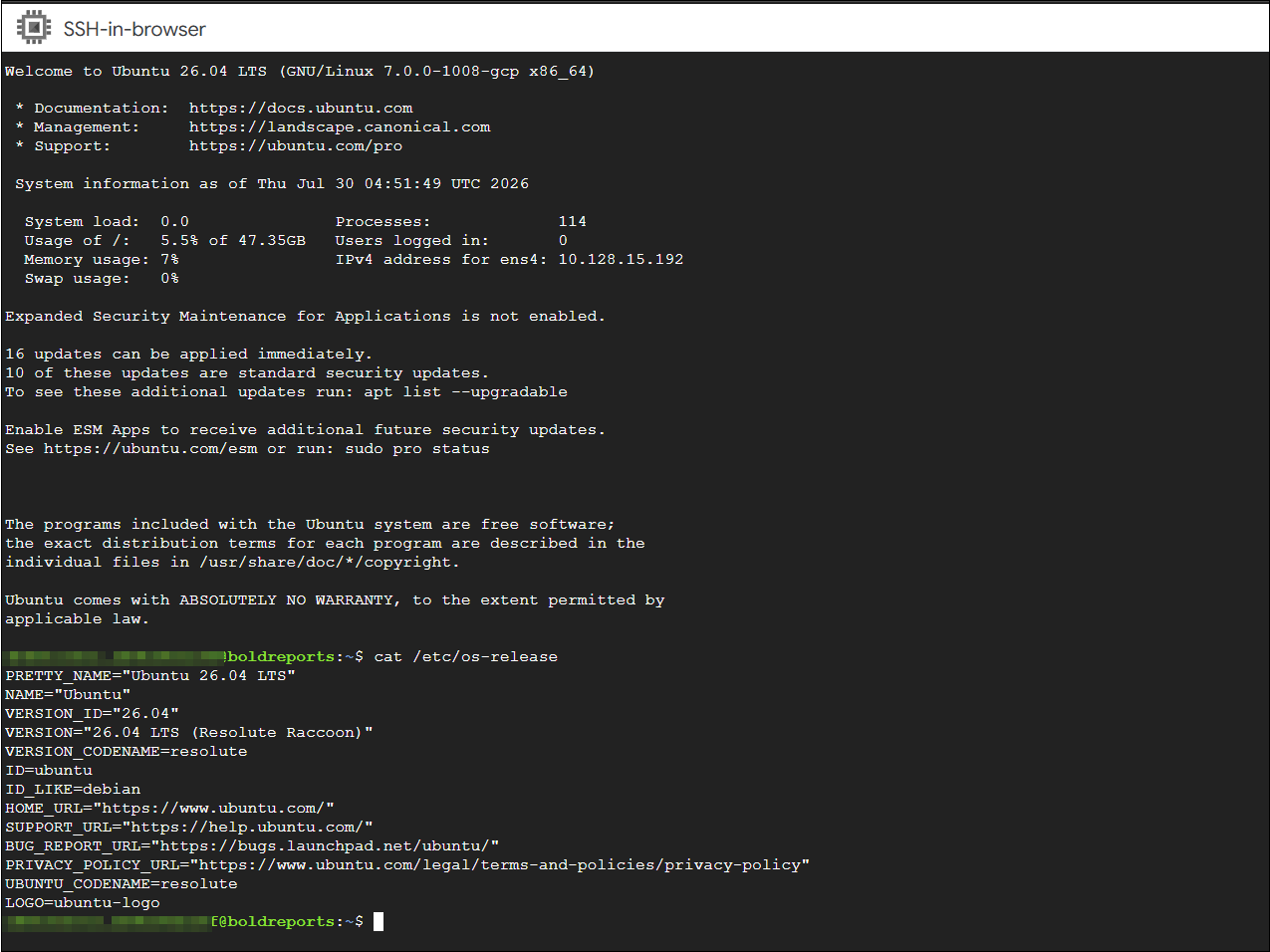
When connecting to the VM instance for the first time, SSH may prompt you to confirm the connection.
-
Once connected, you will have a terminal window open that allows you to interact with your Linux VM.
-
Other methods are available for connecting to your Linux instance. Refer to the Google Cloud documentation:
Installing and Running the Bold Reports® Server on Linux
This section provides instructions on how to install and run the Bold Reports® Server on a Linux virtual machine (VM).
-
Install Bold Reports® Enterprise Reporting Server on the created Linux virtual machine (VM) using the Linux installation documentation.
-
After the installation, access the server using the VM IP address or configured domain name through a web browser.
-
Complete the application startup and configuration process to begin creating and managing reports.