Migrate Bold Reports® On-Premise
This section explains how to migrate your resources from v4.1 (Syncfusion<sup>®</sup> Reports Server) or v1.2 (Bold Reports<sup>®</sup> Single Tenant) to v2.1 (Bold Reports<sup>®</sup> Multi Tenant).
Prerequisites
- Take backup of the database and resources files from the below folder location.
| Product | Location | Back Up Example |
|---|---|---|
| Syncfusion® Report Server |
|
|
| Bold Report Server (Single Tenant) |
|
|
For an Azure App Service, you have to take a backup of
App_Datafolder by using the FTP application and place the backup folder in the machine which you installed thebold reports v2.1.
-
After taken the backup, uninstall the current Syncfusion® / Bold Report Server.
-
Install the latest Bold Reports® Server as fresh installation by following this link
-
Configure the application using SQL Database by following this link and while configuring the admin details you must use the admin email-id of Syncfusion® Reports Server / Bold Reports® Server (Single Tenant).
-
Once configuration is done, you can migrate your old data to this application.
Steps to run the data migration utility
-
Download the migration tool from this link.
-
Extract the file and edit the
Syncfusion.Server.DataMigration.exe.configfile. -
You need to update the values of below listed keys in the config file.
<add key="ReportsBackUpConfigPath" value=""/><add key="IDPDecryptionKey" value=""/><add key="BoldReportsIDPPath" value="C:\Bold Reports\IDP"/>
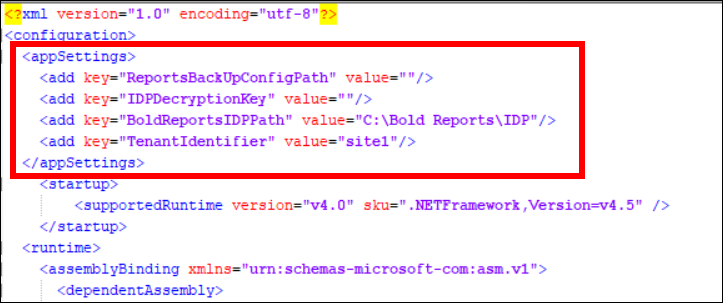
-
Copy the
Configurationpath in your Report Server back up folder and paste it to the value ofReportsBackUpConfigPathkey. For example,<add key="ReportsBackUpConfigPath" value="C:\backup_boldreports\Report Server\App_Data\Configuration"/>. -
Go to the installation location
C:\Bold Reports\IDP\and copy thedecryptionkeyvalue fromweb.configfile. Then paste it to the value ofIDPDecryptionKeykey inSyncfusion.Server.DataMigration.exe.config.

- By default the Bold Reports® installation will be deployed under
C:\Bold Reports\IDPand the same will be updated inSyncfusion.Server.DataMigration.exe.configfile. If the Bold Reports® deployed in some other location means then you must update the IDP path location in the value ofBoldReportsIDPPathkey. For example,<add key="BoldReportsIDPPath" value="C:\Bold Reports\IDP"/>
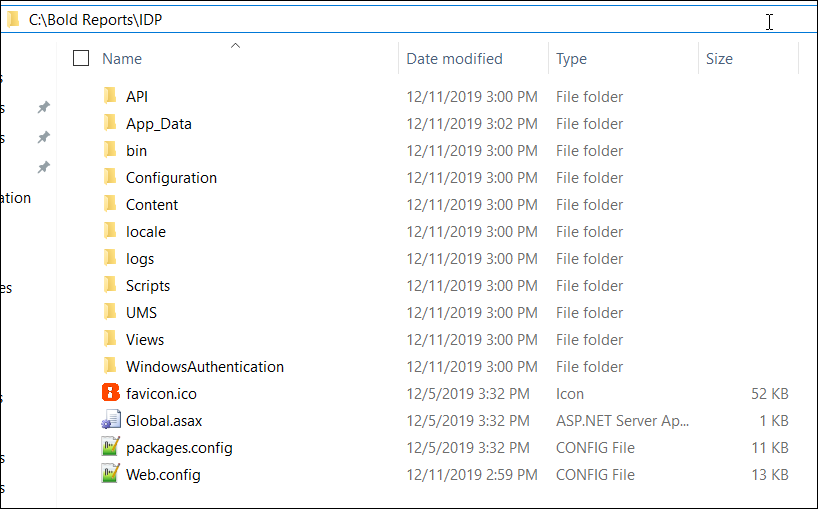
- Run the tool
Syncfusion.Server.DataMigration.exefrom the extracted location.
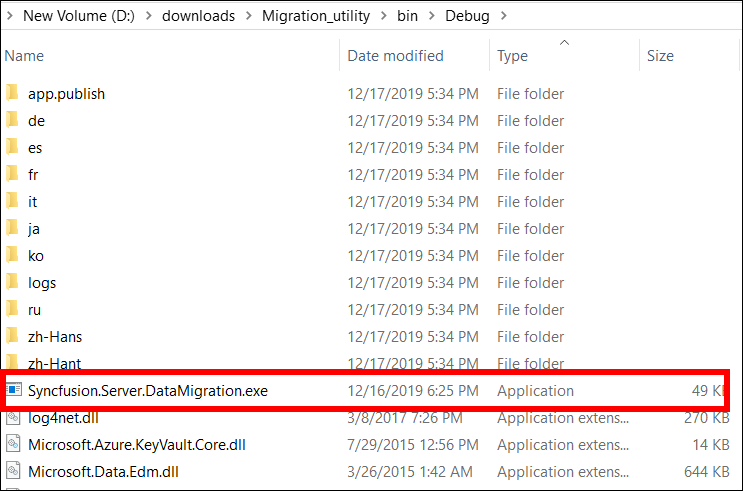
- The migration tool can migrate your resources like Reports, Data Sets, Data Sources, Schedules, Users, Groups and Permissions.
- Also, the utility will not migrate the following items like User’s without email address, Admin Settings and Profile Pictures.
- If you need any further assistance please contact Syncfusion® Support.